SSOGEN / Active Directory and LDAP sign-in for SSOGEN
SSOGEN
Active Directory and LDAP sign-in for SSOGEN
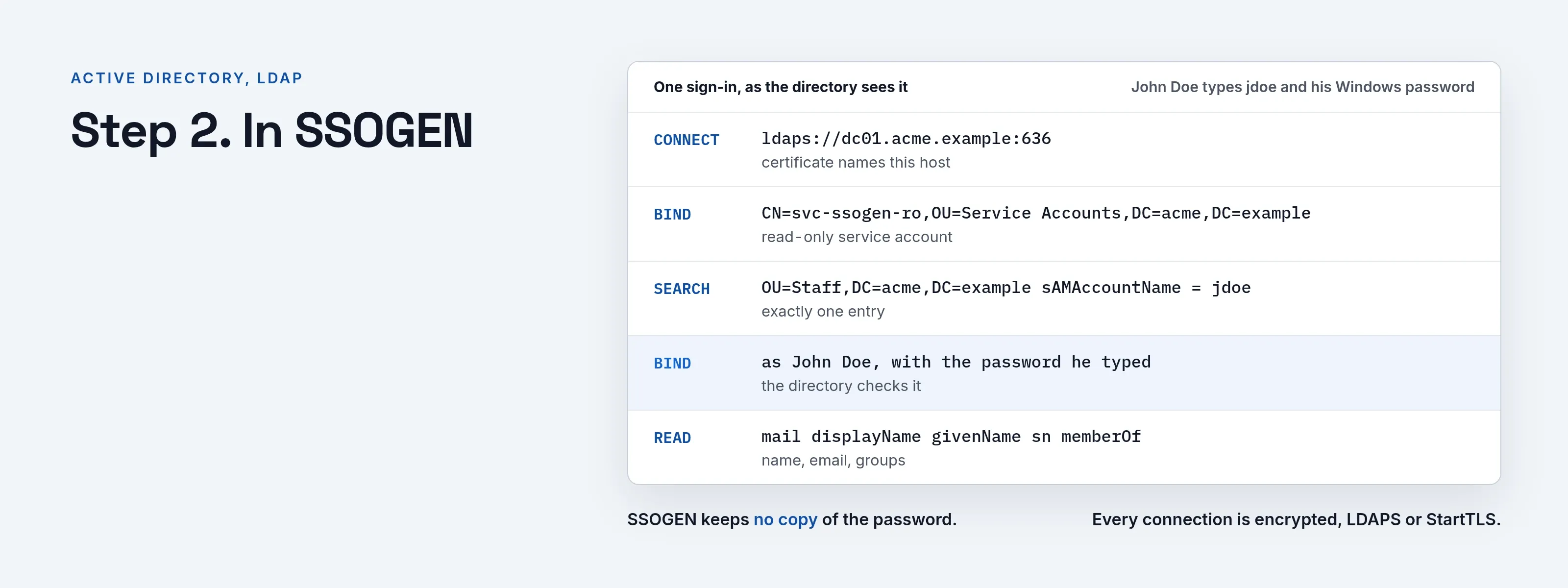
SSOGEN finds each person with a read-only service account, then signs in to your directory with the password typed, over LDAPS or StartTLS.
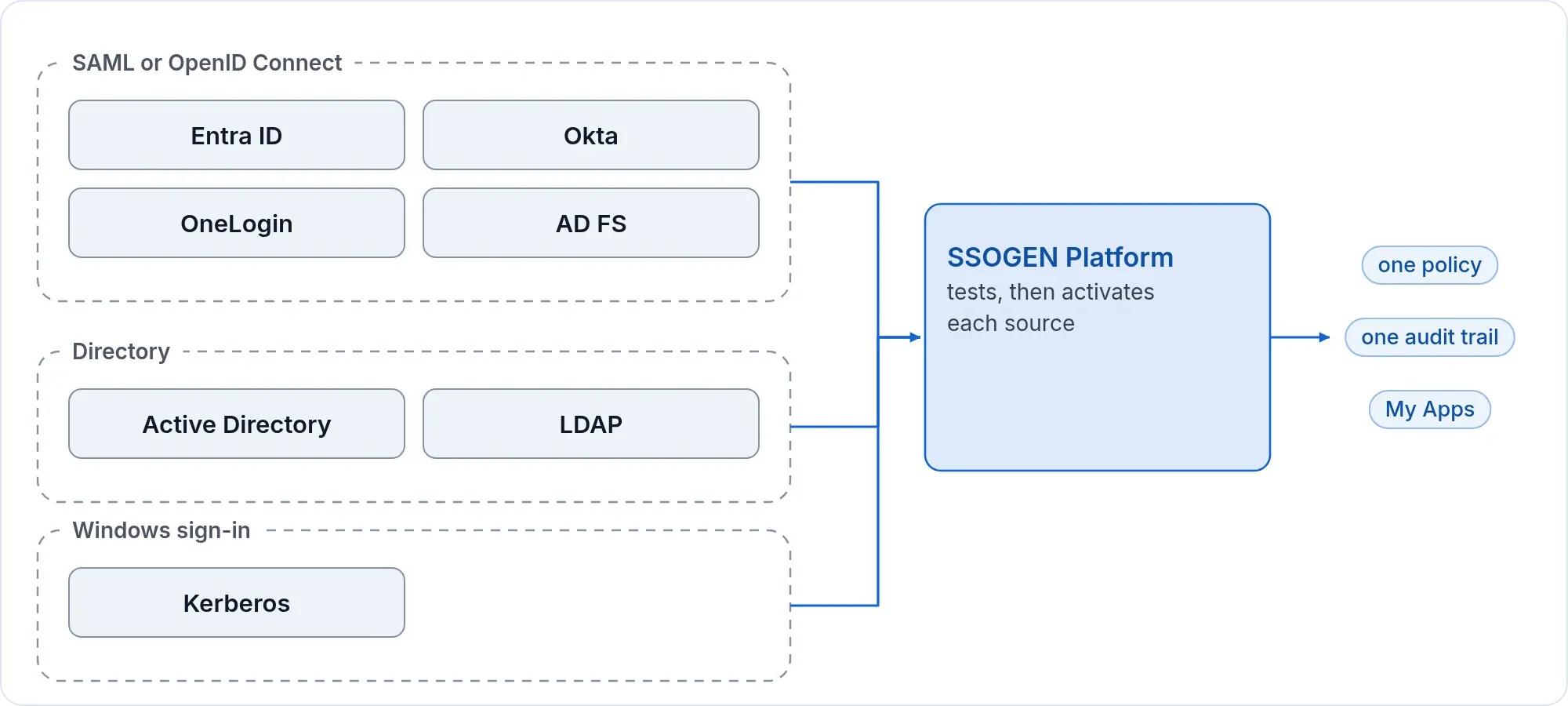
If your users already sign in through Microsoft Entra ID or AD FS in front of the directory, connect that instead (Microsoft Entra ID, AD FS): the password then never passes through SSOGEN. For sign-in without a password on domain-joined Windows computers, add Windows sign-in (Kerberos) on top of the directory.
What you need
- A directory server that offers LDAPS (usually port 636) or StartTLS (usually 389), with a certificate that names the host you will type, for example
dc01.acme.example. - A service account with read access to the user entries (and to group entries, if you use a group base DN). It needs no write access.
- The user base DN: the container that holds the people who should sign in, for example
OU=Staff,DC=acme,DC=example. - If the directory’s certificate was issued by your own certificate authority, that authority’s certificate in PEM form.
- SSOGEN’s server must reach the directory on its port. Allow SSOGEN’s outbound addresses on the directory’s firewall; the directory wizard lists them when your SSOGEN shows them.
- An SSOGEN Super admin or Authentication admin. Importing users needs a Super admin.
Step 1. In Active Directory
- Create a dedicated service account, for example
svc-ssogen-roinOU=Service Accounts,DC=acme,DC=example, with a long password and no group memberships beyond Domain Users. An ordinary domain account can read the attributes SSOGEN needs. - Make sure the domain controllers offer LDAPS with a certificate whose name matches the host you will use. Do not use an IP address or a short name.
- If the certificate comes from your internal certificate authority, export the authority’s certificate (Base-64 encoded X.509) and keep it for Step 2.
For another LDAP server, create the equivalent read-only account in its own tool.
Step 2. In SSOGEN
- If your own certificate authority issued the directory’s certificate, open Settings > Certificates, section Trusted certificate authorities, paste the authority’s certificate under Certificate (PEM) and select Trust this authority. Add the authority, not the directory’s own certificate: a server certificate would stop working the day it is renewed.
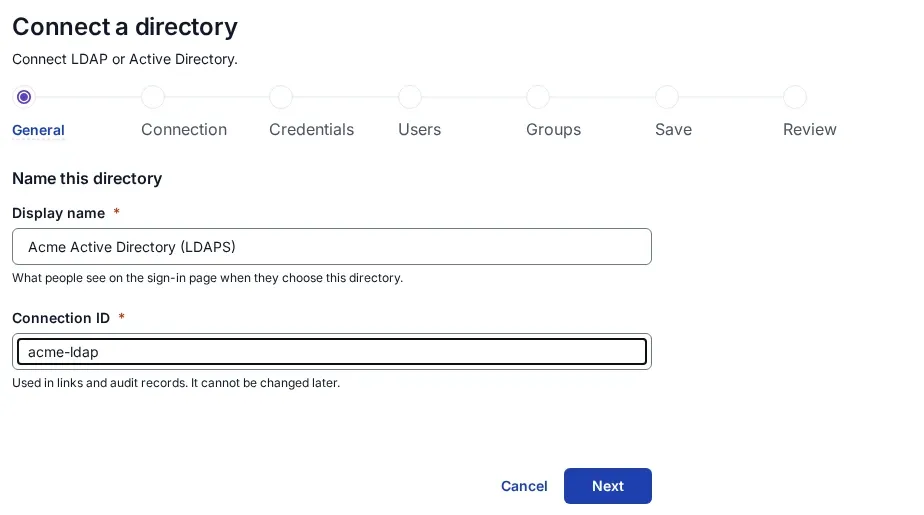
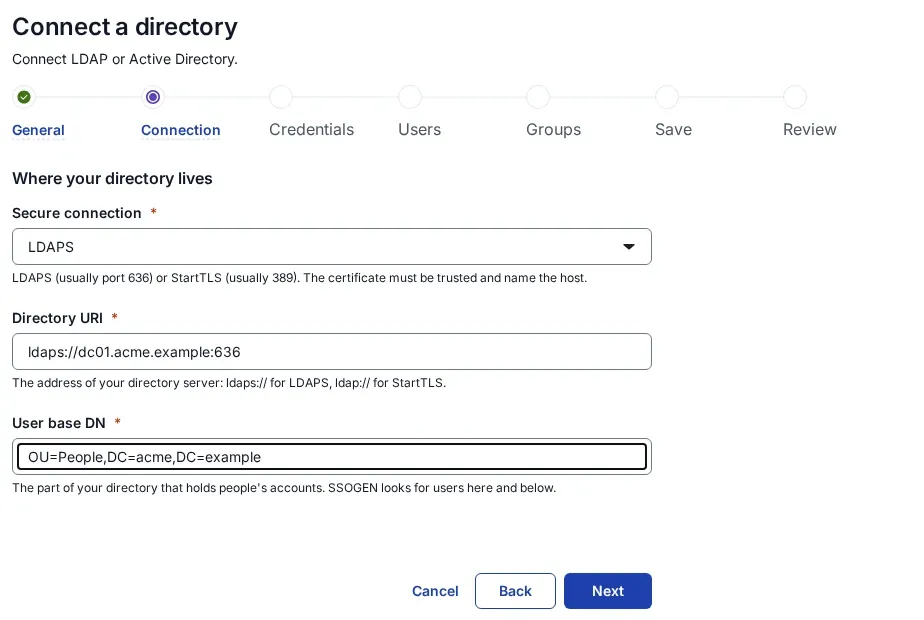
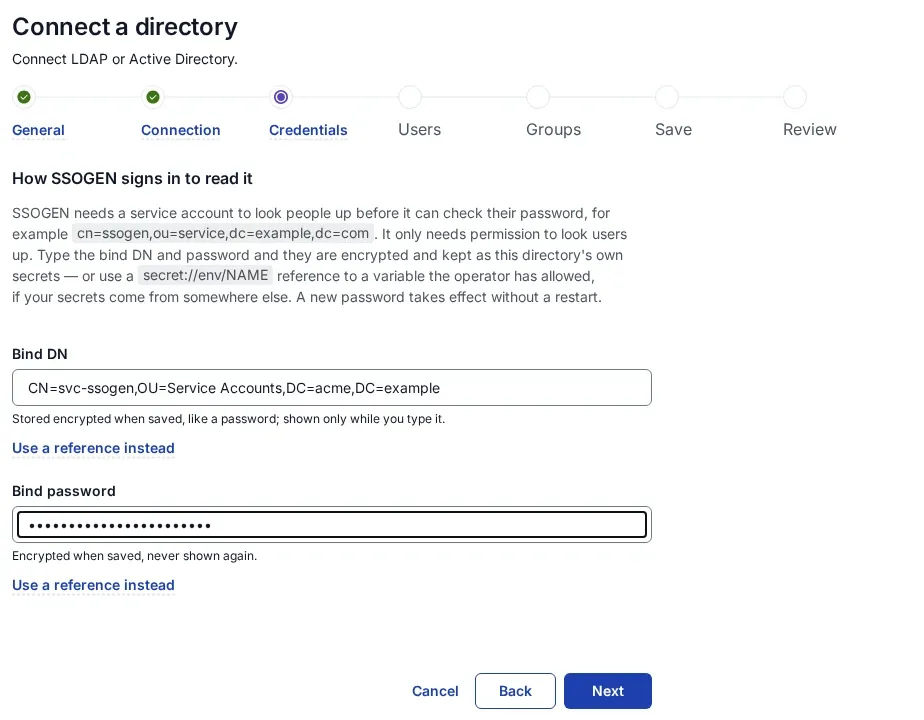
- Open Identity > Directories and select Add directory. The wizard Connect a directory has seven steps.
- General: a Display name people see on the sign-in page, for example
Acme directory, and a Connection ID, for exampleacme-ad. - Connection: Secure connection LDAPS or StartTLS; Directory URI, for example
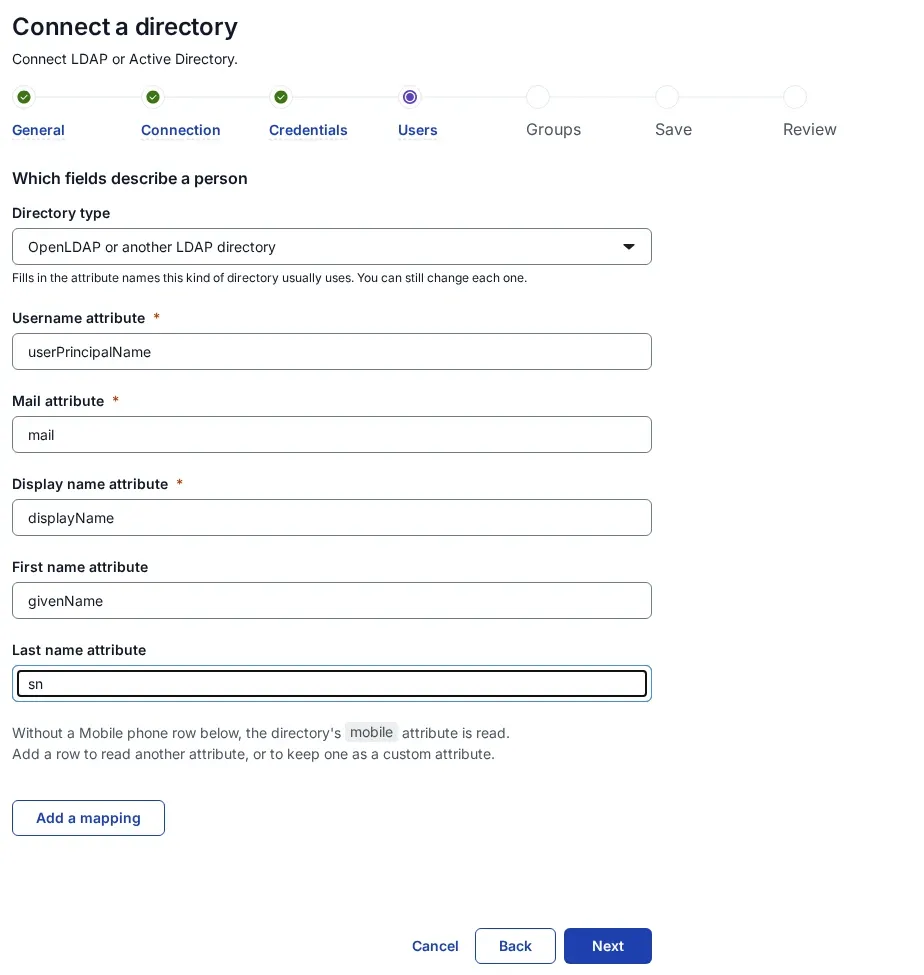
ldaps://dc01.acme.example:636; User base DN. - Credentials: the service account’s full DN as Bind DN, for example
CN=svc-ssogen-ro,OU=Service Accounts,DC=acme,DC=example, and its Bind password. Both are stored encrypted. - User mapping: set Directory type to Microsoft Active Directory. This fills in
sAMAccountNameas the Username attribute,mail,displayName,givenNameandsn. If people sign in withjohn.doe@acme.example, typeuserPrincipalNameas the Username attribute instead. For OpenLDAP and similar directories, the defaults areuid,mailandcn. - Group mapping:
memberOfandcnby default. If your directory has nomemberOf, give a Group base DN; SSOGEN then also finds groups whosememberholds the person. SSOGEN reads at most 64 groups per person. - Save: Create directory. Nothing is contacted yet.
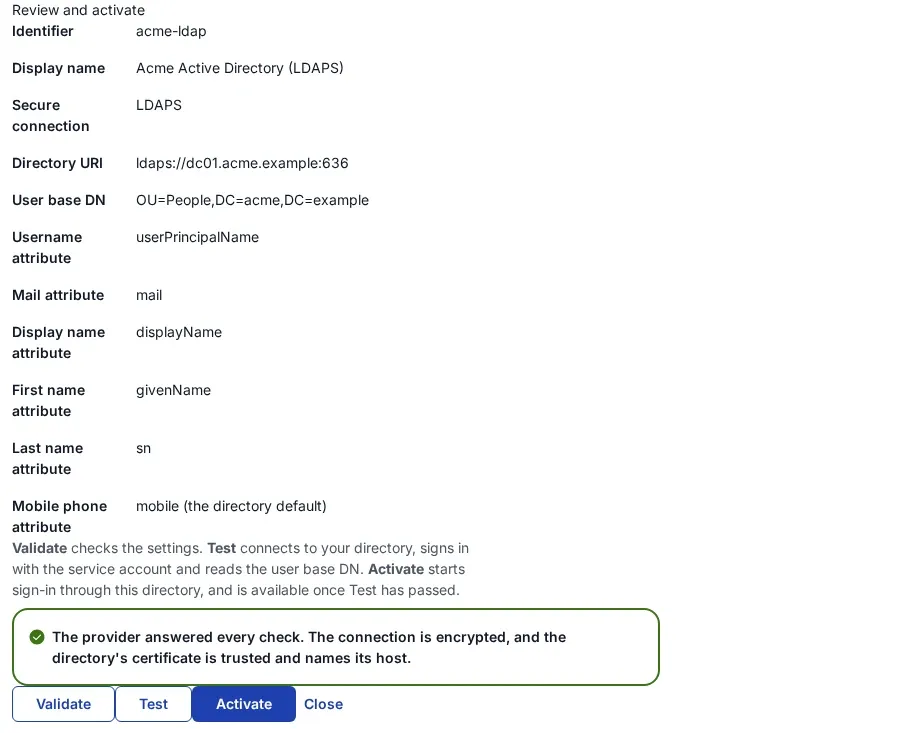
- Review and activate: Validate, then Test. Test connects, sets up the encryption, signs in as the service account and searches the base DN; on success it says “The provider answered every check. The connection is encrypted, and the directory’s certificate is trusted and names its host.”
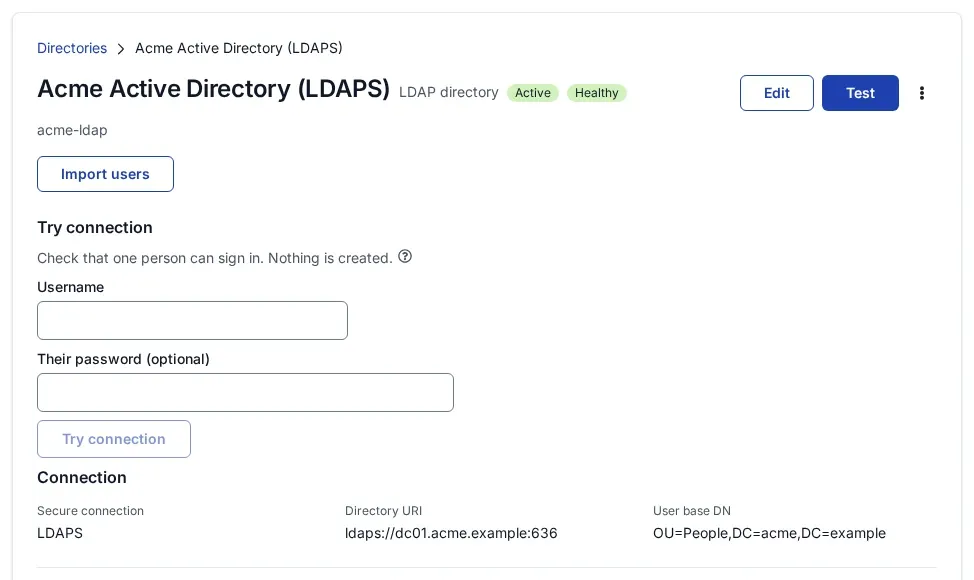
- On the directory’s page, use Try connection with a real username (and optionally the password) to see whether that person can sign in, step by step: Find the person, Check the password, Read the mapped attributes, Resolve group memberships. Nothing is created.
- Select Activate, then allow the directory in the policy that applies: SSO policies > Policies, Requirements, First factor, Password, and tick the directory.
There is no LDAP filter field. Who can sign in is decided by the user base DN, the username attribute (it must match exactly one entry) and the account being enabled in the directory.
Step 3. Who may sign in, and the first sign-in
Everyone under the user base DN whose password the directory accepts can sign in. On the first successful sign-in, SSOGEN creates the person’s account with the name, email, phone and mapped attributes from the directory, and records their groups; a group that does not exist in SSOGEN yet is created. Group membership is refreshed at each sign-in.
To create the accounts before anyone signs in, a Super admin selects Import users on the directory’s page. A later run with Disable people who have left disables the SSOGEN accounts of people no longer in the directory (or disabled there) and enables them again if they come back; nothing is deleted.
An existing SSOGEN account with the same email address is joined only if a Super admin sets Account matching on the directory’s page to Sign in to the existing account.
What the user sees
John Doe opens https://acme.ssogen.ai. If the directory is the only way to sign in, he sees Username and Password fields and a Sign in button; otherwise he chooses Acme directory under Sign in with. He types jdoe (or john.doe@acme.example if the username attribute is the UPN) and his Windows password, answers a second factor if the policy asks for one, and lands on his applications. The field labels can be renamed on the directory’s Sign-in page section.
Directories SSOGEN cannot reach
The SSOGEN Gateway’s Directory Connector runs inside your network and can test, through the Gateway, that a directory SSOGEN cannot reach directly answers with your service account. Password sign-in and import use the direct connection described on this page, so SSOGEN’s server must reach the directory over LDAPS or StartTLS. If it cannot, connect the directory through Microsoft Entra ID or AD FS instead.
Troubleshooting
| Symptom | Cause |
|---|---|
| Test says “The directory’s certificate is not trusted. Add its issuing authority under Trusted certificates.” | The directory’s certificate comes from an authority SSOGEN does not trust. Add the authority under Settings > Certificates. |
| Test says “The certificate does not name this host. Use the host name it was issued for.” | The Directory URI uses an IP address, a short name or an alias. Use the name on the certificate. |
| Test says “The directory refused the bind credentials. Check the bind account and its password.” | Wrong bind DN or password, or the service account is locked or expired. |
| People see “Your username or password is incorrect.” although the password is right. | The username attribute does not match what they type (for example sAMAccountName while they type their UPN), or they are outside the user base DN. Try connection shows the step that stops them. |
| People see “Directory did not respond. Your password is fine. Try again.” | SSOGEN cannot reach the directory: firewall, port, or the server is down. Test says the same. |