SSOGEN / Single sign-on for Workday with SSOGEN
SSOGEN
Single sign-on for Workday with SSOGEN
SSOGEN is added as a SAML identity provider row in tenant security setup, and each person matches on their Workday account user name.
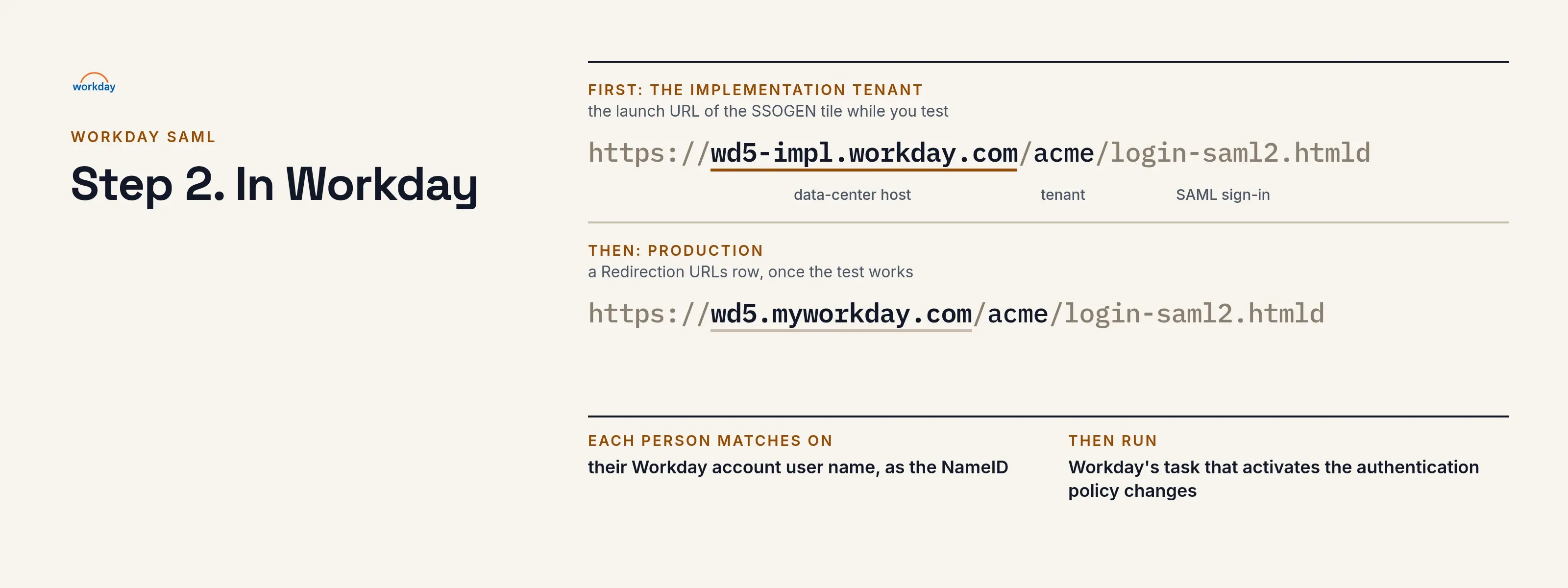
The example tenant is acme on the data-center host wd5.myworkday.com, with the implementation tenant on wd5-impl.workday.com. Your host is in your browser’s address bar when you are signed in to Workday. SSOGEN runs at https://acme.ssogen.ai.
What you need
- A Workday security administrator with access to the task Edit Tenant Setup - Security and to the authentication policies.
- A non-production tenant (Sandbox or Implementation) for the first setup.
- In SSOGEN, a value for every person that equals their Workday account user name: their SSOGEN account name, or the user name from the directory they came from.
- An SSOGEN administrator who can save SAML applications (see Add a SAML application in SSOGEN).
Step 1. In SSOGEN: add Workday
Follow Add a SAML application in SSOGEN with the gallery card Workday and these values:
| SSOGEN field | Value for Workday |
|---|---|
| Service provider entity ID | The value you will type in Workday’s Service Provider ID (step 2), for example http://www.workday.com/acme. The two must be identical. |
| Assertion consumer service URL | The SAML login address of your tenant. Workday’s administrator guide, page “Steps: Set Up SAML Authentication” (behind your Workday sign-in), gives it for your host and tenant. |
| Identify the person by | username — the SSOGEN account name if it equals the Workday user name; otherwise source_username |
| Launch URL (https) | https://wd5-impl.workday.com/acme/login-saml2.htmld (your host and tenant name) |
Workday does not publish a metadata file for this, so type the values. Assign the person who will run the first sign-in.
From the Integration tab you need the IdP entity ID (https://acme.ssogen.ai/saml/idp), the Single sign-on URL (https://acme.ssogen.ai/saml/idp/sso) and the certificate file from Download certificate (PEM).
Step 2. In Workday
-
In Workday’s search box type
Edit Tenant Setup - Securityand open the task. -
In the section SAML Setup, select Enable SAML Authentication.
-
In the grid SAML Identity Providers, add a row:
Workday field Value Identity Provider Name SSOGENIssuer https://acme.ssogen.ai/saml/idpx509 Certificate Create a new x509 public key, name it SSOGEN signingand paste the content ofssogen-idp-signing-certificate.pem, including the BEGIN and END lines.SP Initiated Selected Service Provider ID The same value you registered as entity ID in SSOGEN Sign SP-initiated Request Clear Do Not Deflate SP-initiated Request Clear. SSOGEN reads deflated requests. IdP SSO Service URL https://acme.ssogen.ai/saml/idp/ssoUsed for Environments This tenant’s environment Leave the logout fields, Always Require IdP Authentication and Preview Only clear. Below the grid, set Authentication Request Signature Method to SHA256. Do not fill the fields marked “(Will be deprecated)”.
-
Select OK, then Done. Nothing changes for anyone yet.
-
Allow SAML for a test group. Open the report Manage Authentication Policies, edit the policy for this environment and add a rule: a security group that holds only your test person, with Allowed Authentication Types set to Specific and SAML. Keep a rule that allows user name and password for your administrators and for integration system users. Save.
-
Run the task Activate All Pending Authentication Policy Changes. Policy changes do nothing until this has run.
When the test in step 3 works, return to Edit Tenant Setup - Security and, in the section Single Sign-On, add a row to Redirection URLs: Redirect Type Single URL, Login Redirect URL https://wd5.myworkday.com/acme/login-saml2.htmld, and the environment. From then on anyone who opens the tenant without a session goes to SSOGEN. Then widen the authentication policy to the wider groups and activate the change again.
Step 3. People and a sign-in test
- Assign the people or groups who use Workday on the application’s Assignments tab in SSOGEN.
- Run the Test for the test person and check that NameID equals their Workday account user name, shown on the worker profile under Job > Worker Security.
- In a private browser window open
https://wd5-impl.workday.com/acme/login-saml2.htmld. The browser goes to SSOGEN and returns to the Workday home page as that person.
Workday’s report Signons and Attempted Signons shows each attempt and its authentication type.
Signing in
People select Workday in My Apps. They see SSOGEN’s sign-in page only if they have no SSOGEN session yet, then the Workday home page. After the redirection row is added, opening the tenant address does the same.
Troubleshooting
| What you see | Cause |
|---|---|
| Back on Workday’s sign-in page after SSOGEN accepted the person | The name ID does not equal a Workday account user name, or the account is disabled. Compare the NameID on SSOGEN’s Test tab with the worker’s account. |
| Sign-on refused although SSOGEN sent an assertion | The person’s authentication policy rule does not allow SAML, or the policy change was not activated. |
| Issuer or signature failure in Signons and Attempted Signons | Issuer is not SSOGEN’s entity ID, the certificate is not SSOGEN’s current one, or the row is not used for this environment. |
| SSOGEN page “Sign-in refused” with “No service provider is registered here with that entity ID.” | Service Provider ID in Workday differs from the entity ID registered in SSOGEN. |
| “The authentication request could not be read, or was not valid.” | Do Not Deflate SP-initiated Request is selected, or the ACS URL in SSOGEN is not the one Workday asks for. |