SSOGEN / Sign-in methods / SSO Multi-Factor Authentication: Factors, Policies and Step-Up
Integration
SSO Multi-Factor Authentication: Factors, Policies and Step-Up
SSO multi-factor authentication in SSOGEN is decided by policy, not by each application. You pick the factors, set the strength an application needs, and SSOGEN asks for a second step only when a sign-in is weaker than that.
SSO multi-factor authentication in SSOGEN puts the second factor in one place. Every sign-in goes through SSOGEN, so MFA is enforced for every protected application, including Oracle E-Business Suite, PeopleSoft, JD Edwards and other applications with no MFA of their own.
The application does not change. The policy assigned to it says what it needs.
This page covers the factors, how a policy asks for them and what people see. Setup steps, including mail and text-message settings, are in the multi-factor authentication guide.
The factors SSOGEN offers
| Factor | What the person does | Strength |
|---|---|---|
| Authenticator app (TOTP) | Types a six-digit code that changes every 30 seconds | The default, and the strongest of the code methods |
| Passkey | Approves with the fingerprint, face, PIN or security key they already use | A sign-in that cannot be phished; see passkeys |
| Recovery code | Types one of ten single-use codes | For a lost phone; can be switched off |
| Text message | Types a code sent by SMS | Weaker; off unless a policy lists it |
| Types a code sent by email | Weakest; off unless a policy lists it |
SSOGEN labels email and text as weaker on the policy screen, on purpose, because codes sent that way can be intercepted.
- NIST SP 800-63B. It does not accept email as a second factor and restricts SMS.
- Admin Console. Its policy never accepts either.
Where a second step applies
SSOGEN asks for the second step from people who sign in with a password at SSOGEN: local accounts and directory accounts.
- Password at SSOGEN. Local accounts and directory accounts get the second step.
- SAML or OpenID Connect. The other provider checks the person, and SSOGEN uses what it reports about how strongly they signed in.
- Provider that does MFA. A provider like Entra ID or Okta that does MFA and says so meets the Plus a second factor strength, with no second prompt.
A person gets a second step in two cases:
- The policy asks for more than a password. SSOGEN asks for the second step.
- An authenticator app is set up. SSOGEN always asks for the code, unless the policy does not accept authenticator apps.
Strength is a policy setting
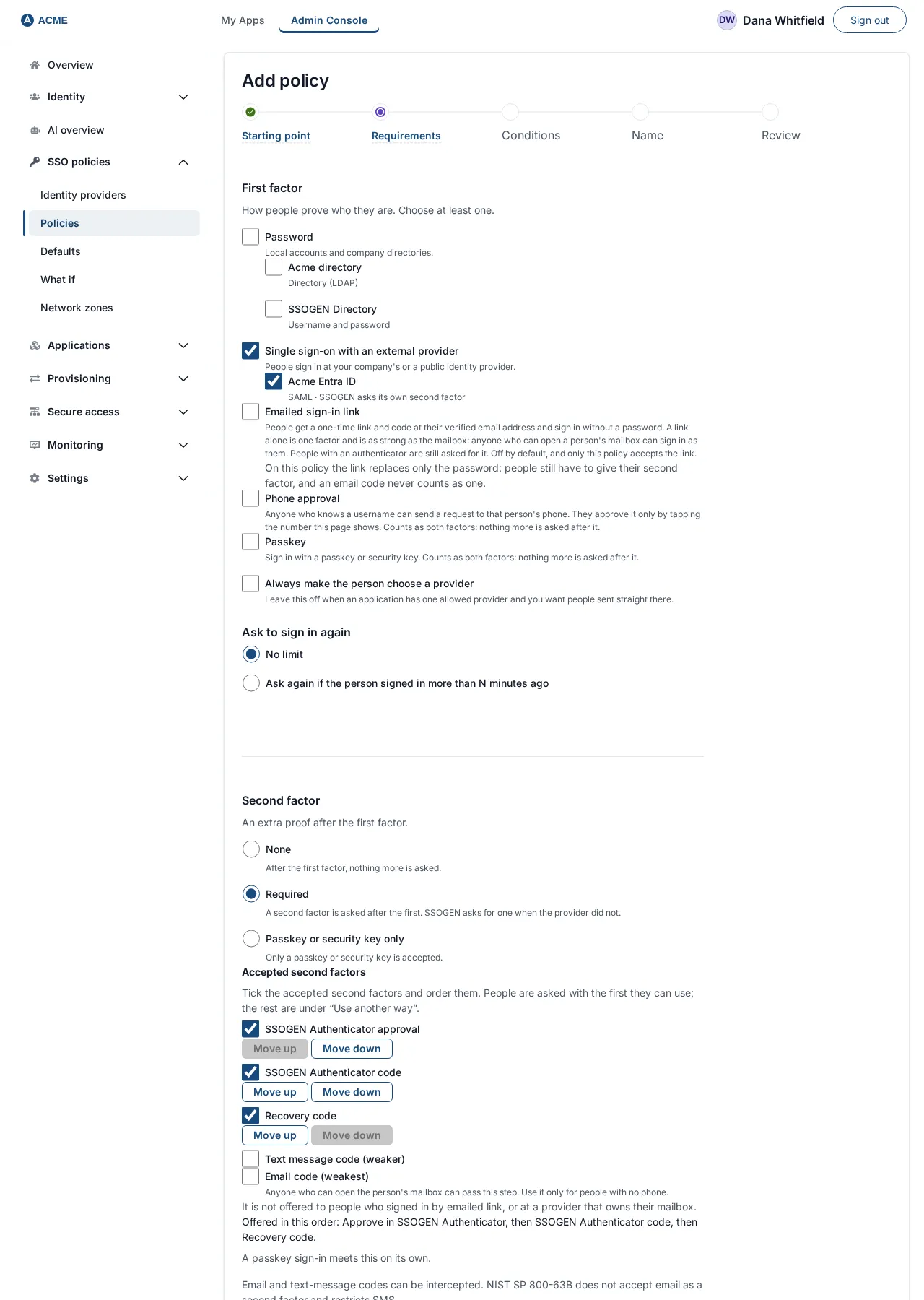
Each authentication policy has a Required strength.
| Strength | What it means |
|---|---|
| Password or single sign-on | Whatever the provider did is accepted |
| Plus a second factor | A second factor is required; SSOGEN asks if the provider did not |
| Passkey or security key | Only a passkey or security key is accepted |
Under Second step, you choose which methods count:
- On by default. Authenticator app and Recovery codes.
- Off by default. Text message and Email.
- Passkeys. A separate box, Offer passkey sign-in, controls them.
Assign the policy as the default for My Apps and My Account, or to individual applications.
Step-up instead of blanket prompts
- No second password. When a signed-in user opens an application that needs more than their session has, SSOGEN shows the Multi-factor authentication screen without asking for the password again.
- Straight to the application. After they verify, they go straight to the application. Users see a prompt only where the application calls for it.
- Where to send the person. The policy’s When more is needed setting names SSOGEN’s own second factor, their identity provider, or either, with alternatives in order.
- Conditions. Rules and conditions raise the requirement for some situations only, such as a risky-looking sign-in. A finance group can sit on a stricter policy than the intranet.
- Fresh second step. Some actions ask for it with no policy at all: approving a Remote Access request or an AI agent action, and changing second factors or sign-in contacts.
What the person sees
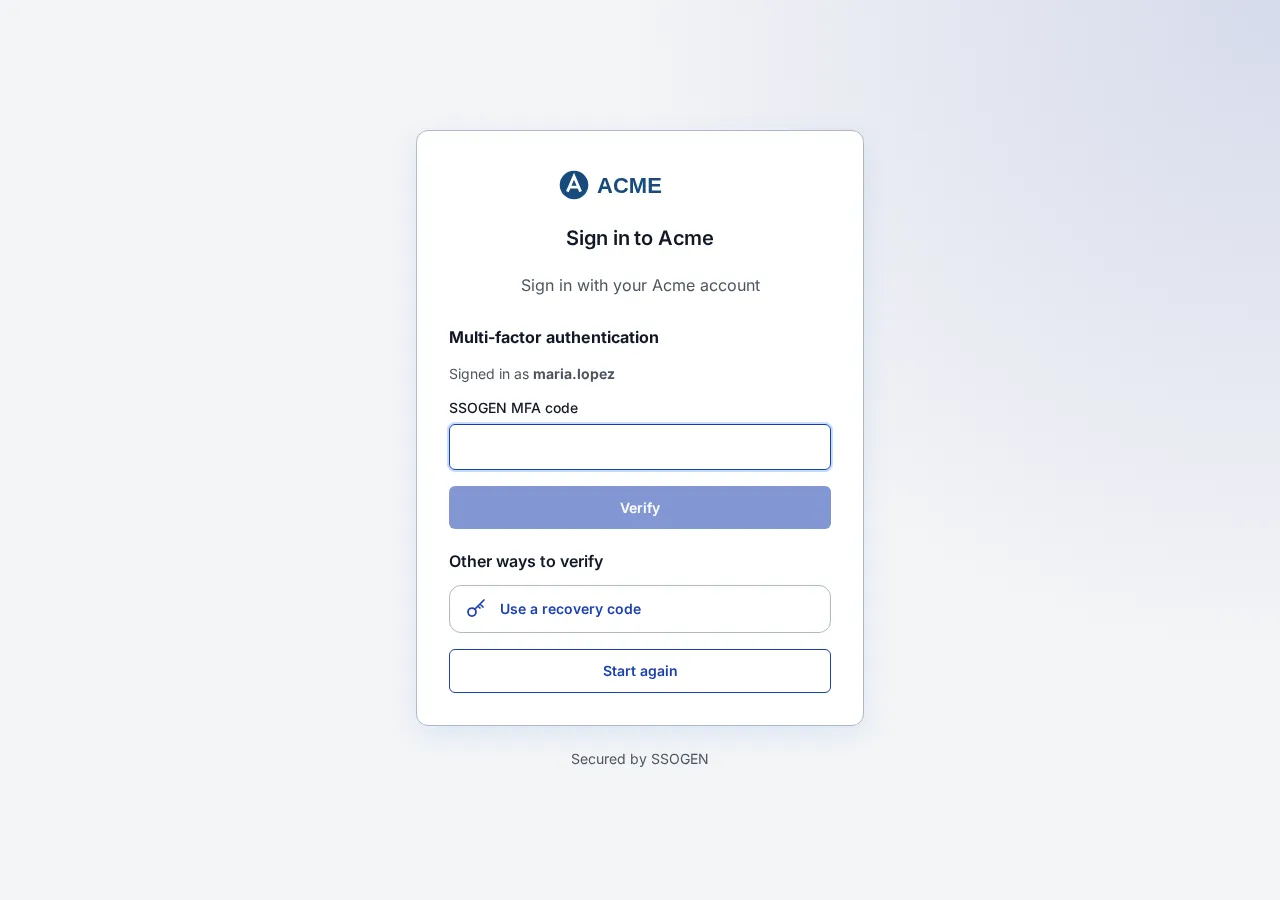
After the correct password, a separate Multi-factor authentication screen lists the methods the policy allows and the person can use.
Authenticator users see a field labeled SSOGEN MFA code and a Verify button, with other ways to verify listed below.
Limits operators care about, with defaults:
- The screen must be completed within 5 minutes.
- Emailed and texted codes expire after 5 minutes, and each survives five wrong guesses at most.
- Ten wrong codes in a row lock the second step for 15 minutes. The threshold is a setting.
- Verification codes are limited to 5 a minute per person and client.
Guarding the enrollment itself
SSOGEN closes the route an attacker with a stolen session would use to add their own factor:
- Someone with no second factor yet needs a recent sign-in or their password.
- Someone who already has one must complete a second step. The password alone is not enough, and an email or text code does not count.
- A factor added during a session cannot confirm that same session.
- Whenever a factor is added or removed, SSOGEN emails the account owner, as long as outgoing mail is set up.
Administrators are covered too. Admin mode asks for an authenticator code by default, so every administrator needs an app.
When a phone is lost
The person can use a recovery code. With none left, follow these steps:
- An administrator opens the user and chooses Reset MFA, which stops the authenticator and remaining recovery codes at once.
- Until a new factor is enrolled, the person signs in with their password alone.
- Where a policy demands a second step, they sign in once a new factor is set up for them.
Confirm the person’s identity before you reset.
Questions people ask
Is SSO safer than MFA?
They do different jobs. SSO means one sign-in. MFA makes that one sign-in harder to steal. SSOGEN gives you both, and you set how strict the second part is per application.
Can MFA be added to an application that does not support it?
Yes, if the application sits behind the SSOGEN Web Agent or Gateway. The second factor is enforced before the application sees the user.
Which factor should we turn on first?
The authenticator app. It is the default, works offline once added, and needs no SMTP or SMS provider. The SSOGEN Authenticator is one such app.
Where to go next
- Full MFA setup guide. Start here.
- MFA software. The wider picture.
- Sign-in methods. All methods.