SSOGEN / PeopleSoft Entra ID SSO (Azure AD single sign-on)
Integration
PeopleSoft Entra ID SSO (Azure AD single sign-on)
SSOGEN is a SAML 2.0 enterprise app in Entra ID, and PeopleSoft is registered in SSOGEN. Entra applies your MFA or Kerberos sign-in.
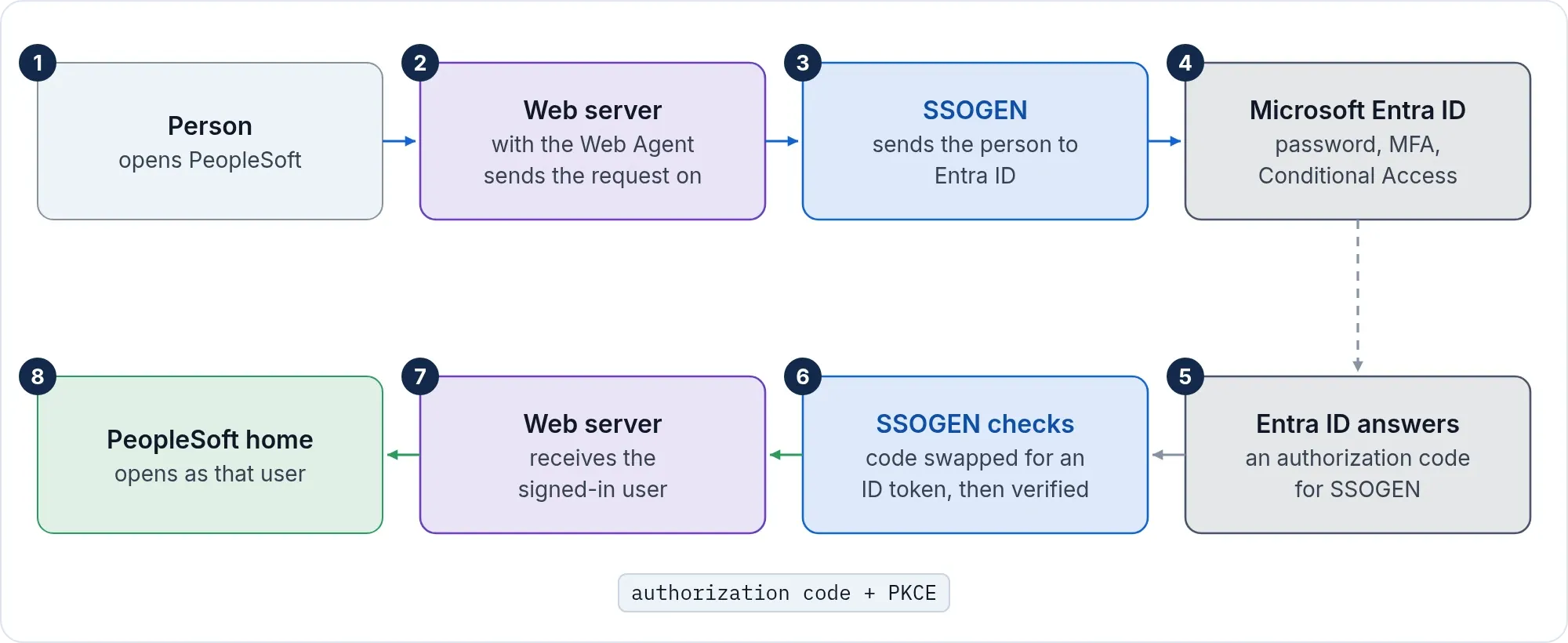
A person opens PeopleSoft and is sent to SSOGEN. SSOGEN sends them on to Entra ID. Entra ID signs them in as your tenant is set up: with a login form, multi-factor authentication or Kerberos desktop sign-in. They come back to the PeopleSoft home page through SSOGEN.
People sign in as they do for other Entra ID apps. An Entra admin can add PeopleSoft to the apps people see in their Microsoft apps portal. They then launch it like any other app. They move between PeopleSoft and other apps Entra protects without signing in again. SSOGEN is invisible to them on sign-in and on sign-out. This also removes the PS_TOKEN weakness described on the PeopleSoft page.
In Microsoft Entra ID
Create the enterprise application and its SAML single sign-on as on the Microsoft Entra ID page. The values:
| Entra field | Value |
|---|---|
| Identifier (Entity ID) | https://acme.ssogen.ai/saml/sp/entra |
| Reply URL (Assertion Consumer Service URL) | https://acme.ssogen.ai/saml/sp/entra/acs |
| Unique User Identifier (Name ID) | the user principal name by default, for example john.doe@acme.example |
Assign the people or groups under Users and groups. For an app not in the gallery, Microsoft has its own steps in “Configure single sign-on for applications that are not in the gallery”.
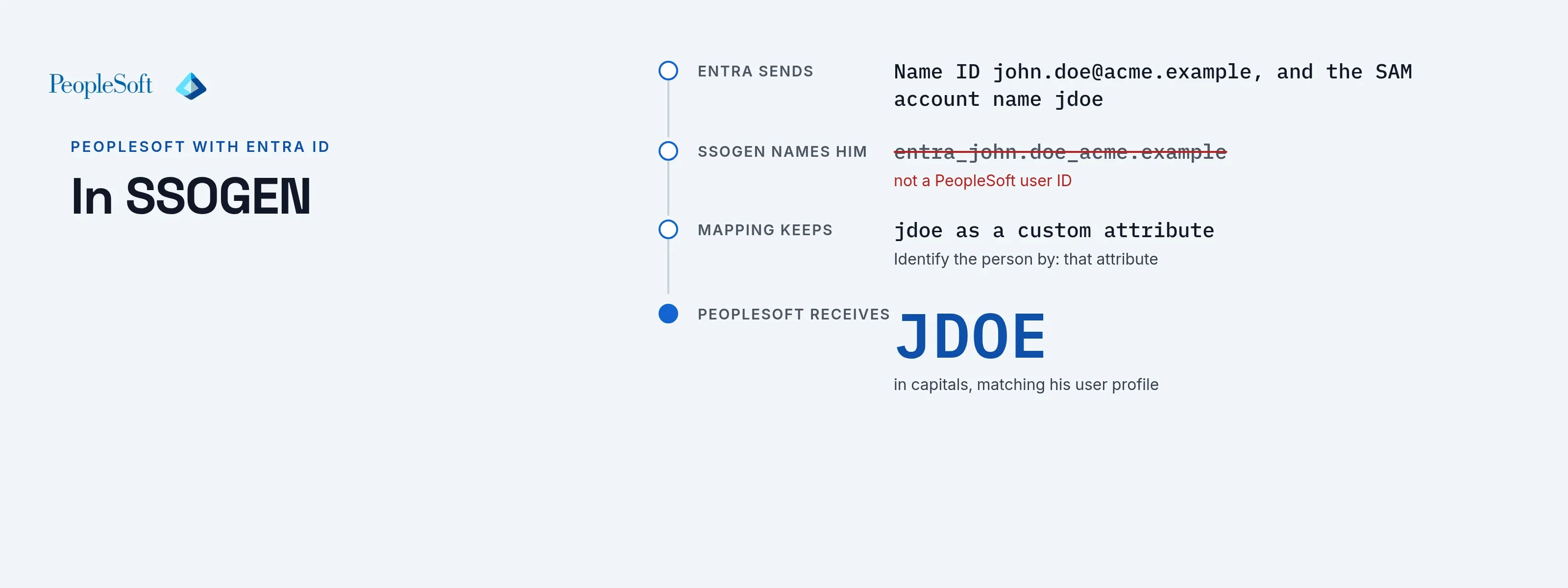
If your PeopleSoft user IDs are the Windows logon name, send the on-premises SAM account name as the Name ID. You can also add a claim for it. If they are the first part of the user principal name, use a transformation on the claim (ExtractMailPrefix()). It gives that value for cloud-only users too.
In SSOGEN
Add Microsoft Entra ID as a SAML identity provider with the connection ID entra. Paste the App Federation Metadata Url and activate it (Add a SAML identity provider in SSOGEN). Add the required claim for your tenant ID so only your tenant signs in.
Then register PeopleSoft as an application. SSOGEN names people entra_<NameID>, for example entra_john.doe_acme.example. That is not a PeopleSoft user ID. So on the Mapping step, keep the PeopleSoft user ID Entra sends as a custom attribute. Then set Identify the person by on the PeopleSoft application to that attribute. The agent sends the value in capitals.
In PeopleSoft
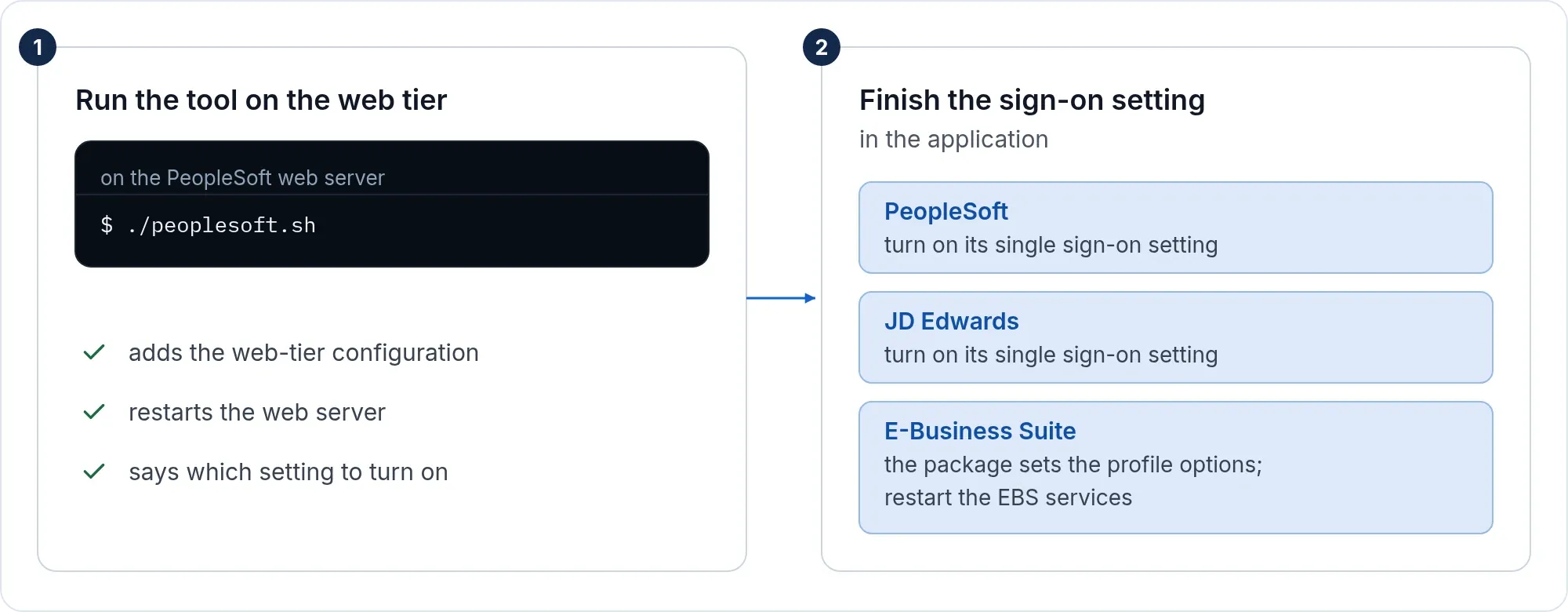
Run the tool and finish the PeopleSoft setting as on the PeopleSoft page. Each person needs a PeopleSoft user profile with a user ID equal to the value Entra sends.
What people see
John Doe opens https://hr.acme.example/psp/ps/?cmd=start. He is sent to the Microsoft sign-in page, or straight through if he is already signed in. He lands on the PeopleSoft home page. Entra applies its own MFA and Conditional Access.