SSOGEN / MFA software / MFA for Legacy Applications: Add a Second Factor Without Touching the App
SSOGEN
MFA for Legacy Applications: Add a Second Factor Without Touching the App
The Web Agent or Gateway signs people in under your policy before a request reaches the application, so an old system gets MFA with no code change.
Oracle E-Business Suite, PeopleSoft, JD Edwards and older internal applications were built before anyone asked for a second factor. They check a password and stop. You do not need to rewrite them.
MFA for legacy applications moves the check in front of the application, into a component you add to the request path. The application keeps working exactly as it does today.
SSOGEN provides two such components. The choice depends on whether the application sits behind an Apache web server you control.
Choose the Web Agent or the Gateway
| Your application | Use | What you do |
|---|---|---|
| Runs behind Apache 2.4, or Apache 2.2 or Oracle HTTP Server (EBS, PeopleSoft, JD Edwards and similar) | SSOGEN Web Agent | Build the module on your web server, protect a location, register the application in SSOGEN. |
| Cannot host a module: a vendor appliance, packaged software, an internal tool | SSOGEN Gateway with its App Proxy | Publish a route with its own hostname and certificate, register the application as an App Proxy app. |
| A private network application you want reached without opening an inbound path | SSOGEN Gateway with the Outbound Connector | The gateway connects outward from your network. |
Either way, you register the application in SSOGEN the same way, and the sign-in policy you assign to it decides the second factor. The guide choose how to connect an application lists the questions to ask, in order.
What happens when someone opens the application
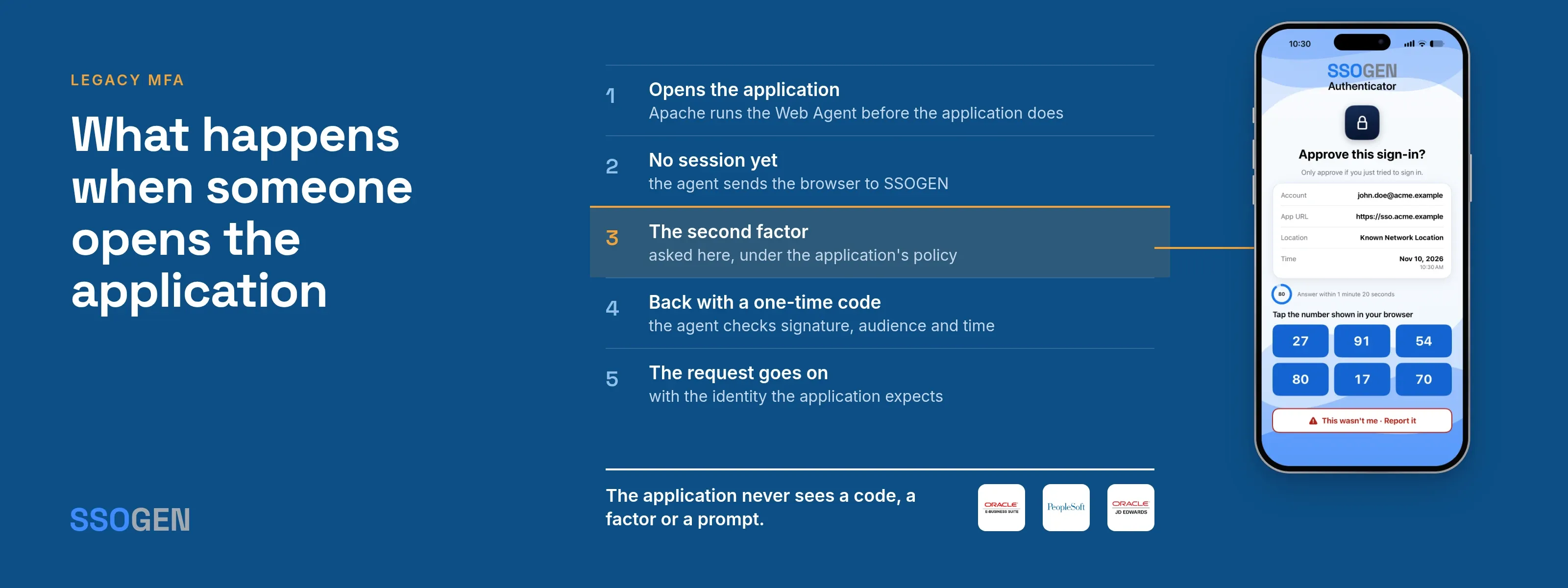
With the Web Agent, the sequence is short, and the application takes no part in it.
- The person opens the application’s address. Apache runs the Web Agent before the application does.
- With no valid session, the agent sends the browser to SSOGEN and remembers which page was asked for.
- SSOGEN signs the person in under the application’s policy. If the policy needs a second factor, this is where the person gets asked: an authenticator app code, a passkey, or a recovery code.
- SSOGEN sends the browser back with a one-time code. The agent trades it over HTTPS for a signed statement of who the person is, then checks the signature, audience and time window.
- The agent starts its own session and passes the request on, with the identity the application was set up to expect. Identity reaches the application only from the agent. Anything a browser tries to send in its place is stripped first.
The application never sees a code, a factor or a prompt. It receives a person who is already authenticated, which is all it ever needed.
Set the strength per application
MFA is not switched on for everyone. A policy has a Required strength: Password or single sign-on, Plus a second factor, or Passkey or security key. Give payroll a stricter policy and the intranet a lighter one.
Then pick which second-step methods count. Authenticator app and recovery codes are on by default. Text message and email stay off unless you tick them.
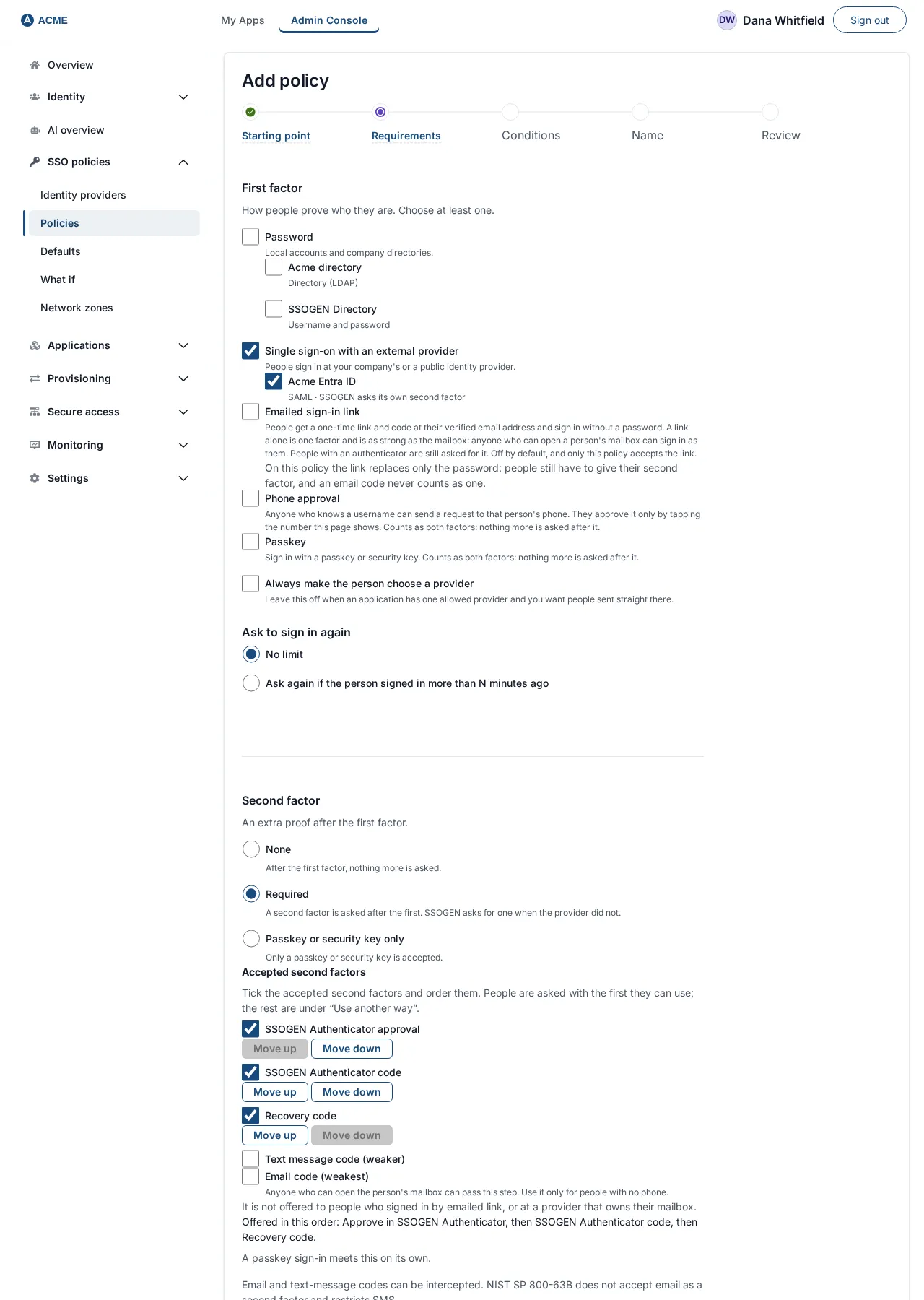
The Requirements step of the policy wizard.
Three settings control how often people are asked.
- Signed in within. Someone who signed in longer ago than the minutes you set (say
480for a working day) signs in again. - Step-up. Someone already in My Apps is asked for the stronger factor only when they open the application that demands it, and then continues where they left off.
- Risk and network. The policy engine scores each sign-in’s risk from 0 to 100. A rule can ask for a second factor only when a sign-in looks risky, or comes from outside a network zone you defined.
If SSOGEN cannot establish a fact a rule needs, such as a person’s group membership, the rule does not grant access. It fails closed.
Before you raise the strength
Ask people to enroll first. Anyone with no usable second-step method cannot sign in once the policy requires one. They see “This sign-in needs a second step, and no method is set up for your account. Contact your help desk.”
- Enroll in My Account. The SSOGEN Authenticator or any standard TOTP app will do.
- Ten wrong codes lock the second step. The lock lasts 15 minutes by default.
- The lock ends on its own. A test with the wrong phone does not lock anyone out for long.
Keep the identity provider you already have
The second factor does not have to come from SSOGEN.
- Standalone SAML and OpenID Connect modes. The agent talks to your identity provider directly, and the provider does the checking.
- License key. Those modes need a license key from SSOGEN. SSOGEN mode does not.
- Federation through SSOGEN. When SSOGEN federates to Entra ID, Okta or Keycloak, it trusts what the provider reports about how strongly the person signed in.
- Still in control. SSOGEN can still ask for more.
Questions people ask
Can I add MFA to Oracle EBS without changing EBS?
Yes. The Web Agent in Apache or Oracle HTTP Server handles the sign-in and the second factor, and EBS receives the identity as configured. See the Oracle EBS single sign-on guide.
Does the application need to support SAML or OpenID Connect?
No. That is the purpose of the agent and the App Proxy. If an application does offer SAML or OpenID Connect, you can register it that way instead.
Which second factors can people use?
Authenticator app codes, passkeys, recovery codes, and text or email codes if a policy lists them. Email is the weakest and stays off unless you turn it on.
What if the gateway cannot reach its controller?
Protected routes are refused rather than left open.
Where to go next
- Every method. The multi-factor authentication guide covers every method plus SMTP and SMS setup.
- Apache setup. The Web Agent configuration guide walks through Apache.
- The feature set. The whole feature set is on MFA software.
- App passwords. Some vendors let an old client skip the second step with an app password. See app passwords explained for the risks.