Connect an application to SSO: SAML, OIDC, Web Agent or App Proxy
To connect an application to SSO, choose SAML when the application is a SaaS product or enterprise package whose settings page asks for an identity provider’s metadata, entity ID or SSO URL. Choose OpenID Connect when the application, or the library it is built on, asks for a client ID, a client secret or an issuer (discovery) URL, which is the usual case for web apps you write, single-page apps and mobile apps. If it offers both, either works. If it offers neither, use the Web Agent or the App Proxy, described below.
An application in SSOGEN is anything your people sign in to: a SaaS product such as a time-sheet service, a web application you run yourself such as Oracle E-Business Suite, or an API that a program calls. Before you register one, decide how it will be connected. The choice decides what the console asks you next. The guides that follow give every step for each choice.
SAML and OpenID Connect compared
Section titled “SAML and OpenID Connect compared”| SAML | OpenID Connect | |
|---|---|---|
| What the application receives | A signed assertion, delivered to its assertion consumer service address | A signed ID token (and an access token), fetched by the application’s server with a one-time code |
| What you give SSOGEN | The application’s entity ID and assertion consumer service address (or its metadata file), and optionally a single logout address | One or more redirect addresses, each starting with https:// and matched character for character |
| What you give the application | SSOGEN’s metadata address, or the entity ID, single sign-on address and signing certificate | The issuer or discovery address, the client ID, and a secret or key if the client uses one |
| Proof of the application’s identity | Matched on the entity ID and the address registered; signed requests are optional | PKCE with S256 always; a client secret or a private key can be added for server applications |
| Flows offered | Sign-in from the application to SSOGEN | Authorization code only. There is no implicit or hybrid flow |
| Sign-out | Single logout address, if the application has one | An end session address that signs the person out of SSOGEN |
| Programs with no person present | Not applicable | Service applications use client credentials |
| Best for | SaaS and enterprise packages | Modern web, single-page and mobile apps, and APIs |
The four ways to connect an application
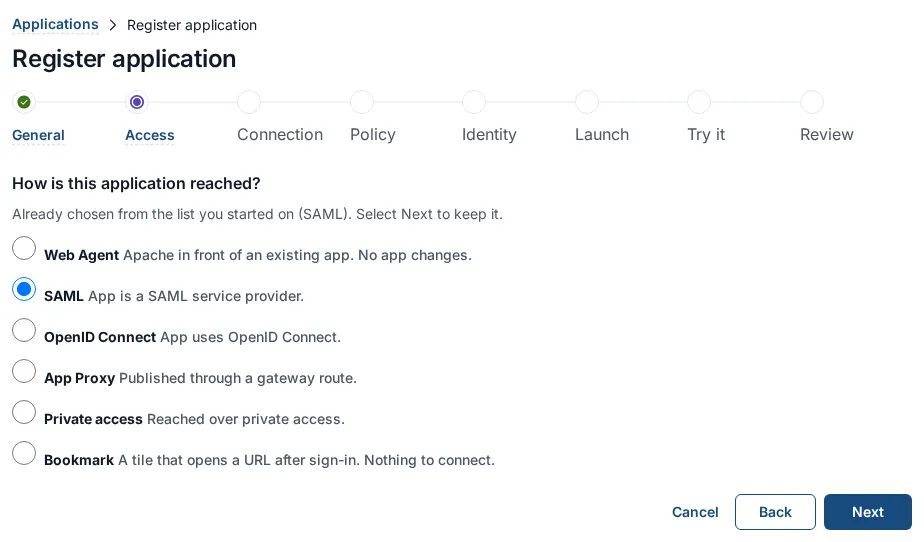
Section titled “The four ways to connect an application”SSOGEN lists them under Applications in the Admin Console’s left menu, one list for each: Web Agents, SAML, OpenID Connect and App Proxy (and Bookmarks, for a plain link that opens after sign-in, with no connection to configure). Each list has its own register button: Register Web Agent app, Register SAML app, Register OpenID Connect app and Register App Proxy app.
| Way | Use it when | What runs where | Who changes the application |
|---|---|---|---|
| SAML | The application is a SAML service provider: its settings page has a place for an identity provider’s metadata, or asks for an “IdP entity ID” and “SSO URL”. Most SaaS products. | SSOGEN is the application’s identity provider. Nothing is installed. | You change the application’s single sign-on settings. |
| OpenID Connect | The application, or the library it is built on, speaks OpenID Connect: it asks for a “client ID”, “client secret” or “issuer / discovery URL”. Modern web apps, single-page apps, mobile apps. Also programs that call APIs as themselves (service applications). | SSOGEN is the application’s OpenID provider. Nothing is installed. | You change the application’s sign-in settings. |
| Web Agent | You run the application behind an Apache web server (Apache 2.4, or Apache 2.2 / Oracle HTTP Server) and it cannot speak SAML or OpenID Connect, or you do not want to change it. Typical: Oracle E-Business Suite, PeopleSoft, JD Edwards, older internal sites. | The SSOGEN Web Agent, an Apache module, is installed on your web server. It signs the person in and passes the signed-in user to the application. | The SSOGEN administrator registers the application and copies the generated configuration; the application team pastes it on the web server. Nothing is enrolled on the web server. The application needs no code change, but it must be set up to trust single sign-on from its web server. |
| App Proxy | The application is on a private network, you want nothing installed next to it, and it should be reachable at a published address. | The App Proxy, a program you run in your network, checks the sign-in and forwards requests with the identity added. | You publish a route on the SSOGEN Gateway. See the SSOGEN Gateway guides. |
How to choose, in order
Section titled “How to choose, in order”Ask these questions in this order and stop at the first “yes”.
- Does the application have a “single sign-on” or “SAML” setting? Choose SAML. It is the most widely supported, and nothing is installed.
- Does it have an “OpenID Connect”, “OAuth” or “social login” setting with a client ID, or is it software you are writing? Choose OpenID Connect.
- Is it a web application behind Apache that you control, with no SAML or OpenID Connect? Choose Web Agent.
- Is it a private web application where you want no software next to it and no change to it? Choose App Proxy.
- Is it a program (a script, a back-end service, an integration) that calls an API with no person present? Choose OpenID Connect, then Register service, which creates a service application that signs in as itself. See Register an OpenID Connect application.
If an application offers both SAML and OpenID Connect, either works. Prefer the one whose settings page you understand best. SAML exchanges two addresses and a certificate; OpenID Connect needs a client ID, optionally a secret, and one redirect address.
What each way gives the application
Section titled “What each way gives the application”| SAML | OpenID Connect | Web Agent | App Proxy | |
|---|---|---|---|---|
| Who the person is | A NameID in a signed assertion | The sub and other claims in an ID token |
The signed-in user, passed by your web server | The signed-in user, passed by the App Proxy |
| Extra attributes (email, groups) | Assertion attributes you choose | Claims you choose | Attributes you choose, passed as request headers or cookies | The App Proxy passes only its own identity. The “Identity sent to app” rules are not sent through a App Proxy route yet |
| The sign-in starts at | The application, which sends the person to SSOGEN with a SAML request | The application, which redirects to SSOGEN | Your Apache, which redirects to SSOGEN | The App Proxy |
| Software to install | None | None | The module on your web server | The SSOGEN Gateway |
Start from the App Gallery
Section titled “Start from the App Gallery”Applications > App Gallery is the quickest start for a well-known application. It lists 105 entries in 14 categories: 102 SaaS applications and the three Oracle ERP products (Oracle E-Business Suite, PeopleSoft and JD Edwards EnterpriseOne).
- Type a name, vendor or keyword in Search by name, vendor or keyword, or narrow the list with Any protocol and the category buttons.
- Select the card. The Register application wizard opens with the name, category, protocol and My Apps icon filled in, and a link to the vendor’s own single sign-on guide at the top.
- Enter the vendor’s values on the Connection step. For most cards you copy them from the vendor’s guide; a few cards (Sentry, for example) carry a template that asks only for your own details, such as an organization slug, and fills in the rest.
An application added from one of the three Oracle ERP cards receives the Oracle identity profile through the Web Agent; any other Web Agent application receives the standard profile. If the application has no card, use the Custom SAML application or Custom OpenID Connect application tile under Custom app: the wizard is the same. The catalog in full: App Gallery.
The steps every way shares
Section titled “The steps every way shares”Registering an application uses one wizard with eight steps. Only Connection changes with the way you chose.
- General: the application’s name, a short identifier for web addresses (its slug), a unique Application ID, a category and a My Apps icon (an icon is required).
- Access mode: the choice above.
- Connection: the details for that way (SAML addresses, redirect addresses, Web Agent client URL, App Proxy route and edge).
- Sign-in policy: which named policy decides how people sign in.
- Identity sent to app: which attribute names the person to the application, and any extra attributes.
- Launch: the address My Apps opens. Leaving this step saves the application, still unavailable to everyone.
- Try it (optional): a dry run that shows whether a chosen person could open it and what the application would receive. Nobody is signed in and nothing is sent.
- Review and activate: the last check and the Activate application button.
What you need before you start
Section titled “What you need before you start”- You are signed in to the Admin Console with a role that may write applications.
- At least one sign-in policy exists, and either one is set as the default or you choose one for the application in step 4. If none exists, the wizard says: “No policy exists. Create one under Policies.” Create one under SSO policies, then Policies.
- The people who should use the application exist in SSOGEN.
Where to go next
Section titled “Where to go next”| You chose | Read |
|---|---|
| SAML | Register a SAML application |
| OpenID Connect, or a service application | Register an OpenID Connect application |
| Web Agent | Protect an on-premise application with the SSOGEN Web Agent; for Oracle products and plain Apache, the integration packages |
| A Java application on Tomcat or Spring Boot | Protect a Java application with the Java agent |
| App Proxy | The SSOGEN Gateway guides: Install and enroll an SSOGEN Gateway, then publish a route |
| Any of them | Assign people, set the sign-in policy, test and activate |
| Ready-made recipes | App Packs |