View and sign out active sessions in My Account
Your active sessions are the browsers and devices where you are signed in to SSOGEN right now. In My Account you can view them with the IP address each one signed in from, sign out of any one, forget browsers SSOGEN remembers, and review what has happened to your sign-in. This page also covers Profile, Linked identities and AI agents. To change your password, authenticator, passkeys, codes or recovery codes see My Account: password, Authenticator and passkeys.
The examples use the fictional company Acme Corp and an employee, Maria Lopez.
Open it: open the home page and choose the item under My Account in the left menu. The address ends in #sessions, #devices, #activity, #profile, #identities or #delegations, so you can bookmark a page.
1. View and manage active sessions
Section titled “1. View and manage active sessions”A session is one signed-in browser or device. If you signed in at work, at home and on your phone, you have three. You can end any of them, which is the quickest way to lock someone out who may have found your device.
-
Open Sessions. The page says “Where you are signed in.”
-
Each session is a row like this:
This device · Password, Authenticator · Multi-factor · 203.0.113.25 · Signed in 2026-10-06 08:55 · Last active 2026-10-06 09:20 · Sign out
Part Meaning This device (green) or Other session This device is the one you are using now. Password, Authenticator How you proved who you were: for example Password, Authenticator, Passkey, Local account, OpenID Connect, SAML or Directory. Single-factor, Multi-factor or Phishing-resistant How strong that sign-in was. IP address The network address the sign-in came from, as SSOGEN saw it. It shows a dash when no address is known. It is plain text: SSOGEN does not look up a place name. If you do not recognize the address, sign out of that session. Signed in and Last active When it started and when it was last used. Sign out Ends that session.
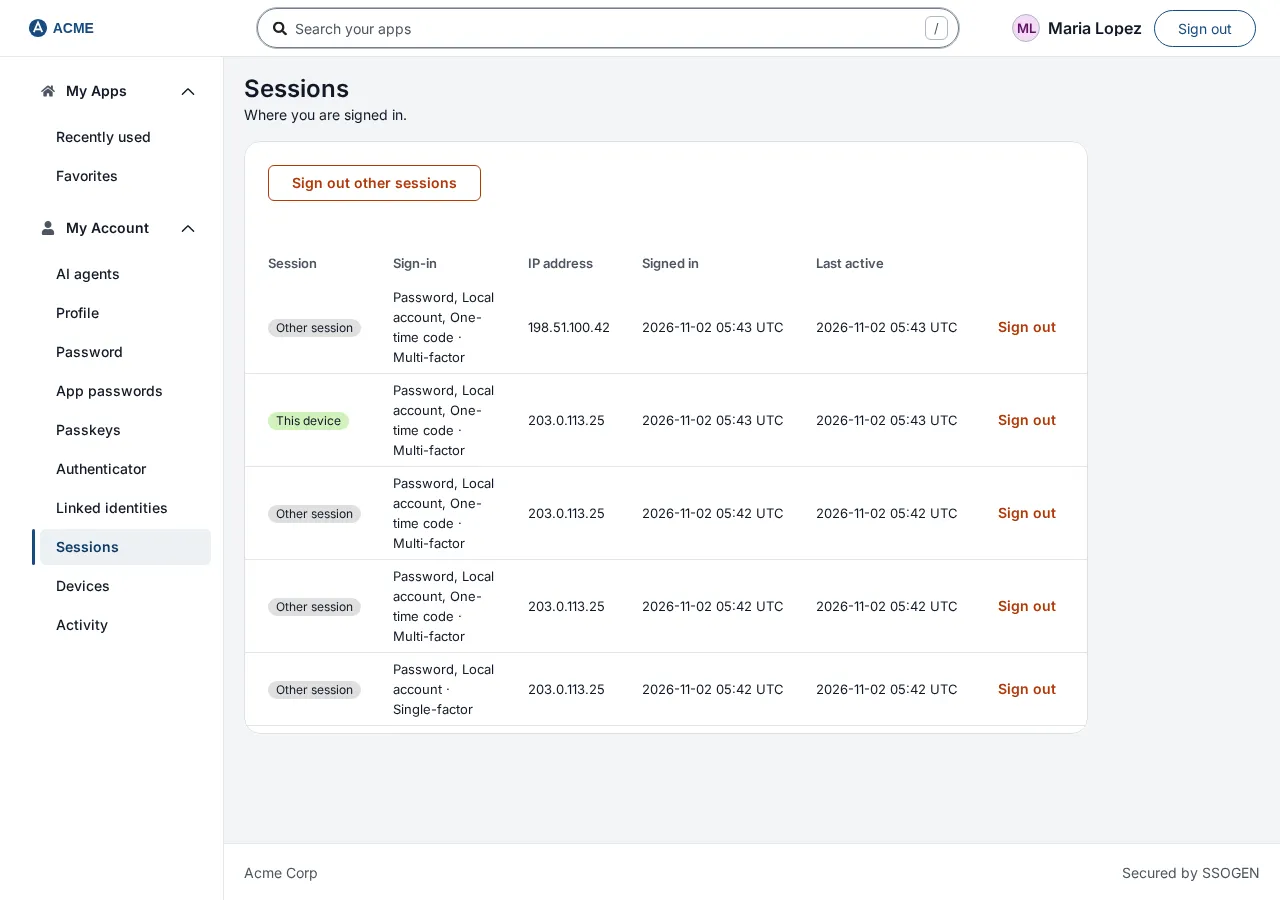
Sign out one session
Section titled “Sign out one session”- Select Sign out on the line you do not recognize (its accessible name is “Sign out of the other session”).
- A dialog Revoke this session? says: The browser or device using it will be signed out immediately and will need to sign in again. Select Revoke session.
- The line disappears. If it fails the page says That session was not signed out. Try again.
Sign out the session you are using
Section titled “Sign out the session you are using”Select Sign out on the line marked This device. A dialog Sign out of this session? says: This is your current session. You will need to sign in again. Select Sign out. (The Sign out button at the top right of every page does the same without the dialog.)
Sign out everywhere else
Section titled “Sign out everywhere else”- Above the list select Sign out other sessions.
- A dialog Sign out everywhere else? says: Every other browser and device is signed out now. This session stays signed in. Select Sign out other sessions.
- All the lines marked Other session disappear. If it fails: Unable to revoke other sessions.
Like other security actions, this can ask you to prove it is you first. If you have no second factor yet, a box says to re-enter your password and a Confirm identity panel appears on the page; if you have one, a box headed A second step is needed offers Verify with a second step. See My Account: password, Authenticator and passkeys, section 2.
With no sessions the page says No active sessions.
2. Devices: browsers SSOGEN remembers
Section titled “2. Devices: browsers SSOGEN remembers”Devices says “Browsers you have signed in on.” It lists the browsers SSOGEN knows you signed in from, and whether each one is remembered, meaning it skips the second step. Each row shows:
| Column | Meaning |
|---|---|
| Browser | The browser and system, for example “Chrome on macOS”, with This browser on the one you are using. |
| IP address | The address of its latest sign-in. Plain text, no place name. |
| First seen and Last seen | When SSOGEN first and last saw it. |
| Second step | Remembered until and a date, when your organization lets you remember a browser and you chose to; or Not remembered. |
Not remembered means SSOGEN knows the browser but still asks for the second step on it. A browser is recognized by its own cookie, so each browser profile, private window and browser whose cookies were cleared appears as a new entry. At most 10 are kept: when another one signs in, the one used longest ago that is not remembered is removed.
To forget one, select Forget on its row and confirm Forget browser: you will be asked for a second step on the next sign-in from it. Forget all browsers does this for every browser, including the one you are using. With no browsers the page says No browsers to show: “Browsers you sign in on appear here.”
3. Review recent activity
Section titled “3. Review recent activity”This page lists up to 20 recent security events on your own account, newest first, so you can spot something you did not do. The page says “Recent sign-ins and changes to how you sign in.”
-
Open Activity.
-
Each line has what happened, how it ended, the IP address and when, for example:
Signed in · Succeeded · 203.0.113.25 · 2026-10-06 08:55
What happened Shown when Signed in You signed in. Second step asked You were asked for a second step. A gray line under it says why, for example “New browser, or this browser’s cookie did not come back.” or “The sign-in policy always asks.” Second step skipped on a remembered browser A remembered browser did not need one. Browser remembered / Browser forgotten You chose to remember a browser, or it was forgotten. Signed in twice at once on one browser Two sign-ins happened together on one browser, for example two tabs. Password changed You changed your password. Password reset by administrator An administrator set your password. Recovery codes rotated You generated new recovery codes. Passkey added / Passkey removed You added or removed a passkey. Authenticator enrolled / Authenticator removed You added or removed an authenticator. Phone paired / Phone removed / Phone renamed You paired, removed or renamed a phone. Sign-in approved on a phone / Sign-in denied on a phone / Wrong number chosen on a phone / Sign-in reported as not you on a phone What happened to a phone approval request. Session signed out A session was ended. Remote access events For example Access requested, Approved, Denied, Request withdrawn, Access expired, Access revoked, Session active, Session ended, Clipboard used, File transferred. Security event Any other recorded event. The result is Succeeded, Denied or Failed. The IP address column shows the network address of events you caused yourself; it is a dash for an event an administrator caused, and for events with no known address. Only you see these addresses.
-
If there is nothing the page says No recent security activity: “Password, authenticator, passkey, recovery, and sign-in events for this account appear here.”
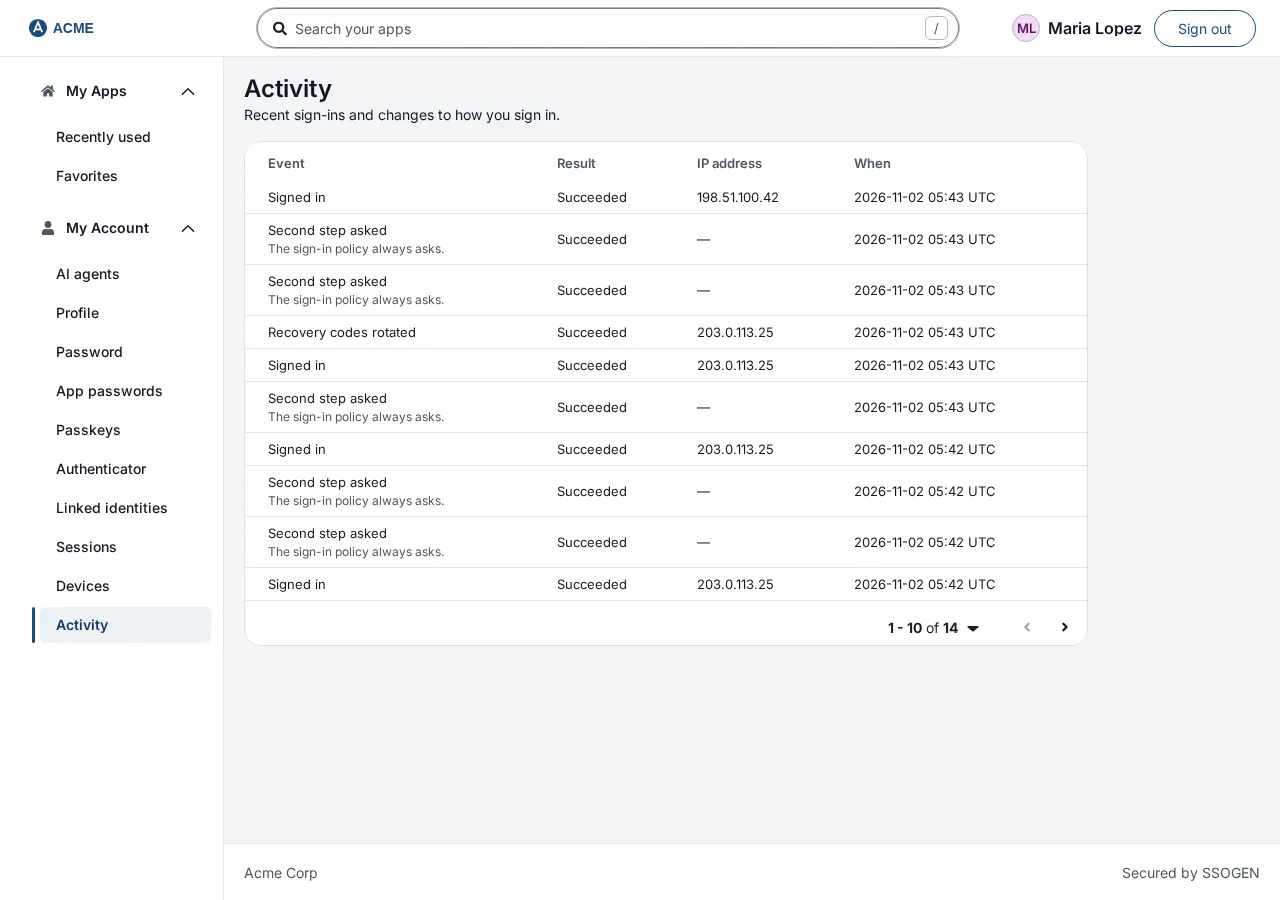
If you see something you did not do, such as a password change or a passkey you did not add, sign out everywhere else (section 1) and tell your security team straight away.
If the list cannot be loaded you see a notice with Try again, or Your role doesn’t allow this. Reload; if it keeps failing, tell your help desk.
4. Profile
Section titled “4. Profile”Profile says “Your profile and account source.” It lists your Name, Username, Email, Phone, Account from (for example SSOGEN Directory, your company directory or your identity provider) and User type. Beside a value that you cannot change a note says who can: “You cannot change this yourself. Ask an administrator.”, “Managed by your company directory.”, “Managed by your identity provider.” or “Managed by your company’s provisioning system.” Your email address and phone number for sign-in codes are changed under Authenticator, in Email and text codes, when your organization allows it.
5. Linked identities
Section titled “5. Linked identities”Linked identities says “The sign-in methods linked to this account.” Each line is a sign-in source you have used with this account, for example:
Acme Corp Directory · Directory (LDAP) · maria.lopez
Its parts are the name of the source (Identity), the kind (Type: for example Username and password, Directory (LDAP), OpenID Connect or SAML) and your name at that source (Username). This page is information only; you cannot add or remove a link here. With none it says No linked identities.
6. AI agents
Section titled “6. AI agents”AI agents says “AI agents you allowed to act for you.” It lists the AI agents you allowed to act on your behalf and lets you Withdraw any of them at any time. This is described, with the consent screen and the approvals your agents may ask for, in What people see for their AI agents.
On a phone
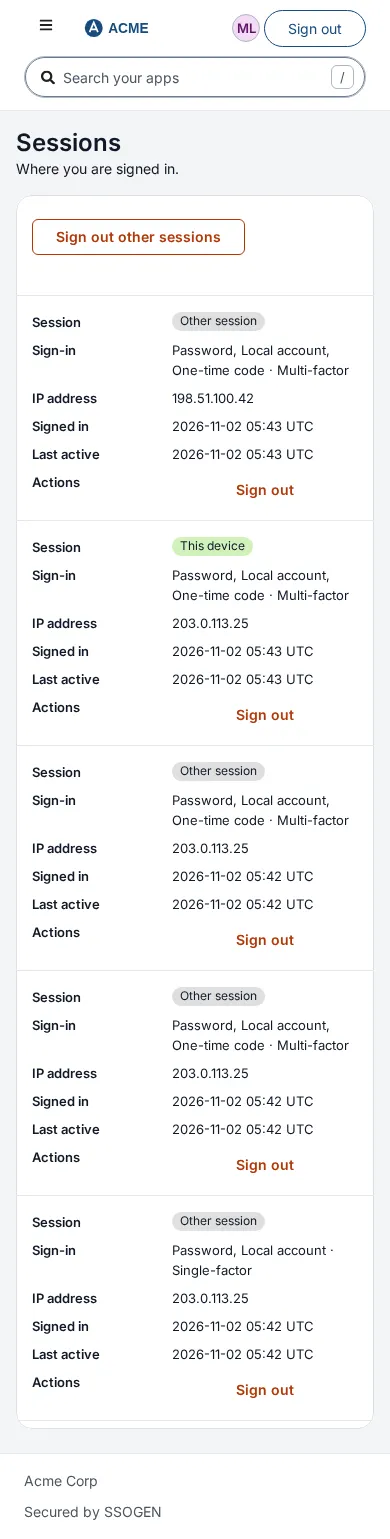
Section titled “On a phone”All these pages work in a phone browser. Open the menu with the three-bar button at the top left, choose the page, and the menu folds away again.
Related guides: My Account: password, Authenticator and passkeys, Using My Apps, Signing in.