Home realm discovery and the sign-in page
Home realm discovery is how the sign-in page works out which identity provider a person belongs to, so they never have to choose it. In SSOGEN you assign one or more email domains to a provider (a sign-in domain). The person types their email address, SSOGEN reads only the part after the @, and sends them to the provider that owns that domain.
The sign-in page is the same for My Apps, My Account, the Admin Console and every protected application, but it does not always look the same: with one provider it shows a single form, with several it shows a choice, and when sign-in domains are set it asks for an email address first. This guide explains how SSOGEN decides, what you can control, and how to brand the page.
You need the Authentication admin or Super admin role to change providers, and Super admin to change branding. For the people’s side of signing in, see Your first sign-in.
How SSOGEN decides the sign-in layout
Section titled “How SSOGEN decides the sign-in layout”The server decides the layout once, from two things: which providers are offered for this sign-in, and whether any of them claims an email domain. The browser only draws the answer.
Which providers are offered
Section titled “Which providers are offered”A provider is offered only if it is Active and the authentication policy that governs this sign-in allows it.
- Signing in to an application: the policy of that application.
- Signing in to My Apps, or to My Account: the Default policy.
- Signing in to the Admin Console: the policy assigned to the console. A new installation starts with one named Administrator sign-in (see Admin Console sign-in and lockout protection).
These are set on the Policies and Defaults pages; see Policies. A provider that is Draft, Validated, Tested, Disabled or Archived is never offered. This is why a new provider “does not appear on the sign-in page until you activate it”.
The offered providers are listed in sign-in order: lower numbers first, providers with the same number by name.
The five layouts
Section titled “The five layouts”| What is offered | What the person sees |
|---|---|
| Nothing | A page that says “No sign-in methods are available here. Contact your administrator.” Nothing else is possible. |
| One password provider (Username and password or a Directory (LDAP)) | A single form: the username and password fields and a Sign in button. |
| One OpenID Connect or SAML provider | The browser goes straight to that provider without showing a form. |
| Several providers, and none has sign-in domains | One form with a Sign in with drop-down listing the providers. |
| Several providers, and at least one has sign-in domains | A first screen with an Email or username field and a Next button (identifier-first; its heading, Who is signing in, is read by screen readers and not drawn). |
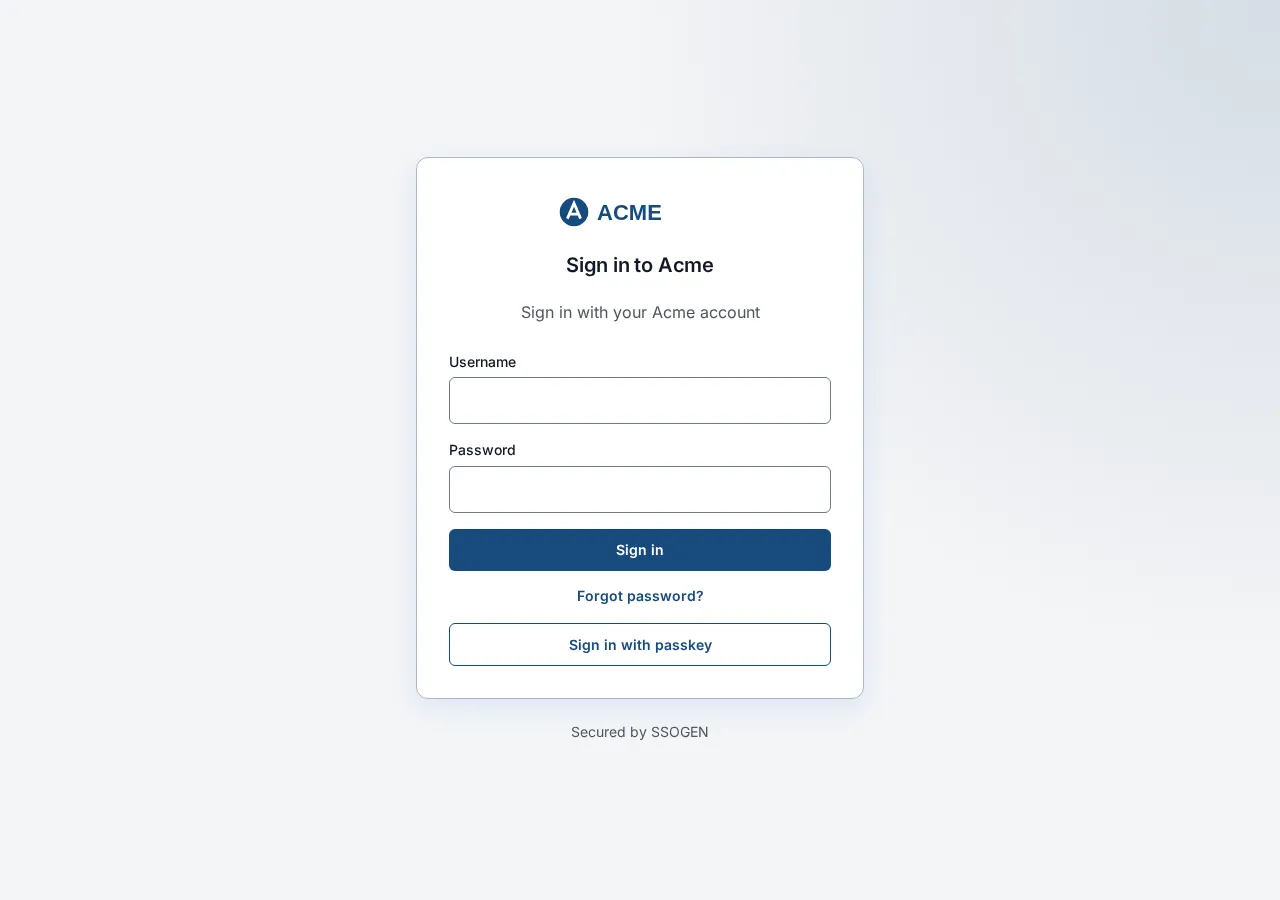
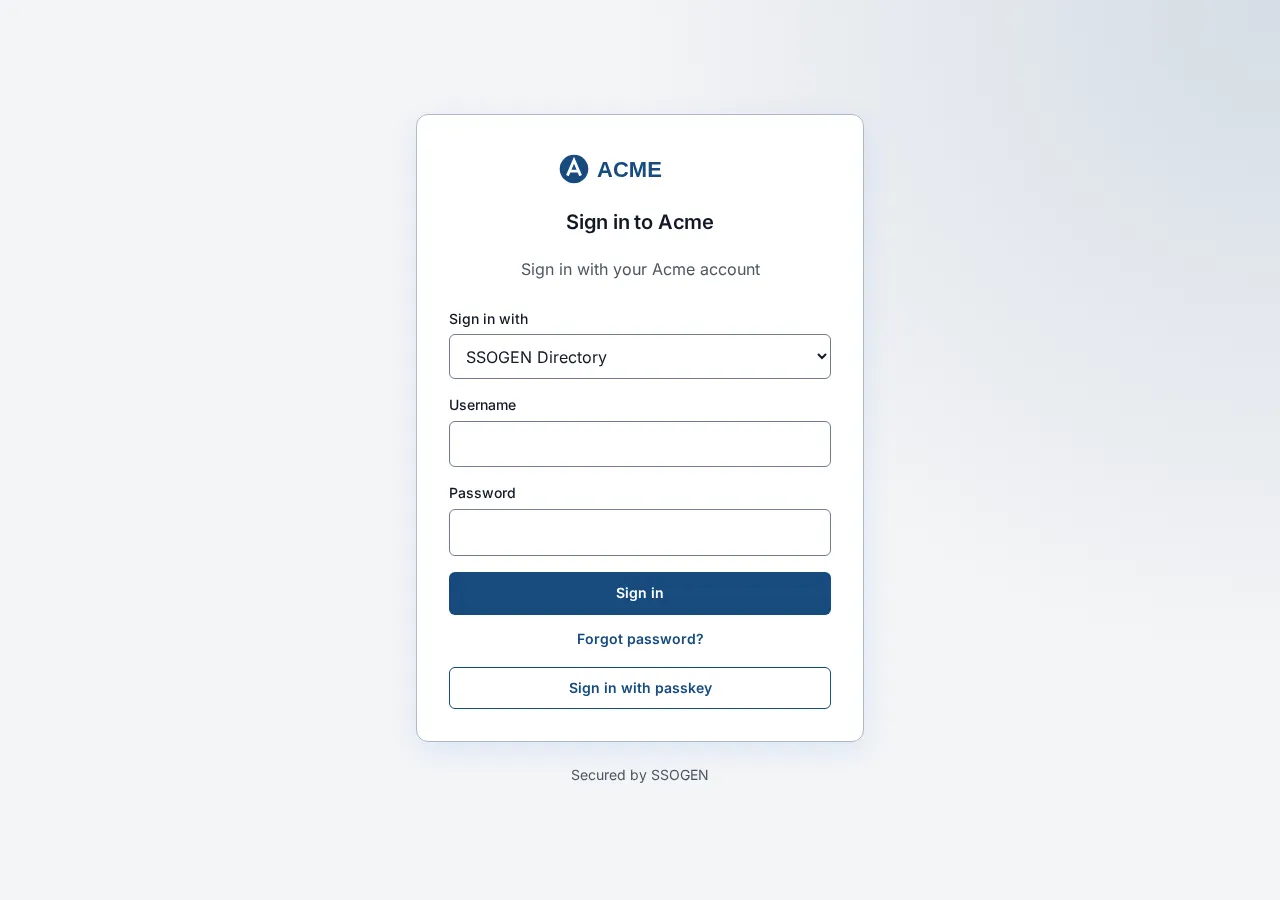
Home realm discovery with sign-in domains (identifier-first sign-in)
Section titled “Home realm discovery with sign-in domains (identifier-first sign-in)”A sign-in domain is an email domain that you assign to one provider, for example acme.example to your Entra ID provider. When several providers are offered and any of them has a domain, SSOGEN first asks who is signing in.
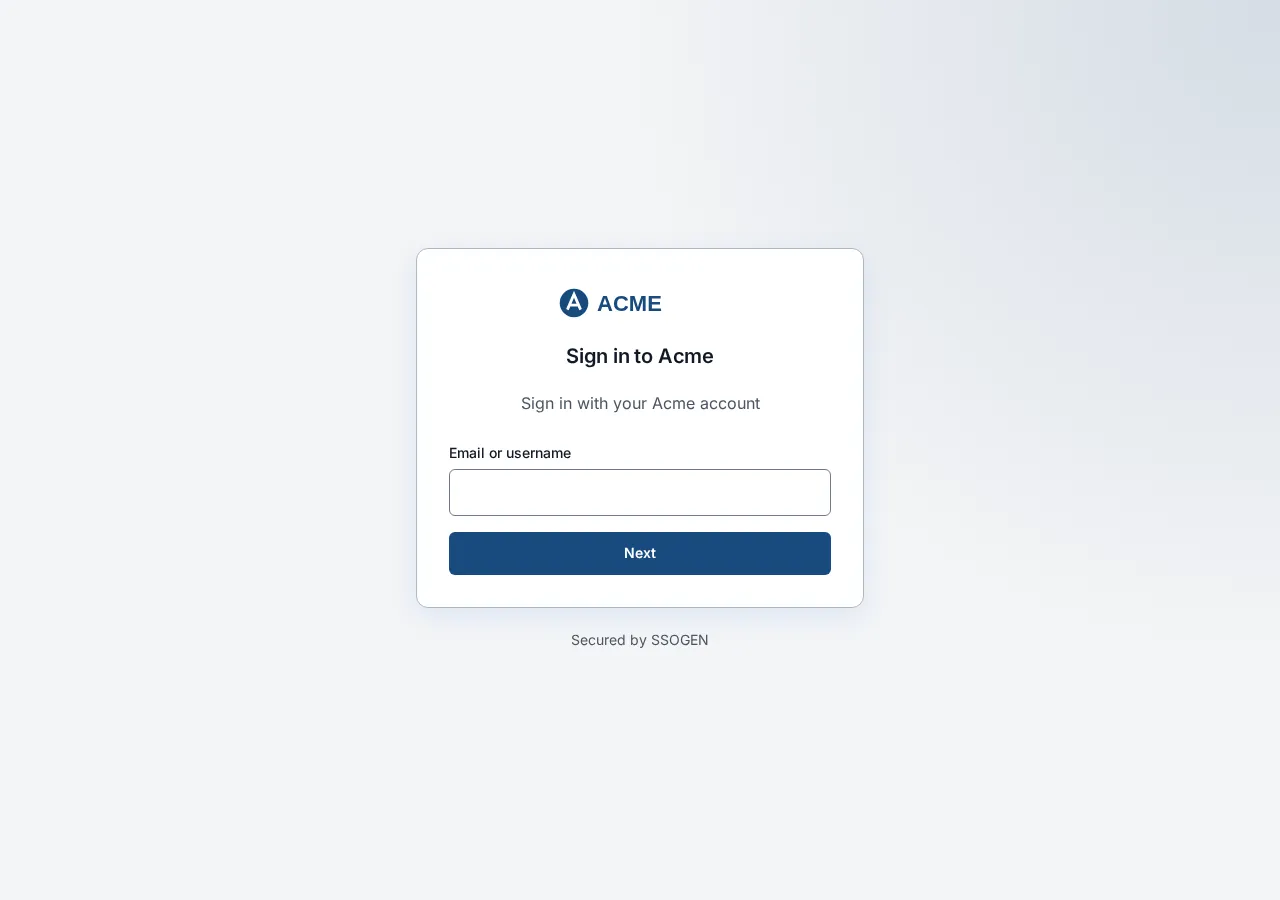
- The person types
maria.lopez@acme.exampleand selects Next. - SSOGEN looks only at the part after the
@. It does not look the account up, so the answer is the same whether or not the account exists, and an unknown name cannot be told from a known one. - What happens next depends on the domain:
- The domain belongs to a password provider (local or LDAP): the screen shows “Signing in as maria.lopez@acme.example Not you?” and just the password field. Not you? goes back to the first screen.
- The domain belongs to an OpenID Connect or SAML provider: the browser goes to that provider.
- No provider claims the domain: the Sign in with drop-down appears with every offered provider, with the default selected (see below) and the typed name carried over.
If the typed name is empty the page says “Enter the username or email address you sign in with.”
Rules for sign-in domains:
- A domain belongs to one provider. Saving one already used says “Another provider already uses domain.”
- A domain claimed by a provider that this particular sign-in does not offer routes nowhere: the person gets the drop-down instead. (For example, a provider the application’s policy does not allow.)
- Up to 20 domains per provider, written like
acme.example, separated by commas or new lines.
Set them on the provider’s Configuration tab, in Sign-in page, in the Sign-in domains box (“Email domains that sign in here.”); select Save domains. The steps are in Add a SAML identity provider, Part 4; they are the same for OpenID Connect providers and for directories.
The default in the drop-down
Section titled “The default in the drop-down”When the drop-down is shown, SSOGEN preselects one entry:
- Username and password, if it is among the offered providers;
- otherwise the first offered provider in sign-in order;
- or nothing, if the governing policy has Always make the person choose a provider ticked. Then the drop-down starts on “Choose how to sign in” and the Sign in button stays unavailable until the person chooses.
Under the drop-down the form changes with the choice: a password provider shows the password fields; an OpenID Connect or SAML provider shows a single button reading “Continue to provider name”.
To change the default, change the sign-in order (so that your preferred provider is first, and take Username and password out of the policy if you do not want it) or tick the policy option. The option is on the Providers step of the policy wizard; see Policies.
A link such as https://sso.acme.example/login/?connection=acme-entra preselects that provider in the drop-down. It is only a display choice: if the provider is not offered for this sign-in, it is ignored.
Sign-in order
Section titled “Sign-in order”Open the provider (SSO policies > Identity providers), then Configuration > Sign-in page. Enter Sign-in order, a whole number from 0 to 10,000 (“Lower shows first.”), and select Save order, which appears once the number has changed. Providers sharing a number are listed by name. Without a setting the number is 100. Invalid values say “Sign-in order must be a whole number between 0 and 10000.”
What the fields are called
Section titled “What the fields are called”Some organizations do not call the account a “username” or the secret a “password”. On a Username and password or Directory (LDAP) provider, the Sign-in page section has Field labels:
- Username field (up to 64 characters), for example
Acme network ID. - Password field (up to 64 characters), for example
Acme network password.
Select Save labels. Leave them empty for “Username” and “Password” (“Empty uses “Username” and “Password”.”). If the save fails: “Could not change what the sign-in page calls these fields.”
Other things on the page
Section titled “Other things on the page”| What the person sees | When |
|---|---|
| Forgot password? | Under a password form, unless branding hides it. See Forgot password and account recovery. |
| Sign in with passkey | Under the Username and password form, when the governing policy offers passkeys. The person types their username first. See Multi-factor authentication. |
| Sign in with your phone | Under the form, when the governing policy turns on Phone approval as a first factor. The person types their username first; no password is typed. See Multi-factor authentication. |
| Create an account | When sign-up is turned on and an entry is offered: the application’s own entry when the person came from that application, otherwise the organization’s. Never on the administrator’s sign-in. See Let people create their own accounts. |
| Email me a sign-in link | Under the form, when the governing policy ticks Emailed sign-in link. The person types their username or email address first. See Email a sign-in link. |
| Multi-factor authentication | A separate screen after the password when a second step is needed. |
| “You have been signed out. Sign in again below when you are ready.” | After signing out. |
| “Sign-in was not completed. Nothing was changed. Try again.” and a Reference code | The provider did not complete the sign-in, or the person pressed Back at the provider. |
| “You cannot sign in with this provider. Your account cannot sign in through this provider. Contact your administrator.” | The provider’s sign-in restriction does not admit the person. |
| “You cannot finish signing in. This sign-in needs a second step, and no method is set up for your account. Your administrator must set up your second factor. Contact your help desk.” | The policy needs a second step, the person has none, and none can be set up at sign-in. |
| “Provider did not complete the sign-in. Try again, or ask an administrator if this keeps happening.” | The page already sent the browser to a provider moments ago and it came straight back. SSOGEN will not send the same browser there automatically again for a short while, so a failing provider cannot trap someone in a loop. |
| “This sign-in link has expired or was already used. Go back to the application and start again.” / “This sign-in request does not match the application it was started for. Start again from the application.” | The person bookmarked or reloaded an old link. |
| “to continue to Application name” under the heading | The person arrived from an application. |
| “Preparing sign-in…” | A moment while the server answers. |
| “Blocked by a browser security check. Reload and try again. If it persists, open sign-in from your organization’s SSOGEN address, not a bookmark.” | The address in the browser is not SSOGEN’s own address. |
Email a sign-in link
Section titled “Email a sign-in link”Emailed sign-in link is off by default. You turn it on in the First factor block of an authentication policy; only that policy then accepts it. Because the Admin Console never accepts it, the Admin Console policy shows the box off and unavailable, and a policy that serves both My Apps and the Admin Console cannot offer it on My Apps (give the console a policy of its own).
A link alone is one factor and is as strong as the mailbox: anyone who can open the person’s mailbox can sign in as them. On a policy whose Second factor is Required, the link replaces only the password; the person still gives their second factor, and an email code never counts as one. People with an authenticator are still asked for it.
What the person does:
- Types their username or email address and selects Email me a sign-in link.
- The page says “If an account with a verified email matches, we sent a sign-in link and a code to it.” It says the same for every name, so it does not reveal which accounts exist.
- The screen Check your email asks for the Code from the email (eight digits). The person can type it there, or open the link in the email.
- The link works only in the browser that asked for it and only after the person selects Continue on the page it opens (Sign in with your email link, “Continue signing in as name?”). In any other browser, the person is told to use the browser where they asked, or to type the code there.
- Send it again asks for a new link and code (“We sent a new link and code. Use the newest email.”). Old ones stop working.
Any account with a verified email address can use the link when the policy allows it; there is no separate setting for directory accounts. Messages: “That sign-in link or code can no longer be used. Ask for a new one.” and “Sign-in links are not available here. Use another way to sign in.” The email is sent through the mail server in Multi-factor authentication, Part 2.
Other messages
Section titled “Other messages”Messages after a wrong password: “Your username or password is incorrect.” (with an authenticator code field open: “Invalid authenticator code or password.”). After too many tries: “Too many sign-in attempts. Wait a minute and try again.” When the service is briefly busy: “Sign-in is busy right now. Try again in a few seconds.” If a directory cannot be reached: “Directory did not respond. Your password is fine. Try again.”
A person whom an administrator has told to change their password at next sign-in sees “This account needs a new password before it can sign in.” with Current password, New password and Confirm new password fields and an Update password button. The new password must meet the password policy; “The two passwords do not match.” appears if they differ. Afterwards the page says “Password updated. Sign in with your new password.”
Branding
Section titled “Branding”Branding changes how your company appears on the sign-in pages, My Apps and My Account. Open Settings > Branding (Super admin). Above the form, a preview shows the logo, the company name and the colors as you edit.
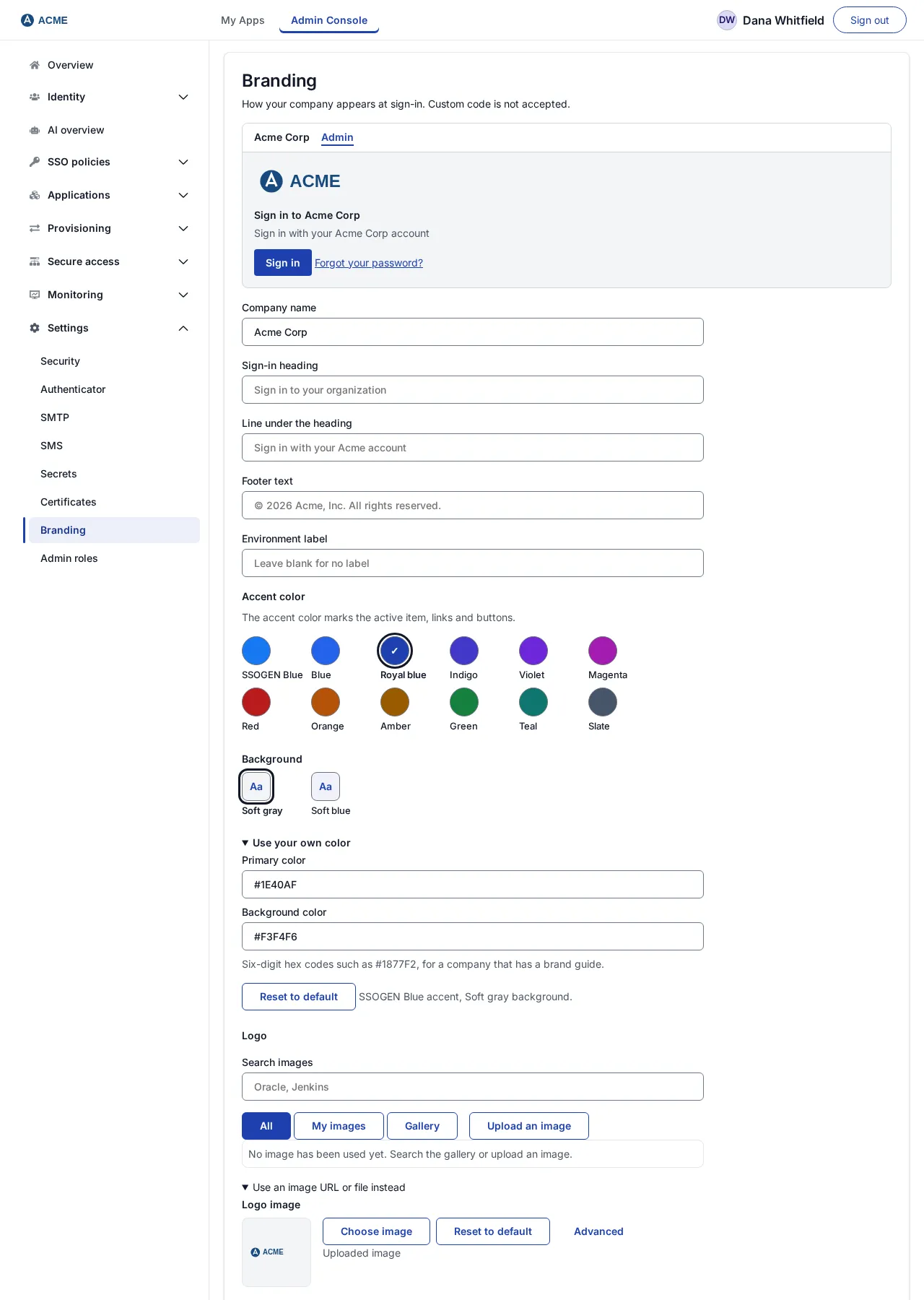
“How your company appears at sign-in. Custom code is not accepted.” Custom HTML, CSS and JavaScript cannot be added, so branding cannot introduce scripts into sign-in.
| Field | What it does | Example |
|---|---|---|
| Company name (required) | Used in the page title and as the logo’s text alternative. 1 to 128 characters; no < or >. |
Acme Corp |
| Sign-in heading | The heading of the sign-in page. Up to 120 characters. Empty shows “Sign in to company name”. | Sign in to Acme |
| Line under the heading | A sentence under the heading. Up to 240 characters. | Sign in with your Acme account |
| Footer text | Shown in the footer of the home page and the Admin Console, before the support and privacy links; your own wording, up to 256 characters. | © 2026 Acme Corp. All rights reserved. |
| Environment label | A short label in the header of the home page and the Admin Console, to tell deployments apart. Up to 64 characters; no < > " ' & ;. Empty means no label. |
Test |
| Accent color | Links, the sign-in button and the current-page marker. Choose a named swatch; Use your own color takes a hex value. A note warns if the color is too light to read on white cards or on the page background. | SSOGEN Blue |
| Background | The page background. Choose a swatch; Use your own color takes a hex value. | Soft gray |
| Logo | Pick from Search images, Upload an image or Recently used; Reset logo goes back to the SSOGEN logo. Under Use an image URL or file instead: Choose image (PNG, JPEG, WebP or ICO; an SVG is refused because it can carry script), Reset to default, or Or a path on this server for an image already published with the product. A file may be up to 48 KB; a logo from the library can be 32 KB after processing. | your logo |
| Favicon | The small icon in the browser tab. Choose image, Reset to default or Or a path on this server. | your icon |
| Support link address (optional) | A support link on the sign-in page and the home page: a web page (https://) or an email address (mailto:). |
https://support.acme.example |
| Support link words (optional) | The text of that link; blank shows “Support”. | Contact the IAM help desk |
| Show the “Forgot password?” link | A switch, on by default. Off hides the link from the sign-in page; the reset still works for anyone who has a link to it. | |
| Forgot password link words (optional) | The text of the link; up to 60 characters. | Reset my password |
| Forgot password address (optional) | Blank uses the built-in reset. An https:// address or a mailto: address sends people there instead, and the page then no longer offers the built-in reset. |
https://id.acme.example/reset |
| Show “Secured by SSOGEN” | A switch, on by default: a small line at the foot of the sign-in page and the home page that links to ssogen.ai. | |
| Privacy notice address (optional) | A privacy link, shown as “Privacy”. Must start with https://. |
https://www.acme.example/privacy |
Select Save branding. The change applies to everyone at once.
Messages and fixes:
| Message | Fix |
|---|---|
| Enter a company name. / Company name must be 1 to 128 characters. | |
| Company name cannot contain markup. Remove any < or > characters. | Remove the angle brackets. |
| Primary color must be a hex value such as #1877F2. / Background color must be a hex value such as #F3F4F6. | Use six hex digits with a #. |
| The support link address must be a web address starting with https:// or an email address starting with mailto:, with no spaces. / The privacy notice address must be a web address starting with https://, with no spaces. | Use a full https:// address (for the support link, mailto: is also accepted). |
| That file is not an image this product can use. Choose a PNG, JPEG, WebP, SVG or ICO file. | The page offers SVG here, but a logo or favicon saved as an SVG is refused with “Logos must be PNG, JPEG, WebP or ICO images. SVG is not accepted.” Use a PNG. |
| That SVG contains script, which branding does not accept. Export it as a plain image, or use a PNG. | |
| That PNG is n KB; the limit for a logo is 48 KB. Scale it down. | Use a smaller image. |
| This page is out of date with the server and sent a setting that no longer exists. Reload the page and try again. | Reload. |
Check that it works
Section titled “Check that it works”- Open a private browser window and go to
https://sso.acme.example/. - Check the layout matches the table above for your configuration. If you expected the Email or username screen and got a form, either only one provider is offered for that sign-in, or none of the offered providers has a sign-in domain.
- Type an address in a claimed domain and confirm you land at the right provider.
- Check your logo, heading and footer.
Hint and help links
Section titled “Hint and help links”On a provider’s Configuration tab, Sign-in page has Hint and help links: an optional Sign-in hint (up to 512 characters) and up to four help links, each with a label and an https address. Add them with Add link and select Save hint and links. They are optional help shown at sign-in, for example “Use your Acme email address.”