Sign in to SSOGEN, and lost phone two-factor authentication help
If you lose your phone and cannot get your second-step code, use a recovery code, the email-and-text option on the sign-in screen, or ask your help desk. This guide also covers the sign-in page, the other ways to sign in (passkey, phone approval, an emailed link), the second step (approving on your phone, or a code from an app, an email or a text), a forgotten password and what to do when something goes wrong. It works the same on a computer and on a phone. For your first sign-in, with a walk-through of My Apps and My Account, see Signing in for the first time.
The examples use the fictional company Acme Corp and an employee, Maria Lopez (maria.lopez@acme.example).
1. Open the sign-in page
Section titled “1. Open the sign-in page”Go to your organization’s SSOGEN address, for example https://sso.acme.example/. If you are not signed in you are taken to the sign-in page automatically. You can also open https://sso.acme.example/login/ directly. If you came from an application’s link, the page may say you are signing in “to continue to” that application; after you sign in you go straight to it.
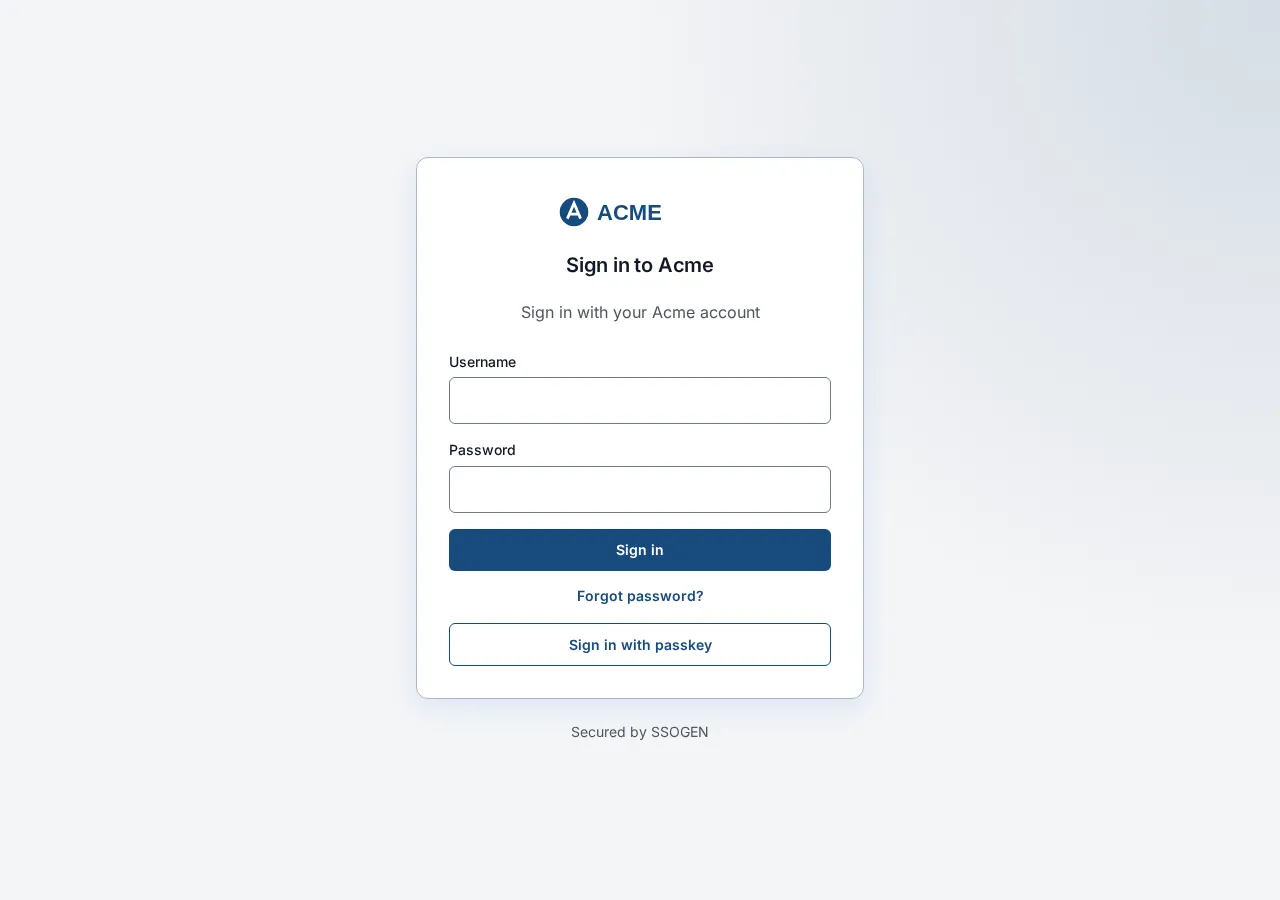
The page shows your organization’s logo, a heading (by default Sign in to followed by your organization’s name; your organization may have changed it) and sometimes a line of help. Which form you see depends on how your organization set up sign-in. There are three layouts.
| Layout | What you see | Go to |
|---|---|---|
| One screen | A form with Username and Password and a Sign in button, and possibly a Sign in with menu. | Section 2 |
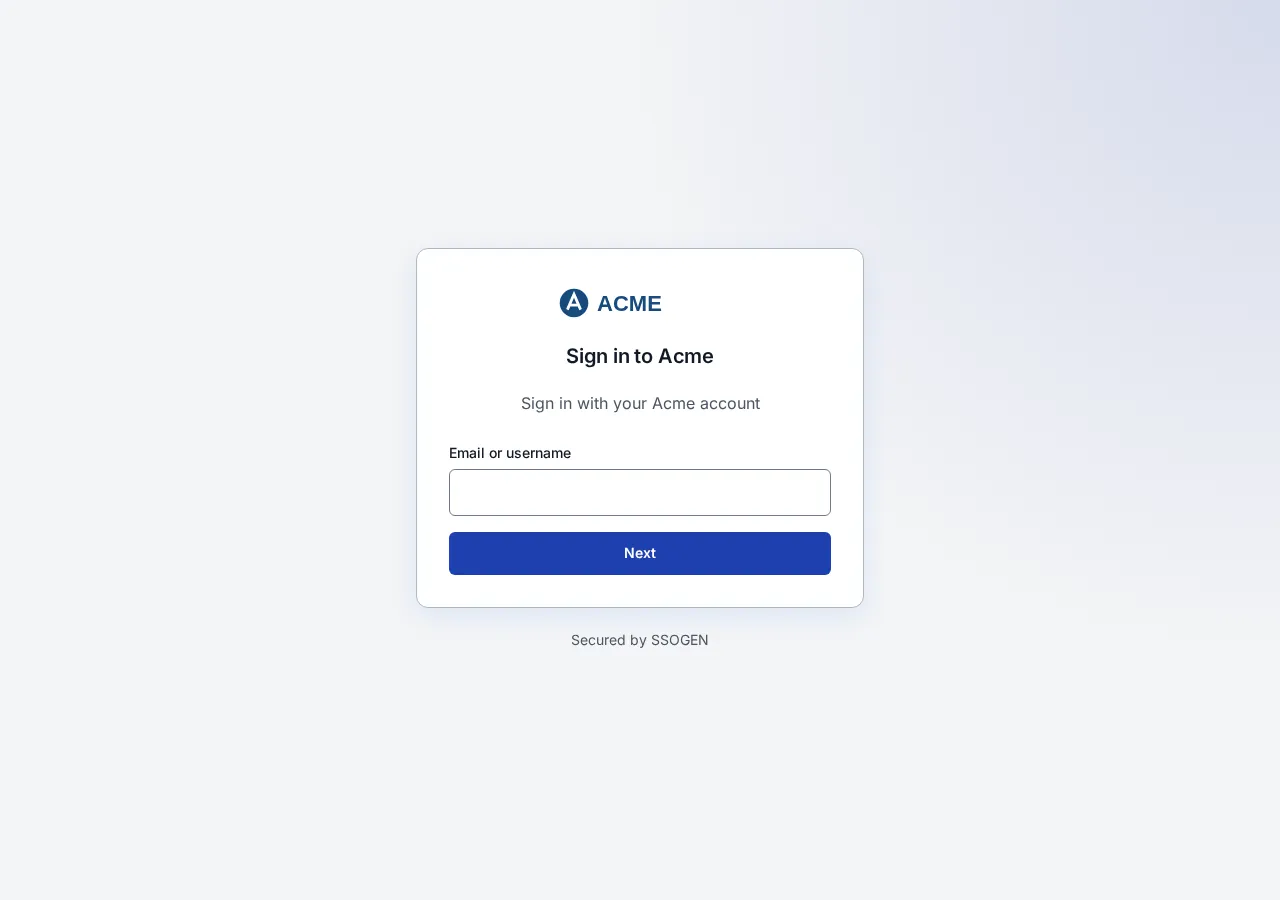
| Identifier first | A single box that asks for your Email or username and has a Next button. | Section 2, “Identifier first” |
| Straight to your company login | A moment of Preparing sign-in…, then your company’s own sign-in page (for example Microsoft or Okta). | Section 2, “Your company’s other sign-in service” |
On a phone the page is a single column; everything below is the same, and your phone may offer to fill in your username and password.
Under the form your organization may show a support link, a privacy link and the line Secured by SSOGEN.
No account yet? If the page shows Create an account, you can ask for one yourself; if you received an invitation email, open its link instead. Both are described in Create an account.
Other ways to sign in. Depending on your organization’s policy, the form can also show the buttons Sign in with passkey, Sign in with your phone and Email me a sign-in link. They are covered in section 3. Each one only appears if your organization turned it on, and some are off by default.
If the page says No sign-in methods are available here. Contact your administrator. nothing is wrong with your account; sign-in has not been set up for this address. Tell your help desk.
If you see You have been signed out. Sign in again below when you are ready., you signed out (or were signed out) and can sign in again.
2. Sign in
Section titled “2. Sign in”One screen, with a password
Section titled “One screen, with a password”- If a menu Sign in with is shown, choose how you sign in, for example Acme Corp Directory. (If it shows Choose how to sign in, choose one.) Beneath the form your organization may show a hint and help links.
- Type your Username (some organizations use a different label, such as your email address) and your Password.
- Select Sign in.
- If your account needs a second step you are shown the second-step screen (section 4). Otherwise you arrive at My Apps.
Identifier first
Section titled “Identifier first”- Type your Email or username (for example
maria.lopez@acme.example) and select Next. - The next screen says Signing in as maria.lopez@acme.example with a link Not you? (select it to go back and type another name).
- Depending on how your organization set you up, you now either type your Password and select Sign in, or you see a button Continue to and your company’s sign-in service name. Select it and sign in there (below).
Your company’s other sign-in service
Section titled “Your company’s other sign-in service”If your organization uses another sign-in service (for example Microsoft Entra ID, Okta or Google), SSOGEN sends your browser there, you sign in on that service’s page as you always do, and you come back to SSOGEN signed in. The button reads Continue to followed by its name.
If you back out of that page or it does not finish, you return here with a notice: Sign-in was not completed. Nothing was changed. Try again. If a line starting with Reference is shown, quote it to your help desk. You may also see “Name did not complete the sign-in. Try again, or ask an administrator if this keeps happening.” If the service does not admit your account, the notice reads You cannot sign in with this provider. and tells you to contact your administrator.
3. Other ways to sign in
Section titled “3. Other ways to sign in”Sign in with a passkey
Section titled “Sign in with a passkey”If your organization allows passkeys and you have added one (My Account: sign-in and security, section 5), the form has a Sign in with passkey button.
- Type your Username (if you have not, the page asks you to enter it first).
- Select Sign in with passkey.
- Your browser or device asks you to confirm: fingerprint, face, PIN or security key. Do that.
- You are signed in; no password is needed.
Messages you may see:
| Message | What to do |
|---|---|
| Passkeys are not supported in this browser. | Use a current browser, or sign in with your password. |
| Passkey sign-in canceled. | You closed the prompt. Try again, or use another way. |
| No passkey was used. Try again and confirm with your PIN, fingerprint or face, or sign in another way. | The prompt was dismissed or the screen lock was not confirmed. Try again on the device where you added the passkey. |
| Passkey sign-in failed. Check the username, or sign in another way. | Check the username; add a passkey in My Account if you have none. |
| Passkey sign-in did not complete. Check the username, or add a passkey first. | Check the username; add a passkey in My Account. |
| Passkey sign-in is not available for this device or browser. | Use your password. |
| Passkey sign-in could not complete. Enroll a passkey on this device from Account, then try again. | Sign in with your password and add a passkey on this device. |
| Passkey sign-in is not turned on here. Choose another option, or contact your administrator. | Your organization has not turned passkeys on. |
| Your browser blocked passkey sign-in. Reload the page and try again. | See “Blocked by a browser security check” in section 7. |
Sign in with your phone
Section titled “Sign in with your phone”If your organization turned on phone sign-in and you have paired the SSOGEN Authenticator app on your phone (The SSOGEN Authenticator app), you can sign in without a password.
- Type your Username.
- Select Sign in with your phone.
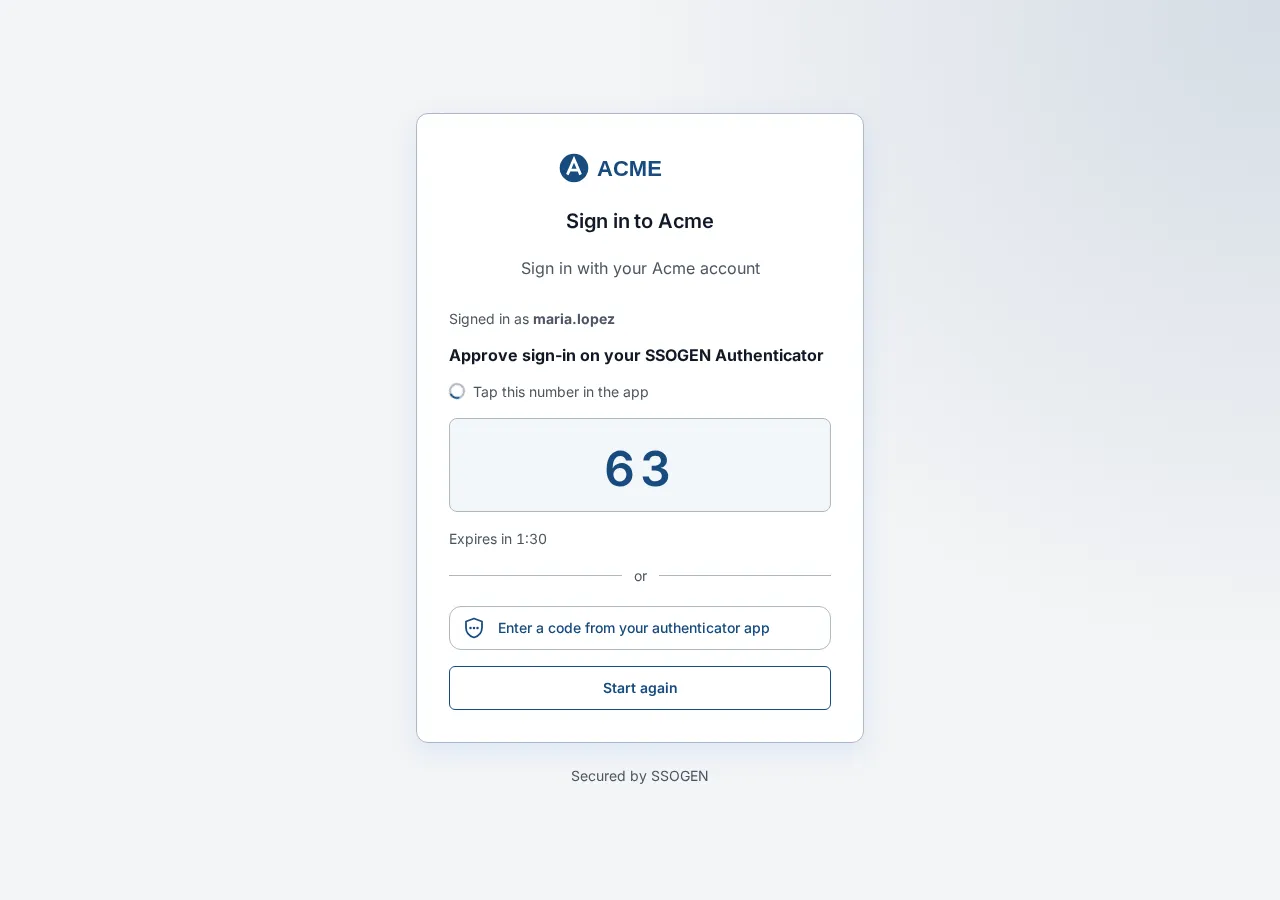
- The page shows a number and says Tap this number in the app. Your phone shows a request with six numbers. Tap the one that matches the number on the page, then confirm with your fingerprint, face or screen lock. Step by step: Approve a sign-in on your phone.
- The page signs you in. If you change your mind, select Cancel, or Use password instead.
Nothing is typed on the computer. If the number you tap is wrong, the sign-in is stopped and you start again.
Email me a sign-in link
Section titled “Email me a sign-in link”If your organization turned it on, the form has an Email me a sign-in link button. It works for an account that has a verified email address.
- Type your Username or email address and select Email me a sign-in link.
- The page says Check your email. The page always gives the same answer, so nobody can use it to find out who has an account: “If an account with a verified email matches, we sent a sign-in link and a code to it.”
- Open the email in the same browser and select the link. The page Sign in with your email link asks “Continue signing in as” your name. Select Continue. Or type the eight-digit code from the email into Code from the email on the first page. Opening the link in a different browser does not sign you in; the page tells you to use the browser where you asked.
- If the email does not arrive, select Send it again (the button counts down first). Only the newest email works.
If the page says That sign-in link or code can no longer be used. Ask for a new one., the link was used or has expired; ask for a new one. Anyone who can read your mailbox could use this option, so keep your email account secure. Your organization’s policy may still ask you for a second step afterwards.
4. The second step
Section titled “4. The second step”If your account has a second step, SSOGEN asks for it after your password. (This means your password was accepted; you are not signed in to SSOGEN until the second step is done.) SSOGEN can also show this screen when you open a sensitive application, even if you signed in earlier. Complete it and you go on to the application. Which of the screens below you see depends on whether you have paired your phone and on your organization’s policy.
If you paired your phone: approve it there
Section titled “If you paired your phone: approve it there”The screen is headed Approve sign-in on your SSOGEN Authenticator. It shows one number and says Tap this number in the app, with the time left. Your phone shows a request with six numbers. Tap the one that matches, then confirm with your fingerprint, face or screen lock. The sign-in goes on by itself. The steps on the phone are in Approve a sign-in on your phone.
If the request ends, the screen says why and offers a way on:
| Message | What to do |
|---|---|
| Request denied. Try again or use another method. | The request was declined on the phone. Select Try again, or use another method below. |
| The request expired. | Select Resend. |
| The number you chose did not match. Start again. | You tapped a different number. Start again, and tap the number the page shows. |
| Sign-in stopped. Your administrator has been notified. | Someone, possibly you by mistake, chose This wasn’t me on the phone. If it was you, sign in again later or ask your help desk. |
| Too many requests. Use another method. | Use a code instead (below). |
Under the number you can switch to Enter a code from your authenticator app, Email me a code or Text me a code (each only if your organization allows it).
Other second steps
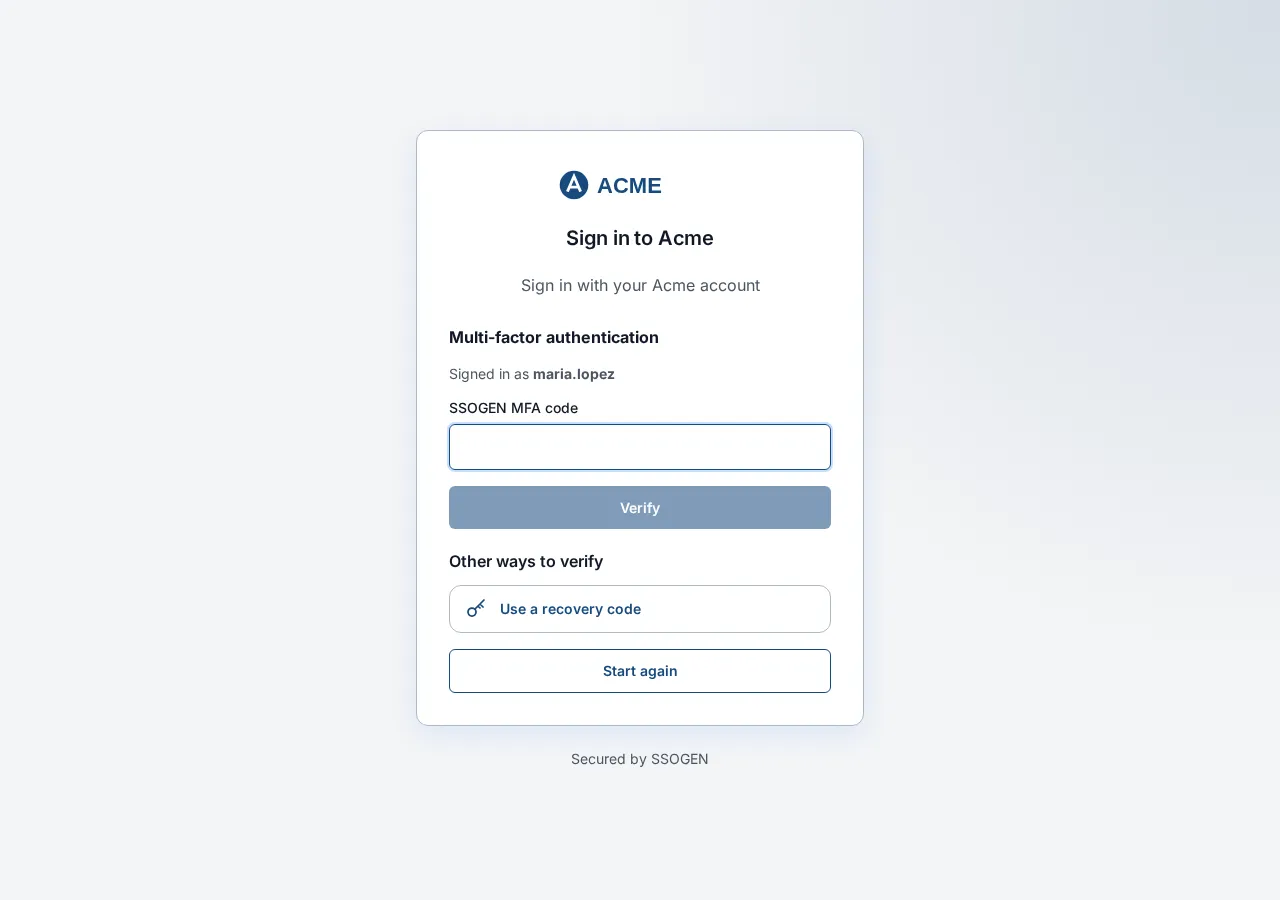
Section titled “Other second steps”Otherwise the screen is titled Multi-factor authentication and says Signed in as maria.lopez. The first method shown is your usual one. Under Other ways to verify you can switch to another one that you have.
| Method | What to do |
|---|---|
| Authenticator app | Open your authenticator app (for example the SSOGEN Authenticator), read the six-digit code for SSOGEN, type it into SSOGEN MFA code, and select Verify. |
| Email a code | Select Send a code (it says where it will go, for example “Send a code to your email address”). The screen says “We sent a code to … It expires in N minutes.” (N is your organization’s setting). Type it into Verification code and select Verify. The Resend in N s button counts down and becomes Resend code after the wait. |
| Text a code | The same with a text message: “Text a code to …” then “We texted a code to …”. |
| Recovery code | One of the ten codes you saved. Type it into Recovery code and select Verify. Each code works once. |
If something is wrong the screen says:
| Message | What to do |
|---|---|
| That code didn’t work. Check it and try again. | Check the digits; wait for the app’s next code if the old one has just changed. |
| Your sign-in took too long. Start again. | Select Start again and sign in again. |
| Too many attempts. Try again in 15 minutes. / Try again later. / Wait a moment and try again. | Wait as stated. |
| You’ve asked for several codes. Wait a few minutes and try again. | Wait, then request again. |
| We can’t send codes right now. Use another method or contact your help desk. | Choose another method under Other ways to verify. |
| Your identity was not verified. Try again. | Try again; if it repeats tell your help desk. |
| This sign-in needs a second step, and no method is set up for your account. Your administrator must set up your second factor. Contact your help desk. | Your account has no second step available. Your help desk can help. |
Start again is always available under the form and takes you back to the beginning.
Some organizations ask for the code on the password screen instead: after your password the page says Password accepted. Enter your authenticator code. and shows SSOGEN MFA code (and Or recovery code if your organization uses them). Enter it and select Sign in again.
5. Forgotten password
Section titled “5. Forgotten password”You can reset a password you have forgotten from the sign-in page, if your organization allows it for your kind of account.
- Type your username into the Username box (or Email or username).
- Select Forgot password?. (If the box is empty, the page asks you to type your username first.)
- The page always says the same thing, so that no one can use it to find out who has an account: If that account can be reset here, a message is on its way. The link lasts fifteen minutes.
- Open the email. (If it does not arrive, check your spam folder; if there is still nothing, your account may not be resettable here, so ask your help desk.)
- Select the link in the email. The page is titled Choose a new password. Type your New password (the rule is shown beside the field, for example a minimum length) and the same again in Confirm new password, then select Set password.
- A green message says Your password has been changed, and every session you had has been signed out. Select Sign in and use the new password.
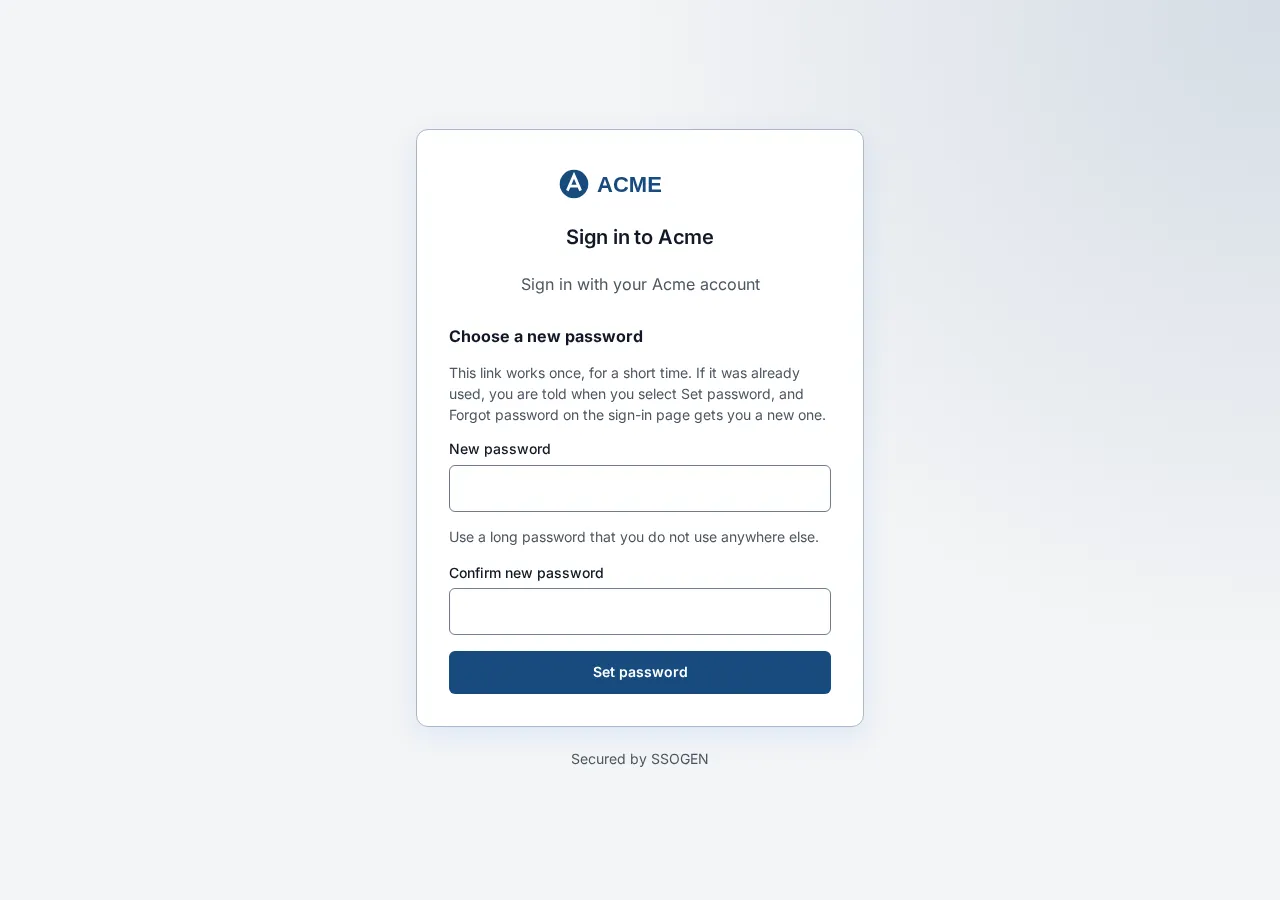
If it does not work:
| Message | Meaning |
|---|---|
| That link has expired or has already been used. Go back to the sign-in page and choose Forgot password to get a new one. | The link lasts fifteen minutes and works once. Select Back to sign in and start again from step 1. |
| That password was not accepted, followed by the password rule. | Choose a password that meets the rule shown. |
| Your directory did not accept the new password. Reset it the way you normally do. | Your password lives in your company directory. Change it the way you usually change your computer password. |
| The password could not be changed. Try again. | A network problem. Try again. |
If an administrator required a new password
Section titled “If an administrator required a new password”Sometimes, after your password is accepted, the page says Your password must be changed before continuing. and This account needs a new password before it can sign in. with Current password, New password and Confirm new password. Fill them in (follow the rule shown beside the field) and select Update password. The page says Password updated. Sign in with your new password. Messages you may see: The two passwords do not match., New password does not meet policy requirements., The password was not changed. Check your current password, then try again., Too many password-change attempts. Wait a minute and try again.
6. If you lose your phone and cannot get a code
Section titled “6. If you lose your phone and cannot get a code”If your authenticator app is on a phone you no longer have:
- On the second-step screen choose Recovery code under Other ways to verify, and use one of the codes you saved. Each works once.
- If your organization allows it, you can instead use the Lost your phone? option on the same screen: Use an email code and a text code. SSOGEN sends one code to your email address and one to your phone number (Step 1: email code, then Step 2: text code), and you need both.
- Sign in and open My Account, then Authenticator: remove the old phone and pair the new one (My Account: sign-in and security, section 4). Then generate a new set of recovery codes.
- If you have no recovery codes and the option in step 2 is not offered, ask your help desk. An administrator can reset your second step for you.
7. Messages and what to do
Section titled “7. Messages and what to do”| Message | What to do |
|---|---|
| Your username or password is incorrect. | Check both; passwords are case sensitive. After too many mistakes you see the next message. |
| Invalid authenticator code or password. | Check both and try again. |
| Too many sign-in attempts. Wait a minute and try again. | Wait a minute. |
| Directory did not respond. Your password is fine. Try again. | Your company directory is not answering. Do not reset your password; try again later. |
| Blocked by a browser security check. Reload and try again. If it persists, open sign-in from your organization’s SSOGEN address, not a bookmark. | Reload, or type your organization’s SSOGEN address directly. |
| Password sign-in is not turned on here. Choose another option, or contact your administrator. | Choose another way under Sign in with, or ask your help desk. |
| Sign-in did not complete. Try again in a moment, or contact your administrator if it keeps failing. / Sign-in is temporarily unavailable. Try again in a few minutes, and contact your help desk if it continues. | Try again; tell your help desk if it repeats. |
| Enter the username or email address you sign in with. | The identifier box was empty. |
| This sign-in link has expired or was already used. Go back to the application and start again. | Go back to the application and open it again. |
| This sign-in request does not match the application it was started for. Start again from the application. | Start again from My Apps. |
| This sign-in option cannot start here. Choose another or contact your administrator. | Choose another way to sign in; tell your help desk. |
8. Sign out
Section titled “8. Sign out”Select Sign out at the top right of any page. To end other devices too, open Sessions in the My Account menu and use Sign out other sessions (My Account: sessions and activity). Always sign out on a shared computer.
Related guides: Using My Apps, Approve a sign-in on your phone, My Account: sign-in and security, My Account: sessions and activity.