Approve a sign-in on your phone with number matching MFA
To approve a sign-in on your phone, you open the request in SSOGEN Authenticator, tap the number that matches the one on your computer, and confirm with your fingerprint, face or screen lock. The matching step is called number matching. It proves that the person holding the phone is also the person at the sign-in page, and it stops someone who is only guessing from approving a request by accident.
You need to have paired your phone first; see The SSOGEN Authenticator app. Phone approval is used as the second step after your password, or on its own when your organization offers Sign in with your phone.
The examples use the fictional company Acme Corp and an employee, Maria Lopez.
1. What you see on the computer
Section titled “1. What you see on the computer”Sign in as usual. When your organization asks for phone approval, the page is headed Approve sign-in on your SSOGEN Authenticator. It shows one number and says Tap this number in the app, with the time left before the request expires.
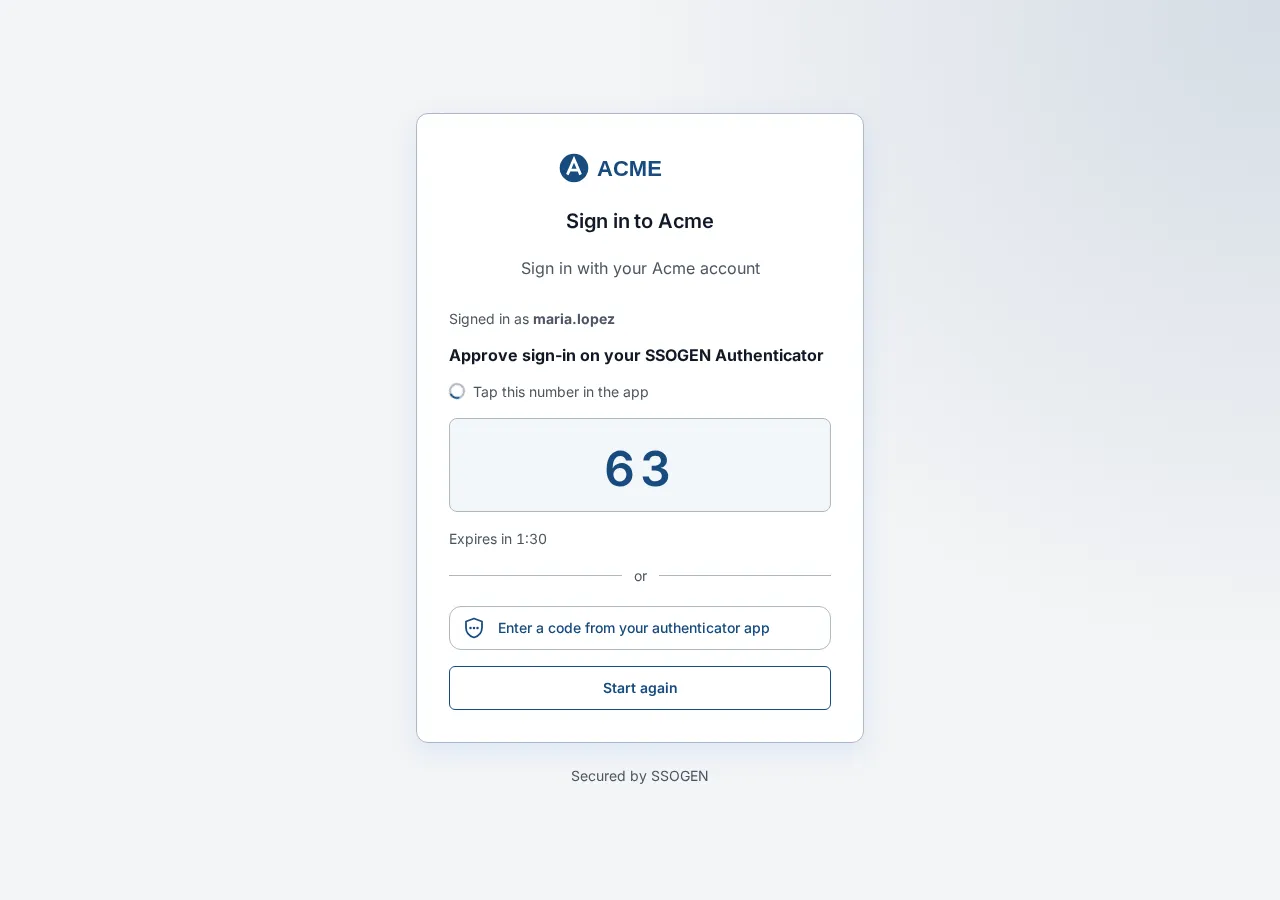
Nothing is typed on the computer. If you would rather not use the phone, the same page offers other ways: Enter a code from your authenticator app, Email me a code, Text me a code (each only if your organization allows it), and for a lost phone Use an email code and a text code.
2. What you see on the phone
Section titled “2. What you see on the phone”Your phone shows a notification, Sign-in request. It says only that a request is waiting; it never contains the details and never approves anything by itself. Open it, or open the app and choose Sign-in requests in the menu. If the app is already open, the request appears in it, and a banner says how many are waiting with a Review button.
The request screen is headed Sign-in request and asks Approve this sign-in? (or Approve sign-in to the application’s name). It shows:
- the Account you are signing in as and, when there is one, the Application;
- Sign-in using, the way you are signing in;
- whether the sign-in comes from a Known Network Location or a New Network Location;
- the Organization, and how long you have left to answer (on some phones the countdown also reads Answer within and the time);
- a Warning line if SSOGEN saw a reason for care.
Under the question the app says Tap the number shown in your browser and shows six numbers. Your computer showed only one of them.
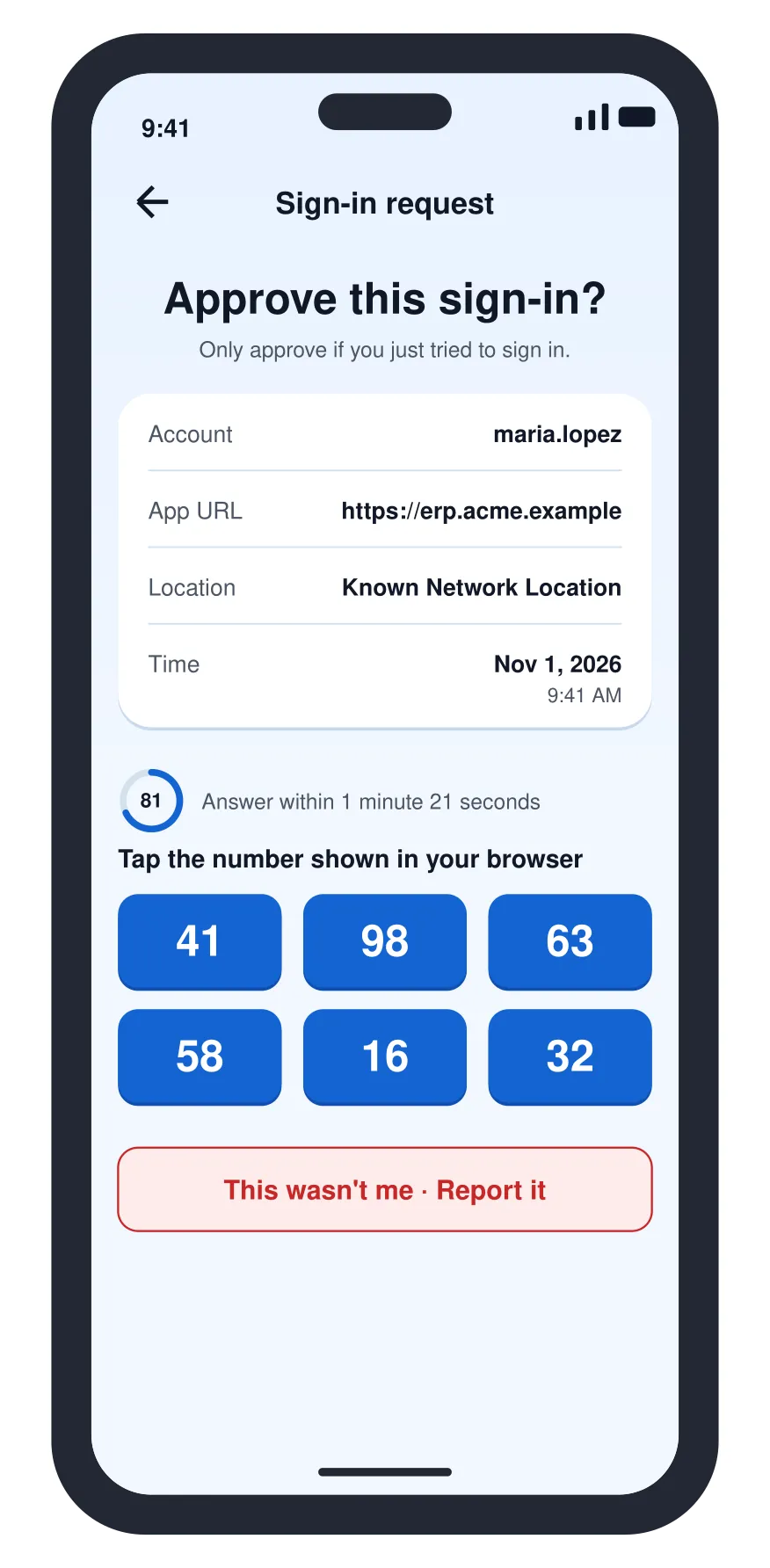
Illustration with fictional data.
3. Approve it
Section titled “3. Approve it”- Read the line Only approve if you just tried to sign in. If it was you, go on. If not, go to section 4.
- Tap the number that is the same as the one on your computer.
- Confirm with your fingerprint, face or screen lock. Tapping the right number, then confirming, is the whole answer; there is no separate Approve button on this screen.
- The app says Approved and tells you to go back to your browser. The page on your computer signs you in by itself.
If you tap a number that does not match, the sign-in is denied: the app says the number did not match, and the computer says “The number you chose did not match. Start again.” Sign in again and use the number the page shows now. Each request gives you one try.
To refuse without reporting, do not tap a number and let the request expire, or use another way on the computer. If your phone shows Approve and Decline instead of six numbers (an older request), select Decline.
4. If it was not you
Section titled “4. If it was not you”If you see a request and you did not try to sign in, someone may have your password or username. Do not approve it.
- Select This wasn’t me · Report it.
- The app asks Report this sign-in as suspicious? and explains: the sign-in is blocked, sign-in requests to your phone pause for a while, and your organization is told. Select Report.
- The app says the sign-in was reported and stopped, and that your organization can see the report.
- Change your password, and tell your help desk. Activity in My Account may show the request and how it ended.
The page on the other computer stops with “Sign-in stopped. Your administrator has been notified.”
5. Messages you may see
Section titled “5. Messages you may see”The wording differs a little between iPhone and Android; the meaning is the same.
| What the app says | What it means and what to do |
|---|---|
| No sign-in requests are waiting. | Nothing needs an answer. When you sign in on another device, the request appears here. |
| This request is no longer waiting. / This request expired. | You were too slow, or the sign-in was started again. Sign in again and answer the new request. |
| This request was already answered. | Another action closed it. Nothing to do. |
| This request could not be verified and was ignored. | Do not retry it. If it keeps happening, tell your help desk. |
| Approval needs your fingerprint or face. If your biometrics changed since pairing, deny and pair this phone again. | Remove the phone in My Account and pair it again (The SSOGEN Authenticator app, section 2). |
| Could not send your answer. Check the connection and try again. | The phone has no connection to SSOGEN. Approve and Decline need one. |
| Update SSOGEN Authenticator to approve sign-ins. Your codes still work. | Update the app. |
| Check this phone’s date and time, then try again. | Turn on automatic date and time. |
| This phone was removed from (your organization’s address). To approve sign-ins again, pair it from My Account. | Pair the phone again. |
6. If you do not get the request
Section titled “6. If you do not get the request”- Check that the phone has a connection and that notifications are allowed for the app. You can always open the app and choose Sign-in requests; a request is shown there while it is waiting.
- If the request does not arrive, use another way on the sign-in page, such as a code from the app.
- If you lost the phone, see Signing in, section 6.
Related guides: The SSOGEN Authenticator app, Signing in, My Account: sign-in and security.