SSOGEN / Sign-in methods / SSO Username and Password: Local Accounts in SSOGEN
Integration
SSO Username and Password: Local Accounts in SSOGEN
SSO username and password sign-in is the built-in way into SSOGEN: local accounts where SSOGEN itself keeps each person's password. It needs no directory and no outside identity provider.
SSO username and password sign-in needs nothing outside SSOGEN. SSOGEN is a complete identity provider and holds the accounts itself. The built-in provider appears in the Admin Console as Username and password, and it is available from the first install. Use it for users that no directory holds, and as a way back in if another provider is down.
A local account gets the same single sign-on as any other: SAML 2.0 and OpenID Connect applications, and Oracle E-Business Suite, PeopleSoft and JD Edwards behind the SSOGEN Web Agent.
This page covers when local accounts are the right choice, how people get a password, and what protects the accounts. User administration is described step by step in the users guide.
When local accounts fit
| Use local accounts for | Why |
|---|---|
| Your first administrator | You need to sign in before any directory is connected |
| Small teams with no directory | There is nothing else to connect |
| Contractors and test accounts | They are in no corporate directory |
| A fallback | If a directory or federated provider is unreachable, these people can still sign in |
If your users already have accounts in Active Directory, OpenLDAP, Entra ID or Okta, connect that system instead and let it keep the passwords. That way each person has one password, kept in one place.
The identity providers guide lists the four kinds and when to pick each. You can mix them: local accounts for a few administrators, one directory or federated provider for everyone else.
How a person gets a password
Creating a user takes three fields: a username of up to 128 characters, a display name and an email. A person gets a password by one of four routes.
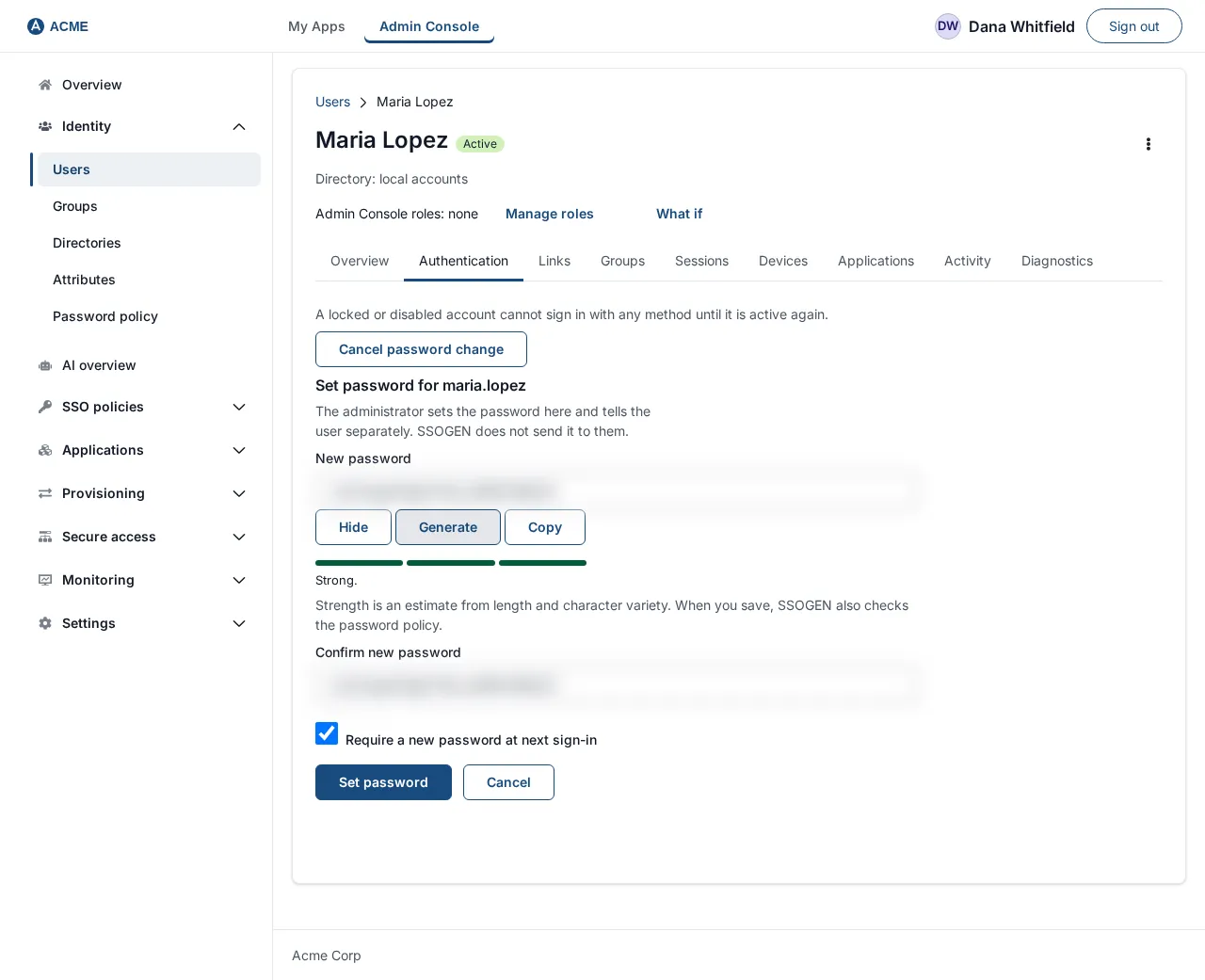
- Set a temporary password. On the user’s Authentication tab, choose Set password. Enter 12 to 256 characters, or press Generate for a random 24-character one. If you leave Require a new password at next sign-in selected, the person must choose their own password after the first sign-in. You give them the temporary password yourself, because SSOGEN never emails it.
- Let them reset it. The person uses Forgot password on the sign-in page, and the reset link works for 15 minutes.
- Send an invitation. Turn on Send an invitation email in Create user. The person gets a one-use link that sets the first password, valid for 7 days by default; a Super admin sets 1 to 30 days under Settings, Security.
- Import from a file. The CSV import creates every person in the file and sends each one the same invitation, valid for 7 days by default. The file takes up to 5,000 rows and 2 MB, and it is checked before anybody is created.
Moving over from another system
A CSV can carry a password_hash column holding the hash your old system already stored, never the password. Recognized forms:
- bcrypt.
- Argon2id.
- Django PBKDF2.
pbkdf2_sha256$<iterations>$<salt>$<hash>andpbkdf2_sha512$, where the salt is the text Django stored. - passlib PBKDF2.
$pbkdf2-sha256$<rounds>$<salt>$<hash>and$pbkdf2-sha512$, where the salt and hash are base64, the layout to use when a salt is binary. - Salted SHA.
{SSHA512}and{SSHA256}.
A person with a hash keeps signing in with the password they already use, and no invitation is sent.
A file with any other hash form, a malformed hash, or a hash with a cost above the limits is refused whole, so no one is imported halfway.
For example, more than 600,000 iterations for PBKDF2-SHA256 or 210,000 for PBKDF2-SHA512 is above the limit.
What protects local accounts
- Stored so nobody can read it back. SSOGEN keeps the password in a form that no one, administrators included, can read.
- Attempt limits. Password sign-ins are limited per client, 20 a minute by default, and the figure is a Security setting.
- Lock and disable. An administrator can lock an account, which stops sign-in at once, or disable it. Disabling asks for confirmation. It ends the person’s access without deleting anything.
- A second step. A local account can add an authenticator app, a passkey or recovery codes, and a policy can require them. See SSO multi-factor authentication.
- Audit. Permanent deletions are recorded in the audit trail, and a user’s page lists their last 20 security events.
An account whose password lives in a directory is a different case. Local passwords belong to SSOGEN. For directory people, SSOGEN writes a password change into the directory only when a Super admin has turned that on.
What the sign-in looks like
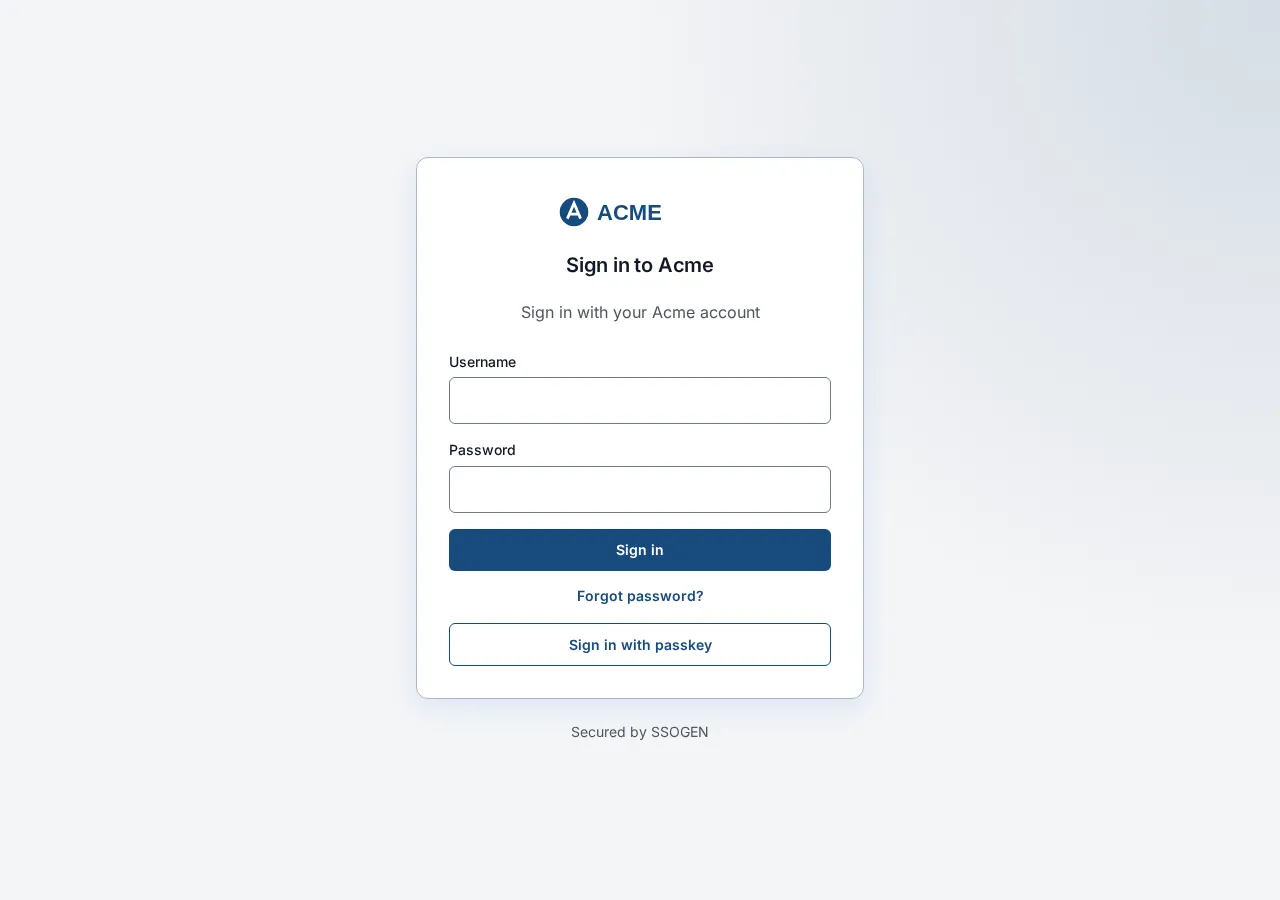
- One password provider. The sign-in page is a single form with Username, Password and Sign in.
- Several providers. People pick from Sign in with, or you assign email domains to providers so the page sends each person to the right one.
- Local accounts. A local account stays on that same page.
Questions people ask
Can SSOGEN be the only identity provider?
Yes. Local accounts are enough to protect applications on their own, and a third-party provider is optional.
What if a local person is later imported from a directory?
An import that finds a matching account from another source adopts it. SSOGEN links the person and leaves the account as it was.
Where to go next
- Create, import and reset. Read the user management guide.
- Lost passwords. Forgot password and account recovery shows what people see.
- Existing directory. See LDAP sign-in.
- All methods. Return to all sign-in methods.