SSOGEN / Sign-in methods / Passkey Authentication: Sign In to SSOGEN Without a Password
Integration
Passkey Authentication: Sign In to SSOGEN Without a Password
Passkey authentication in SSOGEN lets a person sign in by approving on a device with a fingerprint, face or PIN, with no password typed. A policy can accept only a passkey or security key for the applications that matter most.
Passkey authentication in SSOGEN gives your users a sign-in that cannot be phished. A passkey is a credential built into a phone, a laptop or a hardware security key, and the person approves with a fingerprint, face, PIN or the key itself. Nothing is typed, so nobody can enter a passkey into a fake website.
SSOGEN therefore ranks it above every code method. This page covers what a passkey does in SSOGEN, how people add one, and how a policy requires one. End-user steps are in My Account: sign-in and security.
Where passkeys fit in SSOGEN
A passkey is a complete sign-in, not a code typed after a password. It is offered on the Username and password sign-in form:
- The person types a username.
- The person chooses Sign in with passkey.
The button shows only when the policy offers passkeys, and it stays gray until a username is typed.
That sets passkeys apart from the other methods on the multi-factor authentication page.
- Passkey. It replaces the whole sequence, so the Multi-factor authentication screen does not list it.
- Authenticator, recovery or emailed code. Each one is a second step after another sign-in.
What the policy controls
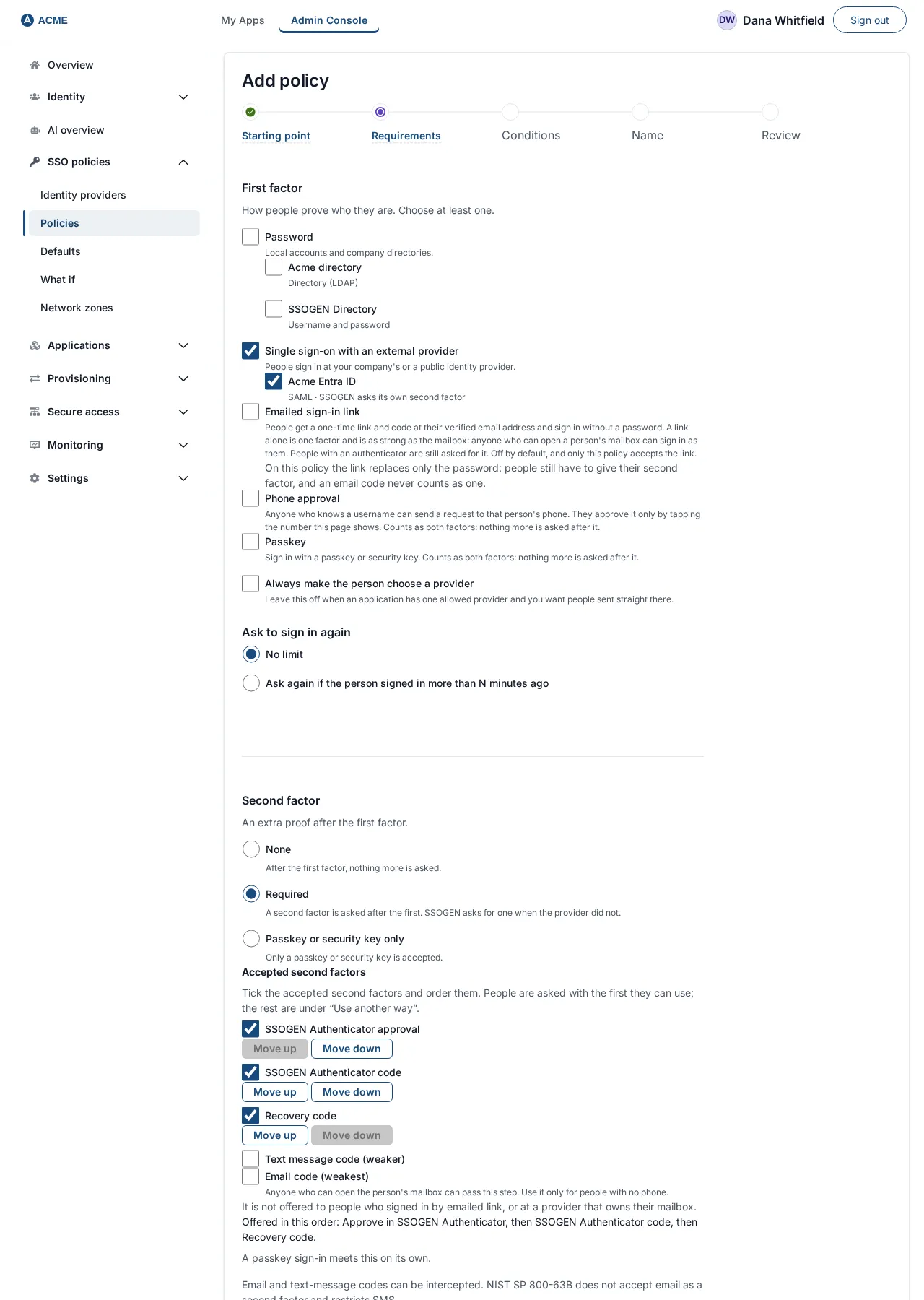
Two settings in an authentication policy control passkeys.
| Setting | Effect |
|---|---|
| Offer passkey sign-in | Shows Sign in with passkey on the login page. With it off, passkey sign-in is refused for everything the policy governs. |
| Required strength: Passkey or security key | Only a passkey or security key is accepted. The Offer box is ticked and locked. |
The policy editor accepts only combinations that work. A policy that accepts only a passkey must offer passkey sign-in. A policy that asks for a second factor needs at least one method ticked, or passkeys offered.
Three design rules keep a passkey policy strict. Plan your rollout around them.
- A policy asks, a rule enforces. A rule can refuse a sign-in made without a passkey but cannot guide people to one.
- A fallback never lowers the bar. A passkey-only policy cannot pick a fallback provider that cannot deliver a passkey.
- Windows sign-in does not satisfy it. Kerberos counts as single factor, so a passkey policy still demands the passkey.
No second step is a passkey. To guide people to one, put the application on a policy whose strength is Passkey or security key.
An example from the rules guide: finance staff must use a passkey for payroll, while everyone else needs only a second factor.
Put the payroll application on a policy that requires a passkey or security key. The intranet stays on a lighter policy.
How a person adds a passkey
Everything happens in My Account, under Sign-in and security, on the Passkeys page.
- Select Add passkey. Anyone who already has a second factor verifies it first.
- The browser asks for a fingerprint, face, PIN or security key. Approve.
- The passkey appears in the list.
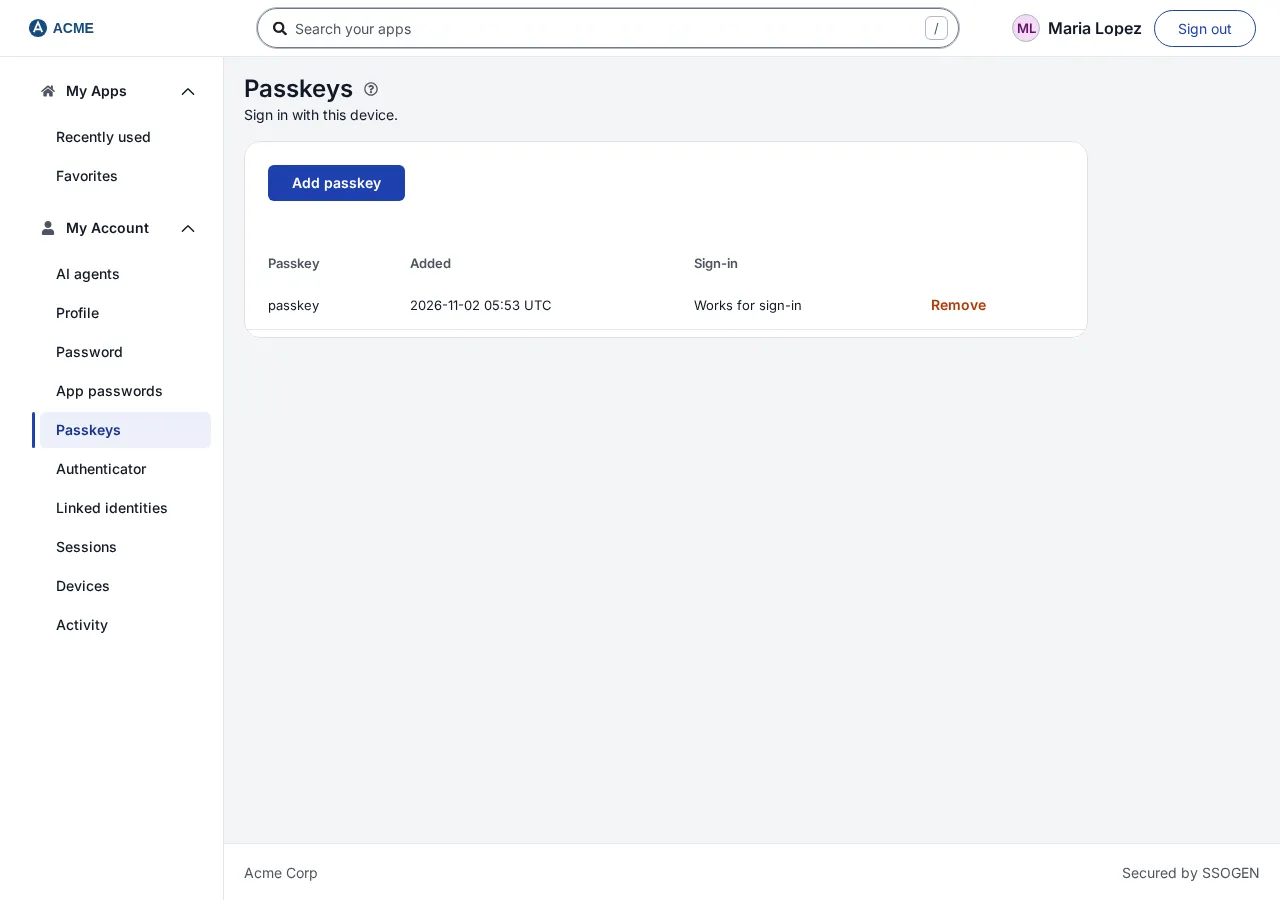
To remove one, select Remove and confirm Revoke passkey. The copy on the device or security key is then useless. If it was the person’s only passkey, they sign in with a password again.
Protections around changes
A new passkey changes how someone can get into an account, so SSOGEN guards every change:
- No second factor yet. The person needs a recent sign-in or their password.
- Second factor already set. The person needs a second step. The password alone is not enough.
- Same session. A method added during a session cannot confirm that same session.
- Email or text code. It never authorizes the change.
SSOGEN emails the account owner whenever a passkey is added or removed, if outgoing mail is configured.
What goes wrong, and what people see
| Message | What to do |
|---|---|
| Passkeys are not supported in this browser | Use a current browser or sign in with the password |
| Passkey sign-in canceled or no matching authenticator on this device | The prompt was closed, or the passkey is on another device; try the device where it was added |
| Passkey sign-in failed. Check username or enroll a passkey first | Check the username; add a passkey in My Account |
| Passkey sign-in is not enabled | Passkeys are not offered for this sign-in; check the policy |
Passkey attempts are rate limited per client, 20 a minute by default. That figure is a Security setting.
Questions people ask
What is a passkey?
A credential kept on a device or security key. It proves who you are once you approve on that device. There is nothing to type, so it cannot be typed into a lookalike site.
Are passkeys better than passwords?
For phishing, yes. There is nothing to type or reuse. SSOGEN keeps the password as a fallback unless a policy accepts only a passkey.
Do I need the SSOGEN Authenticator app for passkeys?
No. The browser and the phone’s own passkey storage handle the prompt. The authenticator app is for six-digit codes.
Where to go next
- Set the policy. The multi-factor authentication guide walks you through the policy.
- See it live. Get trial access to see passkey authentication on your own applications.
- Browse. Back to all sign-in methods.