SSOGEN / Single sign-on for Microsoft 365 with SSOGEN
SSOGEN
Single sign-on for Microsoft 365 with SSOGEN
Microsoft 365 has no per-application SAML setting, so you federate your custom domain once in Entra ID and everyone on it lands at SSOGEN.
The examples use the domain acme.example, the tenant’s initial domain acme.onmicrosoft.com, and SSOGEN at https://acme.ssogen.ai.
What you need
- The custom domain
acme.exampleadded to the tenant and confirmed. Theonmicrosoft.comdomain cannot be federated. - At least two cloud-only emergency administrators on
acme.onmicrosoft.comwho can sign in today. Do the whole setup as one of them. - A role that can create the federation: Domain Name Administrator, External Identity Provider Administrator, Hybrid Identity Administrator or Security Administrator. Microsoft Graph PowerShell on the administrator’s workstation.
- Every person as a user in Entra ID, with a user principal name in
acme.exampleand a license. - An SSOGEN administrator who can save SAML applications (see Add a SAML application in SSOGEN).
Users synchronized from Active Directory. When Microsoft Entra Connect synchronizes users from Active Directory, Entra Connect sets their ImmutableID and it cannot be changed in the cloud. Talk to us before you federate a domain with such users.
Step 1. In SSOGEN: add Microsoft 365
Follow Add a SAML application in SSOGEN with the gallery card Microsoft 365 and these values:
| SSOGEN field | Value for Microsoft 365 |
|---|---|
| Metadata URL | https://nexus.microsoftonline-p.com/federationmetadata/saml20/federationmetadata.xml, or type the two values below |
| Service provider entity ID | urn:federation:MicrosoftOnline |
| Assertion consumer service URL | https://login.microsoftonline.com/login.srf |
| Identify the person by | SSOGEN user ID, permanent (recommended). Microsoft accepts only the persistent format. |
| Launch URL (https) | https://www.office.com |
Add one attribute: IDPEmail with the value email. It must equal the user’s user principal name in Entra ID.
Assign the people who will sign in. On the Test tab, run the test for each person and note the NameID: it is the value to store as that person’s ImmutableID in step 2.
Step 2. In Microsoft Entra ID
-
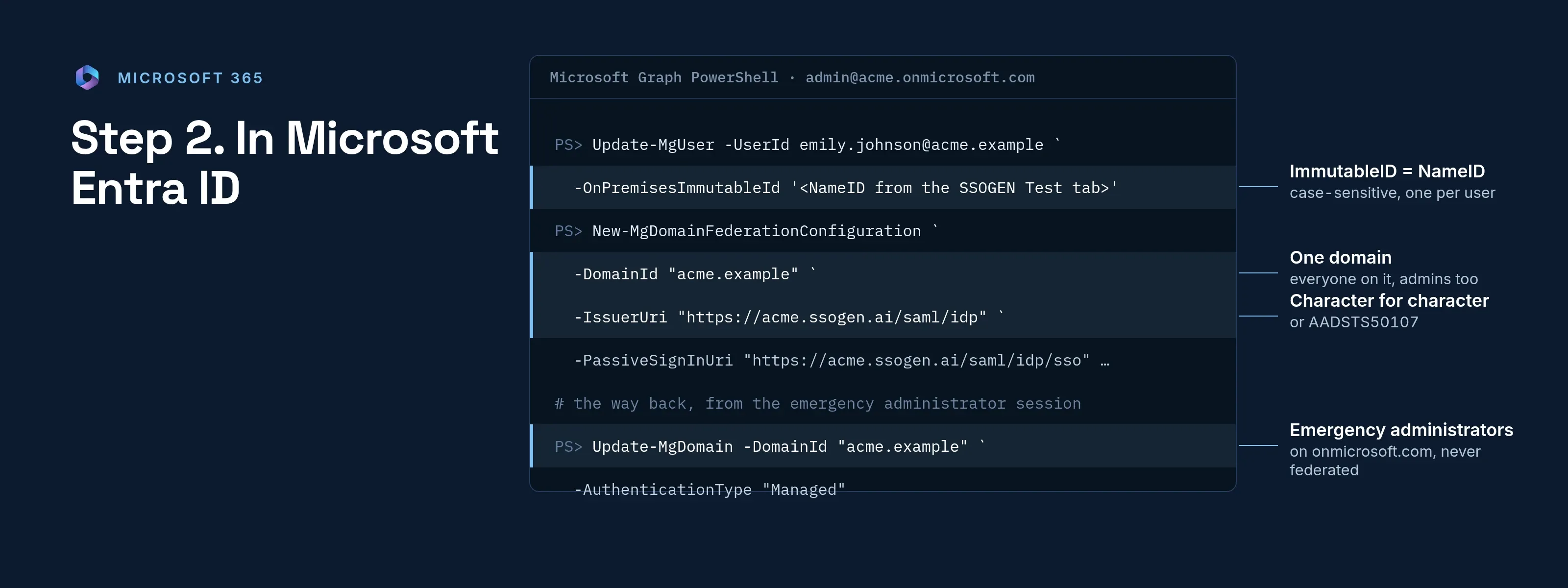
Store each user’s ImmutableID while the domain is still managed. In PowerShell:
Connect-MgGraph -Scopes 'User.ReadWrite.All'Update-MgUser -UserId emily.johnson@acme.example -OnPremisesImmutableId '<NameID shown on SSOGEN's Test tab>'Matching is case-sensitive. A user created after federation must be created with
-OnPremisesImmutableIdin the sameNew-MgUsercall. -
Connect as the emergency administrator:
Connect-MgGraph -Scopes "Domain.ReadWrite.All", and sign in asadmin@acme.onmicrosoft.com. -
Federate the domain. On SSOGEN’s Integration tab copy the Signing certificate row with Copy (one line of base64), then run:
New-MgDomainFederationConfiguration `-DomainId "acme.example" `-DisplayName "SSOGEN" `-IssuerUri "https://acme.ssogen.ai/saml/idp" `-PassiveSignInUri "https://acme.ssogen.ai/saml/idp/sso" `-SignOutUri "https://acme.ssogen.ai/" `-SigningCertificate "<the copied signing certificate>" `-PreferredAuthenticationProtocol "saml" `-FederatedIdpMfaBehavior "acceptIfMfaDoneByFederatedIdp"Keep the
Idthe command prints. Microsoft warns that the domain may see sign-in disruption for up to 2 hours after this step.
-SignOutUri is where Entra ID sends the browser after sign-out; SSOGEN’s address takes people back to their SSOGEN home page. -FederatedIdpMfaBehavior decides whether Entra ID accepts a second factor done at SSOGEN or asks for its own.
When SSOGEN’s signing certificate changes, Entra ID does not read it from metadata. Update it before the old one ends with Update-MgDomainFederationConfiguration -DomainId acme.example -InternalDomainFederationId <Id> -SigningCertificate <new certificate>.
Step 3. People and a sign-in test
-
Keep the emergency administrator’s PowerShell session open.
-
In a private browser window open
https://www.office.comand type a test user’s address,emily.johnson@acme.example. Entra ID sends the browser to SSOGEN; after sign-in it lands in Microsoft 365 as that user. -
If it fails and cannot be fixed quickly, convert the domain back from the open session:
Update-MgDomain -DomainId "acme.example" -AuthenticationType "Managed"Users who never had a cloud password then need one set before they can sign in.
There is no per-user rollout: every user in the domain is federated at once, administrators included. A small domain or subdomain with one or two users is a safe first trial.
Signing in
People select Microsoft 365 in My Apps, or open any Microsoft 365 sign-in page and type their work address. Entra ID sends them to SSOGEN, which asks them to sign in only if they have no SSOGEN session yet. Desktop and phone apps that open a browser sign-in work the same way.
Troubleshooting
| Microsoft says | Cause |
|---|---|
AADSTS50107: The requested federation realm object '<issuer>' does not exist. |
-IssuerUri is not https://acme.ssogen.ai/saml/idp, character for character. |
| A user with the given ImmutableId cannot be found | The user’s OnPremisesImmutableId is not the NameID SSOGEN sends for them, or the user does not exist. |
| A signature error | The certificate in the federation configuration is not SSOGEN’s current one. Update it. |
| Sign-in loops right after the change | Microsoft’s propagation time. Wait, and test in a fresh private window. |
| An administrator in the federated domain is locked out | Sign in as the onmicrosoft.com emergency administrator and fix or roll back the federation. |