SSOGEN / Connect any SAML 2.0 identity provider to SSOGEN
SSOGEN
Connect any SAML 2.0 identity provider to SSOGEN
Register SSOGEN as a service provider with two addresses, then import the provider's metadata from a URL or an XML file.
What you need
- An administrator of the provider.
- The provider’s metadata: an
https://address SSOGEN’s server can reach, or the XML file. - An SSOGEN Super admin or Authentication admin.
Step 1. At the provider
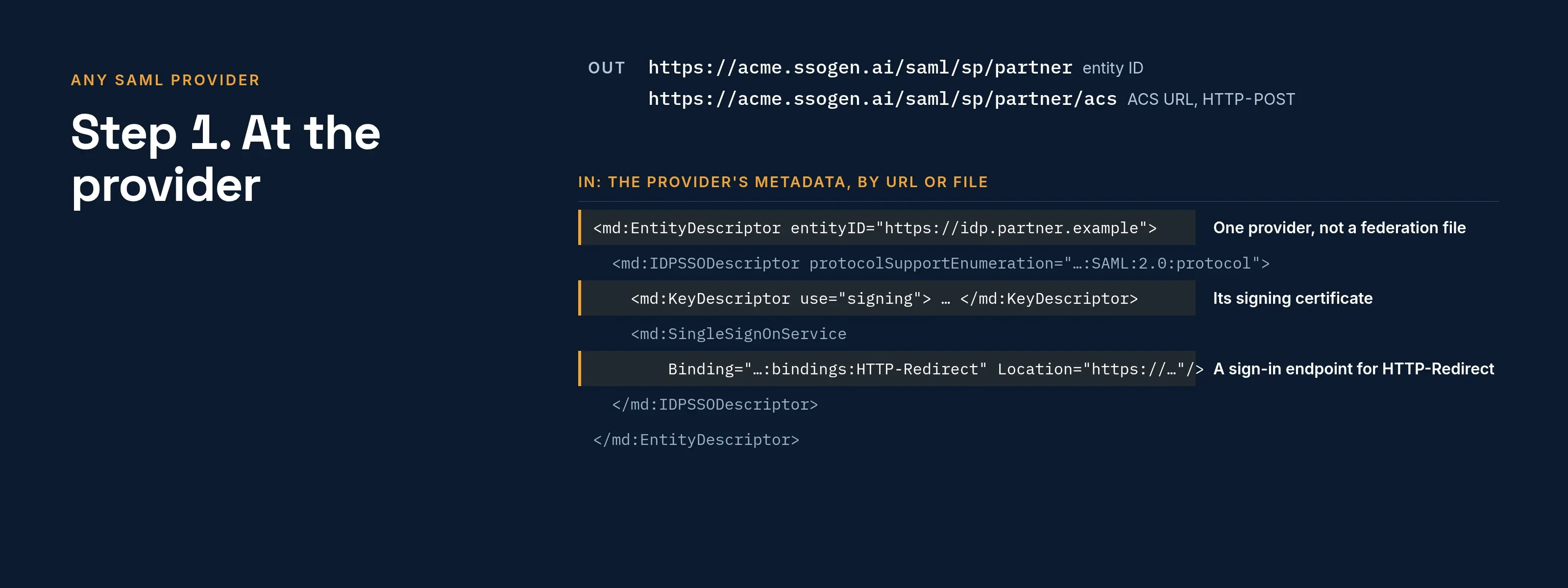
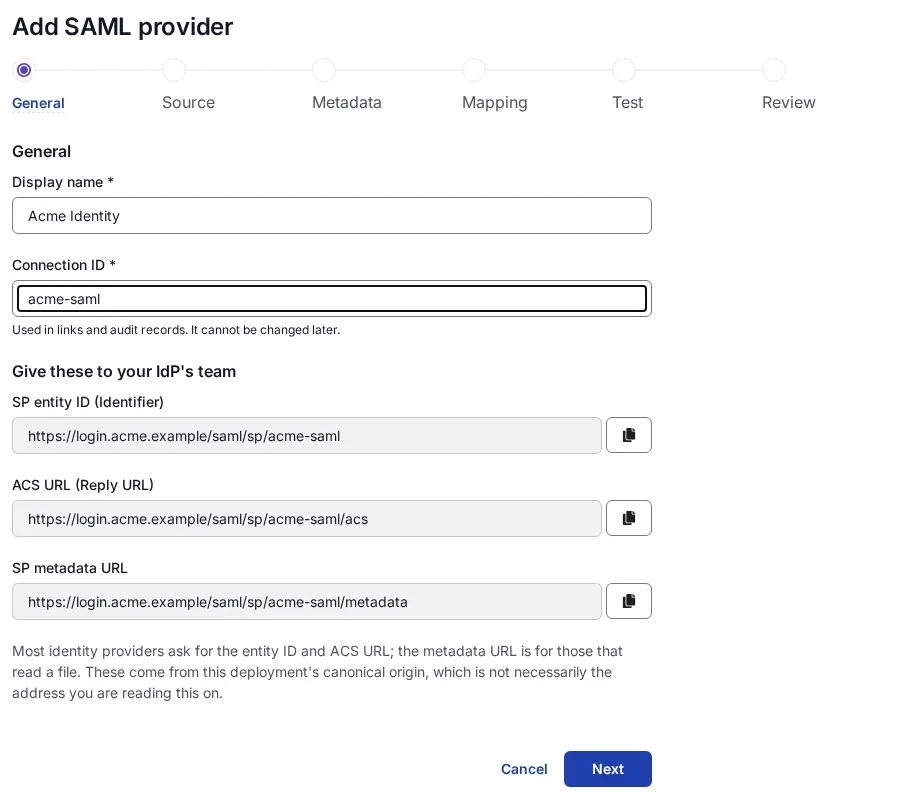
Register a service provider with these values from SSOGEN (start the setup with the generic SAML tile to see yours; section 1 of Add a SAML identity provider in SSOGEN):
| The provider asks for | Value |
|---|---|
| Entity ID, audience, identifier | https://acme.ssogen.ai/saml/sp/partner |
| Assertion consumer service (ACS) URL, binding HTTP-POST | https://acme.ssogen.ai/saml/sp/partner/acs |
| Service provider metadata, if the provider imports it | https://acme.ssogen.ai/saml/sp/partner/metadata, once SSOGEN has saved the provider |
What the provider must do:
- Sign the assertion. A signed response alone is not enough.
- Publish a single sign-on endpoint for the HTTP-Redirect binding in its metadata. SSOGEN sends its request by redirect (or by POST if you turn that on) and expects the answer by POST.
- Send a NameID that is stable and unique per person. It names the SSOGEN account and recognizes the person at each sign-in.
- Send the email address as an attribute, and the name if you want it on the account. SSOGEN reads the common names (
mail,email, the X.500 forms, the Microsoft claim names,displayName,givenName,sn) without mapping; any other name you type on SSOGEN’s Mapping step. - Encrypting the assertion is optional; SSOGEN’s metadata offers a certificate for it.
Step 2. In SSOGEN
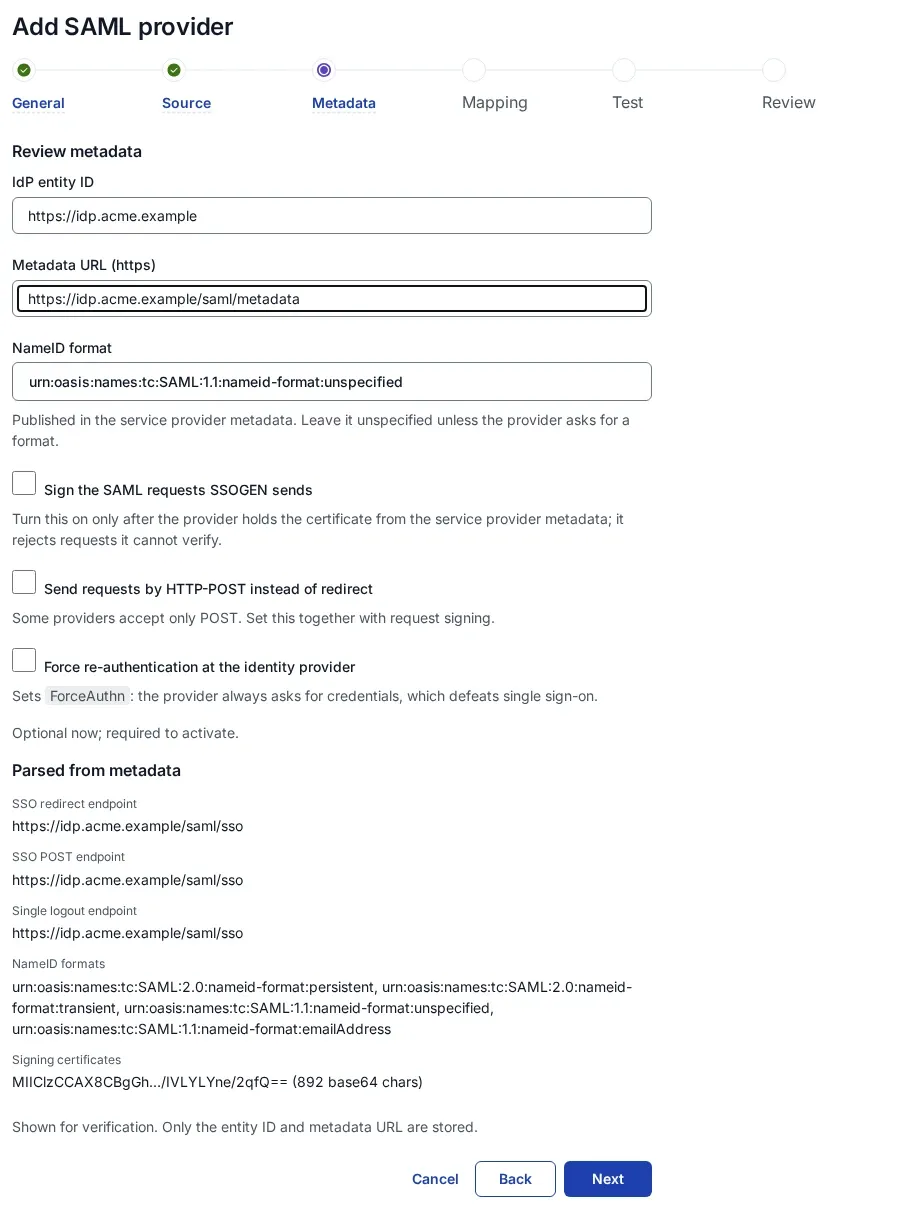
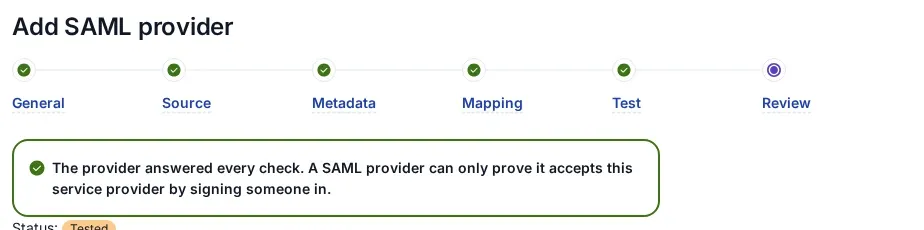
Give SSOGEN the provider’s metadata (Metadata URL, Metadata file upload or Paste metadata XML), check the IdP entity ID it reads (an https://, http:// or urn: name is fine), map the attribute names, then Create provider, Validate, Test, Try signing in and Activate. Every screen is described in Add a SAML identity provider in SSOGEN.
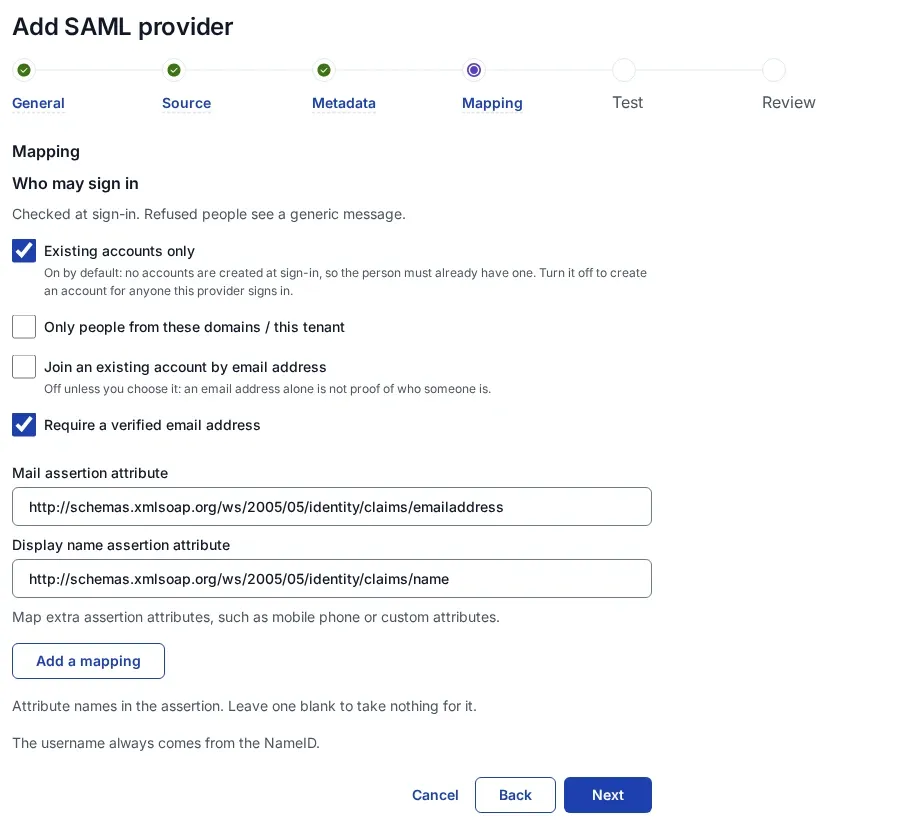
A metadata document must describe one identity provider. A federation-wide file listing many entities is refused: ask for the metadata of the one provider.
Step 3. Who may sign in, and the first sign-in
A new provider admits nobody until you choose. For a provider that holds only your own people, choose Anyone this provider vouches for (a new account is created). For a partner’s provider, also add a required claim, such as an organization attribute with one value, so that only the people you expect get accounts, and give the provider its own Sign-in domains so the partner’s people are sent to it. Accounts are named <connection ID>_<NameID>, for example partner_jane.doe_partner.example. See section 6 of Add a SAML identity provider in SSOGEN.
What the user sees
Jane Doe types jane.doe@partner.example on the SSOGEN sign-in page, is sent to her own organization’s sign-in page, and comes back to the applications she is allowed to use.
Troubleshooting
| Symptom | Cause |
|---|---|
| “That document describes more than one entity. Ask the IdP for metadata for a single entity.” | The metadata is a federation aggregate. Use the provider’s own metadata. |
| “That metadata publishes no signing certificate, so assertions from it could not be verified.” | The metadata has no signing key. Get the metadata that includes the provider’s signing certificate. |
| “That host is not one SSOGEN will fetch from.” | The metadata address points into a private network. Download the file and upload it. |
| Try connection says “The assertion carried no subject (NameID).” | The provider sends no NameID. Configure one. |
| Accounts get unreadable names, or one person gets a new account at each sign-in. | The provider sends an opaque or transient NameID. Send a stable, readable one such as the email address. |