SSOGEN / OneLogin as identity provider for SSOGEN
SSOGEN
OneLogin as identity provider for SSOGEN
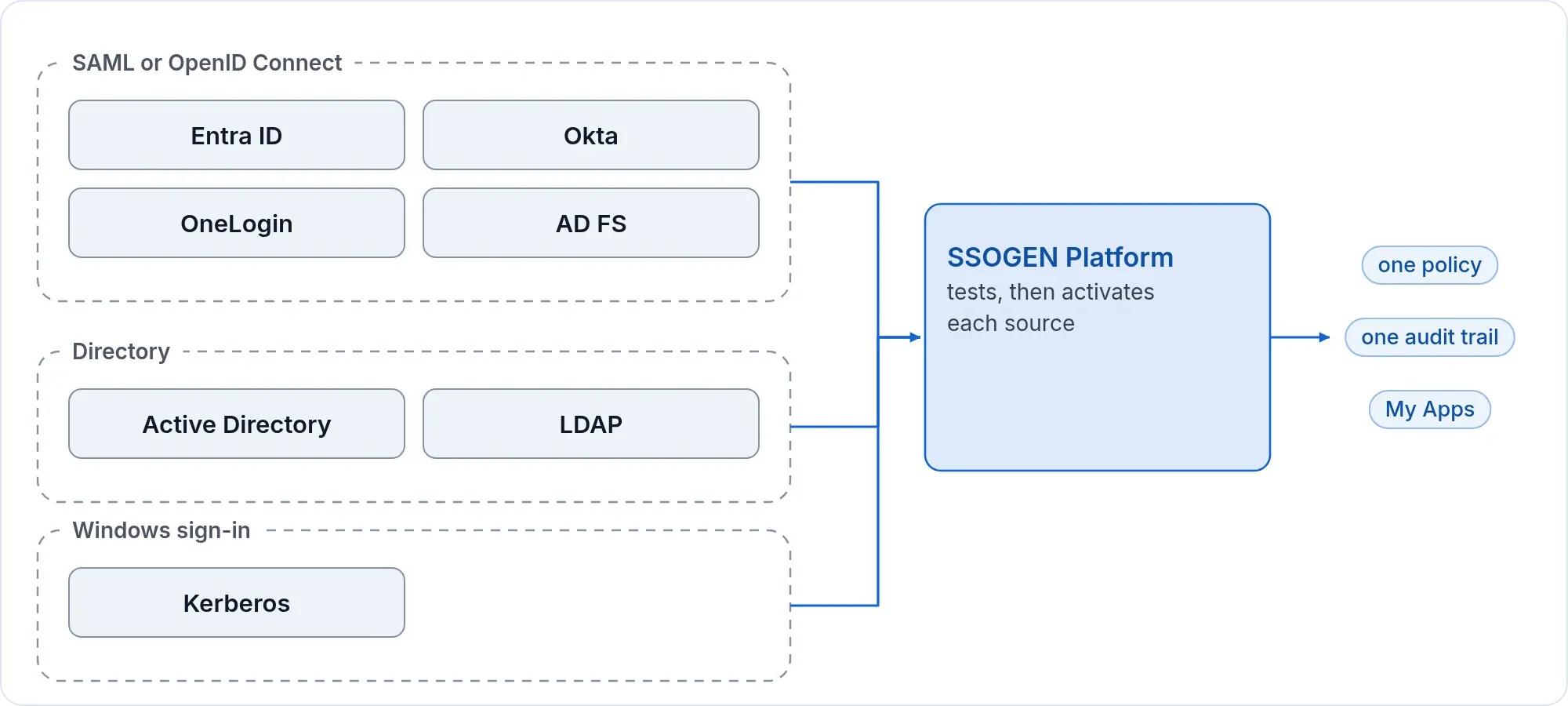
Add a SAML Custom Connector (Advanced) or an OpenId Connect app in OneLogin, then one provider from the OneLogin card in SSOGEN.
What you need
- A OneLogin administrator who can add apps and assign them to users.
- An SSOGEN Super admin or Authentication admin.
- Your SSOGEN address (here
https://acme.ssogen.ai) and a connection ID (hereonelogin).
Step 1. In OneLogin
SAML
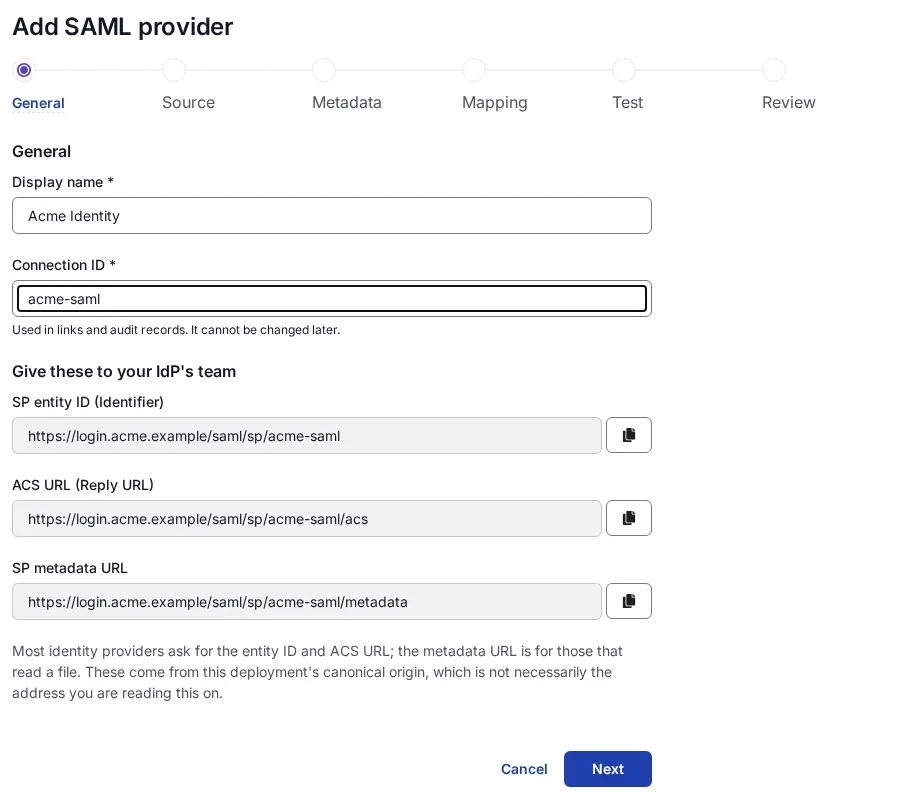
- In SSOGEN, choose the OneLogin card, then SAML, and copy the SP entity ID and ACS URL (Add a SAML identity provider in SSOGEN, section 1).
- In the OneLogin admin portal, open Applications > Applications and select Add App. Search for
SAML Custom Connectorand choose SAML Custom Connector (Advanced). Give it a display name, for exampleSSOGEN, and Save. - On the app’s Configuration tab:
| OneLogin field | Value |
|---|---|
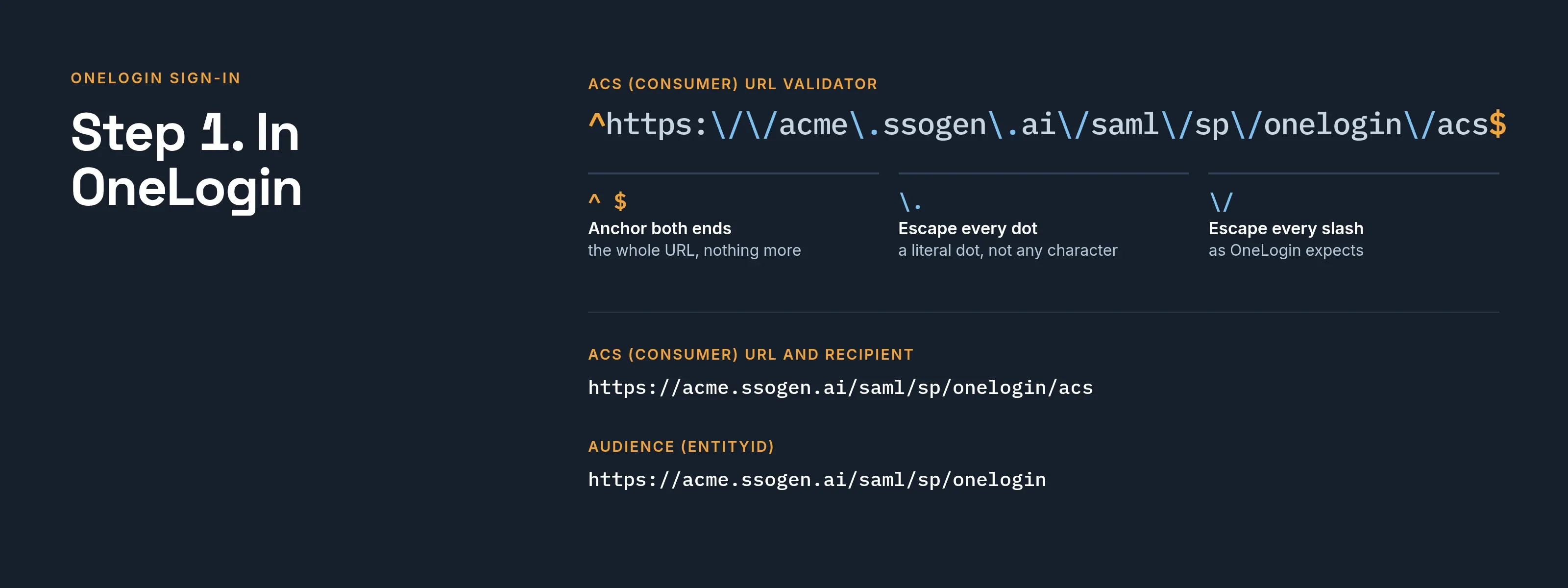
| Audience (EntityID) | https://acme.ssogen.ai/saml/sp/onelogin (SSOGEN’s SP entity ID) |
| Recipient | https://acme.ssogen.ai/saml/sp/onelogin/acs |
| ACS (Consumer) URL Validator | ^https:\/\/acme\.ssogen\.ai\/saml\/sp\/onelogin\/acs$ (a regular expression that matches the ACS URL) |
| ACS (Consumer) URL | https://acme.ssogen.ai/saml/sp/onelogin/acs (SSOGEN’s ACS URL) |
| SAML signature element | Assertion or Both. SSOGEN requires the assertion to be signed. |
- On the Parameters tab, add a parameter named
emailwith the value Email, and tick the option to include it in the SAML assertion. Check which value is sent as the NameID (the NameID value row): the email address or the username, a value that does not change. - Save. Under More Actions, download the SAML Metadata file. On the SSO tab, the Issuer URL is also the address of the same metadata.
- Give people access: on the user’s Applications tab add the app, or assign it through a role.
OpenID Connect
- In SSOGEN, choose the OneLogin card, then OpenID Connect, and copy the Redirect URI, for example
https://acme.ssogen.ai/oidc/rp/onelogin-oidc/callback(Add an OpenID Connect identity provider in SSOGEN, section 2). - In OneLogin, Applications > Applications > Add App, search for
OpenId Connectand choose OpenId Connect (OIDC). Name it and Save. - On the Configuration tab, paste the redirect URI under Redirect URI’s and Save.
- On the SSO tab, set the token endpoint Authentication Method to POST. SSOGEN sends the client secret in the request body, so Basic does not work. Copy the Client ID and the Client Secret.
- On the same tab, open the Well-known Configuration link and copy the
issuervalue from the document. It has the formhttps://<your OneLogin subdomain>.onelogin.com/oidc/2. - Assign the app to people or roles, as for SAML.
Step 2. In SSOGEN
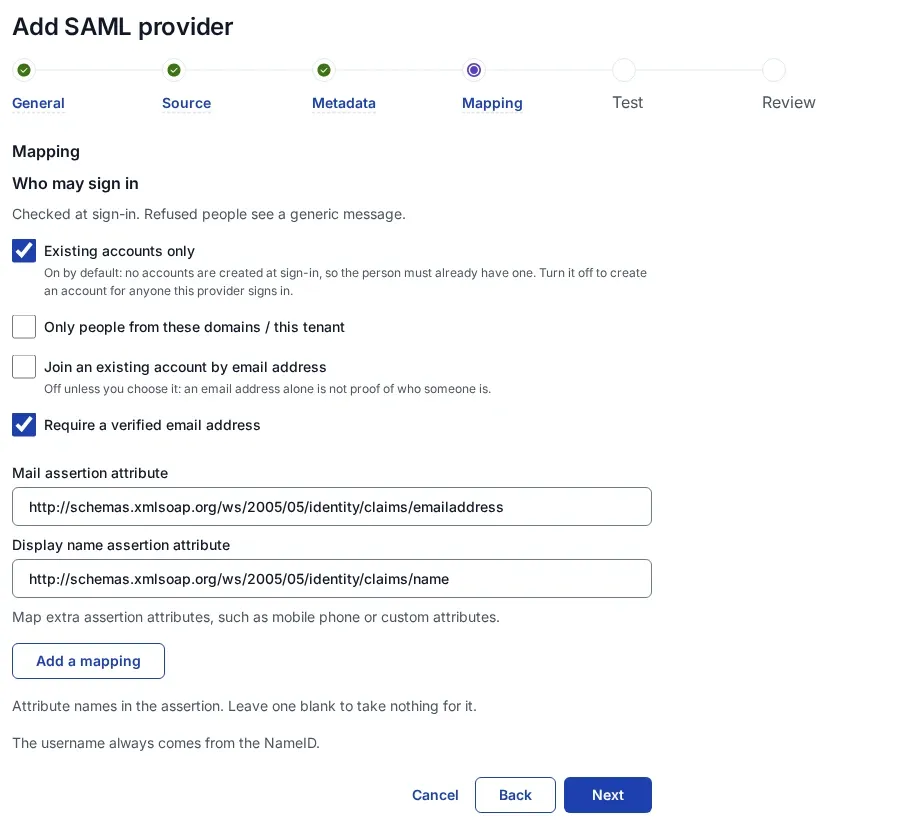
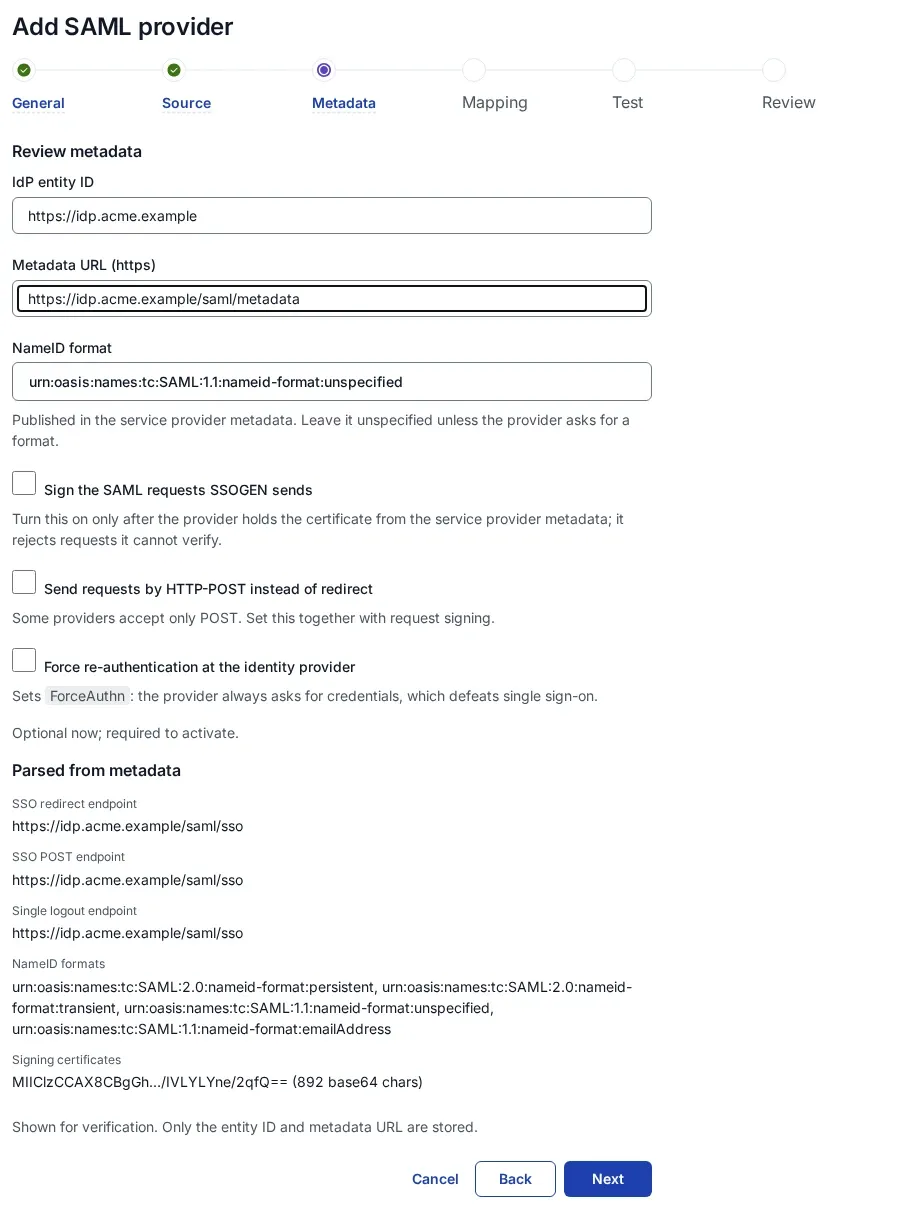
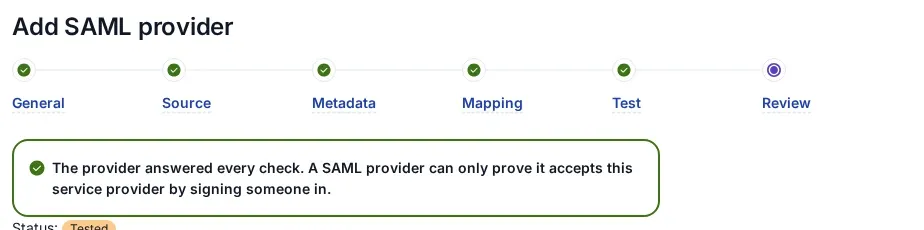
- SAML: on Metadata source, upload the downloaded metadata (Metadata file upload) or fetch the Issuer URL (Metadata URL). On Mapping, set Mail assertion attribute to
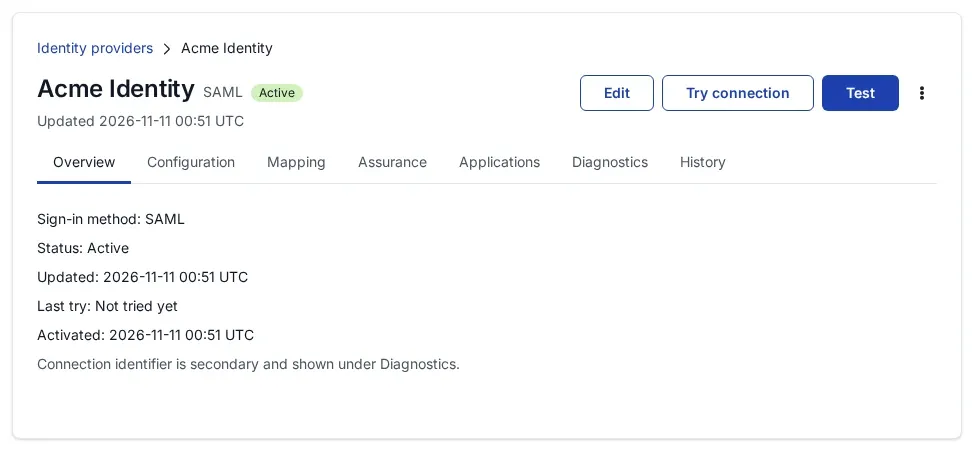
email. Then Create provider, Validate, Test, Try signing in, Activate. See Add a SAML identity provider in SSOGEN. - OpenID Connect: type the issuer, the client ID and the client secret; keep the default scopes and claims. Save, validate, test, try and activate as in Add an OpenID Connect identity provider in SSOGEN.
Allow the provider in the policy that applies (SSO policies > Policies, First factor, Single sign-on with an external provider).
Step 3. Who may sign in, and the first sign-in
OneLogin decides who reaches SSOGEN through app access. In SSOGEN, a new provider admits nobody until you choose:
- Anyone this provider vouches for (a new account is created) on Configuration > Sign-in restriction. Each person gets an account at first sign-in: over SAML named after the NameID, for example
onelogin_john.doe_acme.example; over OpenID Connect afterpreferred_usernamewhen it is free. - For people who already have SSOGEN accounts, a Super admin turns on account matching by email address (section 6 of the SAML or OpenID Connect page).
What the user sees
John Doe opens https://acme.ssogen.ai, is sent to the OneLogin sign-in page (or straight through with an existing OneLogin session), and lands on his applications in SSOGEN. Sign-in starts at SSOGEN (its address or an application link), and SSOGEN sends the request to OneLogin.
Troubleshooting
| Symptom | Cause |
|---|---|
| OneLogin refuses the request with an error about the ACS URL. | ACS (Consumer) URL Validator does not match SSOGEN’s ACS URL. Escape the dots and slashes, and anchor it with ^ and $. |
| Try connection says “The assertion was addressed to a different service provider.” | Audience (EntityID) differs from SSOGEN’s SP entity ID. |
| Try connection says “The provider rejected the client credentials. Check the client ID and secret.” | The token endpoint Authentication Method is not POST, or the secret was copied wrongly. |
| The account in SSOGEN has no email address. | The email parameter is not included in the SAML assertion, or SSOGEN’s Mail assertion attribute names another attribute. Try connection lists What the provider sent. |
| The person sees “You cannot sign in with this provider”. | The sign-in restriction still admits only people already linked to the provider. Change it as in Step 3. |