SSOGEN / PeopleSoft SSO (single sign-on)
Integration
PeopleSoft SSO (single sign-on)
The SSOGEN Web Agent in the Apache or Oracle HTTP Server in front of PeopleSoft signs people in. PeopleSoft accepts that identity in its sign-on PeopleCode.
This page covers why, what the options are, the three steps (run the tool, set PeopleSoft, check), and every error we know of. The pages for Okta, Microsoft Entra ID (Azure AD), AD FS and any SAML provider give only what is specific to each sign-in source.
Why PeopleSoft needs single sign-on
PeopleSoft Portal is the single entry point to the other PeopleSoft apps, such as HCM and CRM. Single sign-on checks a person once, at the first sign-in to the portal. They then move between those apps without signing in to each one again.
The PS_TOKEN problem
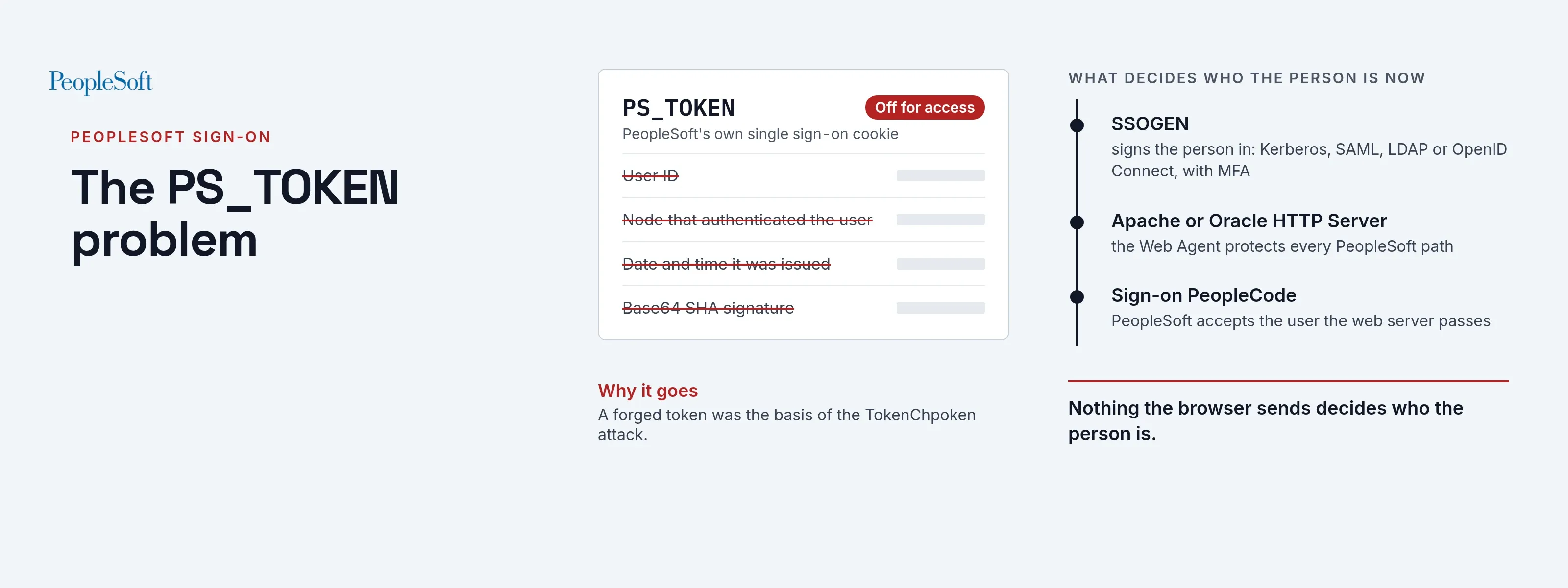
PeopleSoft’s own single sign-on passes the user between apps in the PS_TOKEN cookie. That cookie holds the user ID, the name of the node that authenticated the user, the date and time it was issued, and a base64 SHA signature.
A forged PS_TOKEN is the basis of the TokenChpoken attack described in the ERPScan report on PeopleSoft security. If the token’s key is found by brute force, an attacker can sign in under a system account. They can then read everything in that system. Further reading: ERPScan, Oracle PeopleSoft applications are under attack, PeopleSoft on Wikipedia and Oracle’s Understanding PeopleSoft Single Sign-On.
Sources: ERPScan whitepaper on PeopleSoft attacks, the PeopleSoft article on Wikipedia and Oracle’s PeopleTools Security Administration guide, read 2026-11-12.
The fix has four parts:
- Turn off PeopleSoft’s built-in single sign-on, so
PS_TOKENis not used for access. - Sign people in outside PeopleSoft, with SSOGEN or another external single sign-on product.
- Add multi-factor authentication. SSOGEN’s Authenticator (push approval and one-time codes) works for PeopleSoft at no extra charge.
- Put every PeopleSoft application behind the same external sign-on, so people move between them without signing in again.
How the setup is arranged
- Web server. An Apache or Oracle HTTP Server sits in front of the PeopleSoft servers. The SSOGEN Web Agent protects every PeopleSoft URL there.
- No direct access. All traffic goes through that web server. The PIA’s own port is reachable only from the web server.
- External sign-on. The web server signs the person in, and PeopleSoft accepts that identity in its sign-on PeopleCode. Header injection and cookie forgery are shut out. Nothing the browser sends decides who the person is.
Where people sign in
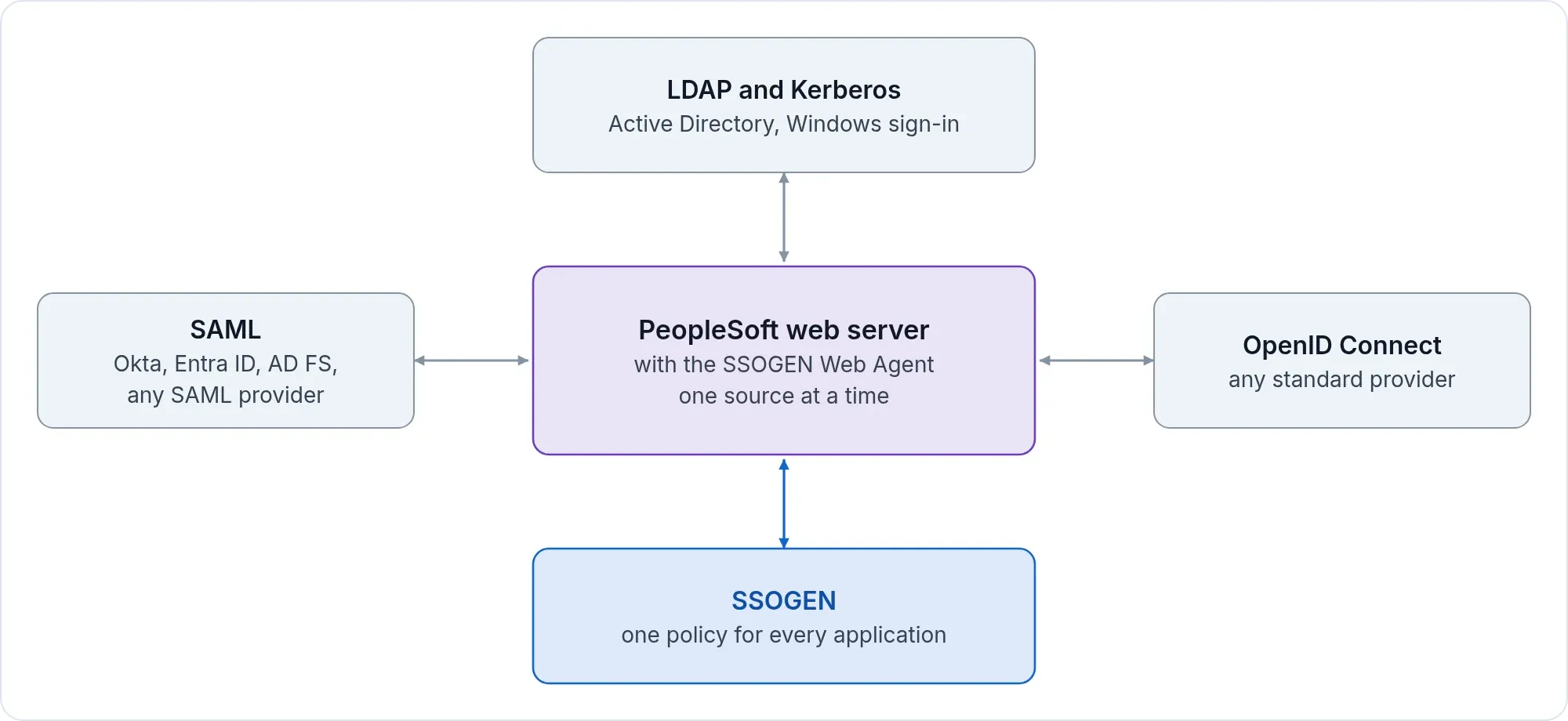
SSOGEN decides who may open PeopleSoft and with what checks. The first factor can be any of these, and PeopleSoft does not know or care which:
Directories and Windows sign-in. SSOGEN checks the password against your directory at every sign-in. It can also sign in domain-joined Windows computers with no password through Kerberos (Windows native authentication, zero-touch sign-in). See Active Directory and LDAP and Kerberos Windows sign-in.
SAML and OpenID Connect providers. SSOGEN works with SAML 2.0 identity providers and OpenID Connect providers. Any provider that speaks SAML 2.0 or OpenID Connect works (any SAML provider, any OpenID Connect provider).
| Sign-in source | Works with |
|---|---|
| LDAP directories | Active Directory, OpenLDAP and SLAPD, 389 Directory Server, Apache Directory, OpenDS and OpenDJ, UnboundID, Oracle Unified Directory (OUD) and Oracle Directory Server (ODS), IBM Directory, CA Directory, NetIQ and RadiantLogic |
| SAML 2.0 and OpenID Connect providers | Okta, OneLogin, Microsoft Entra ID, AD FS, PingOne, Shibboleth, PingFederate, Oracle Identity Cloud Service (IDCS), CA SiteMinder, IBM Tivoli Access Manager, Oracle Access Manager and NetIQ |
Sign-in source pages for PeopleSoft:
What you need
- Shell access to the web server in front of PeopleSoft, as the owner of its
httpd.conf(root on a stock Apache). Its proxy lines to the PIA are already in place. The tool reads them and never writes them. - The package
ssogen-peoplesoft-<version>-<date>.zipfrom SSOGEN. - The application registered in SSOGEN, with its client ID and agent key. Set Identify the person by to the value that equals the PeopleSoft user ID.
- PeopleTools security access in PeopleSoft, and a window to restart the PeopleSoft application server and web server.
Step 1: run the SSOGEN tool
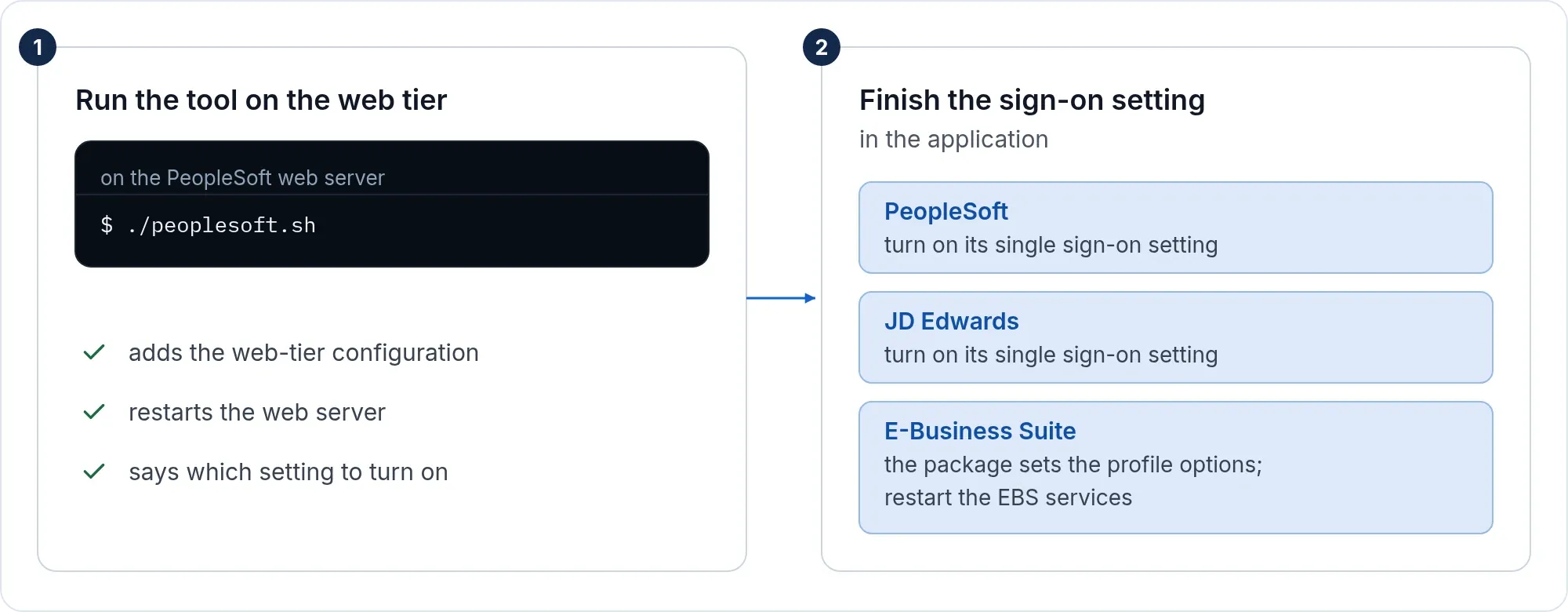
On the web server, after checking the package:
./ssogen info./ssogen reg --check -mode=ssogen -app_url=https://hr.acme.example -platform_url=https://acme.ssogen.ai -client_id=<client ID> -agent_key_file=$HOME/peoplesoft-agent-key.txt./ssogen reg -mode=ssogen -app_url=https://hr.acme.example -platform_url=https://acme.ssogen.ai -client_id=<client ID> -agent_key_file=$HOME/peoplesoft-agent-key.txtinfoshows which proxied paths would be protected. By default every proxied PeopleSoft path is protected, among them the PIA paths/pspand/psc. The Integration Gateway/PSIGWstays open, because other systems call it with their own credentials.-protect_path=/psp,/pscprotects exactly the paths you name;-unprotect_path=PATHkeeps a path inside them open.-httpd_conf=FILEnames the configuration when the tool finds none or more than one.reginstalls the Web Agent, writes its configuration and adds one marked block tohttpd.conf. It runs the web server’s own configuration test before and after, and putshttpd.confback if the change fails it.- Restart the web server as the next steps say. Run
regon every web node. With a shared ssogen folder, the other nodes reuse the same configuration.
Step 2: finish the setting in PeopleSoft
PeopleSoft has to accept the signed-in identity the agent passes on. The agent sends the user ID in capitals. Sign in to PeopleSoft as an administrator, for example at https://hr.acme.example/psp/ps/?cmd=start.
-
Public access user. In PeopleTools, Security, User Profiles, User Profiles, add a user profile:
Field Value User ID SSOSymbolic ID blank ID Type None Role PeopleSoft User (or another low-privilege role) -
Web profile. In PeopleTools, Web Profile, Web Profile Configuration, Search, open the web profile your site uses (for example
PROD). On the Security tab select Allow Public Access and enter the userSSOand its password. Save. -
Sign-on PeopleCode. In PeopleTools, Security, Security Objects, Signon PeopleCode, enable the function that signs in the user authenticated by the web server (select its check box). SSOGEN support tells you which function fits your PeopleTools release.
-
User profiles. Every person needs a PeopleSoft user profile with a user ID equal to the name SSOGEN sends. SSOGEN does not create profiles. If the sign-in source sends an e-mail address and your user IDs are short names, have it send the short name instead.
-
WebLogic basic authentication. The PIA may run on WebLogic and show a browser prompt for a user name and password. If so, turn off basic authentication in the domain’s
config.xmlwith<enforce-valid-basic-auth-credentials>false</enforce-valid-basic-auth-credentials>. Oracle documents this step for web server authentication. -
Direct route. Let only the web server reach the PIA’s own port, with a firewall or network rule.
-
Save and restart the PeopleSoft application server, the PIA web server and the HTTP server.
This follows Oracle’s standard guideline for external single sign-on in PeopleSoft. The web server signs the person in, and PeopleSoft’s sign-on PeopleCode takes the user from it.
Step 3: sign in and check
- In a private browser window open
https://hr.acme.example/psp/ps/?cmd=start, or the address your users bookmark. You are sent to sign in. - Sign in. You land on the PeopleSoft home page as yourself.
- Run
./ssogen infoagain if a PeopleSoft page opens without sign-in. It lists the paths that are protected and those left open.
Open the portal without cmd=start
To make the bare address work (https://hr.acme.example/), change index.html in PORTAL.war so it redirects to the sign-in page. For PeopleTools 8.57 the file is at /home/psadm2/psft/pt/8.57/webserv/peoplesoft/applications/peoplesoft/PORTAL.war/index.html:
<HTML><HEAD><meta http-equiv="Content-Type" content="text/html; charset=utf-8"><meta HTTP-EQUIV='Refresh' CONTENT='0; URL=/psp/ps/?cmd=start'></HEAD></HTML>Then open https://hr.acme.example/ without any parameters and check that you are sent to sign in.
Sign-out
The Web Agent’s sign-out address is https://<PeopleSoft address>/ssogen/logout. It ends the web server session. Opening PeopleSoft again starts a new sign-in. The PeopleSoft Sign out link ends the PeopleSoft session only. For shared computers, see sign-out.
Sign in straight through a SAML or OIDC provider
To skip SSOGEN and sign in straight through a SAML or OpenID Connect provider, run reg with -mode=saml or -mode=oidc and a license key. The EBS 12.2 page shows how. The metadata file is peoplesoft-idp.xml in the ssogen folder. The NameID, or the attribute named in SSOGENSamlUserAttribute, must equal the PeopleSoft user ID. Letters are sent in upper case unless SSOGENUserNameCase in peoplesoft-ssogen.conf says lower or none. The tool never removes a domain part.
If it does not work
| Symptom | What to do |
|---|---|
more than one web server configuration found or httpd.conf was not found |
Name the file with -httpd_conf=FILE. |
could not find the Apache line |
Give -httpd_bin=FILE, -web_home=DIR, or -apache=2.2 / -apache=2.4. |
the web server rejected the configuration after the change |
Nothing was left changed. Read the web server’s message in the output. |
| Integration Gateway calls stop | A service path was protected. Run reg again with -unprotect_path=/PSIGW. |
/psp is protected but /psc or another PIA path opens without sign-in |
Only the proxied paths the tool found are protected. ./ssogen info lists them; add the missing ones with -protect_path. |
| Sign-in works but PeopleSoft still shows its own sign-in page | The sign-on PeopleCode function is not enabled, or the public access user is not set in the web profile (step 2). |
| Everyone lands as the public access user | The user name PeopleSoft reads is not the one SSOGEN sends. Check Identify the person by in SSOGEN, and the capitals: set SSOGENUserNameCase to match your PeopleSoft user IDs. |
| A browser prompt for a user name and password from WebLogic | Basic authentication is still on in config.xml (step 2, item 5). |
| “This server could not read your session” | Web nodes behind one address have different configurations. Copy the ssogen folder from the first node to the others and run reg there. |
To take the protection off again, run ./ssogen dereg, restart the web server, and switch the sign-on PeopleCode function off in PeopleSoft.
Next
To use Okta, Microsoft Entra ID (Azure AD), AD FS or another SAML provider as the sign-in source, follow its page above for that side. The PeopleSoft side is the three steps on this page. To learn what it costs, tell us your users, your apps and whether you host SSOGEN yourself. We give you the numbers in a short conversation.