SSOGEN / JD Edwards ADFS SSO for EnterpriseOne
Integration
JD Edwards ADFS SSO for EnterpriseOne
Add SSOGEN as a relying party trust in AD FS Management, set which SSOGEN setting carries the EnterpriseOne user ID, and people sign in with AD FS.
In AD FS
Add SSOGEN as a relying party trust in AD FS Management, using SSOGEN’s values (a connection ID of adfs is used here):
| AD FS field | Value |
|---|---|
| Relying party SAML 2.0 SSO service URL | https://acme.ssogen.ai/saml/sp/adfs/acs |
| Relying party identifier | https://acme.ssogen.ai/saml/sp/adfs |
| Claims to send | E-Mail Address, Name and UPN; UPN also as Name ID |
Set the access control policy to Permit specific group, with the group that may use JD Edwards. The trust wizard, the claim rules, the metadata address and the SSOGEN screens are on AD FS as the sign-in source.
In SSOGEN and in JD Edwards
- Add AD FS as an identity provider in SSOGEN and activate it, as the AD FS page says.
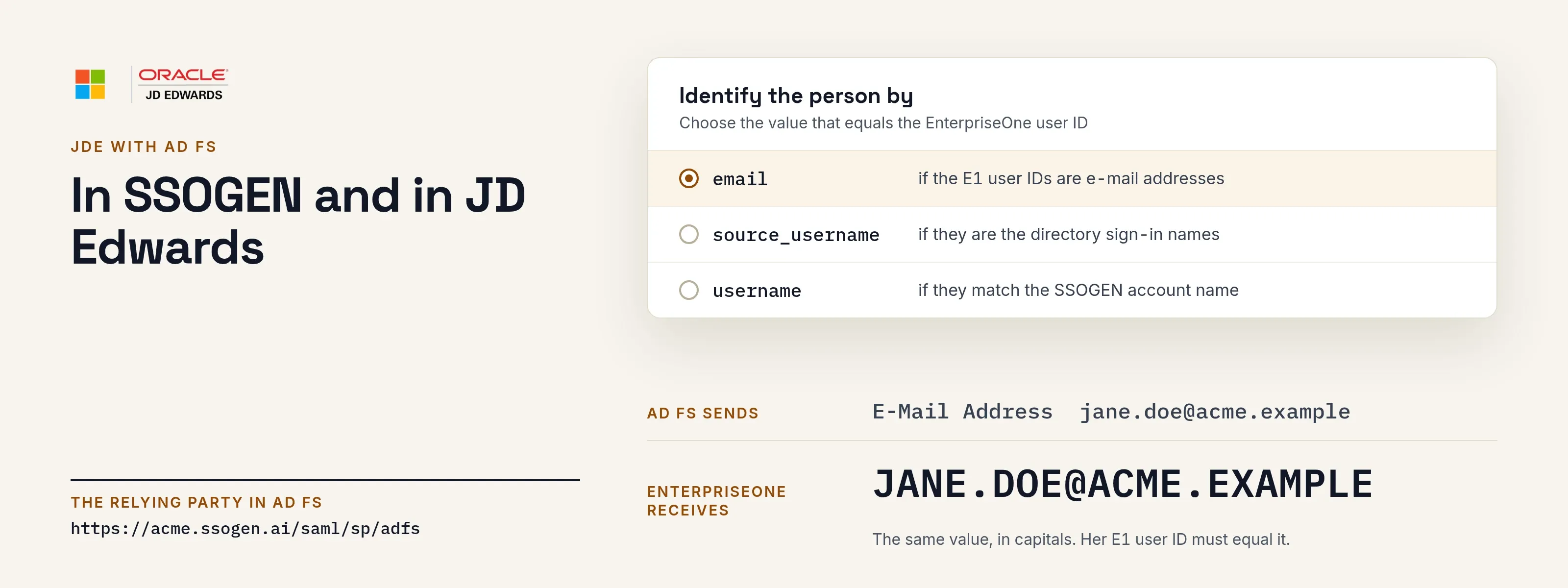
- Register JD Edwards as a Web Agent application. Under Identify the person by, choose the value that equals the EnterpriseOne user ID. Choose
emailwhen the IDs are e-mail addresses, orsource_usernamefor directory sign-in names. - Choose
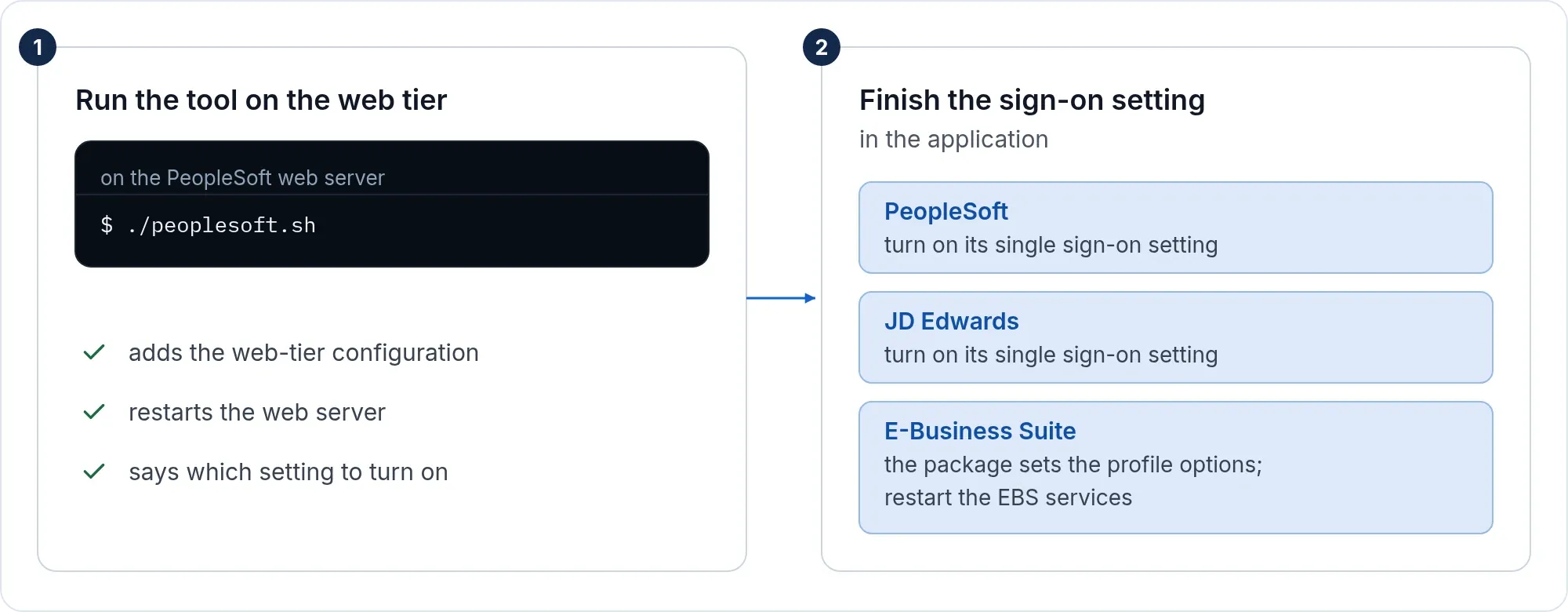
usernameonly when the IDs match the SSOGEN account name. With the UPN as Name ID, a UPN ofjohn.doe@acme.examplegivesadfs_john.doe_acme.example. - Run the tool and set Server Manager as on the JD Edwards page.
AD FS signs the person in the way you configured it: a form, multi-factor, or Windows desktop sign-in (Kerberos). SSOGEN adds its own second factor only where a policy asks for one.
What people see
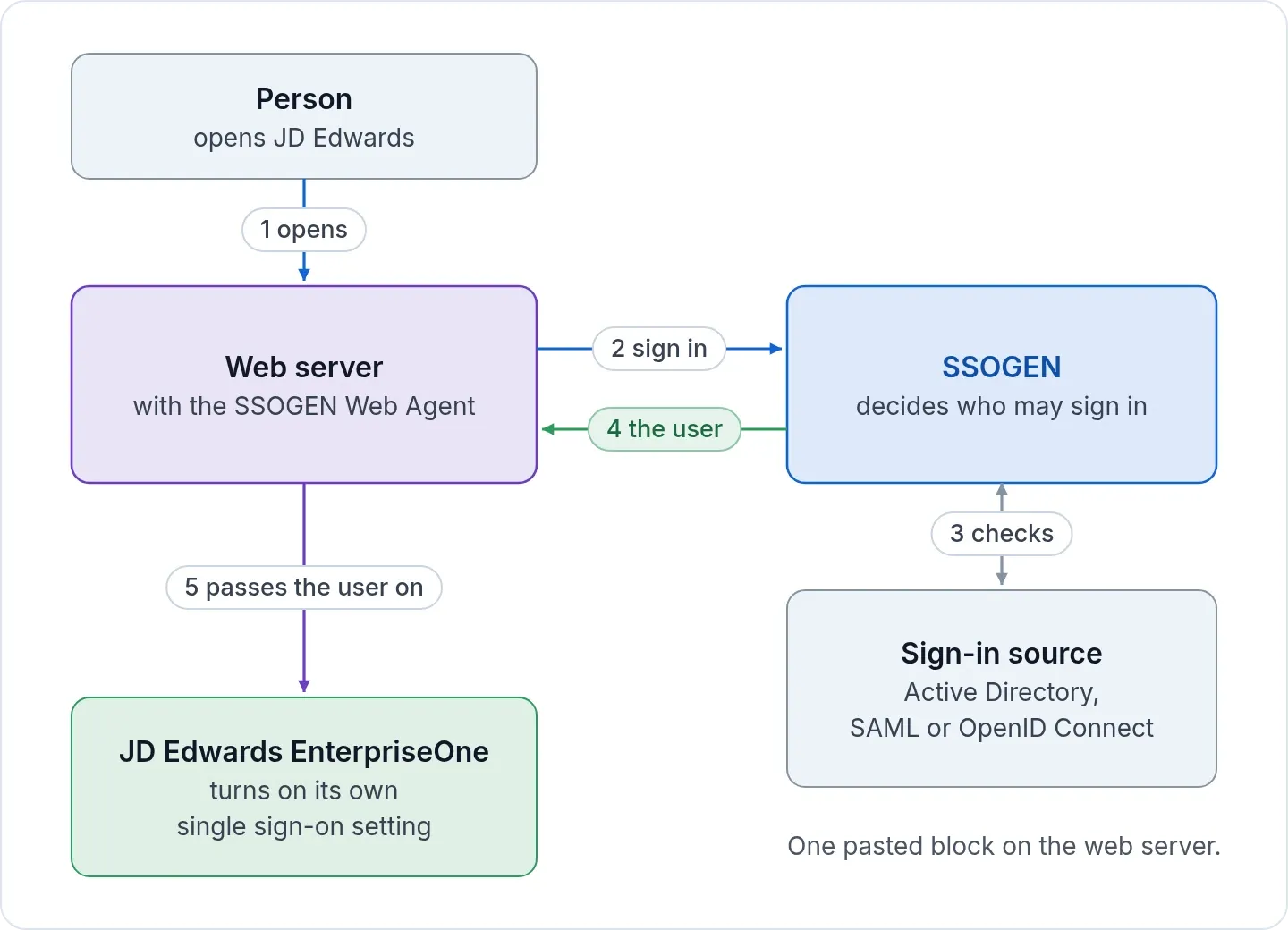
A person opens https://jde.acme.example/jde. SSOGEN sends the browser to the AD FS sign-in page at fs.acme.example. On your network, AD FS may sign the person in silently with Windows integrated authentication. The EnterpriseOne home page then opens. Other apps behind AD FS share the session, both ways. SSOGEN shows no page of its own on the way in or out.
If it does not work
AD FS records each failure in its Admin event log, with an Activity ID. Start there. For web server and EnterpriseOne issues, see the JD Edwards page.
| Symptom | What to do |
|---|---|
| AD FS error page; the event log shows MSIS7007 for that Activity ID | The identifier on the trust differs from SSOGEN’s SP entity ID. Correct it under the trust’s Properties > Identifiers. |
| Event 321 (MSIS7070): the NameID policy could not be satisfied | No claim rule issues a Name ID, or it issues another format. Add the Transform an Incoming Claim rule from UPN to Name ID, or match SSOGEN’s NameID format to the rule. |
| Access denied after a correct password | The access control policy does not permit the person. Add the person’s group to the policy on the trust. |
Accounts are named after ACME\jdoe |
The rules send the Windows account name as Name ID. Send the UPN or the e-mail address instead. |
| AD FS logs a failed revocation check for SSOGEN’s certificate | If SSOGEN’s certificate publishes no revocation list, turn the check off for this trust with Set-AdfsRelyingPartyTrust -TargetName "SSOGEN" -SigningCertificateRevocationCheck None -EncryptionCertificateRevocationCheck None. |
| Sign-ins fail weeks after setup; the signature does not verify | AD FS rolled over its token-signing certificate. Fetch the metadata URL again in SSOGEN while AD FS publishes both certificates, for five days. With a file, upload the new metadata before the new certificate becomes primary. |
| Sign-in works, EnterpriseOne does not know the user | The value SSOGEN sends must equal an EnterpriseOne user ID, in capitals. Change Identify the person by or the user IDs. |
Sign-out
The EnterpriseOne sign-off link calls /ssogen/logout. On its own, that ends the web server session. The SSOGEN session and the AD FS session stay open.
-
Shared computers: add
SSOGENLogoutScope ssoto the configuration the tool wrote. Signing off then also ends the SSOGEN session. -
AD FS session: on the provider’s Configuration tab, turn on Also sign out of this provider and choose IdP SLO URL from the AD FS metadata.
-
Add sign-out to the trust: open the relying party trust’s Properties in AD FS Management.
- Endpoints tab: Add SAML, endpoint type SAML Logout, binding POST, trusted URL
https://acme.ssogen.ai/saml/sp/adfs/slo-return. Leave the response URL empty. - Signature tab: add SSOGEN’s certificate, taken from Download SP metadata on the provider’s Configuration tab. SSOGEN signs the logout request with it.
A trust created from SSOGEN’s SP metadata URL picks up both with Update from Federation Metadata.
- Endpoints tab: Add SAML, endpoint type SAML Logout, binding POST, trusted URL
More on scopes: sign-out on every page.