SSOGEN / Google Workspace as identity provider for SSOGEN
SSOGEN
Google Workspace as identity provider for SSOGEN
Choose OpenID Connect with a Google OAuth client, where SSOGEN checks the hd claim, or SAML with a custom app in Google Admin.
- OpenID Connect, with SSOGEN’s Google card and an OAuth client in the Google Cloud console. SSOGEN checks Google’s
hdclaim so that only accounts of your Workspace domain get in. - SAML, with a custom SAML app in the Google Admin console.
Both are below. The examples use the Workspace domain acme.example and SSOGEN at https://acme.ssogen.ai.
What you need
- OpenID Connect: access to a Google Cloud project in your Workspace organization, to create an OAuth client.
- SAML: a Google Workspace or Cloud Identity super administrator.
- An SSOGEN Super admin or Authentication admin.
Step 1. In Google
OpenID Connect
- In SSOGEN, open SSO policies > Identity providers, Add identity provider, and choose Google under Social sign-in. On Client credentials, copy the Redirect URI, for example
https://acme.ssogen.ai/oidc/rp/google/callback. - In the Google Cloud console, in a project of your organization, open Google Auth Platform. Under Audience, choose Internal so that only users in your organization can use the client.
- Under Clients, select Create client, choose Web application, name it
SSOGEN, and add the redirect URI under Authorized redirect URIs. Select Create. - Copy the Client ID and Client secret.
SAML
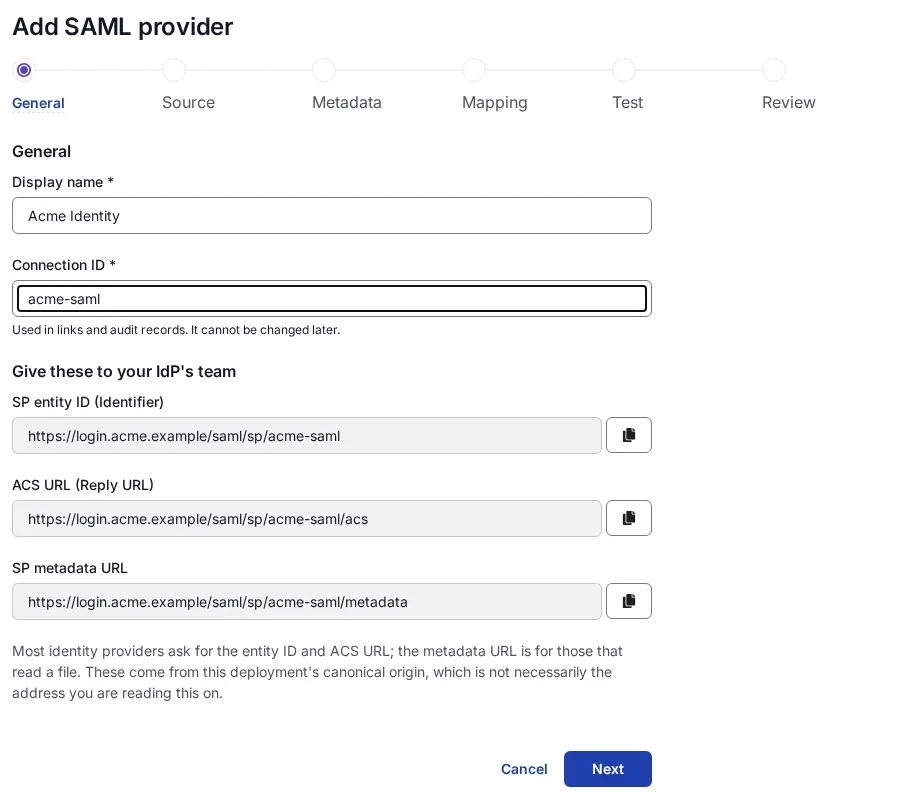
- In SSOGEN, choose the Google Cloud Identity card, then SAML (or the generic SAML tile), and copy the SP entity ID and ACS URL (Add a SAML identity provider in SSOGEN, section 1).
- In the Google Admin console (
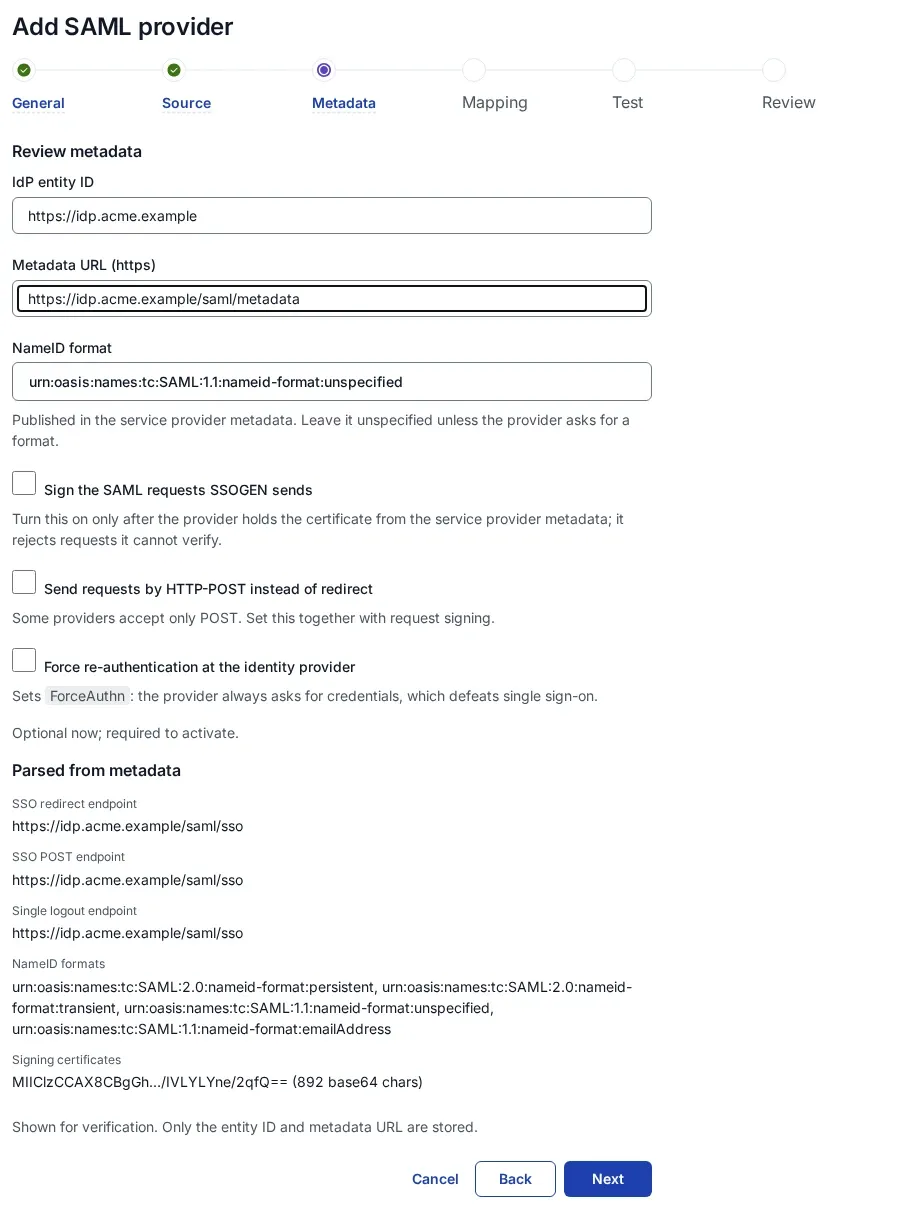
admin.google.com), open Apps > Web and mobile apps > Add App > Add custom SAML app. Name itSSOGENand Continue. - On Google Identity Provider details, select Download metadata and keep the file. Continue.
- On Service provider details:
| Google field | Value |
|---|---|
| ACS URL | https://acme.ssogen.ai/saml/sp/google-workspace/acs (SSOGEN’s ACS URL) |
| Entity ID | https://acme.ssogen.ai/saml/sp/google-workspace (SSOGEN’s SP entity ID) |
| Start URL | empty |
| Signed response | off. Google signs the assertion, which is what SSOGEN requires. |
| Name ID format | |
| Name ID | Basic Information > Primary email |
- On Attribute mapping, select Add mapping three times: Primary email to
email, First name togivenName, Last name tosn. Finish. - The app starts switched off. Open it, select User access, choose On for everyone (or turn it on for an organizational unit or group) and Save. Google says changes can take up to 24 hours, usually less.
Step 2. In SSOGEN
- OpenID Connect: the Google card has filled in the issuer
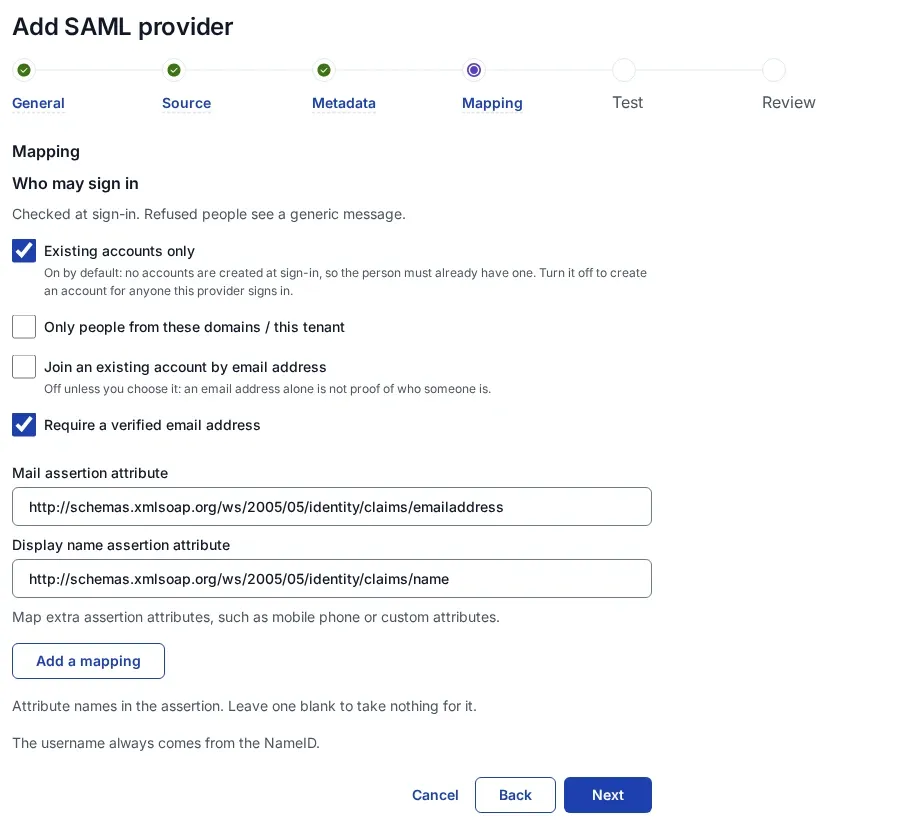
https://accounts.google.com, the scopes and the email claim. Type the Client ID and Client secret, then Create provider, Validate, Test, Try signing in, Activate. See Add an OpenID Connect identity provider in SSOGEN. - SAML: on Metadata source, choose Metadata file upload with the file from Google (Google gives a file, not a metadata address). On Mapping, set Mail assertion attribute to
email; first and last name are read fromgivenNameandsnwithout further mapping. Then save, validate, test, try and activate. See Add a SAML identity provider in SSOGEN.
Allow the provider in the policy that applies (SSO policies > Policies, First factor, Single sign-on with an external provider).
Step 3. Who may sign in, and the first sign-in
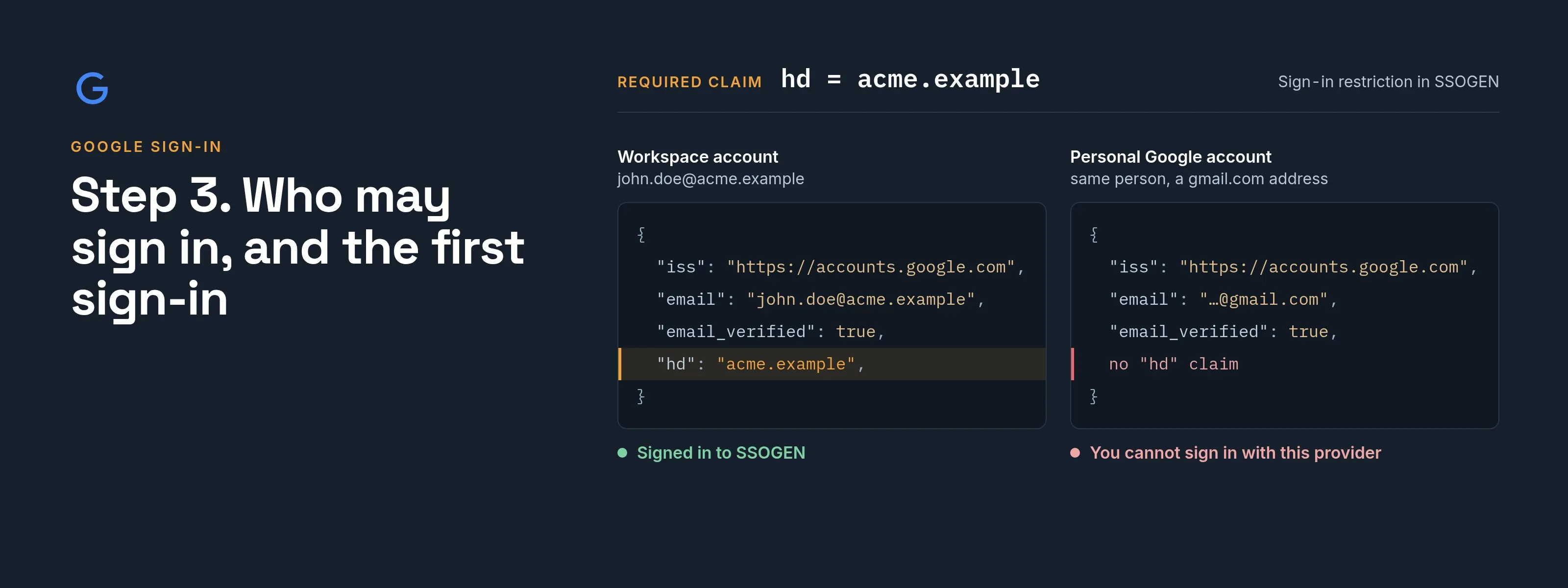
OpenID Connect. Google signs in anyone with a Google account, so the Google card starts at Only people already linked to this provider: nobody gets in until you choose. On the provider’s Configuration tab, Sign-in restriction:
- Add the required claim
hdwith the valueacme.example(list each of your Workspace domains). Personal Google accounts carry nohdand are refused. - Then either choose Anyone this provider vouches for (a new account is created), so each person gets an account at first sign-in, or, for people who already have SSOGEN accounts, have a Super admin set Account matching to Sign in to the existing account. Google marks Workspace addresses as verified, so the join works on the email address.
SAML. The Google app’s user access already decides who can sign in. Choose Anyone this provider vouches for (a new account is created); the SSOGEN username comes from the Name ID, for example google-workspace_john.doe_acme.example.
What the user sees
John Doe opens https://acme.ssogen.ai, chooses Google (or is sent there directly), picks his john.doe@acme.example account if Google asks, and lands on his applications in SSOGEN. A person who signs in with a personal Google account sees “You cannot sign in with this provider”.
Troubleshooting
| Symptom | Cause |
|---|---|
Google shows Error 400: redirect_uri_mismatch. |
The redirect URI in the OAuth client differs from the one SSOGEN shows. Add it exactly under Authorized redirect URIs. |
Google shows 403 app_not_enabled_for_user. |
The SAML app is off for John’s organizational unit or group. Turn it on under User access and allow time for the change. |
Google shows 403 app_not_configured_for_user. |
The issuer of SSOGEN’s request does not match the app’s Entity ID. Paste SSOGEN’s SP entity ID again; the comparison is case-sensitive. |
| Everyone sees “You cannot sign in with this provider” over OpenID Connect. | The restriction still admits only linked people, or the hd value differs from the domain of their accounts. |
| Sign-ins fail after a certificate change in Google. | Google signs with the new certificate assigned to the app. Download the metadata again and upload it to SSOGEN, save the revision and activate it. |