SSOGEN / JD Edwards SAML sign-in with any SAML 2.0 identity provider
Integration
JD Edwards SAML sign-in with any SAML 2.0 identity provider
Register SSOGEN as a service provider at your SAML 2.0 identity provider, and the Web Agent hands the signed-in user ID to EnterpriseOne.
At the identity provider
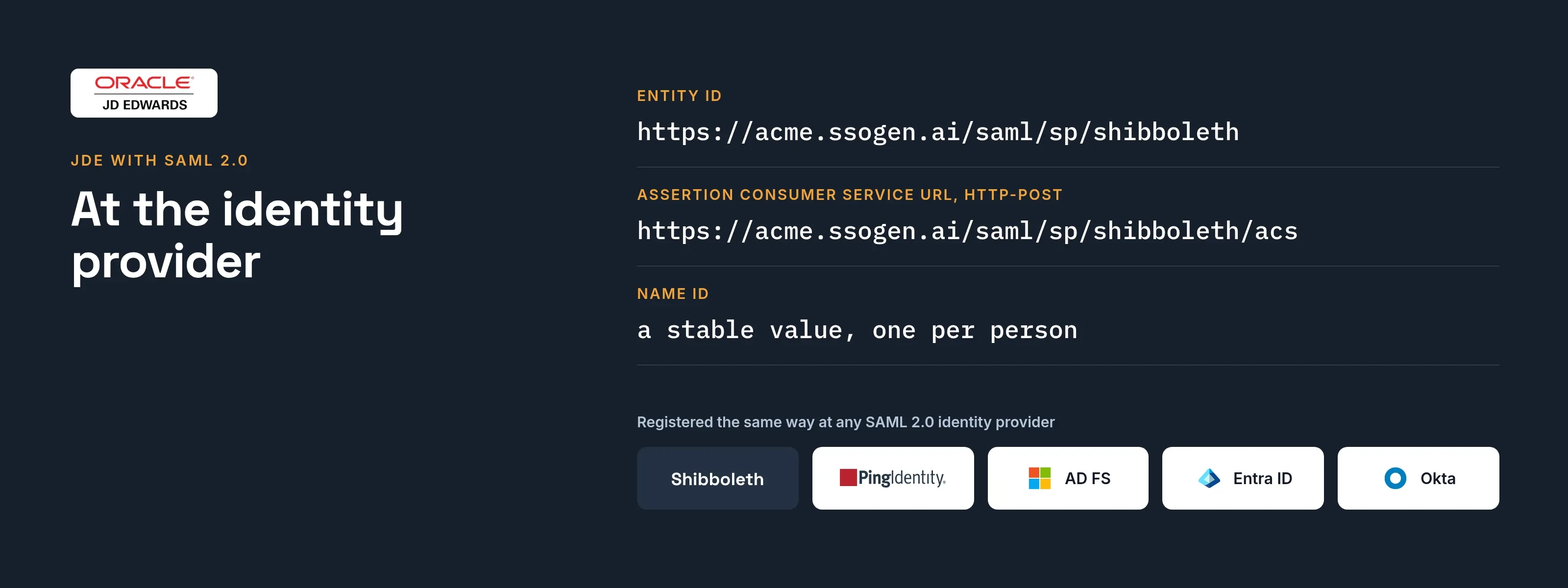
Register SSOGEN as a service provider with these values (a connection ID of shibboleth is used here; for Shibboleth this is the service provider configuration in its own documentation):
| Field | Value |
|---|---|
| Entity ID | https://acme.ssogen.ai/saml/sp/shibboleth |
| Assertion consumer service URL, HTTP-POST | https://acme.ssogen.ai/saml/sp/shibboleth/acs |
| Name ID | a stable value, one per person |
The provider must sign the assertion itself. A signed response alone is not enough. It must also send the e-mail address as an attribute. The full provider side and the SSOGEN screens are on Any SAML identity provider as a sign-in source. For AD FS, Entra ID or Okta, use AD FS, Microsoft Entra ID or Okta.
In SSOGEN and in JD Edwards
- Import the provider’s metadata in SSOGEN and activate the provider, as that page says. The metadata must describe this one provider.
- Register JD Edwards as a Web Agent application. Under Identify the person by, set the value that equals the EnterpriseOne user ID. Set
emailfor e-mail addresses andsource_usernamefor directory sign-in names. - Set
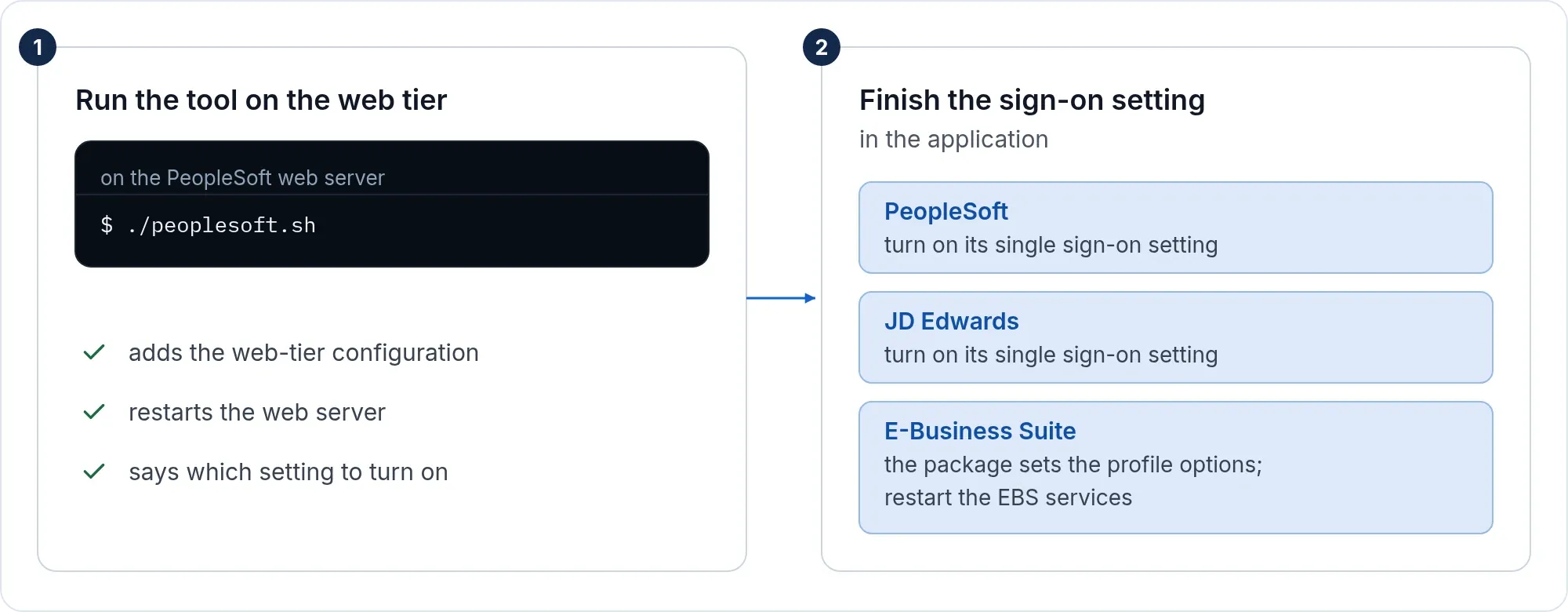
usernameonly when the IDs match the SSOGEN account name. SSOGEN names accounts<connection ID>_<NameID>, such asshibboleth_jane.doe_acme.example. - Run the tool and set Server Manager as on the JD Edwards page.
What people see
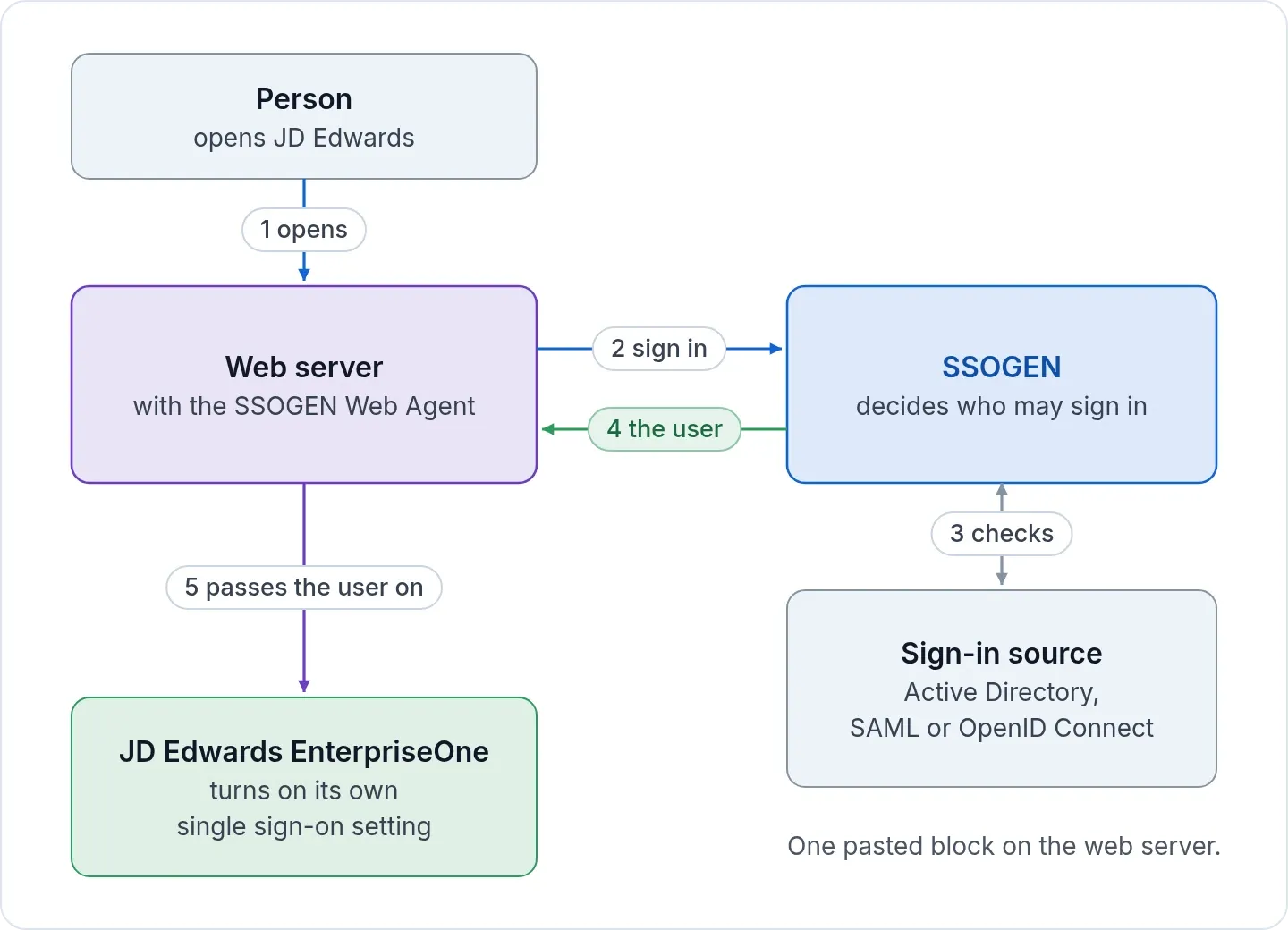
A person opens https://jde.acme.example/jde and is sent to SSOGEN, then on to the SAML provider. The provider signs the person in. The EnterpriseOne home page opens. Other apps at that provider share the same session, both ways. SSOGEN shows no page of its own on the way in or out.
If it does not work
SSOGEN’s Try connection names most SAML faults in plain words. For web server and EnterpriseOne issues, see the JD Edwards page.
| Symptom | What to do |
|---|---|
| “That document describes more than one entity.” | The metadata is a federation aggregate. Ask for the metadata of the one provider. |
| “That metadata publishes no signing certificate, so assertions from it could not be verified.” | Get the metadata that includes the provider’s signing certificate. |
| “That host is not one SSOGEN will fetch from.” | The metadata address points into a private network. Download the file and upload it. |
| “The assertion carried no subject (NameID).” | Configure the provider to send a NameID. |
| One person gets a new account at each sign-in | The provider sends a transient or opaque NameID. Send a stable, readable one, such as the e-mail address. |
| “The assertion is outside its validity window.” | Fix the clock on the provider’s server or on SSOGEN’s. SSOGEN allows five minutes of difference. |
| “The signing certificate in the metadata does not match the one configured.” | The provider changed its certificate. Fetch or upload the metadata again, save the revision, then validate, test and activate it. |
Sign-out
The EnterpriseOne sign-off link calls /ssogen/logout, which ends the web server session. The SSOGEN and provider sessions stay open by default.
- On shared computers, add
SSOGENLogoutScope ssoto the configuration the tool wrote. Signing off then also ends the SSOGEN session. - To end the provider session as well, turn on Also sign out of this provider. Choose IdP SLO URL from the metadata, or a Custom provider SLO URL.
- The provider then returns people to
https://acme.ssogen.ai/saml/sp/shibboleth/slo-return. That address is in SSOGEN’s metadata once the setting is on, so give the provider the metadata again.
More on scopes: sign-out on every page.