SSOGEN / JD Edwards SSO for EnterpriseOne
Integration
JD Edwards SSO for EnterpriseOne
SSOGEN signs people in at Okta, Entra ID, AD FS, LDAP or Kerberos, and the Web Agent protecting the /jde path hands EnterpriseOne the user ID.
What you get
Why turn on single sign-on
It strengthens EnterpriseOne’s security. People no longer type an EnterpriseOne password, and your sign-in rules (multi-factor included) apply before anyone reaches /jde. It saves time for people and cuts help-desk calls for password resets and lockouts. IT security audits ask for it, and it is part of the JD Edwards security best practices.
Where people sign in
EnterpriseOne has no SAML or OpenID Connect sign-in of its own. SSOGEN supplies it. SSOGEN signs the person in at the system that already knows them. The Web Agent on your web server then hands EnterpriseOne the result. Pick the source you have. Each page says what to set on the provider side and on the JD Edwards side. None of them repeats the steps below.
| People sign in with | Page |
|---|---|
| Okta | JD Edwards with Okta |
| Microsoft Entra ID (Azure AD, Azure SSO) | JD Edwards with Microsoft Entra ID |
| Microsoft AD FS, on-premises or hosted | JD Edwards with AD FS |
| Shibboleth, PingFederate or any SAML 2.0 provider | JD Edwards with a SAML 2.0 provider |
| OneLogin, Keycloak, PingOne, Google Workspace or any OpenID Connect provider | Sign-in sources |
| Their Active Directory or LDAP password | Active Directory and LDAP |
| Their Windows session, with no password typed (Kerberos, also called Windows Native Authentication or desktop single sign-on) | Windows sign-in (Kerberos) |
Other SAML 2.0 and OpenID Connect providers connect the same way, through Any SAML provider or Any OpenID Connect provider. Examples are Oracle Identity Cloud Service, CA Siteminder, IBM Tivoli Access Manager, NetIQ and Oracle Access Manager.
The LDAP side covers Active Directory and other LDAP directories. Examples are OpenLDAP, 389 Directory Server, Oracle Unified Directory, Oracle Directory Server, OpenDJ, UnboundID, RadiantLogic, IBM Directory, CA Directory, NetIQ and Apache Directory. Oracle Access Manager and Oracle Internet Directory are not needed for any of them.
How single sign-on is put in place
- Your web server (Oracle HTTP Server or Apache
httpdon Linux) already proxies the EnterpriseOne context/jdeto the WebLogic HTML server. - The SSOGEN administrator registers the application in SSOGEN and sends you the client ID and the agent key.
- You run the SSOGEN tool on the web server (step 1 below). It protects the
/jdepath. - In Server Manager you turn on the single sign-on setting for the HTML server instance and restart it (step 2).
- Choose and connect the sign-in source in SSOGEN, using the table above.
What you need
- Shell access to the web server in front of the HTML server, as the owner of its
httpd.conf(root on a stock Apache). Its proxy lines are already in place; the tool reads them and never writes them. - The package
ssogen-jde-<version>-<date>.zipfrom SSOGEN. - The application registered in SSOGEN, with Identify the person by set to the value that equals the EnterpriseOne user ID, and its client ID and agent key.
- Access to Server Manager for the HTML server instance, and a window to restart it.
Step 1: run the SSOGEN tool
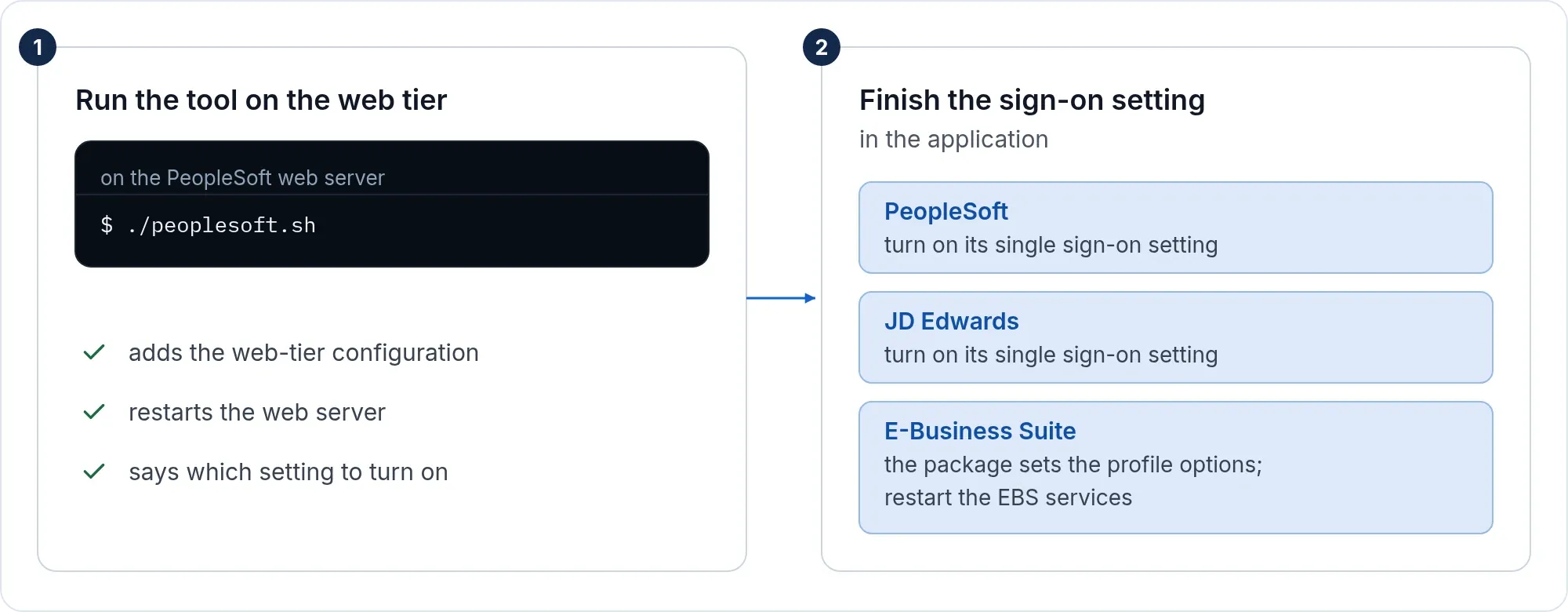
On the web server, after checking the package:
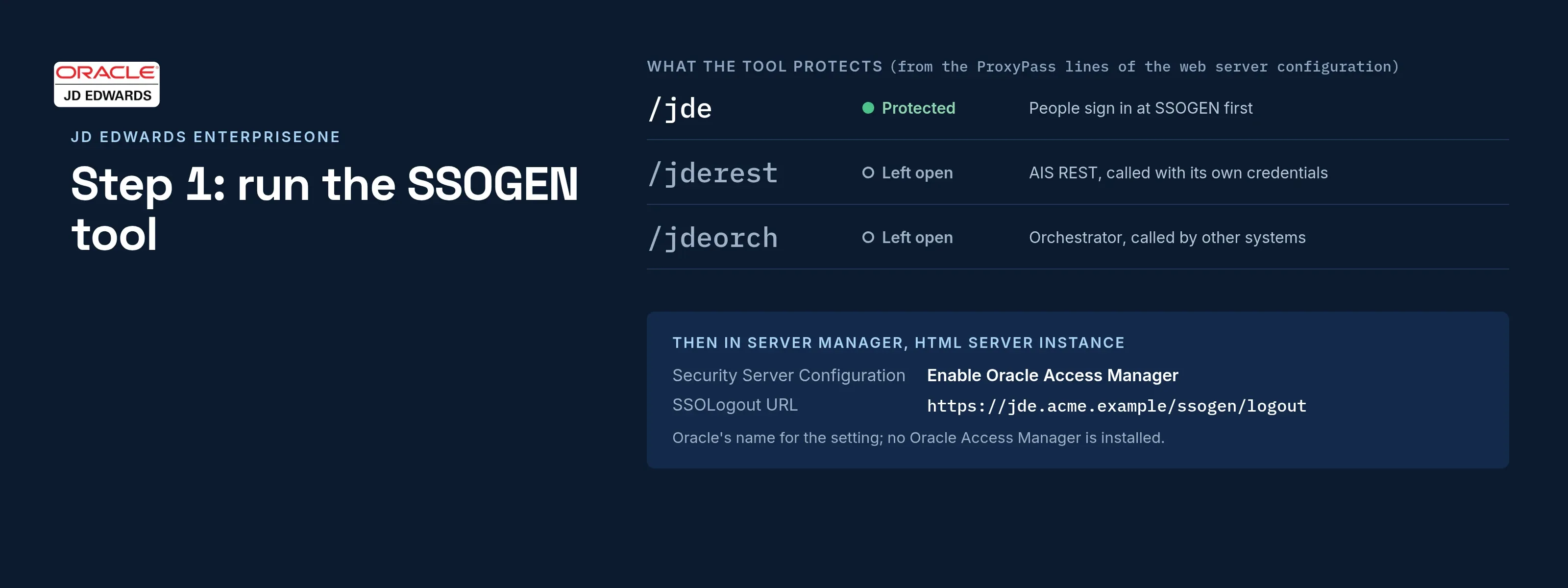
./ssogen info./ssogen reg --check -mode=ssogen -app_url=https://jde.acme.example -platform_url=https://acme.ssogen.ai -client_id=<client ID> -agent_key_file=$HOME/jde-agent-key.txt./ssogen reg -mode=ssogen -app_url=https://jde.acme.example -platform_url=https://acme.ssogen.ai -client_id=<client ID> -agent_key_file=$HOME/jde-agent-key.txt- By default every proxied EnterpriseOne path is protected (
/jdeamong them). The AIS REST paths/jderestand/jdeorchstay open, because other systems call them with their own credentials.infoshows the list before you change anything. -protect_path=/jdeprotects exactly the paths you name;-unprotect_path=PATHkeeps a path inside them open.reginstalls the Web Agent, writes its configuration and adds one marked block tohttpd.conf, with the web server’s own configuration test before and after.- Restart the web server as the next steps say. Run
regon every web node; with a shared ssogen folder the other nodes reuse the same configuration.
The tool, its options and the troubleshooting are the same as for PeopleSoft: see the PeopleSoft page.
Step 2: finish the setting in JD Edwards
EnterpriseOne has to accept the signed-in identity the agent passes on. The agent sends the user ID in capitals.
- In Server Manager, select your EnterpriseOne HTML Server instance.
- In the Configuration section select Network Settings.
- In Security Server Configuration, select the Enable Oracle Access Manager option. It is Oracle’s name for the setting that makes the HTML server accept the user from the web server. No Oracle Access Manager is installed. SSOGEN support confirms the setting for your Tools release.
- Enter
https://<JD Edwards address>/ssogen/logoutas the SSOLogout URL. - Apply and synchronize the changes to the .ini files when Server Manager asks, then stop and restart the HTML server.
Then:
- Every person needs an EnterpriseOne user whose user ID equals the identity SSOGEN sends. SSOGEN does not create users.
- Let only the web server reach the HTML server’s own port, with a firewall or network rule.
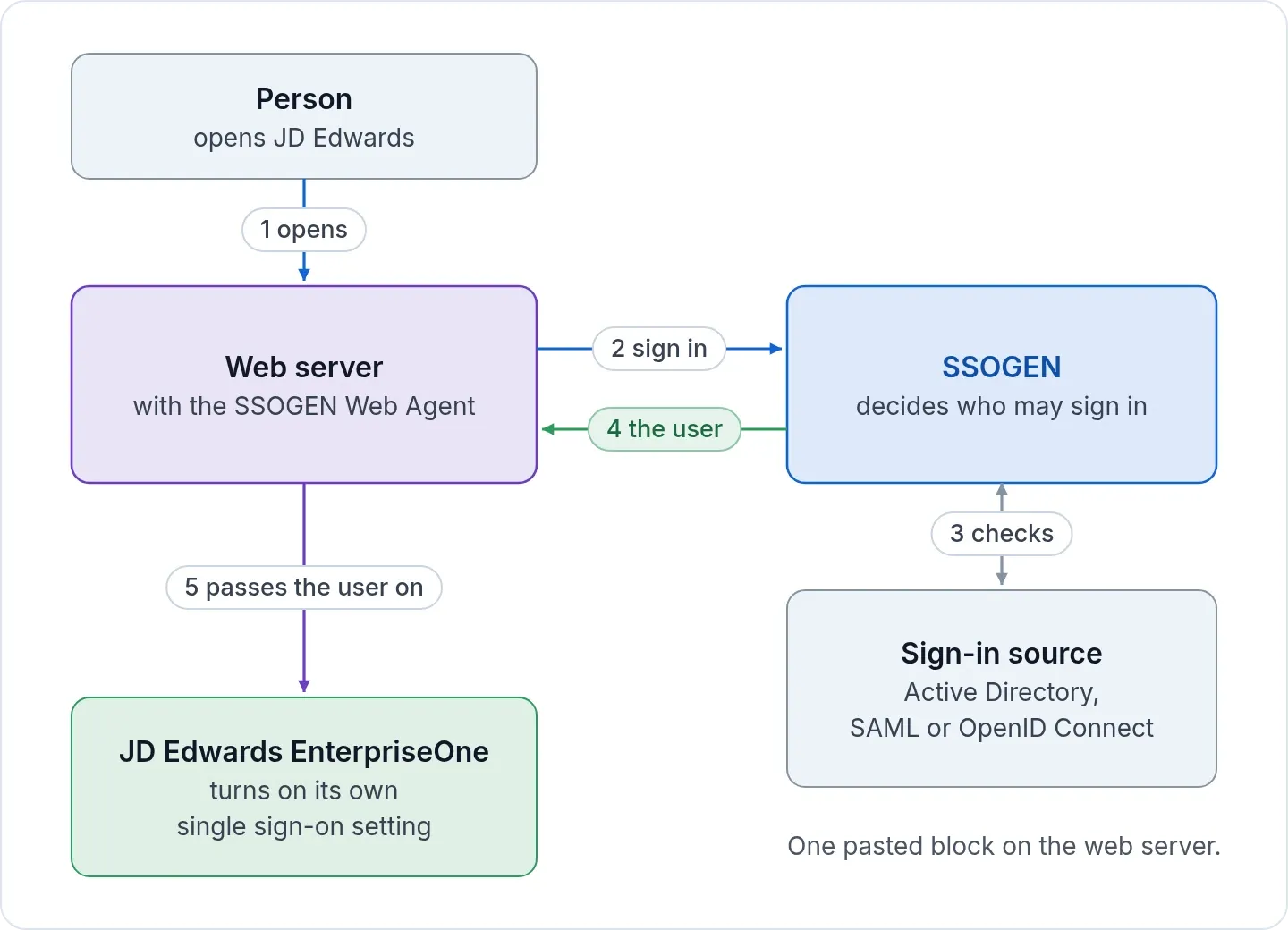
What happens at sign-in
- A person opens an EnterpriseOne address, for example
https://jde.acme.example/jde. - The SSOGEN Web Agent in the web server intercepts the request and sends the person to SSOGEN.
- SSOGEN signs the person in. It uses the Windows session (Kerberos) or the Active Directory or LDAP password. It can also pass the person to Okta, Microsoft Entra ID, AD FS or another SAML or OpenID Connect provider. Your SSOGEN policy decides whether a second factor is asked.
- SSOGEN sends the person back to
https://jde.acme.example/ssogen/callback. The Web Agent checks the answer, starts the web server session and passes the EnterpriseOne user ID on. - The web server lets the person through to the protected
/jdepaths. EnterpriseOne trusts the web server and opens the home page for that user.
A person who is already signed in to SSOGEN, or to the provider behind it, does not see a sign-in page at all.
Step 3: sign in and check
- In a private browser window open
https://<JD Edwards address>/jde. You are sent to sign in. - Sign in. You land in EnterpriseOne as yourself.
- If a page opens without sign-in, run
./ssogen infoto see which paths are protected.
Sign-out
The Web Agent’s sign-out address is https://<JD Edwards address>/ssogen/logout; it ends the web server session. For shared computers, see sign-out.
To sign in straight through a SAML or OpenID Connect provider instead of SSOGEN, run reg with -mode=saml or -mode=oidc and a license key, as on the EBS 12.2 page. The metadata file is jde-idp.xml in the ssogen folder.
If it does not work
| Symptom | What to do |
|---|---|
| AIS or orchestrator calls stop | A service path was protected. Run reg again with -unprotect_path=/jderest,/jdeorch. |
/jde opens without sign-in |
Only the proxied paths the tool found are protected. Add it with -protect_path=/jde. |
| “This server could not read your session” | Web nodes behind one address have different configurations. Copy the ssogen folder from the first node to the others and run reg there. |
Sign-in ends with a 403 and invalid_grant in the log |
The Redirect URI in SSOGEN is not exactly https://<JD Edwards address>/ssogen/callback. |
Sessions stay open when the browser window is closed
With single sign-on on, EnterpriseOne no longer ends the session when someone closes the browser without signing off. The LogoutOnBrowserClose=true setting in JAS.INI does not change that. Closing the browser without signing off from EnterpriseOne first is not supported from Tools release 9.1.4. Oracle tracks the enhancement as Bug 20853997, “Enable LogoutOnBrowserClose JAS setting when using OAM single sign-on”, and My Oracle Support Document 1298390.1 shows how to follow a bug.
Ask people to sign off with the EnterpriseOne sign-off link, which calls /ssogen/logout; on shared computers set SSOGENLogoutScope sso as described under sign-out.
Single sign-on fails in Microsoft Edge
With Oracle Access Manager, the cause is the certification matrix. Oracle does not list Edge for it, while the direct EnterpriseOne link works. The SSOGEN Web Agent signs in by redirect and works in every current browser: Edge, Chrome, Firefox and Safari. SSOGEN’s own multi-factor sign-in works in Edge too.
Which JD Edwards releases
The Web Agent sits in the web server. It works with every EnterpriseOne release that accepts single sign-on from the web server: 8.9, 9.0, 9.1 and 9.2 onwards.
More
- Single sign-on for Oracle ERP applications: the tool, the three modes and registering the application.
- Sign-in sources: every provider SSOGEN works with.
- What sets SSOGEN apart and pricing: a short conversation with the numbers.