SSOGEN / A TOTP authenticator that approves sign-ins with a number
Free tool
A TOTP authenticator that approves sign-ins with a number
Pair from My Account by scanning one code, then approve sign-ins by number and keep your codes, which work with no connection.
Approve a sign-in
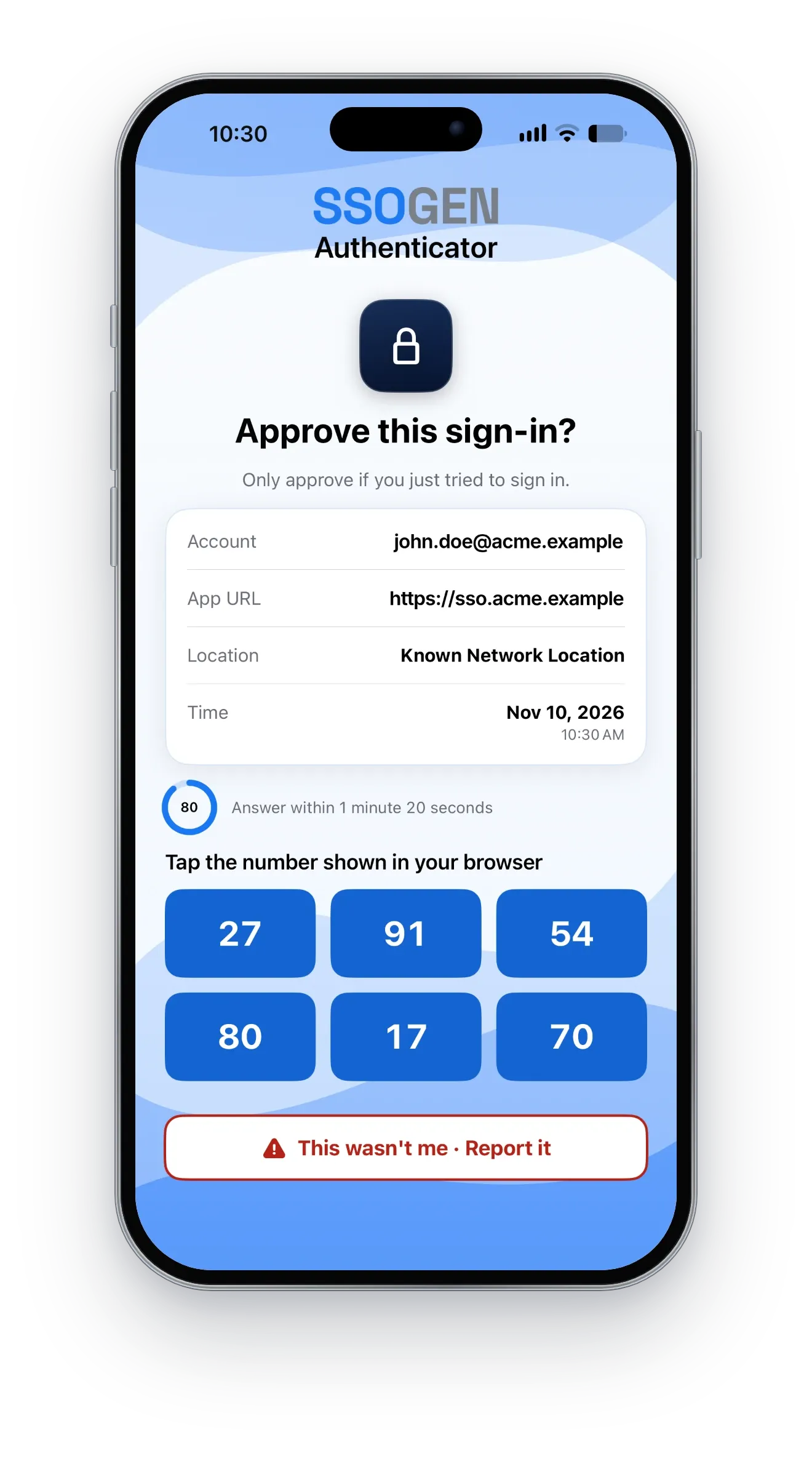
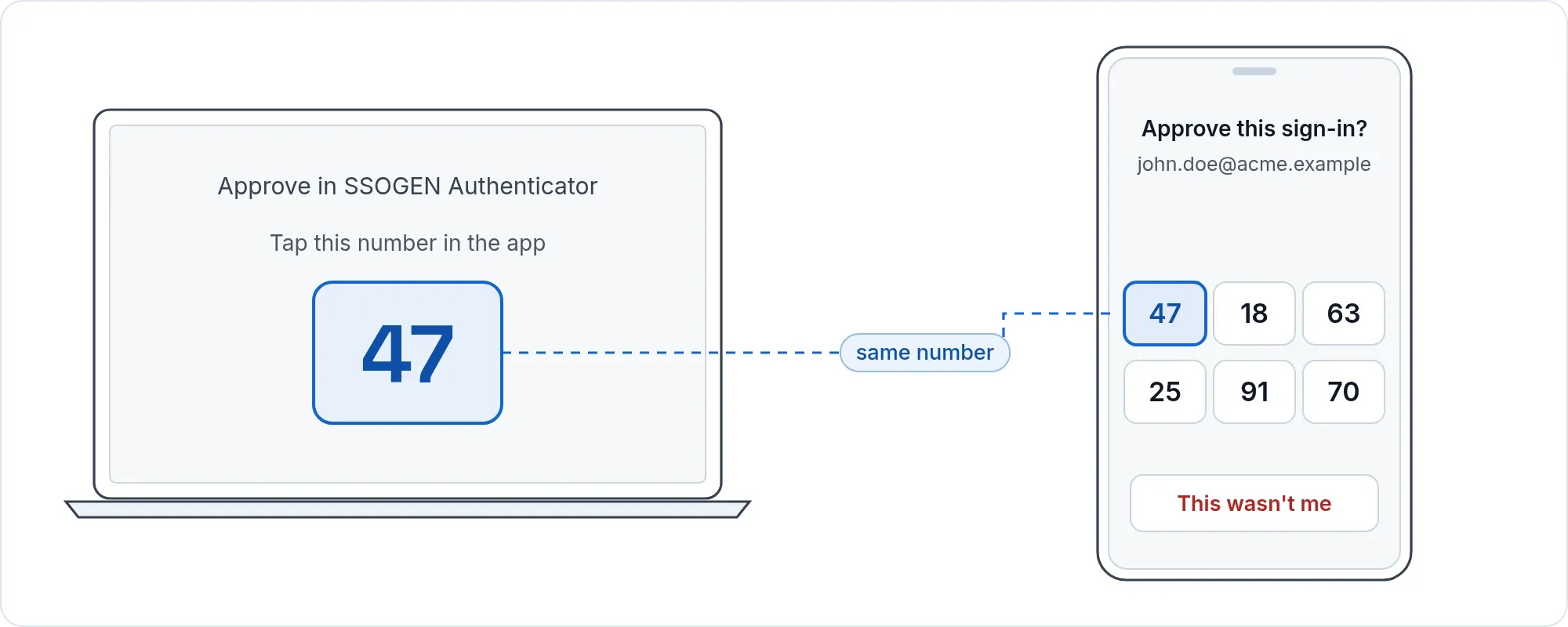
- Sign in on a computer. The page shows a number.
- Your phone shows the request: the application, your account, the time, and whether the sign-in comes from a usual or a new network.
- The phone shows six numbers. Tap the one that matches the page.
- Confirm with your face or fingerprint.
Not you? Tap This wasn’t me. The sign-in is blocked, push is paused for your account, and the report is recorded and shown to your organization’s administrators.
Number matching is the only way a push approval works. No administrator setting turns it off, so no policy can quietly lower it. Why this matters: MFA fatigue attacks rely on people approving prompts by habit.
Keep your codes
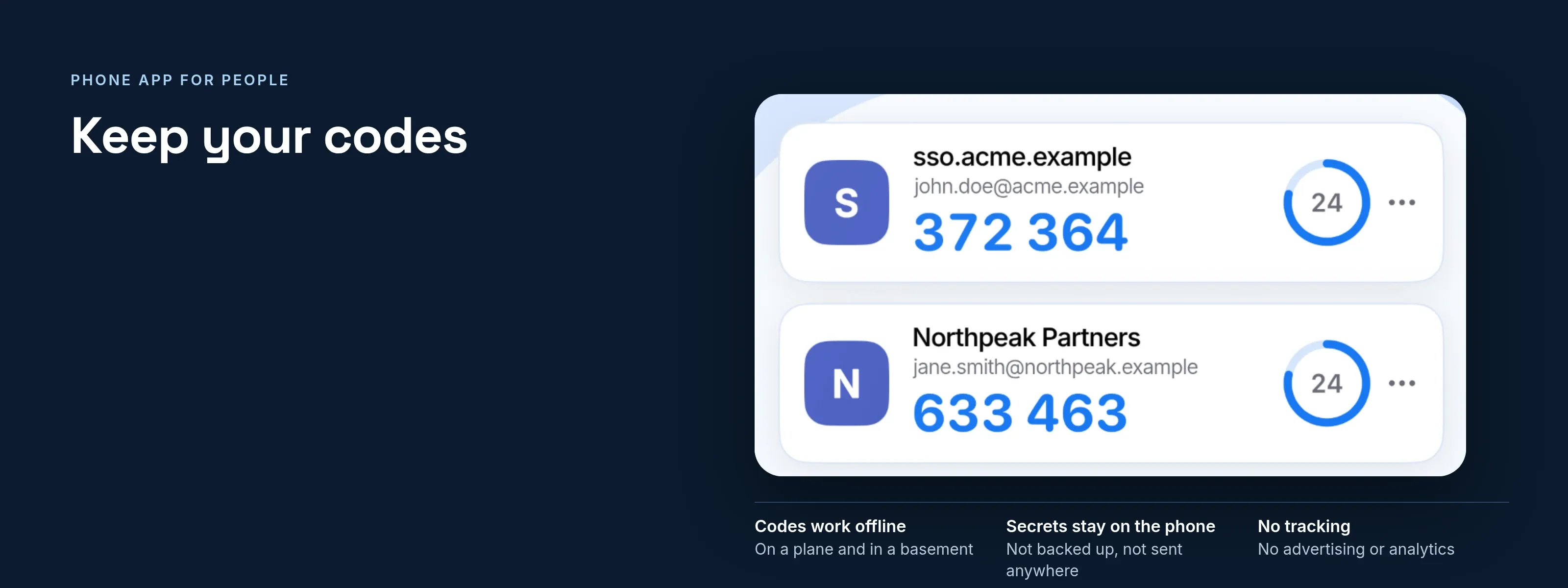
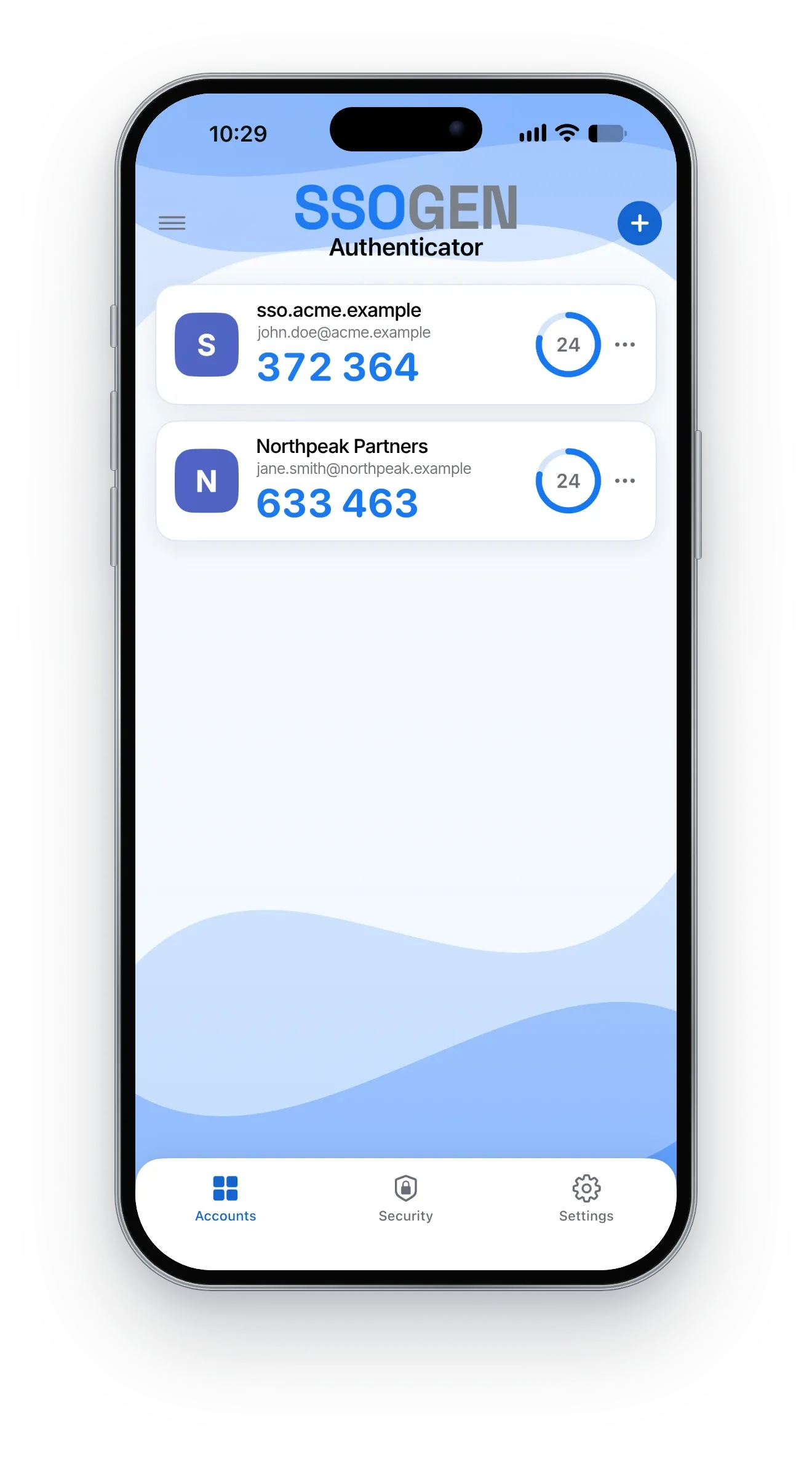
As a TOTP authenticator, the app works with any service. Add any service that gives time-based one-time codes (the standard six-digit kind) by scanning its QR code or typing its setup key. The app shows the code and a countdown. Codes work with no network connection, so they work on a plane and in a basement.
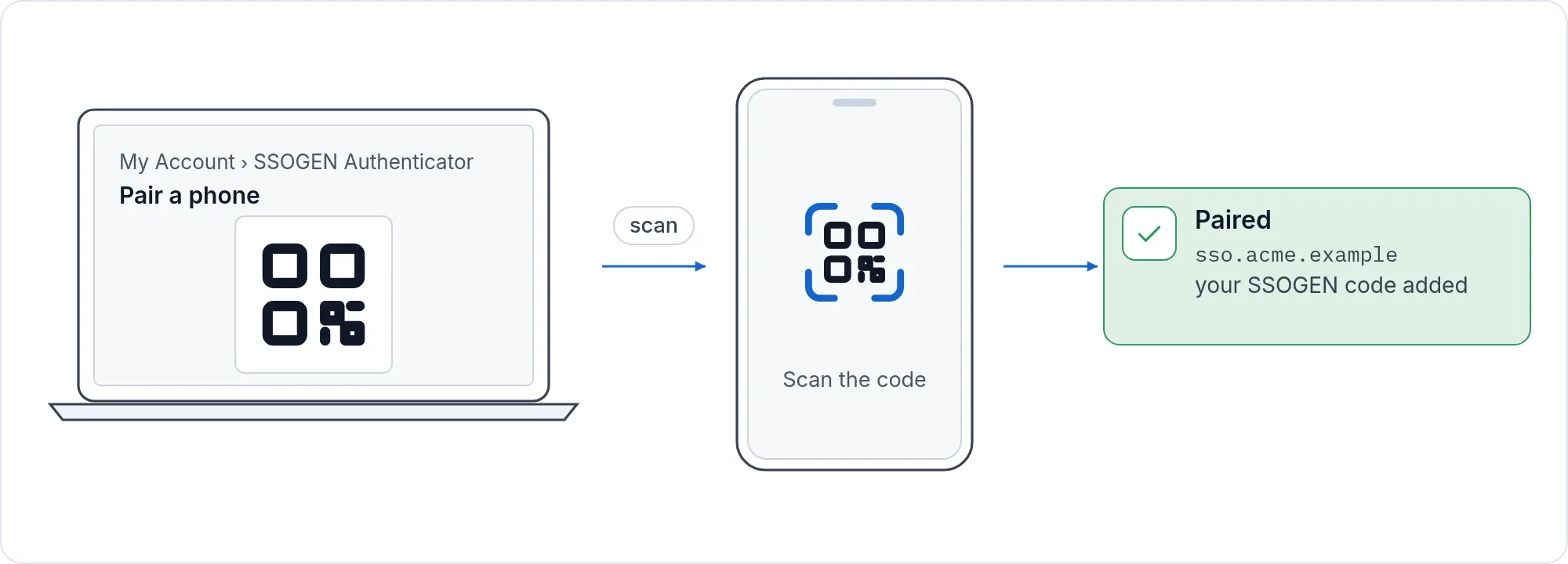
When you pair the phone with SSOGEN, your SSOGEN code is added for you.
Built for security
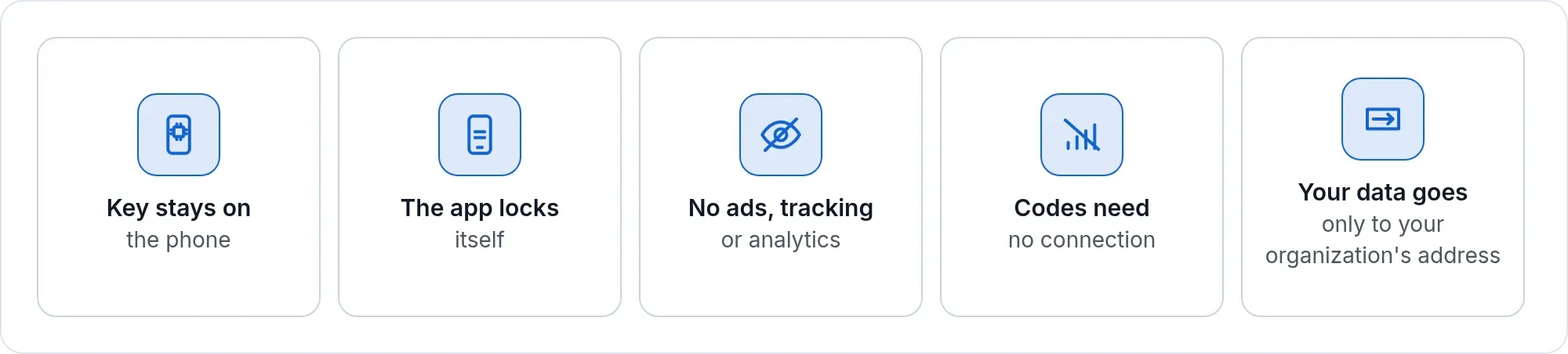
- The key stays on the phone. Your approval is signed with a key generated on the device, in its secure hardware where the phone has it (always on iPhone), and released only by your face or fingerprint. A PIN alone cannot approve.
- The app locks itself. It locks at launch and every time you come back to it.
- No screen lock, no codes. A phone without a screen lock is refused rather than left unprotected.
- A notification approves nothing. You always open the request, read it and answer it.
- Code secrets stay on the device. They are not backed up and not sent anywhere.
- Push is rate limited. Too many requests, or repeated denials and wrong numbers, pause push for that account.
Private by design
- Your sign-ins go to your organization only. Sign-in requests, approvals and your SSOGEN pairing go only to the SSOGEN address your organization shows in its pairing code, over HTTPS.
- The notification is a wake-up call, nothing more. It travels through Apple’s or Google’s notification service, as every phone notification does. It carries fixed text, a request reference and an expiry time.
- The notification holds nothing that approves. It never carries your name, your account, the application or the number to match. The app fetches the request itself from your organization’s address.
- Codes are worked out on the phone. They need no connection and are sent nowhere.
- No advertising, tracking or analytics in the app.
- No map, no guessed location. The approval screen says whether a sign-in comes from a usual or a new network, and nothing more.
For administrators
What the app does for your organization, and the settings you control: the SSOGEN Authenticator for administrators.
Start
Sign in to your organization’s SSOGEN page, open My Account, choose SSOGEN Authenticator, then Pair a phone. In the app, scan the code, check the address it shows, and confirm.
Ask your administrator for your organization’s sign-in address. Step-by-step help: the SSOGEN Authenticator app guide. New to these apps? Read what an authenticator app is.