SSOGEN / SSOGEN Authenticator approvals and codes: one number to tap, one face to confirm
Integration
SSOGEN Authenticator approvals and codes: one number to tap, one face to confirm
The phone app approves sign-ins with number matching and holds offline codes; administrators set how long a phone has to answer.
Approving a sign-in
- The person signs in on a computer. The sign-in page shows one number: “Tap this number in the app”.
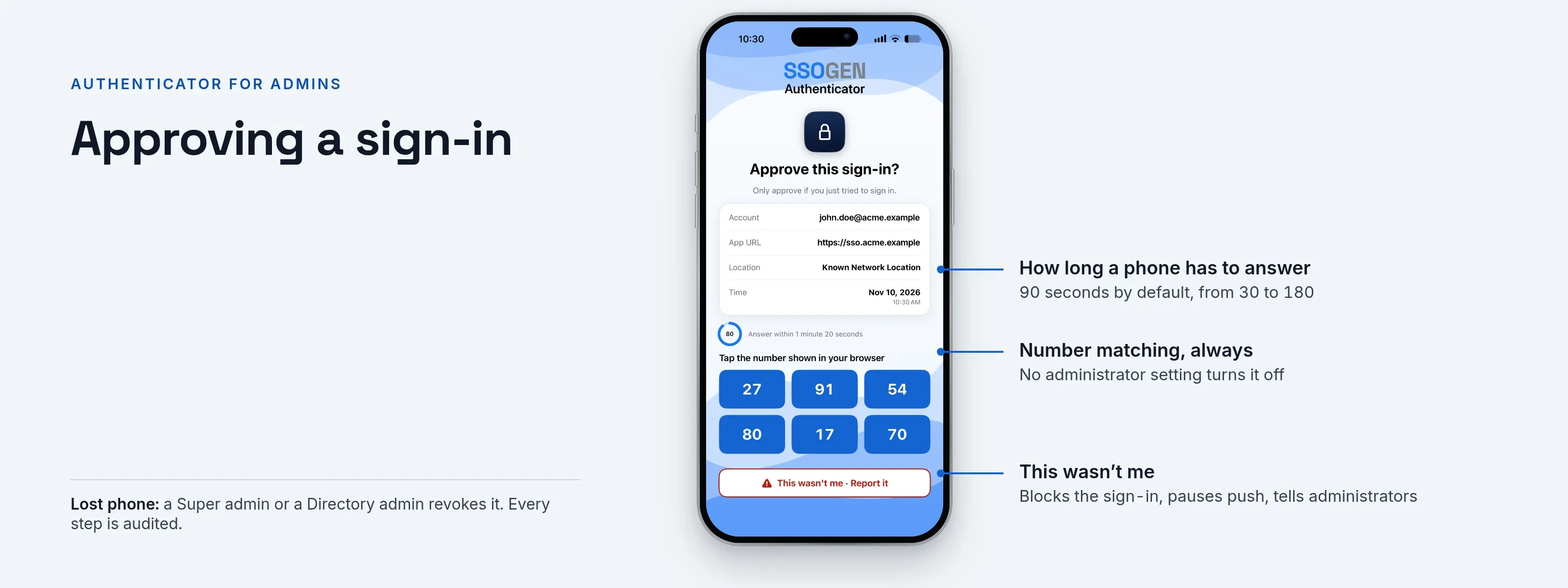
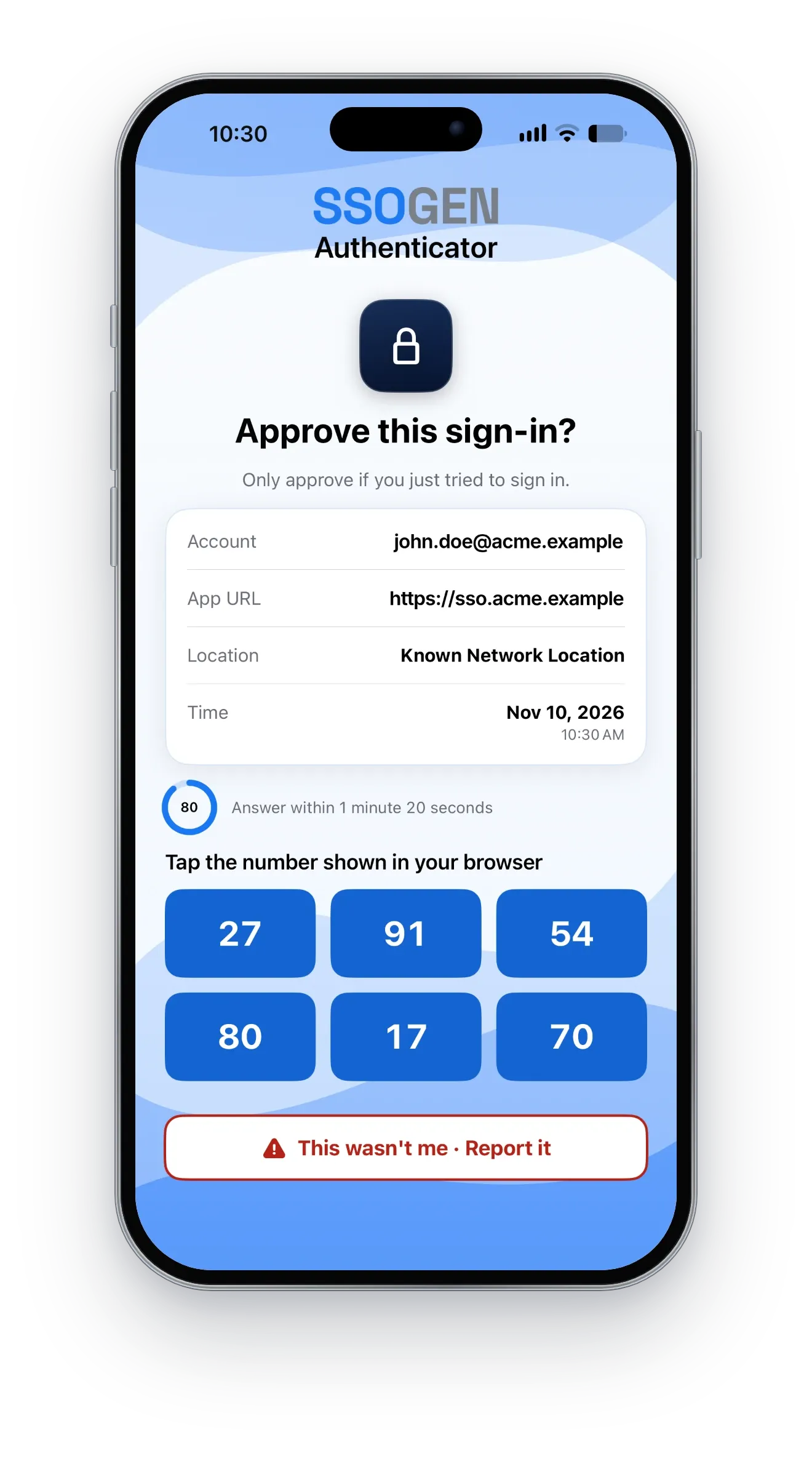
- The phone shows the request: the application, the account, the time, and whether the sign-in comes from a known or a new network.
- The phone shows six numbers. The person taps the one that matches the page.
- They confirm with face or fingerprint.
Tapping a notification approves nothing, and a tap alone never approves a sign-in. Number matching is the only way a push approval works; no administrator setting turns it off. If the request was not theirs, the person taps This wasn’t me: the sign-in is blocked, push is paused for that account, and administrators see the report.
Codes, on and off the network
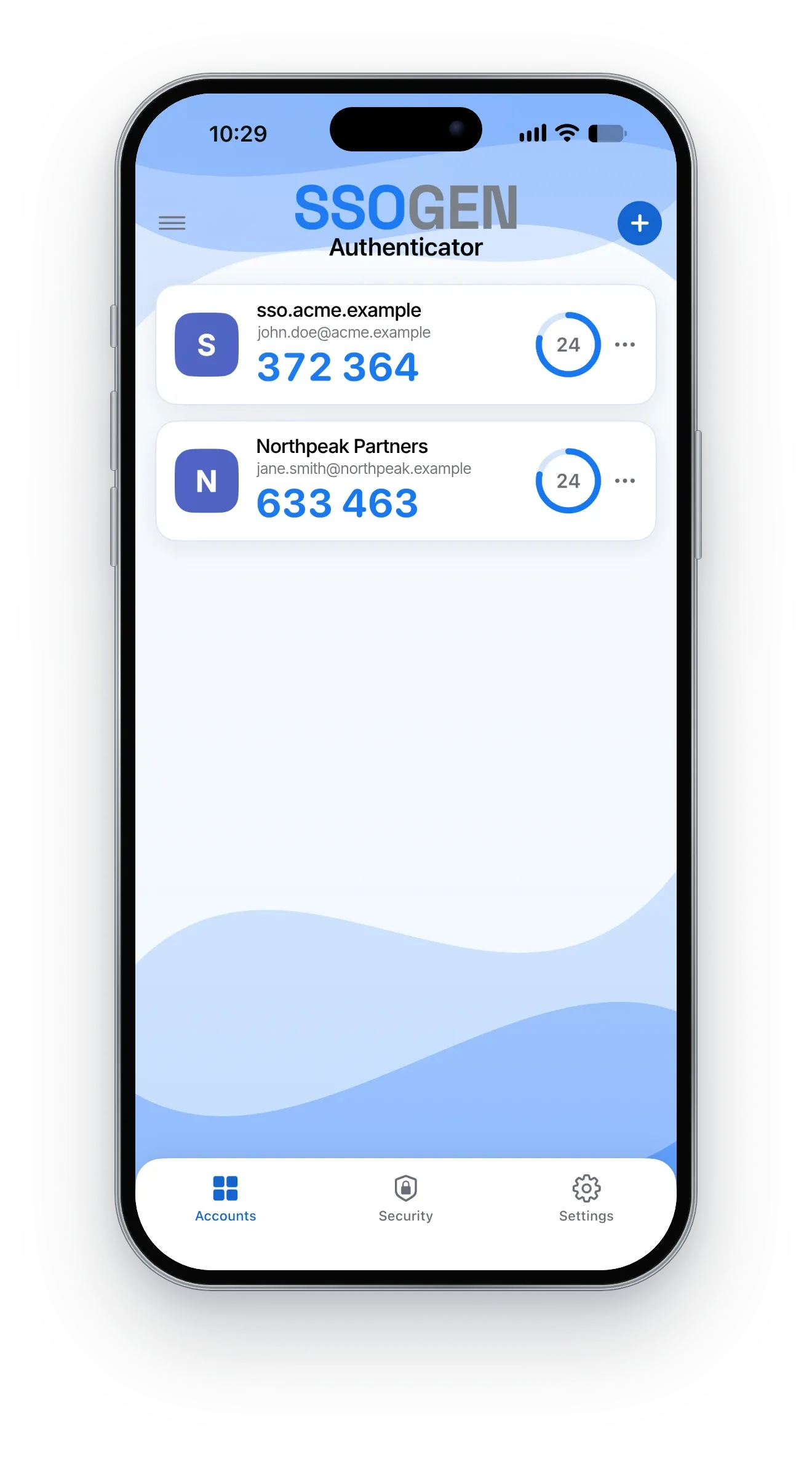
People add any service that gives time-based codes by scanning its QR code or typing its setup key. The app shows the code and a countdown. Codes are worked out on the phone and need no connection. When a person pairs the phone with SSOGEN, the SSOGEN code is added for them.
Built so the phone is the key
- A key that never leaves the device. Each approval is signed with a key made on the phone, in its secure hardware where the phone has it, and released only by face or fingerprint. A PIN alone cannot approve.
- The app locks itself, at launch and every time the person comes back to it.
- No screen lock, no codes. A phone without a screen lock is refused rather than left unprotected.
- Code secrets stay on the device. They are not backed up and not sent anywhere.
- Wearing it down does not work. Repeated denials or wrong numbers pause push for that account; three by default.
Private by design
- Sign-in requests and approvals go only to the organization’s own SSOGEN address, the one shown in its pairing code, over HTTPS.
- The notification that wakes the phone travels through Apple’s or Google’s notification service and carries fixed text, a request reference and an expiry time. It never carries the person’s name, the account, the application or the number.
- No advertising, tracking or analytics in the app, and no map: the approval screen says only whether the network is known or new.
For administrators
- Nothing to deploy. People pair their own phone from My Account by scanning a QR code. You can show your own download links for iPhone and Android above the pairing button.
- Your policy decides where it counts. Accept the app as a second factor, or, for applications other than the Admin Console, let a person sign in with phone approval alone. Sign-ins to the Admin Console also take an approval in the app, always with number matching.
- Limits you set. How long a phone has to answer (90 seconds by default, from 30 to 180) and how many denials pause push.
- Works without notifications. Where your SSOGEN server cannot reach Apple’s or Google’s notification service, people open the app to answer the request, or type a code.
- Lost phone. A Super admin or a Directory admin (the help-desk role) revokes the phone, clears a push pause or resets the person’s second factors. Every step is audited.
Setup steps, including push approval for your organization and a lost or replaced phone: multi-factor authentication in SSOGEN. The guide for each person is the SSOGEN Authenticator app.
For the person with the phone
How to pair a phone and approve a sign-in, step by step: SSOGEN Authenticator for your sign-in.
Next: MFA and push approval.