Set up authenticator app: SSOGEN Authenticator on iPhone or Android
To set up the authenticator app, you pair SSOGEN Authenticator with your SSOGEN account from My Account, on your iPhone or Android phone. The app then does two things: it lets you approve a sign-in by tapping a number, and it shows the six-digit codes SSOGEN asks for as a second step. Share this guide with your staff, or adapt the wording for your own help pages.
What you use it for:
- Phone approval. When you sign in on a computer, your phone shows a request. You tap the number that matches the one on the computer and confirm with your fingerprint, face or screen lock. See Approve a sign-in on your phone.
- Sign-in codes. Six digits that change every 30 seconds and work without a network connection.
- Other accounts. The app also keeps codes for other services that give you a standard time-based code, scanned from a QR code or typed from a setup key.
Passkeys are added from My Account; see section 7.
Any standard authenticator app that produces time-based codes (such as Google Authenticator or 1Password) also works with SSOGEN for codes, if your organization allows it. Phone approval needs SSOGEN Authenticator.
The examples use the fictional company Acme Corp and an employee, Maria Lopez.
1. How to set up the authenticator app: install it
Section titled “1. How to set up the authenticator app: install it”- Install SSOGEN Authenticator. Your administrator tells you where to get it for your phone; My Account may also show a download link (section 2).
- Open the app. It opens with your fingerprint, face or screen lock, so set a screen lock in your phone’s settings if you have none. Approving a sign-in needs a fingerprint or face unlock.
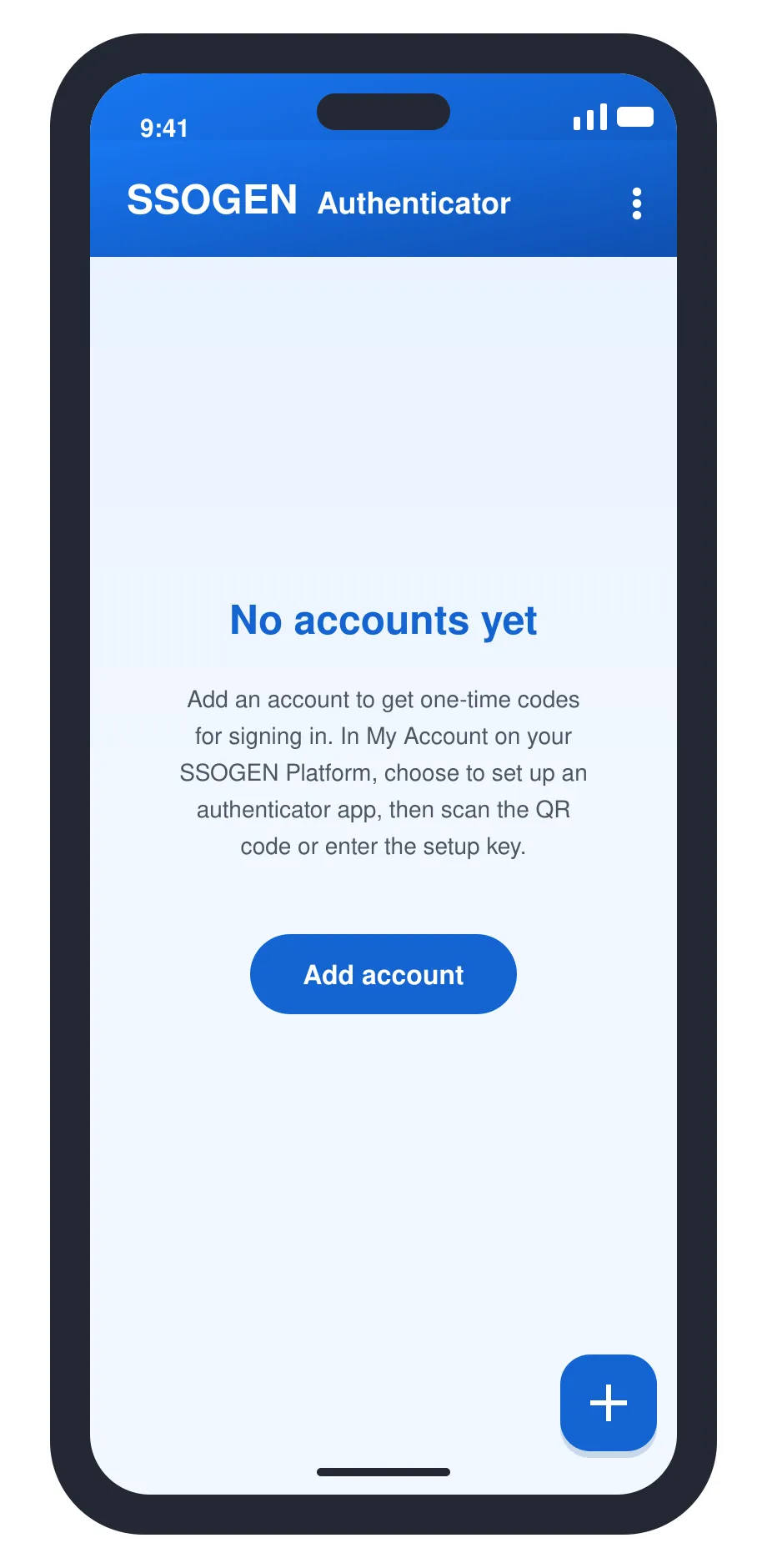
The app has no tabs. It opens on your list of accounts, with a menu at the top right for everything else.
2. Pair your phone
Section titled “2. Pair your phone”One action, Pair a phone, lets the app approve your sign-ins and show your sign-in codes. You do not scan a second QR code or type a setup key.
- Sign in to SSOGEN in a browser on your computer, open My Account, then Authenticator, and find the SSOGEN Authenticator section. If a box asks you to confirm it is you first, do that. The section starts with “Install the SSOGEN Authenticator app on your phone.” Your administrator may add Get it on the App Store and Get it on Google Play links; each opens in a new tab.
- Select Pair a phone. The page shows a QR code and a countdown.
- In the app, open the menu, choose Add account, then Scan QR code, and scan the QR code on your computer. The same scanner also adds ordinary accounts; it reads the code and knows which one this is. If the QR code does not scan, the page has Can’t scan? Copy pairing link, and the app has Paste pairing link.
- The app asks “Pair with” your organization’s address, and explains that this phone will approve sign-ins for your account. Check the address, and continue only if you started pairing just now. Select Pair.
- The app shows Type this code in your browser, a six-digit code and “Waiting for the code to be entered…”. On your computer the page says “A phone is asking to pair” with the phone’s name. Type the code into Enter the code shown on your phone and select Pair. If it is not your phone, select Not my phone.
- The app says Phone paired, and the page says Phone paired. It now shows your sign-in codes and approves sign-ins.
Your phone is listed on the page, and your codes are listed under Your authenticator codes as On and the phone’s name, without a Remove button. Removing the phone also removes the codes it shows.
If your organization allows other apps, a collapsed Use another authenticator app section holds the QR code and setup key for apps such as Google Authenticator or 1Password. If your organization allows only SSOGEN Authenticator, that section is not shown, and the page says “Your organization sets up codes by pairing SSOGEN Authenticator.” if anything tries to set one up.
Full steps for the page, and what each message means, are in My Account: sign-in and security.
If pairing does not finish, the app says why:
| What the app says | What to do |
|---|---|
| The pairing code expired. Start again in My Account. | Select Pair a phone again. |
| Pairing was canceled or the code entered did not match. Start again in My Account. | Start again and type the code the app shows. |
| This pairing code was already used, or this phone is already paired there. Remove the phone in My Account, then start pairing again. | Remove the old entry for this phone in My Account, then pair again. |
| You have paired as many phones as your organization allows. Remove one in My Account first. | Remove a phone you no longer use. |
| Set up a fingerprint or face unlock on this phone first. Approvals need it. | Set one up in your phone’s settings, then pair again. |
| Update SSOGEN Authenticator to pair this phone. | Update the app. |
| Could not reach the sign-in site. Check the connection and scan the code again. | Check your connection. |
3. The accounts list and your codes
Section titled “3. The accounts list and your codes”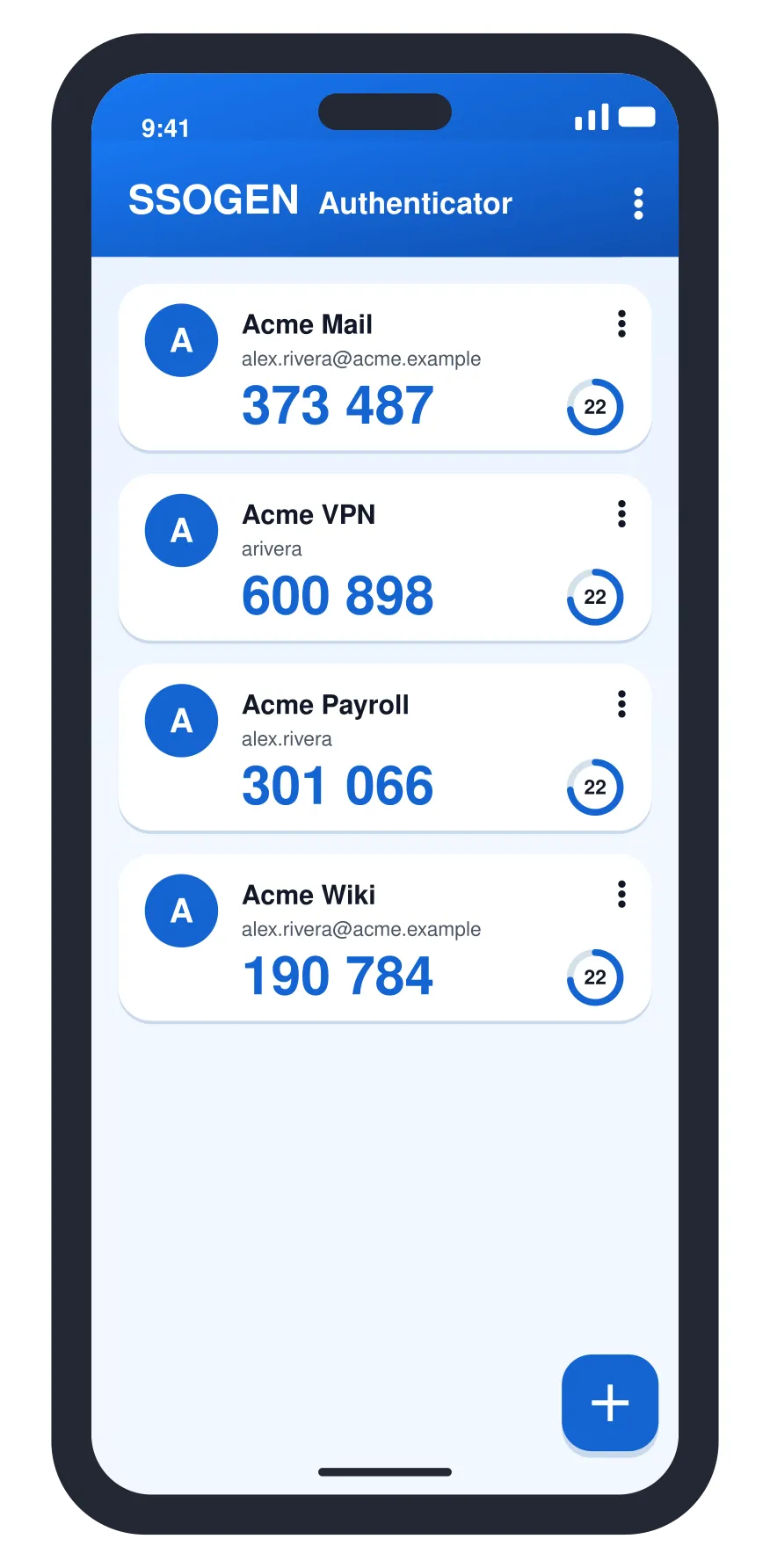
Illustration with fictional data: each account shows its current code and the seconds left before it changes.
Every account is a card with a round initial, the service name, the account name, the current code and a ring that counts down the seconds left. Tap a card to copy its code (“Copied”). The code changes every 30 seconds.
When SSOGEN asks for SSOGEN MFA code, open the app, find your SSOGEN account, type the six digits and select Verify. If SSOGEN says the code is wrong, wait for the next one, and check that your phone sets its date and time automatically.
The app locks when you leave it. To see your codes again, unlock it with your fingerprint, face or screen lock.
Add another account
Section titled “Add another account”- Open the menu and choose Add account.
- Choose Scan QR code and point the camera at the code the service shows, or choose Enter key manually.
- For a manual key, type the Issuer (optional), the Account name and the Setup key then select Add.
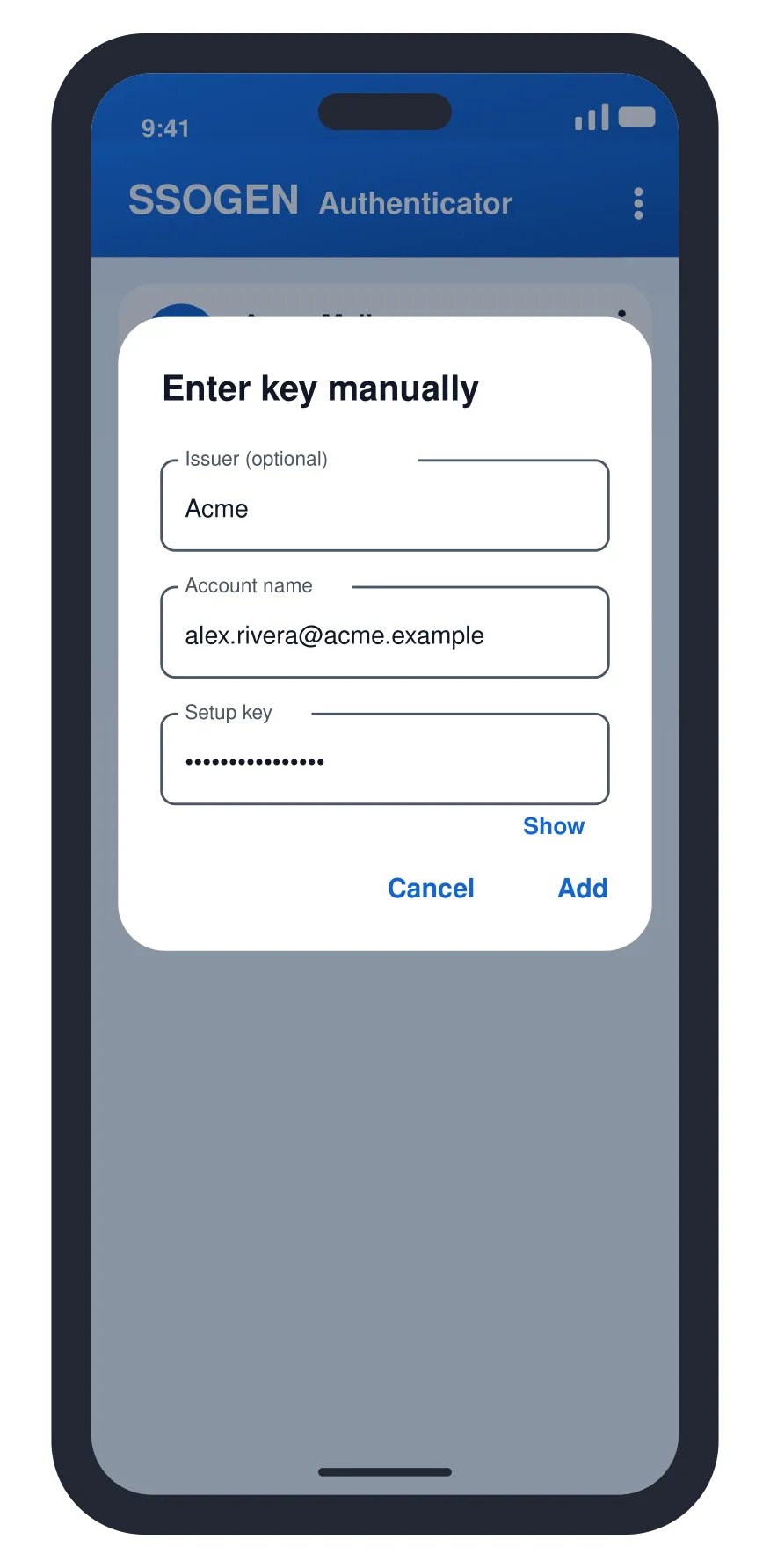
If the app says “That setup key is not valid. Check it and try again.” or “That is not a valid authenticator QR code.”, check the code or key with the service. If it says “This QR code is not for SSOGEN Authenticator. Scan an SSOGEN pairing code or an authenticator setup code.”, it was a different kind of code.
Rename or delete an account
Section titled “Rename or delete an account”On an iPhone, swipe an account card to the left for Rename and Delete. On Android, use the card’s menu (or press and hold the card). Deleting asks you to confirm (Delete this account? on Android, Delete account? on iPhone) and warns that you will no longer get codes for it: “If you have not set up another way to sign in, you could be locked out.” You can keep several accounts in the app, one for each service or organization.
4. The menu
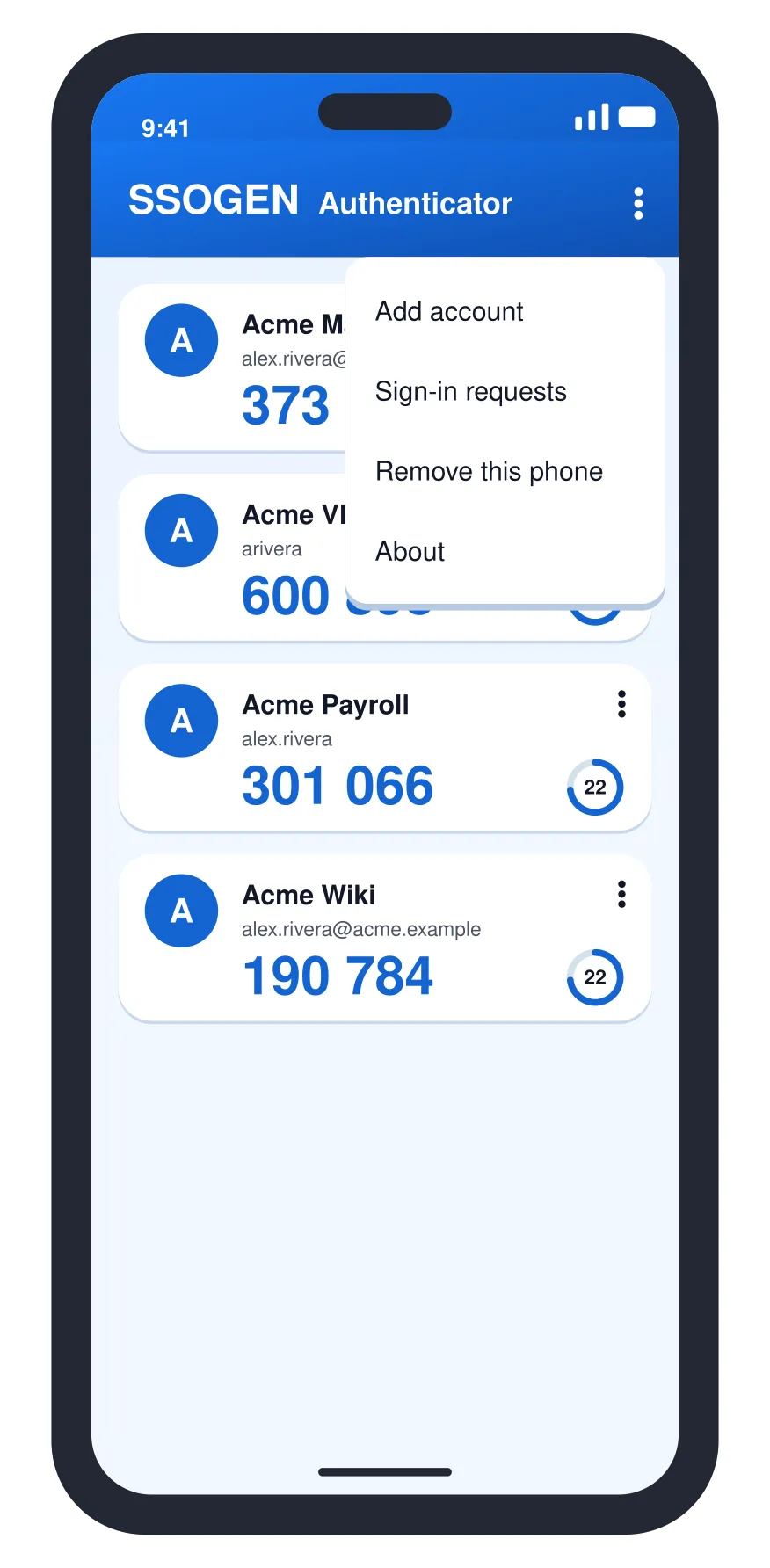
Section titled “4. The menu”Open the menu at the top right (the three dots, More options on Android).
| Entry | What it does |
|---|---|
| Add account | Scan a QR code or enter a key (section 3). |
| Sign-in requests | The requests waiting for your answer. See Approve a sign-in on your phone. |
| Remove this phone | Stops this phone from approving sign-ins (section 5). On an iPhone this is under Settings. |
| About | The app’s version (Android). |
| Settings | On an iPhone, the settings, including Remove this phone. |
5. Remove this phone
Section titled “5. Remove this phone”Remove the phone when you stop using it, or before you give it away.
- In the app, open the menu and choose Remove this phone (on an iPhone: Settings, then Remove this phone).
- The app asks Remove this phone? and explains that this phone will no longer approve sign-ins to your organization’s address. Your codes stay in the app. Select Remove.
- The app says This phone was removed.
You can also remove a phone from your computer: My Account, Authenticator, then Remove beside the phone in the table of phones. You can also Rename it there. A dialog asks to remove that phone by name and explains that it can no longer approve sign-ins or show codes, that waiting requests are canceled, and that you will be emailed. Select Remove phone. If you suspect misuse, also sign out your other sessions (My Account: sessions and activity).
If the app says “This phone was removed from” your organization, or “does not recognize this phone”, the pairing no longer exists on the SSOGEN side: choose Forget pairing in the app and pair again from My Account. If it says your organization “has paused sign-in approvals on this phone”, ask your help desk.
6. Set up the authenticator on a new phone
Section titled “6. Set up the authenticator on a new phone”Codes cannot be copied from one phone to another, so you pair the new phone.
- Install the app on the new phone (section 1).
- On the old phone, or with a recovery code if you no longer have it, sign in to SSOGEN and open My Account, then Authenticator.
- Remove the old phone from the table of phones, or remove an old authenticator under Your authenticator codes.
- Pair the new phone from section 2.
- Generate a new set of recovery codes under Authenticator, in the Recovery codes section, and save them somewhere safe. Generating a set replaces any codes you have not used.
Delete the account from the old phone once you have finished.
7. Passkeys
Section titled “7. Passkeys”A passkey lets you sign in without typing a code. Add one from My Account, Passkeys. Your browser and phone show their own prompt, and your phone keeps the passkey and asks for your fingerprint, face or screen lock when you use it. Steps are in My Account: sign-in and security, and on the sign-in page you choose Sign in with passkey.
8. If you lose your phone
Section titled “8. If you lose your phone”- On the sign-in screen choose Recovery code under Other ways to verify, and type one of the codes you saved. Each code works once. If your organization allows it, Lost your phone? also offers Use an email code and a text code.
- Once signed in, remove the old phone in My Account and pair the new one (sections 2 and 6).
- If you have no recovery codes either, ask your help desk. An administrator can reset your second step for you. Until you set up a new one you sign in with your password.
If something goes wrong
Section titled “If something goes wrong”| What you see | What to do |
|---|---|
| The code is rejected | Check that the phone’s date and time are set automatically, wait for the next code and type that. |
| Code not accepted. Check your app and try again. on the page | The code was wrong or expired. Read a new code from the app and try again. Setup stays pending until it succeeds. |
| The page shows Authenticator setup is unavailable | Select Try again; if it repeats, tell your help desk. |
| You lost or replaced your phone | See sections 6 and 8. |
| You added the account but SSOGEN never asks for a code | The authenticator is only active after you confirm it. Open Authenticator in My Account and check your phone is listed and your codes show On. |
| “Check this phone’s date and time, then try again.” | Turn on automatic date and time in your phone’s settings. |