Outbound-only connector for private networks
An Outbound Connector lets an SSOGEN Gateway reach an application or a server in a network that the Gateway cannot connect to by itself. The connector is a small program you install inside that private network. It dials out to your Gateway and keeps that connection open, so the private network opens no inbound port at all. This guide shows how to set it up, how to point an App Proxy route or a Remote Access resource at it, and how to tell when it is healthy.
The examples use the fictional company Acme Corp (domain acme.example): SSOGEN at https://sso.acme.example, a Gateway group eg_acme_hq whose Gateway answers at gateway.acme.example, and a factory network with a plant portal at https://plant.internal.acme.example that the head-office Gateway cannot reach. The connector group for the factory is called cg_acme_plant.
Terms used here
- Outbound Connector (or “connector”): an SSOGEN Gateway program installed in a private network in connector mode. It listens on no port.
- Connector group: one or more connectors that serve the same private network. If one fails, the others carry on.
- Gateway group: the Gateway (or Gateways) people reach, as described in Install and enroll an SSOGEN Gateway.
- Connector address: the host name and port, such as
gateway.acme.example:9946, where a connector dials the Gateway group. Port 9946 is the Gateway’s tunnel port. - Tunnel: the encrypted connection a connector keeps open to a Gateway. Traffic for the private application travels back down it.
- Reach through: the choice, on an App Proxy route or a Remote Access resource, of connecting directly or through a connector group.
When to use a connector
Section titled “When to use a connector”Use a connector when the Gateway cannot open a connection to the application, for example a factory, a branch office or a customer network that allows outbound traffic only. If your Gateway can already reach the application, leave Reach through on Direct: that is simpler and needs nothing in this guide.
Before you start
Section titled “Before you start”- An SSOGEN Gateway, version 4.3.0 or later, enrolled in a group and showing online on Secure access, Gateways. Every Gateway in the group must be 4.3.0 or later: a route that reaches its application through a connector is not sent to the group until then.
- You are a super administrator. Only a super administrator can change Connector addresses.
- A Linux server in the private network that can open HTTPS connections to SSOGEN and to the Gateway’s tunnel port (9946/tcp), and to the application it will reach. The server needs no inbound port.
- On the Gateway side, 9946/tcp open from the connector’s network. The installer never changes a firewall rule.
- A Gateway and an Outbound Connector cannot share one server. A connector can share a server with the Directory Connector.
1. Issue an enrollment token for the connector
Section titled “1. Issue an enrollment token for the connector”- Open Secure access, then Gateways.
- In Enrollment tokens, type the connector group’s name in Gateway group, for example
cg_acme_plant. A connector group is created by use, like any group: the first connector that enrolls makes it exist. - Under What this Gateway will do, choose Outbound Connector.
- Select Issue token.
The token is shown once, with the Enrollment string beside it (see Install and enroll an SSOGEN Gateway, section 5). The console also shows the finished bootstrap file for the connector, with the connector group filled in.
2. Install and enroll the connector
Section titled “2. Install and enroll the connector”On the server in the private network, unpack the Edge archive as described in Install and enroll an SSOGEN Gateway, section 3, then install in connector mode:
sudo ./install-edge.sh --apply --mode outboundConnector --platform-origin https://sso.acme.exampleSave the file the console showed as /etc/ssogen-edge/edge.yaml, paste the enrollment string at the prompt, and start the service:
sudo -u ssogen-edge /usr/lib/ssogen-edge/ssogen-edge enrol --config /etc/ssogen-edge/edge.yaml -sudo systemctl enable --now ssogen-edgeThe connector needs nothing else about the Gateway: it learns which Gateway to dial from the signed configuration SSOGEN sends it.
3. Add the Connector address on the Gateway group
Section titled “3. Add the Connector address on the Gateway group”This tells the Gateway to accept the connector group, and tells the connector where to dial.
- Open Secure access, then App Proxy routes. If you have more than one group, choose the Gateway group (
eg_acme_hq) in Gateway group. - Open a route with Add a route or by selecting one in the list. Below the route form, after Hostnames, is the section Connector addresses. It reads “Where an Outbound Connector in a private network dials this Gateway group, and the connector groups the Gateway admits.”
- Under Connector address, select Add a connector address and type
gateway.acme.example:9946. Up to 8 addresses are allowed; each is a host name and a port. A wrong entry shows “Write the address as a host name and a port, such as gateway.example.com:9946.” - Under Connector groups this Gateway admits, choose
cg_acme_plantin Connector group (or type it) and select Add connector group. Up to 16 groups are allowed. - Select Save connector addresses.
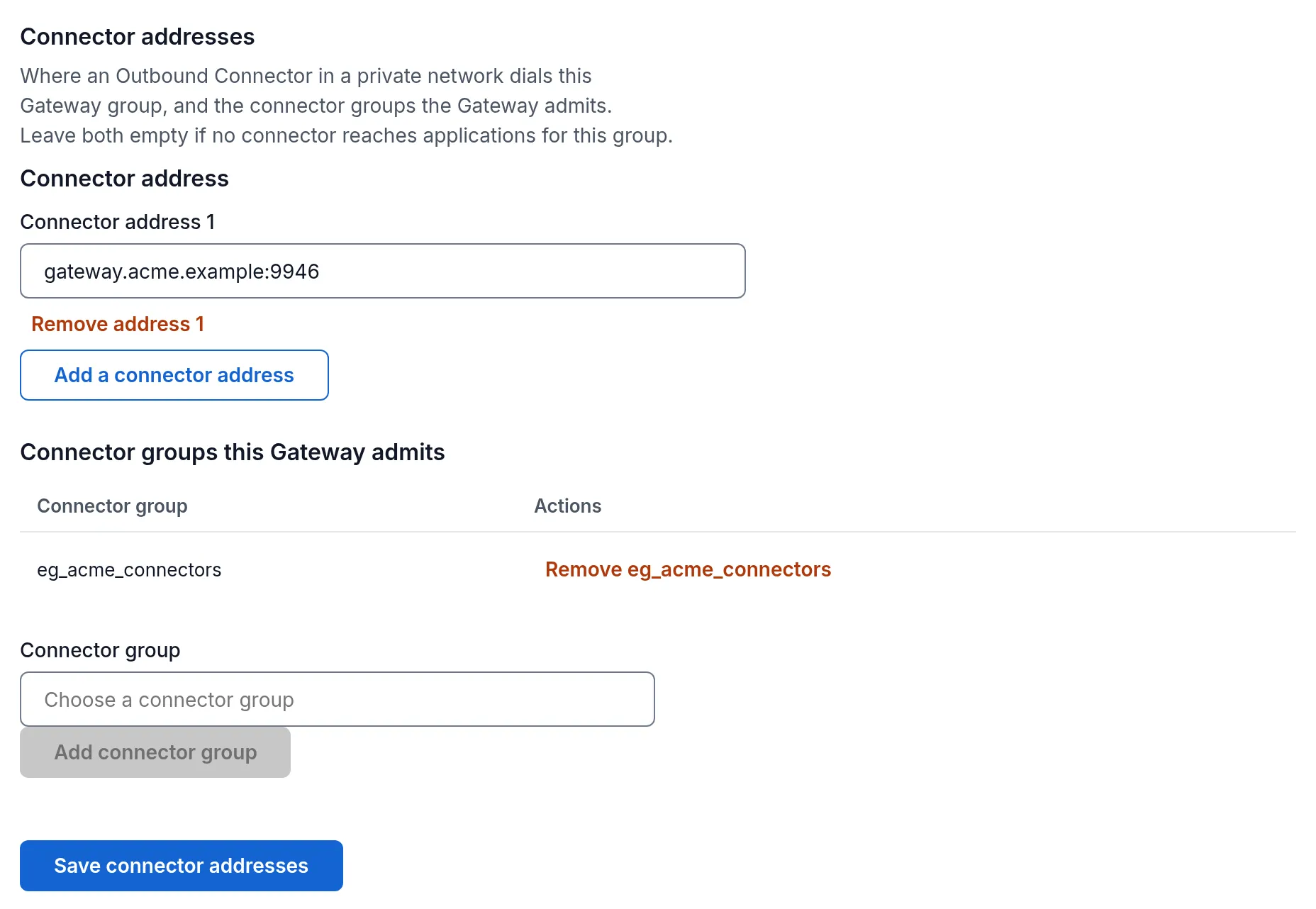
The page says “Connector addresses saved and published. Gateways and connectors pick up the change within 5 minutes.” Then open 9946/tcp on the Gateway server to the connector’s network.
If the save is refused you may see:
| Message | Meaning |
|---|---|
| Outbound Connector is not available on this plan, or your role cannot change it. | Your SSOGEN plan does not include the Outbound Connector, or you are not a super administrator. |
| The Connector addresses were not saved. Check that each is a host name and a port, such as gateway.example.com:9946, and that each connector group exists. | An address is malformed, or a connector group name is not a group that exists. |
4. Reach an application or a host through the connector
Section titled “4. Reach an application or a host through the connector”- An App Proxy route. In the route form, under Reach through, choose Through an Outbound Connector: a connector in the private network connects to the host, then pick the group in Connector group. See Publish an internal web application through the App Proxy, section 6. The back-end servers you give are then resolved and dialled by the connector, inside the private network.
- A Remote Access resource. In the resource editor, Reach through offers the same two choices. See Remote Access.
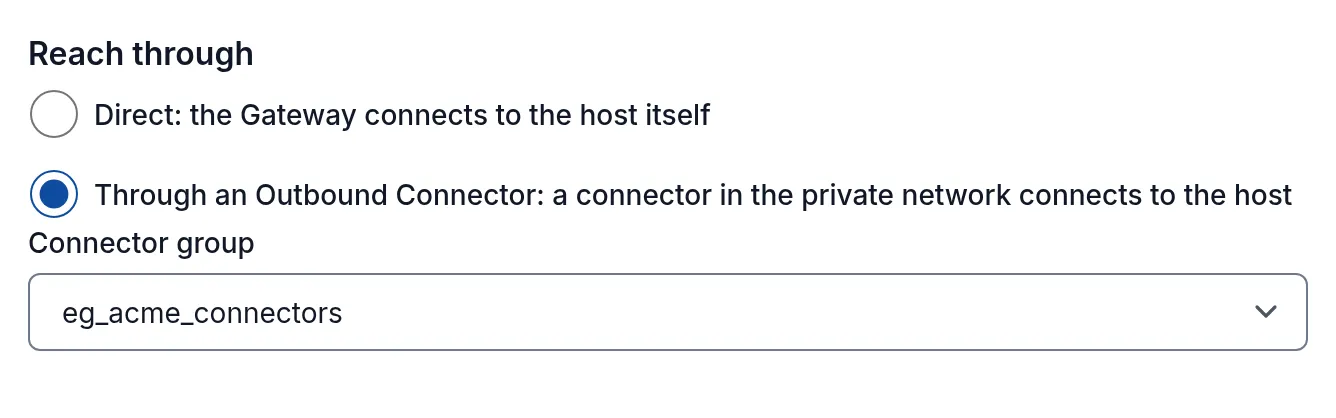
If Reach through says “This Gateway group admits no connector group yet. Add one under Gateways, Connector addresses.”, finish step 3 first. The connector groups offered are the ones the Gateway group admits.
Changing the reach path of a Remote Access resource clears its stored password, so that a password is never released along a different path; an SSH key is kept. See Remote Access, section 4.
5. Check that the tunnel is up
Section titled “5. Check that the tunnel is up”Open Secure access, then Outbound Connector. The page is read-only. It lists each connector group, the Gateway groups that admit it (“Admitted by Gateway group: eg_acme_hq.”), and a table of its connectors with Connector, Version, Status (Online or Offline) and Tunnels. Tunnels reads, for example, 1 up, 1 up, 1 down or No tunnel reported, with one line per tunnel, such as <peer>: up or <peer>: down.
Then open the application as a test person. It should open as it does for a directly reached application.
A connector keeps a tunnel to every live instance of the Gateway group. If a connection dies silently, the connector notices within about 45 seconds and dials again.
Health and alerts
Section titled “Health and alerts”SSOGEN compares the tunnels each Gateway and connector should hold with the ones they report.
- When an expected tunnel has been missing for three minutes, SSOGEN records
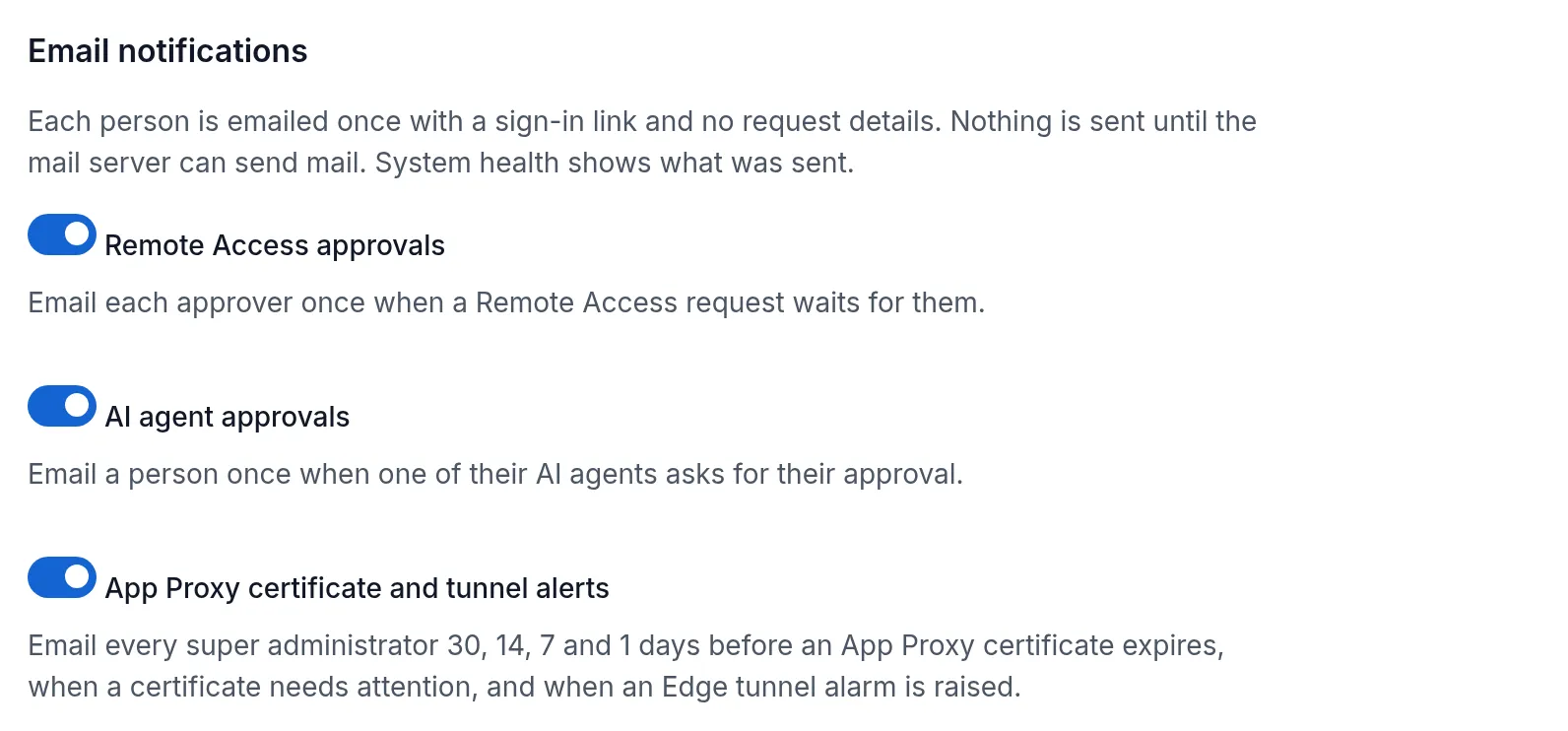
edge.tunnel.alarm_raisedin the audit trail, andedge.tunnel.alarm_clearedwhen it is back. - Every super administrator gets one email per alarm, when a mail server is set up and the switch App Proxy certificate and tunnel alerts is on (Settings, SMTP). The System health page lists the mail kinds Edge tunnel alarms and App Proxy certificate attention (System health).
- Tunnel events (up, down, refused) are in the audit trail as
edge.tunnel.up,edge.tunnel.downandedge.tunnel.refused.
A Gateway older than 4.3.0 reports no tunnels and raises no alarm.
What the person sees
Section titled “What the person sees”A person who opens an application whose connector group has no working tunnel sees “This application is temporarily unavailable.” with the code SSO-EDGE-503-CONNECTOR-UNAVAILABLE. A Remote Access session ends with “The connector that reaches this host is not connected. Ask your administrator.” Neither says which group or which Gateway is at fault; you find that on the Outbound Connector page.
Troubleshooting
Section titled “Troubleshooting”| What you see | What it means and what to do |
|---|---|
| Tunnels reads No tunnel reported, Status is Online | The connector is enrolled but holds no tunnel. Check that the Gateway group has the Connector address and admits this connector group (step 3), that 9946/tcp is open from the connector’s network, and that the connector can resolve the address. |
| Admitted by says No Gateway group admits this connector group yet, so it has no tunnel to dial. | Add the connector group under Connector groups this Gateway admits (step 3). |
| The connector groups could not be read. | The page could not read the fleet. Reload, and check your role. |
| The route or resource is not served, and the Gateway group is on a mix of versions | Every Gateway of the group must be 4.3.0 or later before it receives a route that reaches its application through a connector. The audit trail records that the route was held back (gateway.ingress_withheld). Upgrade the Gateways. |
| A Gateway shows Not in effect with its connector or relay settings break a rule the Gateway enforces; check the group’s connector addresses and uplink | A Connector address or admitted group in the signed configuration is not valid. Correct it in step 3 and save. |
| A Gateway shows it turns on a mode this Gateway was not enrolled for … connector addresses one enrolled as Outbound Connector | A connector group’s settings reached a Gateway that was not enrolled as an Outbound Connector. Enroll the connector with a token whose role is Outbound Connector (step 1), in a group of its own. |
| The Gateway’s service starts but connector routes answer 503, and the log says the Gateway’s working directory is too long for its Unix sockets | The Gateway’s state directory is longer than 67 characters. Use the default /var/lib/ssogen-edge or a shorter path. The reason code in the event is socket_path_too_long. |
The audit trail’s tunnel events carry a short reason code. These are the ones a connector reports:
| Reason code | Meaning |
|---|---|
unknown_destination |
The Gateway asked for a destination the connector was not told about. Wait for the configuration to arrive, or check the route’s group. |
stream_kind_not_allowed |
The Gateway asked for a kind of traffic a connector does not carry. |
destination_unreachable |
The connector could not open a connection to the application or host. Check the address, the port and the connector’s own firewall. |
tls_inspection |
Something between the connector and the Gateway is replacing the TLS certificate. Let the tunnel through without inspection. |
handshake_refused |
The Gateway refused the connector’s identity. Check that the connector is enrolled in an admitted group and has not been revoked. |
connect_failed |
The connector could not reach the Connector address. Check DNS, the firewall and the outbound proxy. |
Related guides
Section titled “Related guides”- Reach a Gateway through a relay: the other way to reach a Gateway that sits in a private network.
- Remote Access and Publish an internal web application through the App Proxy.
- Troubleshooting the gateway.