Connect Active Directory or LDAP authentication
A directory is the list of people and groups your company already keeps, most often Microsoft Active Directory (AD) or an LDAP server such as OpenLDAP. When you connect it to SSOGEN, LDAP authentication lets people sign in to SSOGEN with their existing username and password. SSOGEN does not copy their passwords: each sign-in is checked against the directory.
This guide follows Acme Corp (domain acme.example) connecting its Active Directory so that Maria Lopez (maria.lopez@acme.example) can sign in to SSOGEN with her normal work password. It has these parts:
- Prepare Active Directory (steps outside SSOGEN).
- Prepare OpenLDAP (steps outside SSOGEN, if you use it instead).
- Connect the directory in the Admin Console (the Connect a directory wizard).
- Check that it works as Maria would use it.
- Trust your company’s certificate authority.
- Change a directory (edit and revisions).
- Switch off, archive and delete.
- When something goes wrong.
- Two directory settings.
- Optional: let SSOGEN set directory passwords.
A few words used throughout:
| Term | Meaning |
|---|---|
| LDAP | The standard way programs read a directory. Active Directory speaks LDAP. |
| LDAPS | LDAP inside an encrypted connection from the first byte, usually on port 636. |
| StartTLS | LDAP that starts on the normal port (usually 389) and switches to encryption before anything secret is sent. |
| DN (distinguished name) | The full address of an entry in the directory, for example OU=People,DC=acme,DC=example. |
| Base DN | The part of the directory SSOGEN is allowed to look in. It looks there and everywhere below. |
| Bind | Signing in to the directory. SSOGEN signs in as a service account to look people up, then signs in as the person to check their password. |
| Service account | A directory account that exists only so SSOGEN can read the directory. |
1. Prepare Active Directory (steps in Active Directory)
Section titled “1. Prepare Active Directory (steps in Active Directory)”Do these on a domain controller, or from a machine with the Active Directory tools. Acme’s domain is acme.example, its controller is dc01.acme.example, and its people live in OU=People,DC=acme,DC=example.
1.1 Create the service account
Section titled “1.1 Create the service account”Using Active Directory Users and Computers (ADUC):
- Open Active Directory Users and Computers.
- Right-click the organizational unit (OU) where service accounts live (Acme uses
OU=Service,DC=acme,DC=example), choose New, then User. - Enter First name
SSOGEN, User logon namesvc-ssogen, and select Next. - Type a long random password. Clear User must change password at next logon. Select Password never expires. Select Next, then Finish.
The same in PowerShell, on a domain controller or a machine with the Active Directory module:
New-ADUser -Name "SSOGEN service" -SamAccountName "svc-ssogen" ` -UserPrincipalName "svc-ssogen@acme.example" ` -Path "OU=Service,DC=acme,DC=example" ` -AccountPassword (Read-Host -AsSecureString "Password") ` -PasswordNeverExpires $true -CannotChangePassword $true -Enabled $trueThe Bind DN you will type into SSOGEN is the account’s full DN. Read it back:
(Get-ADUser svc-ssogen).DistinguishedName# CN=SSOGEN service,OU=Service,DC=acme,DC=example1.2 Give it the least permission it needs
Section titled “1.2 Give it the least permission it needs”For sign-in and import SSOGEN only reads. In a default Active Directory every authenticated account can already read user and group entries, so a plain account in Domain Users that is not a member of Domain Admins, Account Operators or any other privileged group is enough. Do not add it to any group it does not need.
SSOGEN reads these attributes on user entries: the Username attribute you choose, mail, displayName, givenName, sn, mobile, the Group membership attribute (memberOf), userAccountControl (to see who is disabled), userPrincipalName and sAMAccountName, plus any extra attributes you map. If your Active Directory has been hardened so that some of these are hidden from ordinary accounts, grant the service account Read on those properties for User objects on the people OU: right-click the OU, Delegate Control, Create a custom task to delegate, Only the following objects in the folder: User objects, Property-specific, then tick Read for each attribute.
1.3 Make LDAPS work, and make SSOGEN trust it
Section titled “1.3 Make LDAPS work, and make SSOGEN trust it”Active Directory offers LDAPS on port 636 once the domain controller has a server certificate. With Active Directory Certificate Services (AD CS) this normally happens by itself through the Domain Controller Authentication template. Check from any Windows machine:
Test-NetConnection dc01.acme.example -Port 636TcpTestSucceeded : True means the port is open. Then see which certificate it presents:
$tcp = New-Object Net.Sockets.TcpClient("dc01.acme.example", 636)$ssl = New-Object Net.Security.SslStream($tcp.GetStream(), $false, ({$true}))$ssl.AuthenticateAsClient("dc01.acme.example")$ssl.RemoteCertificate | Format-List Subject, Issuer, NotAfterTwo things must be true:
- The certificate names the host you will type into SSOGEN. If the certificate is for
dc01.acme.example, the address in SSOGEN must beldaps://dc01.acme.example:636, not an IP address and not a short name. If it does not match, Test says The certificate does not name this host. Use the host name it was issued for. - SSOGEN trusts the authority that issued it. SSOGEN trusts the public authorities it ships with. A company’s own certificate authority is not one of them: you add it once under Settings → Certificates (section 5).
To get the authority’s certificate from your AD CS, run this on the certificate authority server:
certutil -ca.cert acme-root-ca.cercertutil -encode acme-root-ca.cer acme-root-ca.pemacme-root-ca.pem is a text file that starts with -----BEGIN CERTIFICATE-----. That is the format SSOGEN asks for. If your chain has an intermediate authority, add the authority that issued the domain controller’s certificate (the Issuer shown above).
1.4 If you cannot use LDAPS: StartTLS
Section titled “1.4 If you cannot use LDAPS: StartTLS”A directory on port 389 that supports StartTLS also works: choose StartTLS in the wizard and use an ldap:// address. SSOGEN always upgrades to encryption before it sends anything, and stops if the directory will not. On Active Directory, StartTLS needs the same server certificate as LDAPS.
2. Prepare OpenLDAP (steps in the directory), or any other LDAP server
Section titled “2. Prepare OpenLDAP (steps in the directory), or any other LDAP server”Skip this part if you use only Active Directory.
Acme’s OpenLDAP server has the suffix dc=acme,dc=example. Create the service account, an example person and a group with a file ssogen.ldif:
dn: ou=people,dc=acme,dc=exampleobjectClass: organizationalUnitou: people
dn: ou=groups,dc=acme,dc=exampleobjectClass: organizationalUnitou: groups
dn: ou=service,dc=acme,dc=exampleobjectClass: organizationalUnitou: service
dn: cn=ssogen,ou=service,dc=acme,dc=exampleobjectClass: organizationalRoleobjectClass: simpleSecurityObjectcn: ssogendescription: SSOGEN read-only service accountuserPassword: {SSHA}replace-with-output-of-slappasswd
dn: uid=mlopez,ou=people,dc=acme,dc=exampleobjectClass: inetOrgPersonuid: mlopezcn: Maria LopezgivenName: Mariasn: Lopezmail: maria.lopez@acme.exampleuserPassword: {SSHA}replace-with-output-of-slappasswd
dn: cn=Finance,ou=groups,dc=acme,dc=exampleobjectClass: groupOfNamescn: Financemember: uid=mlopez,ou=people,dc=acme,dc=example
Make the password hashes with slappasswd, then load the file:
ldapadd -x -H ldap://localhost -D "cn=admin,dc=acme,dc=example" -W -f ssogen.ldifLet the service account read the people and group trees, and nothing else:
dn: olcDatabase={1mdb},cn=configchangetype: modifyadd: olcAccessolcAccess: {0}to dn.subtree="ou=people,dc=acme,dc=example" by dn.exact="cn=ssogen,ou=service,dc=acme,dc=example" read by * breakolcAccess: {1}to dn.subtree="ou=groups,dc=acme,dc=example" by dn.exact="cn=ssogen,ou=service,dc=acme,dc=example" read by * breakAdjust the database name and the rule order to match your server’s existing rules. uid is the person’s login name and mail their address. The server needs a TLS certificate (olcTLSCertificateFile and olcTLSCertificateKeyFile) issued for the host name you will type into SSOGEN, for ldaps:// or StartTLS. If a private authority issued it, add that authority in section 5.
The values to type into SSOGEN for this server are in the OpenLDAP column of the tables in section 3.
3. Connect the directory in SSOGEN
Section titled “3. Connect the directory in SSOGEN”3.1 Open the wizard
Section titled “3.1 Open the wizard”- Sign in to the Admin Console.
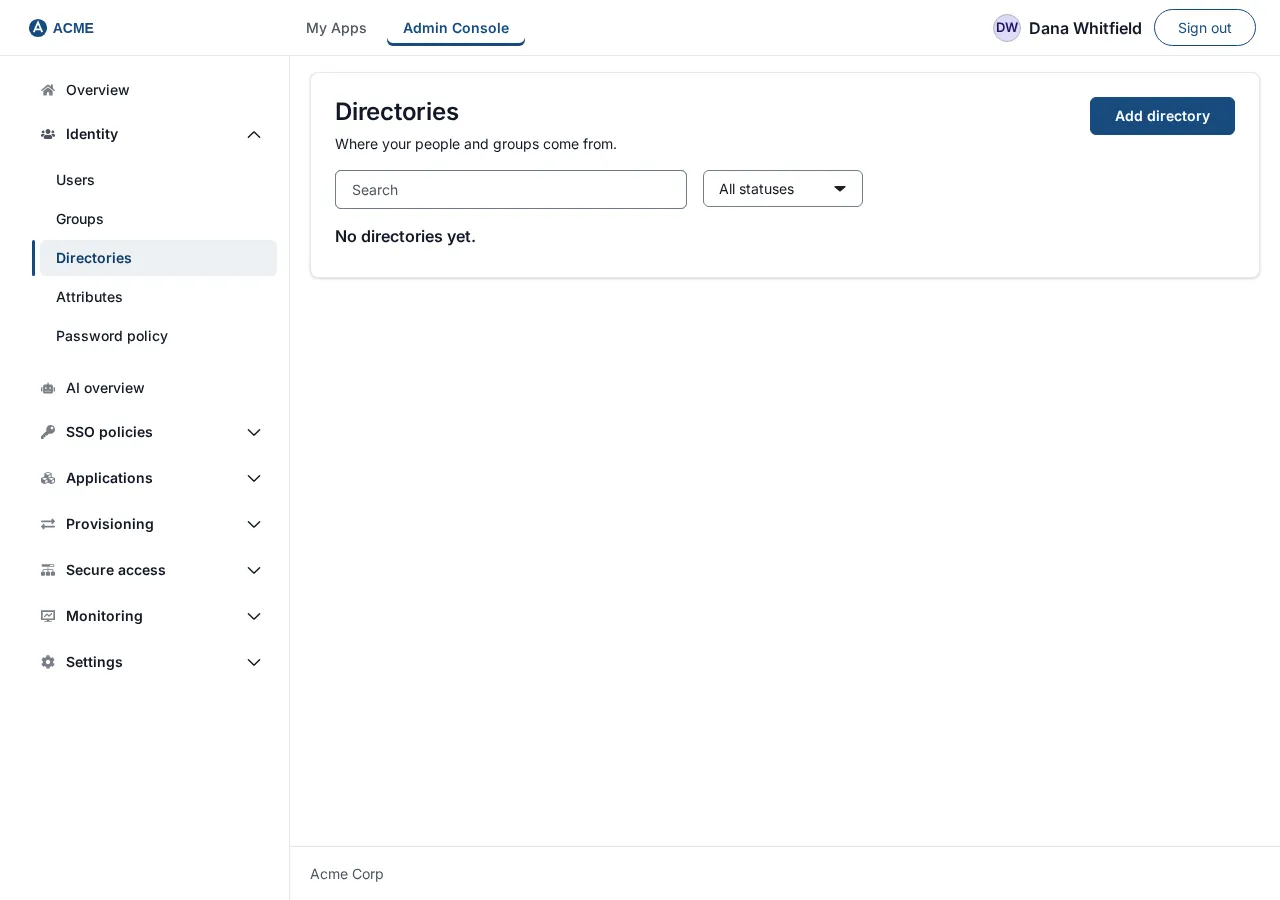
- In the left menu choose Identity, then Directories.
- The page is titled Directories and says: Where your people and groups come from. Select Add directory.
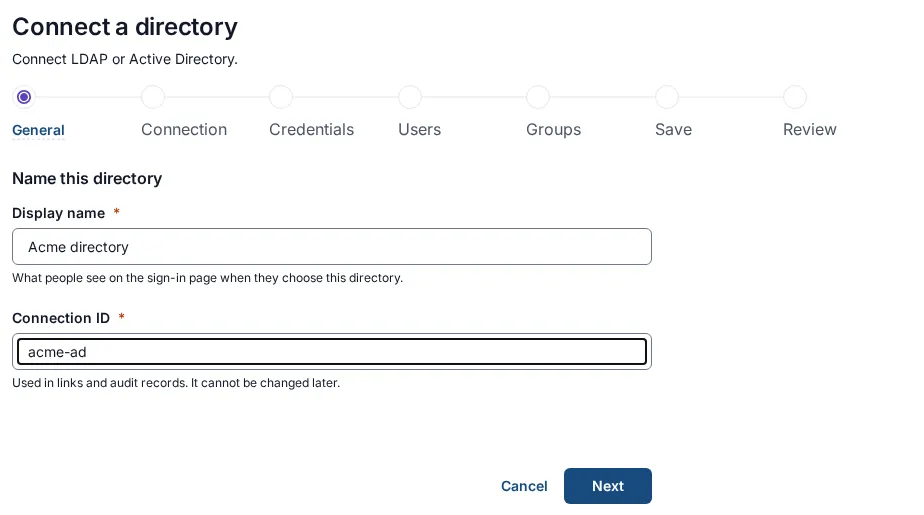
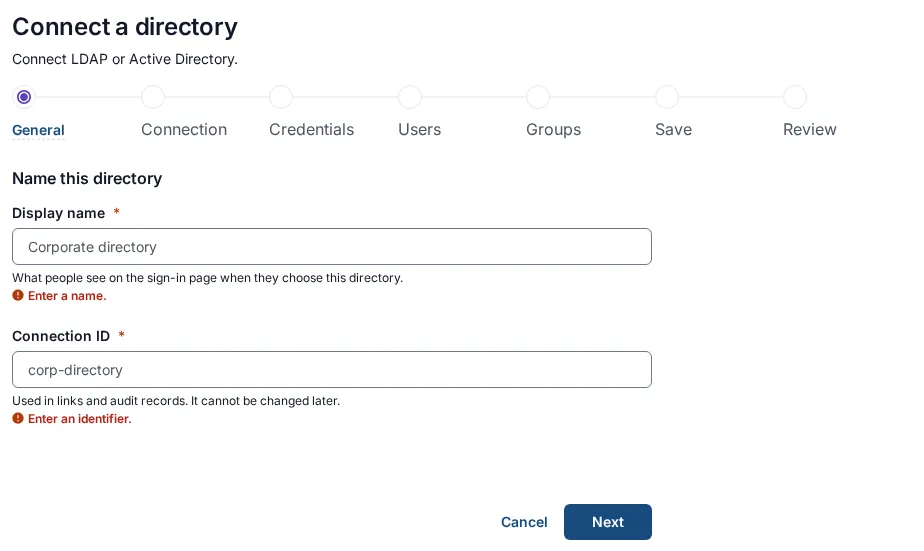
The next page is titled Connect a directory, with the line Connect LDAP or Active Directory. Seven steps run along the top: General, Connection, Credentials, User mapping, Group mapping, Save, Review and activate. You can go Back at any step, or Cancel. When you select Next, the step is checked; a message appears under any field that needs attention and you cannot move on until it is fixed. A * marks a required field.
Step 1. General
Section titled “Step 1. General”The section is titled Name this directory.
| Field | What to enter | Acme example | Rules and messages |
|---|---|---|---|
| Display name * | What people see on the sign-in page when they choose this directory. | Acme directory |
Required: Enter a name. At most 256 characters: Use at most 256 characters. |
| Connection ID * | A short identifier used in links and audit records. It cannot be changed later. | acme-ad |
Required: Enter an identifier. Lowercase letters, numbers and single hyphens only: Use lowercase letters, numbers and hyphens. At most 64 characters: Use at most 64 characters. |
While you type the display name, SSOGEN suggests the Connection ID from it (for Acme directory it suggests acme-directory). Once you type in the Connection ID yourself, it stops following the name.
Select Next.
Step 2. Connection
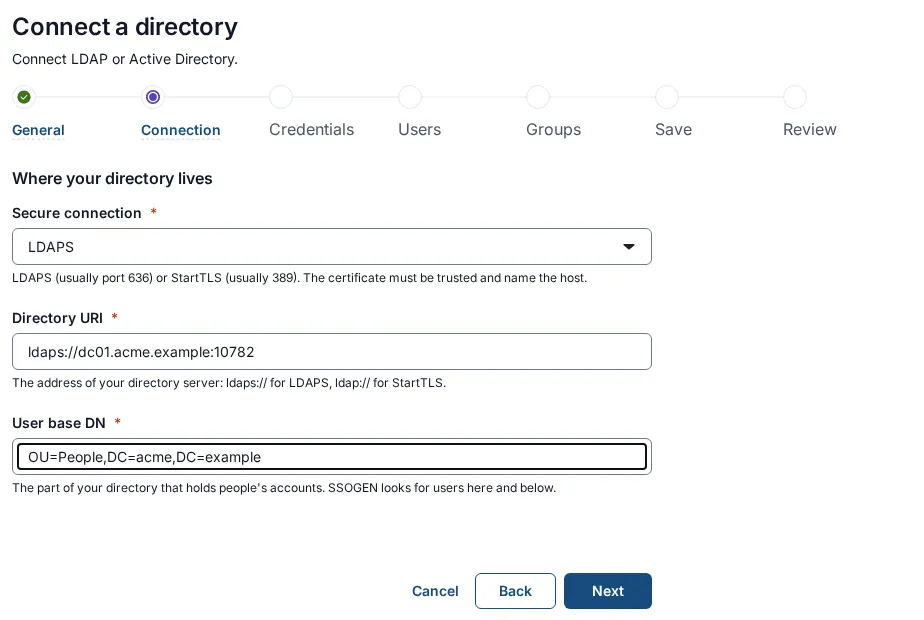
Section titled “Step 2. Connection”The section is titled Where your directory lives.
| Field | What to enter | Active Directory | OpenLDAP | Rules and messages |
|---|---|---|---|---|
| Secure connection * | LDAPS or StartTLS. | LDAPS | LDAPS (or StartTLS if the server offers only that) | Default LDAPS. LDAPS encrypts from the first byte, usually port 636. StartTLS connects on the LDAP port, usually 389, then upgrades. |
| Directory URI * | The address of the directory server. | ldaps://dc01.acme.example:636 |
ldaps://ldap.acme.example:636 |
Required: Enter the directory address. Must begin ldaps:// or ldap://: Use an ldaps:// address, or ldap:// with StartTLS; the connection must be encrypted. |
| User base DN * | Where people’s accounts are. SSOGEN looks here and below. | OU=People,DC=acme,DC=example |
ou=people,dc=acme,dc=example |
Required: Enter the user base DN. |
Choosing Secure connection rewrites the start of the address for you: LDAPS gives ldaps:// and StartTLS gives ldap://. It also swaps the standard port (636 for 389, and back) but keeps any other port you typed. In the other direction, an address that begins ldap:// is read as StartTLS.
The gray examples in the fields (ldaps://directory.example.com:636, or ldap://directory.example.com:389 for StartTLS, and ou=people,dc=example,dc=com) are only examples. Replace them.
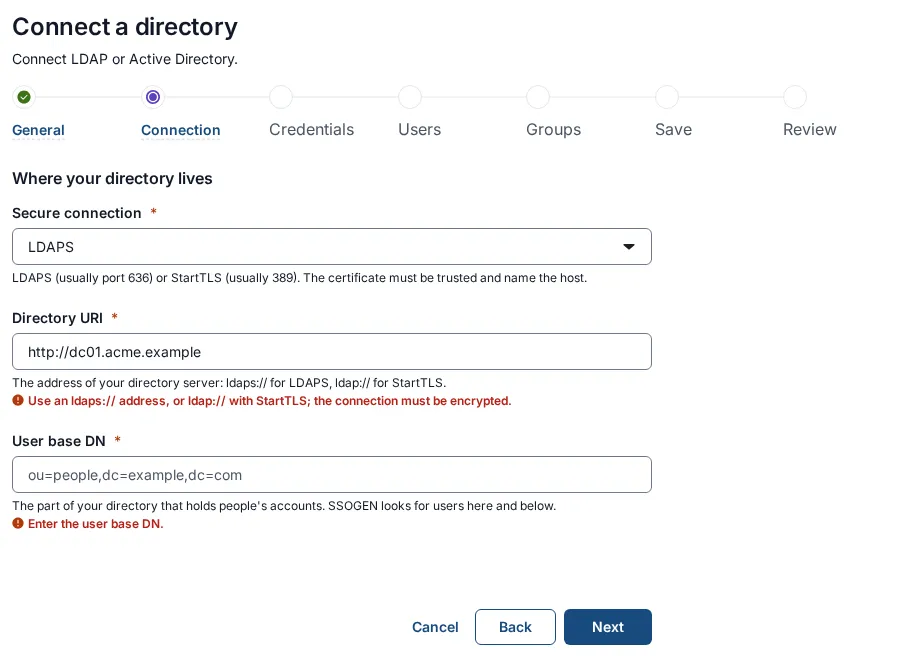
Select Next.
Step 3. Credentials
Section titled “Step 3. Credentials”The section is titled How SSOGEN signs in to read it. The text explains that SSOGEN needs a service account to look people up before it can check their password, that the account only needs permission to look users up, that what you type is encrypted and kept as this directory’s own secrets (or given as a secret://env/NAME reference to a variable the operator has allowed), and that a new password takes effect without a restart. An example in the text is cn=ssogen,ou=service,dc=example,dc=com.
| Field | What to enter | Active Directory | OpenLDAP | Rules and messages |
|---|---|---|---|---|
| Bind DN * | The service account’s full DN. | CN=SSOGEN service,OU=Service,DC=acme,DC=example |
cn=ssogen,ou=service,dc=acme,dc=example |
Required when creating: Enter the bind DN. Help: Stored encrypted when saved, like a password; shown only while you type it. |
| Bind password * | The service account’s password. | the password from step 1.1 | the password you hashed | Required when creating: Enter the bind password. Help: Encrypted when saved, never shown again. |
Each field has a link, Use a reference instead, which switches it to a secret reference (secret://env/NAME, an environment variable your operator has allowed, or a shared stored secret). Use it only if your secrets come from somewhere else. Type a bind DN instead (or Type a password instead) switches back. An environment variable the operator has not allowed is refused with That environment variable cannot be used as a secret reference on this deployment. and what to do about it.
SSOGEN never shows the password again after you save. When you open the directory for editing later, each field shows a reference, when it was last changed and by whom, with Replace bind DN and Replace password buttons and a Change in Secrets link.
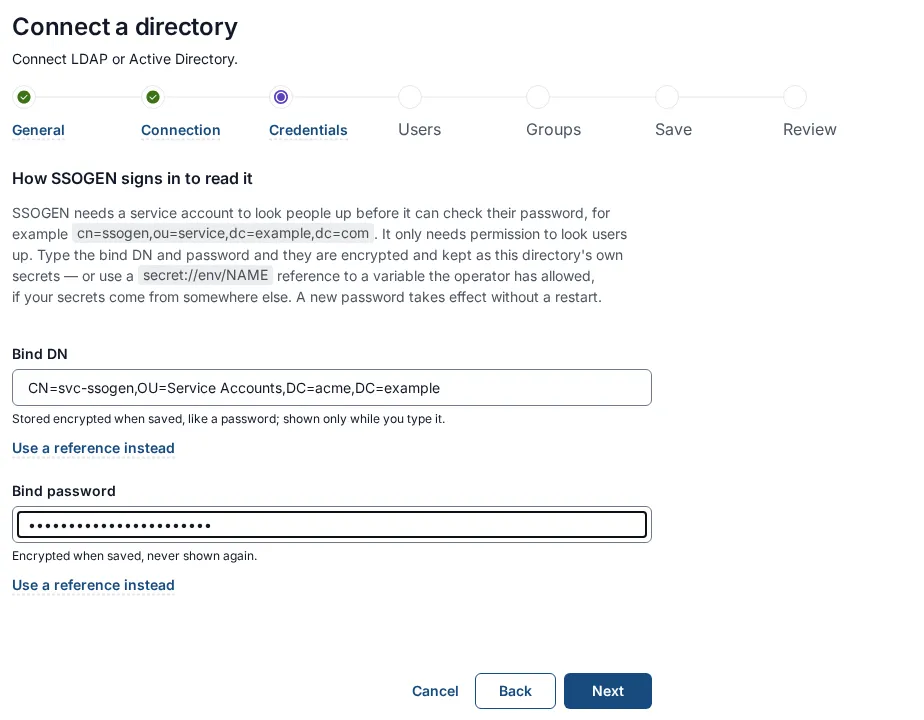
Select Next.
Step 4. User mapping
Section titled “Step 4. User mapping”The section is titled Which fields describe a person. At the top, Directory type (OpenLDAP or another LDAP directory or Microsoft Active Directory) fills in the attribute names that kind of directory usually uses; you can still change each one. The fields tell SSOGEN which directory attribute holds each piece of information about a person.
| Field | Default | Active Directory | OpenLDAP | Meaning |
|---|---|---|---|---|
| Username attribute * | uid |
userPrincipalName (people type maria.lopez@acme.example) or sAMAccountName (people type mlopez) |
uid |
What the person types as their username. SSOGEN searches for the entry whose attribute equals it. Choose one that is unique and that people know. Choosing the Microsoft Active Directory type fills in sAMAccountName; type userPrincipalName yourself if people sign in with that form. |
| Mail attribute * | mail |
mail |
mail |
Their email address. |
| Display name attribute * | cn |
displayName |
cn |
The name SSOGEN shows. |
| First name attribute | empty | givenName |
givenName |
Empty means the directory’s standard givenName. |
| Last name attribute | empty | sn |
sn |
Empty means the directory’s standard sn. |
The first three are required: Enter the username attribute., Enter the mail attribute., Enter the display name attribute. An attribute name may use only letters, digits, dots, semicolons and hyphens, up to 128 characters.
Below the fields a note says: Without a Mobile phone row below, the directory’s mobile attribute is read. Add a row to read another attribute, or to keep one as a custom attribute. To keep more attributes from the directory:
- Select Add a mapping.
- In Source LDAP attribute, type the directory attribute (for example
telephoneNumber). - In Keep it as, choose Mobile phone, or one of the Custom attribute… entries you defined earlier under Identity → Attributes. The first entry, Choose…, means nothing is chosen yet.
- To remove a row, select its Remove button.
You can keep up to 32 extra attributes, and one LDAP attribute can appear only once.
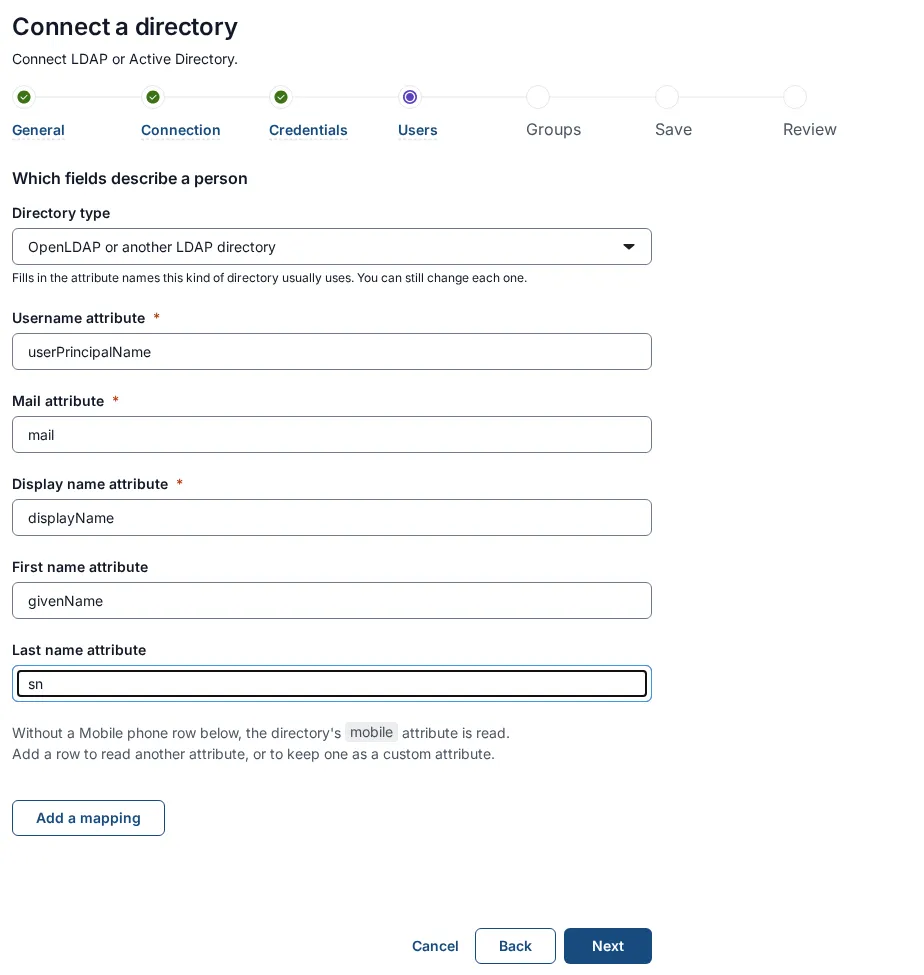
Select Next.
Step 5. Group mapping
Section titled “Step 5. Group mapping”The section is titled How groups are recorded. SSOGEN turns the directory’s groups into SSOGEN groups of the same name, which you can then assign to applications.
| Field | Default | Active Directory | OpenLDAP | Meaning |
|---|---|---|---|---|
| Group membership attribute * | memberOf |
memberOf |
memberOf only if the server’s memberof overlay is on; otherwise leave the default and fill in Group base DN |
The attribute on the person that lists the groups they belong to. |
| Group ID attribute * | cn |
cn |
cn |
The attribute that names a group. |
| Group base DN (optional) | empty | empty, or OU=Groups,DC=acme,DC=example |
ou=groups,dc=acme,dc=example |
Where to search for groups that list the person as a member. |
Required messages: Enter the group membership attribute. and Enter the group ID attribute.
How groups are found:
- If the person’s entry lists groups in the membership attribute (for example
CN=Finance,OU=Groups,DC=acme,DC=example), the first part of each value (Finance) becomes the group name. - If you also fill in Group base DN, SSOGEN also searches under it for groups whose
memberattribute holds the person’s DN. This is how OpenLDAP groups of typegroupOfNamesare found without the memberof overlay. The attribute searched ismember, and the console has no field to change it. - At most 64 groups are read for one person. The console has no field to change this either.
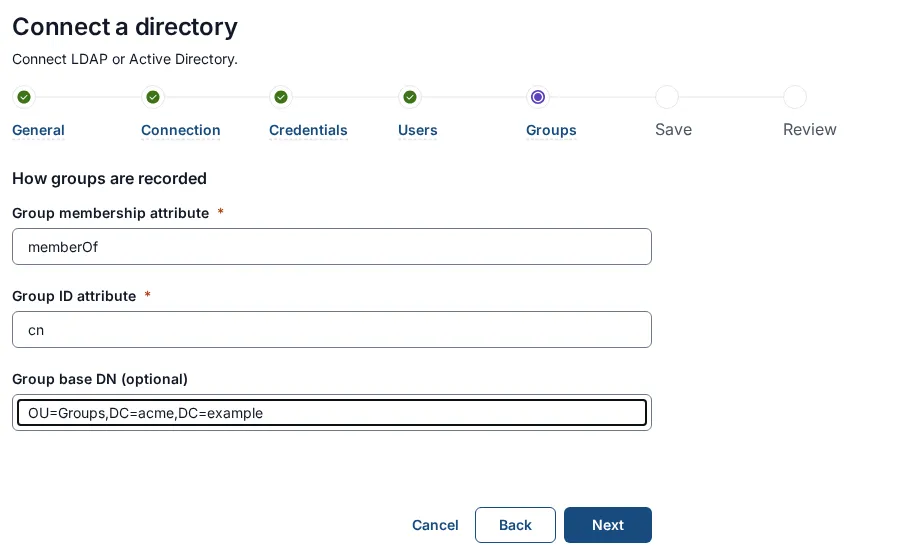
Select Next.
Step 6. Save
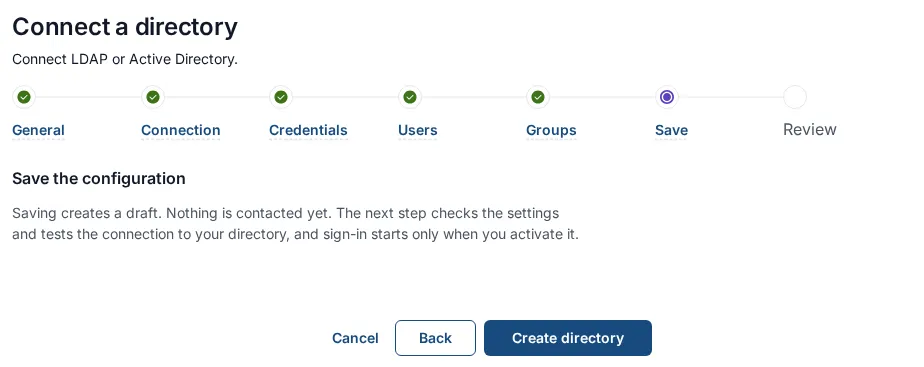
Section titled “Step 6. Save”This step is titled Save the configuration. It saves what you entered and contacts nothing yet; the next step checks the settings and tests the connection. The text depends on what you are doing:
- Creating: Saving creates a draft. Nothing is contacted yet. The next step checks the settings and tests the connection to your directory, and sign-in starts only when you activate it. The button is Create directory.
- Editing a directory that has not served sign-in yet: Save changes (section 6). The text reads “Saving returns the directory to Draft; validate and test it again.”
- Editing a directory that is or was serving sign-in: Save revision (section 6). The text reads “Saving creates a revision. The active one keeps serving sign-in until you activate it.”
Select Create directory. If something is wrong the page shows Could not save the directory configuration. Check the directory URI, base DN and bind credentials. Your values stay on the screen. Fix them and select the button again. On success the wizard moves to the last step and the status reads Draft.
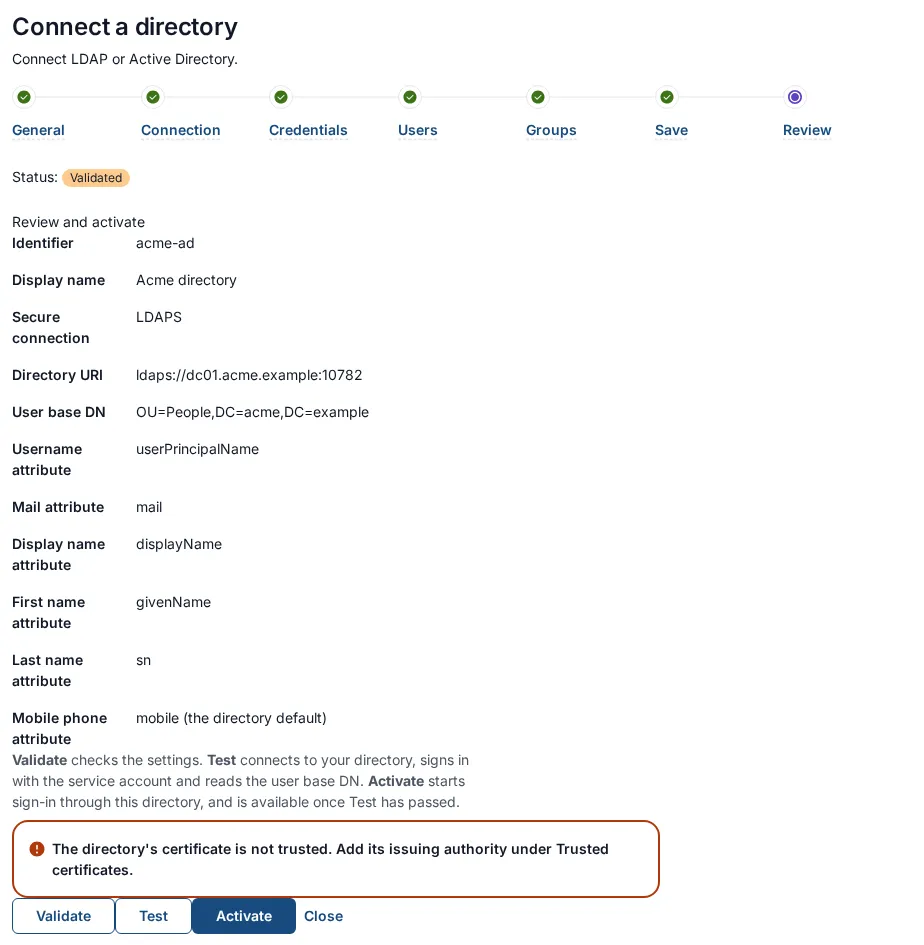
Step 7. Review and activate
Section titled “Step 7. Review and activate”The page repeats what you entered: Identifier, Display name, Secure connection, Directory URI, User base DN, and the user mapping rows, with directory defaults spelled out (for example givenName (the directory default)). The bind DN and password are not shown. Then a note on what the three buttons do, and the buttons Validate, Test and Activate, and Close to leave.
A directory moves through these states, shown as a badge next to its name:
| State | Meaning |
|---|---|
| Draft | Saved, not yet checked. |
| Validated | Passed Validate. |
| Tested | The last Test against the real directory passed. |
| Active | Serving sign-in. |
| Disabled | Switched off by an administrator; it can be switched on again. |
| Archived | Retired for good. |
The order is fixed: Validate, then Test, then Activate. Out of order you are told, for example This provider has not passed Validate and Test yet. Select Validate, then Test, then Activate.
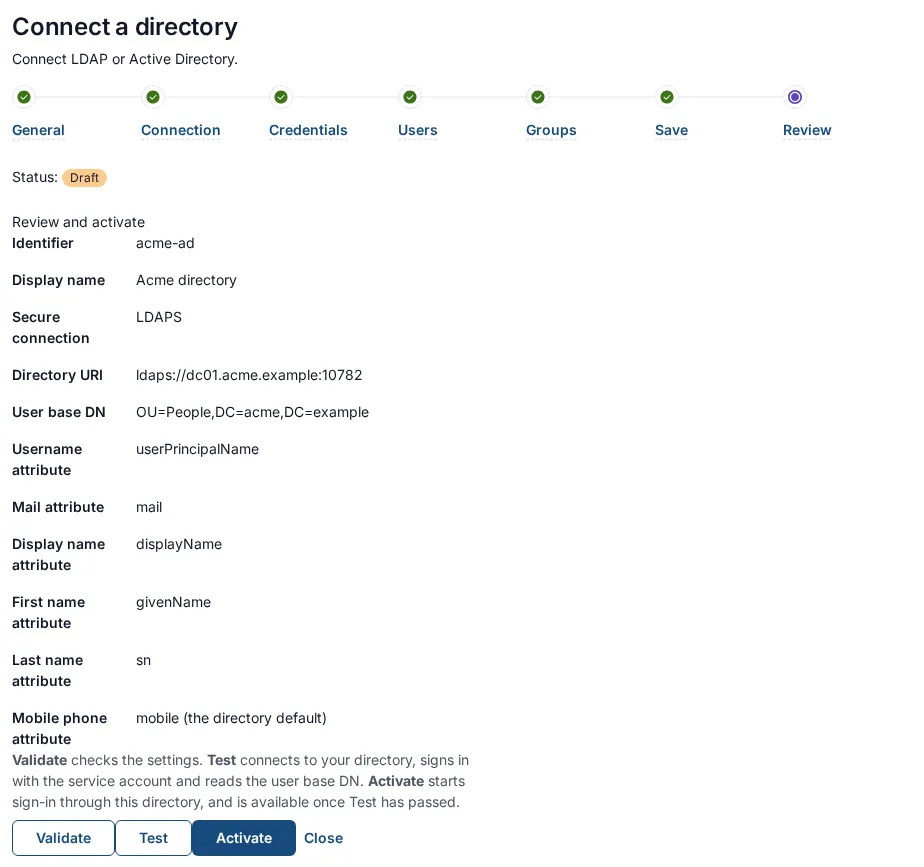
-
Select Validate. You see Validated. Select Test to check the connection, then Activate. If something required is missing, you get one of: A directory address is required: ldaps:// for LDAPS, or ldap:// for StartTLS., A user base DN is required before activation., A bind DN reference is required before activation., A bind password reference is required before activation. or Attribute mapping is required before activation.
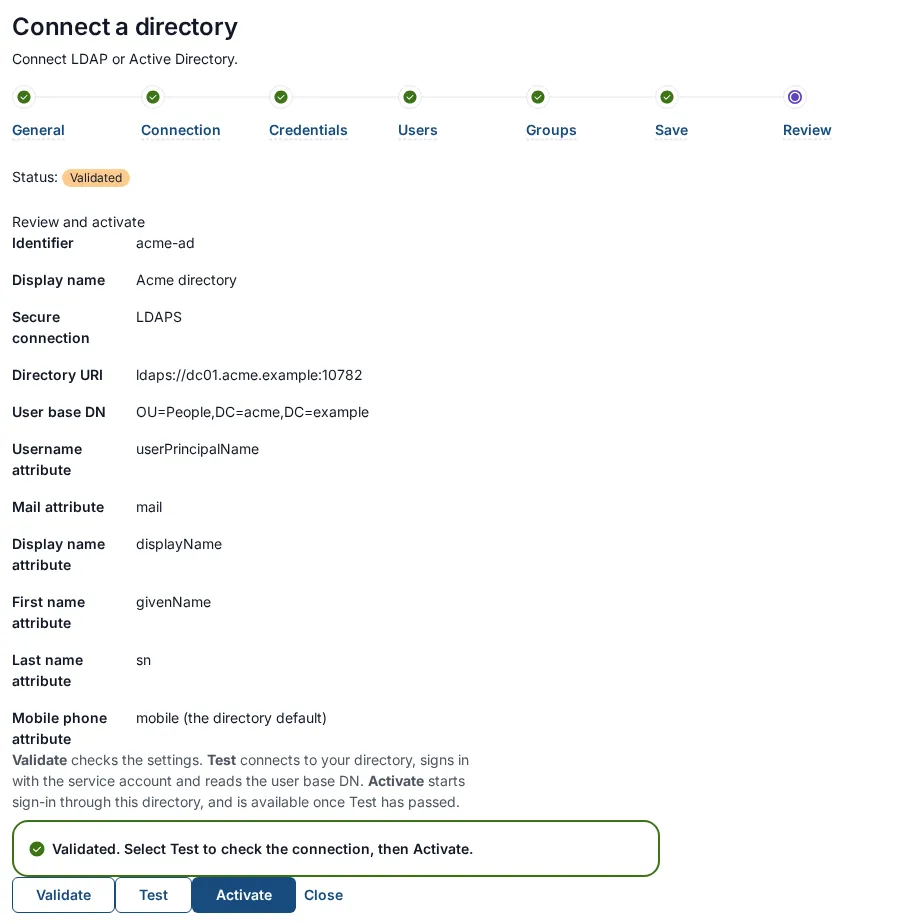
-
Select Test. SSOGEN connects to the directory, sets up the encryption, signs in as the service account and searches the base DN. It does not sign anybody in. A pass shows a green message:
The provider answered every check. The connection is encrypted, and the directory’s certificate is trusted and names its host.
The status becomes Tested.
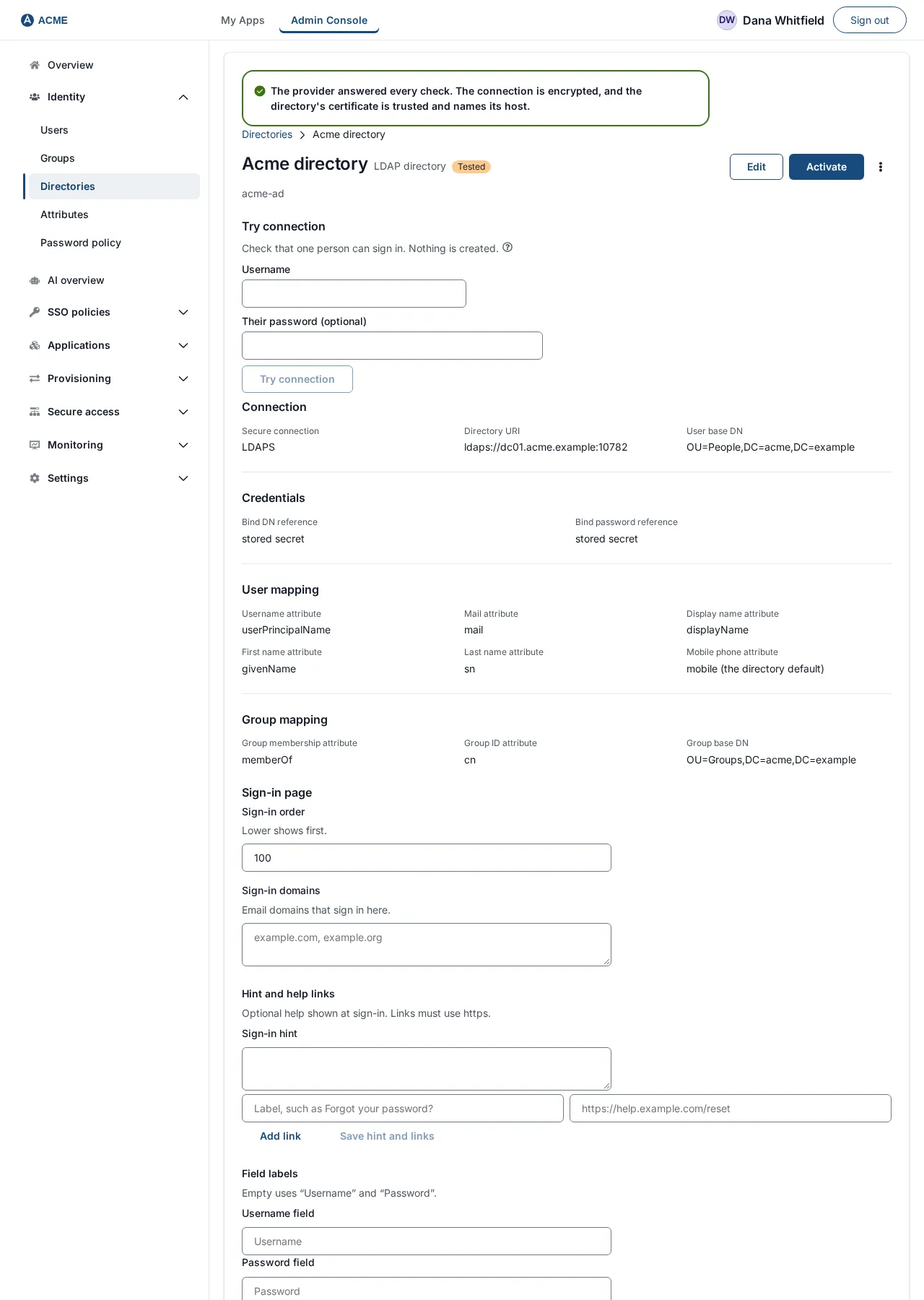
A failed Test shows a red message with the reason. They are listed in section 8.
-
Select Activate. The directory becomes Active and the page opens the directory’s own page. People can now sign in through it.
4. Check that it works as Maria would use it
Section titled “4. Check that it works as Maria would use it”4.1 The directory’s page
Section titled “4.1 The directory’s page”After activating you are on the directory’s page (Identity → Directories → Acme directory). It shows the Active badge and four groups of facts: Connection (Secure connection, Directory URI, User base DN), Credentials (Bind DN reference, Bind password reference: references, never the secrets), User mapping, and Group mapping (Group membership attribute, Group ID attribute, Group base DN).
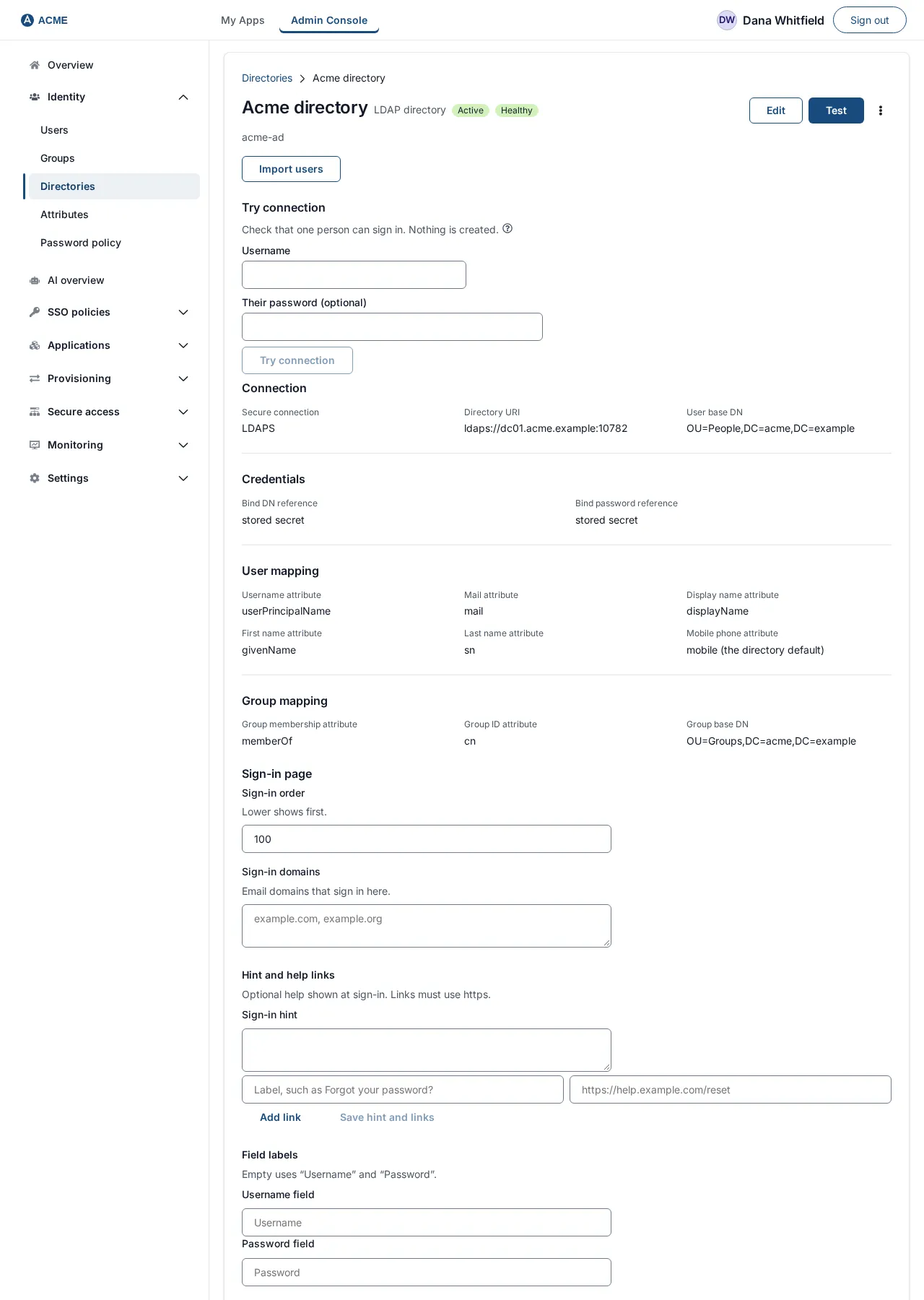
The main button depends on the state: Validate for Draft, Test for Validated or Active, Activate for Tested, Enable for Disabled. Beside it is Edit. The three-dot menu holds the other steps (Validate when Validated, Test when Tested or Disabled, Disable when Active), Archive, and Delete permanently. Import users brings people in before they sign in; it is covered in the Directory sync guide.
4.2 Sign-in page settings for this directory
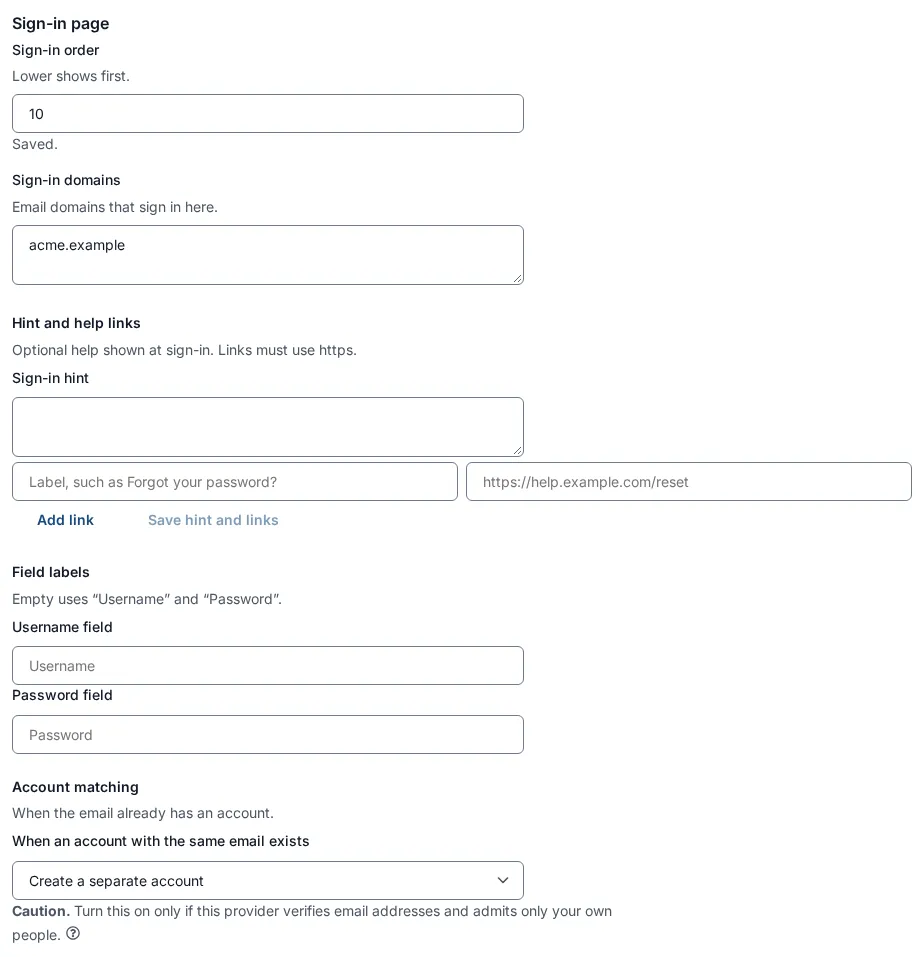
Section titled “4.2 Sign-in page settings for this directory”Further down the page, the Sign-in page section controls how the directory appears at sign-in.
| Field and button | Meaning |
|---|---|
| Sign-in order, Save order | Where this directory appears in the Sign in with list. Lower comes first. A whole number from 0 to 10000; ties are listed by name. |
| Sign-in domains, Save domains | Email domains this directory signs in, separated by commas or new lines (example acme.example). When someone types an address at one of these domains, the sign-in page sends them here. A domain can belong to only one provider, and you can list up to 20. Messages: “x” is not a valid sign-in domain. Use names such as example.com, separated by commas or new lines. and Another provider already uses acme.example. |
| Username field, Password field, Save labels | What the sign-in page calls the two fields for this directory. Leave them empty for Username and Password. At most 64 characters each. Acme types Work email and Work password. |
4.3 Sign in as Maria
Section titled “4.3 Sign in as Maria”- Open
https://sso.acme.example/login/. - Type
maria.lopez@acme.example(the value of the attribute you chose as Username attribute) in the username box, then her Active Directory password. If the company has several sign-in methods, choose Acme directory from Sign in with first, or let the Sign-in domains send her there. - Maria arrives in My Apps. If it is her first sign-in, her account is created in SSOGEN at that moment, with her name, email and groups from the directory.
SSOGEN finds her entry with the service account, then checks her password by signing in to the directory as her. If no entry matches the username, or more than one does, the sign-in is refused; Try connection (next) tells you which.
4.4 Try connection: why can this person not sign in?
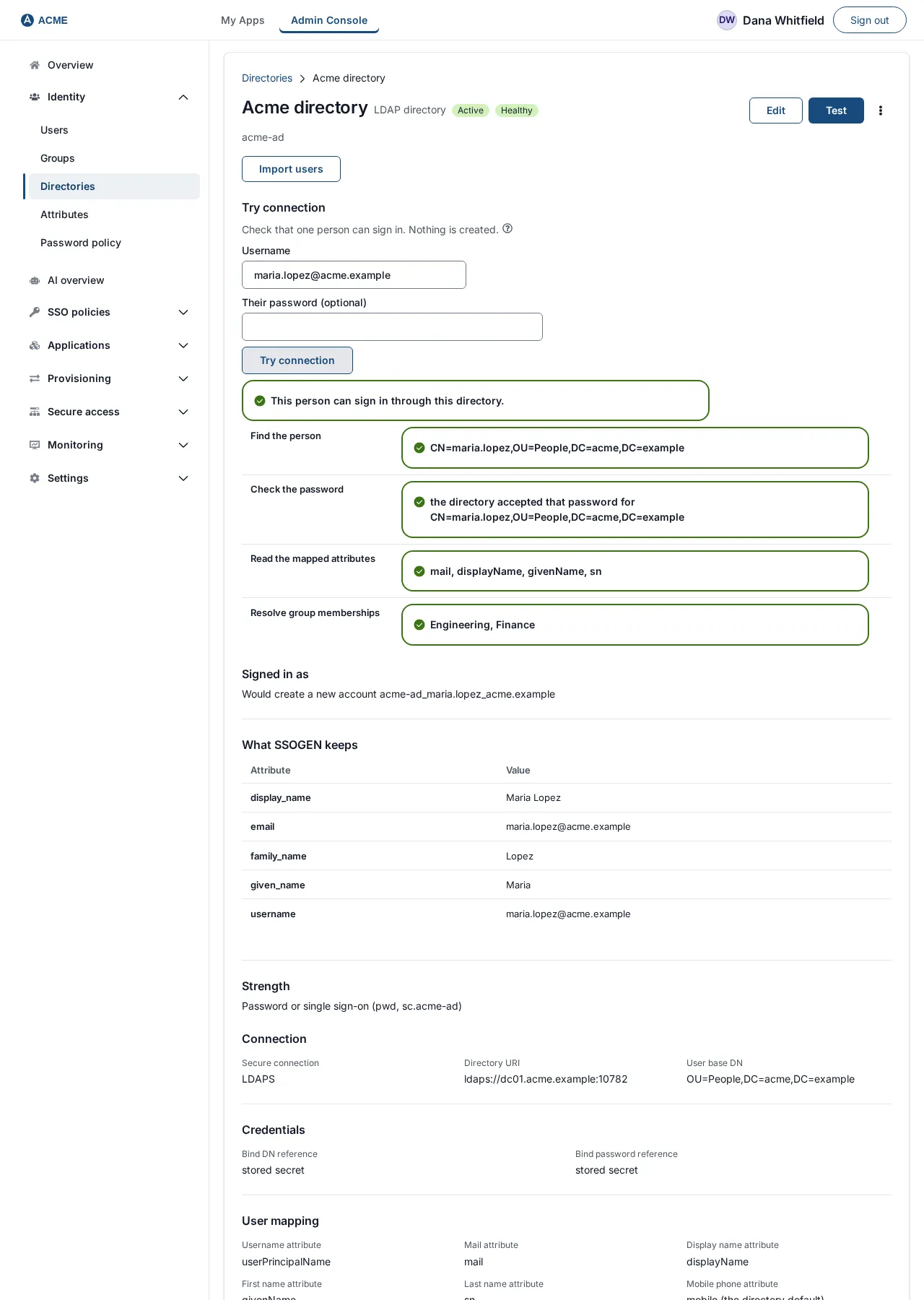
Section titled “4.4 Try connection: why can this person not sign in?”Test only proves that the directory answers. Try connection, on the directory’s page, checks one real person. It creates nothing.
- Open the directory’s page and find Try connection.
- Type a Username (
maria.lopez@acme.example). Their password (optional) can stay empty: everything except the password check still runs. A password is used once and not kept. - Select Try connection. The button reads Trying… while it runs.
You see This person can sign in through this directory. or This person cannot sign in through this directory. The step that stops them is below. Then four steps, each with a colored result:
| Step | What it tells you |
|---|---|
| Find the person | The entry’s DN, or why none was found. |
| Check the password | Whether the directory accepted the password, or that none was given. |
| Read the mapped attributes | Which attributes came back and which had nothing. |
| Resolve group memberships | The group names found, or no group memberships resolved. |
Three more headings follow: Signed in as, What SSOGEN keeps and Strength. They show what SSOGEN would make of the person, and when no password was given they say they were not run.
5. Trust your company’s certificate authority
Section titled “5. Trust your company’s certificate authority”If Test says The directory’s certificate is not trusted. Add its issuing authority under Trusted certificates., add the authority that issued the directory’s certificate.
- In the left menu choose Settings, then Certificates.
- Find Trusted certificate authorities. It lists Name, Subject, Expires and Fingerprint (SHA-256) for each authority you have added, each with a Remove button, or says No additional authorities. SSOGEN trusts the public authorities SSOGEN ships with.
- Under Add an authority, type a name in What to call it (the example is
Corporate internal CA). Acme typesAcme root CA. - Paste the contents of
acme-root-ca.peminto Certificate (PEM). - Select Trust this authority. You see Now trusting followed by the authority’s name, and Directories signed by it connect without a restart.
- Go back to the directory and select Test again.
Add the authority that issued the directory’s certificate, not the directory’s own certificate: a server’s own certificate works only until it is renewed. Authorities you add are in addition to the built-in ones. An authority within 90 days of expiry shows n days left, and an expired one shows Expired and its date. To remove one, select Remove and confirm Stop trusting this authority? with Stop trusting; the dialog warns that directories signed by it stop connecting, and sign-in through them fails, until it is added again. This page is shown to roles that can change authentication settings.
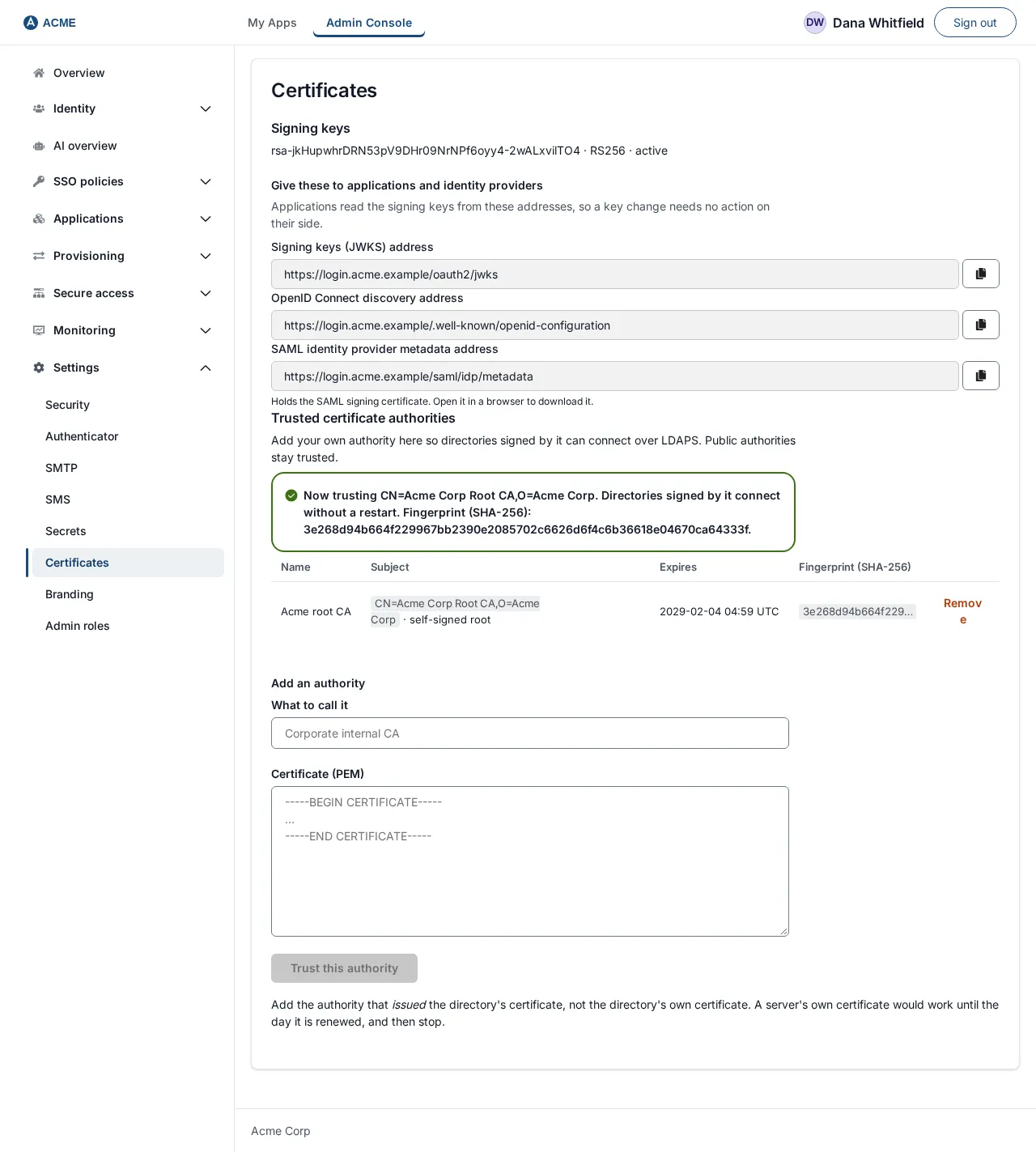
If the certificate cannot be added, the page shows the reason the server gives, or That certificate could not be added.
6. Change a directory (edit and revisions)
Section titled “6. Change a directory (edit and revisions)”On the directory’s page choose Edit. The wizard reopens with the current values. The Connection ID is shown as Identifier acme-ad cannot be changed. The address, base DN and credentials may be left as they are: an empty bind field means “keep what is stored”.
What saving does depends on whether the directory has ever served sign-in:
| Directory | What the page says | What saving does |
|---|---|---|
| Never activated (Draft, Validated or Tested) | Not serving sign-in yet. Save, then validate, test and activate. | The button is Save changes. It replaces the settings and returns the directory to Draft. |
| Active, Disabled, or ever activated | Changes are saved as a revision. Nothing changes until you activate it. | The button is Save revision. The status reads Saved as revision 2. People keep signing in with the current settings. A new password is kept for the revision until you activate it. |
For a revision, Validate, Test and Activate on the last step act on the revision. The status line reads, for example, Revision 2 validated, Revision 2 tested or Revision 2 test failed. Activate it only after its Test passes. Out of order you are told This revision has not been validated yet. Select Validate first. or This revision has not passed Validate and Test yet. Select Validate, then Test, then Activate.
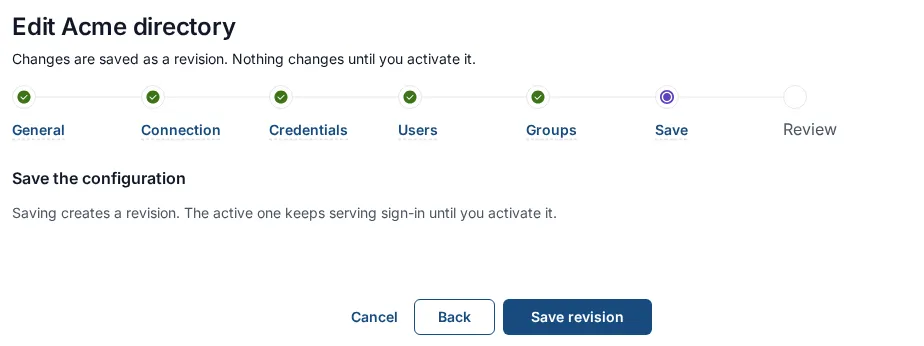
When a revision needs a secret that a later activation removed, activating it asks you to type the secret again: A secret this revision needs was removed when a later revision was activated. Nothing was changed. Type it again below to activate this revision.
If an edit is waiting and you press Enable on a switched-off directory, the page notes Turns on the active configuration, not the saved edit (revision 2). Activate the edit from its revision.
7. Switch off, archive and delete
Section titled “7. Switch off, archive and delete”| Action | Where | What it does | Can it be undone? |
|---|---|---|---|
| Disable | Menu on an Active directory | Confirm Disable Acme directory?: People cannot sign in through Acme directory until it is enabled again. Applications that allow only this provider refuse every sign-in meanwhile. | Yes: Enable. |
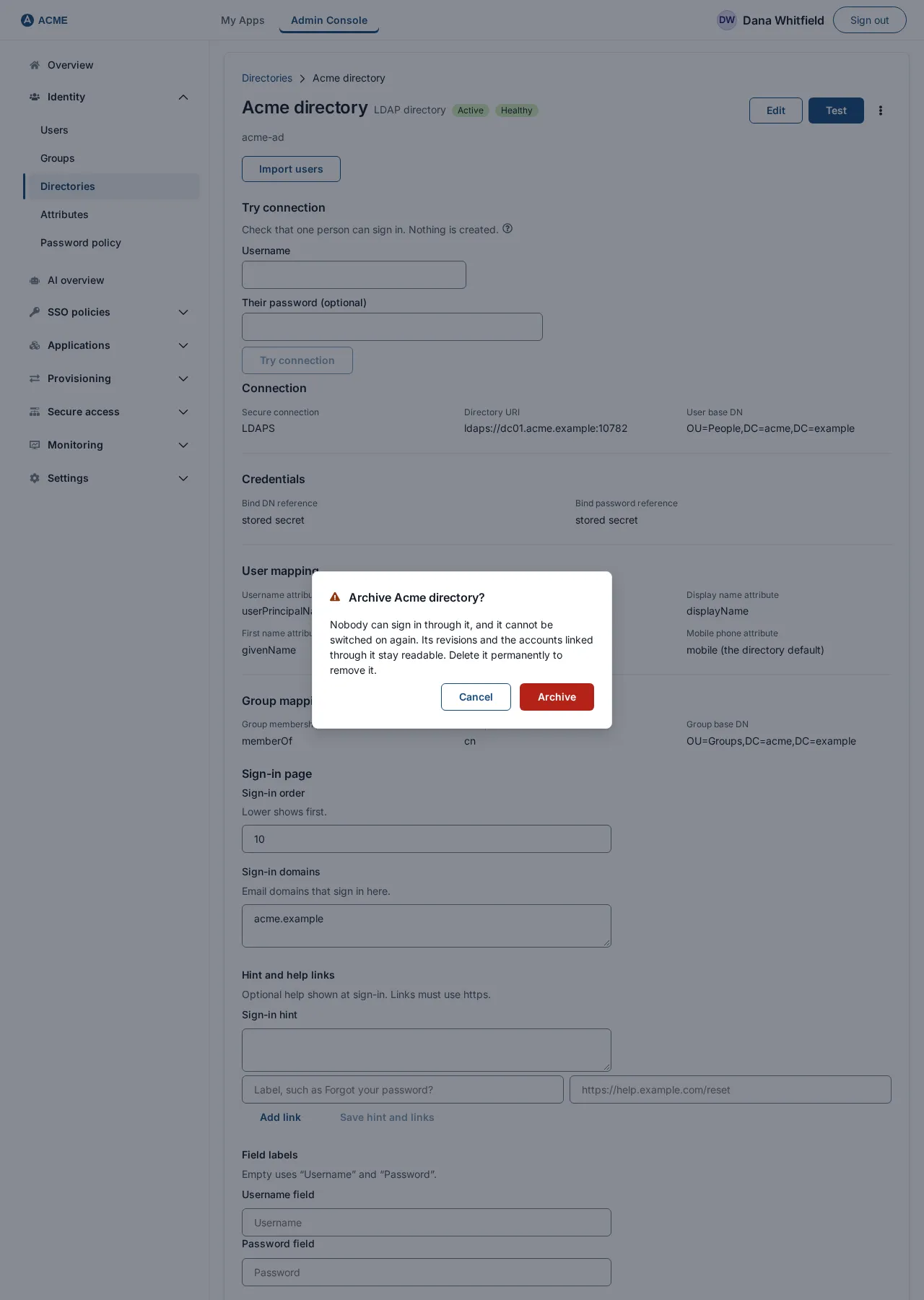
| Archive | Menu | Confirm Archive Acme directory?: Nobody can sign in through it, and it cannot be switched on again. Its revisions and the accounts linked through it stay readable. Delete it permanently to remove it. An archived directory cannot be edited, tested or activated. | No. |
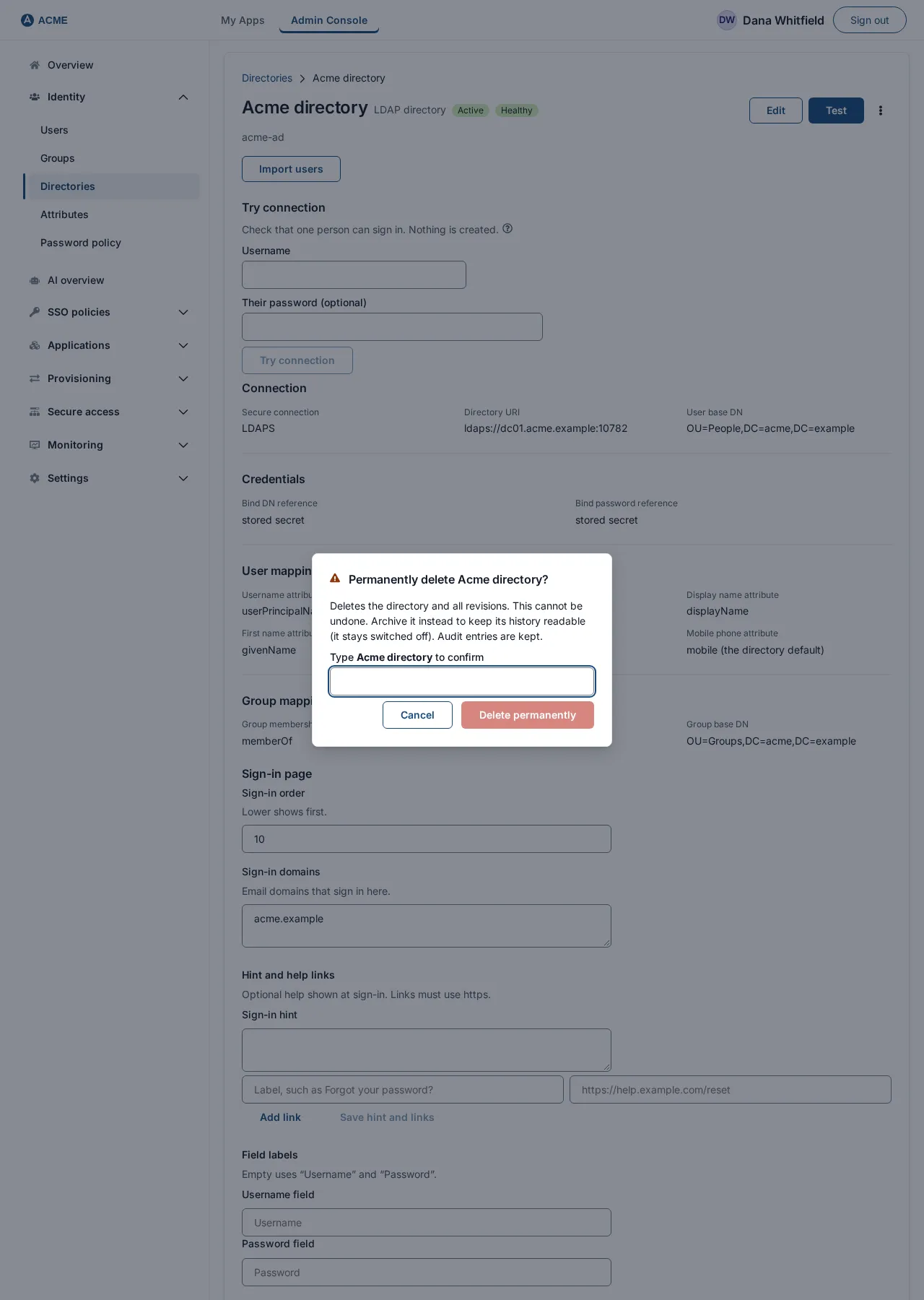
| Delete permanently | Menu, last item | Removes the directory and its revisions. You must type the directory’s exact name to confirm. The dialog says: Deletes the directory and all revisions. This cannot be undone. Archive it instead to keep its history readable (it stays switched off). Audit entries are kept. | No. |
Archiving a directory also deletes the bind account name and password SSOGEN stored for it, so an archived directory holds no directory credentials. An archived directory shows “This directory is archived: read-only, and archiving cannot be undone.” and, while permanent deletion is off, tells you that it can be allowed under Security.
If the Admin Console’s sign-in policy relies on this directory for the only administrators who can sign in, Disable and Archive are refused. Give another administrator a way into the console first (see Admin Console sign-in and lockout protection).
Refusals you may see:
- Archive: Still used by the applications it lists, through their sign-in policies. Take it out of those policies (Authentication, Policies), or give those applications another policy, then try again.; or This directory is still in use.; or Could not retire the directory.
- Delete permanently: Permanent deletion is off. Enable it under Security. (the menu item is also disabled, with the note Switched off for this deployment. Turn on “Allow permanent deletion” in Security.); N accounts are linked to this directory. Archive it, or remove the accounts first.; Still allowed by the sign-in policies it lists, Remove it from those sign-in policies first.; Something still depends on this directory.; or Could not delete the directory.
8. When something goes wrong
Section titled “8. When something goes wrong”What Test says
Section titled “What Test says”| Message | What it means | What to do |
|---|---|---|
| The directory could not be reached. Check the URI, the port and that it is running. | No connection, or no answer in time (SSOGEN waits 5 seconds to connect and 10 seconds for an answer). | Check the host name, the port and any firewall between SSOGEN and the directory: 636 for LDAPS, 389 for StartTLS. |
| The directory refused the bind credentials. Check the bind account and its password. | The service account’s DN or password is wrong, or the account is locked or disabled. | Check the bind DN is the full DN, retype the password with Edit, and in Active Directory check the account is enabled and not locked. |
| The user base DN could not be searched. Check the base DN and the bind account’s permissions. | The base DN does not exist, has a typo, or the account may not read it. | In ADUC choose View → Advanced Features, open the OU, Properties → Attribute Editor → distinguishedName, and copy the exact DN. |
| The directory’s certificate is not trusted. Add its issuing authority under Trusted certificates. | The certificate was issued by an authority SSOGEN does not know. | Section 5. |
| The certificate does not name this host. Use the host name it was issued for. | The address uses an IP address, a short name or an alias that is not on the certificate. | Use the exact name on the certificate, such as dc01.acme.example. |
| The directory refused StartTLS; nothing was sent. Enable TLS there, or use LDAPS (ldaps://). | You chose StartTLS and the directory will not upgrade. | Install a server certificate on the directory, or switch to LDAPS. |
| The TLS handshake failed; nothing was sent. Check that the port and connection type match. | For example LDAPS is chosen but the address points at port 389. | Match Secure connection and the port: LDAPS with 636, StartTLS with 389. |
| Too many directory tests were run in the last minute; nothing was contacted. Wait a minute and test again. | A rate limit. | Wait, then test again. |
| A check did not pass. | A failure with no more specific wording. | Use Try connection; ask your SSOGEN operator to check the SSOGEN log. |
| The provider answered, but the connection changed while it was being tested. Run Test again. | The directory was edited during the test. | Test again. |
| SSOGEN failed to run the test. Try again; if it keeps failing, check the SSOGEN log. | A fault inside SSOGEN, not the directory. | Try again; contact your SSOGEN operator. |
A failed Test is not an error screen: the page tells you what failed and the directory stays as it was (Validated, or unchanged if Active).
What Try connection says
Section titled “What Try connection says”| Detail | What it means |
|---|---|
| no entry under base DN has attribute equal to that | The username does not exist under the base DN, or the Username attribute is not what people type. Review section 3, steps 2 and 4. |
| n entries match that attribute; a sign-in needs exactly one | The base DN covers two places where the person exists. Narrow it. |
| the directory refused that password for DN | The directory rejected the password: wrong password, expired, locked, or a disabled account. |
| the directory service account password could not be resolved | The stored bind password cannot be read. Retype it with Edit. |
| nothing for attribute (under the mapped attributes) | The attribute has no value on that person, or its mapped name is wrong. |
| The directory did not answer. That is an outage rather than a wrong username — Test will say the same. | The directory is unreachable. |
| This directory’s URI, base DN or secret references are incomplete, so nothing could be checked. | A setting is missing. |
| Too many checks in a row. Wait a minute and try again. | A rate limit. |
| That check could not be run. | Any other failure. |
Other problems
Section titled “Other problems”| Symptom | Likely cause and fix |
|---|---|
| Maria types her username and is refused, though Test passes. | The Username attribute does not match what she types (for example it is sAMAccountName but she types her email address). Use Try connection with exactly what she types. |
| The sign-in page does not offer the directory. | It is not Active; or there are several methods and she must choose it from Sign in with; or add Sign-in domains so her address finds it. |
| Maria signs in but has no groups. | The group mapping does not match what the directory returns. Check Group membership attribute, or fill in Group base DN. Group names with unusual characters are skipped (section 3, step 5). |
| Validate, Test or Activate is refused. | Follow the order in step 7. |
| The page says Directory validate failed., Directory test failed., Directory activate failed. (or enable or disable) and nothing more. | The server named no reason. Select Test and read its message. |
| An import says the directory did not answer. | See the Directory sync guide. |
9. Two directory settings
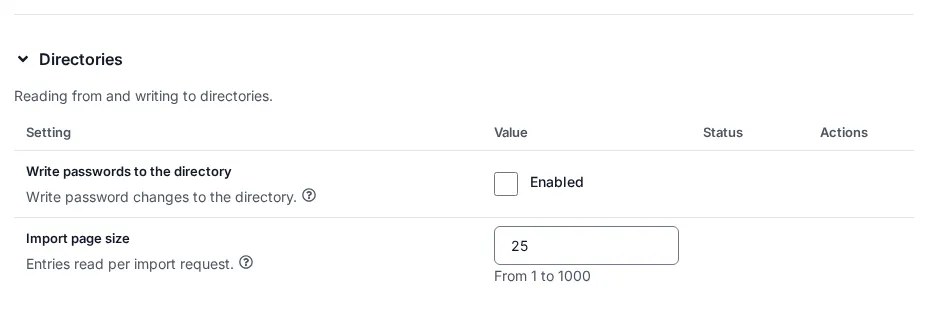
Section titled “9. Two directory settings”Under Settings → Security, in the section Directories (Reading from and writing to directories.), a Super admin can change:
| Setting | Default | Meaning |
|---|---|---|
| Directory import page size | 25 (from 1 to 1000) | How many entries an import reads per request. |
| Write passwords to the directory | off | Lets SSOGEN write a new password into the directory (“Write password changes to the directory.”). Off by default; explained next. |
10. Optional: let SSOGEN set directory passwords
Section titled “10. Optional: let SSOGEN set directory passwords”By default SSOGEN only reads the directory. A person whose password lives in the directory cannot have it changed through SSOGEN: the reset page tells them Your directory did not accept the new password. Reset it the way you normally do.
If you want an administrator to be able to set a directory person’s password from the Admin Console, and password reset to work for directory accounts, do two things, because this is a larger permission than reading:
- Give the service account the right to reset passwords in the directory.
- Turn on Write passwords to the directory under Settings → Security → Directories.
Many security teams will refuse the first. That is fine: nothing else depends on it.
10.1 In Active Directory: delegate password reset
Section titled “10.1 In Active Directory: delegate password reset”Give the right on the OU that holds the people, to the service account only.
With the wizard: right-click OU=People,DC=acme,DC=example, choose Delegate Control…, Next, Add svc-ssogen, Next, tick Reset user passwords and force password change at next logon, Next, Finish.
With a command (try it on a test OU first):
dsacls "OU=People,DC=acme,DC=example" /I:S /G "ACME\svc-ssogen:CA;Reset Password;user"dsacls "OU=People,DC=acme,DC=example" /I:S /G "ACME\svc-ssogen:WP;pwdLastSet;user"SSOGEN writes the new password over the encrypted connection, in the form Active Directory requires (it replaces the unicodePwd attribute). Active Directory refuses password writes on an unencrypted connection, which is one more reason the connection is always LDAPS or StartTLS. The directory’s own password policy (length, complexity, history, minimum age) still applies.
10.2 In OpenLDAP: allow the password change
Section titled “10.2 In OpenLDAP: allow the password change”SSOGEN tries the standard password-modify operation first. Allow the service account to write userPassword on the people tree:
dn: olcDatabase={1mdb},cn=configchangetype: modifyadd: olcAccessolcAccess: {0}to dn.subtree="ou=people,dc=acme,dc=example" attrs=userPassword by dn.exact="cn=ssogen,ou=service,dc=acme,dc=example" write by * break10.3 Use it
Section titled “10.3 Use it”- Choose Identity → Users and open Maria Lopez.
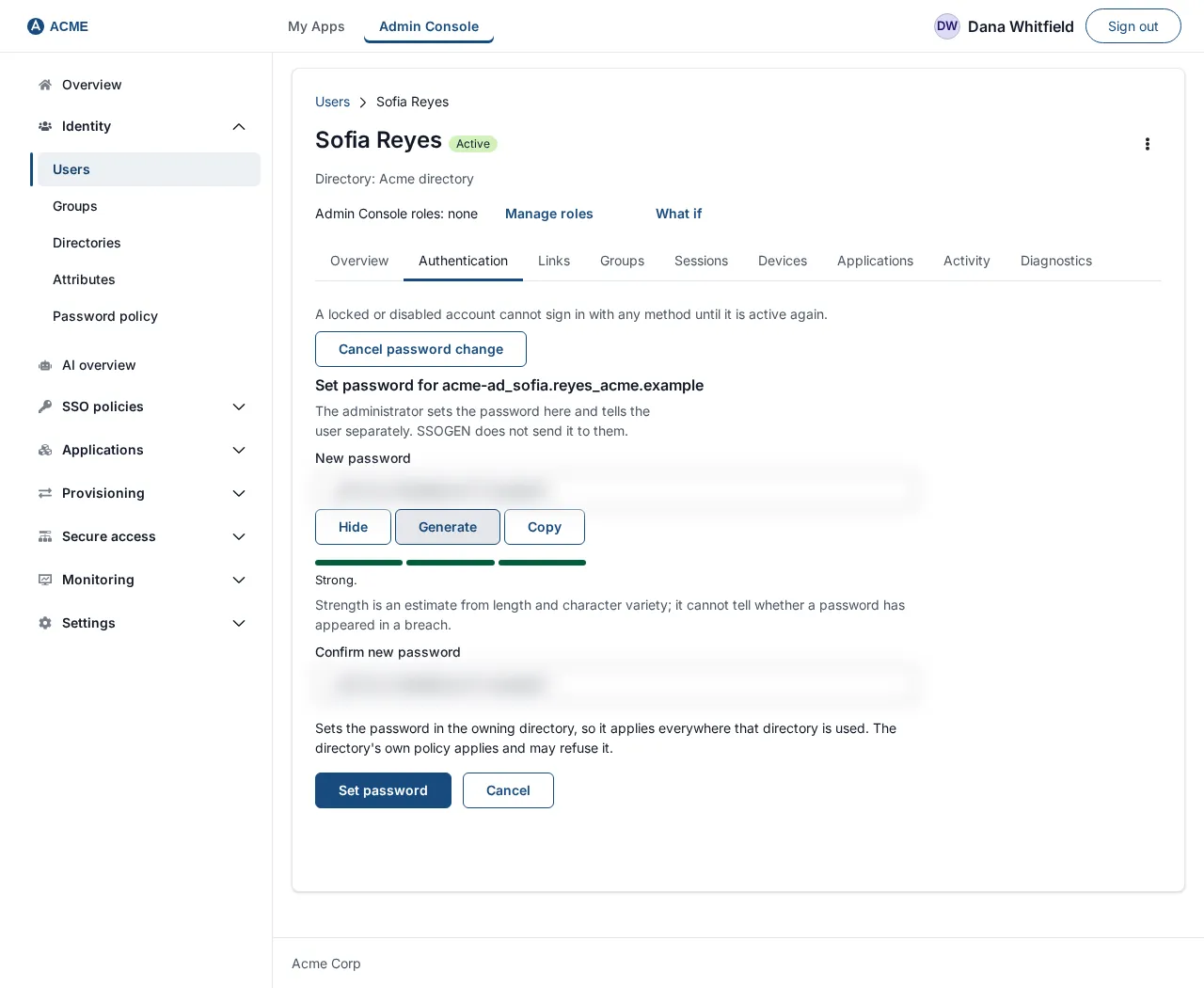
- Select Set password. The form is titled Set password for her username. Type a New password of 12 to 256 characters (or use Generate), repeat it in Confirm new password, and select Set password.
- You see Password set in the directory. It applies to every system that uses it. The password changes in the directory, so it is also Maria’s password for everything else that uses the directory.
The change is recorded in the audit log.
Messages you may see:
| Message | Meaning |
|---|---|
| That password is the wrong length. Use between 12 and 256 characters. | Length. |
| Writing passwords into a directory is turned off. Turn on directory_password_write_enabled in Security settings, and make sure the bind account holds password-reset rights there. | The setting in section 9 is off. |
| The directory refused the change. That is usually its own password policy – length, complexity, reuse, or a minimum age since the last change – or the bind account not holding reset rights. | Check the directory’s policy and the delegation in 10.1 or 10.2. |
| The directory did not answer, so the password was not changed. Nothing here has been altered. | The directory is unreachable. |
| The directory has no entry for this account, so there is no password to change. They have most likely been removed from it, in which case the account here should be archived rather than given a new password. | The person is no longer in the directory. |
| The directory this account came from is not active, or is no longer configured here. | Activate the directory. |
| The directory this account came from is not configured for a live connection, so its password cannot be changed from here. Check its LDAPS URI and bind credentials. | Fix the directory’s address or credentials. |
| Too many password changes from this address. Wait a minute and try again. | A rate limit. |
Not covered here
Section titled “Not covered here”- Directories that SSOGEN cannot reach directly. The SSOGEN Gateway’s Directory Connector can test a connection to them, but sign-in and synchronization use only the connections described in this guide.
- Detecting disabled accounts on servers other than Active Directory. The server supports it, but the console has no field for it.
- Importing people and keeping them in step: see the Directory sync guide.
Related guides
Section titled “Related guides”Keep people in step with Active Directory sync, manage them in users, or reach a directory behind your firewall with the Directory Connector.