Security settings and account lockout policy
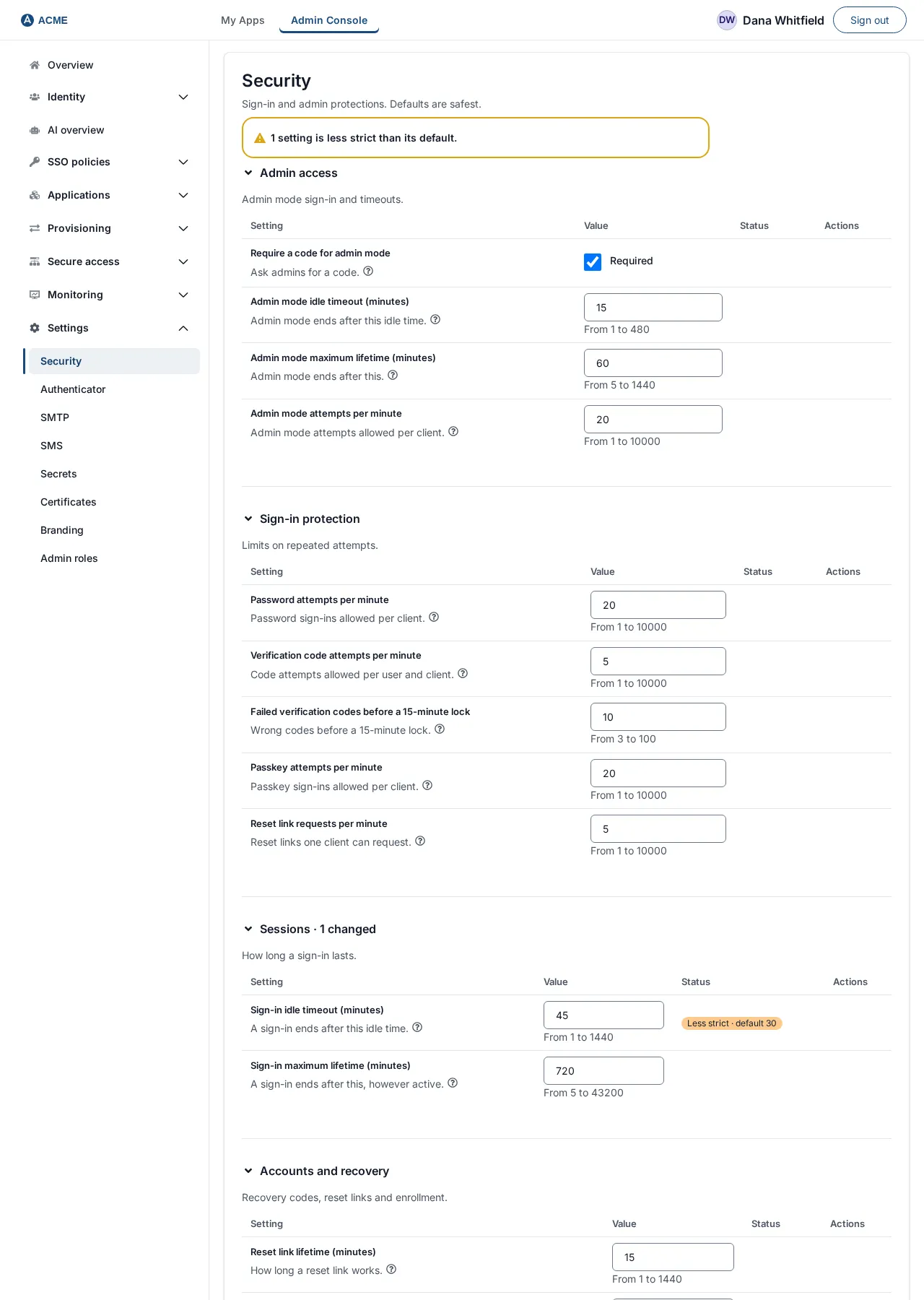
Settings > Security holds the realm-wide limits that protect sign-in and admin access. Every setting has a safe default. The page says: “Sign-in and admin protections. Defaults are safest.”
Who can use it. A Super admin can read and change every setting. An Authentication admin and a Read-only admin can read them but not change them; the fields are read-only for them. Other roles do not see the page.
How the page works
Section titled “How the page works”The page is a set of sections. Each section has a heading (select it to collapse or expand the section; a section with changed settings shows “· n changed” beside its name), a one-line description and a table with four columns. Every section starts expanded.
| Column | What it shows |
|---|---|
| Setting | The name of the setting, with a sentence explaining what it does. |
| Value | A tick box (for yes/no settings), a number box (for numbers) or a text box (for text). Number boxes show their allowed range (“From 1 to 1440”, given in the tables below); a value outside it is refused before saving, for example “Sign-in idle timeout (minutes): Enter a whole number from 1 to 1440.” |
| Status | Empty while the setting has its built-in value. Changed · default x when you have changed it. Less strict · default x (orange) when you changed it in the weaker direction: a yes/no protection turned off, or a limit or time raised above the default. |
| Actions | Save for a number or text setting (shown once you have edited the value). Yes/no settings save the moment you tick or untick them; turning on Allow permanent deletion or Let people add their own contact first asks you to confirm. |
After each save a green notice says, for example, “Sign-in idle timeout (minutes) updated.” If one or more settings are weaker than their defaults, an orange notice at the top says “1 setting is less strict than its default.” (or “n settings are less strict than their defaults.”). To go back to a default, type the default shown in the status column and select Save.
Settings take effect at once, for everyone.
Admin access
Section titled “Admin access”“Admin mode sign-in and timeouts.” Being signed in to the Admin Console is not the same as holding administrator powers; an administrator first enters admin mode. See A tour of the Admin Console.
| Setting | Default | Allowed | What it does |
|---|---|---|---|
| Admin mode idle timeout (minutes) | 15 | 1 to 480 | How long admin mode survives without being used. Shorter than a sign-in session on purpose. |
| Admin mode maximum lifetime (minutes) | 60 | 5 to 1,440 | How long admin mode lasts however much it is used, after which the administrator enters it again. |
| Admin mode attempts per minute | 20 | 1 to 10,000 | Admin mode attempts allowed per client per minute. |
Sign-in protection
Section titled “Sign-in protection”“Limits on repeated attempts.” A client here is one network address.
| Setting | Default | Allowed | What it does |
|---|---|---|---|
| Password attempts per minute | 20 | 1 to 10,000 | Local password sign-in attempts allowed per client per minute. Over the limit people see “Too many sign-in attempts. Wait a minute and try again.” |
| Verification code attempts per minute | 5 | 1 to 10,000 | Second-step codes allowed per person and client per minute after the password is verified. |
| Failed verification codes before a 15-minute lock | 10 | 3 to 100 | Consecutive failed second-step codes, across every method, after which the person’s second step is locked for 15 minutes. The lock ends on its own; a correct code before then starts the count again. People see “Too many attempts. Try again in 15 minutes.” |
| Passkey attempts per minute | 20 | 1 to 10,000 | Passkey sign-in attempts allowed per client per minute. |
| Reset link requests per minute | 5 | 1 to 10,000 | How often one client may ask for a reset link. The reset request takes no credentials and sends mail, so this stops an outsider using it to make your mail server send messages. |
Sessions
Section titled “Sessions”“How long a sign-in lasts.”
| Setting | Default | Allowed | What it does |
|---|---|---|---|
| Sign-in idle timeout (minutes) | 30 | 1 to 1,440 | How long a session survives without being used. A person who walks away is signed out after this. Some standards name a figure here; PCI DSS asks for fifteen minutes. |
| Sign-in maximum lifetime (minutes) | 720 (12 hours) | 5 to 43,200 | How long a session lasts however much it is used. A value below the idle timeout ends sessions sooner, which is safe. |
Accounts and recovery
Section titled “Accounts and recovery”“Recovery codes, reset links and enrollment.”
| Setting | Default | Allowed | What it does |
|---|---|---|---|
| Reset link lifetime (minutes) | 15 | 1 to 1,440 | How long a password reset link works. The sign-in page still says “fifteen minutes” whatever you set; the email states the real lifetime. |
| Re-sign-in window (seconds) | 300 | 60 to 3,600 | How recently someone must have authenticated before changing their own credentials in My Account. A borrowed unlocked laptop is the case this exists for. |
| Allow recovery codes | on | on or off | Allow a recovery code to stand in for a second step. Turning it off refuses recovery codes at sign-in and stops new ones being issued; codes already held stop working. Someone locked out then goes to an administrator. When off, My Account says “This deployment does not use recovery codes.” |
| Show the enrollment key beside the QR code | on | on or off | Shows the authenticator setup key in characters beside the QR code, for people who cannot scan (desktop authenticators and browser extensions take a typed key). Turning it off leaves scanning as the only route. It hides the key on screen; it is not a secrecy control, since the same value is inside the QR code. |
The rules for the passwords themselves (length, history, expiry and lockout) are on the Identity page, Password policy.
For how people use these, see Multi-factor authentication and Forgot password and account recovery.
Directories
Section titled “Directories”“Reading from and writing to directories.”
| Setting | Default | Allowed | What it does |
|---|---|---|---|
| Import page size | 25 | 1 to 1,000 | How many directory entries an import reads per round trip. It is not a throttle: a smaller page means more round trips. Lower it if a directory dislikes large responses. |
| Write passwords to the directory | off | on or off | Allow SSOGEN to write a new password back into the directory it federates with, which makes a reset link work for directory people. Off by default because writing into somebody else’s directory is a larger permission than reading it. |
Sign-in codes
Section titled “Sign-in codes”“Emailed and texted codes.” The mail server and the text-message provider each have their own page, Settings > SMTP and Settings > SMS; see Multi-factor authentication, Parts 2 and 3.
| Setting | Default | Allowed | What it does |
|---|---|---|---|
| Code lifetime (minutes) | 5 | 1 to 10 | How long an emailed or texted sign-in code works. |
| Codes sent per account, per 15 minutes | 5 | 1 to 100 | How many sign-in codes one account can be sent in fifteen minutes. Each is an email or a paid text message that anybody who knows the username can ask for. |
| Codes sent per address, per 15 minutes | 20 | 1 to 1,000 | How many sign-in codes one client address can ask for in fifteen minutes across every account. |
| Email codes blocked after a password reset (hours) | 24 | 0 to 168 | After a password is reset by email, how long an emailed code cannot stand in for a second step. 0 turns the wait off. |
| Sign-in link lifetime (minutes) | 15 | 5 to 30 | How long an emailed sign-in link, and the code in the same email, works. The link signs in only in the browser that asked for it, and only once. |
| Profile field for the email address | email |
text, up to 64 characters | Which profile field holds the email address that sign-in codes and reset links go to: the standard email field, or a custom field of the email kind written custom:name. |
| Profile field for the phone number | mobile_phone |
text, up to 64 characters | Which profile field holds the phone number that codes are texted to: the standard mobile_phone field, or a custom field of the phone kind written custom:name. |
| Trust contacts from a directory | on | on or off | Send codes to an address or number that came from the directory, an identity provider, an import or an administrator without the person confirming it first. Turn off to make everybody confirm their own details with a code. |
| Let people add their own contact | off | on or off | Lets people whose account comes from a directory or an identity provider add their own email or phone for codes when that source supplies none. A value the source supplies is never replaced either way, and such an entry only ever receives sign-in codes after the person confirms it. |
Custom attributes are defined under Identity > Attributes.
Data retention and deletion
Section titled “Data retention and deletion”“How long records are kept.”
| Setting | Default | Allowed | What it does |
|---|---|---|---|
| Keep short-lived records (days) | 1 | 1 to 3,650 | How long expired short-lived records are kept: half-finished sign-ins, authorization codes, replay markers. |
| Keep sign-in counts (days) | 35 | 1 to 3,650 | How long the records that System health counts application sign-ins from are kept. Keep it above 30; below that the 30-day chart on System health becomes quietly wrong. |
| Keep expired sessions (days) | 30 | 1 to 3,650 | How long expired sessions are kept before deletion. A data-retention decision rather than a security one. |
| Keep sync history (days) | 90 | 1 to 3,650 | How long finished directory sync runs are kept: the history shown on the directory’s Sync tab. The audit trail keeps its own record. |
| Keep remote access history (days) | 400 | 30 to 3,650 | How long finished remote access requests and ended remote sessions are kept. A request still pending, a session still live and an approval whose window is still open are never removed. |
| Allow permanent deletion (tick box Allowed) | off | on or off | Lets administrators delete people, groups, applications and directories for good, with their history, instead of archiving them. Turning it on asks “Allow permanent deletion?” first. Off by default: archiving keeps the record recoverable and keeps assignments and links readable for an investigation. With it off, Delete permanently is unavailable with “Switched off for this deployment. Turn on “Allow permanent deletion” in Security.” |
Check that it works
Section titled “Check that it works”- Open Settings > Security. The status column should be empty on every row unless somebody changed it. Note any orange Less strict badges and decide whether each is intended.
- Change one number, for example Sign-in idle timeout (minutes) to
20, and select Save. The notice “Sign-in idle timeout (minutes) updated.” appears and the status becomes Changed · default 30. - Put it back: type
30and Save. The status empties again. - As an Authentication admin (not a Super admin), open the same page: the values show but you cannot change them.