Revoke AI agent access in the Admin Console
To revoke AI agent access, use the AI agents group in the Admin Console: suspend or permanently revoke one agent, revoke a person’s delegation to it, or engage a kill switch to stop every agent of one type. The group has six pages. This guide describes each page, every button on it and every confirmation dialog. For first-time setup, read Turn on AI agents and register one.
The group appears always, but only AI overview is listed while the organization setting Non-human identities (AI agents) is off. Identities, Delegations, Approvals, Kill switches and MCP servers appear once it is on.
These pages may send you through a fresh sign-in before they show data; sign in again and you return to the page.
Lists on these pages share a few behaviors: a Search … box filters the rows already loaded, column headings that can sort do so when selected, and selecting a row opens it. When a list cannot be read, the page shows a message (for example “The delegations could not be read.”) with a Retry button instead of an empty list, so an empty list always means “none”.
Who may revoke and manage AI agents
Section titled “Who may revoke and manage AI agents”| Who | May do |
|---|---|
| Super-administrator | Everything on these pages. Only a super-administrator turns the organization setting on or off, and engages or releases kill switches. |
| An owner of an agent | Lists and opens the agents they own, and can suspend them. Nothing else. |
The server refuses what a role may not do, and a person who may not read the organization setting sees “Only an AI agents administrator can read the setting Non-human identities, and only a super-administrator can change it.” in its place.
Overview page
Section titled “Overview page”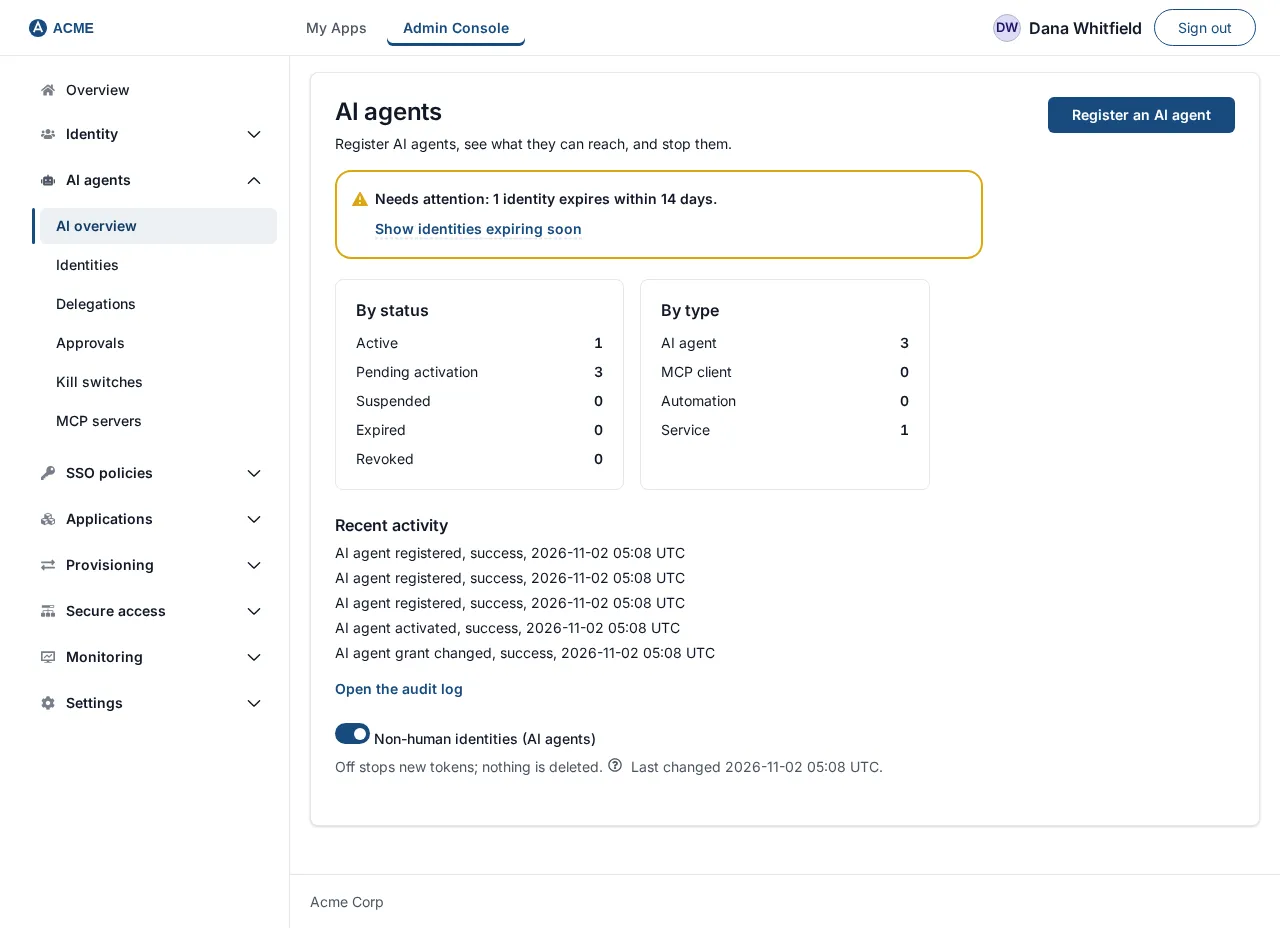
Heading AI agents, description “Register AI agents, see what they can reach, and stop them.”
| Element | What it does |
|---|---|
| Register an AI agent | Opens the seven-step wizard. |
| Needs attention banner | Appears when something qualifies, for example “Needs attention: 1 identity has no owner; 1 identity expires within 14 days.” Links Show identities with no owner, Show identities expiring soon and Show unused identities open the Identities list filtered. “Unused” means active and not used for 30 days (an agent never used counts from when it was registered). Revoked and expired identities never count. |
| Card By status | Counts for Active, Pending activation, Suspended, Expired and Revoked. |
| Card By type | Counts for AI agent, MCP client, Automation and Service. |
| Recent activity | The last five AI agent events from the audit trail, each with result and time, such as “Ai agent token issued, success, …”. Empty text: “No AI agent activity yet.” |
| Open the audit log | Goes to Monitoring, Audit. |
| Organization setting, switch Non-human identities (AI agents) | Turns the feature on or off; opens the dialog below. Shows “Last changed |
With no agents the page says No AI agents yet: “AI agents and services that call your apps.”
Dialog: Turn non-human identities on or off
Section titled “Dialog: Turn non-human identities on or off”| Button | Effect |
|---|---|
| Type the organization’s name, then Turn on | Registered agents can get tokens again as their status, grants and kill switches allow. |
| Type the organization’s name, then Turn off (red) | Deletes nothing. Stops all token issuing at once; tokens already issued work until they expire, within 4.5 minutes. Engage a kill switch first to stop agents immediately. |
| Cancel | Closes the dialog. |
Identities page and the list of agents
Section titled “Identities page and the list of agents”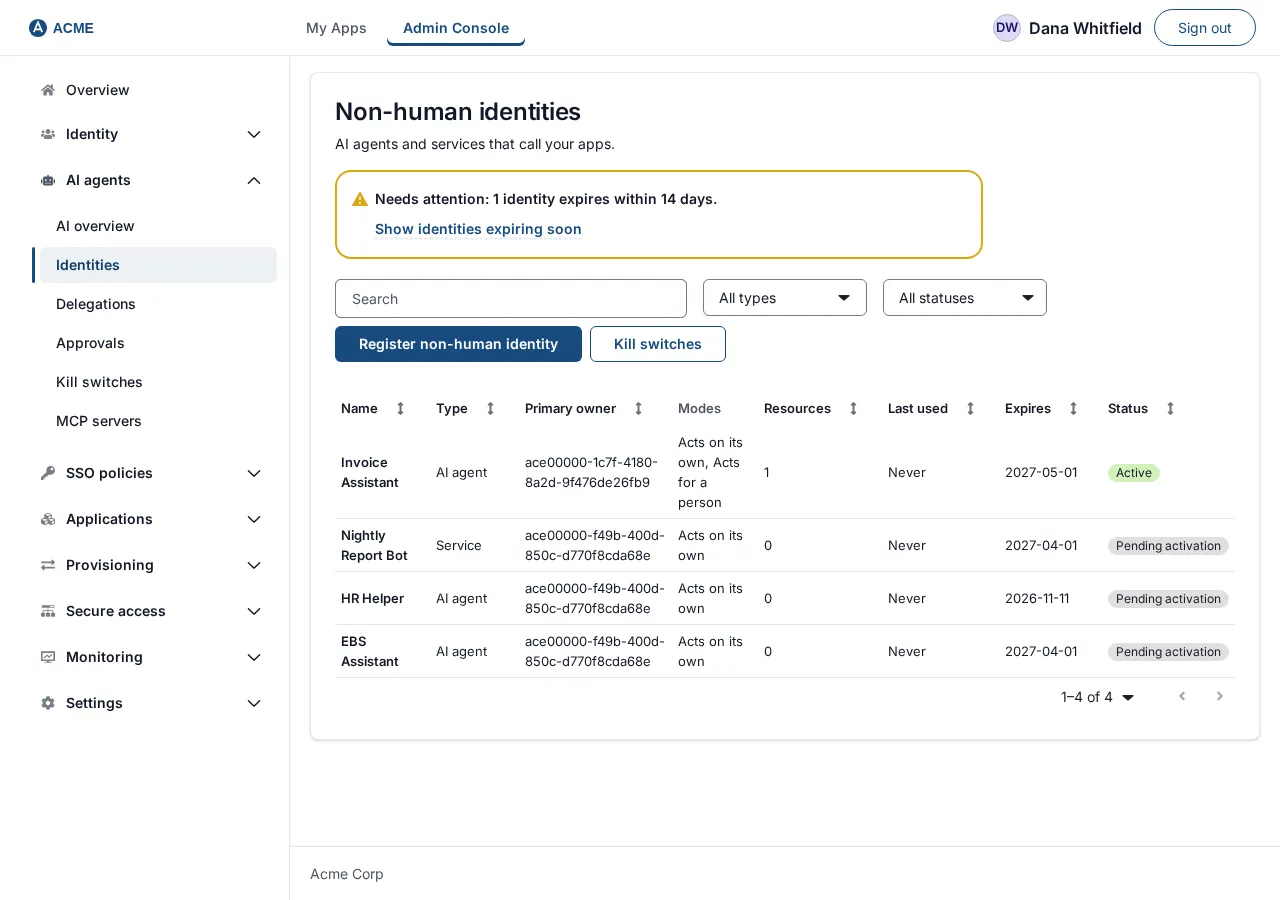
Heading Non-human identities: “AI agents and services that call your apps.”
| Element | What it does |
|---|---|
| Search non-human identities | Filters by name, type or primary owner. |
| Filter by type | All types, AI agent, MCP client, Automation, Service. |
| Filter by status | All statuses, Pending activation, Active, Suspended, Revoked, Expired. |
| Clear filters | Appears while a filter or a “needs attention” link is active. |
| Register non-human identity | Opens the wizard. Also the button on the empty page No non-human identities yet. |
| Kill switches | Opens the Kill switches page. |
| Columns | Name, Type, Primary owner, Modes (“Acts on its own”, “Acts for a person”), Resources (a count), Last used (“Never” or a date), Expires (a date, or “Review |
With a filter and no match: “No non-human identities match.” The needs-attention banner also appears here.
Status words
Section titled “Status words”| Status | Meaning |
|---|---|
| Pending activation | Saved, not yet activated. Authenticates to nothing. |
| Active | Can get tokens. |
| Suspended | Reason shown: “Suspended by an administrator”, “Suspended: its owner left. Add an owner before reactivating.”, “Suspended: its review date passed”, “Suspended by the kill switch for this type”, or “Suspended: a credential was reported compromised”. |
| Revoked | Permanent. |
| Expired | Past its Expires on date. Permanent. |
An agent’s page
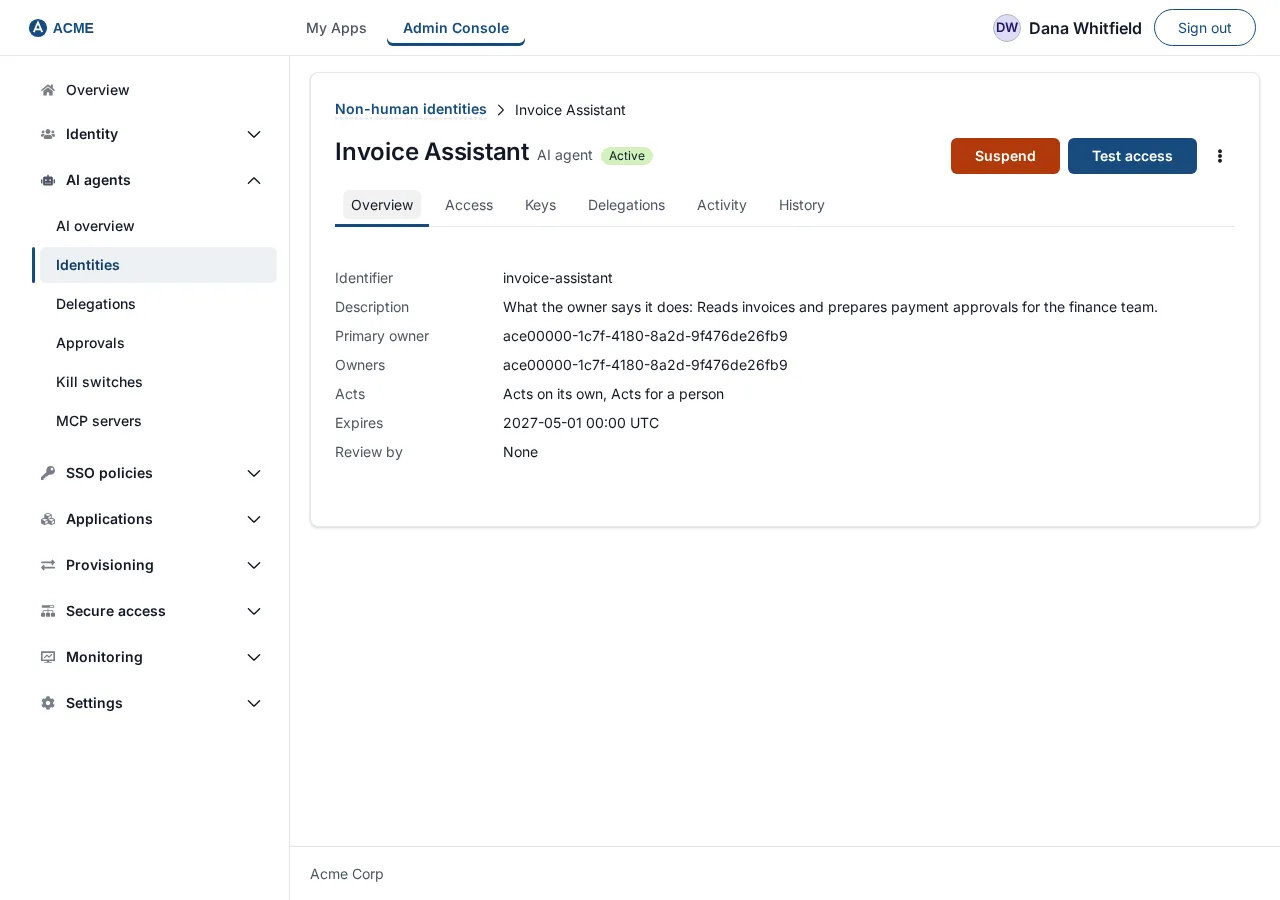
Section titled “An agent’s page”Select a row to open the agent. The header has a Non-human identities link back to the list, the agent’s name, its type, a status badge, and these buttons depending on status:
| Button | Where | What it does |
|---|---|---|
| Activate | Pending | Activates it (refusals in the registration guide). |
| Test access | Active | Opens the Access tab and runs the test. |
| Suspend (red) | Active | Opens the suspend dialog. Always one click away. |
| Reactivate | Suspended | Returns it to Active. An agent suspended because its owner left needs a new owner first (“A non-human identity needs at least one owner.”), and one suspended by its type’s kill switch waits until the switch is released. |
| Menu, Revoke permanently (red) | Any state except Revoked and Expired | Opens the revoke dialog. |
Tab: Overview
Section titled “Tab: Overview”Identifier, Description (shown as “What the owner says it does: …” or “None”), Primary owner, Owners (“No owner” when none), Acts, Expires, Review by. Read-only.
Tab: Access
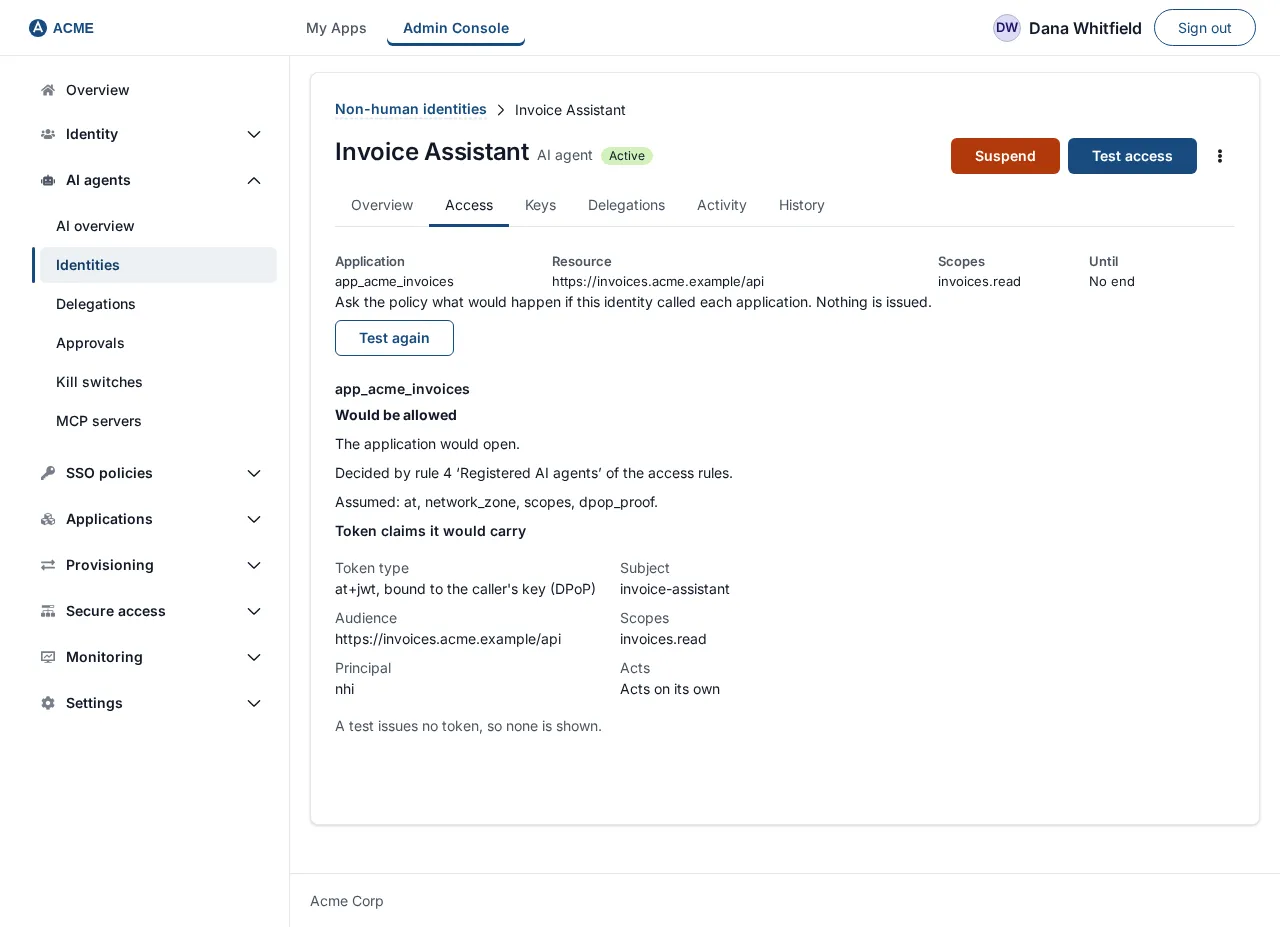
Section titled “Tab: Access”A table Resources and scopes with Application, Resource, Scopes, Until (“No end” when open-ended), or No access granted: “This identity can reach nothing yet.” Below it, the Test access section. Grants cannot be edited here; they are set when registering.
Tab: Keys
Section titled “Tab: Keys”A table Public keys with Key id, Algorithm, Thumbprint and Added. A public MCP client shows “A public MCP client has no keys. It acts only for a person who has allowed it.” With two or more keys a warning explains that clients that don’t name their key in assertions are refused until only one key remains. Read-only.
Tab: Delegations
Section titled “Tab: Delegations”A table Delegations with Person (the user’s identifier), Resources, Scopes, Expires, Last used (“Never” until used), Status (Active, Revoked, Expired) and, for Active rows, a link-button Revoke delegation for
Tab: Activity
Section titled “Tab: Activity”A table Activity of this identity with When, Event, Result and Done by (“Not recorded” when no administrator did it). With none: “No activity has been recorded for this identity yet.” If it cannot be read: “The activity could not be read.”
Tab: History
Section titled “Tab: History”Registered, Last used and Status with its reason.
Dialog: Suspend
Section titled “Dialog: Suspend”Title “Suspend
Dialog: Revoke permanently
Section titled “Dialog: Revoke permanently”Title “Revoke invoice-assistant) and select Revoke permanently (red). The page then shows Revoked; the tabs stay readable and no buttons remain.
Dialog: Revoke delegation
Section titled “Dialog: Revoke delegation”Title “Revoke this delegation?”. Body: “This identity stops acting for that person at once.” Buttons Revoke delegation (red) and cancel. The row then shows Revoked; the agent itself stays Active.
Delegations page
Section titled “Delegations page”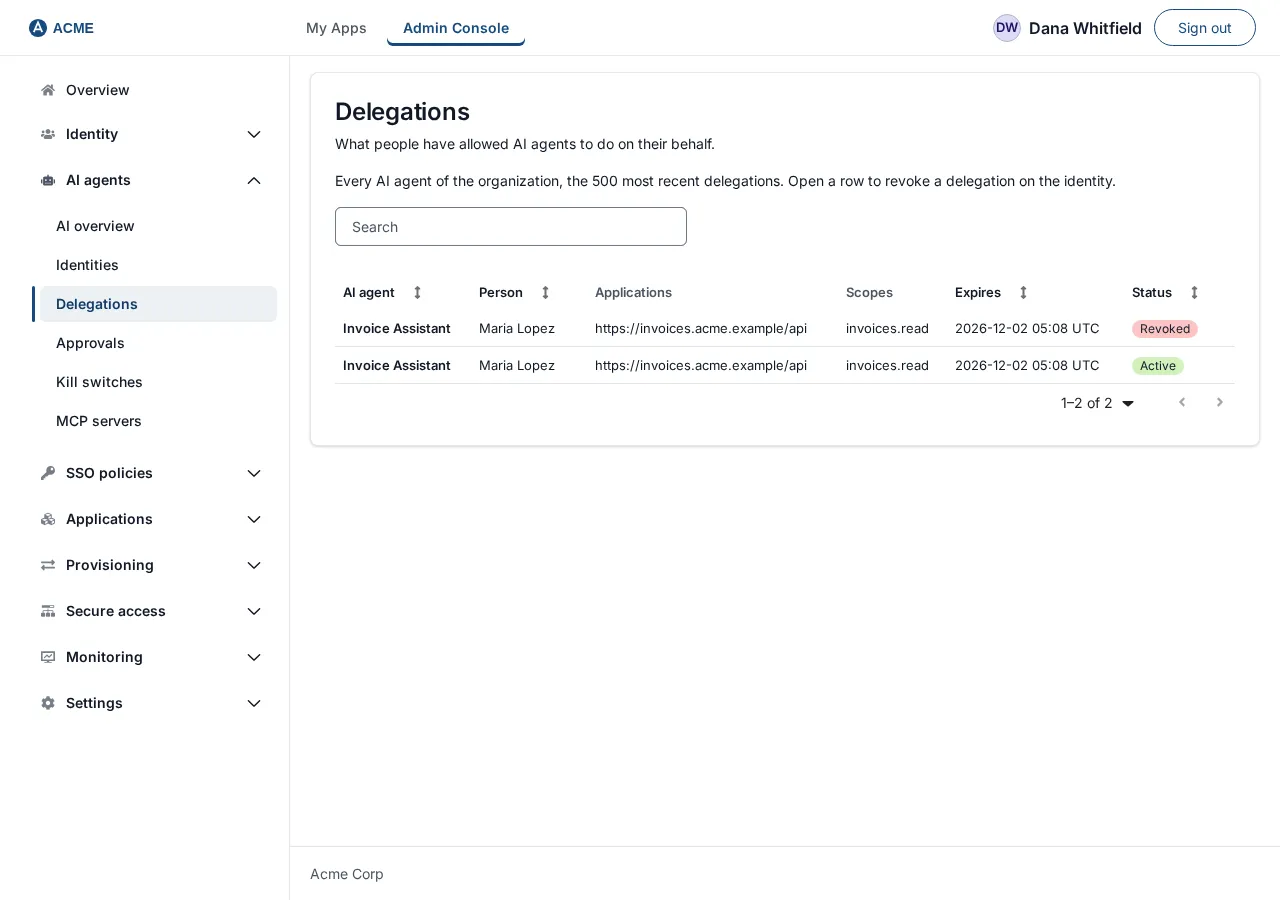
Heading Delegations: “What people have allowed AI agents to do on their behalf.” A note above the list says “Every AI agent of the organization, the 500 most recent delegations. Open a row to revoke a delegation on the identity.”
| Element | What it does |
|---|---|
| Search delegations | Filters by agent, person, applications or scopes. |
| Columns | AI agent, Person, Applications, Scopes, Expires (“Never” if none), Status (Active, Revoked, Expired). |
| Row | Opens that agent’s Delegations tab, where you can revoke. This page itself has no revoke button. |
Empty: “No one has delegated anything to an AI agent.”
Approvals
Section titled “Approvals”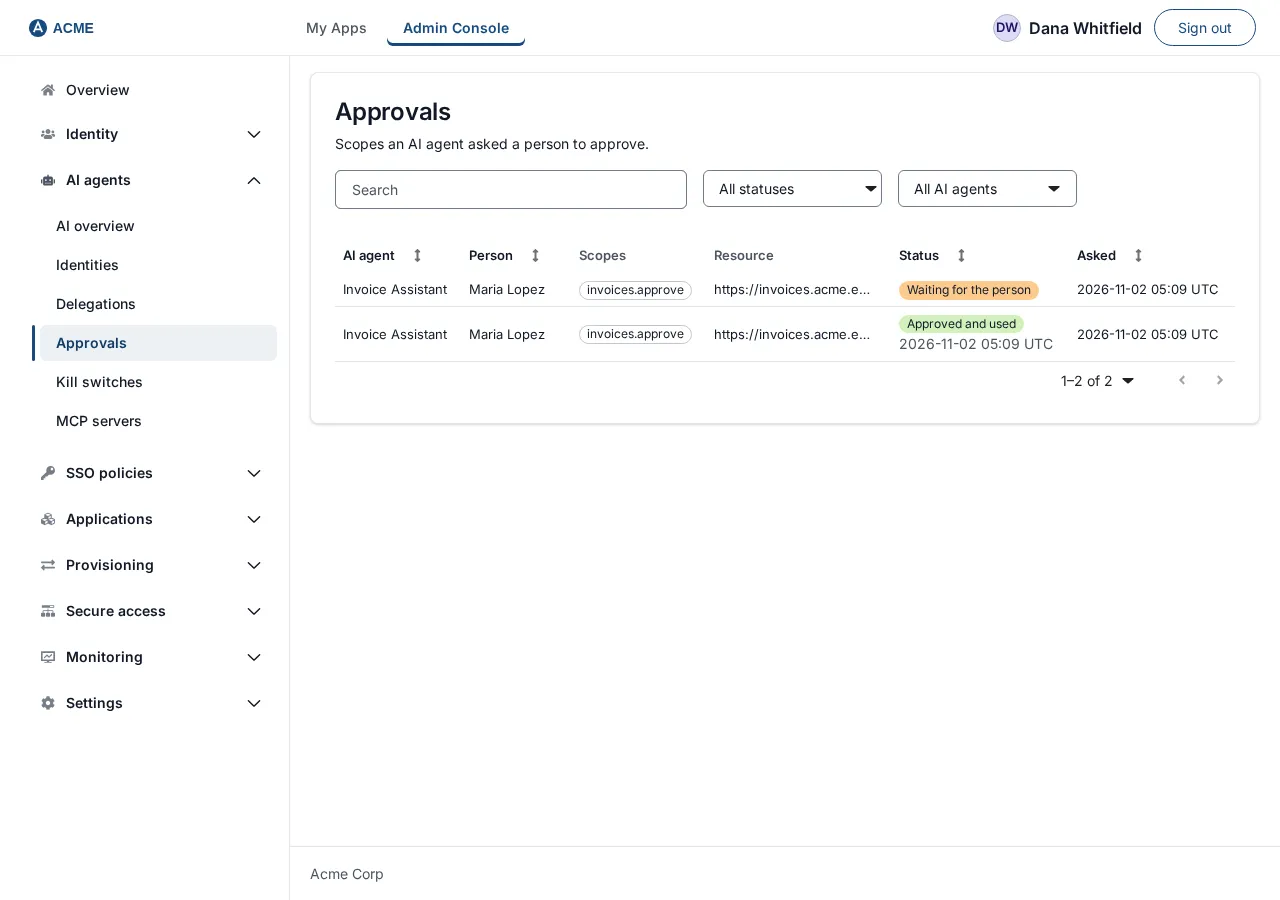
Heading Approvals: “Scopes an AI agent asked a person to approve.” (CIBA is the name of the standard behind the per-use approval.) The page is read-only: only the person concerned decides. What the agent wrote to the person is shown only to that person, and finished requests are removed a day after they expire.
| Element | What it does |
|---|---|
| Search approval requests | Filters by agent, person, scopes or resource. |
| Status menu | All statuses, Waiting for the person, Approved, Denied, Expired, Approved and used. |
| AI agent menu | All AI agents or one agent. |
| Columns | AI agent, Person, Scopes, Resource, Status (with the time of the decision under it once decided) and Asked. |
| Show older requests | Loads the next page (50 at a time). |
Empty: “No AI agent has asked anyone for an approval recently.” With a filter and no match: “No approval requests match these filters.”
Kill switches page: stop every agent of one type
Section titled “Kill switches page: stop every agent of one type”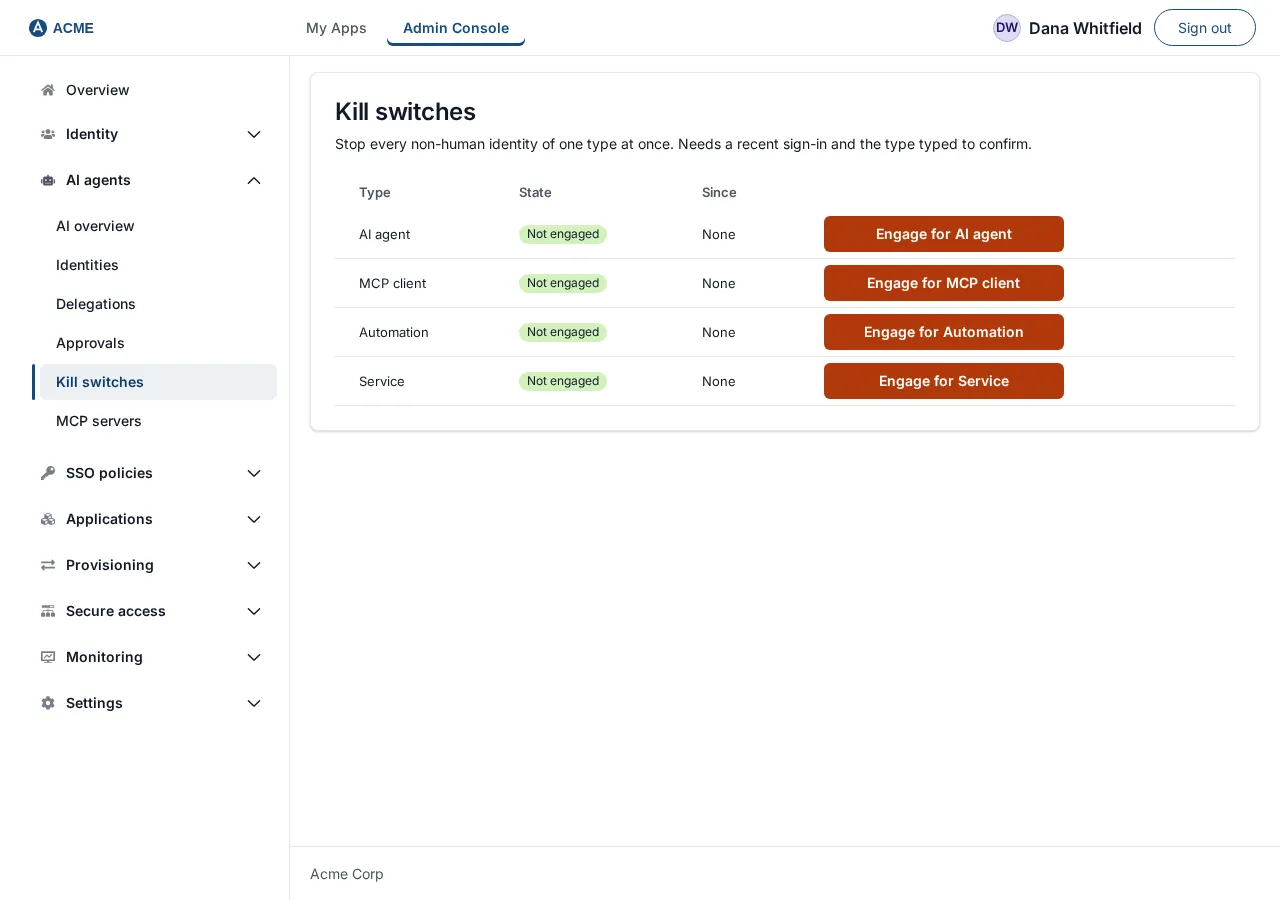
Heading Kill switches: “Stop every non-human identity of one type at once. Needs a recent sign-in and the type typed to confirm.” Four rows, one per type, always shown:
| Column | Content |
|---|---|
| Type | AI agent, MCP client, Automation, Service. |
| State | Not engaged, or Engaged (with “, N suspended” after you engage it). |
| Since | The date engaged, or “None”. |
| Action button | Engage for |
Dialog: Engage
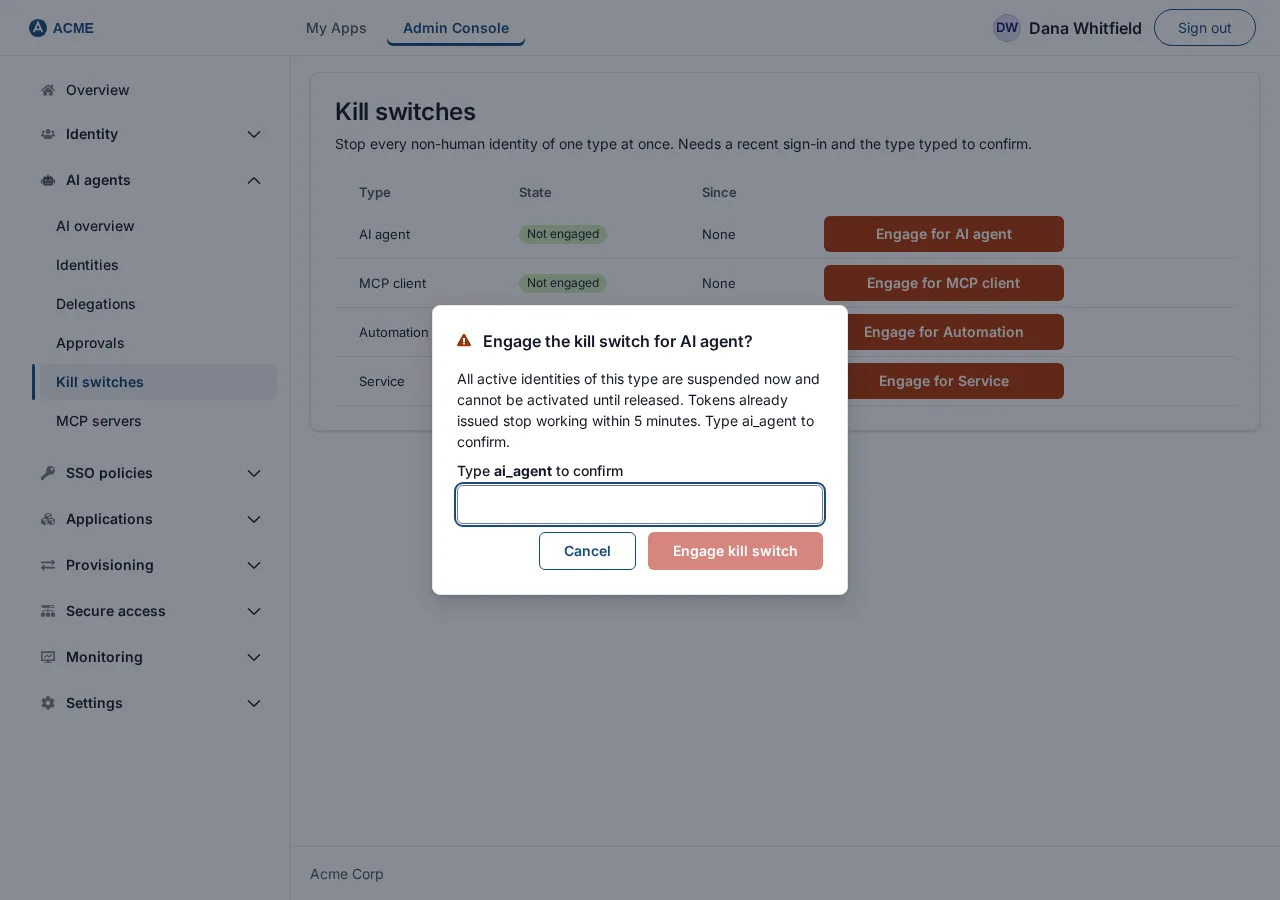
Section titled “Dialog: Engage”Title “Engage the kill switch for ai_agent, mcp_client, automation or service. Buttons Engage kill switch (red) and cancel.
Dialog: Release
Section titled “Dialog: Release”Title “Release the kill switch for
MCP servers page
Section titled “MCP servers page”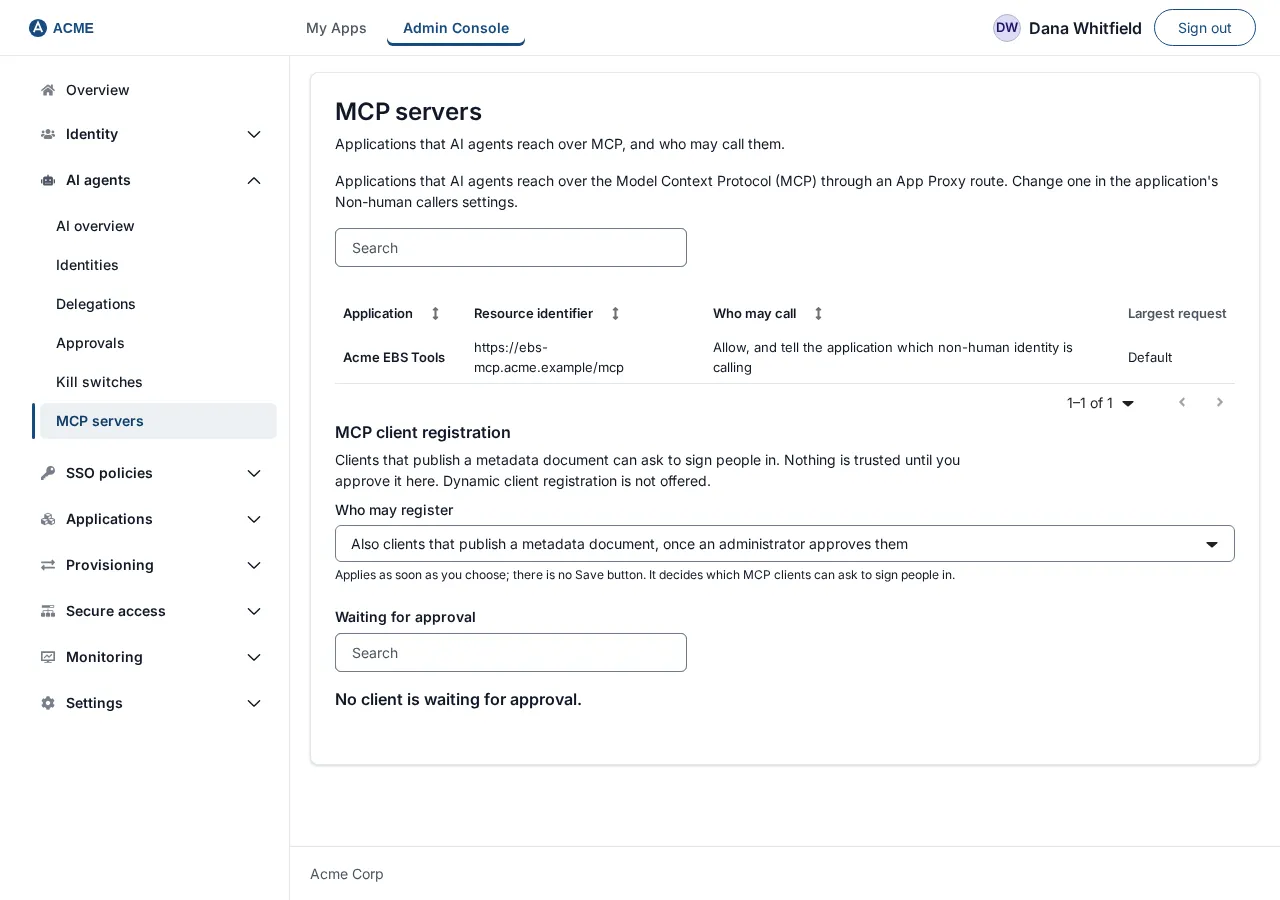
Heading MCP servers: “Applications that AI agents reach over MCP, and who may call them.” The note says they are reached over the Model Context Protocol (MCP) through an App Proxy route and are changed in the application’s Non-human callers settings.
| Element | What it does |
|---|---|
| Search MCP servers | Filters by application or resource. |
| Columns | Application, Resource identifier, Who may call (the three Non-human callers choices), Largest request (“Default” or a number of bytes). |
| Row | Opens the application. |
Empty: “No application is set up as an MCP server.” If some applications could not be read: “N applications could not be read, so they may be missing here.” The page reads at most 100 applications.
To add a row, set an application’s Protocol to MCP: see Connect an AI agent to Oracle E-Business Suite with the MCP Gateway.
The page also has the section MCP client registration (who may register, and the clients waiting for approval) and, on each application’s Non-human callers tab, a Token binding section. Both are described in Connect an AI agent to Oracle EBS with MCP.
The Non-human callers tab of an application
Section titled “The Non-human callers tab of an application”Visible only while AI agents are on. Heading Non-human callers: “Whether non-human identities may call this application, and with which scopes.”
| Field | Content |
|---|---|
| Non-human callers | Refuse non-human callers, Allow, and tell the application which non-human identity is calling, Allow only on behalf of a person, and tell the application which person. |
| Resource identifier | An https address that names the application in tokens; must be unique. A Saved resource identifier box shows the saved value. |
| Protocol | HTTP or MCP. “MCP is for App Proxy routes only.” |
| Largest request body (bytes) | MCP only; 1 to 4194304. |
| Scope catalog | Per scope: Scope, Kind (Standard or Sensitive), What it allows, in words, and Tools (MCP) or Methods and Path prefixes (HTTP). Add scope (at most 64), Remove scope |
| Save non-human callers | Saves the scopes, then the setting. |
Choosing Refuse keeps no catalog.