Kerberos constrained delegation and form fill sign-in
Many internal applications cannot be changed to accept SSOGEN sign-in and ask for a second sign-in of their own. The App Proxy can add single sign-on to such a legacy application without code changes: after SSOGEN signs the employee in, it passes identity headers, fills the application’s login form, or uses Kerberos constrained delegation. There are three ways to do it; each is set up below, with what to do when one fails.
It continues Publish an internal app through the App Proxy. It uses the fictional company Acme Corp, with the application https://finance.internal.acme.example.
Terms used here
- Route: the App Proxy setting that connects a hostname and path to an application’s back-end servers.
- Back-end sign-in: how the application itself learns who the employee is. It is set per route, in the route form, in the section Sign-in to the application.
- Shared account: one username and password that exists in the application. For form login, the App Proxy signs every employee in with it.
- Kerberos: the Windows ticket system built into Active Directory. With it the application sees each employee as their own Windows account.
- Domain controller: an Active Directory server. Kerberos calls it a KDC.
1. Pick a back-end sign-in method
Section titled “1. Pick a back-end sign-in method”| Method (label in the console) | Choose it when | Who the application sees |
|---|---|---|
| Identity headers only | The application trusts identity headers added by the App Proxy, or needs no sign-in at all. This is the default. | Each employee, by the headers. |
| Form login | The application has an ordinary username-and-password page and no way to trust headers. | Each person with their own saved password (the usual choice), a password you set per person, or one shared account for everybody. |
| Kerberos (Windows Integrated Authentication) | The application is an IIS or similar site that uses Windows authentication. | Each employee, as their own Windows account. |
The App Proxy only does this for people it has already signed in to SSOGEN. The method applies to the route: two routes of one application can differ.
2. Open the setting
Section titled “2. Open the setting”- In the Admin Console, open Secure access, then App Proxy routes.
- Select the route name in the table (for example
route_finance), or Add a route for a new one. The route form opens. Its last parts include the section Sign-in to the application. - In How the application signs people in, choose one of the three methods. The fields below change with your choice.
- Select Save App Proxy route draft when you are done. If any field is marked red, the console stops with “Fix the sign-in settings marked below before saving.” The App Proxy picks the route up on its next check (by default within five minutes).
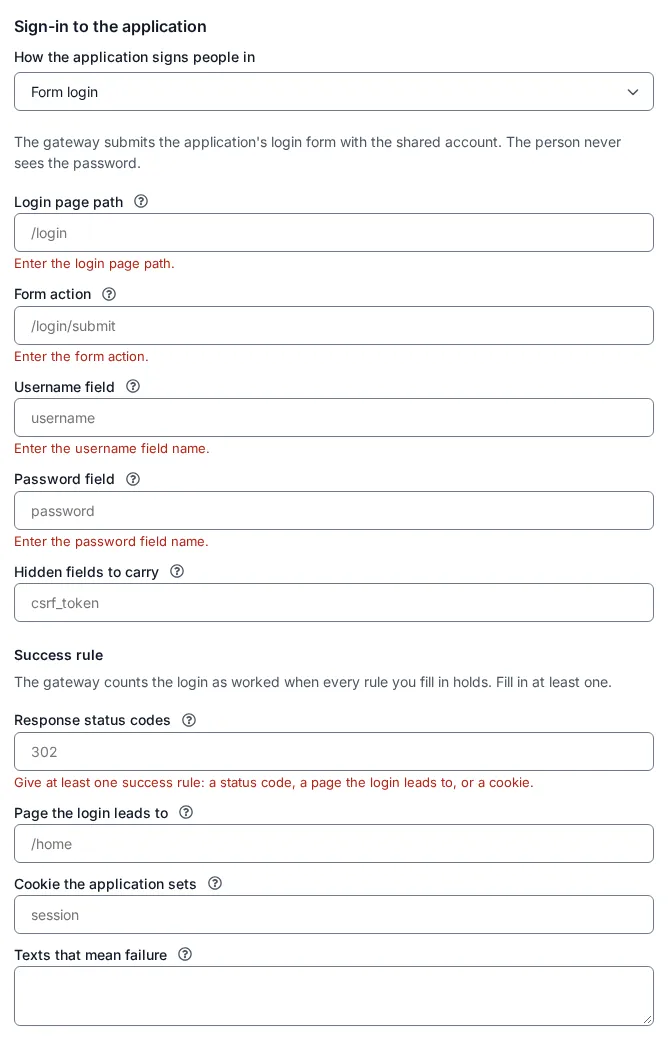
Identity headers only
Section titled “Identity headers only”Choose Identity headers only and nothing else is asked. The screen says “The application trusts the identity headers the gateway sends and needs nothing else.”
3. Form login with a shared account
Section titled “3. Form login with a shared account”This section sets up the route and the shared account. To sign people in with their own passwords instead, set up the route here (sections 3.1 and 3.2), then follow Per-person form fill rather than 3.3.
With form login the App Proxy opens the application’s login page itself, fills in the shared account and submits the form. The employee never sees the form and never learns the password. The application’s own cookies are then handed to the employee’s browser.
3.1 Find out how the login page works (outside SSOGEN)
Section titled “3.1 Find out how the login page works (outside SSOGEN)”Open the application’s login page in a browser on a test machine and use the browser’s developer tools (“Inspect”), or View page source, to note down:
| You need to know | Example for Acme’s finance application |
|---|---|
| The address of the page that shows the form | /login |
The address the form submits to (the action of the <form> tag) |
/login/submit |
The name of the username input |
username |
The name of the password input |
password |
| Hidden inputs the form must send back, such as an anti-forgery token | csrf_token |
| What a good login does: its HTTP status, where it redirects to, a cookie it sets | status 302, to /home, cookie session |
| Words that appear on the page after a bad login | Invalid username or password |
3.2 Fill in the route
Section titled “3.2 Fill in the route”With Form login chosen, you see this text: “The gateway opens the application’s login page itself and submits the shared account, so the person never sees the form and never gets the password. The account is set on the application.” Fill in the fields.
| Field | What to type | Example | Rules |
|---|---|---|---|
| Login page path | The page that shows the login form. When an employee asks for this page, the App Proxy signs them in first. | /login |
Starts with /, up to 512 characters, no ?, # or spaces. |
| Form action | Where the form submits to. The App Proxy only uses a form that submits to this address. | /login/submit |
Same rule as above. |
| Username field | The name of the username input. |
username |
Letters, digits and _ . : - [ ], up to 64 characters. |
| Password field | The name of the password input. |
password |
Same. |
| Hidden fields to carry | Hidden inputs that must be sent back, separated by commas, up to 8. A hidden input not listed is left out. | csrf_token |
Same characters; no repeats. Optional. |
Under Success rule, the screen says “The gateway counts the login as worked when every rule you fill in holds. Fill in at least one.”
| Field | What to type | Example | Rules |
|---|---|---|---|
| Response status codes | HTTP status codes that mean success, separated by commas. A redirect after login is usually 302. | 302 |
Up to 8 different codes from 200 to 399. |
| Page the login leads to | A path the response redirects to after a good login. Any path starting with it counts. | /home |
Starts with /. |
| Cookie the application sets | The name of a cookie the application sets only after a good login. | session |
A valid cookie name. |
| Texts that mean failure | Exact words that appear on the page when the login fails, one per line. If any appears, the login counts as failed. | Invalid username or password |
Up to 4 lines, each at most 128 bytes. |
If you fill in none of the first three rules, the console says “Give at least one success rule: a status code, a page the login leads to, or a cookie.” Other messages you may see: “Enter the login page path.”, “Not valid. Example: /login”, “Up to 8 different field names; letters, digits and _ . : - [ ] only.”, “Up to 8 different status codes from 200 to 399.”, “A path starting with /. Example: /home”, “Not a valid cookie name.”, “Up to 4 texts, each at most 128 bytes.”
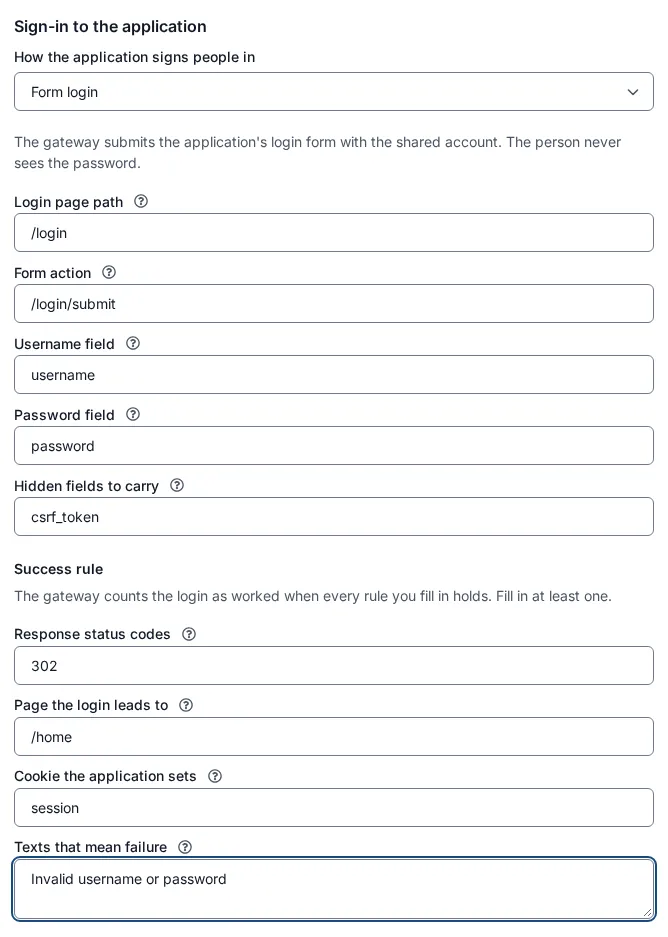
Save the route as described in step 2.4.
3.3 Set the shared account on the application
Section titled “3.3 Set the shared account on the application”The shared account belongs to the application, not to the route, so one account serves every form-login route of that application.
- Open Applications and the App Proxy list, then select the application (for example Acme Finance).
- Open the tab Sign-in to the application. It says “How the gateway signs people in to Acme Finance behind the gateway, route by route.” A table, Routes and how they sign people in, lists each route with Route, Sign-in method, Status and Last sign-in. Until you have saved a Kerberos or form-login route it says “No App Proxy route of this application signs people in with Kerberos or a login form. Set that on the route under App Proxy.”
- Under Shared account you see “On form-login routes the gateway signs everyone in with this one account. Use a long random password for it; it is stored in the secret vault as this application’s own secret and cannot be read back.” If none is set yet it also says “No shared account is set, so form-login routes refuse until you set one.”
- Type the Username, for example
svc-ssogen-finance, and the Password. Create this account in the application first, with only the rights an ordinary employee needs. - Select Set account.
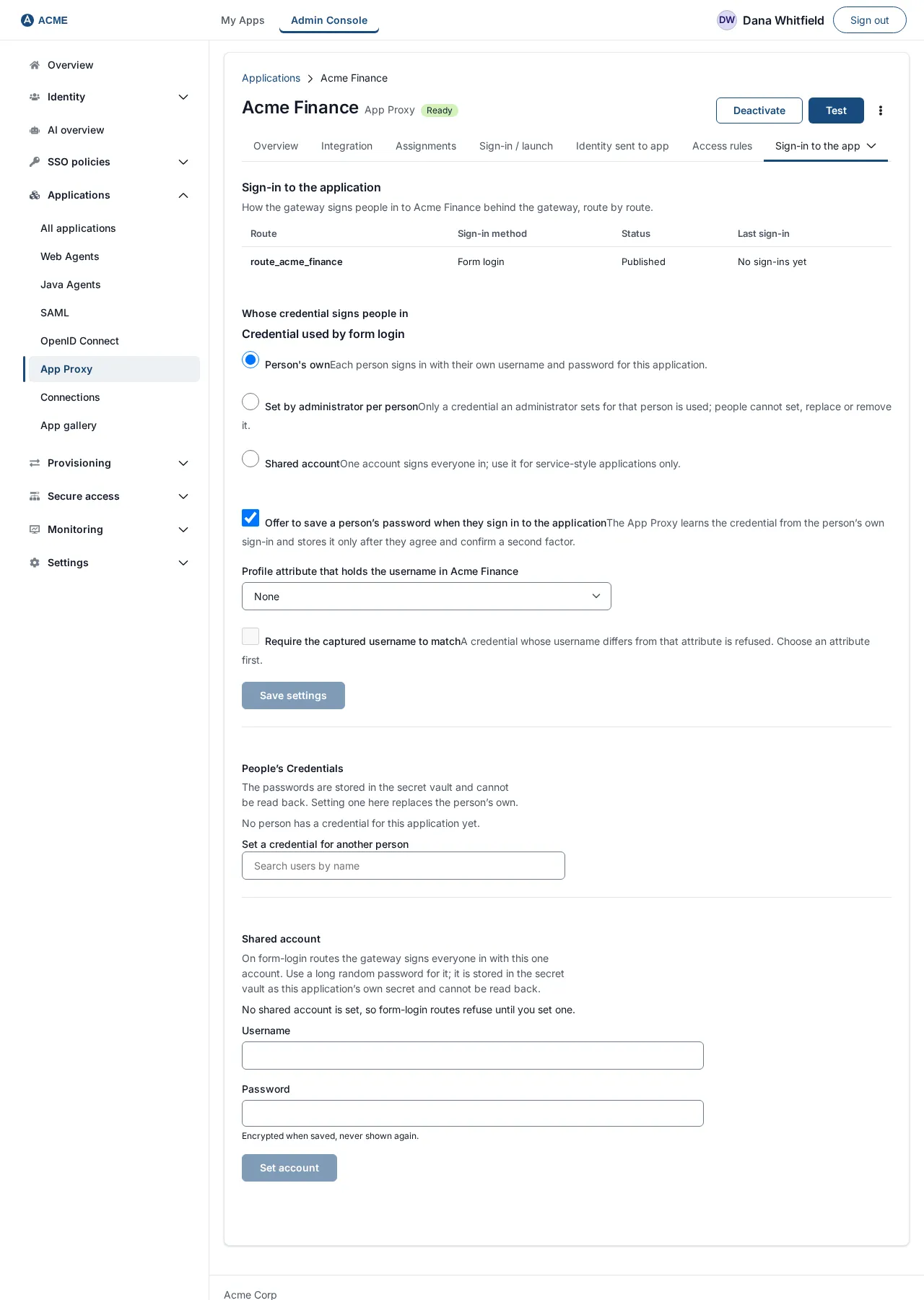
After saving, the card shows the username and a password marked as set. The password is never shown again. The buttons are:
- Change username: lets you type a new username. Save it with a new password through Save account.
- Save account: replaces the password (type a new one first).
- Remove: asks you to type the application’s name to confirm (“Remove the shared account?”), then removes the account. Form-login routes then refuse until a new one is set.
Changing the account needs permission to change applications and a recent sign-in. If you lack either, the console says “You need to confirm your sign-in again, and have permission to change applications, to do this.” Any other failure says “The shared account was not changed.”
3.4 What the employee sees
Section titled “3.4 What the employee sees”The employee opens the application from My Apps. SSOGEN signs them in (with whatever multi-factor policy applies), the App Proxy fills the form behind the scenes, and the employee lands in the application, already signed in as the shared account. There is no second login page.
The App Proxy tries once per employee session and route. If fills keep failing, it pauses form login for that route for a few minutes.
3.5 How to check it worked
Section titled “3.5 How to check it worked”- Open the application from My Apps as a test employee. You should land inside the application.
- In the console, return to the application’s tab Sign-in to the application. Last sign-in shows Signed in and the time.
- Under Status, Published means the route is in the configuration your gateways use.
4. Kerberos constrained delegation sign-in
Section titled “4. Kerberos constrained delegation sign-in”With Kerberos the App Proxy asks the domain controller for a Windows ticket on behalf of the employee and presents it to the application. The application sees the employee’s own Windows account and nobody types a password. This is Kerberos constrained delegation with protocol transition: the App Proxy uses a dedicated service account that Active Directory allows to delegate only to this application.
4.1 What you need
Section titled “4.1 What you need”- An Active Directory domain, for example
corp.acme.example(Kerberos realmCORP.ACME.EXAMPLE). - A dedicated service account for the gateway, for example
svc-edge. Do not reuse an administrator account. - Employees whose SSOGEN account comes from that directory (LDAP sign-in or directory synchronization). SSOGEN finds each person’s Windows name from the attributes their sign-in or directory sync provided. It never guesses one from an email address, so a person without a Windows name is refused.
- The gateway can reach your domain controllers on TCP port 88 (or the port you list).
- The gateway’s clock is close to the domain controllers’ clocks. Kerberos normally allows a few minutes of difference.
4.2 Fill in the route
Section titled “4.2 Fill in the route”Choose Kerberos (Windows Integrated Authentication). The screen says “The gateway signs the person in to the application with a Windows ticket issued for them, so the application sees them as their own Windows account. Nobody types a password.”
| Field | What to type | Example | Rules |
|---|---|---|---|
| Service principal name | The name the application is registered under in Active Directory: HTTP/ followed by the application’s host name. One name, no port. |
HTTP/finance.internal.acme.example |
Must start HTTP/. |
| Realm | The Active Directory domain name in capital letters. | CORP.ACME.EXAMPLE |
Capital letters, digits, dots and hyphens. |
| Domain controllers | The domain controllers the App Proxy may ask for tickets, one per line, up to 8. Add :port only if it is not 88. Nothing else is contacted. |
dc1.corp.acme.example and dc2.corp.acme.example:88 |
Host names, listed once each. |
| Service account | The Active Directory user the App Proxy acts as, written name@REALM. |
svc-edge@CORP.ACME.EXAMPLE |
The realm part in capitals. |
| Keytab reference | Where the App Proxy finds that account’s keytab on its own server, written secret://. The keytab never passes through SSOGEN. |
secret://edge/keytabs/svc-edge |
Starts secret://. |
| Which Windows name identifies the person | User principal name (recommended) or Pre-Windows 2000 logon name (sAMAccountName). | User principal name | With the first, alternate UPN suffixes work. |
Messages you may see: “Enter the service principal name.” (and the same for realm, service account and keytab reference), “Not valid. Example: HTTP/app.corp.example.com”, “Enter at least one domain controller.”, “Use at most 8 domain controllers.”, “List each domain controller once.”, “Each line is a host name, optionally with :port. Example: dc1.corp.example.com:88”.
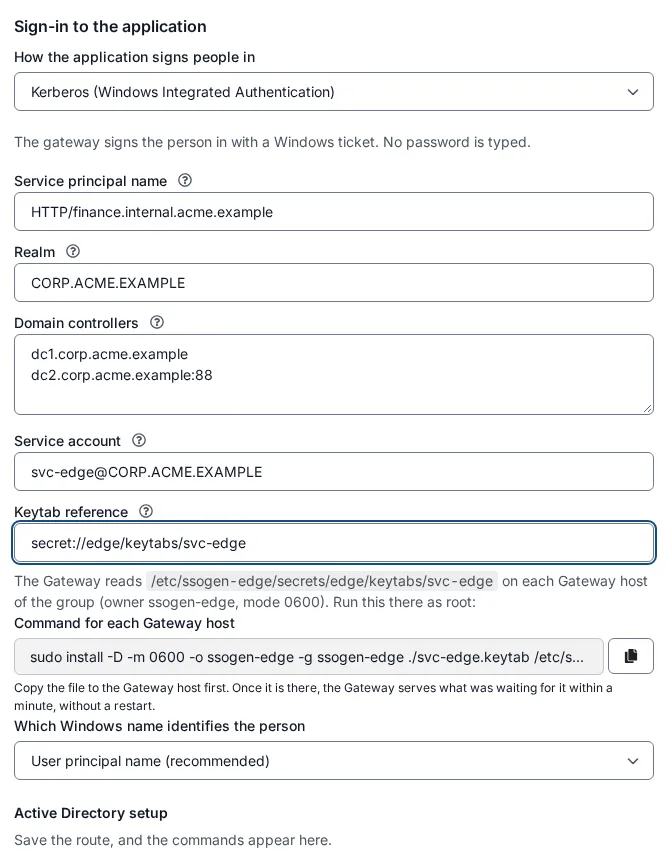
Tickets use AES only; weaker types are never used.
Select Save App Proxy route draft. Then reopen the route: the section Active Directory setup now has a button.
4.3 Run the Active Directory commands (outside SSOGEN)
Section titled “4.3 Run the Active Directory commands (outside SSOGEN)”Under Active Directory setup the screen says “A domain administrator runs these once. They are generated from the saved route.” Until the route is saved it says “Save the route, and the commands appear here.” Select Show the commands. Four copy boxes appear:
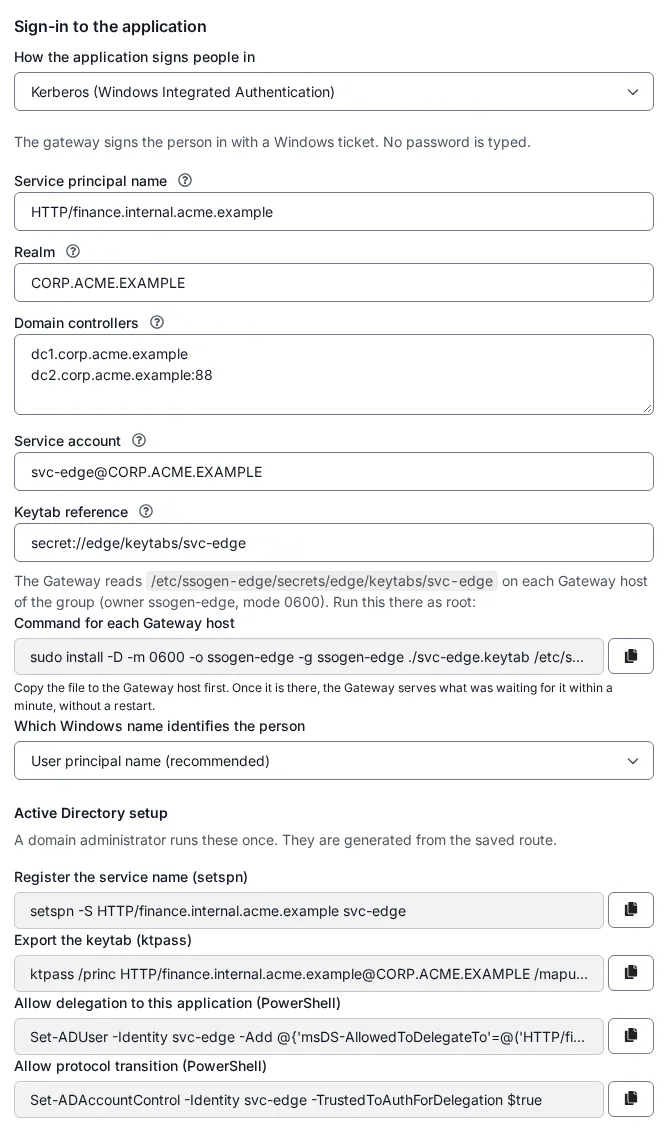
| Copy box | What it does | Example it produces for Acme |
|---|---|---|
| Register the service name (setspn) | Registers the App Proxy’s public host name as a service name on the service account. | setspn -S HTTP/finance.internal.acme.example svc-edge |
| Export the keytab (ktpass) | Writes the keytab file. The password is *, so the tool asks you for it; no secret is shown in the console. |
ktpass /princ HTTP/finance.internal.acme.example@CORP.ACME.EXAMPLE /mapuser svc-edge /crypto AES256-SHA1 /ptype KRB5_NT_PRINCIPAL /pass * /out svc-edge.keytab |
| Allow delegation to this application (PowerShell) | Lets the service account delegate to the application’s service name, in full and in short form. | Set-ADUser -Identity svc-edge -Add @{'msDS-AllowedToDelegateTo'=@('HTTP/finance.internal.acme.example','HTTP/finance')} |
| Allow protocol transition (PowerShell) | Lets the service account get a ticket for a person who did not sign in with Kerberos. | Set-ADAccountControl -Identity svc-edge -TrustedToAuthForDelegation $true |
The names in these commands come from your saved route. In the first two, the host name is the App Proxy’s own public hostname (the first hostname of the route); in the delegation command it is the application’s service name from the route. The commands never turn on unconstrained delegation. In the example above both names happen to be the same host; in your setup they usually differ.
A domain administrator runs them on a domain controller or a machine with the Active Directory tools, in the order shown. If the console cannot produce them it says “The setup commands could not be generated. Save the route with valid Kerberos settings first.”
4.4 Put the keytab on the gateway
Section titled “4.4 Put the keytab on the gateway”Copy svc-edge.keytab to the gateway, into the folder the gateway reads secrets from (the --secret-directory option, see Install and enroll an SSOGEN Gateway). The reference secret://edge/keytabs/svc-edge is the file edge/keytabs/svc-edge under that folder; with the folder /etc/ssogen-edge/secrets that is:
sudo install -d -m 0700 -o ssogen-edge -g ssogen-edge /etc/ssogen-edge/secrets/edge/keytabssudo install -m 0600 -o ssogen-edge -g ssogen-edge svc-edge.keytab /etc/ssogen-edge/secrets/edge/keytabs/svc-edgeshred -u svc-edge.keytabThe keytab must not be readable by group or others and must contain an AES key (a key with only the older RC4 type is refused). If the file is missing or unsafe, the gateways screen reports the route as not in effect (see Troubleshooting).
4.5 The “gateway too old” notice
Section titled “4.5 The “gateway too old” notice”If an SSOGEN Gateway in the group is too old (or none is running), the route form and the application’s Sign-in to the application tab show: “This sign-in method needs a newer gateway on every gateway in the group, so the route is held back and people cannot reach the application through this group. The gateways in this group report …” (or “No gateway in this group is running.”). The route’s Status shows Held back. Upgrade the gateways. If the route is simply not published yet, the notice reads “This route is not in the published bundle yet. Save the routes to publish it.”
4.6 How to check it worked
Section titled “4.6 How to check it worked”- Open the application from My Apps as a test employee whose account comes from Active Directory. The application opens, signed in as that employee’s Windows account.
- In the application’s tab Sign-in to the application, Last sign-in shows Signed in.
5. When a sign-in fails
Section titled “5. When a sign-in fails”The employee sees a short page with a code and a correlation id. The same outcome appears in Last sign-in on the application’s tab Sign-in to the application, in these words. The detailed reason is in the audit log and never on the employee’s page.
| Code | Employee sees | Last sign-in shows | What to check |
|---|---|---|---|
SSO-KRB-403-PRINCIPAL |
“Sign-in to this application is not available for your account.” | No Windows account matched the person | The person has no directory-provided Windows name (UPN or sAMAccountName), or it is not valid. |
SSO-KRB-403-DELEGATION |
same | Windows refused the delegation | The setspn and PowerShell commands were not run, or the application’s service name differs from the route’s. |
SSO-KRB-502-KDC |
“The sign-in service for this application did not respond.” | The domain controller did not respond | The domain controllers in the route, port 88 reachability, and clock difference between the gateway and the domain. |
SSO-KRB-500-KEYTAB |
“Sign-in to this application is not configured correctly.” | The keytab is missing or wrong | The keytab file’s place and permissions, that it holds an AES key and matches the service account and name. |
SSO-KRB-503-UNAVAILABLE |
“This application is temporarily unavailable.” | The gateway could not reach the sign-in service | Also what an Enterprise Linux 8 or Debian gateway answers (Kerberos is not supported there), or SSOGEN was not reachable. |
SSO-FORM-502-REJECTED |
“SSOGEN could not sign you in to this application. Your administrator has been told.” | The application rejected the shared account | The shared account’s username and password in the application. |
SSO-FORM-502-UNSUPPORTED |
same | The login page does not match the settings | The paths, field names and hidden fields against the real login page; multi-step or CAPTCHA forms. |
SSO-FORM-503-PAUSED |
“Sign-in to this application is paused. Try again in a few minutes.” | Paused after repeated failures | Repeated failed fills. Fix the cause, then wait a few minutes. Correcting the password does not lift the pause by itself. |
SSO-FORM-503-BUSY |
“Many people are signing in to this application right now. Try again in a moment.” | Failed | A fill for that session is already running. Try again. |
SSO-FORM-503-UNAVAILABLE |
“This application is temporarily unavailable.” | Failed | The SSOGEN was unreachable or too busy to release the account. |
SSO-FORM-403-NOACCOUNT |
“Sign-in to this application is not configured.” | No shared account is set | Set the shared account (step 3.3). |
SSO-FORM-403-NOPERSONCREDENTIAL |
“SSOGEN does not have your sign-in for this application yet. Add it under App passwords in your account.” | Failed | The person has no saved password. See Per-person form fill. |
SSO-FORM-403-PERSON-UPDATE |
“Your saved password for this application needs updating. Update it under App passwords in your account.” | Failed | The application rejected the saved password. Same guide. |
If Last sign-in says No sign-ins yet, the gateway has not reported one: this is not an error.
Related guides
Section titled “Related guides”- Publish an internal app through the App Proxy
- Troubleshooting gateways