Application access rules for My Apps and every app
Application access rules are the single list of rules that decides which applications people may reach after they sign in to SSOGEN, for the whole organization. Policies decide how somebody signs in. Access rules decide what they may reach once they have signed in, for every application and for My Apps. “The first rule that matches decides.” “Anything no rule allows is denied” when the default is Deny.
The editor is the same one used for a policy’s own rules; the conditions and outcomes are explained in Rules and conditions. This guide covers what is specific to the access rules.
What access rules change
Section titled “What access rules change”- Every launch. Opening an application from My Apps, signing in to it with SAML or OpenID Connect, or going through the App Proxy all ask the same question, and the access rules are part of it. A Deny refuses the person whatever the application’s policy says.
- What My Apps shows. Once you have saved access rules, My Apps lists a person only the applications that the rules would let them open. Applications the rules would refuse are not shown at all.
- Not the Admin Console. Access rules never govern the console itself. The console uses its own policy (see Defaults). That is why a rule that denies everybody does not shut you out of the console.
Open the access rules editor
Section titled “Open the access rules editor”Open SSO policies > Defaults and scroll to the section Access rules. Its help reads: “Who may reach what, for all applications. The first matching rule wins.” and “Anything no rule allows is denied.”
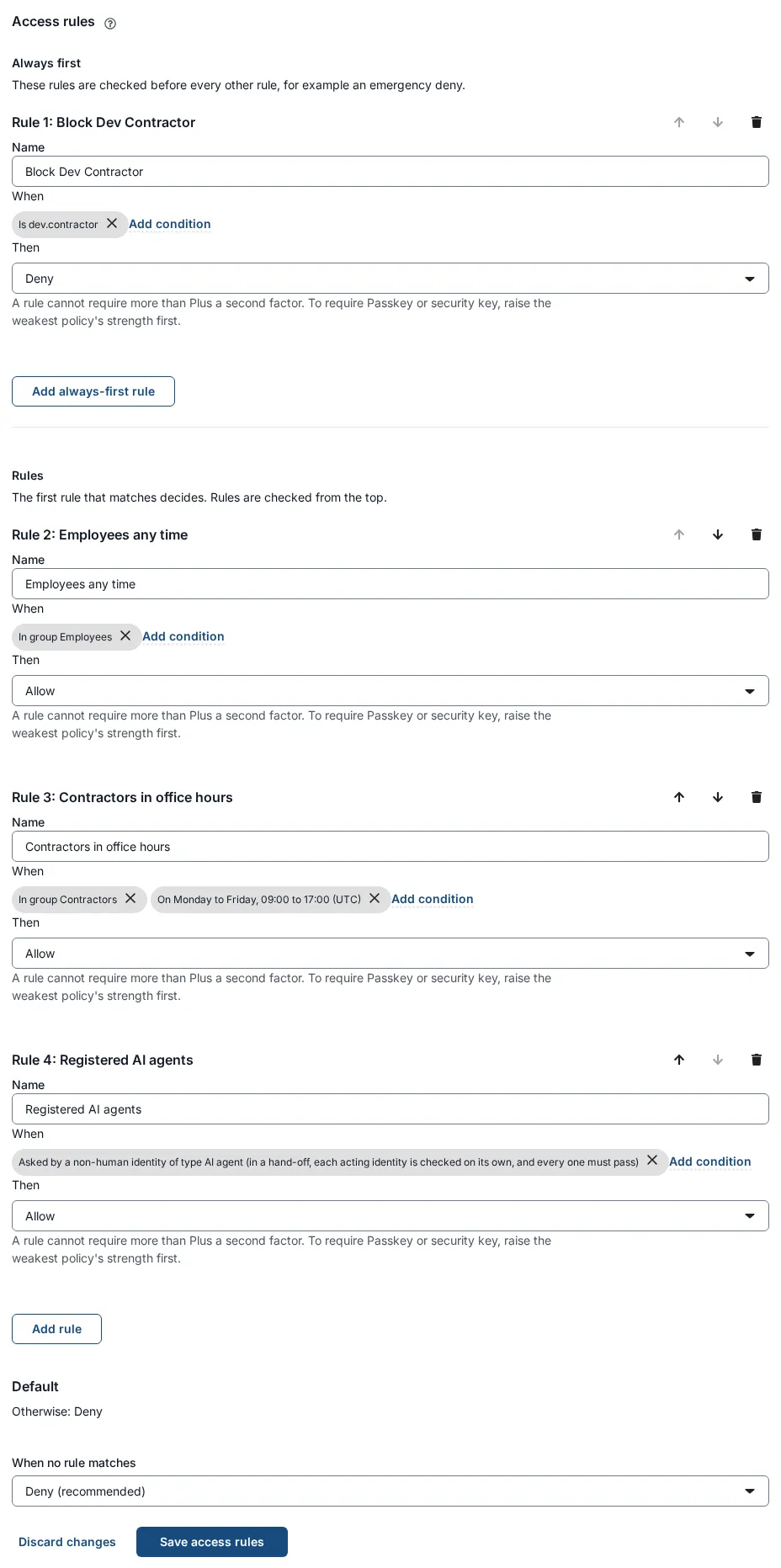
From top to bottom:
- Always first: “These rules are checked before every other rule, for example an emergency deny.” With Add always-first rule.
- Rules: “The first rule that matches decides. Rules are checked from the top.” With Add rule. The cards are described in Rules and conditions.
- Default: the card Otherwise: Deny (or Otherwise: Allow).
- When no rule matches: the list that sets the default, with Deny (recommended) and Allow everyone this policy does not name.
- Save access rules and Discard changes. Both are disabled until you change something.
Rules in Always first cannot be moved below the others, and others cannot be moved into it.
If you see Older access rules are still in force, an earlier, older-format rule could not be shown as a list without changing what it decides (the warning says why). It is still enforced exactly as before. Saving a new list here replaces it.
If the list was converted from an older format, an information box This list was translated from an older policy lists what changed, for example “The rule ‘X’ was moved above the allow rules, because denies were always decided first.”
Build a first set of application access rules (Acme Corp)
Section titled “Build a first set of application access rules (Acme Corp)”Goal: employees may reach everything; contractors only in office hours; everybody else nothing; one person blocked outright.
- Under Always first, select Add always-first rule. Name:
Block Drew Carter. Add condition: Person, is one of, Drew Carter; Add this condition. Then: Deny. - Under Rules, select Add rule. Name:
Employees any time. Add condition: Group, is in any of,Employees. Then: Allow. - Select Add rule again. Name:
Contractors in office hours. Conditions: Group, is in any of,Contractors; Days and hours: Monday to Friday, From08:00, Until18:00, Time zoneEurope/London. Then: Allow. - When no rule matches: Deny (recommended).
- Select Save access rules.
Because this is the first save, and because the list admits some people, SSOGEN may ask you to confirm (next section). On success you see “Access rules saved.”
Confirm the organization name before saving
Section titled “Confirm the organization name before saving”Two kinds of change are dangerous enough that SSOGEN asks you to type the organization’s name, which is the web address you use for the console (for example sso.acme.example). The field is labelled Type sso.acme.example to confirm, with an explanation:
- Opening the access rules to everyone. “Opening the default lets every signed-in person reach every application no rule denies.” This applies when the list would let everyone through, either because When no rule matches is Allow everyone this policy does not name, or because a rule that matches everybody (no conditions, or only conditions every person meets) has the outcome Allow, and the list in force did not do that before. It also applies the first time a list is saved if it opens to everyone.
- A change that would lock you out of every application. If after your change you could not open any application you can open now, the field explains “This change leaves you unable to open any application you can open now.” and the save asks for the name. The help reads: “This blocks every application you can open now. The console stays open. To save anyway, type the organization’s name.” Type it and select Save access rules again.
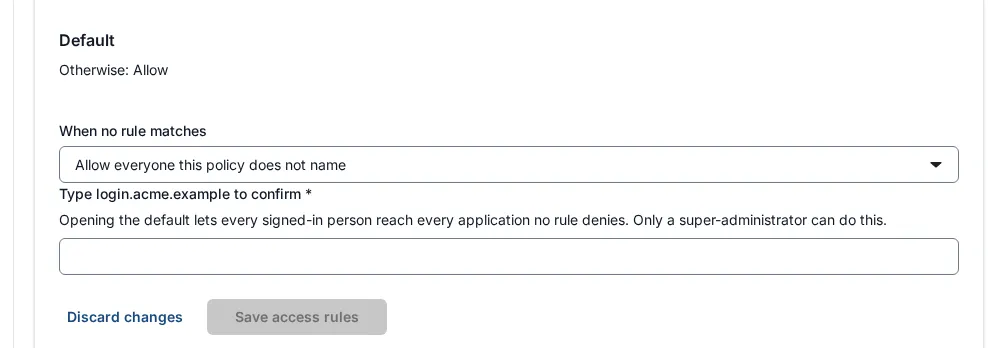
“Only a super-administrator can do this.” Typing is not case sensitive. Save access rules stays disabled until the name matches. Any edit to the list starts the question again.
A deliberate emergency stop is an Always first rule with no conditions and the outcome Deny: every launch is refused, and the console stays reachable. Remove that rule when the emergency is over.
Change access rules safely
Section titled “Change access rules safely”- Try before you save. Monitor a new rules version lets a new list run beside the one in force, on real sign-ins, for up to 30 days, and tells you who would be refused or newly admitted, before you promote it.
- Check one person. After saving, use What if: the table shows the rows of the Access rules layer first, with the deciding row marked Decided.
- Never reached. A rule marked Never reached: rule 3 is covered by rule 2 can be deleted or reordered.
- A rule names something that is gone. If a group or network used in the list no longer exists, SSOGEN refuses every launch the list governs rather than guess. The editor shows “a group that no longer exists”. Remove or replace the condition and save.
Messages you may see
Section titled “Messages you may see”| Message | What it means |
|---|---|
| Access rules saved. | Done. |
| Someone else saved these rules. They were reloaded; review and repeat your change. | Another administrator saved first. |
| Type the organization’s name to confirm opening the default to everyone. Nothing was saved. | See above. |
| This change would lock you out of the console. Nothing was saved. | The change would lock the acting administrator out of the console. |
| The rules were not saved. (followed by the reasons, as in Rules and conditions) | A rule is not valid. |
| The stored rules cannot be read; every sign-in they govern is denied until a list is saved. | Save a fresh list. |
Check that it worked
Section titled “Check that it worked”- Reload SSO policies > Defaults: the rules are as saved; Save access rules is disabled again.
- What if for Maria Lopez (in Employees) and “Acme Payroll”: “Would be allowed, because access rule 1 ‘Employees any time’ matched”, or the policy’s step-up if her sign-in is weaker.
- What if for a contractor, with Date and time (UTC) on a Saturday: the headline is “Would be denied, because no rule matched and the default applies”.
- Open My Apps as a person the rules refuse: the applications they cannot open are not shown.