SSO App Packs: install signed pack definitions
An SSOGEN App Pack is a signed archive of plain data that describes how to connect one kind of application for single sign-on. You install a pack once, then apply it to applications. This guide explains the pack format, how SSOGEN verifies a pack before it installs it, the console screens, and what an installed pack does to an application.
What a pack is
Section titled “What a pack is”A pack is a small archive of plain data. It contains no program code: only a description of how to connect an application (what kind of application it is, which ways of connecting it supports, what versions it was written for). It has a name and a version.
Why packs are signed
Section titled “Why packs are signed”Without a signature, anyone who could hand an administrator a file could change how an application is connected. So SSOGEN checks, before it reads anything inside the archive:
- The archive is safe to open: no unsafe file paths, no duplicate files, nothing oversized or suspiciously compressed.
- The signature is a valid Ed25519 signature by one of your trusted publisher keys. Other algorithms are refused.
- Every file in the archive matches the checksum that was signed, and no file is present that was not signed.
Only then are the pack’s name, version and publisher read, and they come from inside the signed content. Nothing you type in the console can change them. The publisher the pack names must be the publisher its signing key is trusted for.
SSOGEN then runs the pack’s checks: no program files, nothing that refers to another website, and the security statements below hold exactly.
What a pack describes
Section titled “What a pack describes”For information, a pack’s description names, among other things:
| Field | Meaning |
|---|---|
metadata.name |
The pack’s name: lowercase letters, digits, dots, underscores and hyphens, starting with a letter or digit, up to 128 characters. This is what you type into App Pack name. |
metadata.version |
The version, up to 64 characters. A name and version can be installed only once. |
metadata.publisher |
Who made the pack, up to 128 characters. It must match the publisher name of the key that signed it. |
compatibility |
The lowest and highest SSOGEN version it is written for, and the application vendor, product and versions it is for. |
modes |
How the application is protected: any of web-agent, gateway and private-access. |
security |
Statements that must hold exactly and cannot be loosened: direct access to the application behind SSOGEN must be blocked, the signed-in person may be taken only from SSOGEN’s web server or gateway, and a minimum TLS version is required. |
capabilities |
Which optional behaviors the application supports: deep links, logout, synthetic login, route policies. |
What installing a pack does
Section titled “What installing a pack does”- It checks the signature against your trusted publisher keys, checks the pack, and records its name, version, publisher, a checksum of the archive and which key signed it.
- If you chose Apply to application, it applies the pack to that application in the same step:
- the application is bound to this name and version;
- its access mode becomes the one the pack is written for: if the pack lists the application’s current access mode (or lists none), the mode is kept; if the pack lists exactly one other mode, the application takes it; if the pack lists several and none is the application’s, the install is refused and you set the access mode first. Leaving App Proxy clears the application’s gateway route. The launch address is kept.
- When someone launches an application bound to a pack, the launch is refused unless that name and version is installed and active.
Everything in an install happens together and is recorded in the audit log. If any part is refused, nothing is installed and the application is unchanged.
The screens
Section titled “The screens”Open the App Packs screen
Section titled “Open the App Packs screen”- Open Applications and any of its lists (Web Agent, SAML, OpenID Connect, App Proxy).
- At the top right, select App Packs.
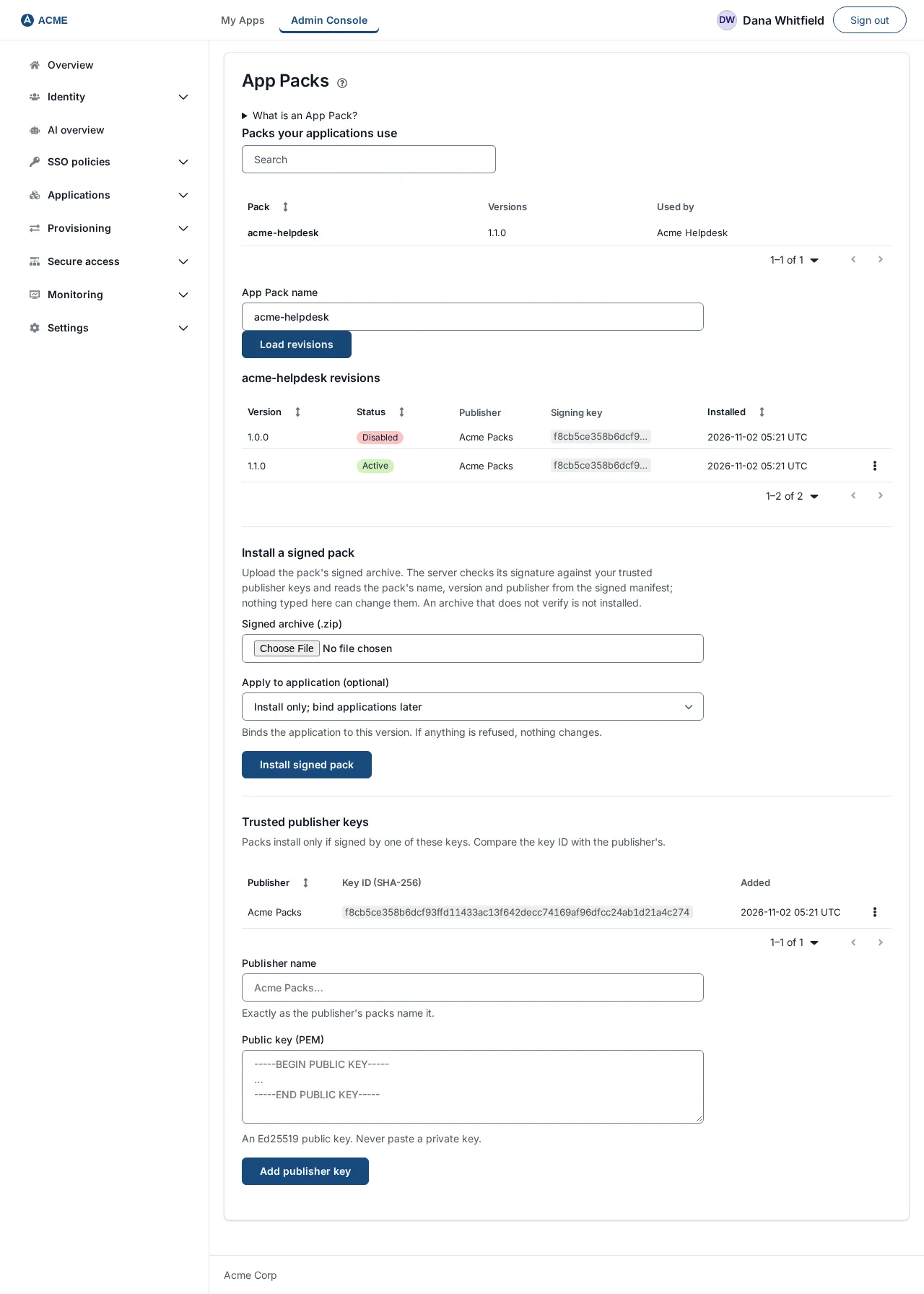
The screen is titled App Packs and says “An App Pack is a signed, versioned description of how to connect one kind of application. Applications created from a pack show its name and version.” It has:
- an expandable note What is an App Pack?;
- a table Packs your applications use, with columns Pack, Versions and Used by (empty: “No application uses an App Pack yet.”);
- a box App Pack name with the button Load revisions;
- the form Install a signed pack;
- the section Trusted publisher keys, with its list and the form to add a key.
Looking at the screen needs permission to read the audit log. Every change on it (adding or removing a key, installing, disabling) needs the super administrator role.
Trust a publisher’s key
Section titled “Trust a publisher’s key”Do this once per publisher, before installing that publisher’s packs.
- Get the publisher’s public key by a channel you trust. It is an Ed25519 key and looks like a block that begins
-----BEGIN PUBLIC KEY-----. - Under Trusted publisher keys, type the publisher’s name in Publisher name exactly as its packs name it (for this example
Acme Packs; an example name only). - Paste the key into Public key (PEM).
- Select Add publisher key. The page says “Packs signed by Acme Packs with key 3f2a9c41d07be65a… can now be installed.” and the key appears in the list with its full Key ID (SHA-256). Compare that ID with the one the publisher gives you.
Never paste a private key. If you do, SSOGEN refuses it, does not store or show it, and clears the box.
The list can also show a key with the publisher Any (server configuration) and Server configuration under Added: a key your deployment’s configuration provides. It is not removed here.
To stop trusting a key, open its row’s actions menu and select Remove key, then confirm. Packs signed by that key can no longer be installed. Versions already installed stay installed; disable them separately if the publisher withdrew them.
| Message | What it means |
|---|---|
| That is a private key. Paste the publisher’s public key only (—–BEGIN PUBLIC KEY—–). | A private key was pasted. It was not stored. |
| That public key is not an Ed25519 key. App Pack publishers sign with Ed25519. | Another kind of key, for example RSA. |
| Not a readable public key. Paste the PEM block (—–BEGIN PUBLIC KEY—– … —–END PUBLIC KEY—–). | The text is not a public key. |
| Enter the publisher’s name exactly as its packs name it, without spaces at either end. | The publisher name is empty or not valid. |
| That key is already trusted. | The key is in the list already. |
| This server already trusts 16 publisher keys. Remove one you no longer need first. | 16 is the most. |
| Unable to load the trusted publisher keys. | The list could not be read; select Retry. |
Install a signed pack
Section titled “Install a signed pack”-
Under Install a signed pack the screen says: “Upload the pack’s signed archive. The server checks its signature against your trusted publisher keys and reads the pack’s name, version and publisher from the signed manifest; nothing typed here can change them. An archive that does not verify is not installed.”
-
Type the pack’s name in App Pack name (for this example
finance-headers; an example name only, not a real pack). -
Under Signed archive (.zip) choose the archive (no larger than 7 MB).
-
Optionally, under Apply to application (optional), choose the application this pack is for. Leave Install only; bind applications later to install without changing any application.
-
Select Install signed pack.
-
If everything verifies, the page says “Installed finance-headers 1.0.0.” and, when you chose an application, “Acme Expenses now uses it, with access mode Web Agent.” It then lists the installed versions, titled “finance-headers revisions”, with the columns Version, Status (Active or Disabled), Publisher, Signing key and Installed.
You can also open a pack by selecting a row in Packs your applications use, or by typing a name and selecting Load revisions.
If the install is refused you see one of these, and nothing was installed or changed:
| Message | What it means |
|---|---|
| Enter a valid App Pack name before publishing. / Enter a valid App Pack name (lowercase letters, numbers, dots, underscores, or hyphens). | The name box is empty or not valid. |
| Choose a signed App Pack archive (.zip). | No file chosen. |
| That archive is larger than an App Pack can be. | Over 7 MB. |
| Signature does not match any trusted key, or the contents changed. Nothing was installed. | It was signed by a key you do not trust, or the checksums or an unsigned extra file are wrong. |
| No trusted keys. Add a publisher key under Trusted publisher keys first. | See Trust a publisher’s key. |
| This pack names a different publisher from the one its signing key is trusted for. Nothing was installed. | The key belongs to another publisher. |
| The archive is a different pack from the name entered. Use the signed name. | The name in the box differs from the name inside the signed archive. |
| That version of this pack is already installed. | A name and version can be installed once; the publisher must publish a new version number. |
| That version was disabled and can never be installed again. Install a newer version. | See Disable a version. |
| The pack failed its checks (for example, program code). Nothing was installed. | The pack’s checks failed. |
| Gallery templates ship with SSOGEN and cannot be installed here. | The archive is a gallery template, not an App Pack. |
| The application chosen no longer exists. Choose another, or install without applying. | The application was deleted. |
| The application uses none of this pack’s access modes. Set its access mode, then install. | Set the mode on the application’s Sign-in / launch tab, then install again. |
| App Packs must be signed with Ed25519. | Another algorithm was named. |
| Too many App Pack changes in the last minute. Wait a minute and try again. | More than 30 changes a minute. |
| App Pack publication failed. | Any other refusal. |
| Unable to load App Pack revisions. | The list could not be read. |
Disable a version
Section titled “Disable a version”Disable a version when its publisher withdraws it, or when you no longer want it used.
- Load the pack’s revisions (select its row in Packs your applications use, or type its name and select Load revisions).
- Open the version’s actions menu and select Disable version.
- The dialog says “Apps bound to this version stop launching until bound to an active version. It cannot be reinstalled.” Select Disable version.
The page says “Disabled finance-headers 1.0.0.” and the version’s status shows Disabled. Disabling cannot be undone: to use the pack again, install a newer version and bind the applications to it.
Bind an application to a pack by hand
Section titled “Bind an application to a pack by hand”Applying a pack while installing it is the usual way. To bind an application to a version that is already installed:
- Open the application, then the Sign-in / launch tab.
- Fill in App Pack name (optional) (for example
finance-headers) and App Pack version (optional) (for example1.0.0). Both are needed. The name and version must be an installed, active version. - Select Save; the console shows Saved. If the pack is not installed or not active the save is refused.
Binding by hand does not change the application’s access mode.
The application’s page now shows the pack, and the App Packs screen lists the pack and the application under Packs your applications use.
What happens afterwards
Section titled “What happens afterwards”- The application is launchable only while its pack version stays installed and active. Otherwise its status shows “Its app pack is not active, so every launch is refused.” and Test fails the check “The app pack Acme Expenses uses is not active.”
- Apart from the binding and the access mode, the application’s sign-in and routing settings are the ones set on the application itself.
- Removing a publisher key does not change installed versions or the applications bound to them.
Applications that do not need a pack
Section titled “Applications that do not need a pack”You do not need a pack to connect an application. You can register any application directly, and you can protect an Apache-hosted application with the Web Agent (see Protect an on-premise application with the SSOGEN Web Agent). A pack only adds a signed, repeatable definition of how an application is connected.
Getting packs
Section titled “Getting packs”A pack comes from its publisher, together with the publisher’s public key. Install only packs from a publisher you trust.