Self-service password reset and account recovery
Self-service password reset lets a person who forgot their password get a one-time link by email, choose a new password and sign in again, without calling the help desk. People also lose phones. This guide shows what a person does, what SSOGEN does for each kind of account, and what an administrator does when the person cannot recover on their own. It also lists what must be set up for self-service to work.
What self-service needs
Section titled “What self-service needs”Self-service password reset sends an email, so SMTP must be set up (Settings > SMTP; see Multi-factor authentication, Part 2). The person also needs an email address SSOGEN can send sign-in codes to on their account, one that is able to receive codes. If either is missing, no message is sent, and the sign-in page cannot say so (see below).
What the person does
Section titled “What the person does”1. Ask for a reset link
Section titled “1. Ask for a reset link”- On the sign-in page, choose the provider that holds the password (Username and password or a Directory (LDAP) provider) and type the username into the username field. If you arrived through the email-first screen, the name is already filled in.
- Select Forgot password? (under the password form). If no name is typed yet, the page says “Type your username above first, then choose Forgot password.” If the link is missing, an administrator has hidden it under Settings > Branding, or pointed it at the organization’s own reset page or mailbox; see The sign-in page.
- The button is replaced by: “If that account can be reset here, a message is on its way. The link lasts fifteen minutes.”
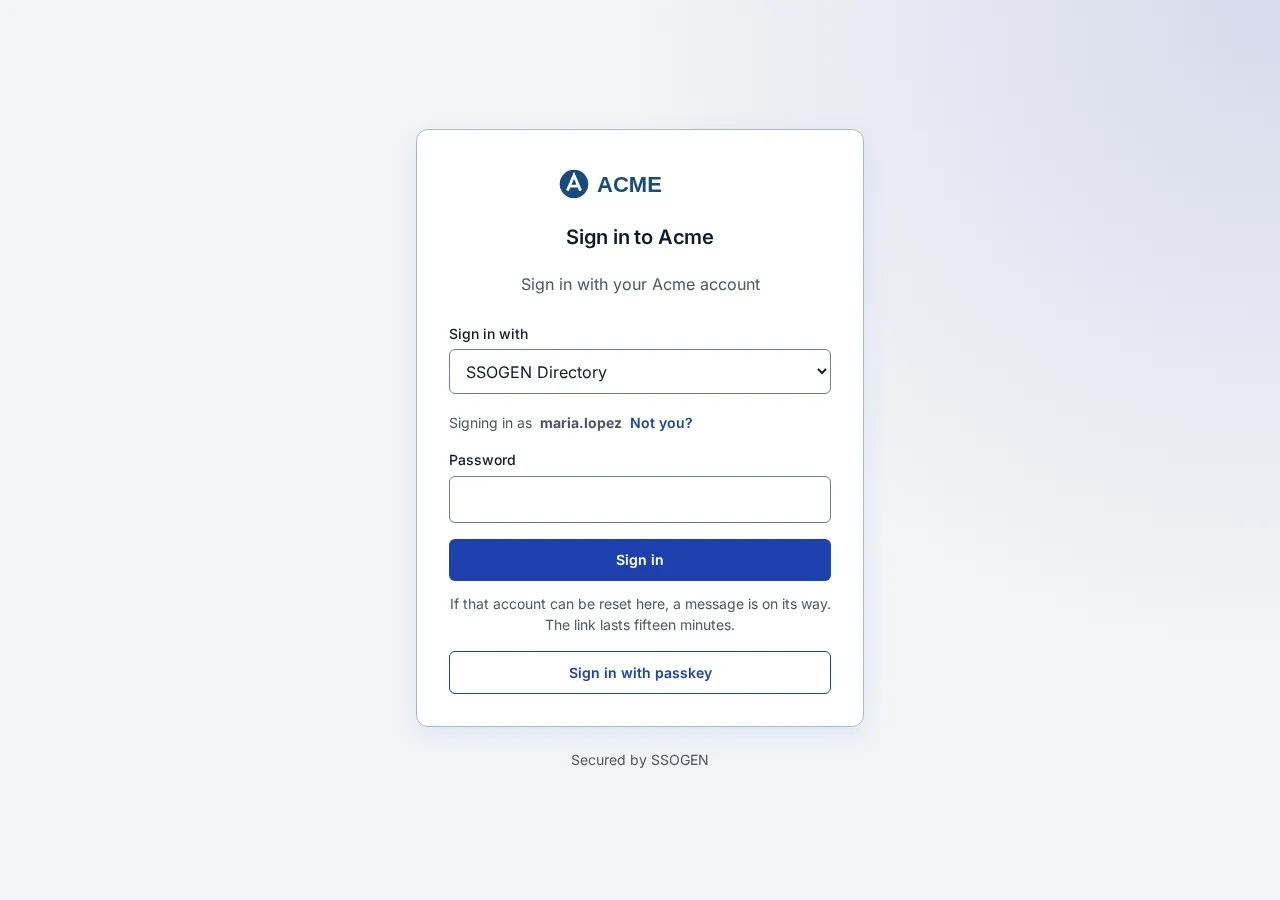
The wording is deliberately cautious. SSOGEN gives the same answer whether or not the account exists, so nobody can use this button to find out who has an account. The mail is sent only if the account exists, is active and has an email address that can receive codes.
SSOGEN allows 5 reset requests a minute per client by default, so an outsider cannot use the button to make your mail server send messages. Extra requests receive the same message and nothing is sent.
2. Open the link
Section titled “2. Open the link”The email has the subject SSOGEN password reset for your SSOGEN address and the heading Reset your password. It reads:
Someone asked to reset the password for username.
Reset password (a button that holds the link)
This link expires in 15 minutes and works once.
If it was not you, nothing has changed and you can ignore this email.
If the password is held in a company directory or at an identity provider, the email says so instead of giving a link and tells the person to reset it where it lives.
The link goes to your SSOGEN address and works once. The token sits after the #, so it is never sent over the network to a server or proxy; the sign-in page reads it and removes it from the address bar.
3. Choose a new password
Section titled “3. Choose a new password”The page is titled Choose a new password.
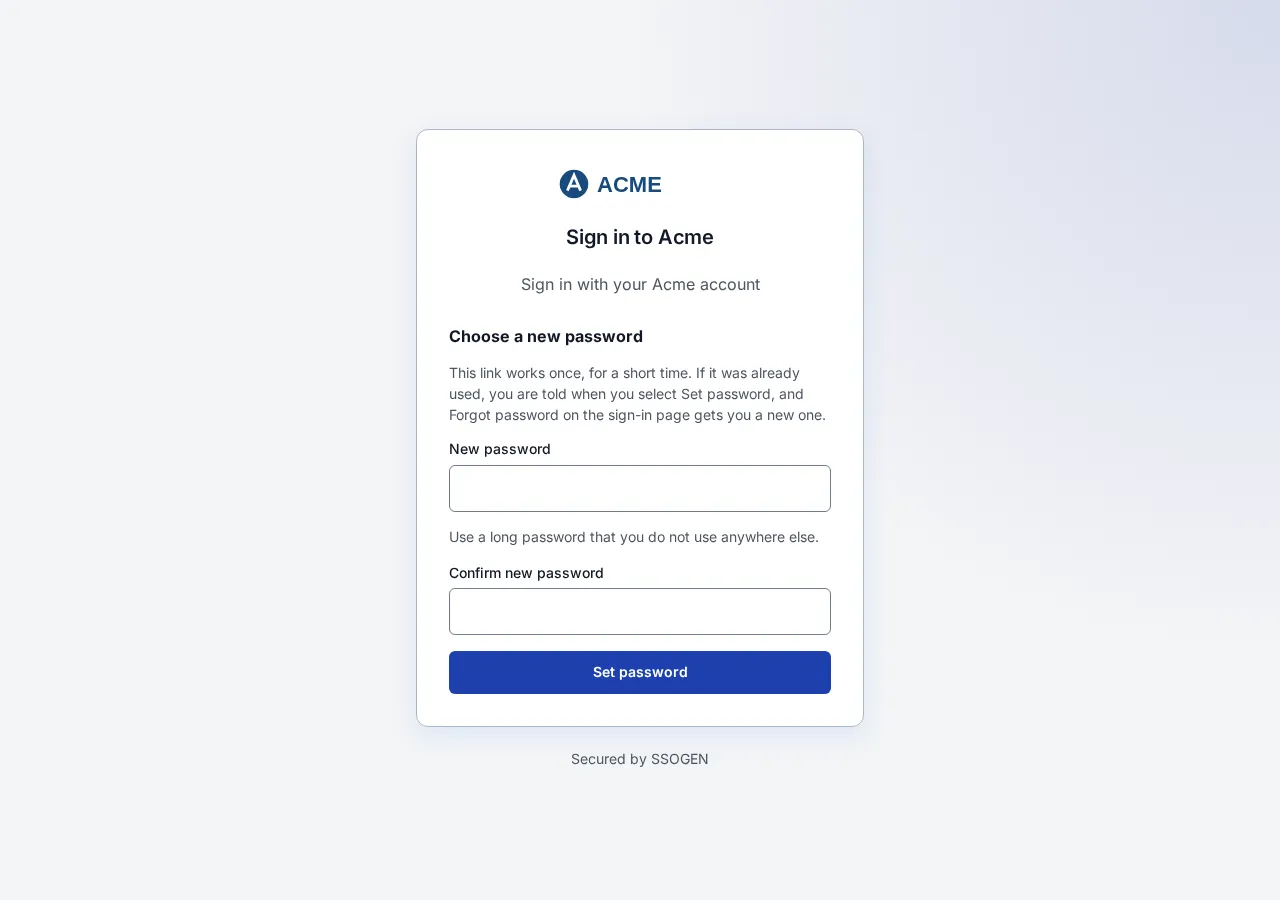
- Type the new password in New password and again in Confirm new password. The password must follow your organization’s password policy (by default at least 12 characters, and never more than 256). The form shows only the general hint “Use a long password that you do not use anywhere else.”, because the link may be for an account whose password a directory holds; if the password is refused, the message under the field says what to change, for example the minimum length.
- Select Set password.
- The page says “Your password has been changed, and every session you had has been signed out.” Select Sign in and sign in with the new password.
Messages if it does not work:
| Message | What to do |
|---|---|
| A message under New password, for example “Use at least 12 characters.” or “This password is only repeated or sequential characters. Choose a different one.” | Change the password as the message says. A refused password does not use up the link, so you can try again with the same link. |
| That link has expired or has already been used. Go back to the sign-in page and choose Forgot password to get a new one. (button Back to sign in) | Start again at step 1. The link lasts 15 minutes by default and can be used once. |
| Your directory did not accept the new password. Reset it the way you normally do. | The directory refused it (for example its own rules for length, history or age). Use a password that meets the directory’s rules, or reset it the way you normally do for your company password. |
| The password could not be changed. Try again. | A temporary failure. |
Because every session is signed out, the person is signed out everywhere, including My Apps. That is on purpose: if someone else had the old password, their sessions end too.
What SSOGEN does for each kind of account
Section titled “What SSOGEN does for each kind of account”Where the password lives decides what the reset does.
| The account is | What the person receives | What the reset does |
|---|---|---|
| Local (created in SSOGEN, or provisioned by SCIM) | The reset link | Sets a new SSOGEN password. |
| From a directory (LDAP) and SSOGEN may write to the directory | The reset link | Sets the new password in the directory, so it applies everywhere that directory is used. This needs the setting Write passwords to the directory under Settings > Security, section Directories, which is off by default, and a bind account allowed to change passwords. |
| From a directory (LDAP) and SSOGEN may not write to it (the default) | An email with the heading Reset your password and no link. It says the password is held in the organization’s directory, which SSOGEN cannot change, and to reset it the way the person normally does for their company account. | Nothing changes. |
| Federated (signs in through SAML or OpenID Connect) | An email with the heading Reset your password and no link. It says “You sign in with provider name, so your password is held there. Reset it with that provider and it will work here straight away.” | Nothing changes in SSOGEN. |
| Unknown, not active, or with no recorded source | Nothing | Nothing. The person sees the same message on the sign-in page as for any other account. |
If a person tells you “I never got the message”, check, in order:
- Is SMTP set up and does Send test email work? (Settings > SMTP)
- Does the person’s account have an email address? On Identity > Users, open the person and select Edit profile; Email for sign-in codes holds the address codes go to (“Separate from the identity email. Used once the person confirms it.”). For a directory account the address comes from the directory.
- Is the account active (not disabled, locked or archived)?
- Is the account a federated one (the message is a hint to reset at the provider)?
- Spam folder, and the sender address you set as From address.
When the person cannot recover alone
Section titled “When the person cannot recover alone”An administrator sets a password
Section titled “An administrator sets a password”For a local account, an administrator can set the password directly, for example when the person has no usable email.
- Open Identity > Users and select the person.
- Select Set password. A form titled Set password for username opens, with the note “The administrator sets the password here and tells the user separately. SSOGEN does not send it to them.”
- Type the New password and Confirm new password. Show reveals what you typed, Generate fills in a strong random password (and reveals it), Copy copies it, and a strength line says Too short, Weak, Fair or Strong. The two fields must match (“The two passwords do not match.”). It must follow the password policy; a refused password gets a message under the field that says what to change.
- Tick Require a new password at next sign-in so the person must choose their own immediately.
- Select Set password. Tell the person the password through a channel you trust (a phone call, not email).
At their next sign-in the person sees “This account needs a new password before it can sign in.” and fields for Current password, New password and Confirm new password, then Update password. Afterwards: “Password updated. Sign in with your new password.”
For a directory account the form says “Sets the password in the owning directory, so it applies everywhere that directory is used. The directory’s own policy applies and may refuse it.” The “Require a new password” option is not offered, because only the directory can demand a change.
An administrator resets a lost second step
Section titled “An administrator resets a lost second step”If a person lost their phone and has no recovery code, open the person under Identity > Users and choose Reset MFA from the actions menu. The steps and the warning are in Multi-factor authentication, Part 6. Resetting removes the paired phones, authenticator apps, passkeys and every recovery code. Make sure you are talking to the right person first.
An account is locked or disabled
Section titled “An account is locked or disabled”An administrator can Lock, Unlock, Disable user and Enable user from the same menu. A person with a locked or disabled account cannot sign in until an administrator selects Unlock or Enable user. After too many wrong passwords SSOGEN also locks a local account by itself for the time set in the password policy.
Changing a password you know
Section titled “Changing a password you know”A signed-in person who knows their password changes it in My Account > Password: “Change the password you use to sign in here.” Type the Current password and a New password that meets the password policy and select Change password. A directory or federated person changes the password where it lives.
Check that it works
Section titled “Check that it works”- Create a test local user with a mailbox you can read, for example
maria.lopez@acme.example. - In a private window, open the sign-in page, type the username and select Forgot password?.
- You see the “message is on its way” text. Open the email and follow the link within 15 minutes.
- Choose a new password, select Set password, and see the confirmation.
- Sign in with the new password. Open the same link again: it must say “That link has expired or has already been used.”
Related
Section titled “Related”- Mail settings: Multi-factor authentication, Part 2.
- Limits and the link lifetime: Security settings.
- How the sign-in page chooses what to show: The sign-in page.