Audit log retention: verify, seal and export the tamper-evident log
The audit log is SSOGEN’s record of what happened: sign-ins and refusals, changes made in the Admin Console, directory and provisioning events, and more. Every entry says when, from where, who and what, and whether it succeeded. The log is tamper evident: each event carries a fingerprint that depends on the one before it (a hash chain), so a change to an old event is detectable. Below: the page, how to prove the record is intact, and how to export and archive it.
Open it: sign in to the Admin Console, open Monitoring in the left-hand menu, then Audit. Every administrator role can read this page. Only a Super admin can archive and remove old events (section 5).
1. What the Audit page shows
Section titled “1. What the Audit page shows”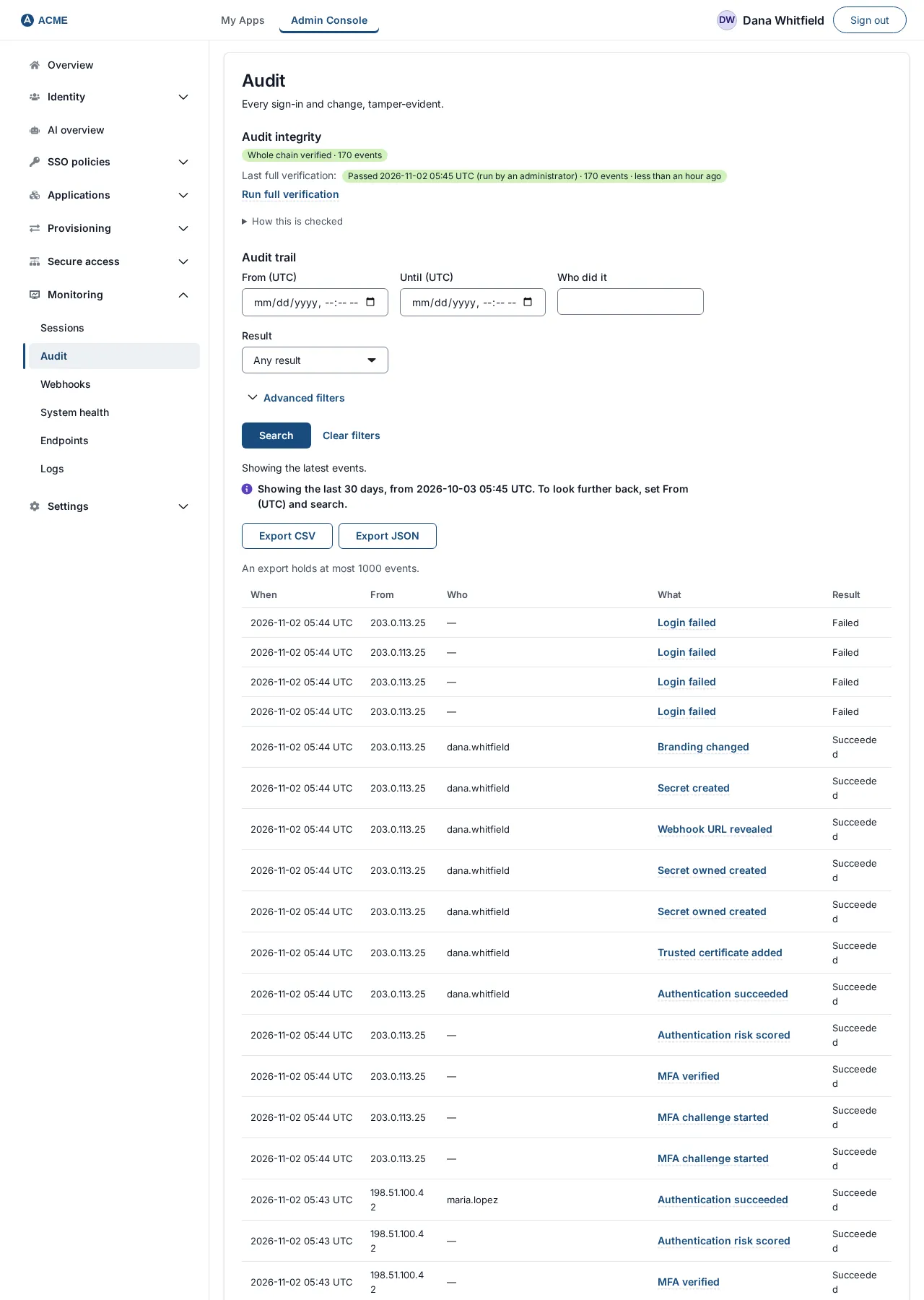
From the top, the page has these parts.
| Part | What it shows |
|---|---|
| Audit integrity | A status badge, for example Chain verified · 12,408 events (green) or Whole chain verified · 12,408 events: every event checked still matches the fingerprint of the one before it. Chain broken: … (red) means the check found a place where it does not; the reason follows the colon. Not fully verified: … Run a full verification. (amber) means the signed checkpoint or the daily full verification is missing or too old. Below it, Last full verification: shows when the last whole-chain check ran, for example Passed 2026-10-06 02:35 UTC (scheduled) · 12,408 events · 5 hours ago, and a Run full verification button. How this is checked explains the rest. |
| Audit trail | The search form and the events it finds (next section). |
| Retention and export | Daily digest with Seal UTC daily digest, Archive and remove (Super admin) and Export a period. |
The check on the page covers the events since the last checkpoint each time you open it. A full verification covers the whole chain; it runs by itself every night at 02:35 UTC, and Run full verification runs it now (a Super admin or a Security audit reader may; the console says “A super administrator or security audit reader can run a full verification now.” to other roles). “Verified” means a signed checkpoint and a passing full verification within the last 48 hours; after that the badge goes amber and the last full verification reads overdue: run a full verification. You may run five full verifications per person (ten in all) in ten minutes.
Search the audit trail and open an event
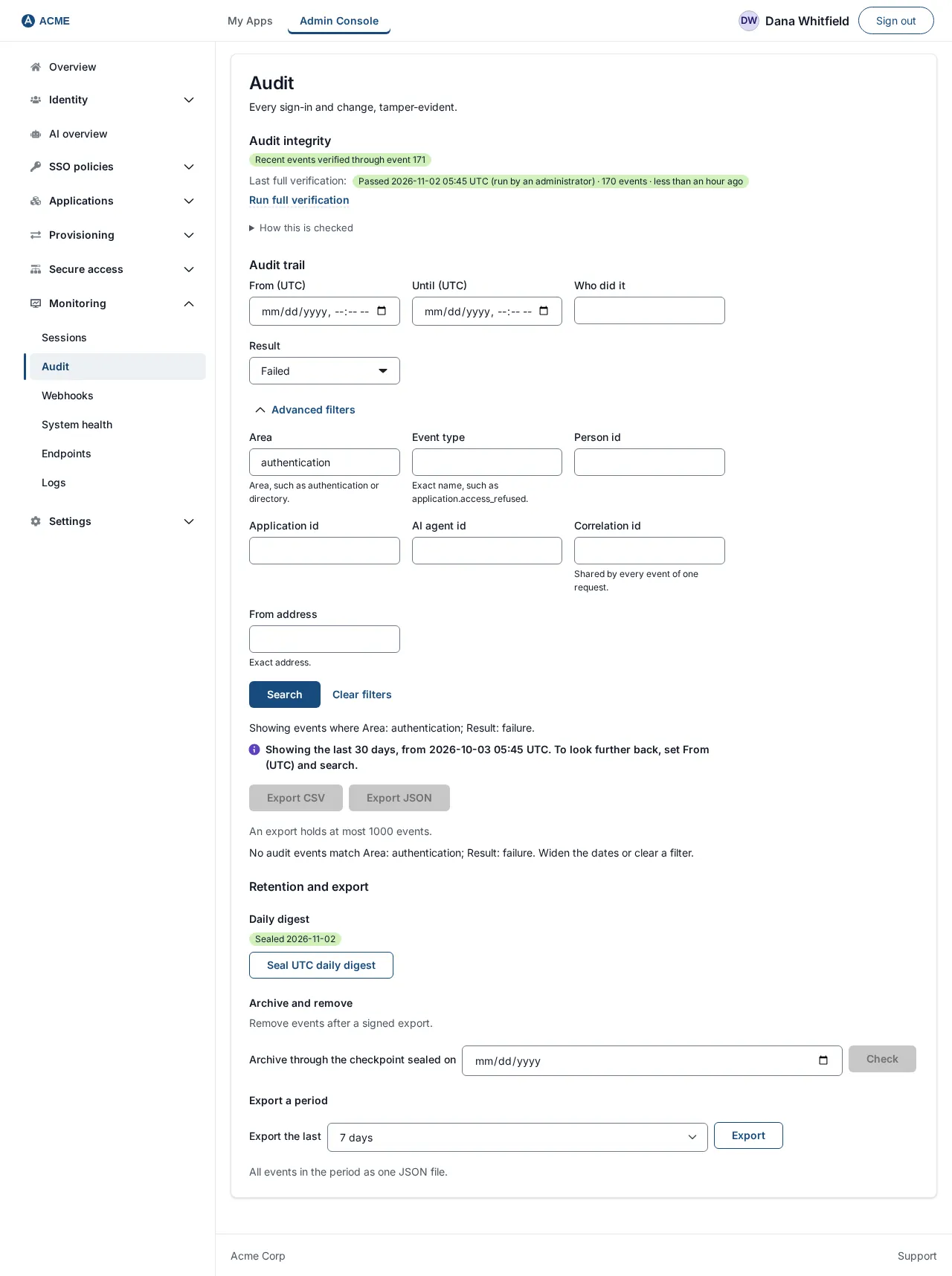
Section titled “Search the audit trail and open an event”The audit trail has a form named Search the audit trail. With nothing filled in it shows the latest events, and when you give no start date it looks back 30 days and says so: “Showing the last 30 days, from … To look further back, set From (UTC) and search.” Three boxes are always in view: From (UTC), Until (UTC) and Who did it, with a Result list. The rest are under Advanced filters. Select Search (Clear filters empties them):
| Box | What it matches |
|---|---|
| From (UTC), Until (UTC) | The period. From is inclusive, until is exclusive. Times on this screen are UTC. |
| Result | Any result, Succeeded, Failed or Denied. |
| Who did it | The administrator or person who did it. Part of a name is enough. |
| Area | The part of the product, such as authentication or directory. |
| Event type | One event, exactly, such as application.access_refused. |
| Person id, Application id, AI agent id | Events that name that person, application or AI agent. |
| Correlation id | Every event from one request shares one. |
| From address | The address the action came from, exactly. |
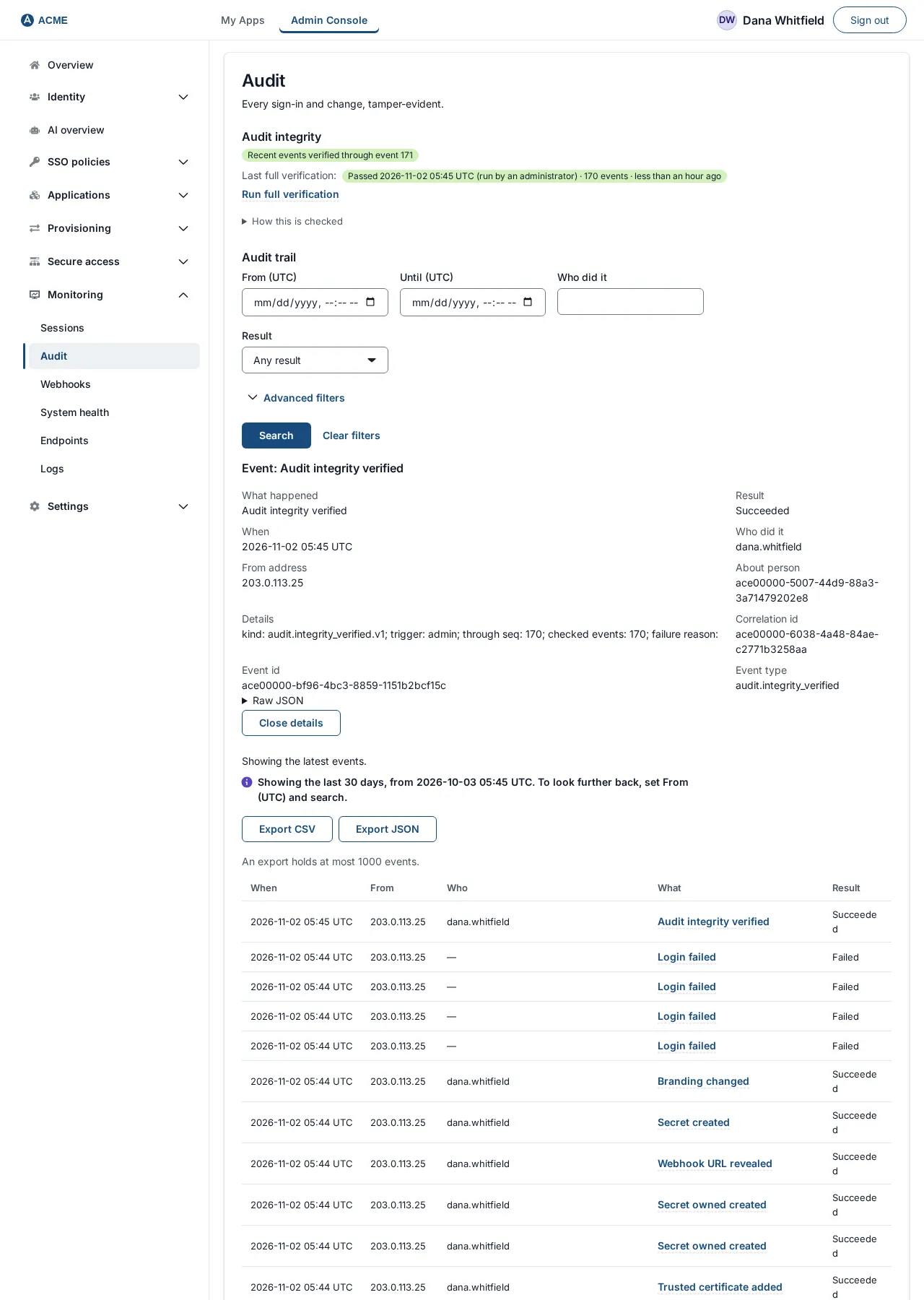
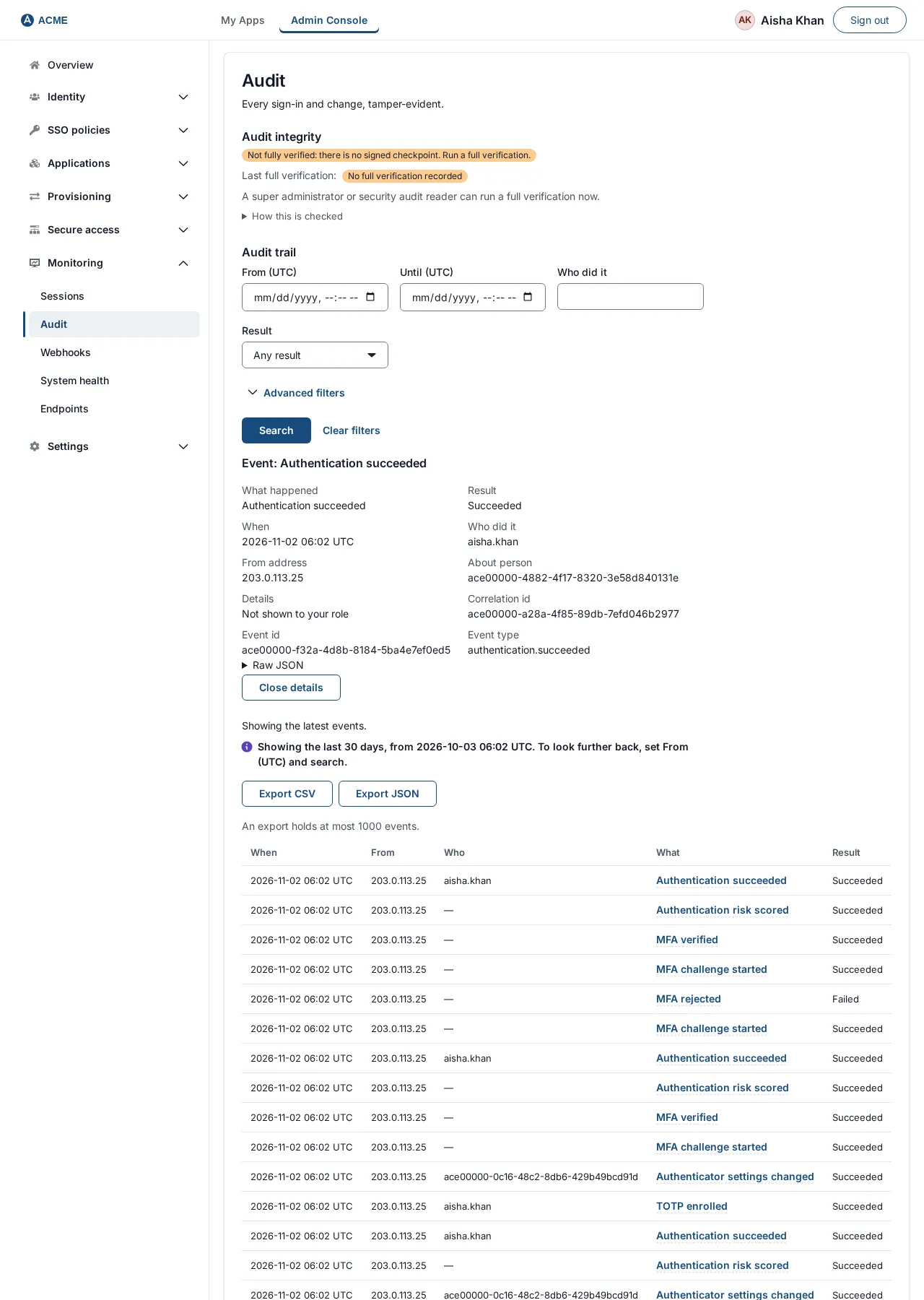
The results, 50 at a time with Load more, show When, From, Who, What and Result. A From that is a dash means no address was recorded; Who is a dash for an event with no person, such as a scheduled job. The What column writes the event as words, for example “Login failed”; product acronyms keep capitals (SAML, OIDC, LDAP, MFA, AI). Result reads success, failure or denied. Select an event’s name in What to open it. The page Event: … lists what happened, the result, when, who did it, the address, the person it is about, the Details, the correlation id, the event id and the event type, with a Raw JSON section and a Close details button. Export CSV and Export JSON download what the current filters match, at most 1,000 events (the newest, when more match; narrow the dates to export more).
2. Verify the audit log integrity
Section titled “2. Verify the audit log integrity”The log is a chain: every event carries a fingerprint that depends on the event before it. Changing or removing an old event would break the chain at that point, and the integrity check finds it.
- Open Monitoring, then Audit.
- Read the badge under Audit integrity. The check of recent events runs every time the page opens.
- Chain verified or Whole chain verified, with an event count, is the healthy answer. For the whole chain, read Last full verification: and select Run full verification if it is overdue. While it runs the button reads “Verifying the whole audit trail…”; if one is already running you see “A full verification is already running. Its result appears here when it finishes.”
If the badge says Chain broken: …, treat it as a security finding, not a configuration problem. Keep the page and the reason text, do not archive anything, restore from a backup if you need to compare, and involve your security team. See also Backups and upgrades.
3. The daily checkpoint (digest)
Section titled “3. The daily checkpoint (digest)”Every night at 00:05 UTC SSOGEN seals the day’s checkpoint: a signed summary of the log up to that moment. A checkpoint lets you prove, later, that nothing before it changed, and it is what makes archiving provable.
- Daily digest under Retention and export shows the state: Sealed 2026-10-05 (green), Not sealed 2026-10-06: the current day is sealed after it ends (UTC) (normal, not a fault), Not sealed with an earlier date (neutral) or Digest 2026-10-05 does not verify (red).
- To seal now, select Seal UTC daily digest. Only today’s date (UTC) can be sealed. If today is already sealed, or the digest key is missing, the page shows Digest already sealed or unavailable for UTC today. If the seal fails for another reason it shows Digest seal failed.
4. Export the audit log for an auditor
Section titled “4. Export the audit log for an auditor”- Under Retention and export, Export a period, open the Export the last menu and choose 24 hours, 7 days, 30 days, 90 days or a year.
- Select Export. Your browser downloads a file named like
ssogen-audit-7d.json.
The page says “All events in the period as one JSON file.” The file is JSON with these top-level fields: from and to (the period), count, truncated and items. Each item has event_id, event_type, result, created_at, user_id, correlation_id, actor_username and client_ip.
5. Archive and remove old events (Super admin)
Section titled “5. Archive and remove old events (Super admin)”Because the log is a chain, an event cannot simply be deleted: removing one would make every later event unverifiable. SSOGEN instead lets you export a segment and then cut the chain at a signed checkpoint, so the removal is itself provable. Nothing is removed until you have downloaded the archive.
Only a Super admin can do this; any other refusal, including another role trying, reads The audit archive refused the request. A manual archive can also be refused until a passing full verification is recorded: run one first (section 2).
- Open Monitoring, then Audit, and find Archive and remove.
- Under Retention and export, Archive and remove (“Remove events after a signed export.”), in Archive through the checkpoint sealed on, choose a date. The date must be one on which a checkpoint was sealed. Example: 2026-07-31.
- Select Check. The page shows how much would go: for example “9310 events, sequences 1 to 9310.” with two buttons.
- Select Download archive. Your browser saves
ssogen-audit-archive-2026-07-31.ndjson. Keep this file safely; it is your only copy of those events once they are removed. - After the download, Remove the archived events becomes available. (Until then the page says Download the archive to enable removal.) Select it.
- The page confirms: “9310 events archived. Verification of this trail now begins at sequence 9311.” From now on the integrity check starts at that point.
What can go wrong, and the message you will see:
| Message | What it means and what to do |
|---|---|
| No signed checkpoint was sealed on that date. Choose a date that has one; checkpoints are sealed nightly. | Pick a date with a sealed checkpoint. |
| Everything up to that checkpoint has already been archived. | Nothing to do for that date. |
| The download does not match the server’s events. Download it again before removing anything. | Select Download archive again, then Remove the archived events. |
| That segment does not verify, so it cannot be archived. Check Audit integrity: this is a finding, not a configuration problem. | See section 2. |
| No audit digest key is configured. Set SSOGEN_AUDIT_DIGEST_KEY before archiving. | The person who runs SSOGEN must set the digest key. |
| The checkpoint for that date has no valid signature, so it cannot be a boundary. | Choose another date; involve your security team if every date fails. |
| Choose a date. | The date field was empty. |
6. Automatic retention (Super admin)
Section titled “6. Automatic retention (Super admin)”Besides this manual archive, SSOGEN can keep the audit trail at a fixed age by itself. Once a day, at 03:30 UTC, it saves the events older than your setting to files on the server, reads each file back and checks it, and only then removes those events from the database. A new installation starts with this on and keeps 400 days. An installation upgraded from an earlier version keeps every event until a Super admin turns it on.
There is no screen for the setting yet: a Super admin in admin mode sets it through the administration API, PUT /admin/api/audit/retention with {"enabled": true, "days": 400} (90 to 2,555 days; 400 days, about 13 months, is recommended). GET /admin/api/audit/retention shows the setting, what waits to take effect, the archive folder and whether it can be written, and the last run.
- Turning it on, or keeping fewer days, takes effect seven days later, so you can see what the first removal will do. Turning it off, or keeping more days, takes effect at once.
- To see what a run would remove without removing anything, send
POST /admin/api/audit/retention/runwith{"dry_run": true}. It writes no file and is recorded in the audit log.{"dry_run": false}starts a real run now, under the same conditions as the nightly one. - The files go to
/var/lib/ssogen/audit-archive, one folder per organization. SSOGEN never deletes them: keep every file as long as your rules require (seven years is common for regulated customers) and back the folder up, because after removal those files are the only copy of the events. A database backup does not hold them. - Nothing is removed unless the audit digest key is set, a full verification passed in the last 26 hours, the archive folder can be written and has room, every active webhook has received the events, and the server and database clocks agree within five minutes. Each skipped run records why. One run removes at most 50 segments of 100,000 events, so a large backlog goes over several nights.
The full list of reasons, and the setting that pauses removal for the whole installation, is in the install guide’s section on removing old audit events automatically.
What gets recorded
Section titled “What gets recorded”Changes you make in the console (creating an application, changing a setting, archiving the log), sign-ins and refusals, certificate and secret changes, webhook activity and scheduled events such as certificates nearing expiry, and every retention run, all appear here. Values such as passwords, codes and tokens are never written to the log.
Related pages: Webhooks to send events to another system as they happen, System health for the live state of SSOGEN.
Related guides
Section titled “Related guides”Keep passwords and tokens out of the log with the operator security notes, and send events to other systems with webhooks. The overview is SSO audit log.