Access request approval and remote sessions
Some access needs a person to say yes first: you ask for it, and an approver handles the access request approval. Besides applications, My Apps can offer Remote Access: a terminal (SSH) or a desktop (RDP or VNC) on a server in your organization, shown in your browser. You do not install anything. Some resources open straight away; others need someone to approve your request first.
If your organization does not use Remote Access, the Remote Access group never appears on your My Apps page, and nothing here applies to you. For the rest of My Apps see Using My Apps.
The examples use the fictional company Acme Corp, an employee Maria Lopez and a server called Acme Build Server (SSH).
1. The Remote Access group
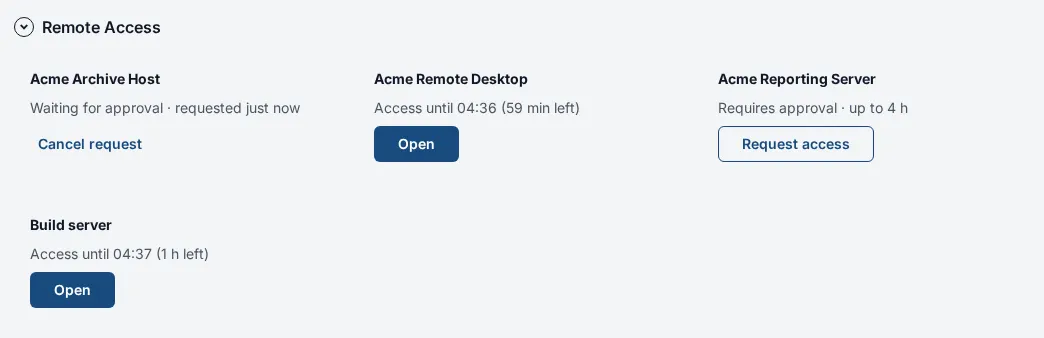
Section titled “1. The Remote Access group”Scroll to Remote Access, below your application groups on the home view. Each resource is a card with its name, one line that says what state it is in, and a button. The line and the button depend on the state:
| What the line says | State | The button | What it means |
|---|---|---|---|
SSH · Acme Build Server |
You may open it now | Open | The line is the type of connection (SSH, RDP or VNC) and the name. |
| Requires approval · up to 4 h | You need permission first | Request access | “up to” is the longest access you may ask for. See section 2. |
| Waiting for approval · requested 5 minutes ago | Your request has not been decided | Cancel request | You can withdraw it. |
| Approved · from 14:00 to 15:00 | Approved, but the time has not come | (none) and “Opens at 14:00” | The time window you were given has not started. |
| Access until 15:00 (42 min left) | Approved and open now | Open | Your window is running. |
| Denied by Pat Chen · reason | Refused | Request again | The approver’s name and note are shown if they left one. The same line appears for Expired and Revoked. |
| Turned off by your administrator | Not available | (none) | Other reasons you may see here: “Access has not been set up yet”, “Not reachable yet; your administrator is still setting it up”, “Temporarily unreachable”, “The application is unavailable”, or “Not available right now”. Tell your help desk if it stays this way. |
The group refreshes by itself about once a minute while the page is open, and when you return to the tab.
If you are an approver there is also a link above the cards, Access requests waiting for your approval (section 4), and a bell with a number in the top bar.
2. Ask for access
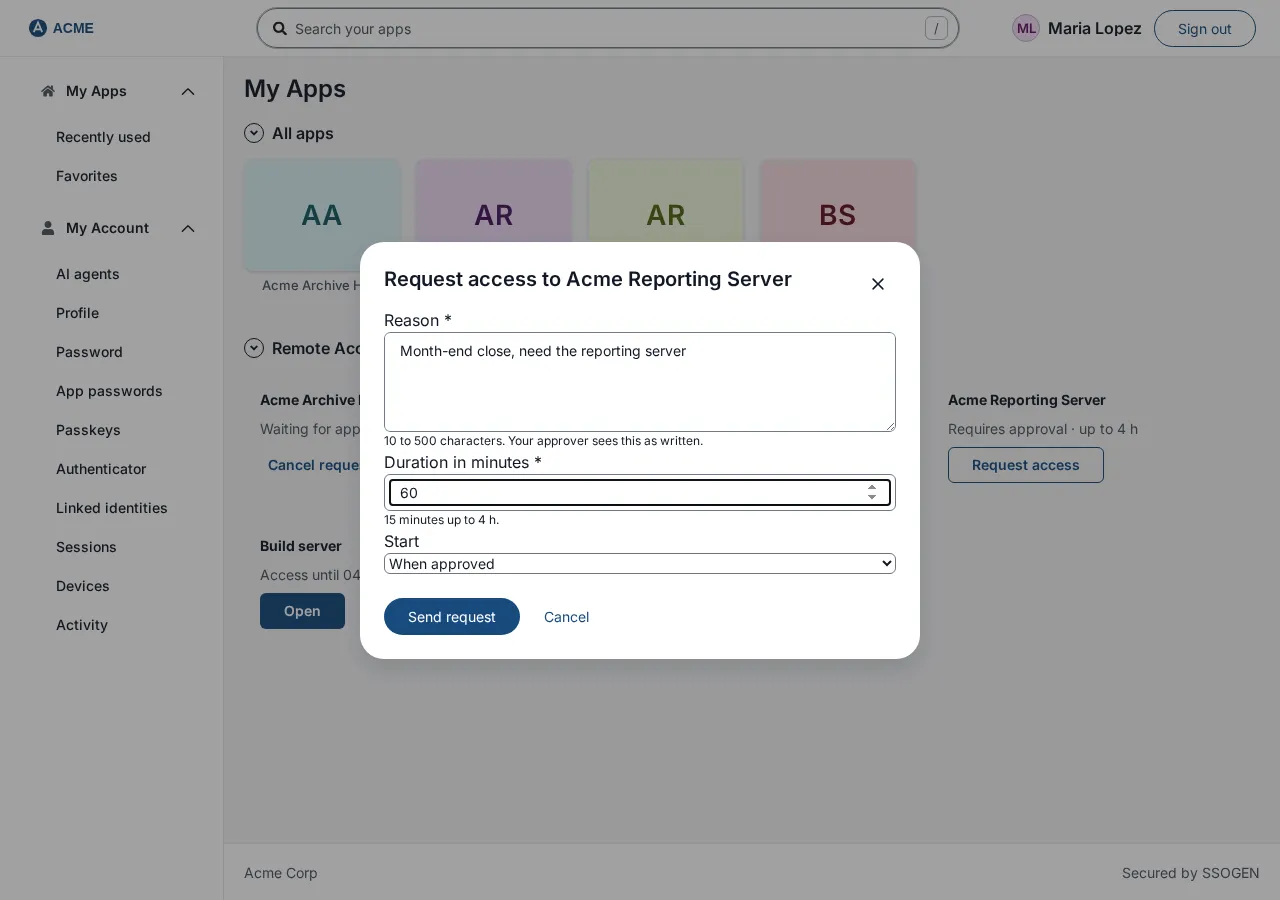
Section titled “2. Ask for access”- On the card, select Request access. A dialog opens, titled Request access to Acme Build Server.
- Fill it in:
| Field | What to enter | Example |
|---|---|---|
| Reason (required) | Why you need it. Between 10 and 500 characters, text only. Your approver sees it exactly as you wrote it. | Fix failing nightly build 4412 |
| Duration in minutes (required) | How long you need. At least 15, and not more than the limit shown beneath it (“15 minutes up to 4 h”). | 60 |
| Start | When approved (the default) or At a time within 7 days. If you choose the second, a Start at field appears for the date and time. | When approved |
| Also allow | Only shown if the resource offers extras that need approval. Tick any you need: “Paste from your computer into the host”, “Copy from the host to your computer”, “Upload files to the host”, “Download files from the host”. Your approver decides which of these you get. | (none) |
- Select Send request (or Cancel).
- The card changes to Waiting for approval. When someone decides, the card changes again the next time the page refreshes.
If something is wrong with the form, the message appears under the field:
| Message | Fix |
|---|---|
| Give a reason of 10 to 500 characters. | Write a little more, or shorten it. |
| The reason may contain text only. | Remove unusual control characters (for example pasted from a terminal). |
| Choose between 15 and 240 minutes. | Pick a duration within the limit shown (your limit may differ). |
| Start now or at a time within the next 7 days. | Choose a time between now and 7 days from now. |
| Ask only for what this resource offers. | Untick extras you were not offered. |
If SSOGEN refuses the request itself, a red message appears at the top of the dialog:
| Message | Meaning |
|---|---|
| You already have a request waiting for approval. | Cancel the first, or wait for a decision. |
| That duration is outside what this resource allows. | Use a shorter duration. |
| The start time must be now or within the next 7 days. | Change the start. |
| The request did not go through. Try again in a moment. | A general failure. |
To withdraw a request, select Cancel request on its card. If the request was already decided you see “That request has already been decided or withdrawn.”
3. Open a session
Section titled “3. Open a session”- Select Open on the card. A page opens with the resource’s name as its heading, and your connection starts automatically. A status line under the heading says Connecting, then Signing in to the host (if SSOGEN signs in for you), then Active.
- If the page shows Not connected with a Connect button instead (for example you reloaded the page or came back to it later), select Connect. If the connection dropped after it had worked, the button reads Reconnect and opens a new session; if the first attempt failed it reads Retry.
- If SSOGEN needs a stronger sign-in first, you are taken to the second-step screen and then returned. See Signing in, section 4.
If the host asks for your own account
Section titled “If the host asks for your own account”For some resources SSOGEN does not know your account on the server, so the page says Enter your account on Acme Build Server to connect. and shows a small form:
| Field | What to enter |
|---|---|
| Username on the host | Your account name on that server. Some resources only ask for the password; then this field is not shown. |
| Password | The password for that server account. It is sent once to start the session and is not kept. |
Select Connect. If the host refuses it, the page says “The host did not accept the sign-in. Enter an account to try again.” (or “The host did not accept the password. Enter it to try again.”) and shows the form again.
Reading the page while you work
Section titled “Reading the page while you work”- The status line says Active. Beside it you may see warnings about the host, for example “The connection between SSOGEN and this host is not encrypted (allowed by your administrator).” or “This host’s identity is not verified (allowed by your administrator).” These tell you what your administrator chose to allow; they do not stop you.
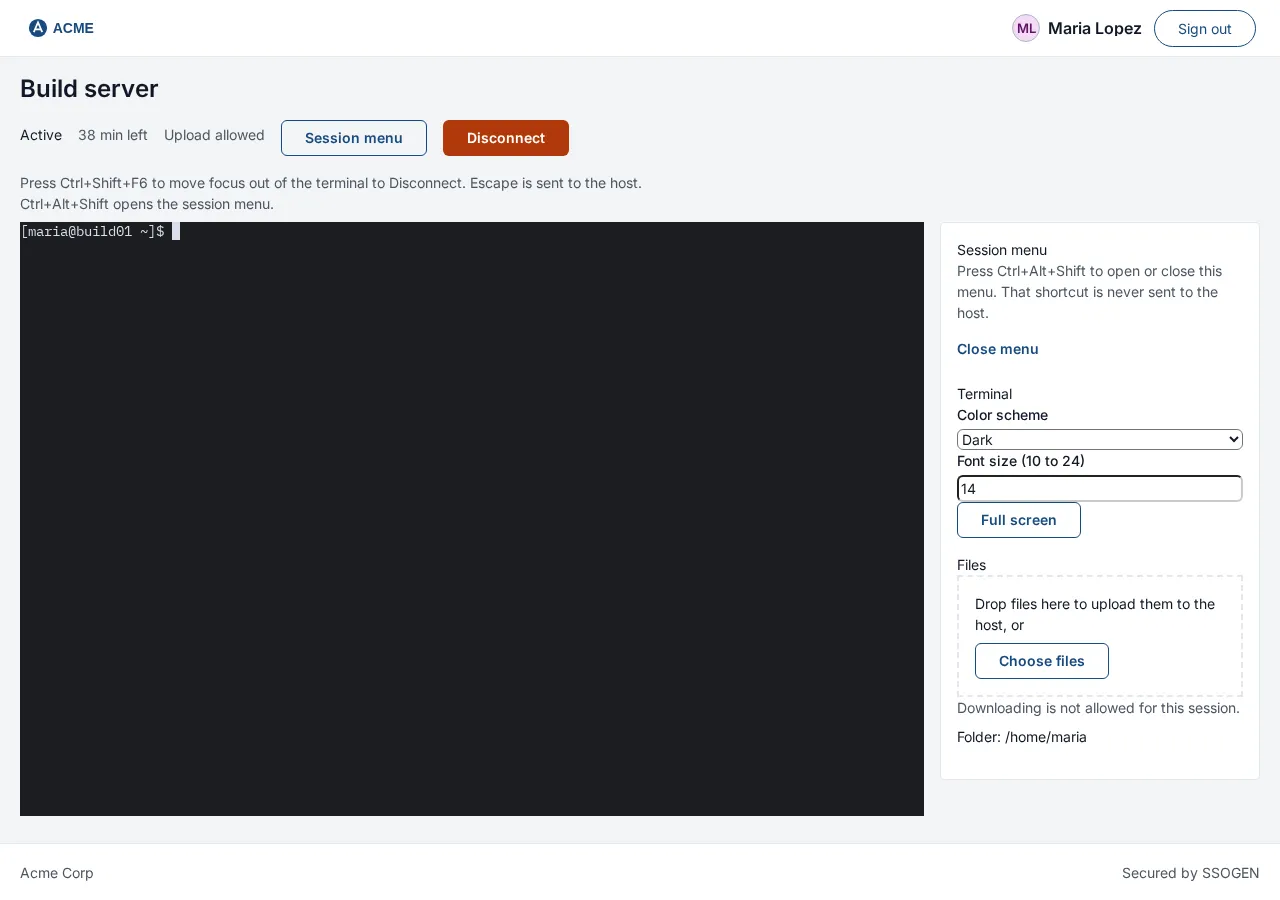
- A line such as “42 min left” shows how long the session may last.
- A line lists what the session allows, for example Copy to your computer allowed · Paste into the host allowed · Upload allowed · Download allowed. Anything not listed is switched off for this session.
- Disconnect (a red button) ends the session at once.
- The small note under the terminal says: Press Ctrl+Shift+F6 to move focus out of the terminal to Disconnect. Escape is sent to the host. Ctrl+Alt+Shift opens the session menu.
The session menu
Section titled “The session menu”Select Session menu (or press Ctrl+Alt+Shift, which is never sent to the host) to open a panel beside the session. Press the same keys again to close it.
| Section | What it does |
|---|---|
| Keys | For desktops: buttons for key combinations your browser or computer would keep for itself: Ctrl+Alt+Del, Windows key, Alt+Tab, Ctrl+Esc, and a menu Ctrl+Alt+F (choose a function key). |
| Display | Full screen / Exit full screen. If your browser does not allow it the panel says “Full screen is not available in this browser.” |
| Terminal | For SSH only. Color scheme (Dark or Light) and Font size (10 to 24). Your choice is remembered in this browser. |
| Clipboard | Move text between your computer and the host. Text copied on the host appears in the box, with Copy to my computer. To send text to the host, type or paste in the box and send it. If a direction is switched off the panel says so, for example “Sending text to the host is not allowed for this session.” |
| Files | For SSH: Choose files (or drop files on the panel) to upload, and a list of the host’s folder with a Download button on each file. Progress and results are listed; each transfer can be canceled. If it is switched off: “Uploading is not allowed for this session.” / “Downloading is not allowed for this session.” |
Pasting several lines into a terminal asks first: “This paste has more than one line, so it would run as soon as it lands.” with Paste anyway and Cancel.
When a session ends
Section titled “When a session ends”The page says Ended, followed by the reason:
| Reason shown | Meaning |
|---|---|
| You disconnected. | You selected Disconnect. |
| The session was closed after being idle for too long. | No activity for too long. |
| Your access window ended or the session reached its time limit. | Request again if you still need it. |
| An administrator ended this session, or your access was withdrawn. | Ask your administrator why. |
| The host did not accept the sign-in. | Check your account and password (section above). |
| The host’s identity did not match; nothing was sent to it. | Do not retry; tell your help desk. The server may have been changed or impersonated. |
| The host could not be reached. | The server is down or unreachable. Try later. |
| The session was closed because the gateway lost contact with SSOGEN. / The gateway is busy. Try again in a moment. / The gateway is restarting. Try again in a moment. / The gateway did not accept this connection. / The remote access service is not available right now. / The connection failed. Try again. / The connection was lost. | Try again in a moment; tell your help desk if it repeats. |
If you try to open a resource you have no permission for, you see one of: “You do not have access to this resource right now. Request access first.”, “Your approved access window is not open at this moment.”, “This resource cannot be reached right now. Ask your administrator.”
During a session, notices in amber can appear without ending it, for example “A file was larger than this session allows, so it was not transferred. The session goes on.” or “The clipboard text was too long for this session, so it was not copied. The session goes on.”
4. Approve or deny access requests as an approver
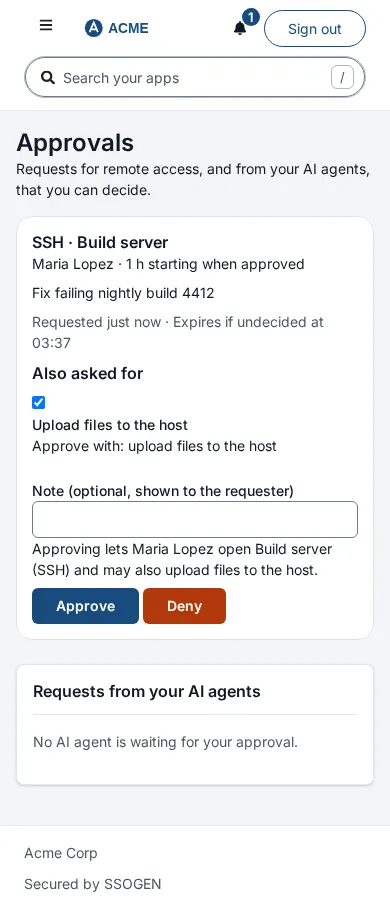
Section titled “4. Approve or deny access requests as an approver”Approvers are chosen by your administrator for each resource. If you are one, My Apps shows Access requests waiting for your approval above the cards. The same page is Approvals in the My Apps group of the left menu, and at your My Apps address followed by #approvals (for example https://sso.acme.example/#approvals).
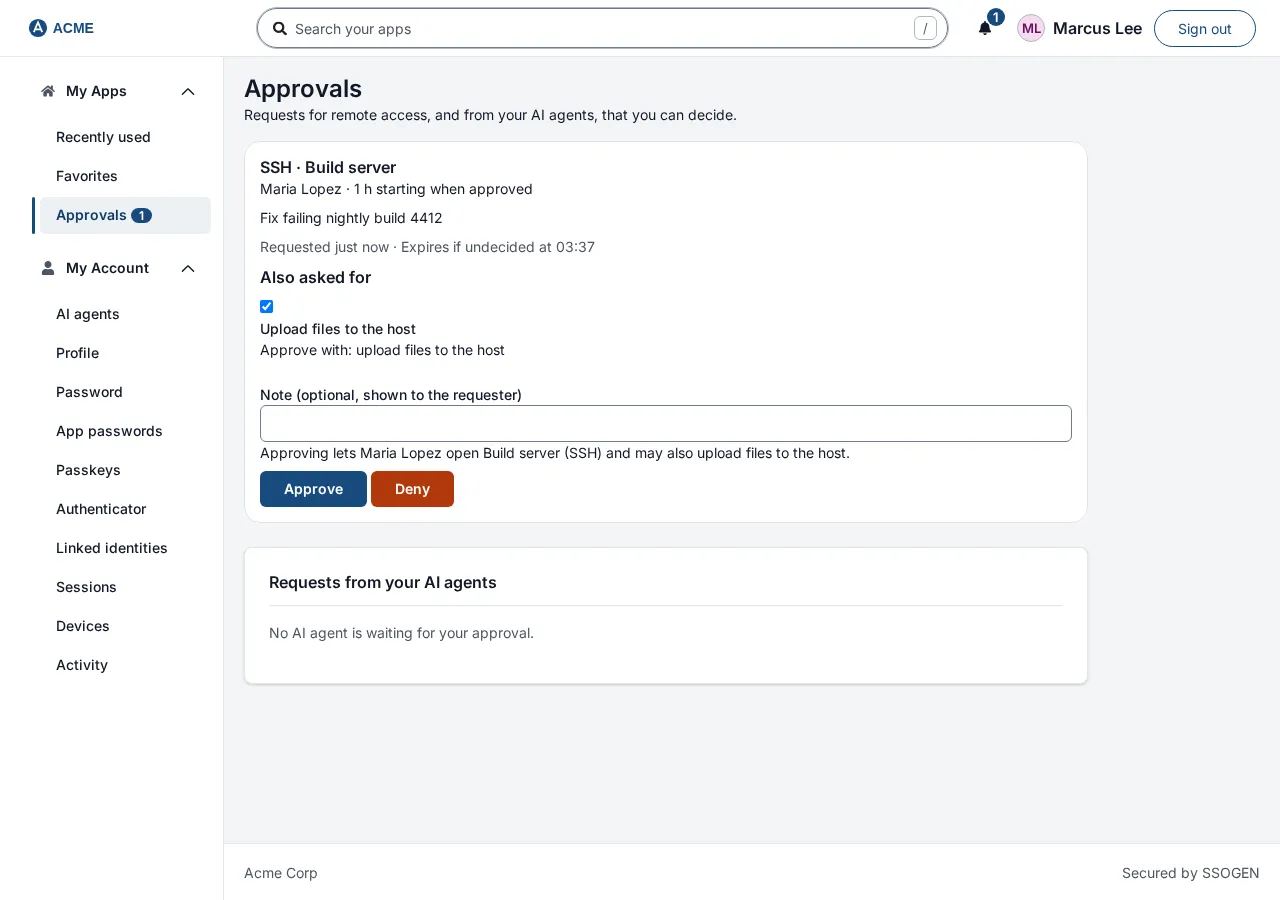
- Open the link. The page is titled Approvals: “Requests for remote access, and from your AI agents, that you can decide.”
- Each request, oldest first, is a card:
- A heading with the connection type and resource, for example SSH · Acme Build Server.
- The requester and the time: “Maria Lopez · 1 h starting when approved” (or “from 14:00 on 2026-10-07”).
- The reason, exactly as the requester wrote it.
- “Requested 5 minutes ago · Expires if undecided at 14:35”.
- If they asked for extras, Also asked for with a tick box for each. Untick any you do not want to grant. A line beneath reads Approve with: paste from your computer into the host (or Approve with no extra capability).
- Note (optional, shown to the requester), up to 500 characters.
- A summary sentence before you decide, for example “Approving lets Maria Lopez open Acme Build Server (SSH) with no extra capability.”
- Select Approve or Deny. Approve decides at once and the card disappears. Deny first asks you to confirm: it says the requester will not get access and the request ends, and shows the note you wrote as your reason. Select Deny request to confirm, or Keep request to go back.
With nothing waiting the page says No remote access requests are waiting for you (“Requests for remote access that you can approve appear here.”). Below, a section Requests from your AI agents lists AI agent requests; see what people see for their AI agents.
If the decision is refused you see one of these in red:
| Message | Meaning |
|---|---|
| You cannot decide your own request. | Somebody else must approve it. |
| You are not an approver for this request. | Ask your administrator. |
| That request has already been decided or withdrawn. | Nothing to do. |
| The resource’s access settings changed and no longer allow this request. You can deny it. | Deny it. |
| Needs a second step from the last 10 minutes, of a kind this resource accepts. Sign in again and return here. | Sign in again with your second step, then decide. |
| A sign-in method was added to your account during this session, so this session cannot confirm it is you. Sign out, sign in again, then try again within a few minutes. | Select Sign out and sign in again, then decide. A sign-in method added in a session never counts as proof for that same session. |
Approvals can also be done on a phone browser.
Related guides: Using My Apps, Signing in.