My Apps: your SSO dashboard for work applications
My Apps is your single sign-on dashboard: the page where you open your work applications. It lists every application your organization has given you, so you can open any of them with one click and without typing its password again. Share this guide with your staff, or adapt the wording for your own help pages. For an overview of the portal for evaluators, see My Apps portal.
The examples use the fictional company Acme Corp and an employee, Maria Lopez.
Open it: go to your organization’s SSOGEN address (for example https://sso.acme.example/). If you are not signed in you are taken to the sign-in page first; see Signing in. After you sign in you arrive on My Apps. There is no separate account page: My Apps and My Account are one page, and both are in the menu on the left.
1. What the My Apps dashboard shows
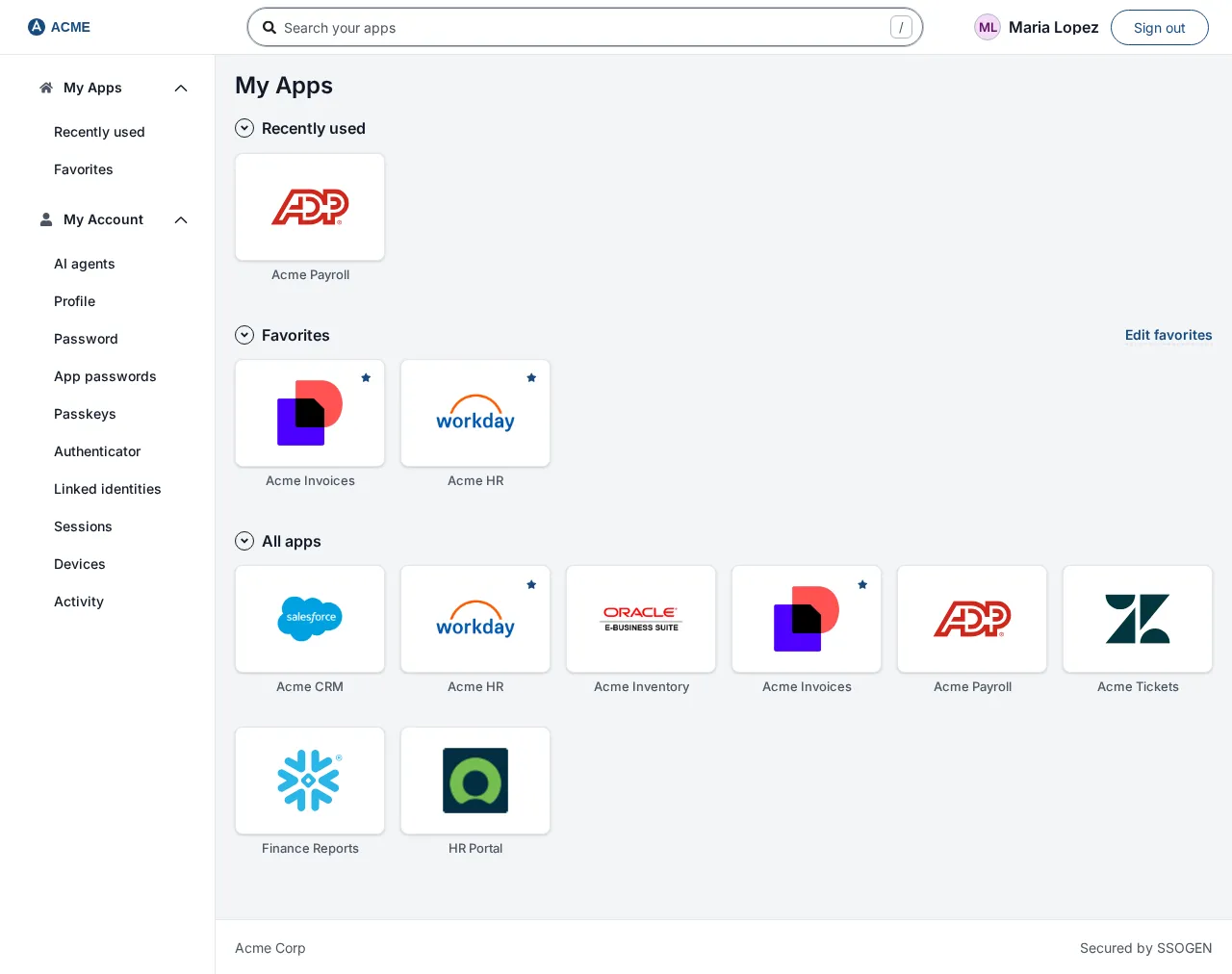
Section titled “1. What the My Apps dashboard shows”The top bar is the same on every page: your organization’s logo, the search box, and at the right your name followed by Sign out. There are no menus to open. If you can approve requests, a bell with a number is also there; it opens your approvals (see Remote access and approvals).
The left menu has two groups, both open:
| Group | What it holds |
|---|---|
| My Apps | Recently used, Favorites, one entry for each category your administrator uses, AI tools (only when your organization uses AI agents) and Approvals (only if you approve requests). |
| My Account | AI agents, Profile, Password, App passwords, Passkeys, Authenticator, Linked identities, Sessions, Devices and Activity. See My Account: sign-in and security and My Account: sessions and activity. |
Administrators sign in at /admin/. The Admin Console is not linked from My Apps. Someone without an administrator role who opens that address is told You don’t have access to the Admin Console. and offered Go to My Apps.
The page is headed My Apps. Under the heading come these groups, in this order:
| Group | What it holds |
|---|---|
| Recently used | The applications you opened most recently (up to six here; the Recently used entry in the menu shows up to eight). It only appears once you have opened something. |
| Favorites | The applications you starred, in the order you chose (section 4). It only appears once you have a favorite. |
| One group for each category | Your other applications, in alphabetical order. Applications with no category are under All apps, last. |
| Remote Access | Servers and desktops you may connect to through your browser. It only appears if your organization uses this; see Remote access and approvals. |
An application can appear in several groups at once. That is normal.
Each application is a tile showing its logo (or its first letter if it has none) and its name. A star in the corner of the tile adds it to or removes it from Favorites. The footer of the page shows the support and privacy links your organization chose, and Secured by SSOGEN unless your organization turned that line off.
While the page loads you see gray placeholder tiles. If the list cannot be loaded you see the message Unable to load assigned applications. (or Loading your applications took too long.). Reload the page; if it persists, tell your help desk.
If you see “No apps assigned yet”
Section titled “If you see “No apps assigned yet””The page says No apps assigned yet: “Contact your administrator to get access to applications.” Nothing is wrong with your sign-in. Your administrator has not yet given you any application (applications are given to people or to groups). Ask your help desk.
2. Open an application
Section titled “2. Open an application”- Select the tile of the application, for example Acme Invoices.
- On a computer the application opens in a new browser tab, already signed in. You are not asked for its password. On a phone or tablet it opens in the same tab; use your browser’s Back button to return.
Some applications are reached through your organization’s SSOGEN Gateway rather than directly. You open them the same way, from the same tile. You do not need to do anything different.
If the application asks for one more check
Section titled “If the application asks for one more check”Some applications are more sensitive than others. When you select one, SSOGEN may ask you to prove it is you again before it opens. You are taken to a sign-in screen headed Multi-factor authentication, or, if you use phone approval, Approve sign-in on your SSOGEN Authenticator. Complete the step it asks for; see Signing in, section 4. When you are done you are returned and the application opens. You do not need to select the tile again.
If you close the page, or the check is not completed, the application does not open and My Apps shows a message on its tile (see section 5). Select the tile again to retry.
3. Search your applications
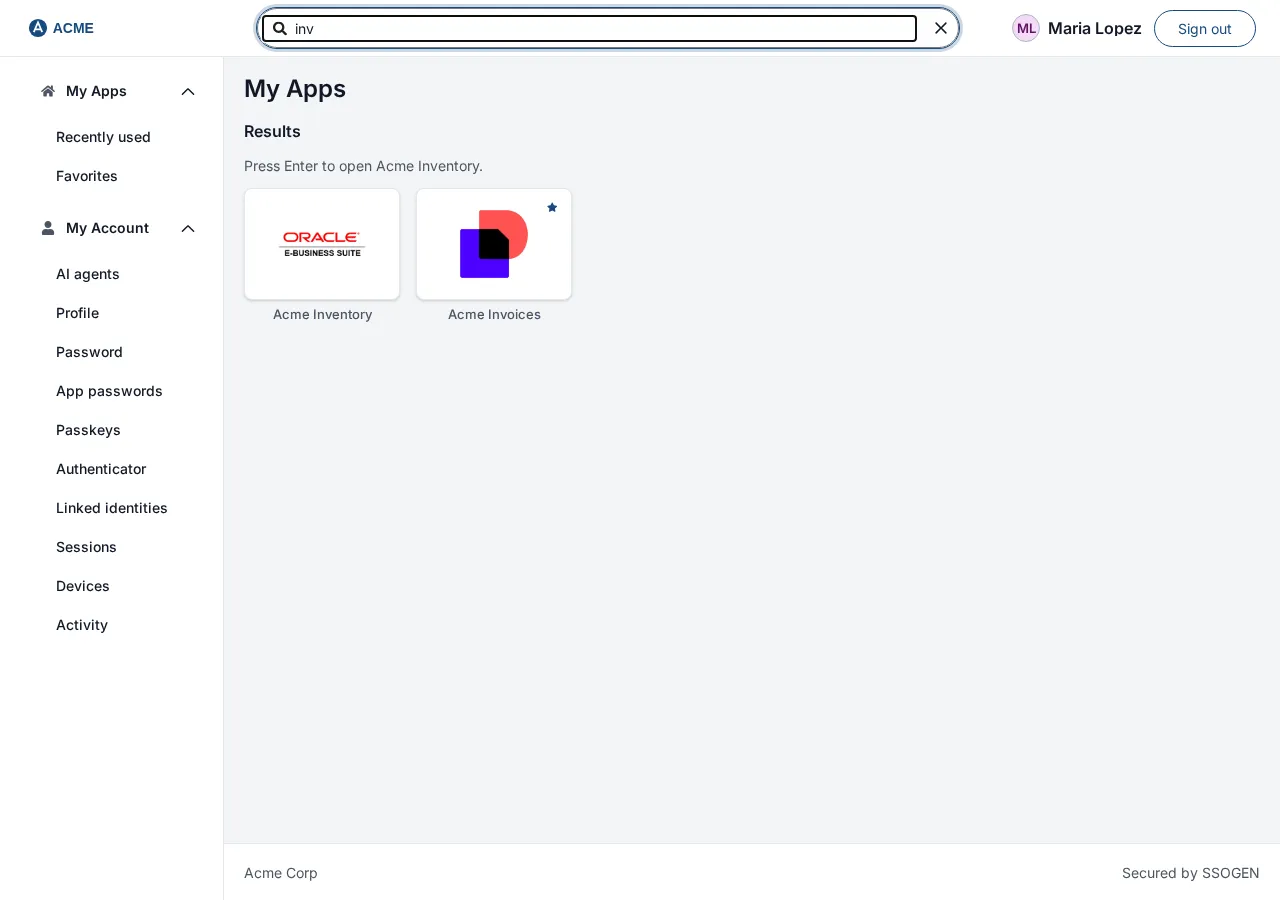
Section titled “3. Search your applications”- Select the Search your apps box, or press / anywhere on the page, and start typing, for example
inv. - The page switches to the matching applications, grouped by category and in alphabetical order. The search looks at the application’s name, its short name and its category, and ignores capital letters.
- Press Enter to open the first match that can be opened. Select the x in the box to clear the search and bring back your groups.
If nothing matches, the page says No matching applications and “Try a different search term.”
4. Favorites and their order
Section titled “4. Favorites and their order”- Select the star on a tile. Its accessible name is “Add Acme Invoices to favorites”. The star turns solid and the application now appears under Favorites (the group is created the first time).
- To remove it, select the star again (“Remove Acme Invoices from favorites”).
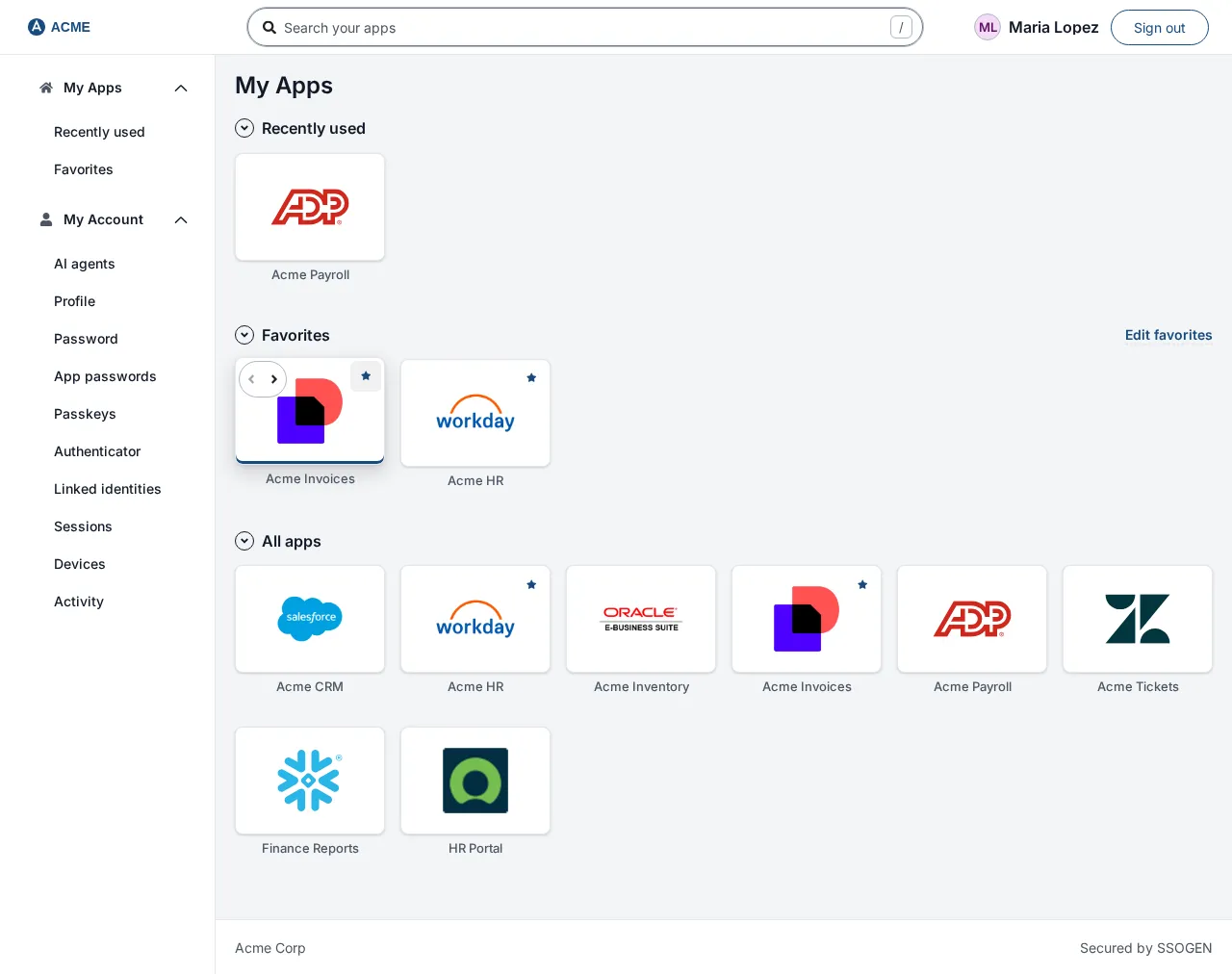
- To change the order, select Edit favorites beside the Favorites heading (it appears when you have two or more favorites). Each tile then shows two small arrows: Move Acme Invoices earlier (left arrow) and Move Acme Invoices later (right arrow). Select an arrow to move that tile one place. The first tile has no left arrow and the last has no right arrow (they are grayed out). Select Done when you have finished.
With no favorites, the Favorites menu entry says No favorites yet: “Choose the star on an app to keep it here.”
Your favorites and their order belong to you and are kept for next time on any device you sign in from.
If something fails, the page shows Unable to update favorite. or Unable to change the order of your favorites. Reload the page and try again. If it says Missing CSRF token., your sign-in is out of date: sign out and sign in again.
5. Tiles that cannot be opened
Section titled “5. Tiles that cannot be opened”A grayed tile has a label, and moving the pointer over it explains why.
| Label | Meaning |
|---|---|
| Unavailable | “This application is switched off for now. Try again later or ask your administrator.” Or: “This application is not available right now. Please ask your administrator.” |
| Not set up yet | “Your administrator has not finished setting this application up.” |
If you select a tile that looks normal and the application still does not open, a message appears on that tile:
| Message | What to do |
|---|---|
| You are not assigned to this application. | Ask your administrator for access. (Your assignment may have just been removed.) |
| Application is unavailable. | Try again later, then ask your help desk. |
| This application is not available right now. Please ask your administrator. | Tell your help desk. |
| This application has no launch URL configured yet. | Tell your help desk; the application is not finished. |
| This application’s launch address is not valid. Please ask your administrator. | Tell your help desk. |
| This access mode is not available. | Tell your help desk. |
| App Proxy route/gateway binding is not configured for this application. / App Proxy binding does not match the registered application. / The gateway for this application is not available. | The application is reached through the gateway and it is not ready or not reachable. Tell your help desk. |
| No sign-in method is allowed for this application yet. Please ask your administrator. | The application is not fully set up. Tell your help desk. |
| Access to this application is not allowed. | Your organization’s rules do not permit you to open it from here or at this time. Ask your help desk. |
| This application asks for a stronger sign-in than it can offer you. Please ask your administrator. | It needs a stronger method than you have set up, such as a passkey. See My Account: sign-in and security. |
| Additional verification was not completed, so the application was not opened. Try again. | Select the tile again and finish the extra check. |
| That verification step has expired or was already used, so the application was not opened. Open it again from My Apps. | Select the tile again. |
| Additional verification could not be started. Try again in a moment. | Wait a moment and select the tile again. |
| Unable to launch application. | A general failure. Try again, then tell your help desk. |
6. On your phone
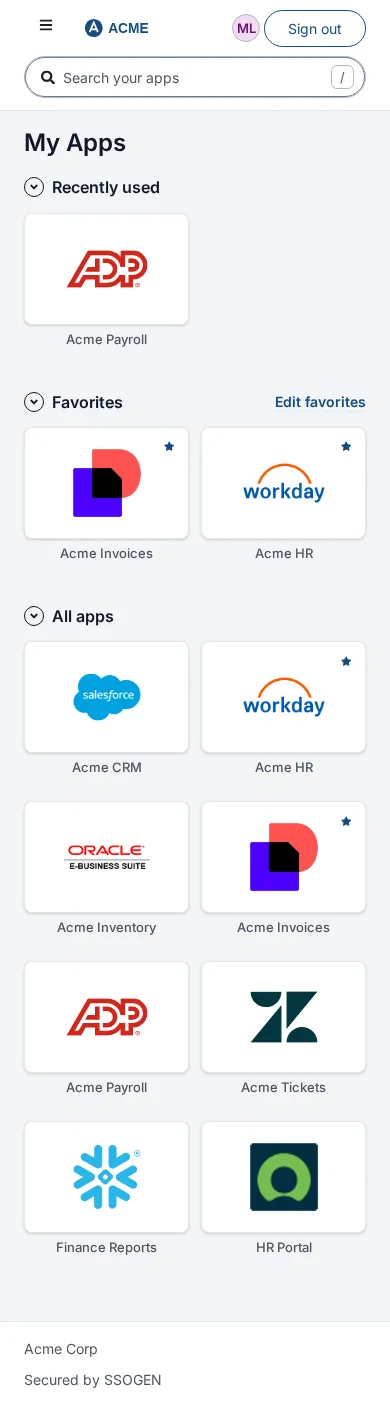
Section titled “6. On your phone”My Apps works in a phone browser. The tiles stack to fit the screen, the search box stays at the top, and the star and arrows are the same. The left menu folds into a button with three bars at the top left of the page; select it to open or close the menu, choose an entry, and the menu closes again.
7. Signing out
Section titled “7. Signing out”Select Sign out at the top right. You are returned to the sign-in page. If SSOGEN cannot reach the server you are told “Could not reach the server to sign you out. Your session is still active. Check your connection and try again.” If it refuses: “Could not sign you out: the request was refused and your session is still active. Close all windows for this site or ask an administrator.”
Related guides: Signing in, Remote access and approvals, My Account: sign-in and security, My Account: sessions and activity.