Your first hour with SSOGEN: SSO setup from install to first sign-in
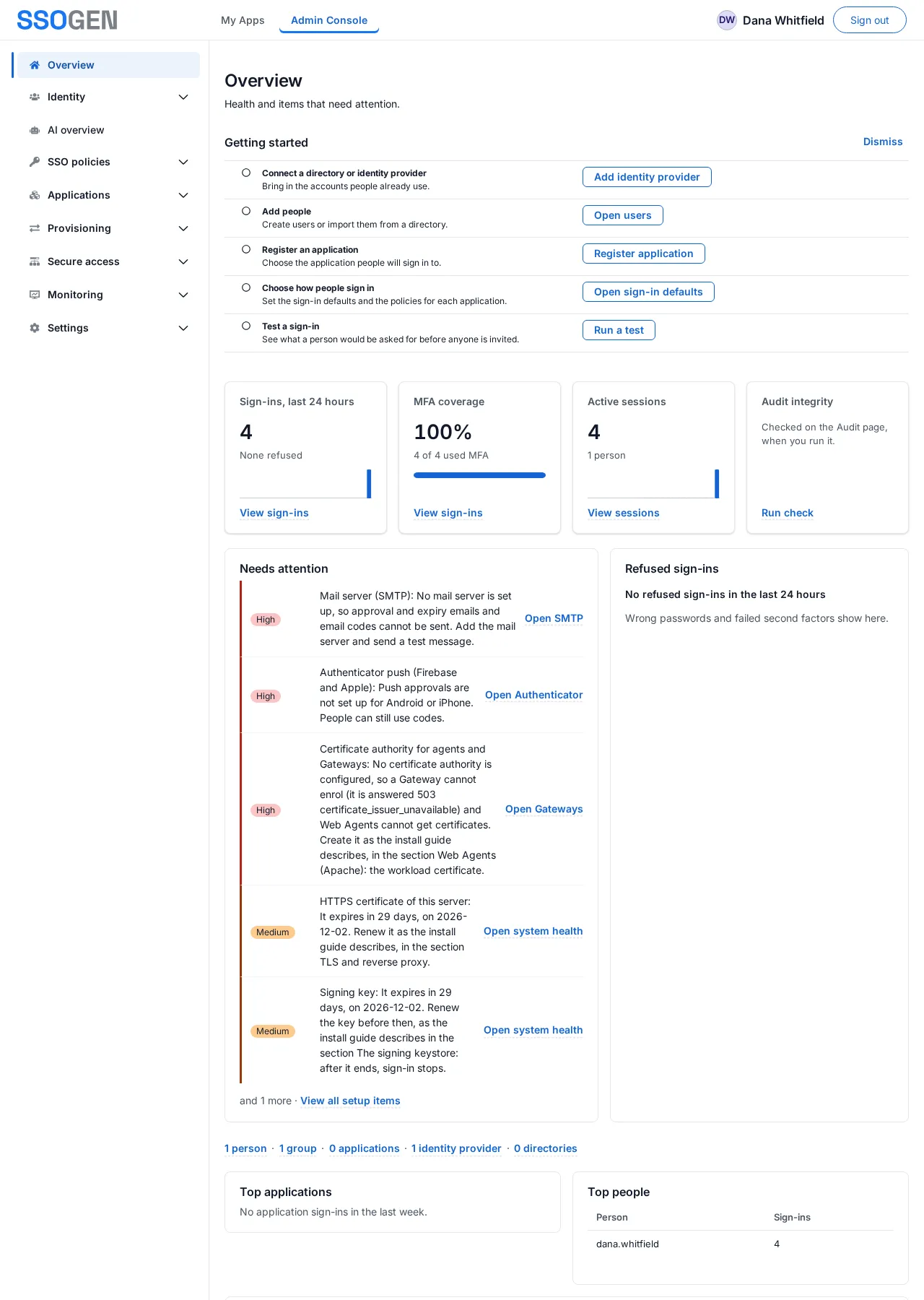
This SSO setup guide takes you from a fresh SSOGEN installation to one real sign-in by an employee. It follows the five steps of the Getting started card on the Admin Console’s Overview, then ends with the employee’s view. It does not repeat the details of each screen; every step links to the guide that does.
Before you start, SSOGEN must be installed and the first administrator created: Install SSOGEN and complete first-run setup. Sign in at https://sso.acme.example/admin/ (use your own address). The examples use the fictional company Acme Corp.
Before the five steps: two minutes of safety
Section titled “Before the five steps: two minutes of safety”- Open Settings, then Admin roles, and give a second person an administrator role, so the deployment does not depend on one account (Admin console tour).
- Open Settings, then SMTP, and enter your mail server, so SSOGEN can send password-reset links and emailed codes. Select Send test email.
- Keep the first administrator’s password and recovery codes in a safe place. Use named administrator accounts for daily work.
Step 1. Connect your people
Section titled “Step 1. Connect your people”Open Identity or SSO policies, depending on where your people are.
- Your people are in Active Directory or another LDAP directory: Identity, Directories. See Connect Active Directory or LDAP. A new directory is a draft: validate it, test it, import users, then activate it.
- Your people sign in somewhere else, such as Microsoft Entra ID, Okta or Keycloak: SSO policies, Identity providers. See Identity providers overview.
- You only need a few accounts for now: Identity, Users, Create user. See Users.
Nothing changes for anyone until you activate the connection.
Step 2. Add people
Section titled “Step 2. Add people”People arrive from a directory import, from the identity provider at their first sign-in, or by hand under Identity, Users. Put them in groups under Identity, Groups: you give applications to groups, not to each person. SSOGEN has created one group, Everyone, for you.
Step 3. Register one application
Section titled “Step 3. Register one application”- Open Applications, then App gallery, and choose the application (or start from one of the lists). The wizard saves the application as unavailable until you activate it.
- Not sure how to connect it? Choose how to connect an application gives the four ways.
- Assign a group on the application’s Assignments tab, try it, and activate it: Assign, test and activate an application.
Step 4. Choose how people sign in
Section titled “Step 4. Choose how people sign in”Open SSO policies, then Defaults. SSOGEN has already created a Default sign-in policy (the SSOGEN Directory, a second factor, passkeys allowed) and a separate Administrator sign-in policy for the Admin Console. Check that the default is what you want for My Apps and for applications with no policy of their own, or make your own: Create a policy and assign it and Defaults and monitoring.
Step 5. Test a sign-in before anyone is invited
Section titled “Step 5. Test a sign-in before anyone is invited”Open SSO policies, then What if. Choose a person and the application, and read which rule decided and what the person would be asked for. Nothing is changed. See What if and Try it.
Then sign in as an employee
Section titled “Then sign in as an employee”Open a private browser window and go to https://sso.acme.example/. Sign in as a test employee who is in the group you assigned. You should land on My Apps with the application’s tile, open it without typing its password again, and find My Account in the menu on the left. Ask the employee to pair a phone with the SSOGEN Authenticator: The SSOGEN Authenticator app. The employee’s view is described in Signing in for the first time.
When the Getting started card disappears from the Overview, the steps it can count are done. Next, look at Monitoring, System health: under Setup health it lists what the server still needs (mail, certificates, Gateways and so on), each with a link to the fix.