Default policy SSO: monitor a new policy before enforcing it
To monitor a new policy before enforcing it, use the Defaults screen: it lets a new version of the access rules run alongside the current one on real sign-ins, without refusing anyone, until you promote or stop it. The same screen holds the settings that apply “everywhere else”: the default policy, used when an application has none, and the policy that guards the Admin Console. This guide covers both.
Open SSO policies > Defaults. From top to bottom the page has:
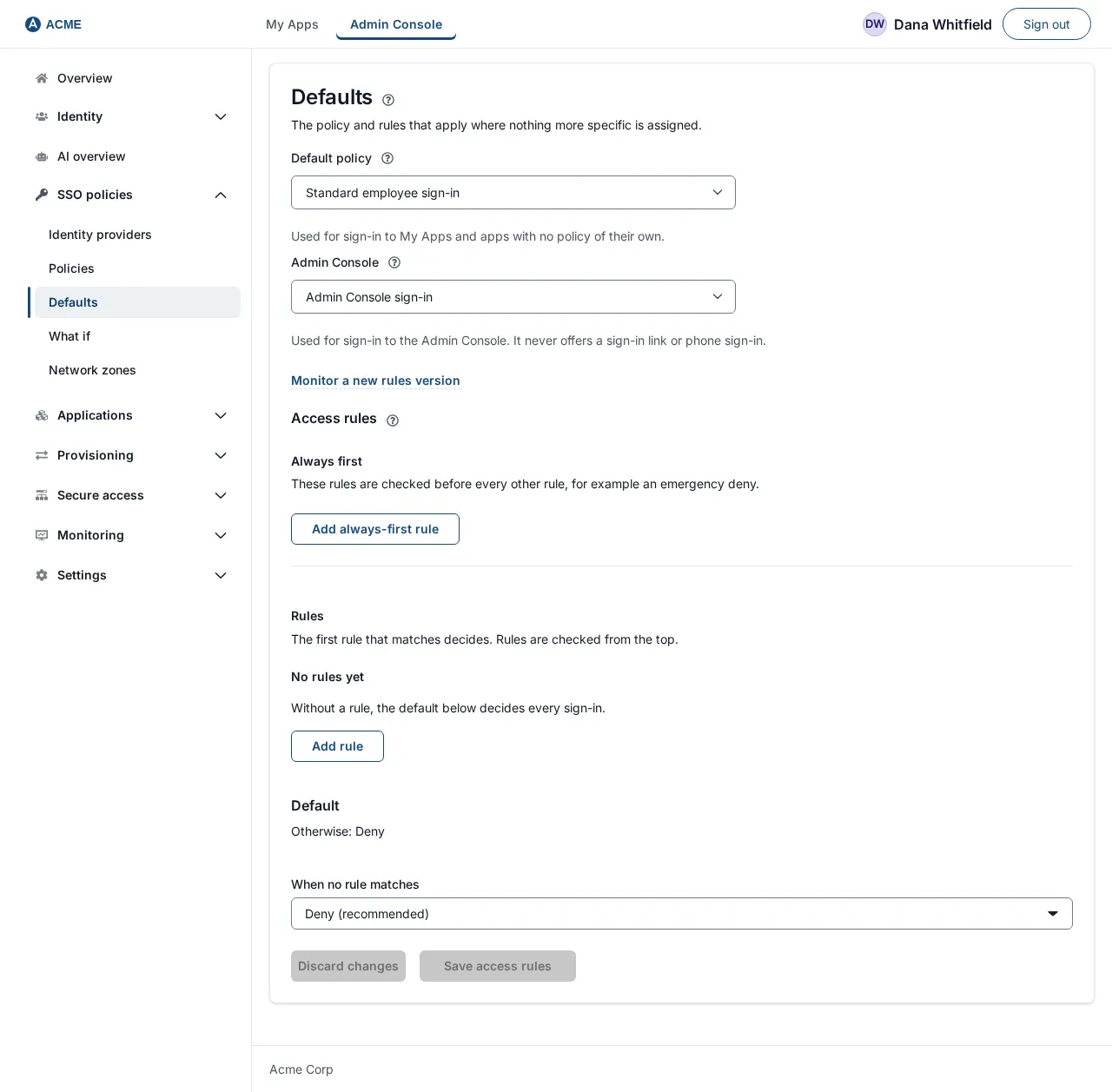
- Defaults: the two pickers, Default policy and Admin Console.
- A banner for any rules version being monitored, and the Monitor a new rules version button.
- Access rules: the organization-wide rule list. See Access rules.
Only a Super Admin can choose the default policy or the Admin Console’s policy. Other administrators see the pickers read-only, with the reason.
Set the default policy
Section titled “Set the default policy”Default policy applies to every application that has no policy of its own, and to signing in at My Apps. Applications that already have a policy are not affected.
- In the Default policy list, choose a policy, for example “Corporate LDAP”.
- The change is saved at once. You see “Saved.”
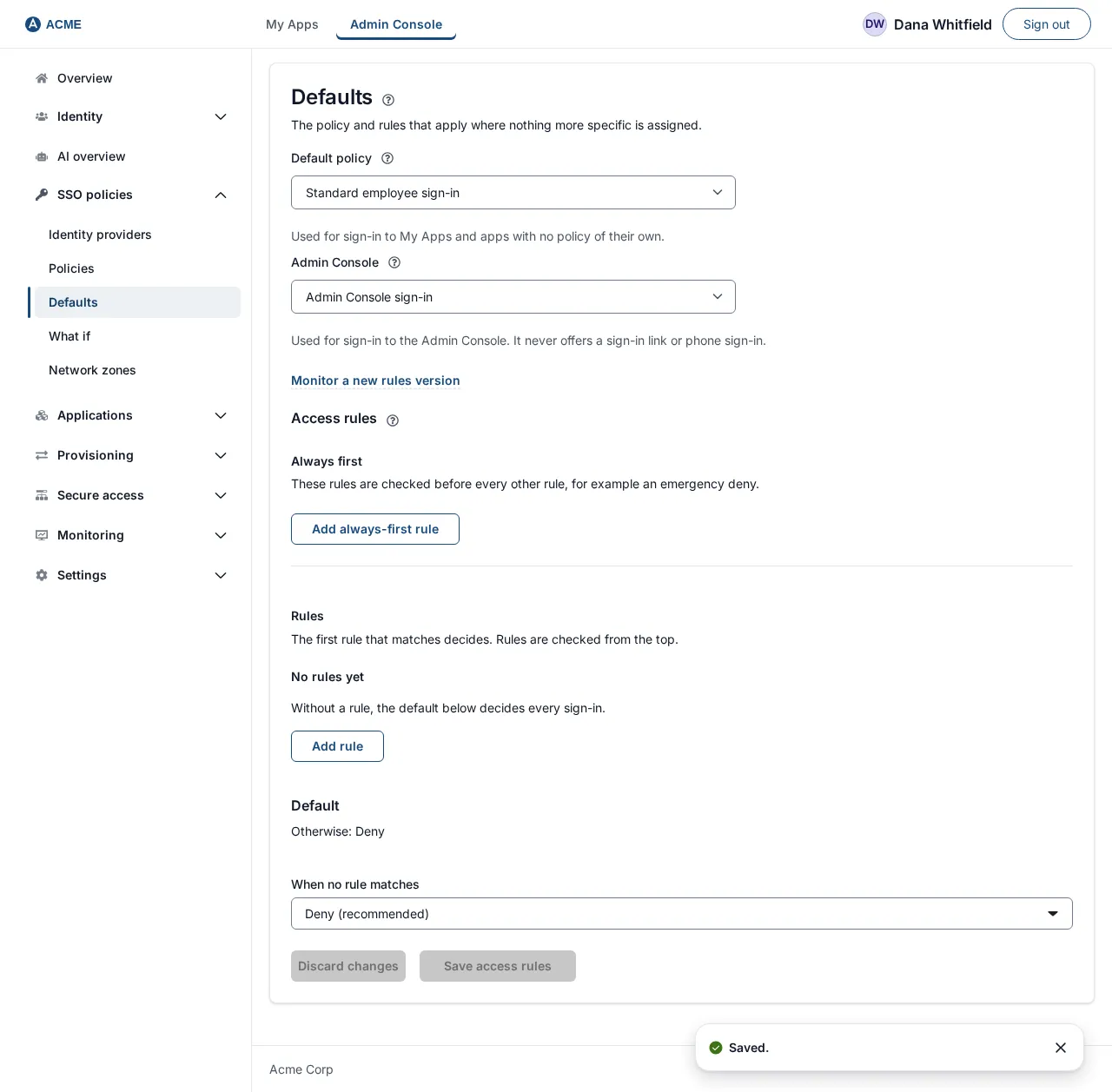
The first entry of the list is Not set. While it is chosen the page adds the hint: “My Apps offers every active provider; applications without a policy cannot be opened.”. Choosing that entry clears the default, but only while no available application follows it: the console refuses (409 default_policy_in_use) and names up to three applications, so you choose a policy for them first. Deleting the default policy is refused for the same reason.
The help on the Default policy label adds: “A policy no administrator has signed in through is refused.” Neither role can be set to a policy that no administrator has ever signed in through, because the server refuses it rather than leaving nobody a way in.
A new server starts with both already set. First-run setup creates Default sign-in (the local directory, a second factor, passkeys allowed) and makes it the default for My Apps, and a separate Administrator sign-in policy (a password plus an approval in the SSOGEN Authenticator, its code or a recovery code, passkeys allowed, a new sign-in after an hour) for the console. An upgrade changes neither, except that a console with no policy is given Administrator sign-in when a Super Admin can meet it. Under each list the page says where that policy is used: “Used for sign-in to My Apps and apps with no policy of their own.” and “Used for sign-in to the Admin Console. It never offers a sign-in link or phone sign-in.”
You can also make a policy the default from its own page: open it under Policies and choose Make default. The console asks first, says which policy it replaces, and that applications with a policy of their own and the Admin Console are not changed.
Sign-in links and phone sign-in on My Apps
Section titled “Sign-in links and phone sign-in on My Apps”“Email me a sign-in link” and “Sign in with your phone” are offered only where the policy that governs the sign-in turns them on, and never under the Admin Console’s policy. So to offer them on My Apps, turn them on in the default policy, and the default must not also be the Admin Console’s policy.
- If one policy is both the default and the Admin Console’s, Defaults warns: “My Apps and the Admin Console use the same policy, so a sign-in link and phone sign-in cannot be offered on My Apps. To offer them, give the Admin Console a policy of its own.”
- If you turn either on in a policy that is not the default and that no application uses, the policy wizard and the policy’s page say that nobody is offered it, and the page offers Make this the default.
- Monitoring > System health, Setup health, lists every such policy under “Sign-in links and phone sign-in”.
The Policies list shows each policy’s role in the Status column: “Default (My Apps)”, “Admin Console”, “Default and Admin Console”, “In use” or “Not in use”.
Set the Admin Console policy
Section titled “Set the Admin Console policy”Admin Console decides which providers may hold a session in the Admin Console. It is checked whenever a session reaches the console, so it also covers somebody who signed in for an application and then came to the console. It never inherits the default: an edit meant for employees should not decide who may administer the product.
- In the Admin Console list, choose a policy.
- You see “Saved.”
When it is Not set, the page adds the hint “Every active provider may be used to sign in to this console.”.
Rules on the console policy:
- A policy with conditions cannot be chosen: “That policy has conditions, and the console does not apply conditions yet. Remove its conditions first, or choose another policy.”
- Only a Super Admin can edit, fail over or delete the console policy: “Only a Super Admin can change or delete the Admin Console’s sign-in policy. Nothing was changed.” It cannot be deleted while it is assigned.
- The console policy always asks for a second factor: “The Admin Console always asks for a second factor. Choose Second factor: Required, or use another policy. Nothing was saved.” The console can be given another policy but never left without one: “The Admin Console always has a sign-in policy. To change it, choose another policy for the console.”
- Email and text-message codes, sign-in links, phone sign-in and skipping the second step on a remembered browser are never accepted on the console policy. It needs approval in the SSOGEN Authenticator, the SSOGEN Authenticator code, a recovery code, or passkeys.
- A change that would leave no administrator able to sign in is refused, for example “No administrator could sign in to the console. Nothing was saved.” or, when the change would lock you out, “This change would lock you out of the console. Nothing was saved.” See Admin lockout protection.
Monitor a new rules version before enforcing it
Section titled “Monitor a new rules version before enforcing it”Changing access rules affects every application at once. Monitoring lets you write a new version of the rules, let it run alongside the rules in force for a number of days, and see exactly who it would have refused or newly admitted, without enforcing anything. When you are happy you promote it. If not, you stop it.
Starting, promoting and reviewing need a super administrator with elevated access; otherwise the console says “Starting monitoring needs a super administrator with elevated access.” or “Reviewing monitoring needs a super administrator with elevated access.”
What gets monitored
Section titled “What gets monitored”Monitoring applies to the organization’s Access rules. In the form, the Policy field starts as Access rules. Only the list that sign-ins actually read can be monitored. Other values are refused:
- “Monitoring is not available for this list: launches do not read it.”
- “Monitoring is not available for this policy yet.” (a named authentication policy’s own rules).
- “A revision with an emergency deny rule cannot be monitored.”
Start monitoring
Section titled “Start monitoring”- Select Monitor a new rules version. A dialog of the same name opens: “Rules are compared with live sign-ins. Nothing is enforced until you promote them.” Monitoring ends by itself after the days you choose.
- Policy: leave Access rules.
- Version of the new rules: filled in with the next free number (for example
2). A version number is never reused, even after a stopped version. - Rules: the rules in force are copied here as a starting point, one card per rule (see below). Change them.
- Monitor for (days, up to 30): starts at
14. - Replace the version already being monitored (its observations are kept): tick this if a version is already being monitored and you want to swap it for this one.
- Select Start monitoring. (Cancel closes the dialog.)

You see: “Version 2 is being monitored for 14 days. Nothing is enforced: it is compared with the rules in force on real sign-ins.”
If the number is taken by an earlier version, the dialog says “Version 2 was used by an earlier revision (a stopped one keeps its number). Version 3 is filled in: start again.” and fills in the next number.
The per-rule form
Section titled “The per-rule form”Every rule in the new version is one card, titled Rule 1, Rule 2, … in the order they are listed. Cards are shown in the order stored; Move up, Move down and Remove rule change it. Add a rule appends a rule that allows, at a priority 10 higher than the last. Show as JSON at the bottom shows the whole list as text, for checking only.
| Field | What it means |
|---|---|
| Rule id | A short name for the rule, up to 64 characters, unique in the list. |
| Application | The application the rule is about (required). |
| What happens | Allow, Deny, Require a stronger sign-in, Allow with a shorter session, or Allow and alert. |
| Reason code | A short code recorded with the decision, up to 64 characters (required). |
| Priority (lower is decided first) | A whole number. |
Under Only when… (opens by itself when the rule already has any of these):
| Field | What it means |
|---|---|
| Request method (blank for any) | An HTTP method such as GET, or *. |
| Route starts with | A path beginning with /. |
| Sign-in at least | Not required, Password or single sign-on, Plus a second factor, Passkey or security key, Hardware-bound key. |
| Signed in with every one of these methods | Tick Password, Authenticator, Passkey. |
| In any of these groups | Add a group from the list; Remove beside each. |
| From the network zone | Anywhere, or a zone. See Network zones. |
| From (inclusive) / Until (exclusive) | A time window, in your browser’s local time. |
| Signed in within (seconds) | Whole seconds, 0 or more. |
| Risk score at most | A whole number, 0 to 100: the sign-in risk score. |
| Emergency deny | Only for Deny rules. An emergency deny cannot be monitored. |
When you select Start monitoring, the form is checked first. Messages you may see: “Enter the id of the policy whose rules you want to monitor.”, “The version must be a whole number, 1 or more.”, “Monitor for between 1 and 30 days.”, “Add at least one rule.”, “Rule 2 needs an id.”, “Rule 2 has the same id as an earlier rule.”, “Rule 2 needs a reason code.”, “Rule 2 needs an application.”, “Rule 2: the route must start with /.”, “Rule 2: an emergency rule must be a Deny.”, “Rule 2: the time window ends before it starts.”
While it runs
Section titled “While it runs”- An information banner at the top of Defaults says, for example, “Access rules (version 2) is being monitored, not enforced. 4 people would be refused and 1 person would newly be admitted.” It has a Review link.
- Monitoring > System health lists “Rules being monitored” with the version and “Ends in 9 days”.
- On the Access tab of an application, a line says “Under the rules being monitored, 3 people would be refused here.”

Monitoring never enforces anything. It ends by itself after the days you chose, with nothing promoted.
Review the results
Section titled “Review the results”Select Review on the banner. A panel opens titled “Access rules” with a Monitoring badge, and a line such as “Version 2, compared with enforced version 1. Ends in 9 days (2026-10-15 09:30).”
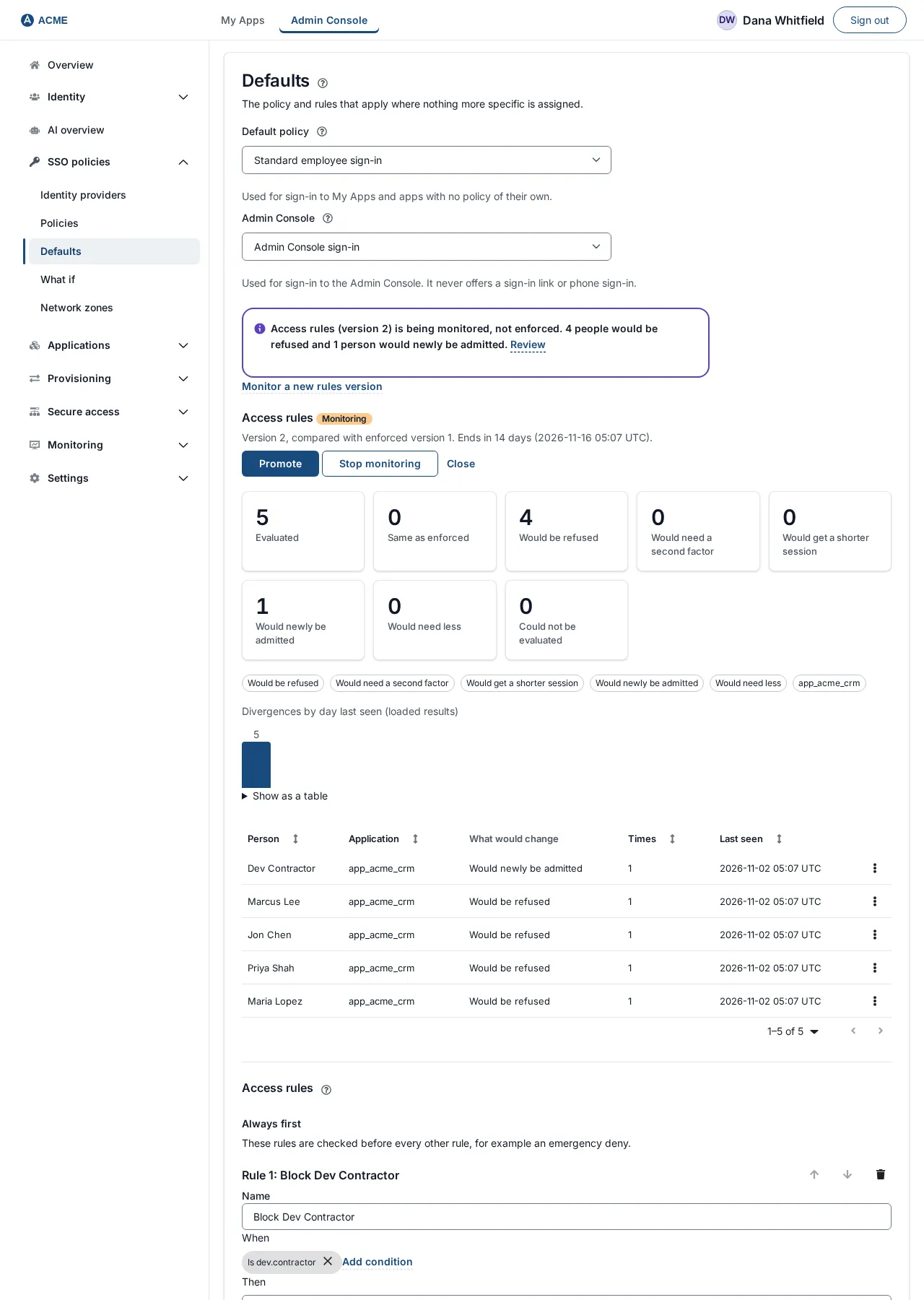
- Tiles count what was evaluated: Evaluated, Same as enforced, Would be refused, Would need a second factor, Would get a shorter session, Would newly be admitted, Would need less, and Could not be evaluated.
- Filter chips narrow the table by what would change, and by application. Select a chip again to clear it.
- Divergences by day is a small bar chart with a Show as a table option.
- The Monitoring observations table has Person, Application, What would change, Times and Last seen. The application is shown by its identifier. A row’s menu has Run application test as this person, which runs the application’s Test for that person and shows the verdict above the table. Show more loads further rows.
If “The observation limit was reached”, counts keep growing but new rows are no longer kept. “Nothing observed yet. Results appear as people sign in and launch applications.” means no one has signed in since you started.
Promote
Section titled “Promote”Promote makes the monitored version the enforced rules for everyone.
- In the review panel select Promote.
- A confirmation reads “Promote version 2 of Access rules?” and tells you what the monitoring saw. If anyone would be refused or newly admitted, if anything could not be evaluated, or if the observation limit was reached, you must type the name (“Access rules”) to confirm. A clean comparison needs no typing.
- The text ends: “Existing sessions and grants are not revoked.”
- Select Promote. You see “Version 2 is now enforced.”
If the version would open the access rules to everyone, a second confirmation appears: “Version 2 opens the access rules to everyone”. Type the name of your organization (the address you use for the console) to continue. See Access rules.
Promote can be refused:
| Message | Meaning |
|---|---|
| The enforced rules changed while this was being monitored, so the results no longer compare with them. Nothing was changed. | Someone else changed the access rules. Start monitoring again. |
| Promoting this revision would leave you unable to open any application. Nothing was promoted. | Your own access would be lost. |
| This revision opens the access rules to everyone. Type the organization’s name to confirm. Nothing was promoted. | Needs the organization name. |
| The policy changed while it was being promoted. Nothing was promoted; review it and try again. | A simultaneous change. |
| Type the name exactly to confirm. | The typed name did not match. |
A monitored version whose days have run out cannot be promoted.
Select Stop monitoring, then confirm “Stop monitoring version 2?” (“The revision is disabled and nothing about enforcement changes. Its observations are kept.”). You see “Monitoring stopped.” The version number stays used.
Check that it worked
Section titled “Check that it worked”- After setting a default: open SSO policies > Policies; the chosen policy shows Default policy under its details.
- After promoting: the banner disappears, System health no longer lists the version, and What if (guide) answers from the promoted rules.