Saved application password in My Account
A saved application password lets SSOGEN sign you in to an application that only accepts a username and password typed into its own login page. SSOGEN types the password for you, so you sign in to SSOGEN once and the application opens already signed in. App passwords in My Account is where you look after those passwords. Only you can use them, and SSOGEN never shows a saved password again, not even to you.
This guide is for anyone who signs in to SSOGEN. Administrators who set this up should read Per-person form fill.
The examples use the fictional company Acme Corp and an employee, Maria Lopez, who uses an internal application called Acme Invoices.
Open it: sign in, open your organization’s SSOGEN address (the My Apps page) and select App passwords in the My Account group of the menu on the left. The address ends in #app-passwords.
1. What the App passwords page shows
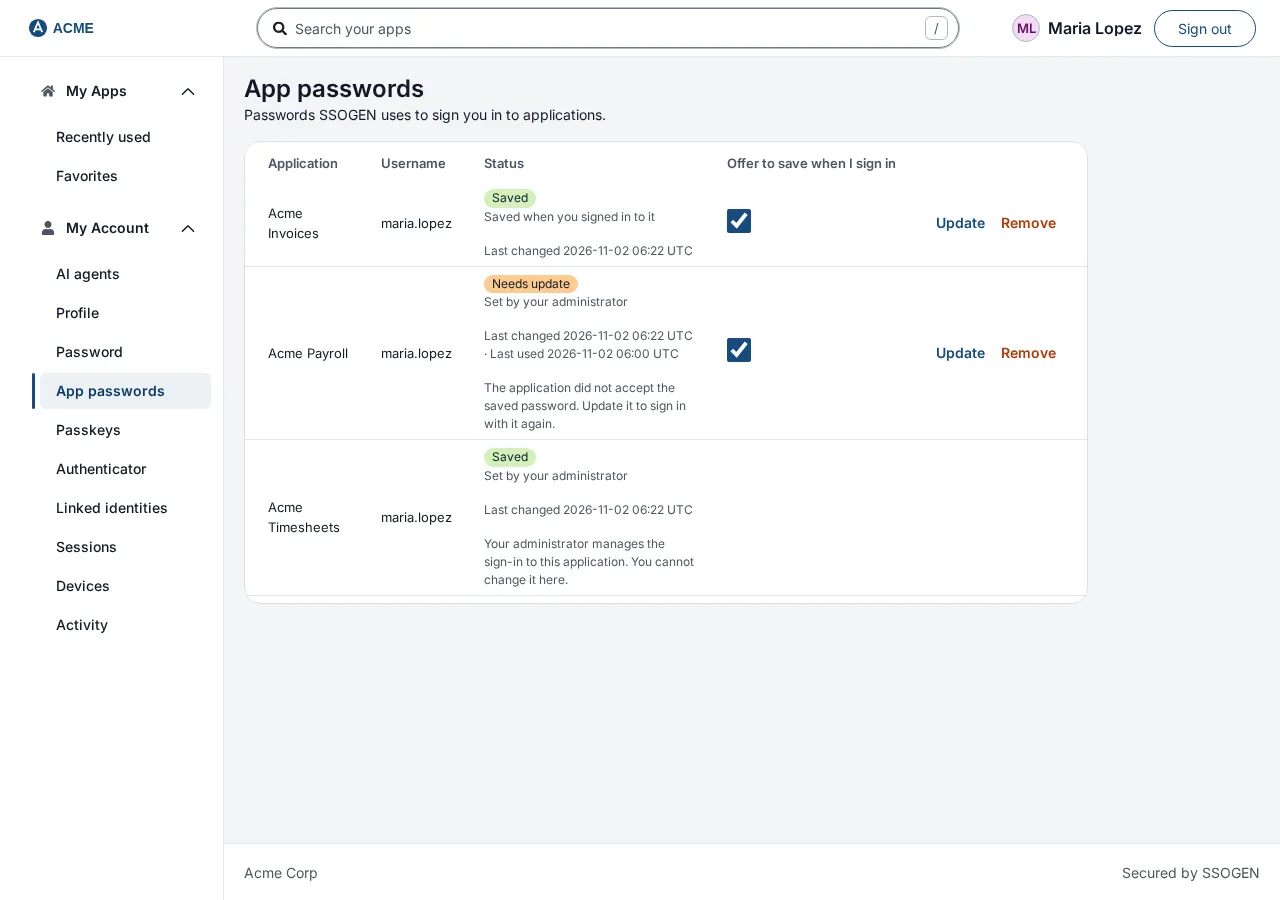
Section titled “1. What the App passwords page shows”The page says “Passwords SSOGEN uses to sign you in to applications.” Each application has a row in a table with the columns Application, Username, Status and Offer to save when I sign in.
| On the row | Meaning |
|---|---|
| Username | The username SSOGEN uses. |
| Status | A badge: Saved (green), Needs update (orange) or Not set (gray). Under it, a gray line says where the password came from (Saved when you signed in to it, Entered here by you or Set by your administrator), and Last changed and Last used say when the password was last saved or changed and when SSOGEN last used it to sign you in. |
| Offer to save when I sign in | A tick box. Untick it if you do not want SSOGEN to offer to save this application’s password (section 5). |
| Add or Update, and Remove | Buttons to enter a password yourself, replace it, or delete it. |
If you have none, the page says No app passwords: “When your administrator sets an application to sign you in with a password you hold, it appears here, and you can add or update that password. Some applications offer to save your password the first time you sign in.”
An application whose sign-in your administrator manages shows “Your administrator manages the sign-in to this application. You cannot change it here.” and has no buttons. In that case the administrator sets your password for you.
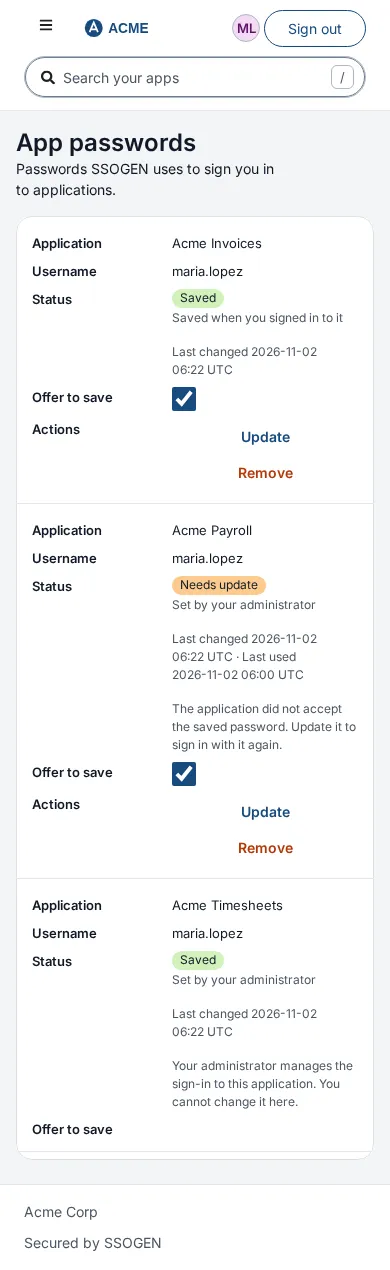
On a phone the rows stack one under another.
2. Save a password when SSOGEN offers
Section titled “2. Save a password when SSOGEN offers”When SSOGEN has no password for you in an application, and your administrator allows it, you are offered to save the password you type the first time.
- Open the application from My Apps. Nothing is saved yet, so the application shows its own login page.
- Type your username and password into the application’s login page and sign in, as you always do.
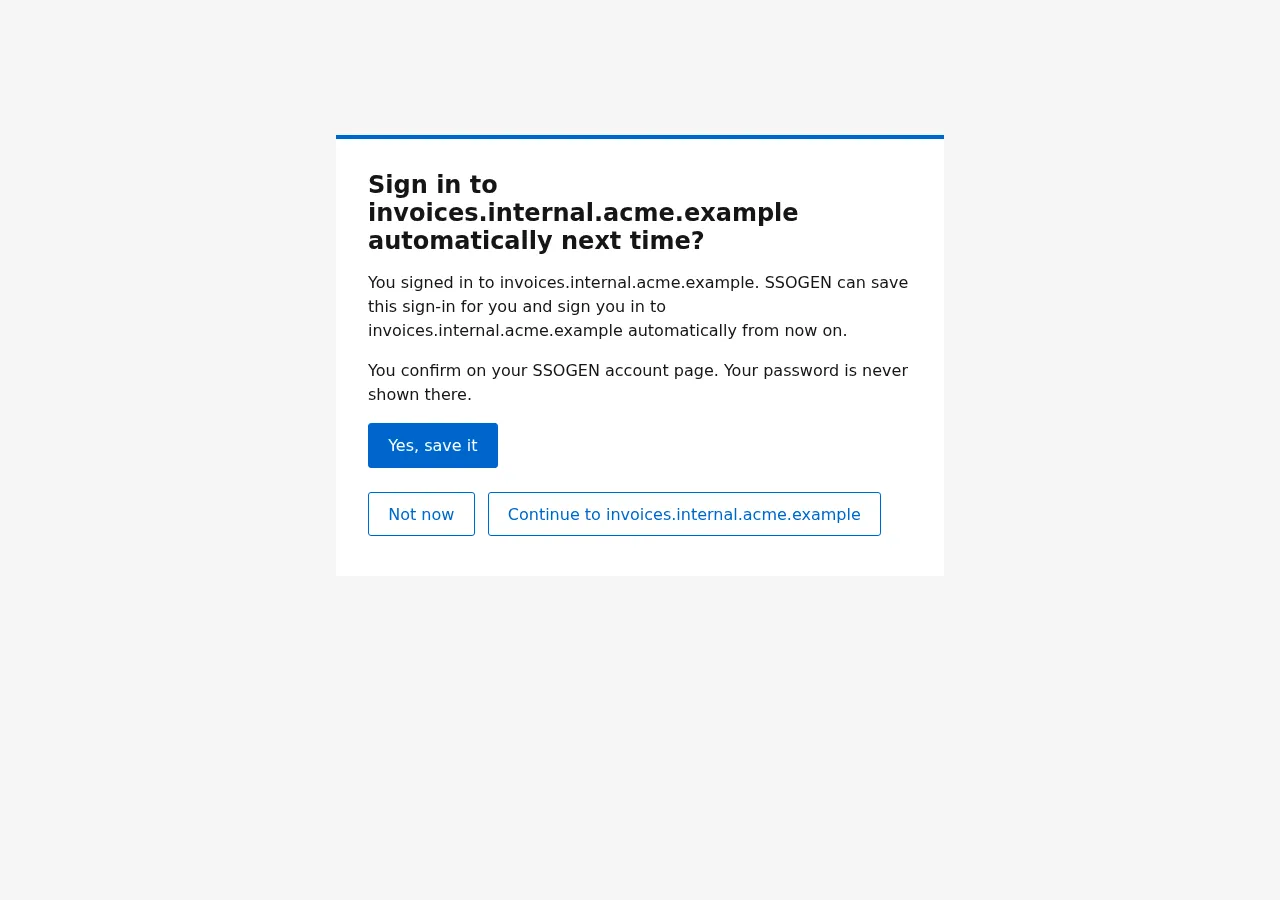
- When the application accepts it, SSOGEN shows a page titled Sign in to the application’s address automatically next time? It says: “You signed in to the address. SSOGEN can save this sign-in for you and sign you in to the address automatically from now on.” and “You confirm on your SSOGEN account page. Your password is never shown there.”
- Choose:
- Yes, save it takes you to My Account, App passwords, to confirm (step 5). The address ends in
?offer=and the offer’s code, then#app-passwords. - Not now or Continue to the address take you on to the application without saving. You are offered again the next time you sign in.
- Yes, save it takes you to My Account, App passwords, to confirm (step 5). The address ends in
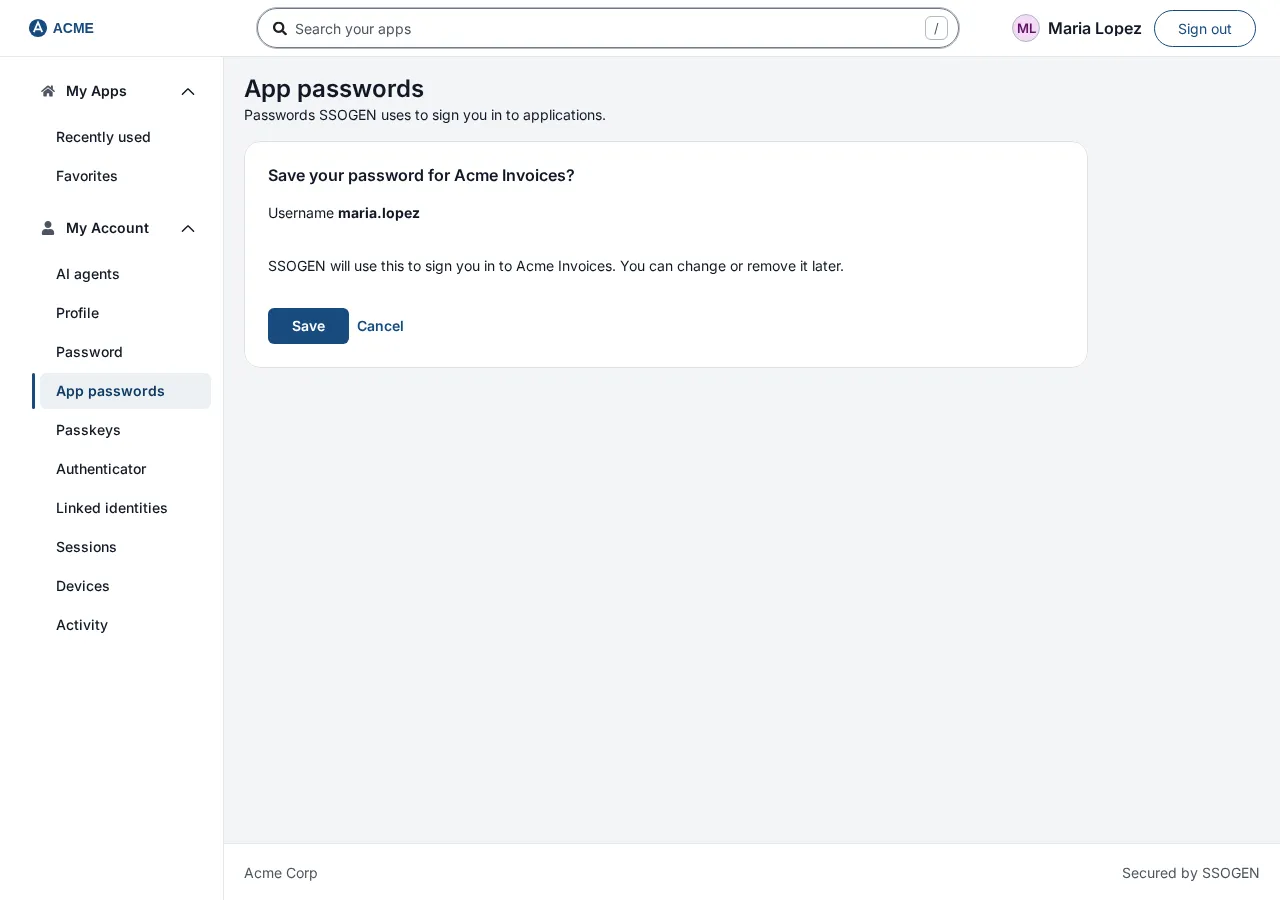
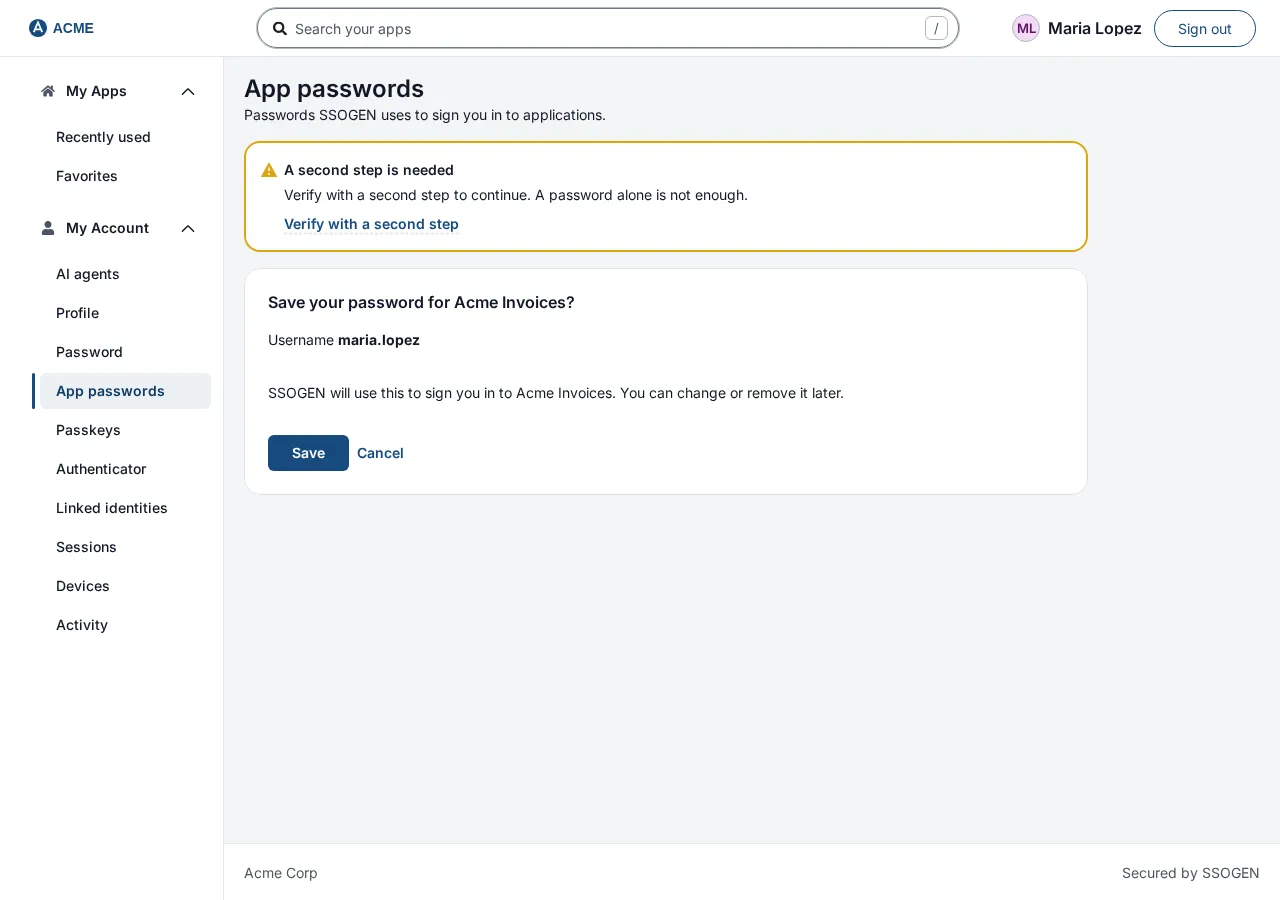
- The confirmation page asks Save your password for Acme Invoices? It shows your username (for example maria.lopez) and says: “SSOGEN will use this to sign you in to Acme Invoices. You can change or remove it later.” Select Save to save it, or Cancel to save nothing and go back to the list.
- SSOGEN may ask for a second step first (section 3). After Save you are returned to the application, signed in.
How you know it worked: the next time you open Acme Invoices from My Apps, it opens without its login page, and App passwords shows Acme Invoices as Saved with the line Saved when you signed in to it.
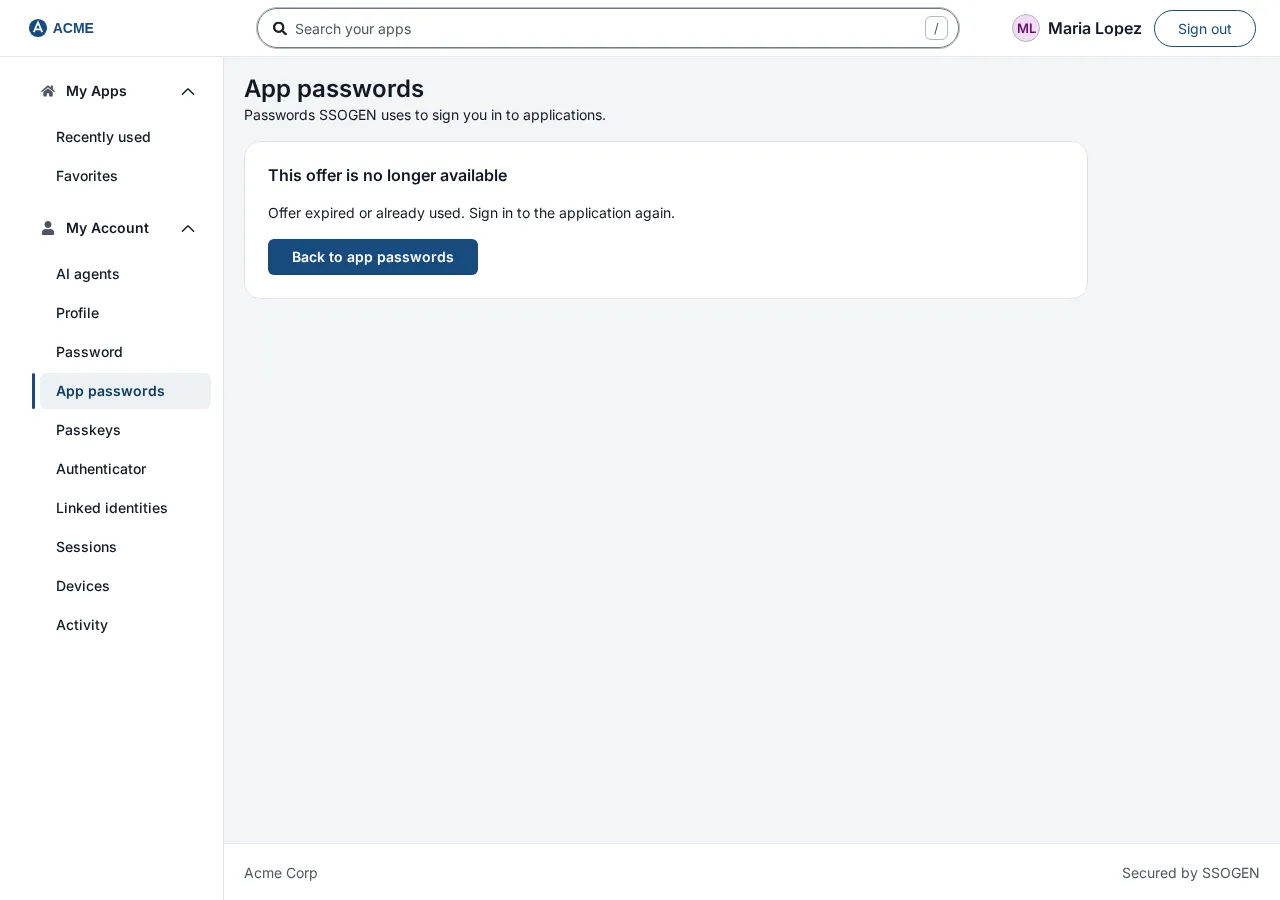
An offer is good for 5 minutes. If it has expired, or you already used it, the page says This offer is no longer available and “Offer expired or already used. Sign in to the application again.” with a Back to app passwords button.
3. The second step before a password is saved
Section titled “3. The second step before a password is saved”Saving a password is protected, because the password is valuable. Before Save completes, SSOGEN needs you to have completed a second step in the last 5 minutes: your authenticator app, a passkey, or a code sent to you. Your password alone is not enough. A box headed A second step is needed appears:
Verify with a second step to continue. A password alone is not enough.
Select Verify with a second step (or Sign in again, if the box offers that), complete the step, and you come back to the same page. Select Save again; the password you typed on the form is not kept, so on the Add or Update form type it once more.
You need a second factor on your account for this. If you have none, a box headed A second factor is needed says “Saving an application password needs a second factor. Add one first. Nothing was saved.” and offers Add a second factor: see My Account: password, Authenticator and passkeys.
If you added your first second factor during the current session, the box says: A sign-in method was added to your account after you signed in here, so this sign-in cannot confirm it is you. Sign out and sign in again, then retry within a few minutes. Select Sign out and sign in again. This is intended: a method added in a session never counts as proof for that same session.
4. Add or update a password yourself
Section titled “4. Add or update a password yourself”You can enter a password without waiting for an offer, and you can replace one that stopped working.
- Open App passwords.
- On the application’s row select Add (nothing saved yet) or Update (something saved).
- A form opens. Type the Username that the application expects (for example
maria.lopez) and the Password. Under the password it says: “Used to sign you in to Acme Invoices. It is stored encrypted and never shown again.” - Select Save password. (The button stays gray until both boxes have text.) Select Cancel to close the form.
- Complete the second step if asked (section 3).
How you know it worked: the row shows Saved, your username, and Entered here by you.
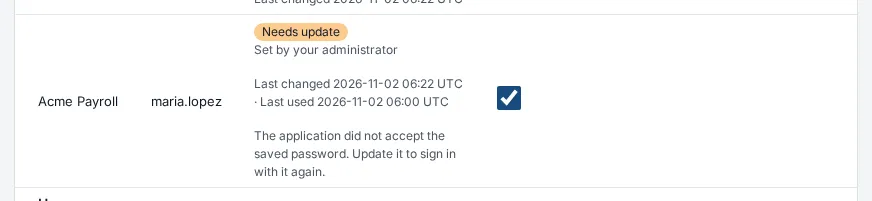
If the application’s own login page rejects the password you saved (for example you changed it inside the application), the row shows Needs update and “The application did not accept the saved password. Update it to sign in with it again.” SSOGEN stops trying the old password. Either select Update and enter the new one, or (when offers are on) open the application and sign in on its login page, and you are offered to save the new password (“Update the saved password for Acme Invoices?”).
If the application’s login page appears and SSOGEN has no password for you, and your account does not offer to save, SSOGEN shows a page that says “SSOGEN does not have your sign-in for this application yet. Add it under App passwords in your account.” (or, for a rejected password, “Your saved password for this application needs updating. Update it under App passwords in your account.”) with a link to this page.
5. Stop being offered
Section titled “5. Stop being offered”Untick Offer to save when I sign in on an application’s row. SSOGEN then never offers to save that application’s password for you. This does not delete anything already saved. Tick it again to be offered again. Changing this tick box needs no second step.
6. Remove a password
Section titled “6. Remove a password”- On the application’s row select Remove.
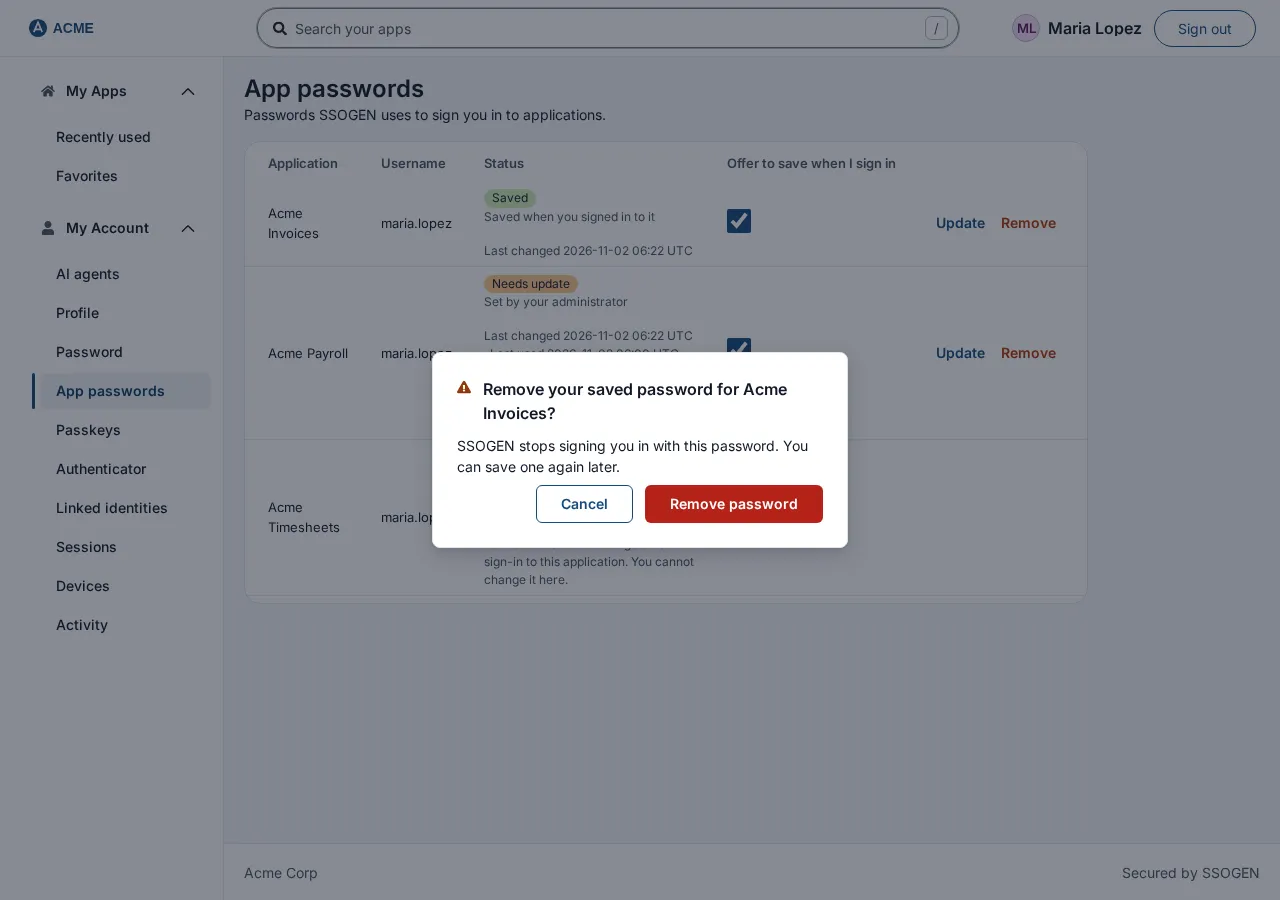
- A dialog asks Remove your saved password for Acme Invoices? and says: “SSOGEN stops signing you in with this password. You can save one again later.”
- Select Remove password.
The next time you open the application you sign in on its own login page, and are offered to save again unless you turned the offer off.
7. Messages you may see
Section titled “7. Messages you may see”| Message | What it means and what to do |
|---|---|
| That username is not the one your organization expects. Nothing was saved. | Your administrator requires the username to match your profile. Use the name your organization expects, or ask your help desk. |
| Enter both a username and a password. Nothing was saved. | A box was empty. |
| This application cannot be signed in to with a saved password. Nothing was saved. | The application is not set up for saved passwords. Ask your administrator. |
| Your administrator manages this sign-in, so you cannot change it here. | The administrator sets your password for this application. |
| Too many attempts. Wait a moment and try again. | Wait a minute, then try again. |
| Saved passwords are not available right now. Nothing was saved. Ask your administrator. | Tell your help desk. |
| Saving this password is no longer offered for this application. Nothing was saved. | The administrator turned the offer off while you were signing in. You can still use Add. |
| Your app passwords could not be loaded. | Reload the page. |
| Nothing was changed. Try again. | Try again; if it keeps failing, tell your help desk. |
What if the application keeps showing its login page?
Section titled “What if the application keeps showing its login page?”SSOGEN signs you in once per session. If the application keeps asking for a password, the saved password may have been rejected: check whether the row shows Needs update. SSOGEN also protects your account in the application from being locked: after 3 failed automatic sign-ins within 5 minutes, it pauses for 5 minutes. Update the password, wait, and try again.
Related guides: Using My Apps, My Account: password, Authenticator and passkeys.