An SSO identity provider is the place where a user proves who they are. SSOGEN works both ways:
- As the identity provider, with local accounts, your directory, SAML and OpenID Connect built in.
- Behind the provider you already run, which keeps the password check, so no user keeps a second set of passwords.
In both cases, users reach every SSO-protected application through one sign-in. Several providers are active at once.
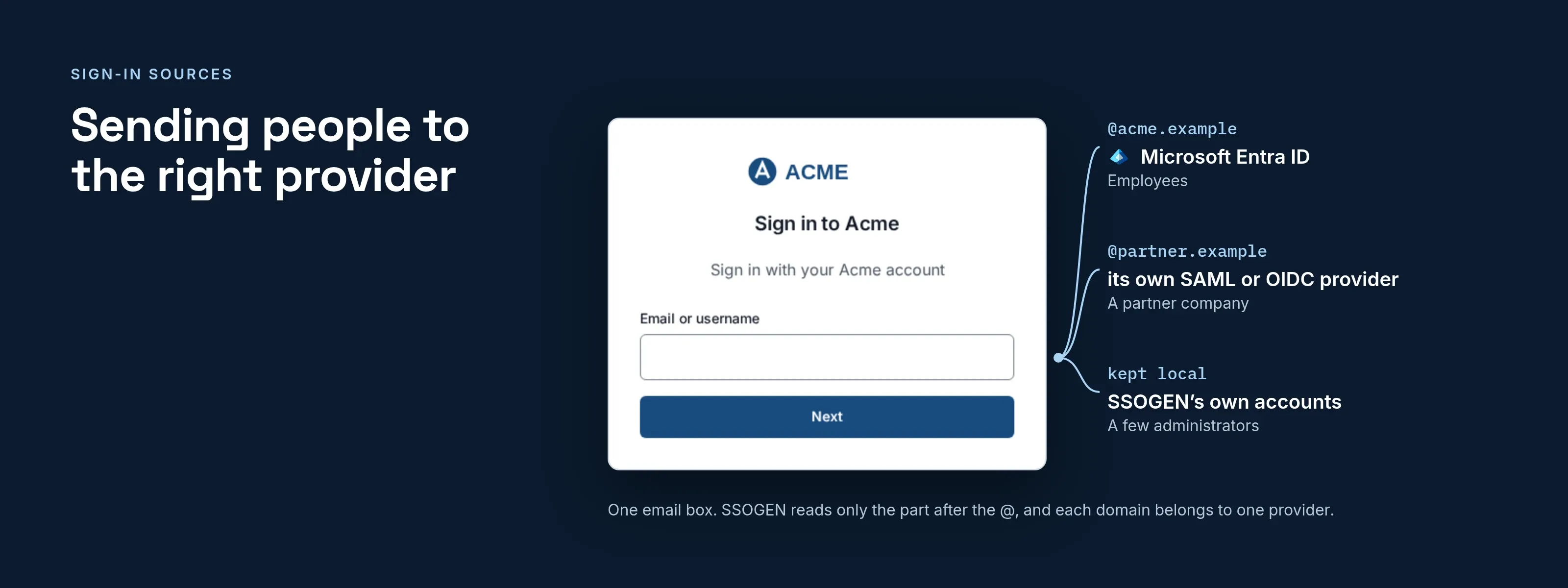
You choose per group:
- Administrators. Local accounts.
- Employees. An Entra ID tenant.
- A partner company. Its own provider.
Four kinds of identity provider
| Kind | What people do | Who holds the password |
|---|---|---|
| Username and password | Type a username and password on the SSOGEN page | SSOGEN |
| Directory (LDAP) | Type their work password on the SSOGEN page | Your directory, such as Active Directory or OpenLDAP |
| SAML | Are redirected to the other system’s sign-in page | The other system |
| OpenID Connect | Are redirected the same way, over a newer protocol | The other system |
Directories are configured under Identity > Directories, because a directory also brings in users and groups. SAML and OpenID Connect providers are added under SSO Policies > Identity Providers.
Identity providers SSOGEN connects to
SSOGEN connects to any SAML 2.0 or OpenID Connect provider, with no catalog entry needed. Each page below covers one provider: what to set on its side, the NameID and attribute choices, and the errors to expect.
| Provider | Protocol | Page |
|---|---|---|
| Microsoft Entra ID | SAML or OpenID Connect | Entra ID setup |
| Okta | SAML or OpenID Connect | Okta setup |
| Ping Identity, PingFederate | SAML or OpenID Connect | PingFederate setup |
| Microsoft AD FS | SAML | AD FS setup |
| Keycloak | SAML or OpenID Connect | Keycloak setup |
| Shibboleth | SAML | Shibboleth setup |
| SiteMinder | SAML | SiteMinder setup |
| Any SAML 2.0 provider | SAML | SAML checklist |
How a new provider goes live
A new SAML or OpenID Connect provider changes nothing for users until it passes three steps. It starts as a draft.
- Validate the configuration.
- Test a real sign-in.
- Activate the provider.
Only an active provider appears on the sign-in page, and only where the application’s policy allows it.
Editing an active provider creates a revision. The old configuration keeps serving sign-in until you activate the new one, so a bad edit cannot lock users out.
SSOGEN verifies everything the provider sends:
- SAML assertions must be signed.
- OpenID Connect ID tokens are checked for issuer, audience, signature, expiry and a one-time value tied to the sign-in.
Sending people to the right provider
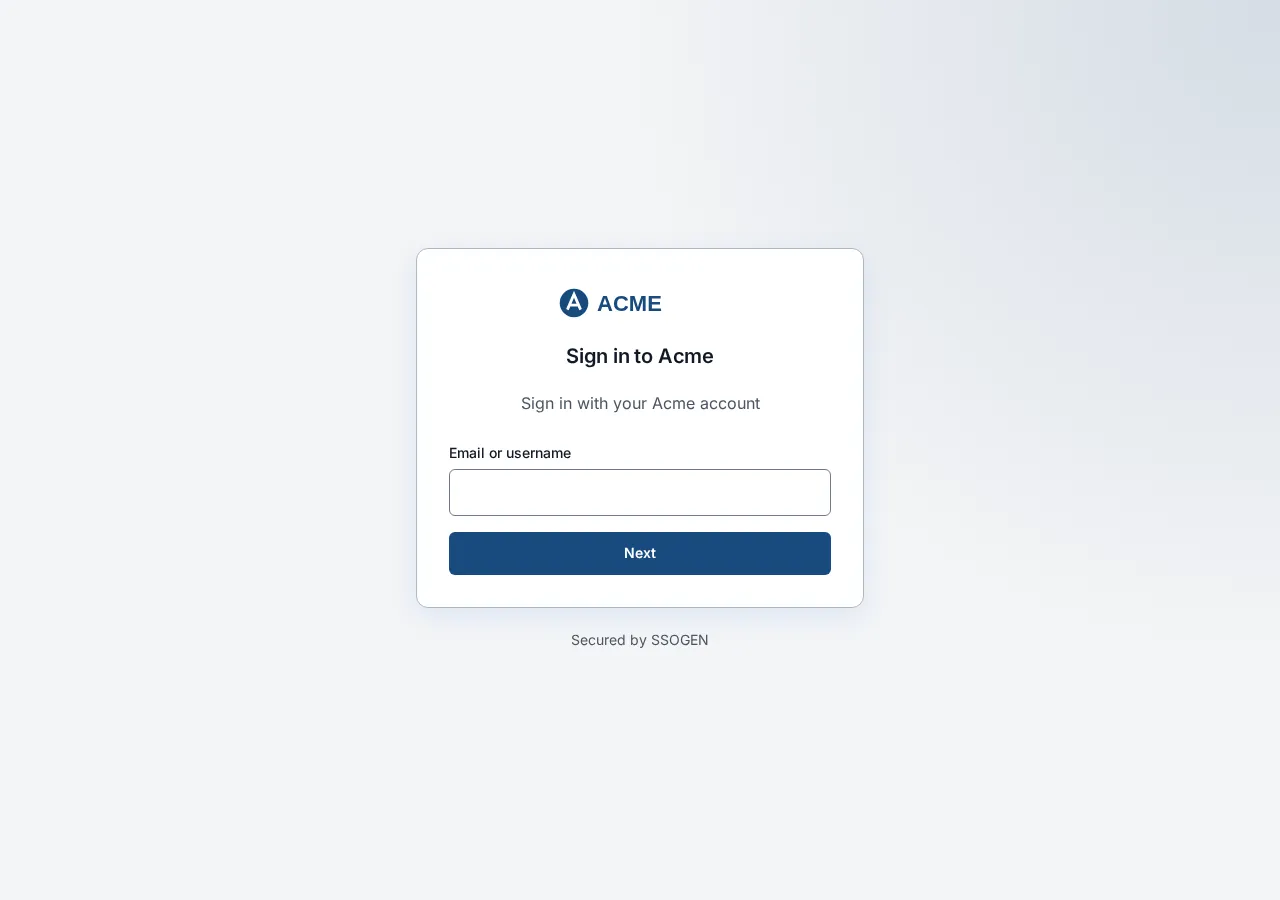
With more than one provider active, the sign-in page asks for an email address first and routes the user by the domain after the @.
You assign up to 20 domains on each provider’s page; each domain belongs to one provider.
- A provider can carry a sign-in restriction, such as a required tenant ID.
- With account matching enabled, SSOGEN joins a sign-in to an existing account with the same verified email address.
Where to start
SSOGEN has run single sign-on in production since 2016.
- Reference. For the lifecycle, roles and sign-in domains, read the identity providers guide.
- Wizards. The SAML guide and the OpenID Connect guide.
- SSOGEN as provider. SSOGEN is also a SAML IdP and an OpenID Connect provider.
- Several providers. One application can offer several identity providers at once.