SSOGEN / Sign-in sources for SSOGEN
SSOGEN
Sign-in sources for SSOGEN
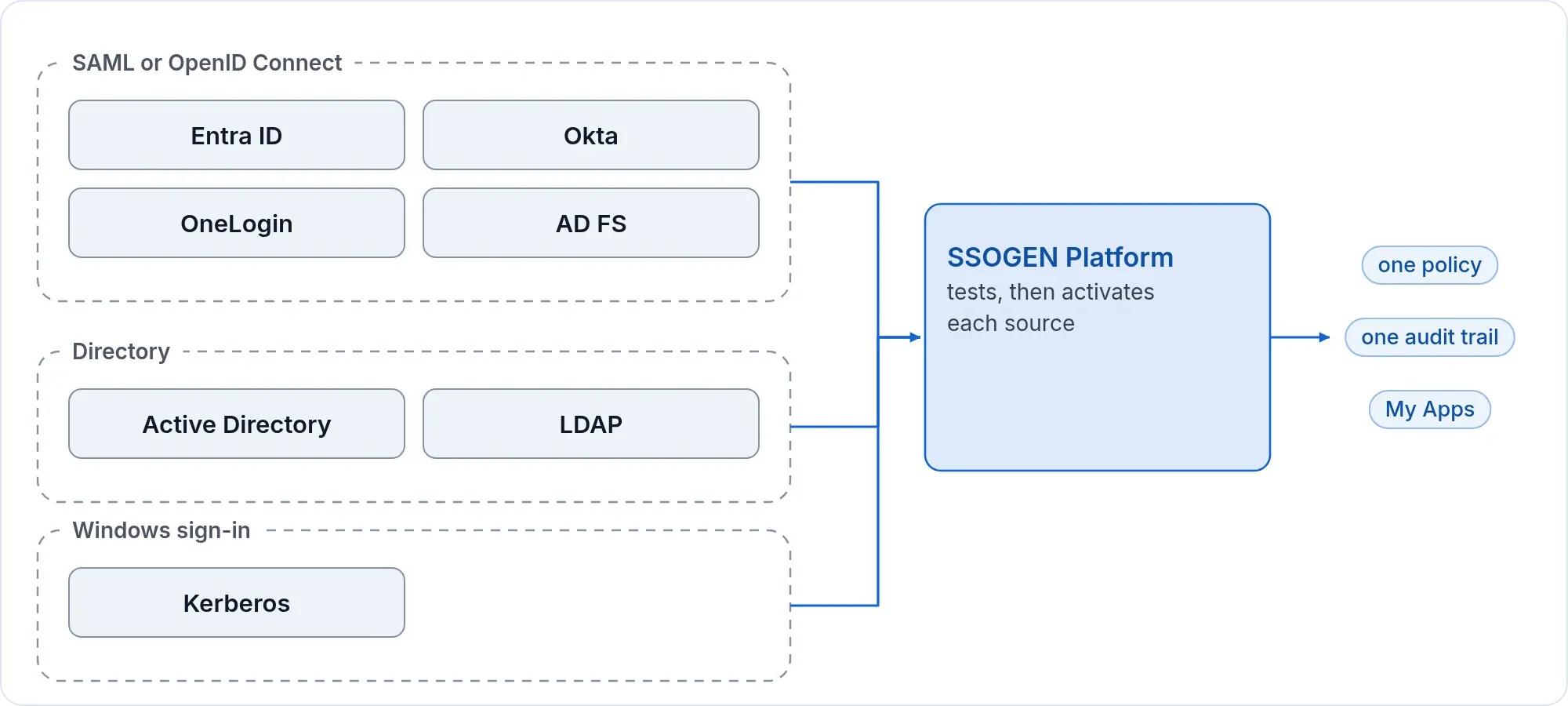
Each page names the settings on the provider's side and on SSOGEN's side, so nobody gets a new password.
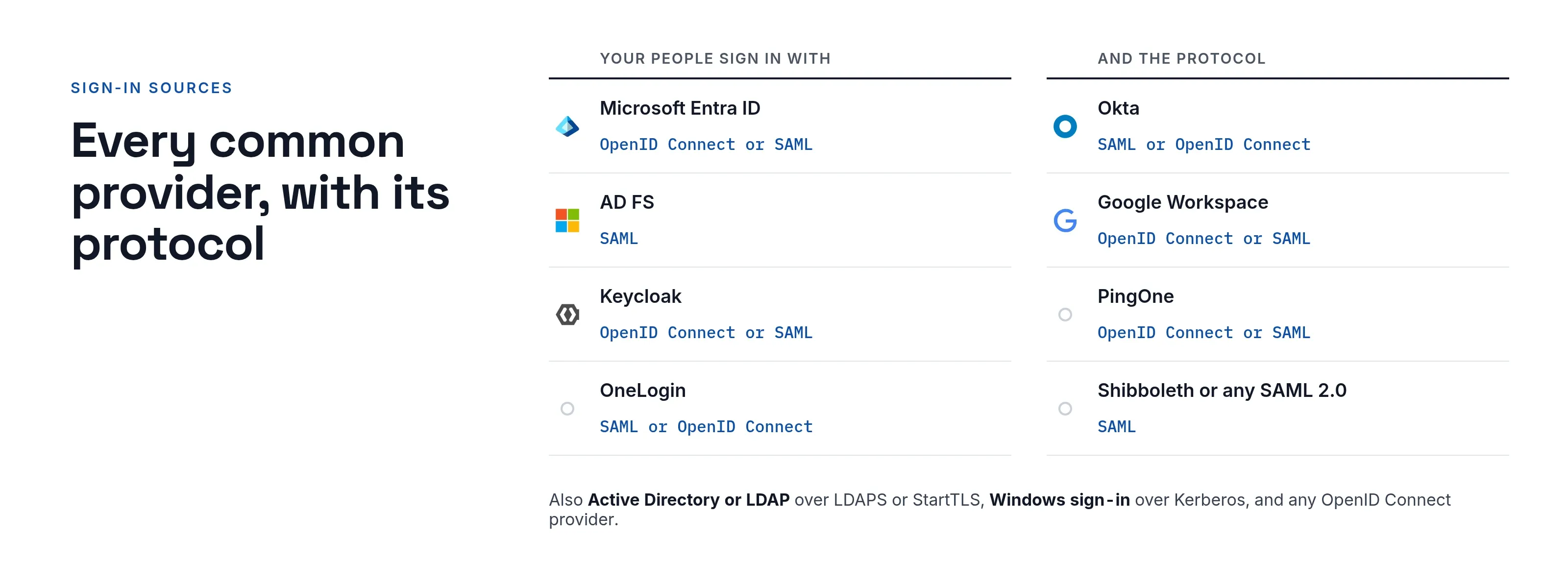
| Users sign in with | Protocol | Page |
|---|---|---|
| Microsoft Entra ID | OpenID Connect or SAML | Microsoft Entra ID |
| Okta | SAML or OpenID Connect | Okta |
| OneLogin | SAML or OpenID Connect | OneLogin |
| AD FS | SAML | AD FS |
| Google Workspace | OpenID Connect or SAML | Google Workspace |
| Keycloak | OpenID Connect or SAML | Keycloak |
| PingOne | OpenID Connect or SAML | PingOne |
| Any other SAML 2.0 provider (Shibboleth, PingFederate, a partner’s provider) | SAML | Any SAML provider |
| Any other OpenID Connect provider | OpenID Connect | Any OpenID Connect provider |
| Their Active Directory or LDAP password, typed on the SSOGEN page | LDAPS or StartTLS | Active Directory and LDAP |
| Their Windows session, without a password | Kerberos | Windows sign-in (Kerberos) |
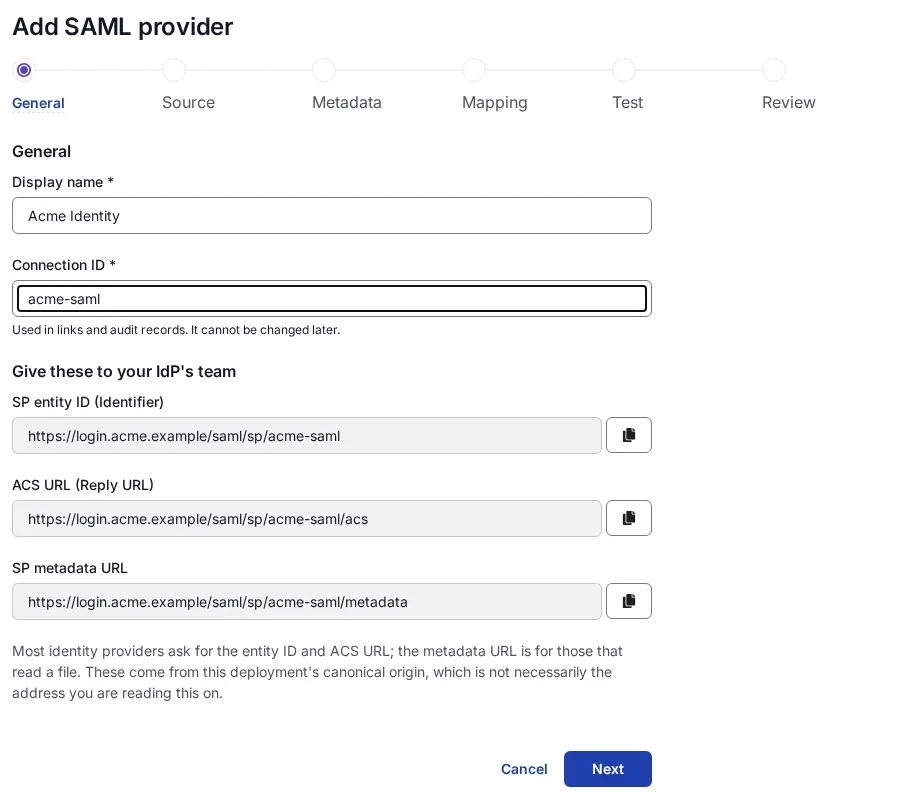
The SSOGEN side is the same for every SAML provider and for every OpenID Connect provider, so it is written once: Add a SAML identity provider in SSOGEN and Add an OpenID Connect identity provider in SSOGEN.
PeopleSoft with Okta: set up PeopleSoft on the PeopleSoft page and Okta on the Okta page.
Choosing between SAML and OIDC
If the provider offers both, either works. OpenID Connect has fewer values to exchange (a redirect URI one way; an issuer, client ID and secret the other), and for Microsoft Entra ID, Keycloak and Google SSOGEN fills most of it in from your tenant or host. SAML is the usual choice for AD FS, and the one to use when the provider sits on a private network that SSOGEN’s server cannot reach: you upload the provider’s metadata file and the sign-in itself passes through the person’s browser.
What every provider has in common
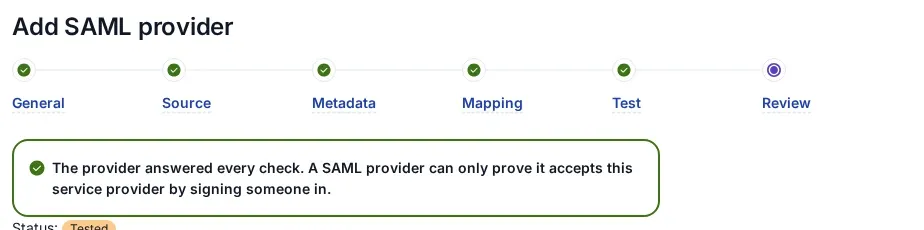
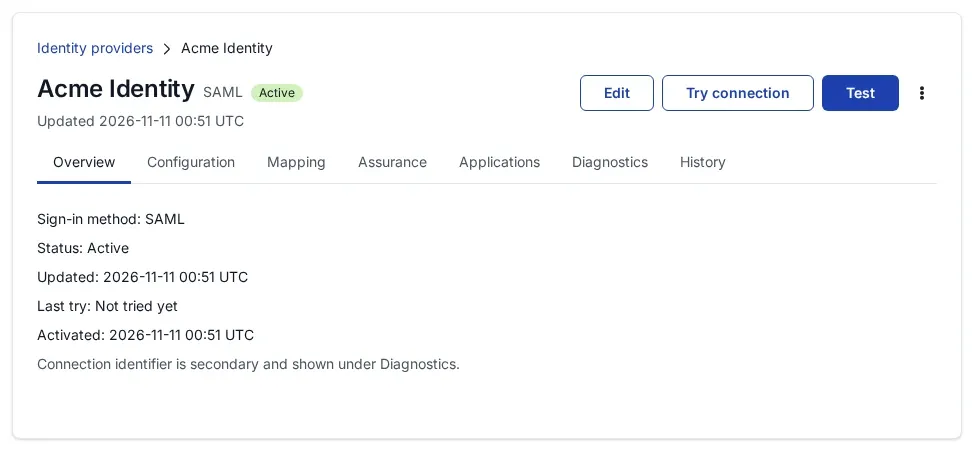
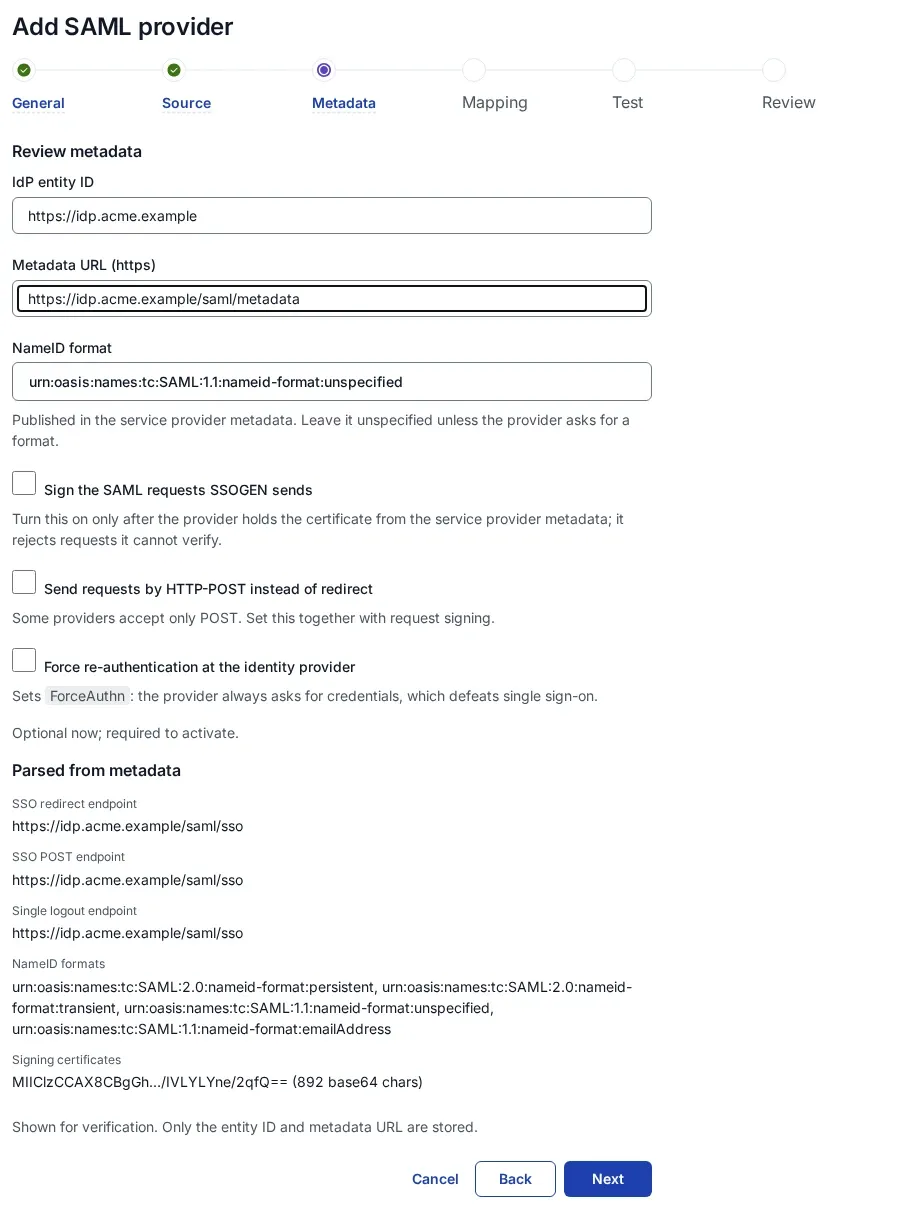
- Draft until you activate it. A new provider changes nothing for anyone until it has passed Validate and Test and you select Activate. Try connection signs in a test person and shows what SSOGEN would do, without creating anything. Editing an active provider creates a revision; people keep using the active one until you activate the revision.
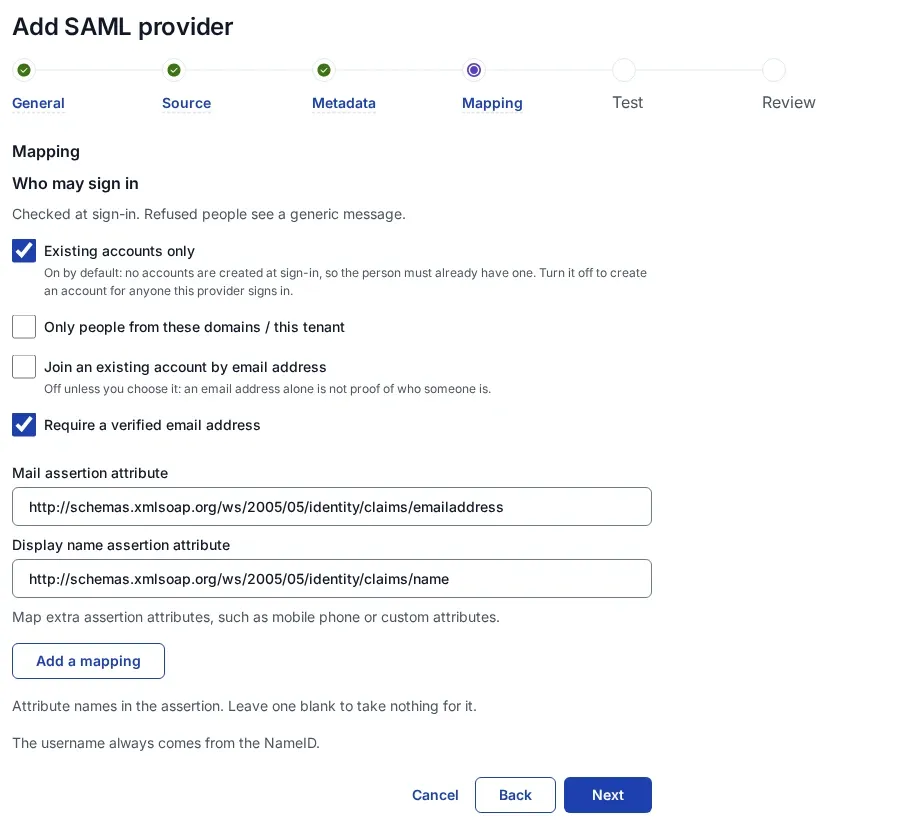
- Nobody gets in by accident. A new SAML or OpenID Connect provider admits only people already linked to it, which on day one is nobody. You choose whether it creates an account for each new person, joins existing accounts by verified email address, or both, and you can require a claim such as your tenant or domain. SSOGEN never joins an account by username alone, and never joins an administrator’s account by email.
- Policies decide where it is offered. An application’s authentication policy lists the providers it accepts. With one, people go straight there; with several, they choose under Sign in with, or are sent by their email domain.
- SSOGEN’s second factor, if you want it. For each provider you decide whether its own multi-factor sign-in counts, or SSOGEN asks for its own second factor wherever a policy needs one. The Admin Console always asks for SSOGEN’s own second factor.
- Several at once. Local accounts for a few administrators, one directory, a corporate provider and a partner’s provider can all be active together.