SSOGEN / JDE Entra ID single sign-on for EnterpriseOne
Integration
JDE Entra ID single sign-on for EnterpriseOne
Create one enterprise application for SSOGEN in Entra ID, as a SAML app or an OpenID Connect registration, and EnterpriseOne receives the signed-in user ID.
In Microsoft Entra ID
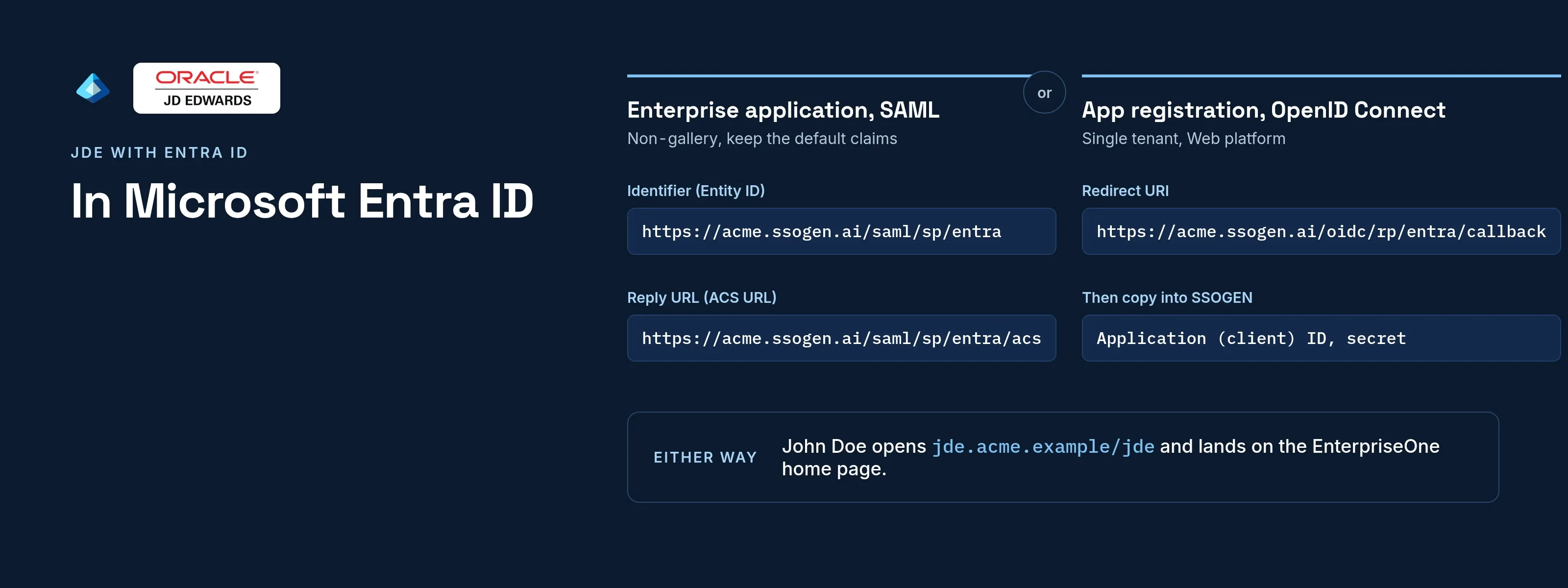
Create one enterprise app for SSOGEN. SSOGEN is in the Entra gallery. A non-gallery SAML app or an OpenID Connect app registration also works. For a connection ID of entra, set these values:
| Entra ID field | Value |
|---|---|
| Identifier (Entity ID) | https://acme.ssogen.ai/saml/sp/entra |
| Reply URL (Assertion Consumer Service URL) | https://acme.ssogen.ai/saml/sp/entra/acs |
| Attributes and claims | keep the defaults; Name ID is the user principal name |
Under Users and groups, assign the people who may use JD Edwards. Every Entra and SSOGEN screen is on Microsoft Entra ID as the sign-in source. That page also covers the tenant restriction.
In SSOGEN and in JD Edwards
- Add Microsoft Entra ID as an identity provider in SSOGEN and activate it, as that page says.
- Register JD Edwards as a Web Agent app. Under Identify the person by, pick the value that equals the EnterpriseOne user ID. Use
emailfor e-mail addresses andsource_usernamefor directory sign-in names. - Pick
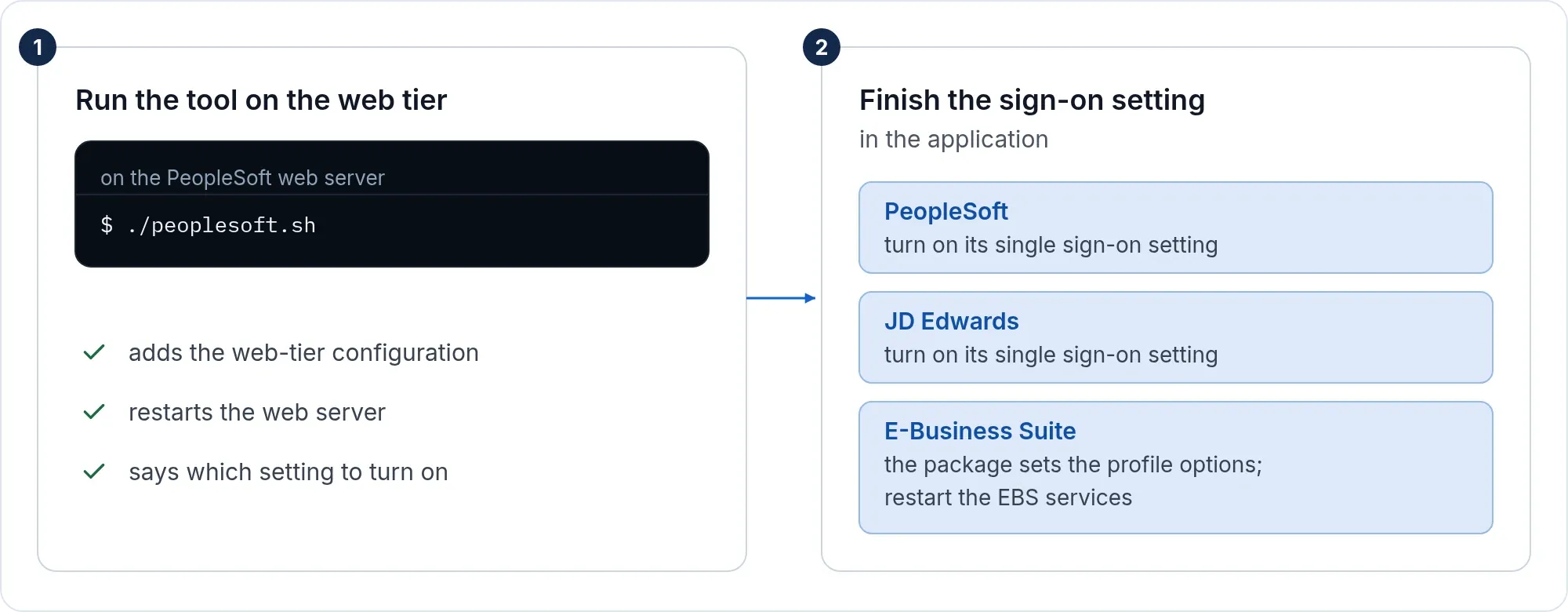
usernamewith care. Over OpenID Connect, the SSOGEN account name is the user principal name, such asjohn.doe@acme.example. Over SAML, it isentra_john.doe_acme.example. - Run the tool and set Server Manager as on the JD Edwards page.
Entra ID signs the person in the way your tenant is set up. That can be a form, multi-factor, Conditional Access, or Windows desktop sign-in (Kerberos). SSOGEN adds its own second factor only where a policy asks for one.
What people see
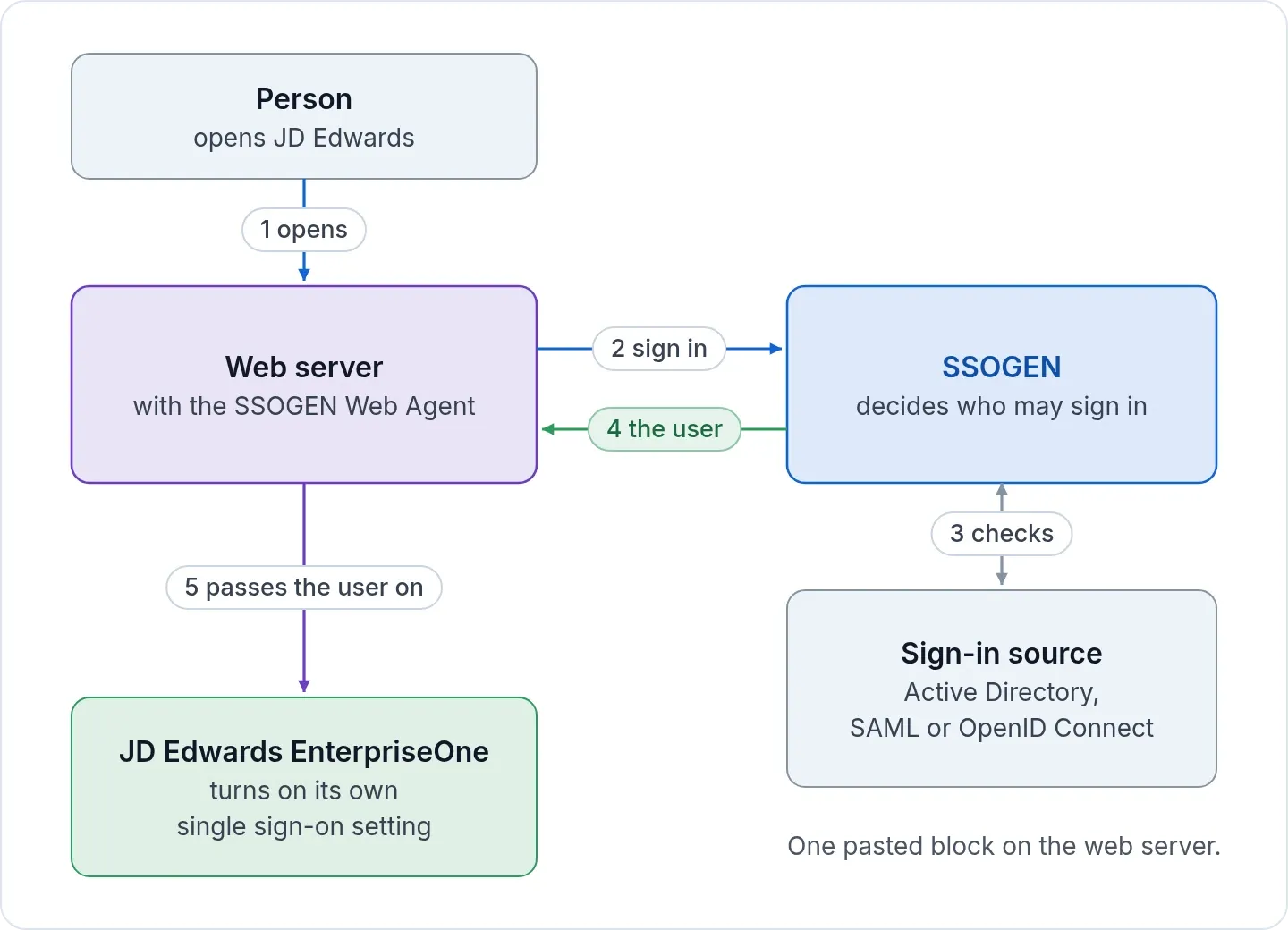
A person opens https://jde.acme.example/jde. SSOGEN sends the browser to Microsoft. The person signs in there, or passes straight through when signed in to Microsoft 365 already. Entra applies its own MFA and Conditional Access. Then the EnterpriseOne home page opens. Other Entra ID apps share the same session, both ways. SSOGEN shows no page of its own.
If it does not work
Entra problems show as an AADSTS code on the Microsoft page. SSOGEN problems show in Try connection. For web server and EnterpriseOne issues, see the JD Edwards page.
| Symptom | What to do |
|---|---|
| Microsoft shows AADSTS50011: the reply URL does not match | The Reply URL in Entra differs from SSOGEN’s ACS URL. Copy it again. Entra compares it exactly, including case. Allow a few minutes after a change. |
| Microsoft shows AADSTS50105: the user is not assigned | Assignment required is on and the person is not assigned. Add the person, or a group the person is a direct member of, under Users and groups. |
| Try connection says “The assertion was addressed to a different service provider.” | Identifier (Entity ID) in Entra differs from SSOGEN’s SP entity ID. |
| “You cannot sign in with this provider” | A new SAML provider admits nobody. Choose Anyone this provider vouches for and require the claim http://schemas.microsoft.com/identity/claims/tenantid with your tenant ID. |
| Sign-ins fail after the Entra certificate is renewed | Fetch the App Federation Metadata Url again in SSOGEN and activate the revision. Then make the new certificate active in Entra. |
| Sign-in works, EnterpriseOne does not know the user | The value SSOGEN sends must equal an EnterpriseOne user ID, in capitals. Change Identify the person by or the user IDs. |
Sign-out
The EnterpriseOne sign-off link calls /ssogen/logout. By default, it ends the web server session only. The person stays signed in to SSOGEN and to Microsoft.
| To end | Do this |
|---|---|
| The SSOGEN session too, on shared computers | Add SSOGENLogoutScope sso to the configuration the tool wrote. |
| The Microsoft session too | On the provider’s Configuration tab, turn on Also sign out of this provider. |
For Entra, the provider sign-out address looks like https://login.microsoftonline.com/<tenant-id>/saml2. Choose IdP SLO URL to take it from the metadata. Ending the Microsoft session also signs the person out of other apps federated to Entra. More on scopes: sign-out on every page.