SSOGEN / Single sign-on for Slack with SSOGEN
SSOGEN
Single sign-on for Slack with SSOGEN
Slack takes SSOGEN as custom SAML with a persistent name ID and a User.Email attribute, for a workspace or an Enterprise organization.
The example workspace is https://acme.slack.com; an Enterprise organization uses https://acme.enterprise.slack.com. SSOGEN runs at https://acme.ssogen.ai.
What you need
- Slack Business+ or Enterprise. A Workspace Owner configures a workspace; an Org Owner configures an Enterprise organization.
- A Slack password and two-factor authentication on the owner account, for the way back in.
- An SSOGEN administrator who can save SAML applications (see Add a SAML application in SSOGEN).
Step 1. In SSOGEN: add Slack
Follow Add a SAML application in SSOGEN with the gallery card Slack and these values:
| SSOGEN field | Value for Slack |
|---|---|
| Service provider entity ID | https://slack.com |
| Assertion consumer service URL | https://acme.slack.com/sso/saml (Enterprise: https://acme.enterprise.slack.com/sso/saml) |
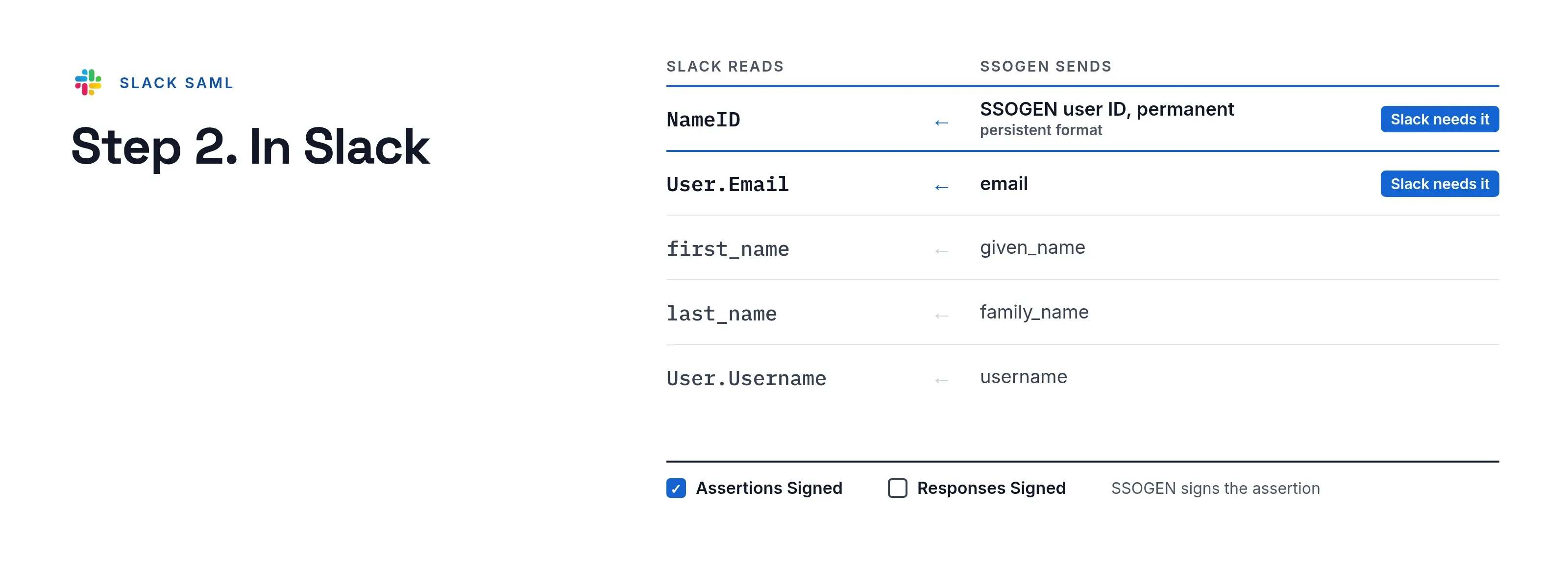
| Identify the person by | SSOGEN user ID, permanent (recommended) |
| Launch URL (https) | https://acme.slack.com |
Add these attributes:
| Attribute name | SSOGEN value | Slack needs it |
|---|---|---|
User.Email |
Yes | |
first_name |
given_name | No |
last_name |
family_name | No |
User.Username |
username | No |
Assign yourself, the owner who will run Slack’s Test Configuration: Slack’s test is a real sign-in. Then download the certificate with Download certificate (PEM) on the Integration tab.
Step 2. In Slack
-
In the Slack desktop app click Admin in the sidebar, select Workspace settings, then Security > SSO & authentication. (Enterprise: the organization name, Tools & settings > Organization settings, then Security > SSO Settings.)
-
Next to “An identity provider or custom SAML” click Configure SAML.
-
Fill in the form:
Slack field Value SAML 2.0 Endpoint URL https://acme.ssogen.ai/saml/idp/ssoIdentity Provider Issuer URL https://acme.ssogen.ai/saml/idpService Provider Issuer URL https://slack.com(leave as it is)x.509 Certificate The content of ssogen-idp-signing-certificate.pem -
Open Advanced Options. Tick Assertions Signed and clear Responses Signed: SSOGEN signs the assertion. Leave Sign AuthnRequest clear.
-
Click Test Configuration. Slack sends you through SSOGEN and reports the result.
-
Click Continue to Options. For the first rollout choose the optional setting; Slack advises requiring SSO for all members except guests once it works, so guests keep their email sign-in. Decide whether members may still change their email address and display name.
-
Click Turn on SSO. Enterprise: give an SSO name of up to 20 characters, for example
SSOGEN.
Members who must use SSO receive an email asking them to bind their Slack account to SSOGEN; the link is valid for 72 hours.
Step 3. People and a sign-in test
- Assign the people or groups who use Slack on the application’s Assignments tab in SSOGEN.
- Run the Test for one person and check that the Attributes list holds
User.Emailwith their address. - In a private browser window open
https://acme.slack.comand use the SSOGEN button. The member lands in the workspace.
Owners can always bypass SSO with their email and password through the link at the bottom of Slack’s sign-in page.
Signing in
People select Slack in My Apps, or open the workspace address and select the SSOGEN button. They see SSOGEN’s sign-in page only if they have no SSOGEN session yet. Members who received Slack’s binding email follow its link once. How long they stay signed in is Slack’s own session setting.
Troubleshooting
Slack names the problem during Test Configuration and at sign-in.
| Slack says | Cause |
|---|---|
| “The SAML Response is not signed.” | Responses Signed is ticked. Clear it and keep Assertions Signed. |
| “The SAML Response does not contain the correct Identity Provider Issuer.” | Identity Provider Issuer URL is not https://acme.ssogen.ai/saml/idp. |
| “The SAML Response does not contain the correct Audience.” | The entity ID in SSOGEN is not https://slack.com, or Service Provider Issuer URL was changed. |
| “The SAML Response does not contain the correct Destination” | The ACS URL in SSOGEN is not the one Slack shows. Enterprise organizations use the enterprise.slack.com address. |
| “Hmm, it looks like the signature validation failed.” | The certificate in Slack is not SSOGEN’s current one. Paste it again. |