SSOGEN / Oracle EBS SSO / Oracle EBS Active Directory SSO: Connect AD and Sign In
Integration
Oracle EBS Active Directory SSO: Connect AD and Sign In
Oracle EBS Active Directory SSO here means SSOGEN checks each password against your Active Directory and the Web Agent signs the person in to EBS. You need no AD FS and no separate SAML provider. This page covers the directory side.
- Application
- Oracle E-Business Suite 12.2
- Identity source
- Microsoft Active Directory
- Web Agent mode
- SSOGEN
- SSOGEN server needed
- Yes
Which SSOGEN path this is
Oracle EBS Active Directory SSO lets people sign in to EBS with their Active Directory account, or with no password at all from a domain-joined computer. SSOGEN checks the credentials against Active Directory and the Web Agent signs the person in to EBS, with no AD FS in between. SSOGEN has protected Oracle applications in production since 2016.
This path differs from the other provider pages in this section. On pages such as Okta and AD FS, the Web Agent talks SAML to a separate identity provider. Active Directory is not a SAML provider.
| Active Directory path | |
|---|---|
| Web Agent mode | SSOGEN (SSOGENMode ssogen, the default) |
| Who checks the password | Active Directory, over an encrypted LDAP connection, at every sign-in |
| What SSOGEN stores | The person’s profile and groups. It does not copy passwords |
| Who signs the person in to EBS | SSOGEN, as the identity provider, then the Web Agent |
| License key | Not needed for an application registered in SSOGEN |
SSOGEN is a complete identity provider, so it uses your directory directly. If your organization already signs people in through AD FS, use the AD FS page instead.
Prepare Active Directory
Three things to prepare:
- A service account. Create one used only for SSOGEN lookups, for example
svc-ssogen, with a long random password. Give it permission to read the users under the part of the directory you choose, and nothing more. SSOGEN looks the person up with this account, then checks their password by signing in as them. - An encrypted connection. SSOGEN always encrypts the connection: choose LDAPS (usually port 636) or StartTLS (usually port 389). Plain LDAP is never used. If your domain controllers support neither, fix that first. If their certificate comes from your own certificate authority, add that authority under Trusted certificates in SSOGEN.
- A user base DN. Choose one that holds only the people who should sign in, for example
OU=People,DC=acme,DC=example. A sign-in needs exactly one entry to match the user name. A base DN that covers two places where the same person exists will fail.
Connect the directory in SSOGEN
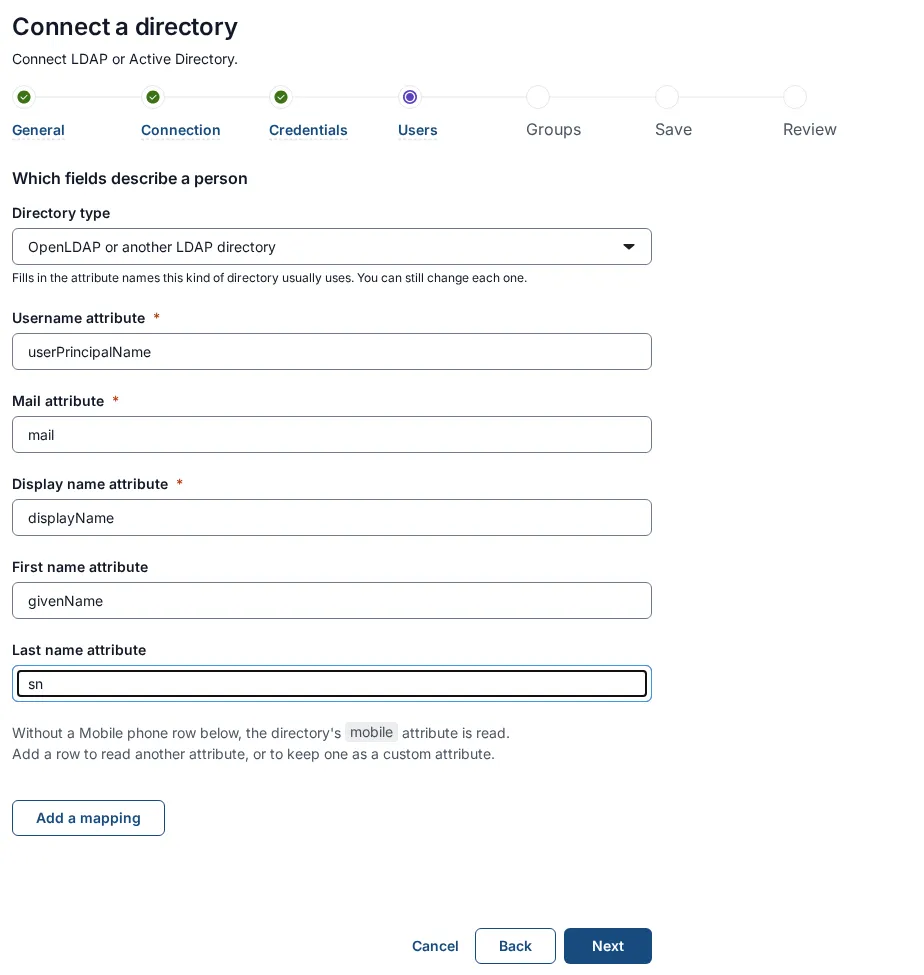
Open Identity, then Directories, and choose Add Directory. The Connect a directory wizard has seven steps: General, Connection, Credentials, User mapping, Group mapping, Test and Review and activate.
| Step | What to enter for Active Directory |
|---|---|
| Connection | LDAPS, a directory URI such as ldaps://dc01.acme.example:636, and the user base DN |
| Credentials | The service account’s full DN and its password. SSOGEN encrypts them and never shows them again |
| User mapping | Username attribute: userPrincipalName if people type maria.lopez@acme.example, or sAMAccountName if they type mlopez. Mail mail, display name displayName |
| Group mapping | Group membership attribute memberOf, Group ID attribute cn, and optionally a group base DN |
| Test | Creates the directory as a draft. It does not serve sign-in yet |
- Group limit. SSOGEN reads at most 64 groups for one person.
- Group names. It skips any group whose name has characters other than letters, digits, spaces, dots, underscores and hyphens, so it does not create a group called
Finance (EU). - Use. The groups you assign to EBS in SSOGEN come from this mapping.
On the last step, select Validate, then Test, then Activate.
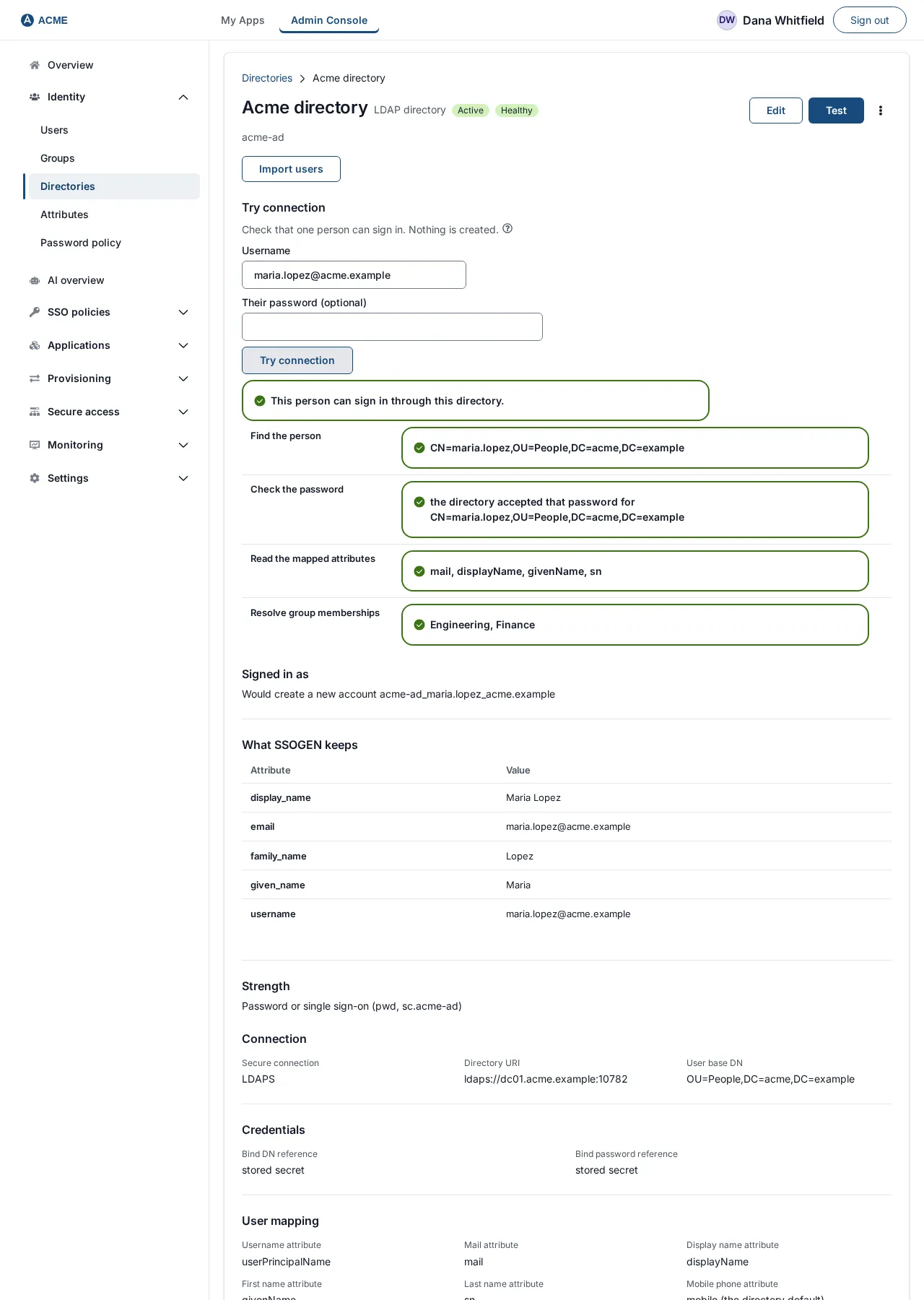
Try connection takes a user name and shows each step passing, or the one that failed. It does not sign anyone in. The guide to connecting Active Directory has the full field list.
Choose the name EBS will see
EBS must find a user whose user name equals what the Web Agent sends. The agent sends it in capitals by default. Under Identify the person by in the application’s registration, choose the value that equals the EBS user name:
| If your EBS user names are | Choose |
|---|---|
The same as the SSOGEN account name, such as MLOPEZ |
username |
The sign-in name from the directory, such as mlopez |
source_username |
| The employee number held in the directory | source_subject or a mapped attribute |
| The email address | email |
Use the application’s Test to confirm that the resulting name is the EBS user name.
A person with no value for that attribute is refused. SSOGEN does not send them under a different name.
Register EBS and connect the web tier
- Register EBS in SSOGEN as a Web Agent application.
- Set the client URL to
https://ebs.acme.example, launch URLhttps://ebs.acme.example/OA_HTML/AppsLogin. - Activate it and assign people or groups.
- Build and configure the module on the web tier as the Web Agent guide describes.
- Make the EBS application ports reachable only from the web tier.
Optional: Windows sign-in without a password
People on a domain-joined computer can open EBS through SSOGEN without typing a password.
Windows holds a Kerberos ticket, the browser passes it to SSOGEN, and SSOGEN finds the person in your directory. This needs the directory connection above, plus:
- a service account that supports AES encryption, with no delegation and no other service principal names;
- the service name
HTTP/followed by the SSOGEN host name, registered withsetspn -S, and a keytab exported withktpass; - browsers set to trust the SSOGEN host, for example with the Chrome and Edge
AuthServerAllowlistpolicy; - clocks within five minutes of each other.
Windows sign-in counts as single-factor, the same as a password, so a policy that requires a second factor still asks for it.
Anyone without a ticket sees the normal sign-in page. The guide to Windows desktop sign-in has the steps.
Errors the directory produces
Test shows these messages. The table explains each one.
| Message | Fix |
|---|---|
| The directory could not be reached | Check the host name, port and any firewall: 636 for LDAPS, 389 for StartTLS |
| The directory refused the bind credentials | The service account’s DN or password is wrong, or the account is locked or disabled |
| The user base DN could not be searched | The base DN has a typo, or the account has no permission to read it. Copy the distinguishedName from the OU’s attribute editor |
| The directory’s certificate is not trusted | Add the issuing authority under Trusted certificates |
| The directory’s certificate does not name this host | Use the host name on the certificate, such as dc01.acme.example, not an IP address or alias |
| n entries match that attribute; a sign-in needs exactly one | Narrow the base DN |
If Test passes but a person is refused, the most common cause is a username attribute that does not match what they type.
For example, it is sAMAccountName but they enter an email address, or the reverse. Run Try connection with exactly what they type.
Questions
Do I need AD FS or Entra ID to use Active Directory with EBS?
Does SSOGEN copy Active Directory passwords?
Can I use Windows sign-in and a password page together?
Is the connection to Active Directory encrypted?
Where to go next
Your Active Directory accounts become your EBS sign-in, with no AD FS, no copied passwords and no change to EBS code.
- Return to the Oracle EBS SSO guide.
- Read how the SSOGEN Web Agent works.
- Get trial access to see Active Directory sign-in on your own EBS test instance.