SSOGEN / Oracle SSO for E-Business Suite, PeopleSoft and JD Edwards
SSOGEN
Oracle SSO for E-Business Suite, PeopleSoft and JD Edwards
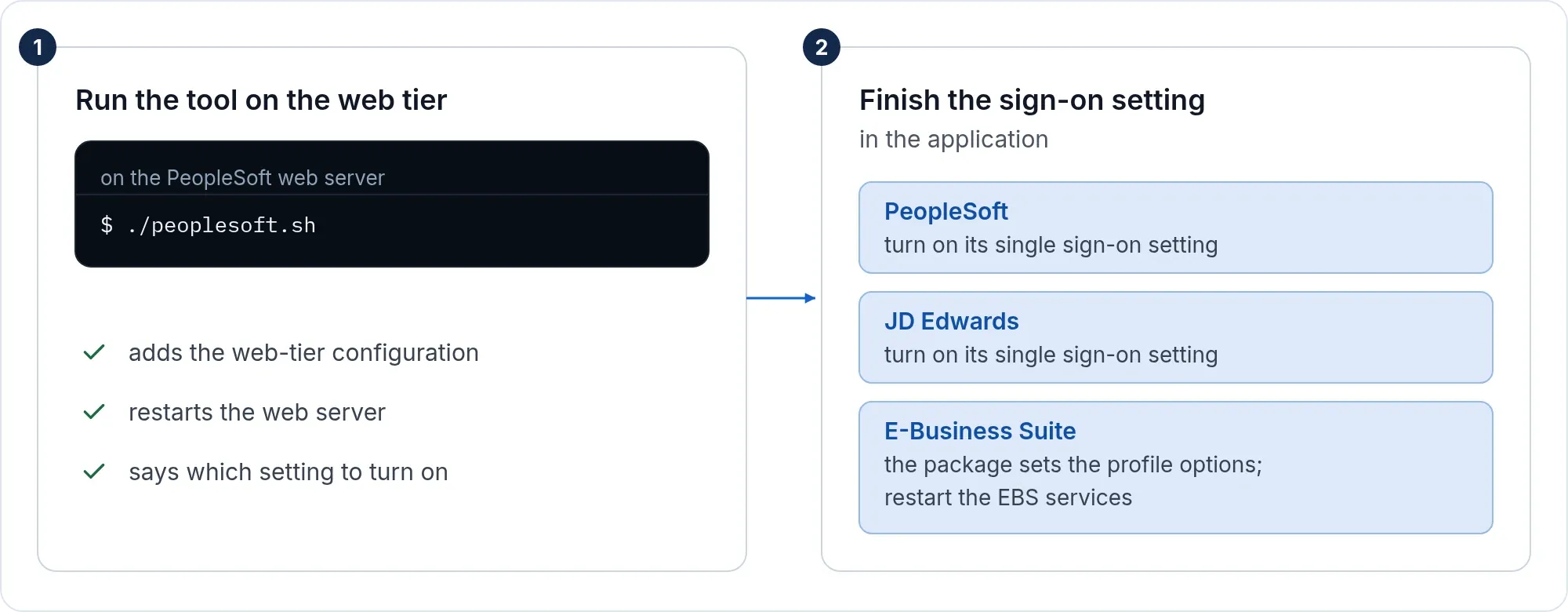
Run the SSOGEN tool for EBS, PeopleSoft, JD Edwards or Oracle HTTP Server on the web tier, then finish one setting in the application.
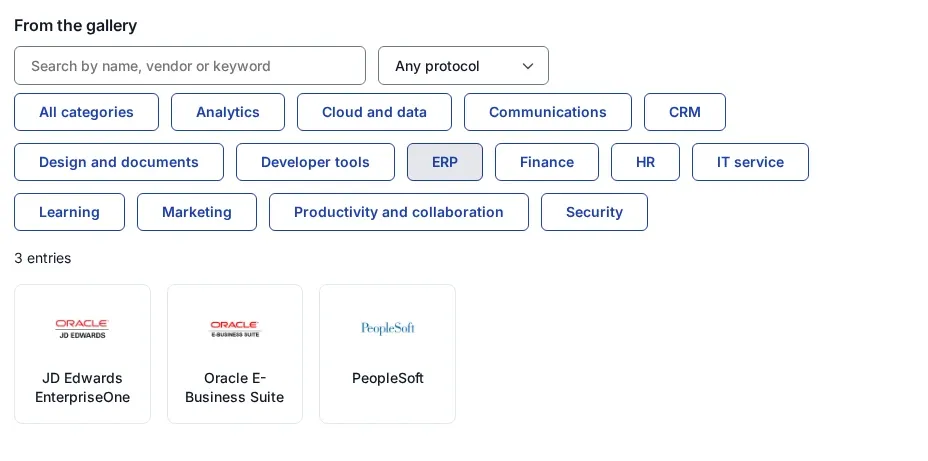
| Application | Page |
|---|---|
| Oracle E-Business Suite 12.2 | EBS 12.2 single sign-on |
| Oracle E-Business Suite 12.1 | EBS 12.1 single sign-on |
| PeopleSoft | PeopleSoft single sign-on |
| JD Edwards EnterpriseOne | JD Edwards single sign-on |
| Oracle HTTP Server or Apache in front of any application | Oracle HTTP Server and Apache single sign-on |
The tool
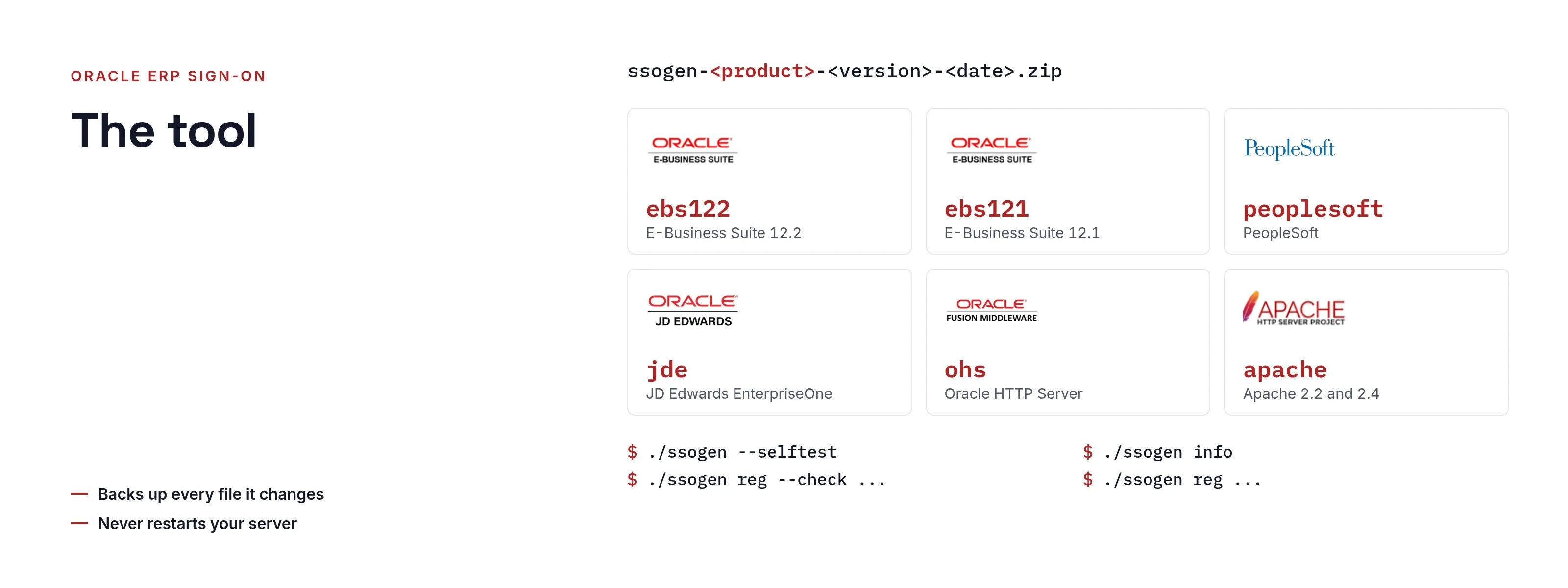
SSOGEN gives you one zip file per product, ssogen-<product>-<version>-<date>.zip, with a .sha256 file next to it. The product names are ebs122, ebs121, peoplesoft, jde, ohs and apache. The zip holds one file, ssogen. It runs on Linux x86-64 and carries the Web Agent for both Apache 2.2 and Apache 2.4; it reads the version from your web server and picks the right one.
sha256sum -c ssogen-peoplesoft-<version>-<date>.zip.sha256unzip ssogen-peoplesoft-<version>-<date>.zip./ssogen --selftest./ssogen info--selftest checks the package. info changes nothing and prints a summary of the web server it found; send it to SSOGEN support with any question. ./ssogen -h shows every option, ./ssogen -h reg the page of one function, and --check added to any command shows what would change without changing anything.
Three ways to connect
Every tool takes -mode=:
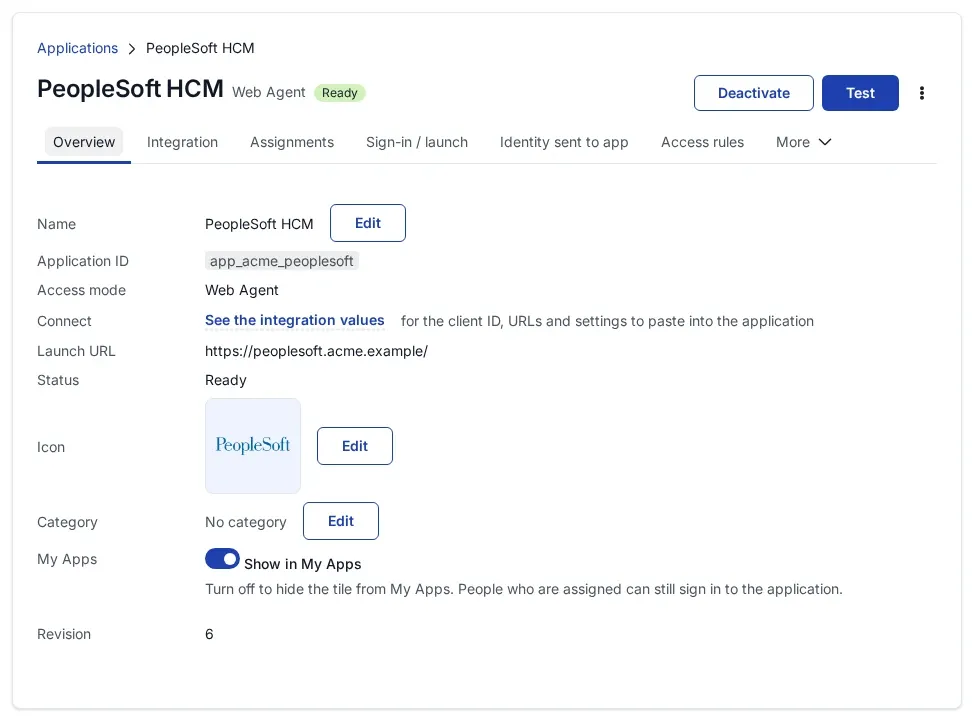
| Mode | Sign-in through | You need |
|---|---|---|
ssogen |
Your SSOGEN tenant. Policy, MFA and assignments are managed in the SSOGEN console. | The SSOGEN address, the application’s client ID and its agent key. |
saml (the default) |
Any SAML 2.0 identity provider, straight from the web server. | A license key from SSOGEN and the identity provider’s metadata. |
oidc |
Any OpenID Connect provider, straight from the web server. | A license key from SSOGEN, the provider’s discovery address, a client ID and secret. |
The pages show ssogen mode. The EBS 12.2 page shows the two direct modes; the same options work in every tool.
Register the application in SSOGEN
For ssogen mode, the SSOGEN administrator does this once per application. Nobody on the web server needs a console account.
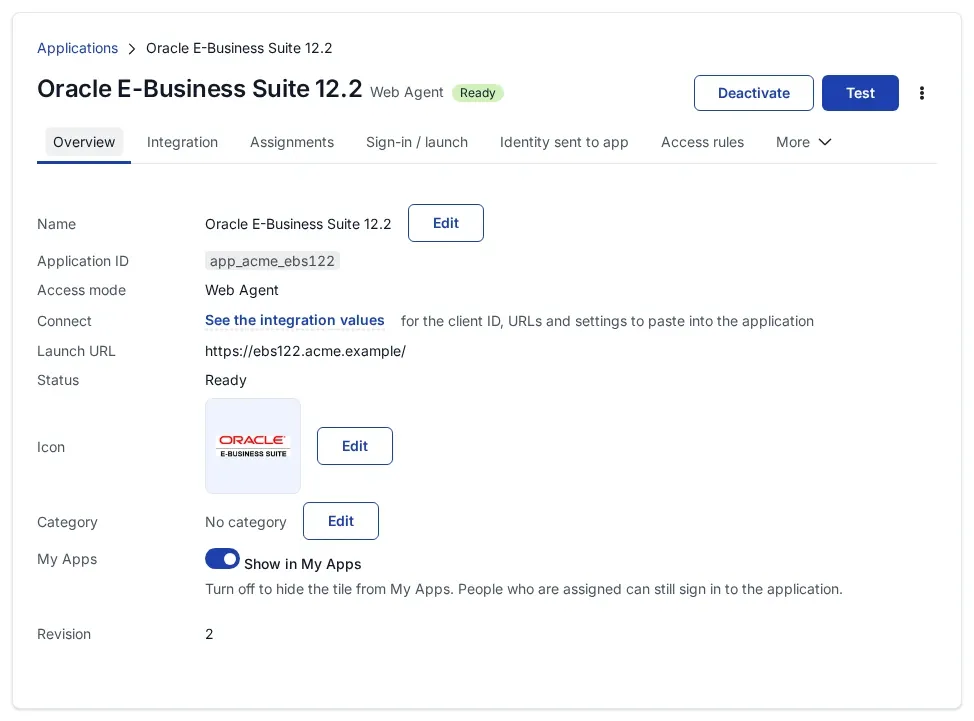
- In the console open Applications, then Web Agents, and select Register Web Agent app.
- On Connection, enter the Client URL: the HTTPS address people type for the application, scheme and host only, for example
https://hr.acme.example. Keep the generated Client ID. - On Identity sent to app, set Identify the person by to the value that equals the person’s user name in the application.
- Finish the wizard and select Activate application. Assign the people or groups who may sign in.
- On the application’s Integration tab select Generate agent key and copy the key. It is shown once.
- Send the web server administrator the SSOGEN address, the client ID and the agent key, over a channel fit for a secret. They save the key as the first line of a file only they can read.
The full walkthrough, with every field, is in Protect an on-premise app with the Web Agent. Every option of every tool is in Oracle and Apache integration packages.
Sign-out on every page
The Web Agent answers at /ssogen/logout on the application’s own address. By default that ends the application’s session only. On shared computers, such as a kiosk or a shift workstation, add SSOGENLogoutScope sso to the configuration the tool wrote, so signing out also ends the SSOGEN session and the next person at that browser has to sign in.