SSOGEN / OBIEE SSO: Sign-In Options for Oracle Business Intelligence
Integration
OBIEE SSO: Sign-In Options for Oracle Business Intelligence
Oracle Business Intelligence sits behind one SSOGEN sign-in with your identity provider and MFA policy, and you pick which attribute names the analyst.
OBIEE SSO moves the sign-in for Oracle Business Intelligence out of the application and into SSOGEN: one password, your MFA policy and one place to decide who sees which dashboards. Oracle BI sits behind a web address, so SSOGEN takes over the sign-in in whichever of three places fits:
- At the web server, with the SSOGEN Web Agent.
- At a gateway, with the App Proxy.
- Through SAML or OpenID Connect, when the application is set up as a client.
SSOGEN applies the sign-in policy, including MFA, before anyone sees a report. Your user list stays in your directory or in SSOGEN.
Three ways to put SSOGEN in front of Oracle BI
| Your Oracle BI setup | Route | What runs where |
|---|---|---|
| Served through Apache or Oracle HTTP Server that you control | SSOGEN Web Agent | The agent runs in the web server and passes the signed-in user to the application |
| On a private network, with nothing to be installed next to it | App Proxy on the SSOGEN Gateway | The gateway checks the sign-in, then forwards requests with the identity added |
| Configured as a SAML or OpenID Connect client | SAML or OpenID Connect application | SSOGEN is the identity provider; nothing is installed |
The guide to connecting an application gives the order to try: SAML first, OpenID Connect second, Web Agent third, App Proxy fourth.
What the application receives from the Web Agent
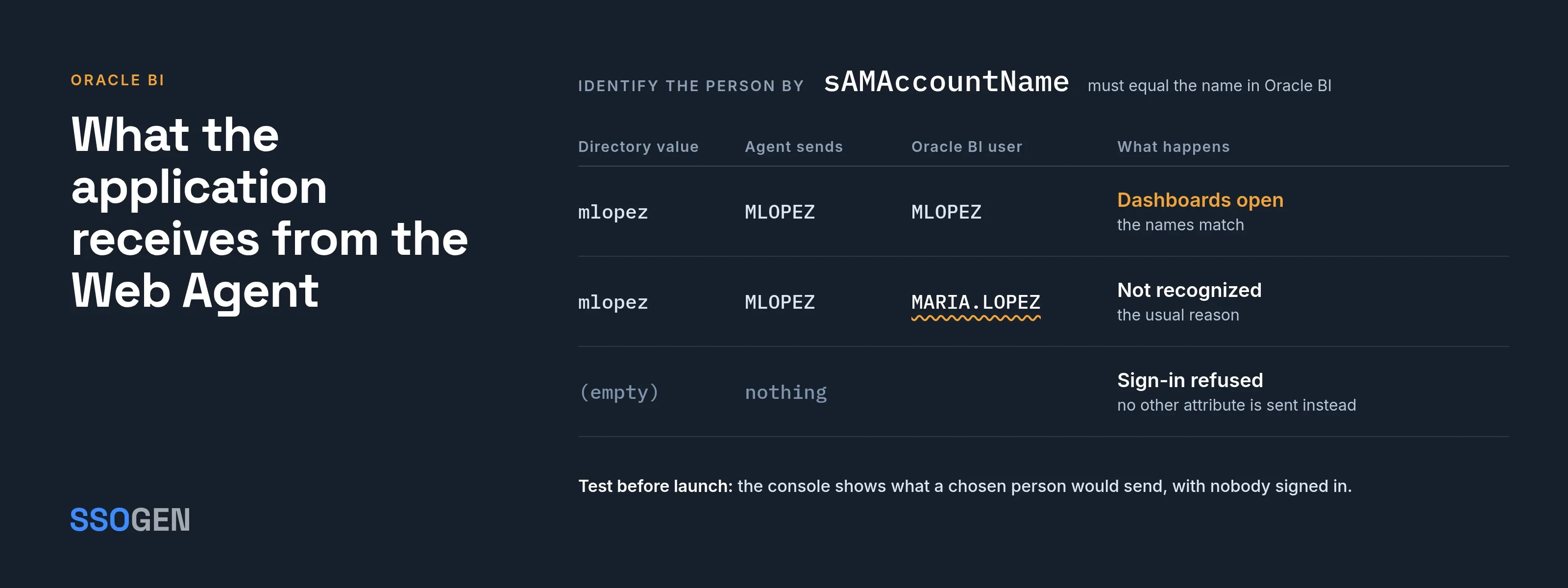
After sign-in, the Web Agent passes the user name to the application, in upper case by default. It also strips any identity value a browser sends.
- Identify the person by. Pick the attribute that equals the person’s name in Oracle BI.
- Mismatch. A mismatch is the usual reason a signed-in person is not recognized.
- Empty attribute. If the chosen attribute is empty, SSOGEN refuses the sign-in rather than send another attribute in its place.
The on-premise application guide lists the directives and the test page that prints what the application receives.
Make Oracle BI reachable only through the web server
The application takes the web server’s word for who the person is.
- Open the port to the web server only. The application’s own port stays closed to everything else.
- Trusted link. Use a trusted network or TLS between them.
- The reason. Without that, anyone who can reach the application directly can claim any name.
Controls that carry over from the rest of SSOGEN
- MFA by application. The sign-in policy is attached to the application, so executives’ dashboards can require a second factor while others do not.
- Assignment. In SSOGEN you decide who can open Oracle BI at all.
- Test before launch. The console shows what a chosen person would send to the application, with nobody signed in.
Questions people ask
Does Oracle BI need to change?
Not for the sign-in step in the web server. It is set up once to accept the identity the agent passes.
Do I need a separate identity provider?
No. SSOGEN is a complete identity provider and also works with Entra ID, Okta, Ping Identity, Keycloak and other SAML or OpenID Connect providers.
Where to go next
SSOGEN has delivered single sign-on for Oracle applications since 2016.
- Same pattern. It protects Oracle EBS, PeopleSoft and JD Edwards.
- Start. Begin with the Web Agent page.