SSOGEN / PeopleSoft Okta single sign-on
Integration
PeopleSoft Okta single sign-on
SSOGEN is one SAML 2.0 app in Okta, and PeopleSoft is registered in SSOGEN. People reach the PeopleSoft home page signed in through Okta.
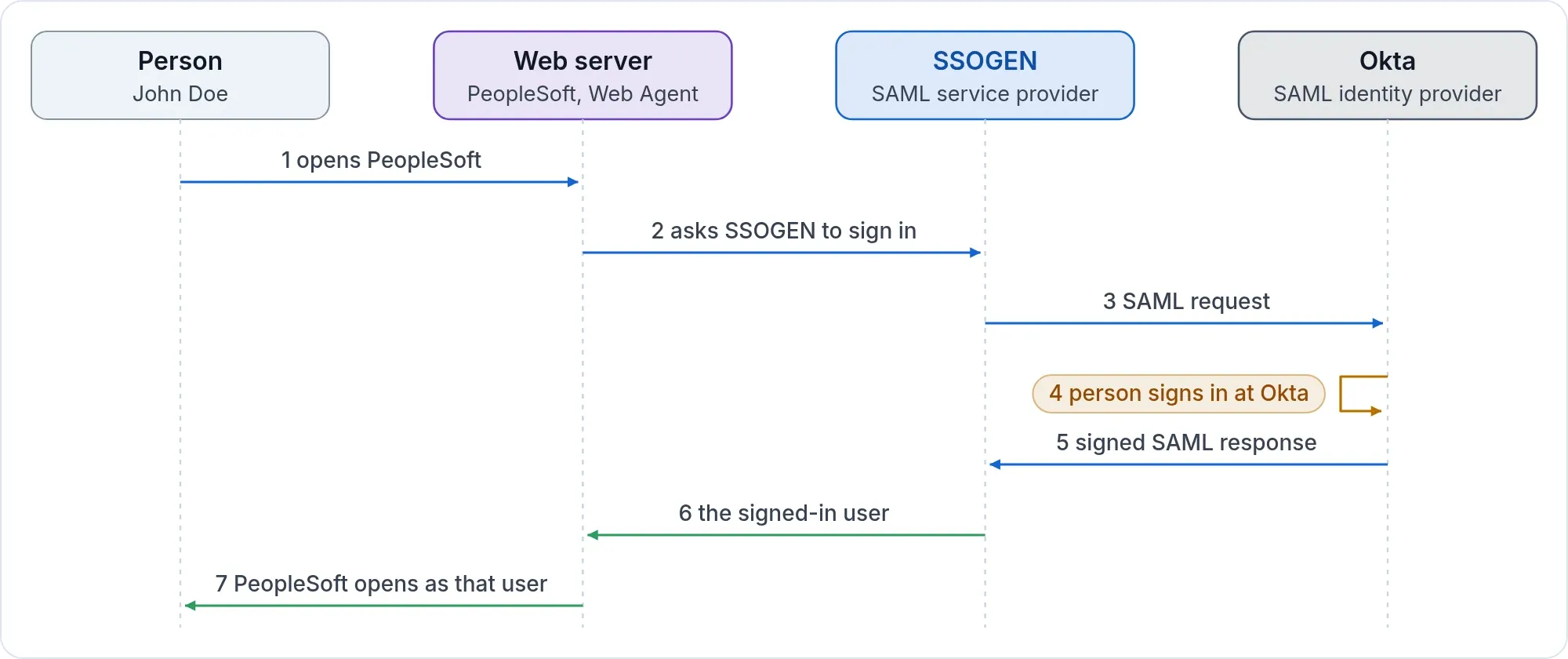
People sign in as they do for other Okta apps. PeopleSoft can sit on the Okta dashboard as a tile like any other app. They move between PeopleSoft and other Okta apps without signing in again. SSOGEN is invisible to the person on sign-in and on sign-out.
This SAML app needs no special Okta license. You do not need Oracle Access Manager or Oracle Internet Directory. The PS_TOKEN weakness described on the PeopleSoft page is gone, because PeopleSoft no longer trusts that cookie.
In Okta
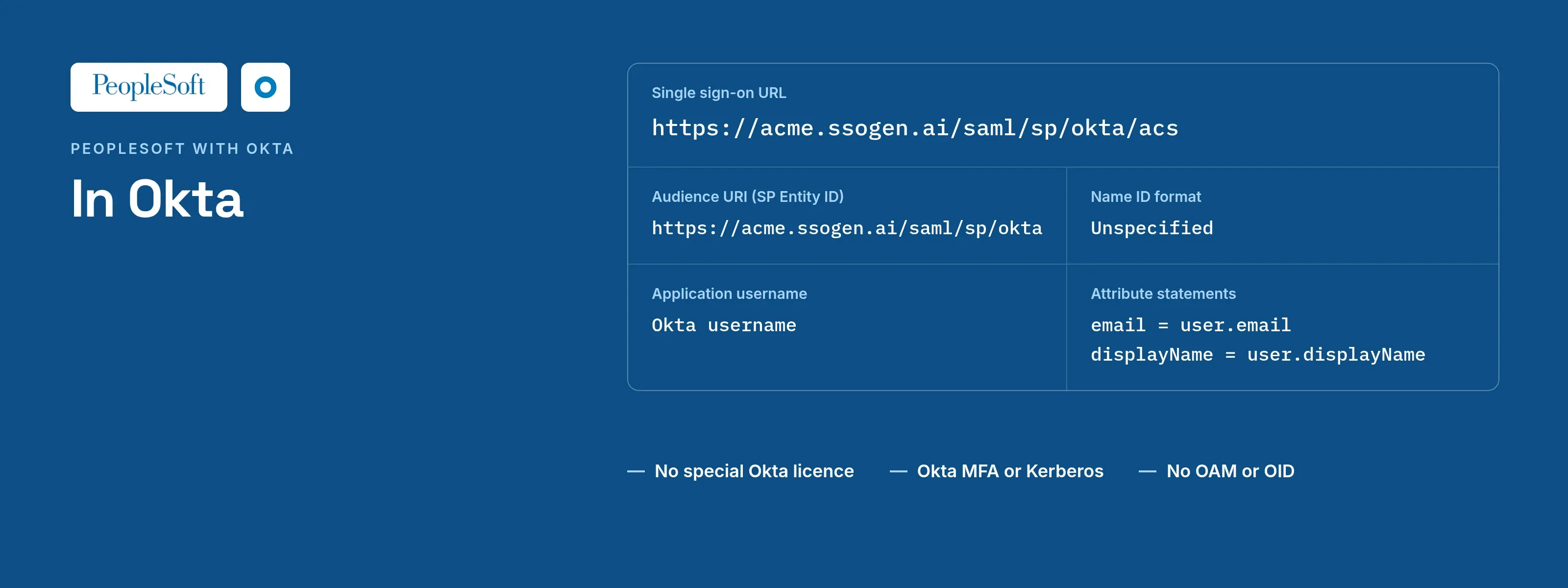
Create the SAML 2.0 app integration with the values below. The click path, the attribute statements and the assignment of people are on the Okta page.
| Okta field | Value |
|---|---|
| Single sign-on URL | https://acme.ssogen.ai/saml/sp/okta/acs |
| Audience URI (SP Entity ID) | https://acme.ssogen.ai/saml/sp/okta |
| Name ID format | Unspecified |
| Application username | Okta username, or a custom expression that gives the PeopleSoft user ID |
| Attribute statements | email = user.email, displayName = user.displayName |
Assign the people or groups who may open PeopleSoft. Okta’s own docs describe the SAML app setup in “Setting up a SAML application in Okta”.
In SSOGEN
Add Okta as an identity provider with the connection ID okta. Import the Okta metadata and keep the mapping of email and displayName. Then validate, test, try and activate it (Add a SAML identity provider in SSOGEN).
Then register PeopleSoft as an application (register the application). SSOGEN names people okta_<NameID>, for example okta_john.doe_acme.example, which is not a PeopleSoft user ID. So on the Mapping step, add a row that keeps the value Okta sends for the PeopleSoft user ID as a custom attribute. Then set Identify the person by on the PeopleSoft application to that attribute. The agent sends the value in capitals.
In PeopleSoft
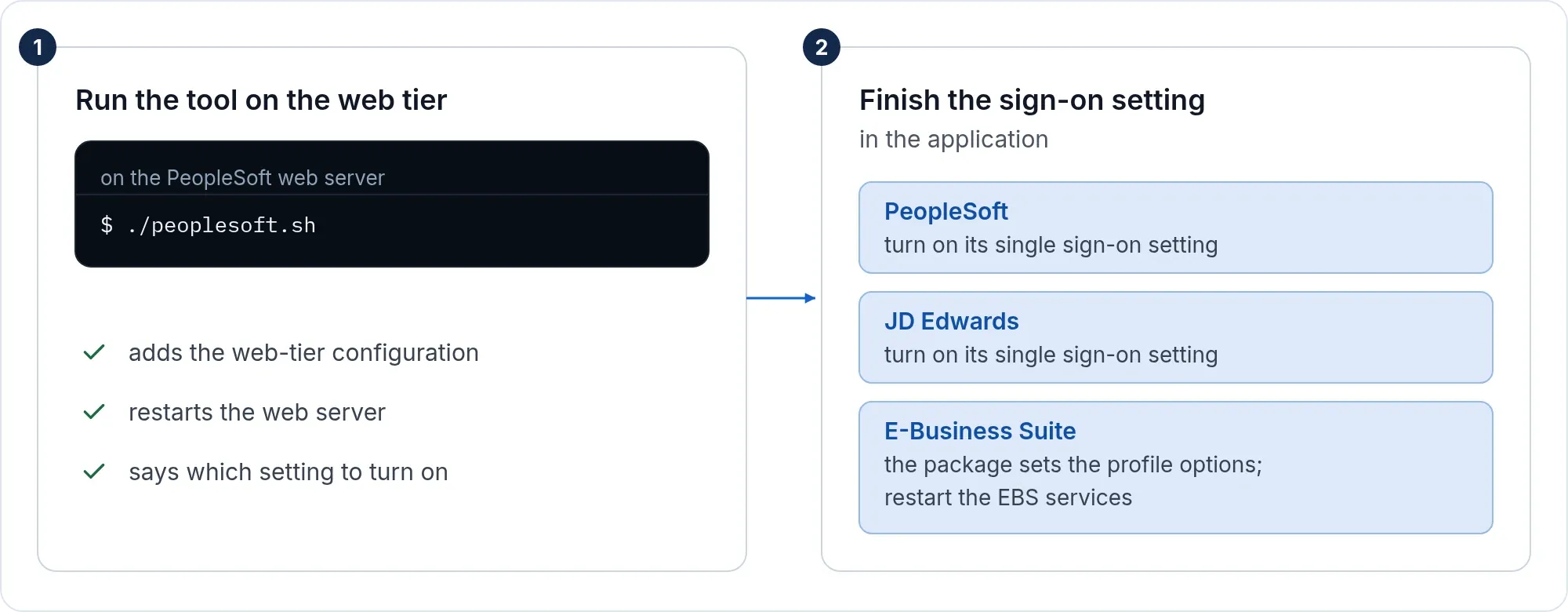
Run the tool and finish the PeopleSoft setting exactly as on the PeopleSoft page. Nothing in PeopleSoft is specific to Okta. Every person needs a PeopleSoft user profile with the user ID Okta sends.
What people see
John Doe opens https://hr.acme.example/psp/ps/?cmd=start. He signs in at Okta, or is already signed in there. He lands on the PeopleSoft home page.
The Okta page shows how to see the people who sign in through Okta. It also covers assignments and the Okta details.
If it does not work
| Symptom | What to do |
|---|---|
| Everyone lands as the public access user | The user name PeopleSoft reads is not the one SSOGEN sends. Check Identify the person by in SSOGEN and the custom attribute that holds the PeopleSoft user ID from Okta. |
| Sign-in works but PeopleSoft still shows its own sign-in page | The sign-on PeopleCode function is not enabled, or the public access user is not set in the web profile. |
| Integration Gateway calls stop | A service path was protected. Run reg again with -unprotect_path=/PSIGW. |
Sign-out
The PeopleSoft Sign out link ends the PeopleSoft session only. The Web Agent’s sign-out address, https://hr.acme.example/ssogen/logout, ends the web server session. For shared computers, see sign-out on every page.