SSOGEN / PingOne as identity provider for SSOGEN
SSOGEN
PingOne as identity provider for SSOGEN
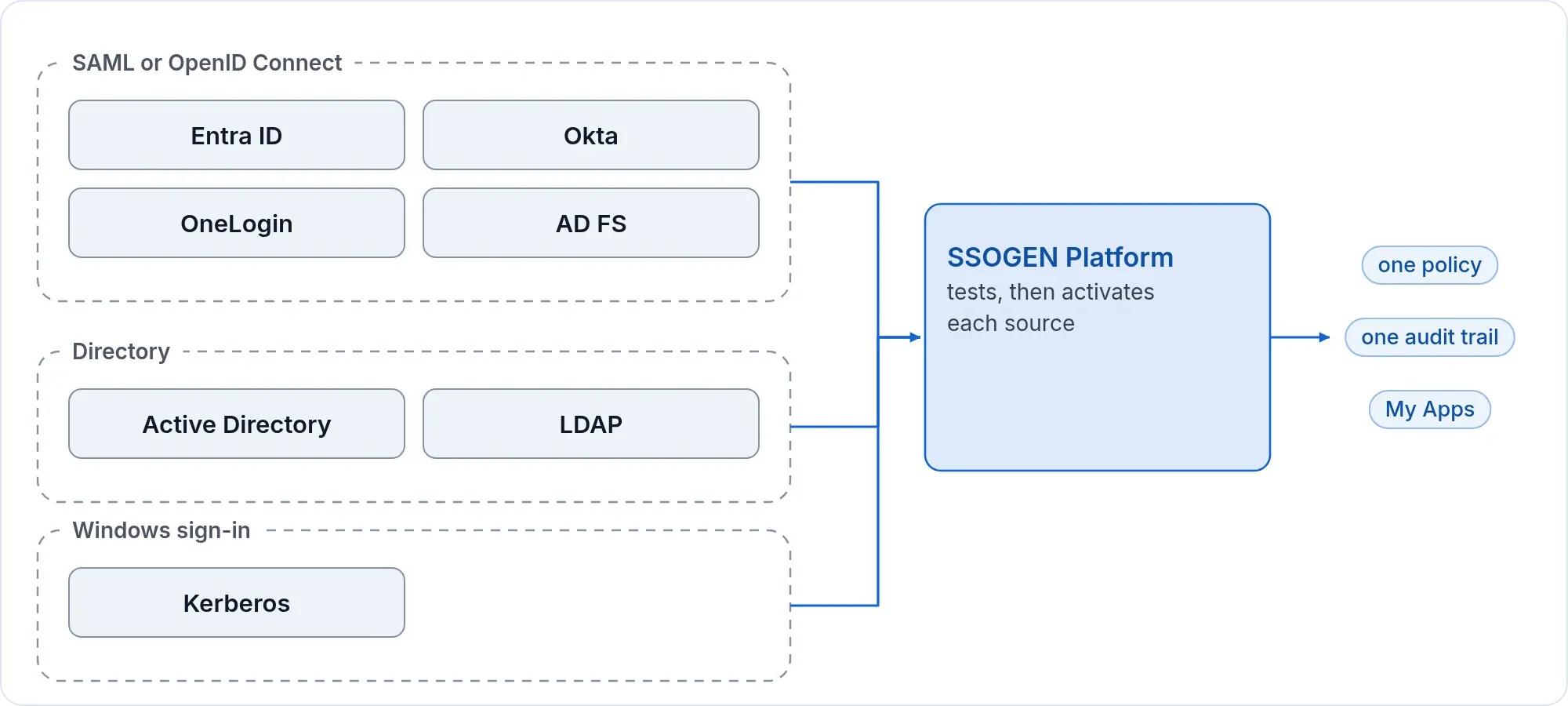
Add one application in your PingOne environment and one identity provider in SSOGEN, using OpenID Connect or SAML on the Ping Identity card.
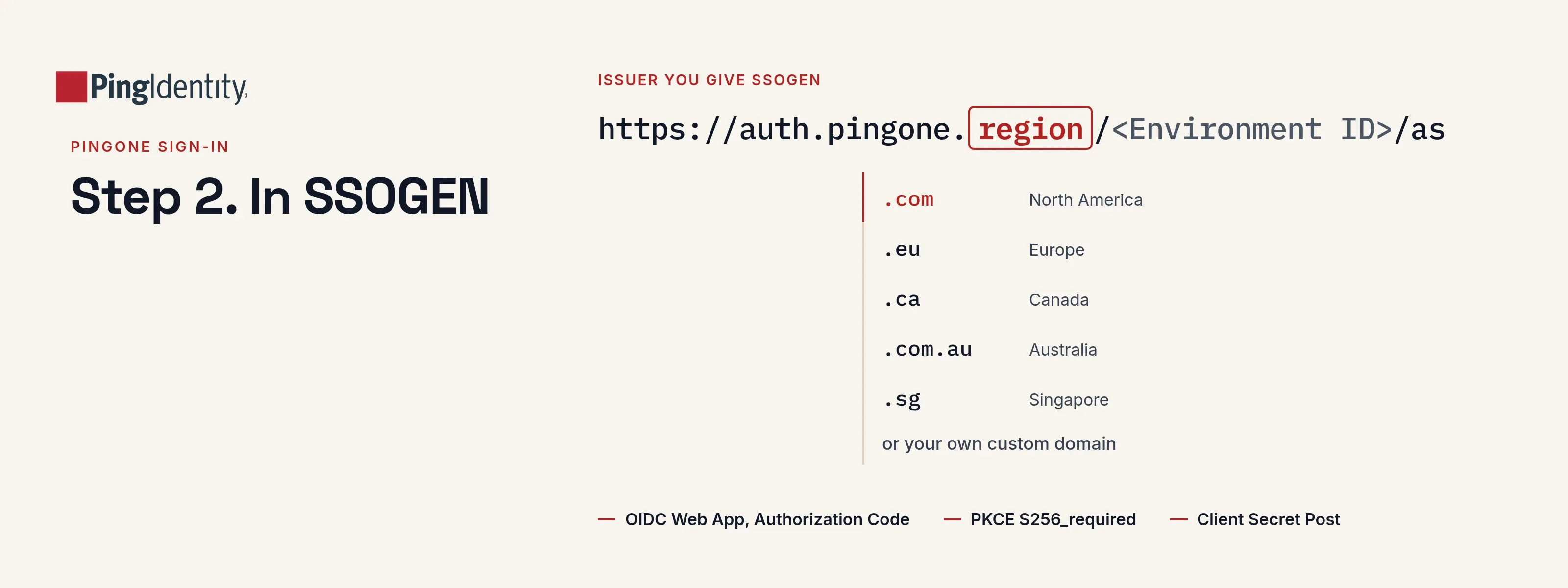
PingOne addresses depend on your region: auth.pingone.com (North America), auth.pingone.eu, auth.pingone.ca, auth.pingone.com.au, auth.pingone.sg, or your own custom domain. The examples use auth.pingone.com.
What you need
- A PingOne administrator who can add applications in the environment that holds your users, and your Environment ID.
- An SSOGEN Super admin or Authentication admin.
Step 1. In PingOne
OpenID Connect
- In SSOGEN, choose the Ping Identity card, then OpenID Connect, and copy the Redirect URI, for example
https://acme.ssogen.ai/oidc/rp/pingone/callback(Add an OpenID Connect identity provider in SSOGEN, section 2). - In the PingOne admin console, select the environment, open Applications > Applications and select the + icon. Name the application
SSOGEN, choose OIDC Web App and Save. - On the Configuration tab, select the pencil icon and set:
| PingOne field | Value |
|---|---|
| Response Type | Code |
| Grant Type | Authorization Code |
| PKCE Enforcement | S256_required (SSOGEN always sends PKCE with S256) |
| Redirect URIs | the SSOGEN redirect URI, exactly |
| Token Endpoint Authentication Method | Client Secret Post |
- On the Resources tab, make sure
openid,profileandemailare selected. - On the Access tab, set Group Membership Policy to the group that may use SSOGEN.
- Turn the application on with the toggle at the top of its panel.
- On the Configuration tab, copy the Client ID and Client Secret.
The issuer is https://auth.pingone.com/<Environment ID>/as.
SAML
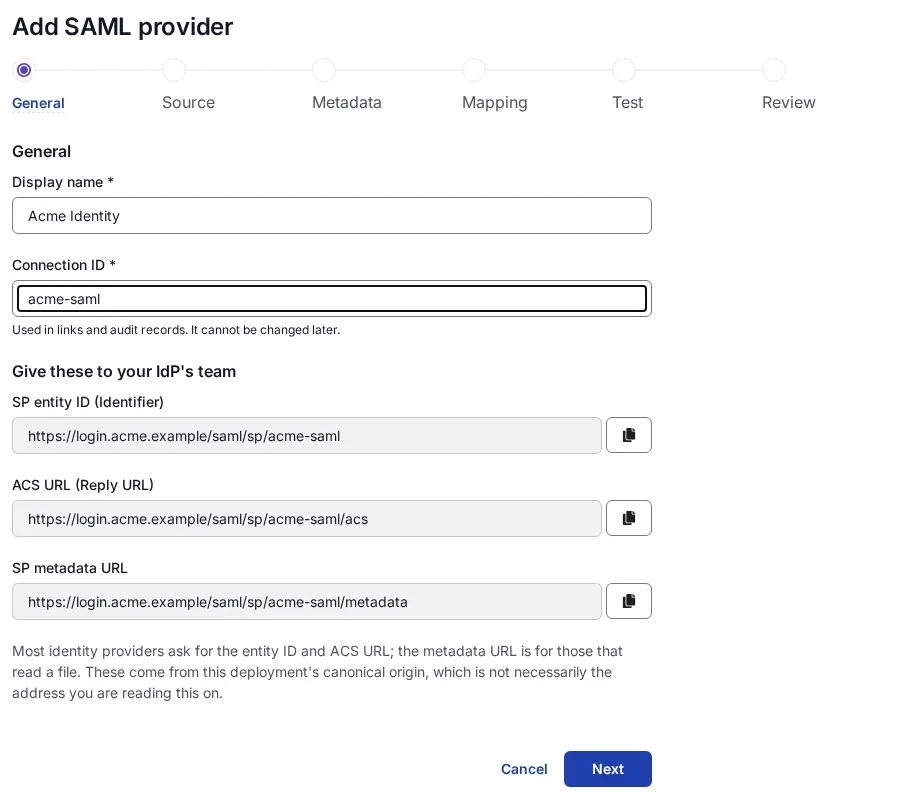
- In SSOGEN, choose the Ping Identity card, then SAML, and copy the SP entity ID and ACS URL (Add a SAML identity provider in SSOGEN, section 1).
- In PingOne, Applications > Applications > +, name it
SSOGEN, choose SAML Application and Configure. - Choose Manually Enter: SSOGEN’s ACS URL in ACS URLs (
https://acme.ssogen.ai/saml/sp/pingone/acs) and its SP entity ID in Entity ID (https://acme.ssogen.ai/saml/sp/pingone). Save. (Once SSOGEN has saved the provider, Import from URL with SSOGEN’s SP metadata URL fills both in.) - On the Configuration tab, keep the signing option at Sign Assertion (or Sign Assertion & Response) and Subject NameID format at unspecified, or emailAddress with the same format chosen in SSOGEN. Leave Enforce Signed Authentication Request off.
- On Attribute Mappings, map
saml_subjectto the PingOne attribute that holds a stable sign-in name (for example Email Address), and add an attribute namedemailmapped to Email Address. - On Access, set Group Membership Policy, and turn the application on with the toggle.
- On the Overview tab, copy the IDP Metadata URL, or select Download Metadata.
Step 2. In SSOGEN
- OpenID Connect: type the issuer
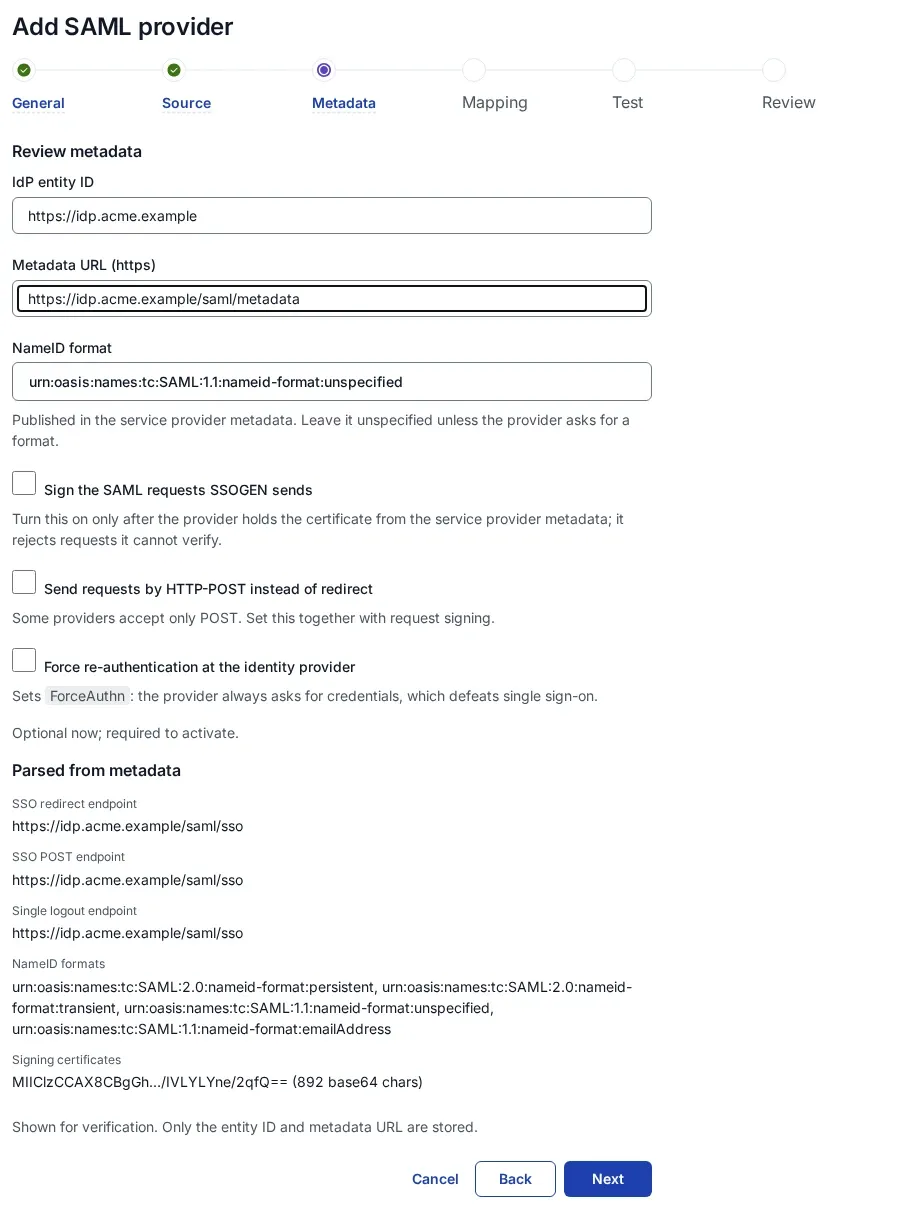
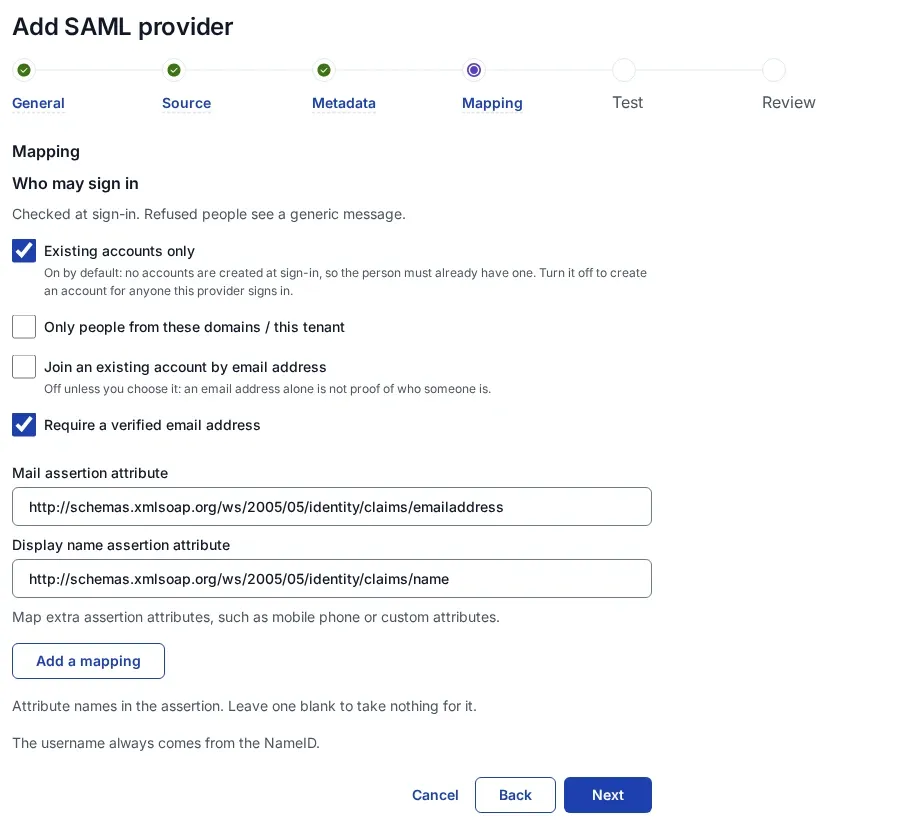
https://auth.pingone.com/<Environment ID>/as, the client ID and the client secret; keep the default scopes and claims. Then Create provider, Validate, Test, Try signing in, Activate. See Add an OpenID Connect identity provider in SSOGEN. - SAML: on Metadata source, fetch the IDP Metadata URL or upload the downloaded file. On Mapping, set Mail assertion attribute to
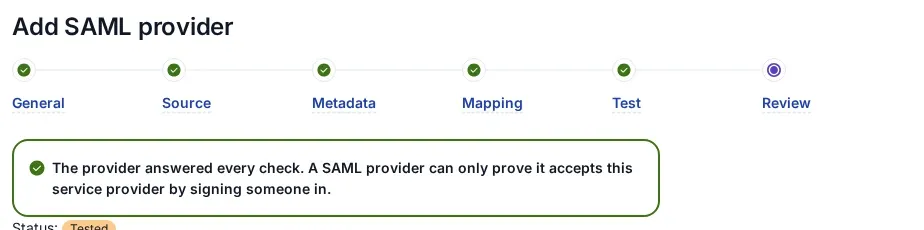
email. Save, validate, test, try and activate as in Add a SAML identity provider in SSOGEN.
Allow the provider in the policy that applies (SSO policies > Policies, First factor, Single sign-on with an external provider).
Step 3. Who may sign in, and the first sign-in
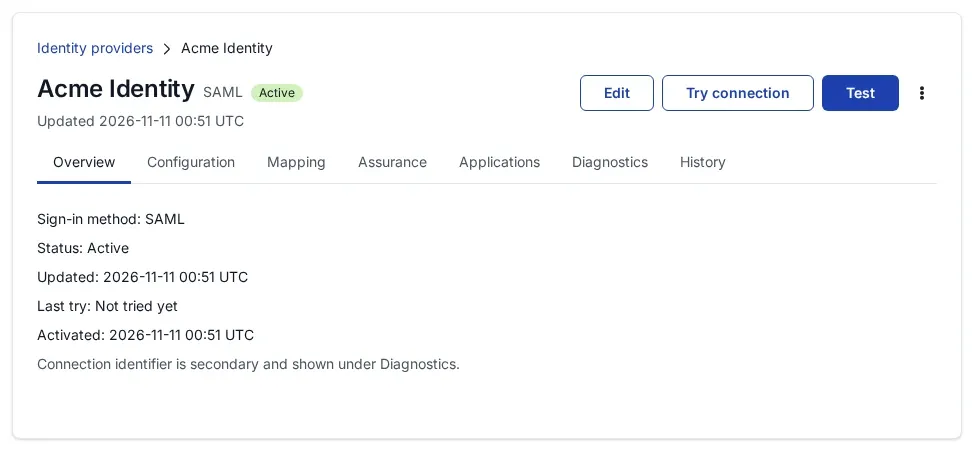
PingOne decides who reaches SSOGEN through the application’s Group Membership Policy. In SSOGEN, a new provider admits nobody until you choose:
- Anyone this provider vouches for (a new account is created) on Configuration > Sign-in restriction. Over OpenID Connect the account takes PingOne’s
preferred_usernamewhen it is free; over SAML it is named after the subject, for examplepingone_john.doe_acme.example. - For people who already have SSOGEN accounts, a Super admin turns on account matching by email address. PingOne’s
emailscope carriesemail_verified; see section 6 of the OpenID Connect page.
What the user sees
John Doe opens https://acme.ssogen.ai, is sent to the PingOne sign-in page (or straight through with an existing session), and lands on his applications in SSOGEN.
Troubleshooting
| Symptom | Cause |
|---|---|
| PingOne reports a redirect URI mismatch. | The Redirect URIs entry differs from SSOGEN’s redirect URI. PingOne compares scheme, host, port and path. |
| Try connection says “The provider rejected the client credentials. Check the client ID and secret.” | Token Endpoint Authentication Method is not Client Secret Post, or the secret was regenerated. |
| PingOne refuses SSOGEN’s SAML request because of its ACS URL. | ACS URLs does not contain SSOGEN’s ACS URL exactly. |
| John is refused by PingOne after a correct password. | He is not in the group named in Group Membership Policy, or the application toggle is off. |
| Sign-ins fail after the application’s Signing Key is changed in PingOne. | SSOGEN still holds the old certificate. Give SSOGEN the new metadata first (fetch or upload, save the revision, activate), then switch the key. |