SSOGEN / Single sign-on for Zoom with SSOGEN
SSOGEN
Single sign-on for Zoom with SSOGEN
On your approved vanity URL, Zoom's Single Sign-On form takes SSOGEN's values and creates or finds each account from the email in the name ID.
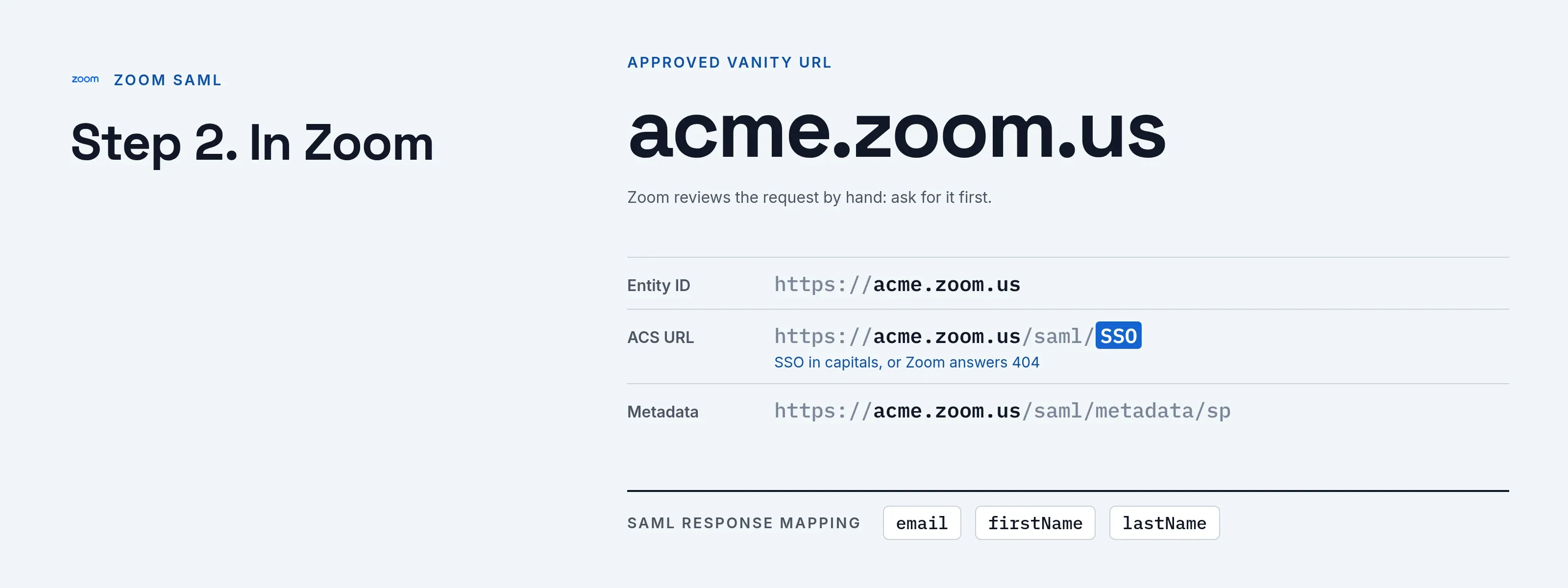
The example vanity URL is https://acme.zoom.us, the company domain acme.example; SSOGEN runs at https://acme.ssogen.ai.
What you need
- A Zoom Business, Education or Enterprise account, and its owner or an admin.
- An approved vanity URL (
acme.zoom.us). Zoom reviews the request by hand, so ask for it early under Admin Center > Account > Account Profile. - To enforce SSO later: the company domain added and confirmed under Associated Domains on the same page.
- An SSOGEN administrator who can save SAML applications (see Add a SAML application in SSOGEN).
Step 1. In SSOGEN: add Zoom
Follow Add a SAML application in SSOGEN with the gallery card Zoom and these values:
| SSOGEN field | Value for Zoom |
|---|---|
| Metadata URL | https://acme.zoom.us/saml/metadata/sp (after Zoom’s form is saved), or type the two values below |
| Service provider entity ID | https://acme.zoom.us, the same value you choose in Zoom’s Service Provider (SP) Entity ID |
| Assertion consumer service URL | https://acme.zoom.us/saml/SSO (SSO in capitals) |
| Identify the person by | email — mail address |
| Launch URL (https) | https://acme.zoom.us |
Add these attributes, for Zoom’s mapping page:
| Attribute name | SSOGEN value |
|---|---|
email |
|
firstName |
given_name |
lastName |
family_name |
Assign the person who will run the first sign-in.
Step 2. In Zoom
-
In the Zoom web portal open Admin Center > Security and Trust > Single Sign-On. If SSO was never configured, click Configure SSO Manually.
-
Fill in the form:
Zoom field Value Issuer (IDP Entity ID) https://acme.ssogen.ai/saml/idpSign-in page URL https://acme.ssogen.ai/saml/idp/ssoSign-out page URL Leave empty Identity Provider Certificate The Signing certificate row on SSOGEN’s Integration tab, copied with Copy: Zoom wants the text without the BEGIN and END lines Signature Hash Algorithm SHA-256 Security Clear Sign SAML request, Sign SAML logout request and Support encrypted assertions Service Provider (SP) Entity ID https://acme.zoom.usBinding HTTP-Redirect or HTTP-Post; SSOGEN accepts both Provision User At Sign-In (Default) Tick Save SAML response logs on user sign-in for the first tests.
-
Click Save Changes. SSO now works at
https://acme.zoom.us; nobody is required to use it yet. -
Open SAML Response Mapping and enter the attribute names from step 1:
emailfor email,firstNamefor first name,lastNamefor last name. Set Default License Assignment to the license new users should get; with None, Zoom creates no account and refuses the person.
When the test in step 3 works, enforce SSO for the company domain: under Associated Domains tick Manage users with the same domain, then in Admin Center > Security and trust > General, section Sign-in Methods, turn on Allow users to sign in with Single Sign-On (SSO), select the rule that requires SSO for your domain, and add your administrators under Specify users who can bypass SSO sign-in first. Keep Allow users to sign in with work email on.
Step 3. People and a sign-in test
- Assign the people or groups who use Zoom on the application’s Assignments tab in SSOGEN.
- In a private browser window open
https://acme.zoom.usand sign in through SSOGEN, or choose SSO in the Zoom app and typeacme. The person lands on their Zoom profile; a new user appears under User Management. - Read the result under Single Sign-On > Response Log. Each attempt has View Details with the values SSOGEN sent.
Until SSO is enforced, admins keep signing in at https://zoom.us/signin with their work email and password.
Signing in
People select Zoom in My Apps, or choose SSO in the Zoom desktop or phone app and type the company domain acme. They see SSOGEN’s sign-in page only if they have no SSOGEN session yet.
Troubleshooting
| What you see | Cause |
|---|---|
| “Post (vanity URL) 404 (not found)” | The ACS URL in SSOGEN does not end in /saml/SSO with SSO in capitals. |
| “Metadata for issuer … wasn’t found (-1)” | Issuer (IDP Entity ID) is not https://acme.ssogen.ai/saml/idp. |
| Response Log says the response “does not match the current SSO Settings” | The certificate or issuer in Zoom differs from SSOGEN’s. Copy the certificate again. |
| “User Not Exist or Not Belong to this Account” | The email address belongs to another Zoom account. Invite the user to your account first. |
| “You Can’t Add Paid Users” | No free license of the default type. Free a license or change Default License Assignment. |