SSOGEN / Single sign-on for AWS IAM Identity Center with SSOGEN
SSOGEN
Single sign-on for AWS IAM Identity Center with SSOGEN
People pick their AWS account and permission set after signing in once with SSOGEN, which becomes the external identity provider of your IAM Identity Center.
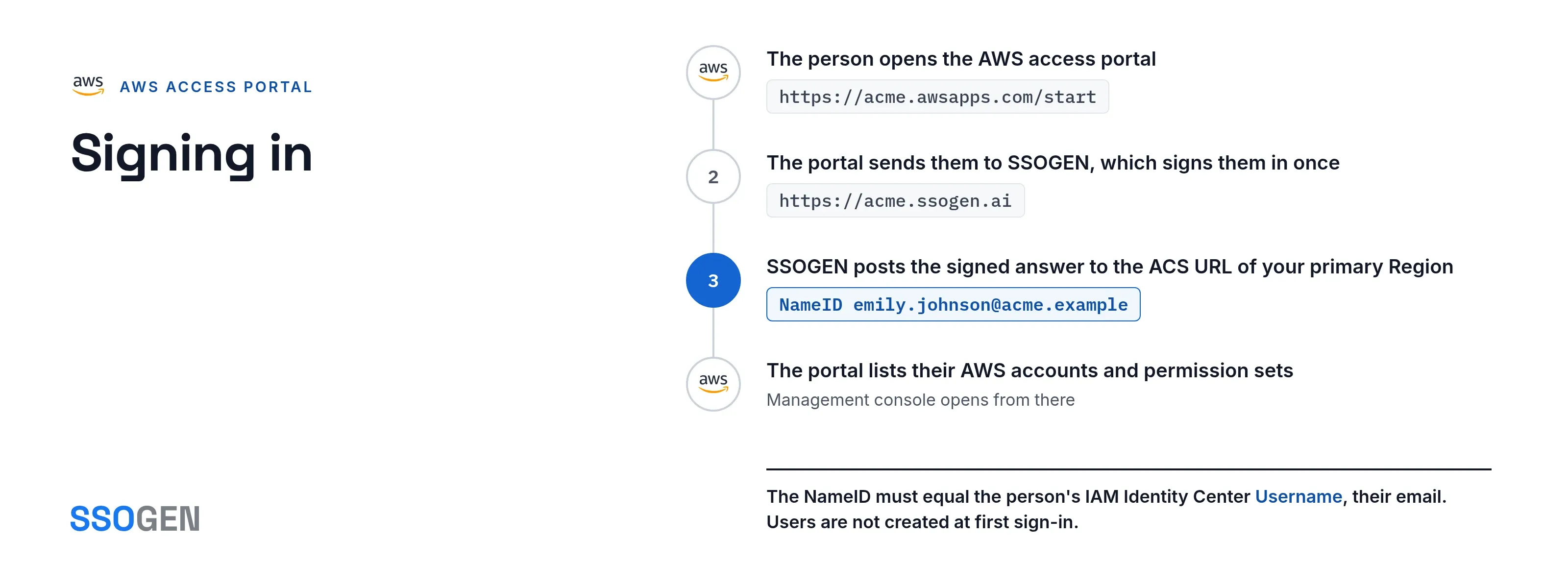
The examples use the access portal https://acme.awsapps.com/start and SSOGEN at https://acme.ssogen.ai.
What you need
- IAM Identity Center enabled as an organization instance, and an administrator of the management account (or of the delegated administrator account).
- A way into the management account that does not go through SSOGEN: the root user or an IAM user.
- A user in IAM Identity Center for every person, with Username equal to their email address in SSOGEN. Users are not created at first sign-in.
- An SSOGEN administrator who can save SAML applications (see Add a SAML application in SSOGEN).
Step 1. In SSOGEN: add AWS
- In the IAM Identity Center console open Settings, tab Identity source, Actions > Change identity source, choose External identity provider and Next. Under Service provider metadata select Download metadata file. Keep this page open.
- Follow Add a SAML application in SSOGEN with the gallery card Amazon Web Services and these values:
| SSOGEN field | Value for AWS IAM Identity Center |
|---|---|
| Metadata | Upload AWS’s metadata file. In Review what the metadata declares, choose the IPv4 ACS URL of your primary Region. |
| Service provider entity ID | IAM Identity Center issuer URL (filled from the file) |
| Assertion consumer service URL | IAM Identity Center Assertion Consumer Service (ACS) URL of your primary Region |
| Identify the person by | email — mail address |
| Launch URL (https) | Your AWS access portal URL, for example https://acme.awsapps.com/start |
Assign the person who will run the first sign-in, then select Download metadata on the Integration tab to save ssogen-idp-metadata.xml.
Step 2. In AWS
- Back on Configure external identity provider, under Identity provider metadata > IdP SAML metadata, select Choose file and pick
ssogen-idp-metadata.xml. Select Next. - Read the review, type ACCEPT and select Change identity source. From now on the access portal sends everyone to SSOGEN.
- If you do not provision users automatically, create them: Users > Add user, with Username equal to the person’s email address, for example
emily.johnson@acme.example. The username cannot be changed later. - Give access: under Multi-account permissions > AWS accounts, select an account, Assign users or groups, choose the user or group and a permission set, and Submit.
When SSOGEN’s signing certificate changes, add the new one before the old one ends: Settings > Identity source > Actions > Manage authentication, Manage SAML 2.0 certificates > Import certificate. Both are trusted until you delete the old one.
Step 3. People and a sign-in test
- Assign the people or groups who use AWS on the application’s Assignments tab in SSOGEN.
- Run the Test for one person and check that NameID equals their IAM Identity Center username.
- In a private browser window open the access portal URL. The browser goes to SSOGEN and returns to the portal, which lists the assigned accounts; Management console opens the console.
The root user and IAM users of the management account keep their normal console sign-in, and can switch the identity source back if needed.
Signing in
People select Amazon Web Services in My Apps, or open the access portal URL. They see SSOGEN’s sign-in page only if they have no SSOGEN session yet, then the portal with their accounts and permission sets.
Troubleshooting
| What you see | Cause |
|---|---|
| AWS: “An unexpected error has occurred” | The name ID is not an email address, does not exactly equal an IAM Identity Center Username, or the user was never created. |
| AWS: “It’s not you, it is us” | The certificate stored in AWS is not SSOGEN’s current one, or the device clock is wrong. |
| SSOGEN: “The authentication request could not be read, or was not valid.” | The portal asked for an ACS URL other than the one registered in SSOGEN. AWS says instances enabled before February 2026 use the alternative address on signin.aws.amazon.com for sign-in to the primary Region; register that one. |
| AWS: “Invalid MFA credentials” | The person signed in before their user was created in IAM Identity Center. |