SSOGEN / Single sign-on for Box with SSOGEN
SSOGEN
Single sign-on for Box with SSOGEN
Box takes SSOGEN as the SAML provider of your enterprise once its support team applies the metadata you send, and people match on their login email.
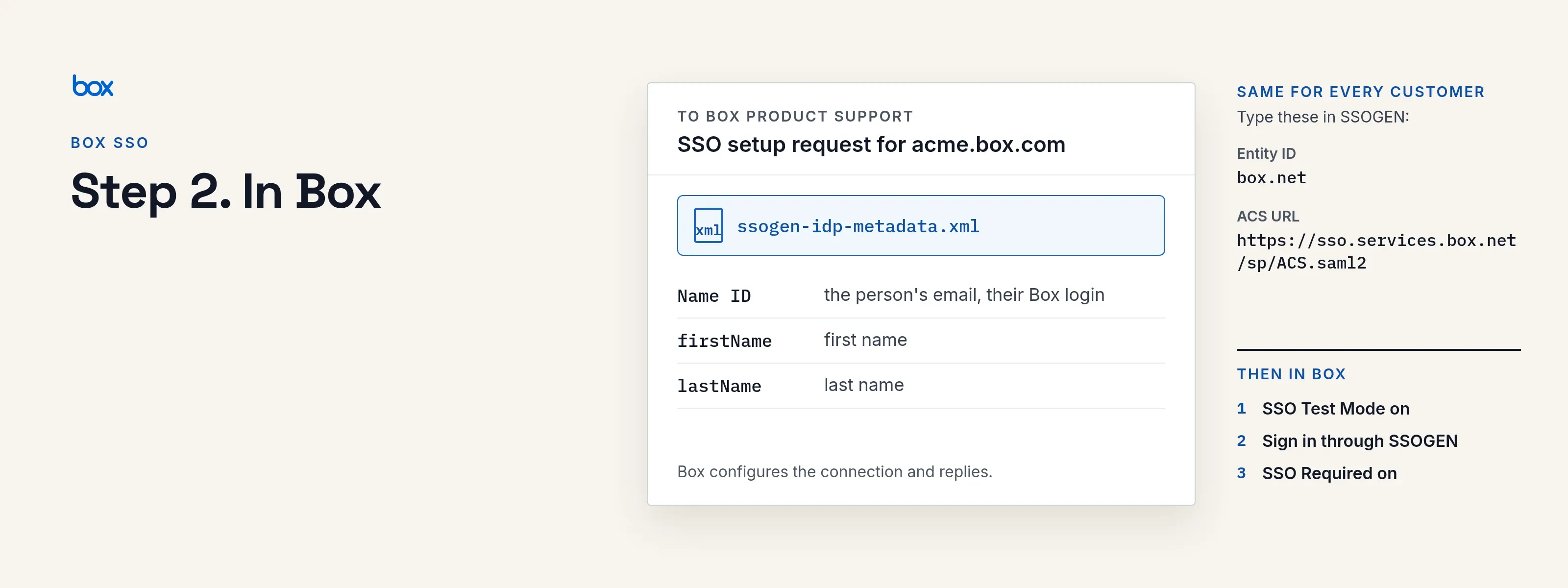
Box connects an identity provider that is not on its own list through its support team: you send SSOGEN’s metadata and attribute names on Box’s SSO setup request form, and Box configures the connection. The examples use the company address https://acme.box.com and SSOGEN at https://acme.ssogen.ai.
What you need
- Box Business or Enterprise, and the primary admin (or a co-admin who may view and edit settings and integrations for the company).
- Every person as a managed Box user whose login email equals their email in SSOGEN.
- Box multi-factor authentication set up for the admin: turning SSO Required on or off asks for it. The admin’s Box password, for test mode.
- An SSOGEN administrator who can save SAML applications (see Add a SAML application in SSOGEN).
Step 1. In SSOGEN: add Box
Follow Add a SAML application in SSOGEN with the gallery card Box and these values:
| SSOGEN field | Value for Box |
|---|---|
| Service provider entity ID | box.net |
| Assertion consumer service URL | https://sso.services.box.net/sp/ACS.saml2 |
| Identify the person by | email — mail address |
| Launch URL (https) | https://acme.box.com |
Add these attributes:
| Attribute name | SSOGEN value |
|---|---|
firstName |
given_name |
lastName |
family_name |
Box uses the same two values for every customer. Assign the person who will run the first sign-in, then select Download metadata on the Integration tab to save ssogen-idp-metadata.xml.
Step 2. In Box
- Open Box’s SSO setup request form (linked from Box’s article on setting up single sign-on for your organization). Attach
ssogen-idp-metadata.xmland give the attribute names: the email is the name ID,firstNameholds the first name andlastNamethe last name. Box Product Support configures the connection and replies. - When Box confirms, open Admin Console > Enterprise Settings > User Settings. In the section Enable Single Sign-On (SSO) for All Users, turn on SSO Test Mode. In test mode, people can sign in through SSOGEN or with their Box password.
- Test (step 3).
- Turn off SSO Test Mode and turn on SSO Required. In Enable SSO Required select both boxes, click Enable for All Users and complete Box’s multi-factor prompt.
When SSOGEN’s signing certificate changes, add the new one under Configure Single Sign-On (SSO) for All Users with Select File and Add and Activate before the old one ends; Box holds two at a time.
Step 3. People and a sign-in test
- Assign the people or groups who use Box on the application’s Assignments tab in SSOGEN.
- In a private browser window open
https://acme.box.com, click Continue, and sign in at SSOGEN. The person’s Box files open. - Only after this works, turn on SSO Required (step 2, point 4).
While test mode is on, an admin can always sign in at https://account.box.com with the Box email and password. With SSO Required on there is no self-service way around SSO; rotate the certificate before it ends.
Signing in
People select Box in My Apps, or open https://acme.box.com and click Continue. They see SSOGEN’s sign-in page only if they have no SSOGEN session yet, then their Box files. Box Drive signs in the same way.
Troubleshooting
| What you see | Cause |
|---|---|
| “Invalid login credentials” after signing in at SSOGEN | The email SSOGEN sent is not the login of a managed user of your enterprise. Compare SSOGEN’s NameID on the Test tab with the user’s login in the Admin Console. |
| “Invalid login credentials” for everyone | SSO is not turned on under Enable Single Sign-On (SSO) for All Users. |
| An error in Configure Single Sign-On (SSO) for All Users | Box’s self-service setup does not take this identity provider. Use the SSO setup request form (step 2). |
| Sign-in fails for everyone from one day on | SSOGEN’s signing certificate changed or ended and Box holds the old one. |
Related guides
- Box SSO With SSOGEN: what Box asks of an identity provider and the three rollout stages
- Add a SAML application in SSOGEN
- Single sign-on for Datadog with SSOGEN
- SAML single sign-on for GitHub Enterprise Cloud with SSOGEN