SSOGEN / Single sign-on for Datadog with SSOGEN
SSOGEN
Single sign-on for Datadog with SSOGEN
Load SSOGEN's metadata file into Datadog's SAML block and your organization's Single Sign-on URL lands people in Datadog, matched on email.
The examples use the US1 site https://app.datadoghq.com and SSOGEN at https://acme.ssogen.ai. On another Datadog site, or with a custom subdomain, use that host instead.
What you need
- A Datadog administrator (Datadog Admin Role, or the Org Management permission) who can still sign in with a password.
- SAML switched on for your Datadog account. If the SAML block is missing under Login Methods, ask Datadog support to turn it on.
- Every person’s email in SSOGEN equal to their Datadog username.
- An SSOGEN administrator who can save SAML applications (see Add a SAML application in SSOGEN).
Step 1. In SSOGEN: add Datadog
- In Datadog, signed in, download the service provider metadata from
https://app.datadoghq.com/account/saml/metadata.xml. - Follow Add a SAML application in SSOGEN with the gallery card Datadog and these values:
| SSOGEN field | Value for Datadog |
|---|---|
| Metadata | Upload Datadog’s metadata file, or type the Service Provider Entity ID and Assertion Consumer Service URL shown on Datadog’s SAML configuration page |
| Identify the person by | email — mail address |
| Launch URL (https) | https://app.datadoghq.com for now; the Single Sign-on URL after step 2 |
Do not use the IdP-initiated address that ends in /id/ followed by your company ID: the SSOGEN tile opens Datadog, which then asks SSOGEN. Assign the person who will run the first sign-in, then select Download metadata on the Integration tab to save ssogen-idp-metadata.xml.
Step 2. In Datadog
- Hover over your user name at the bottom left, select Organization Settings, then Login Methods. Under SAML click Configure.
- Click Add SAML. Type
SSOGENas the name people will see, uploadssogen-idp-metadata.xmlwith browse files, and click Save. - Leave Identity Provider (IdP) Initiated Login under Additional Features clear.
- Back on Login Methods, check that Enabled by Default is On for SAML.
- On the SAML configuration page, copy the Single Sign-on URL from the status box at the top. In SSOGEN, set it as the launch URL on the application’s Sign-in / launch tab.
- Protect one administrator before any enforcement: Organization Settings > Users, Edit on your own line, switch on Override Default Login Methods, tick Password and Save.
When the test in step 3 works, enforce SAML: on Login Methods set Enabled by Default to Off for “Datadog Username and Password” and for “Sign in with Google”. Datadog calls this SAML strict. Users with an override keep the methods it grants.
To map SSOGEN groups to Datadog roles, send a memberOf attribute with the value groups and add role mappings under SAML Group Mappings. Create a mapping that covers the administrators first: once mappings are on, a person who matches none can no longer sign in with SAML.
Step 3. People and a sign-in test
- Assign the people or groups who use Datadog on the application’s Assignments tab in SSOGEN.
- In a private browser window open the Single Sign-on URL. The browser goes to SSOGEN and lands in Datadog as the same email address. Without a custom subdomain, Datadog also emails a one-time code.
- Test one ordinary user. With just-in-time provisioning on, the user appears under Users with the default role.
The password override of step 2 is the way back in; Datadog has no recovery code or bypass address.
Signing in
People select Datadog in My Apps, or open the Single Sign-on URL, or choose Using Single Sign-On? on Datadog’s login page and type their email. They see SSOGEN’s sign-in page only if they have no SSOGEN session yet.
Troubleshooting
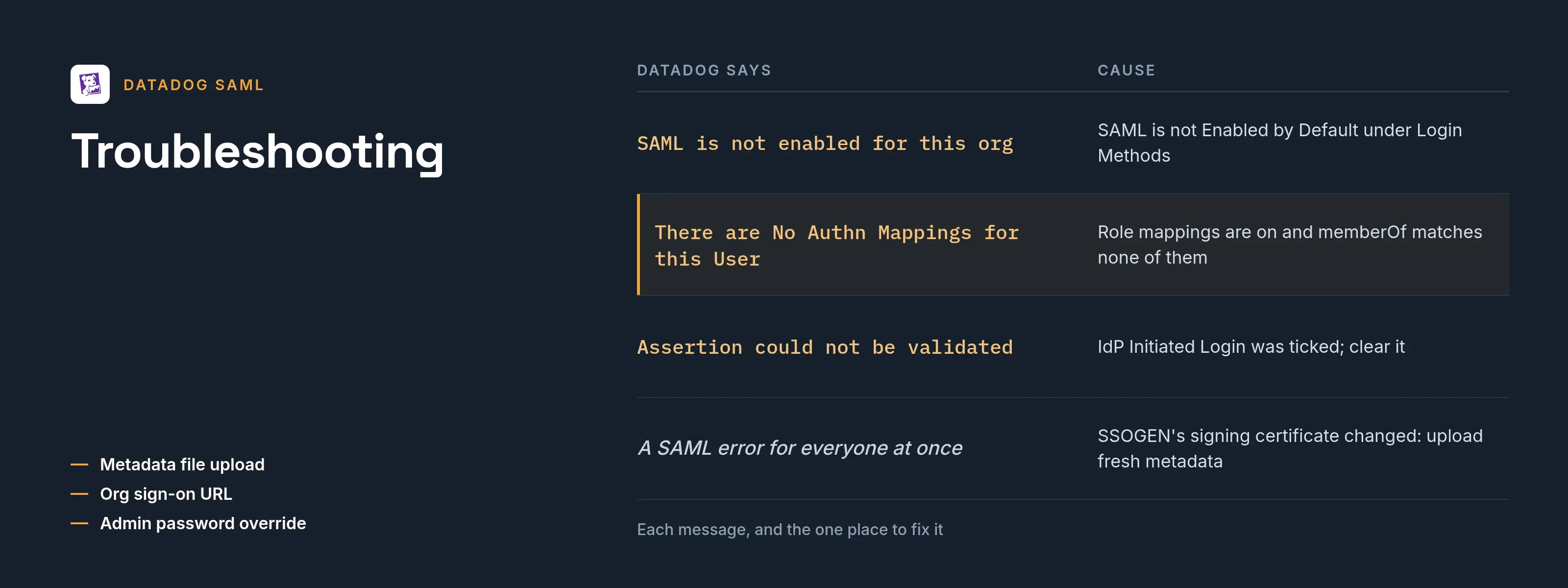
| Datadog says | Cause |
|---|---|
SAML is not enabled for this org |
SAML’s Enabled by Default is Off under Login Methods. |
Arf. Unknown User |
The email SSOGEN sent is not a Datadog username, or the user does not exist and just-in-time provisioning is off. |
There are No Authn Mappings for this User |
Role mappings are on and the memberOf values match none of them. Values are case-sensitive. |
A page saying the SAML response is missing the “InResponseTo” attribute, or Assertion could not be validated |
Identity Provider (IdP) Initiated Login was ticked and Datadog now expects the /id/ address. Clear it, or register the matching ACS URL. |
| A general SAML error for everyone at once | SSOGEN’s signing certificate changed. Upload a fresh ssogen-idp-metadata.xml. |